
This guide explains how to do Payroll Posting to on premise AutoCount Accounting.
Setting up API Maintenance
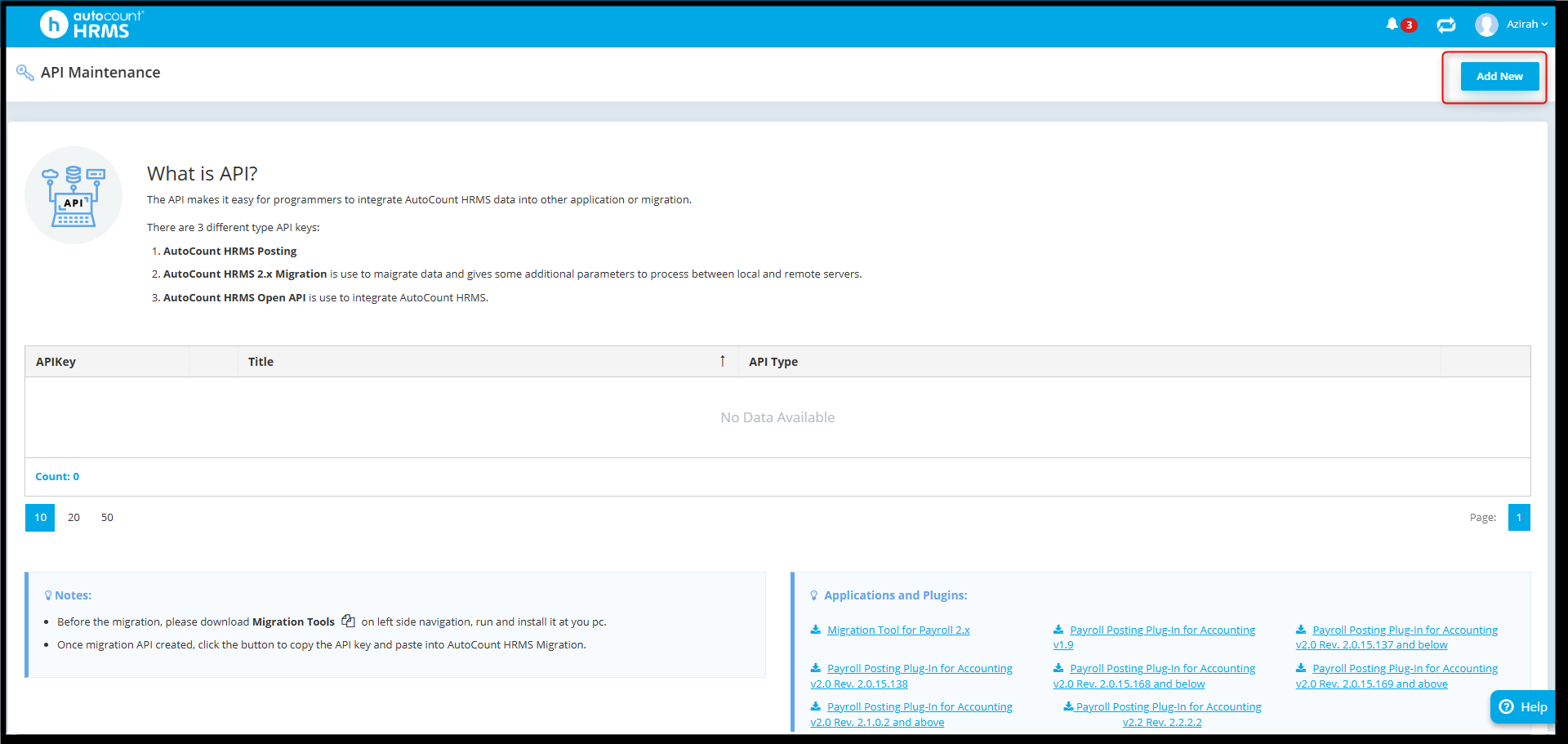
- Click Add New
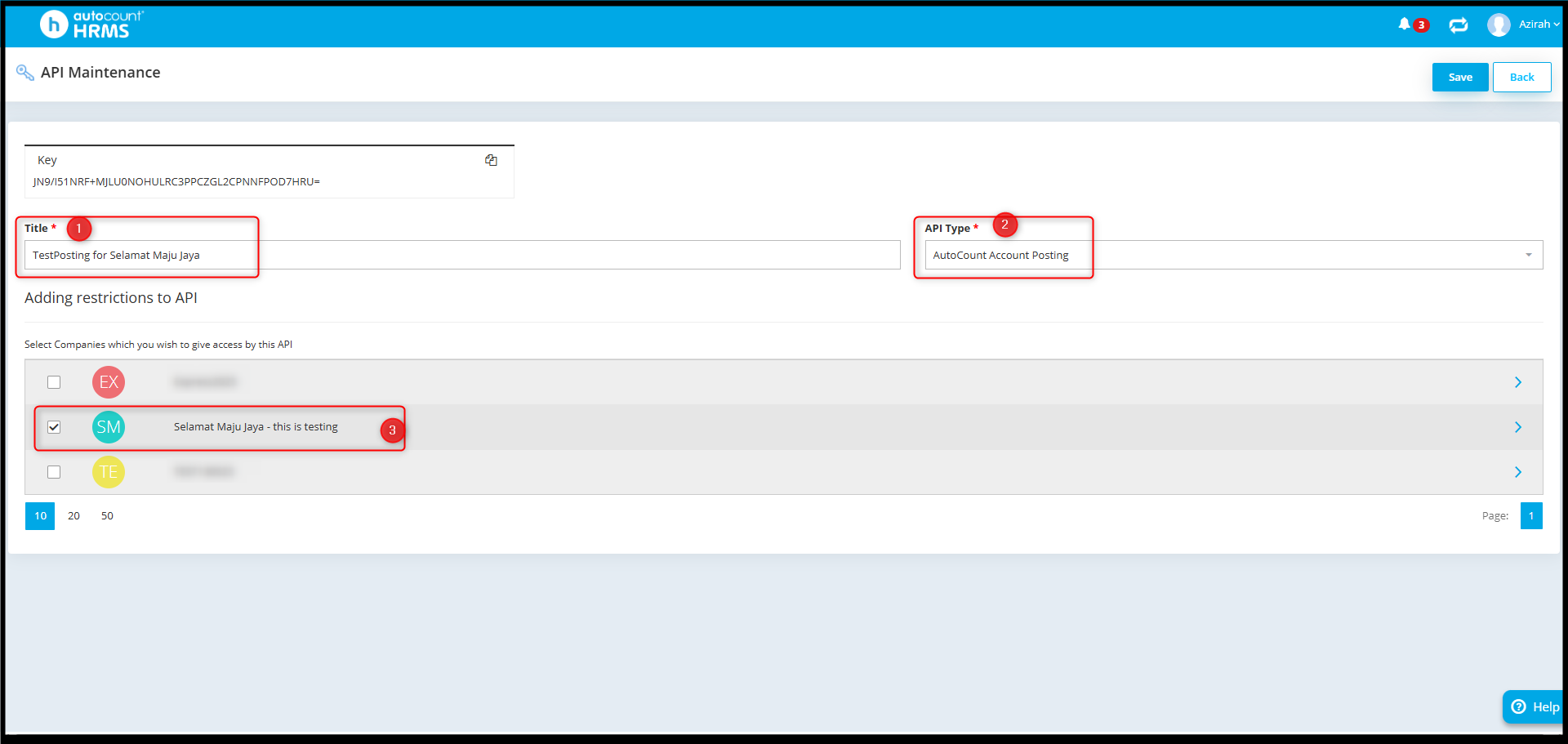
- Fill in the required fields:
- Title
- API type
- Select Company
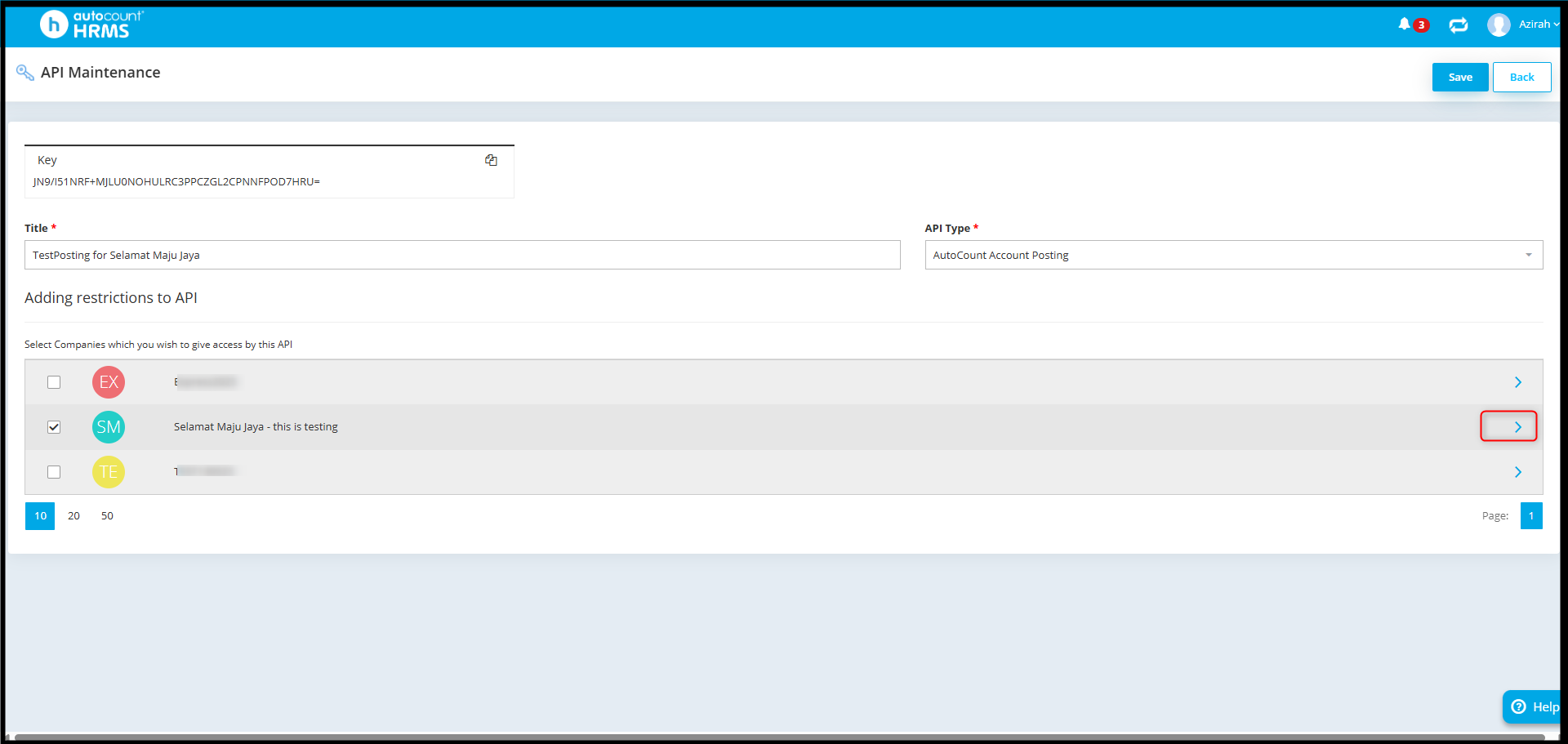
- Under Posting Options, click the dropdown arrow to view available options.
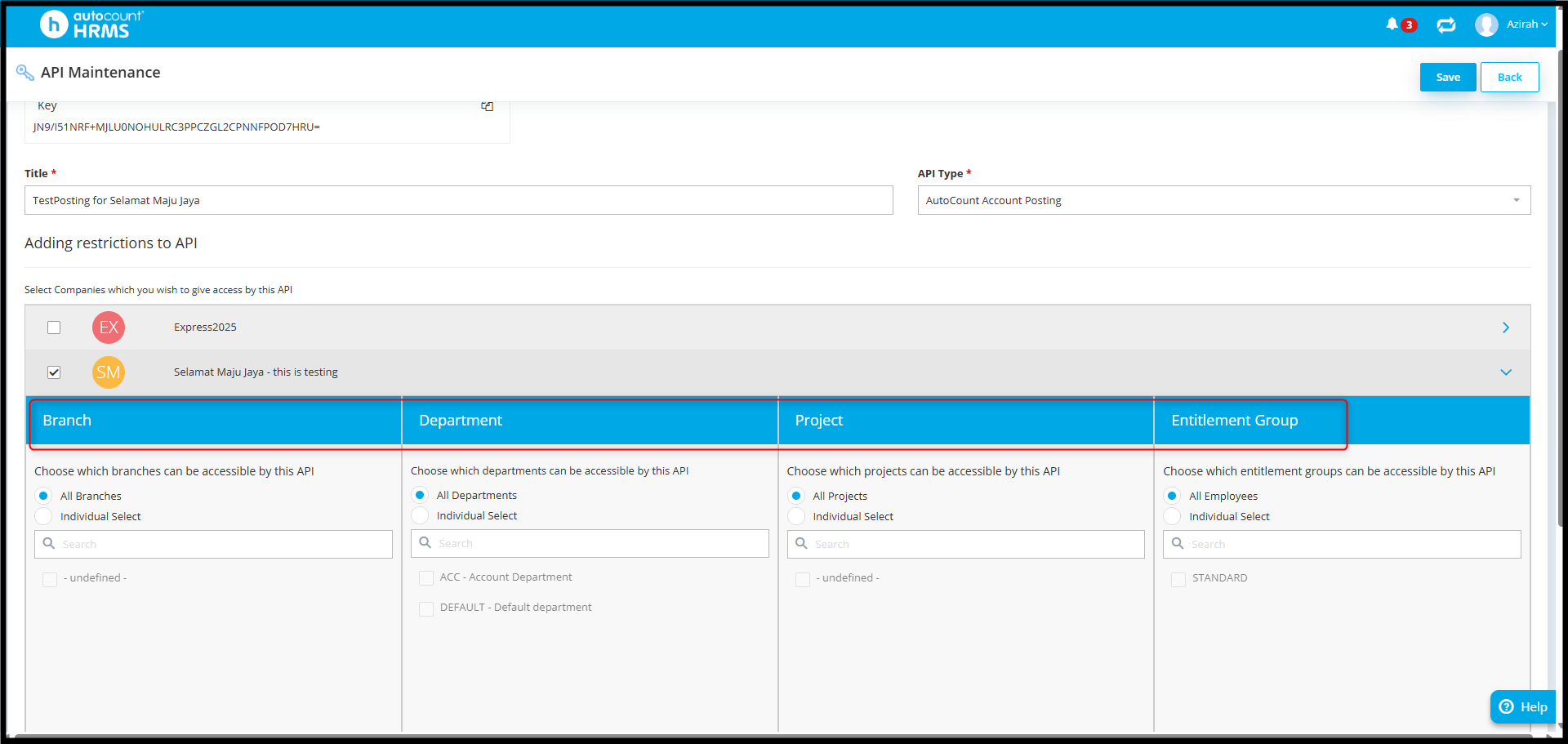
- Choose how to post by (Optional) : Branch, Department, Project or Entitlement Group.
Download Plugin
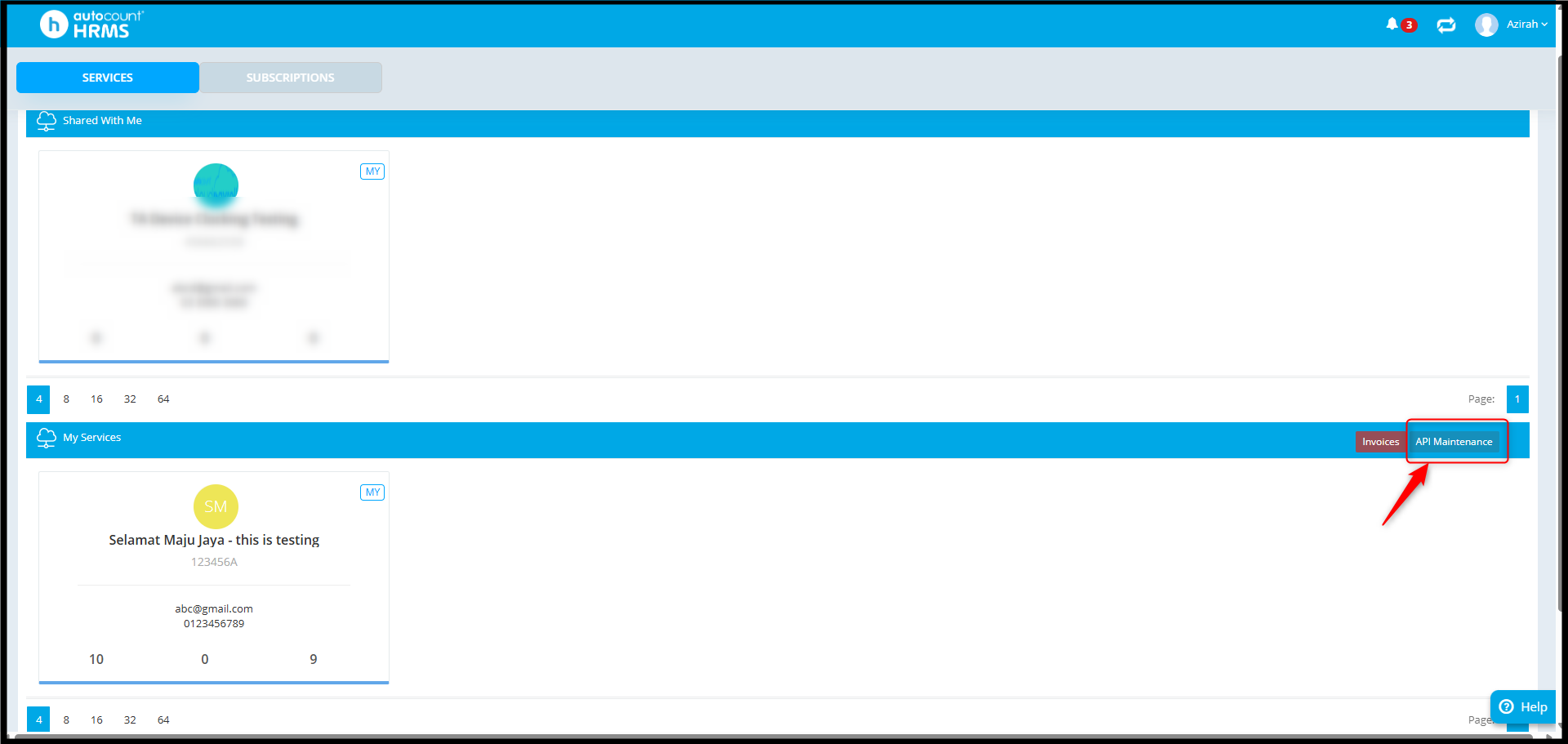
- Go to main page and click on API Maintenance.
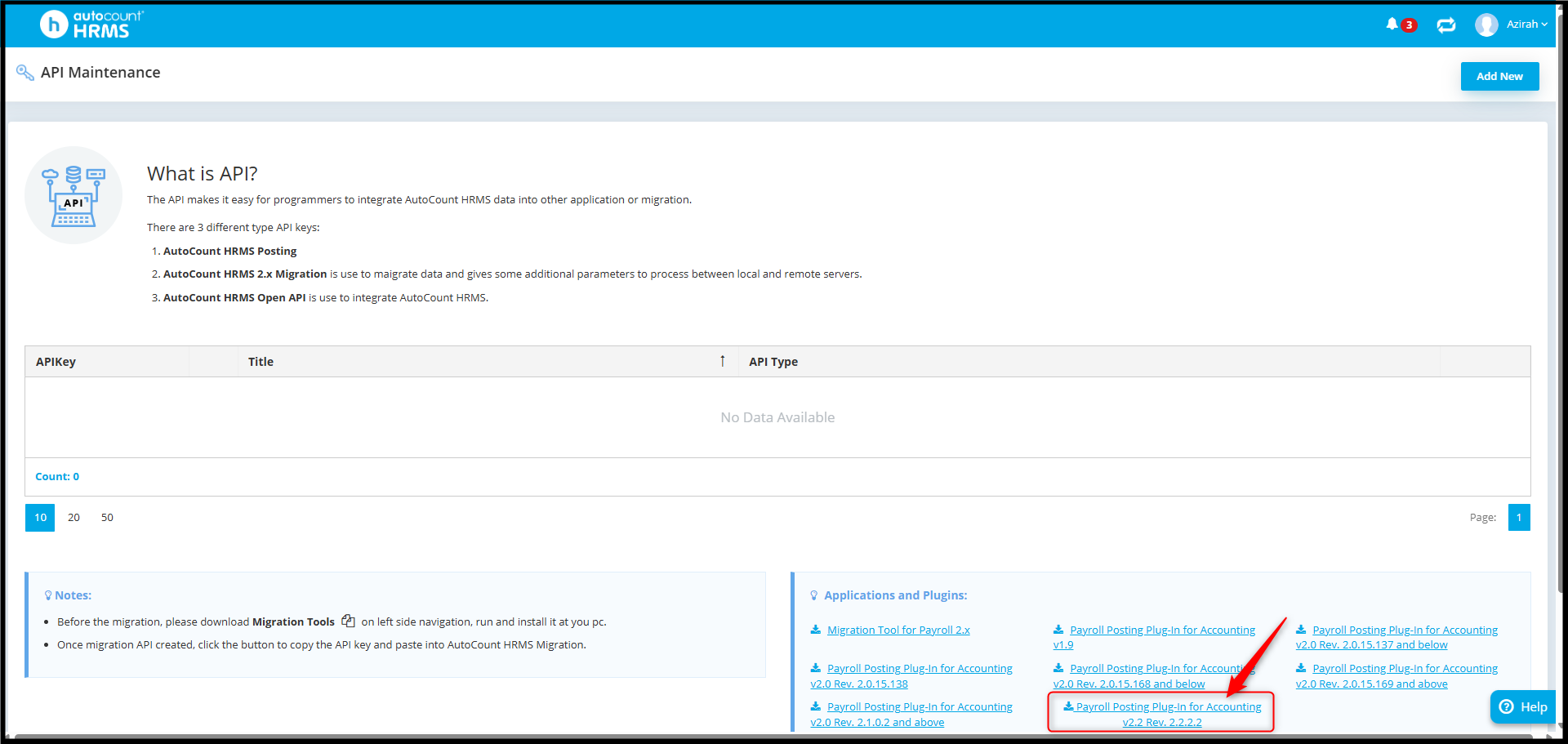
- Click to Download the plugin (choose the version based on your AutoCount Accounting version, e.g., AutoCount Accounting V2).
Install Plugin
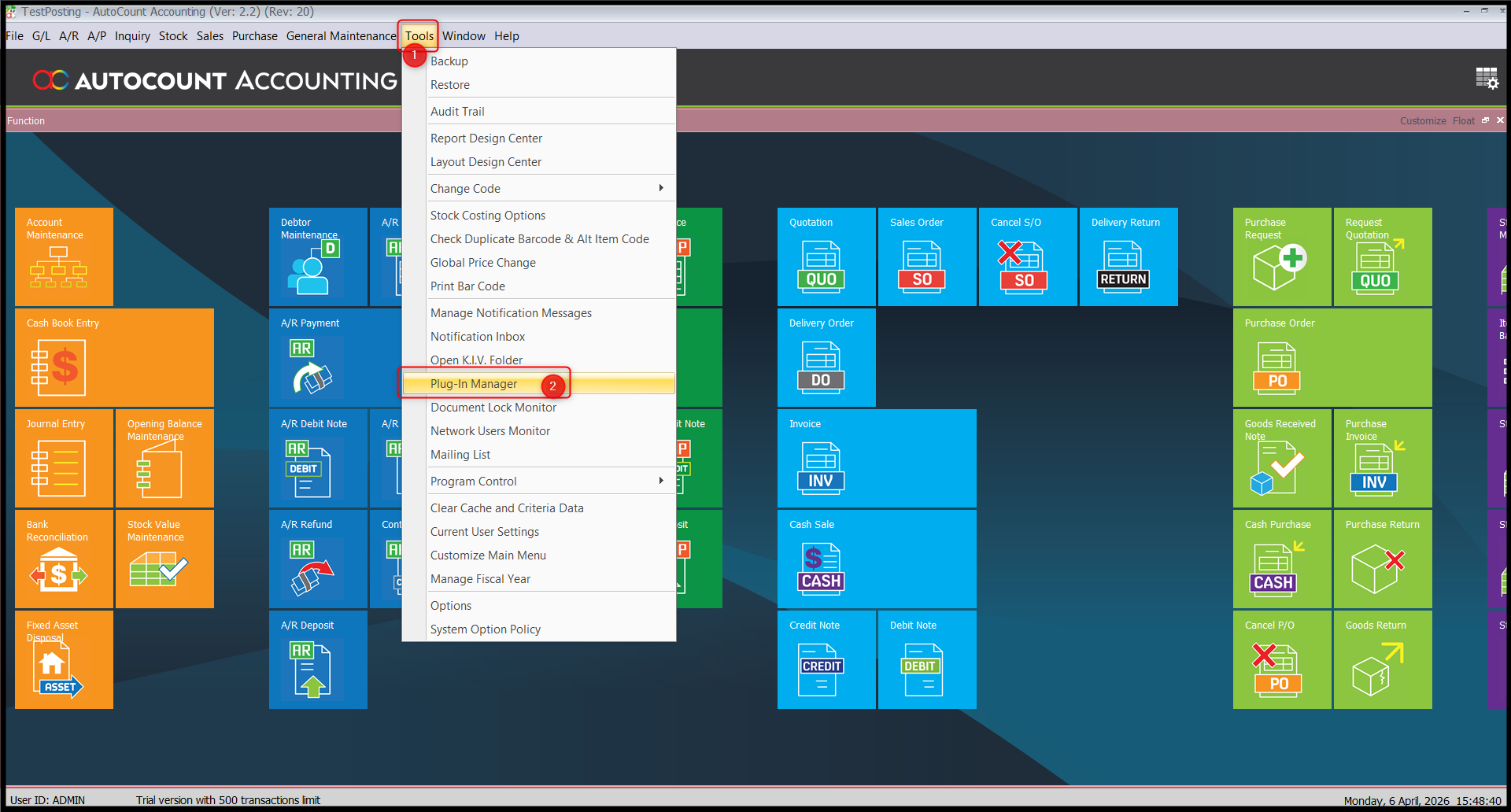
- Login to AutoCount Accounting on premise.
- Go to Tools > Plugin Manager
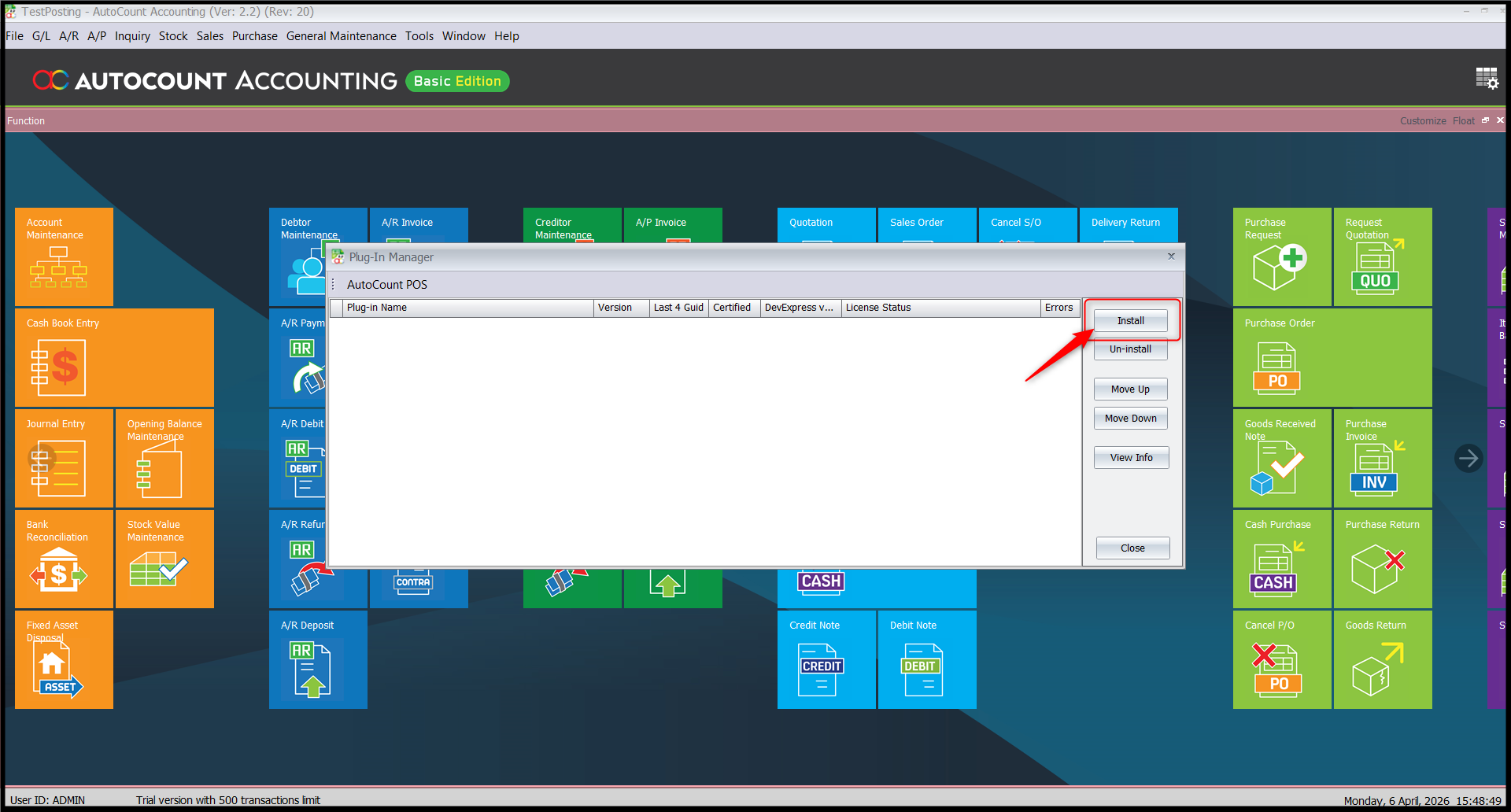
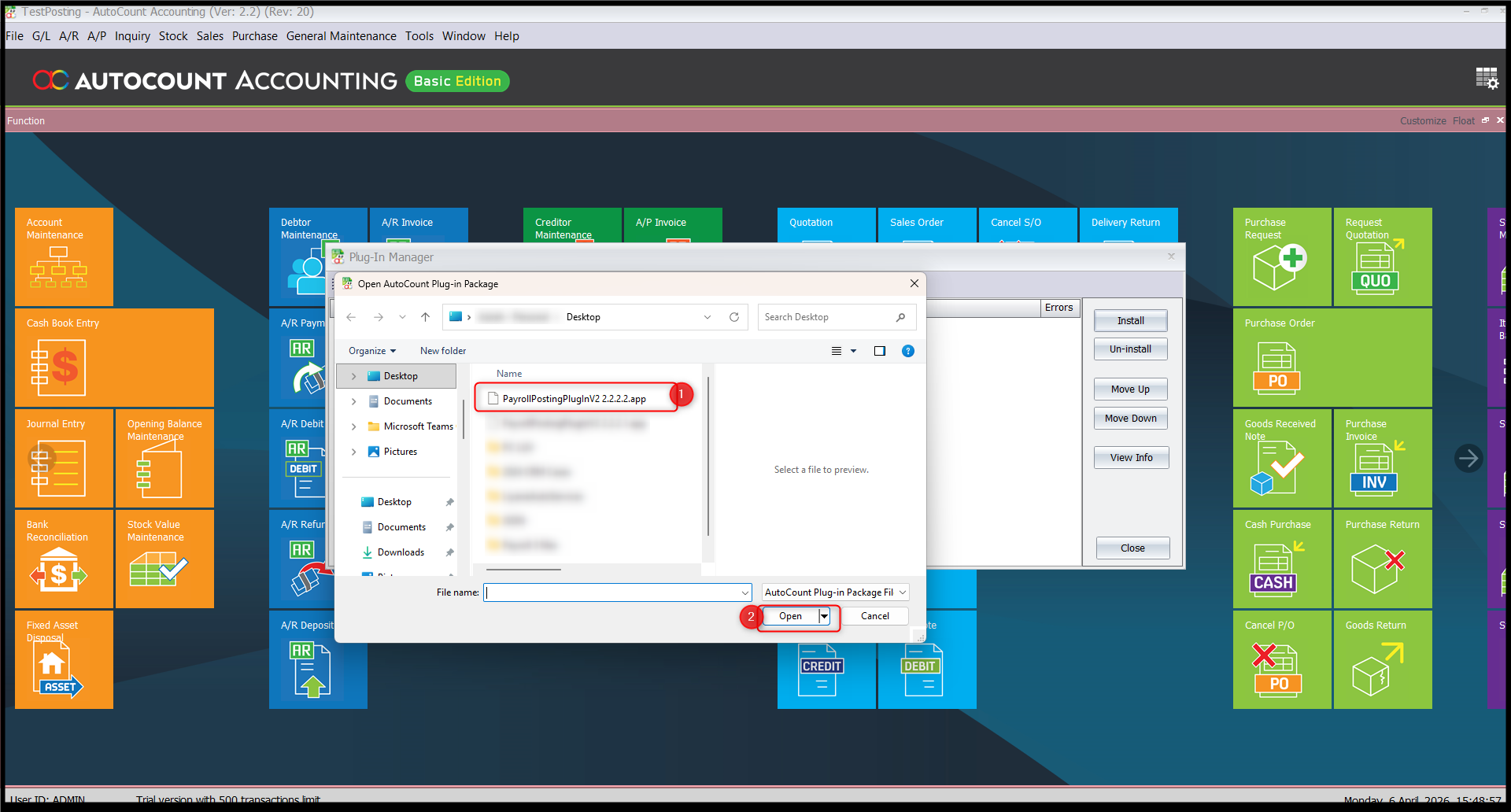
- Click Install.
- Select the downloaded plugin file and click Open.
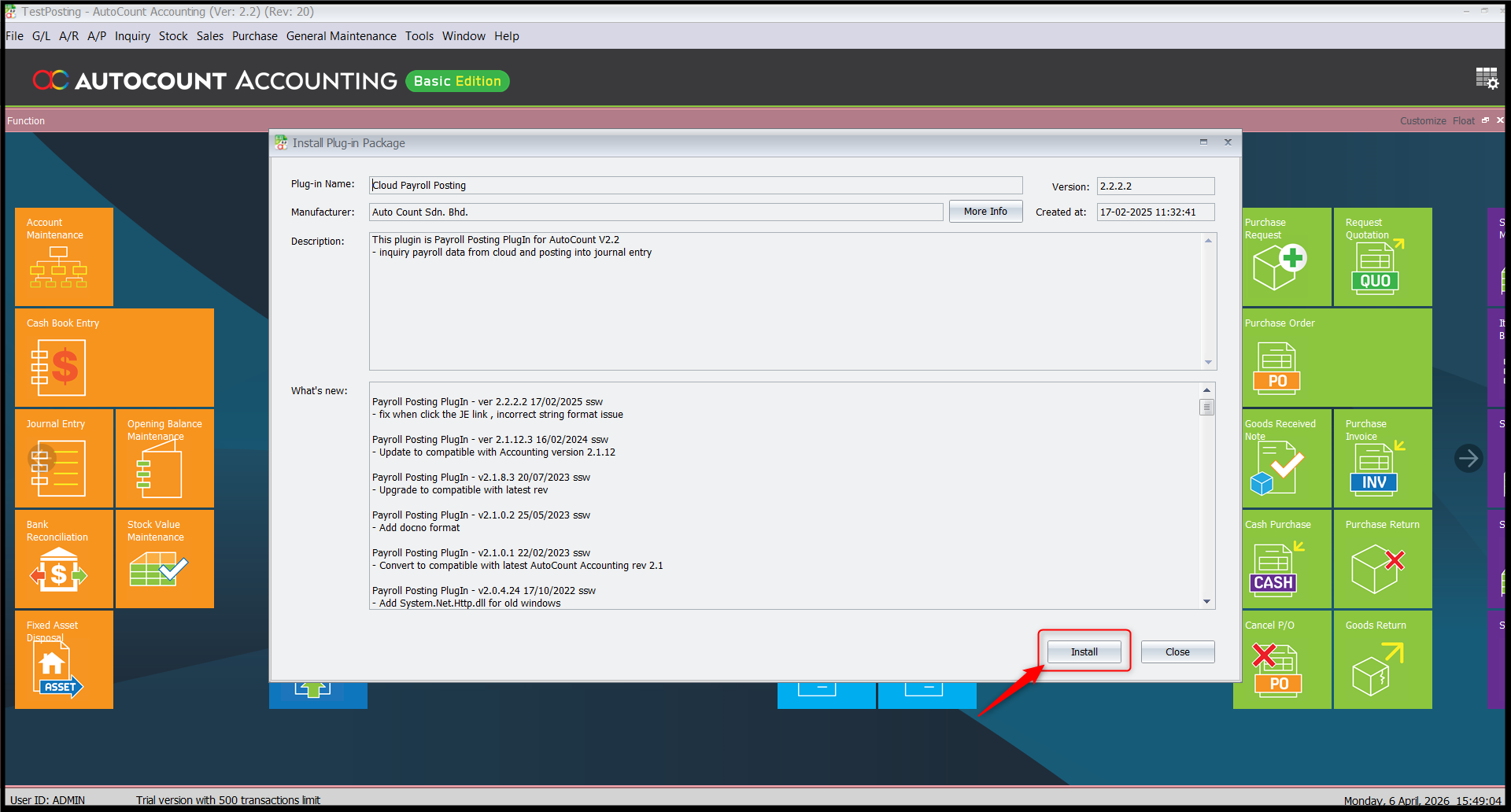
- Click Install.
- A confirmation message will appear: "Plugin "Cloud Payroll Posting" is installed successfully."
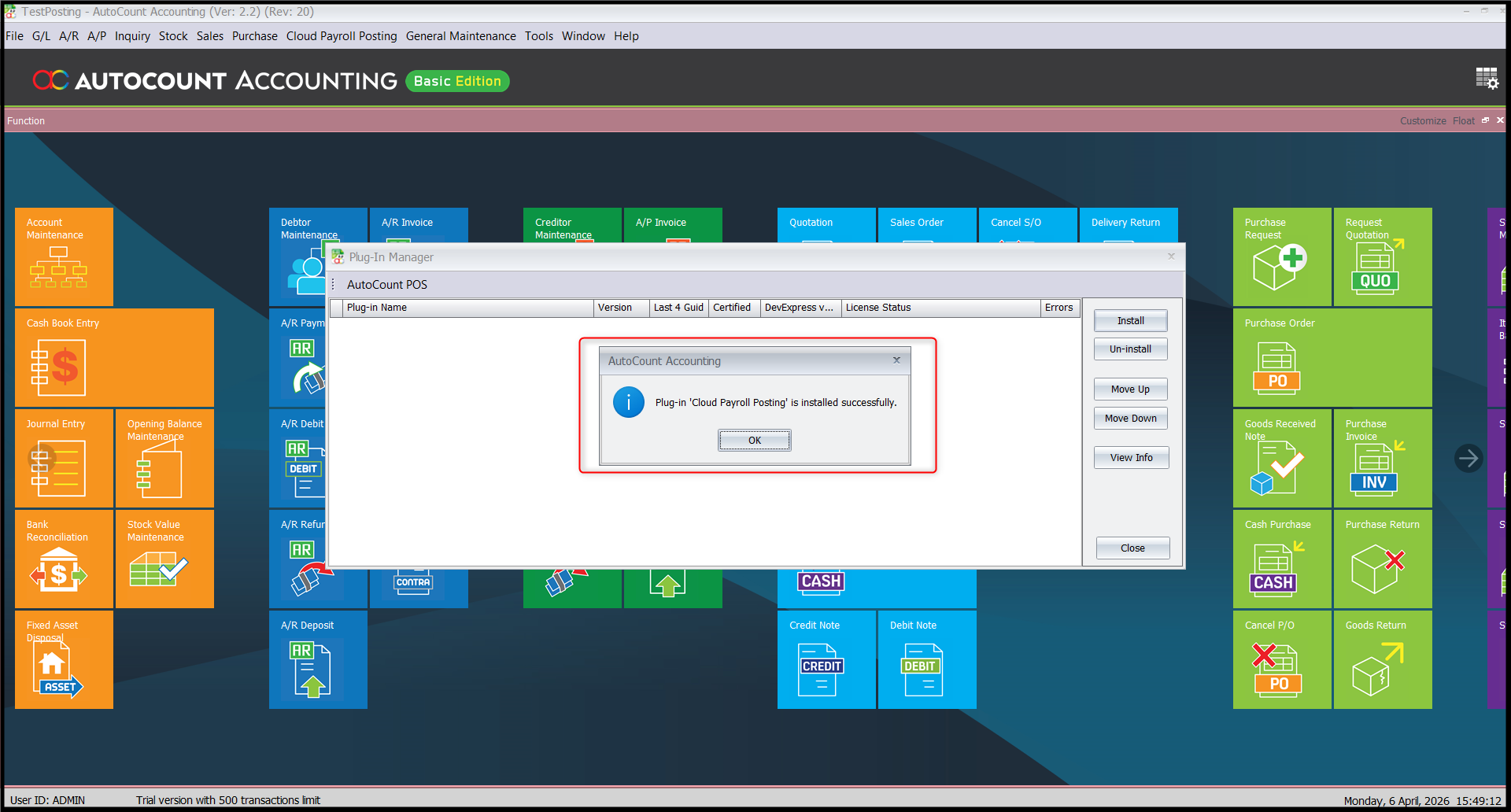
- Verify that Cloud Payroll Posting is listed in the Plugin Manager.
Access Right Setup
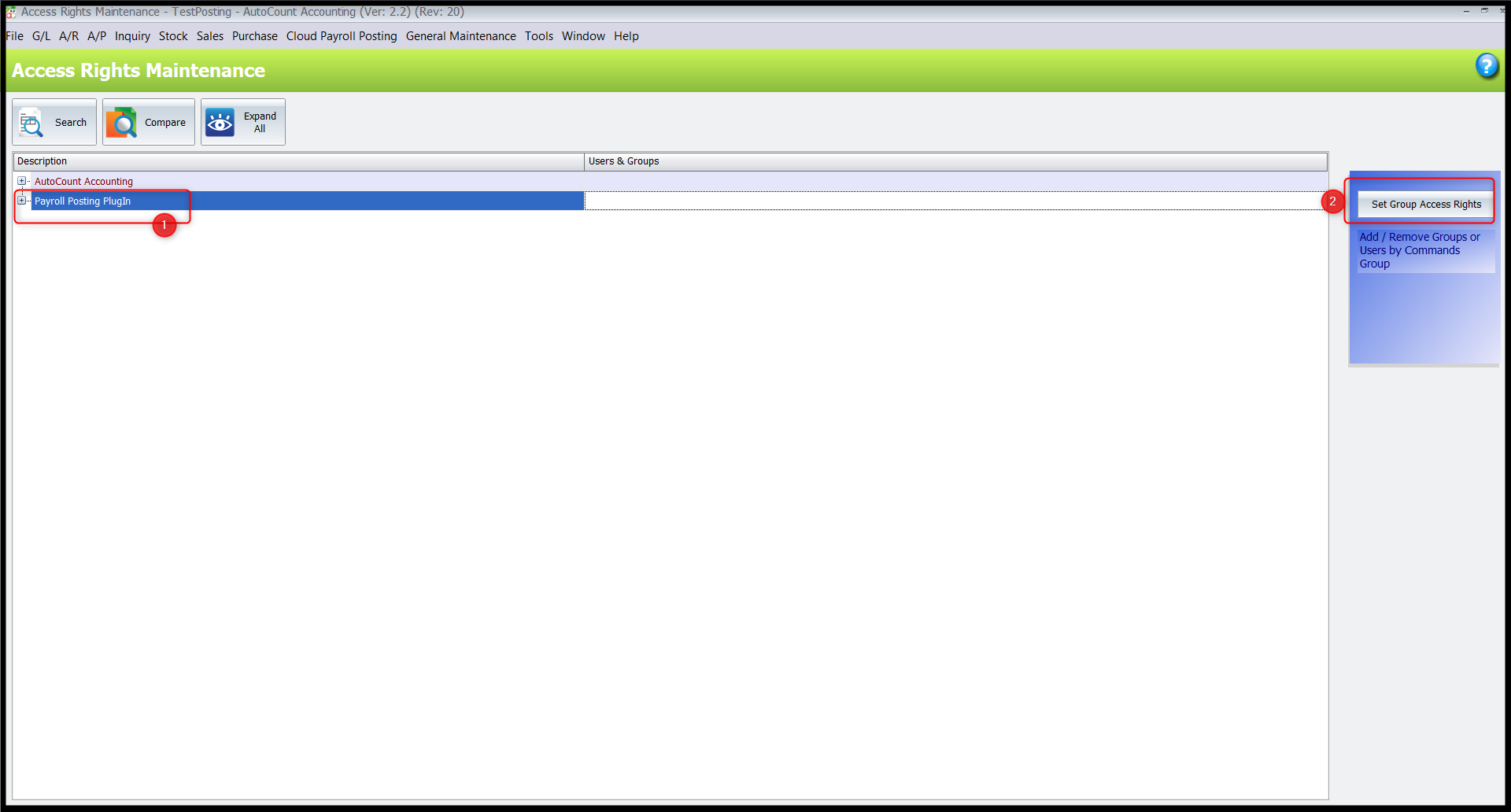
- For first time installation, configure access rights: Go to General Maintenance > Access Right Maintenance.
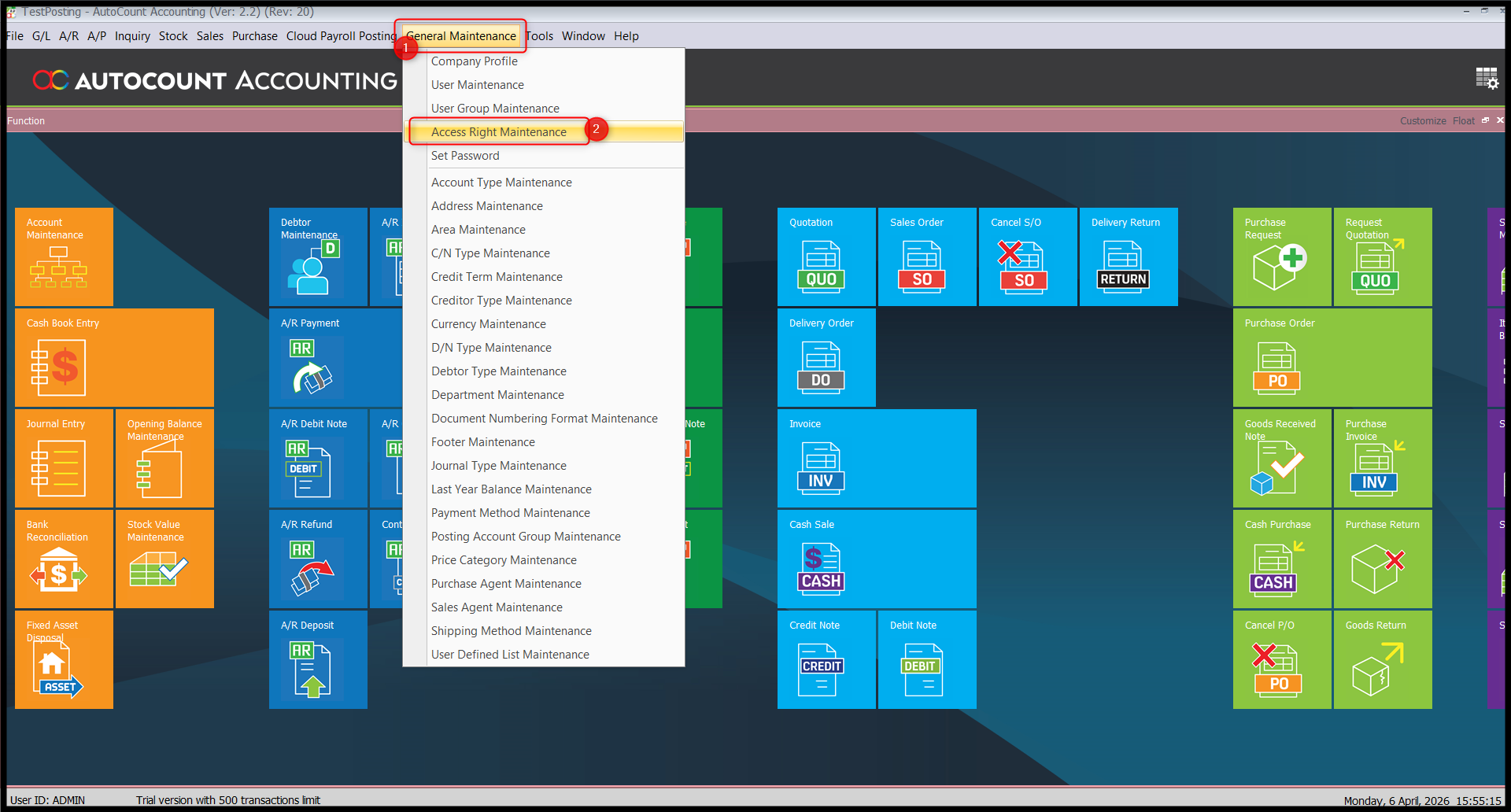
- Select Payroll Posting Plugin, then click Set Group Access Rights.
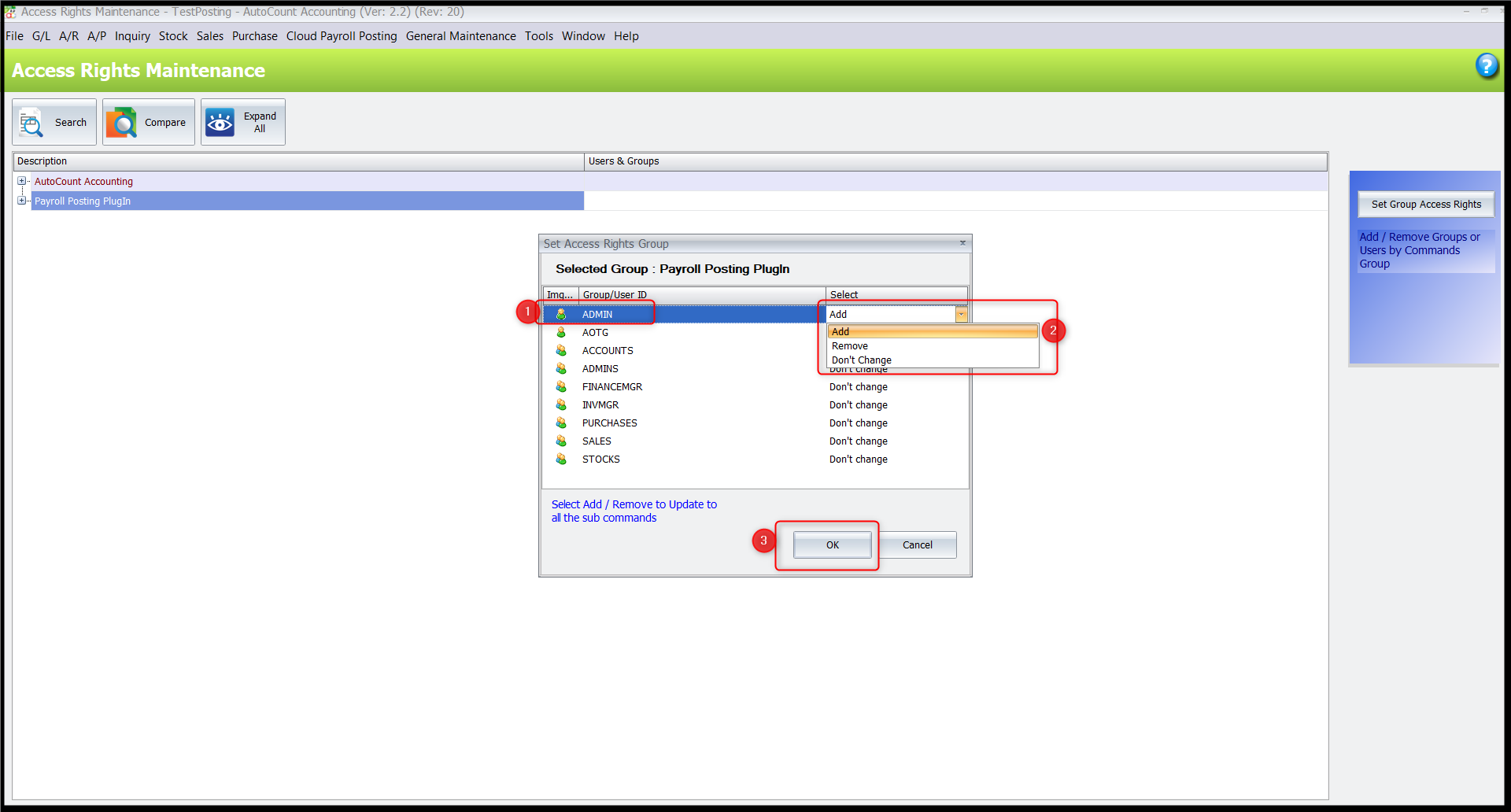
- Choose the appropriate user group(s), click Add then click OK.
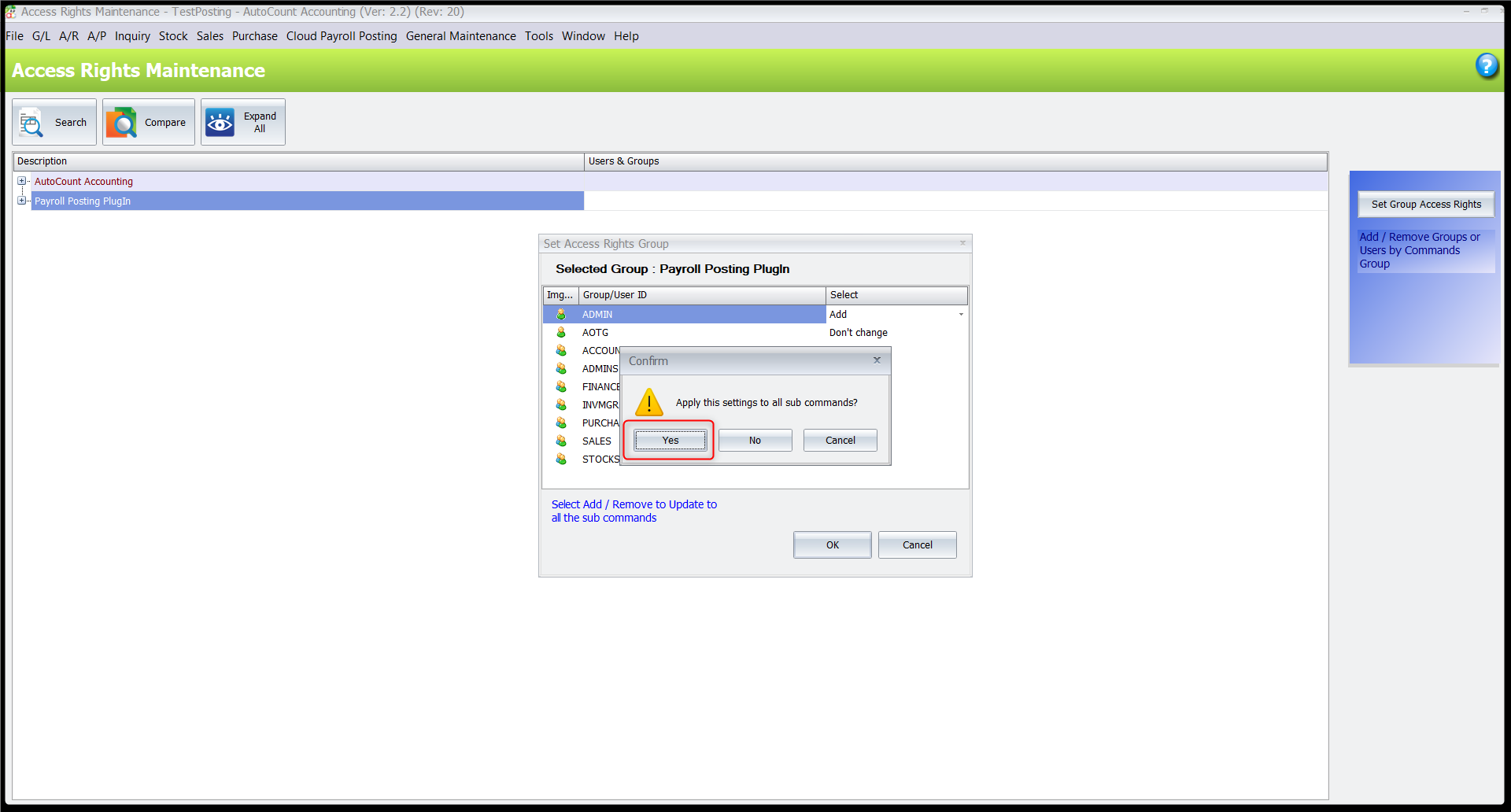
- Click Yes to apply the settings to all sub commands.
Setting up Template Maintenance
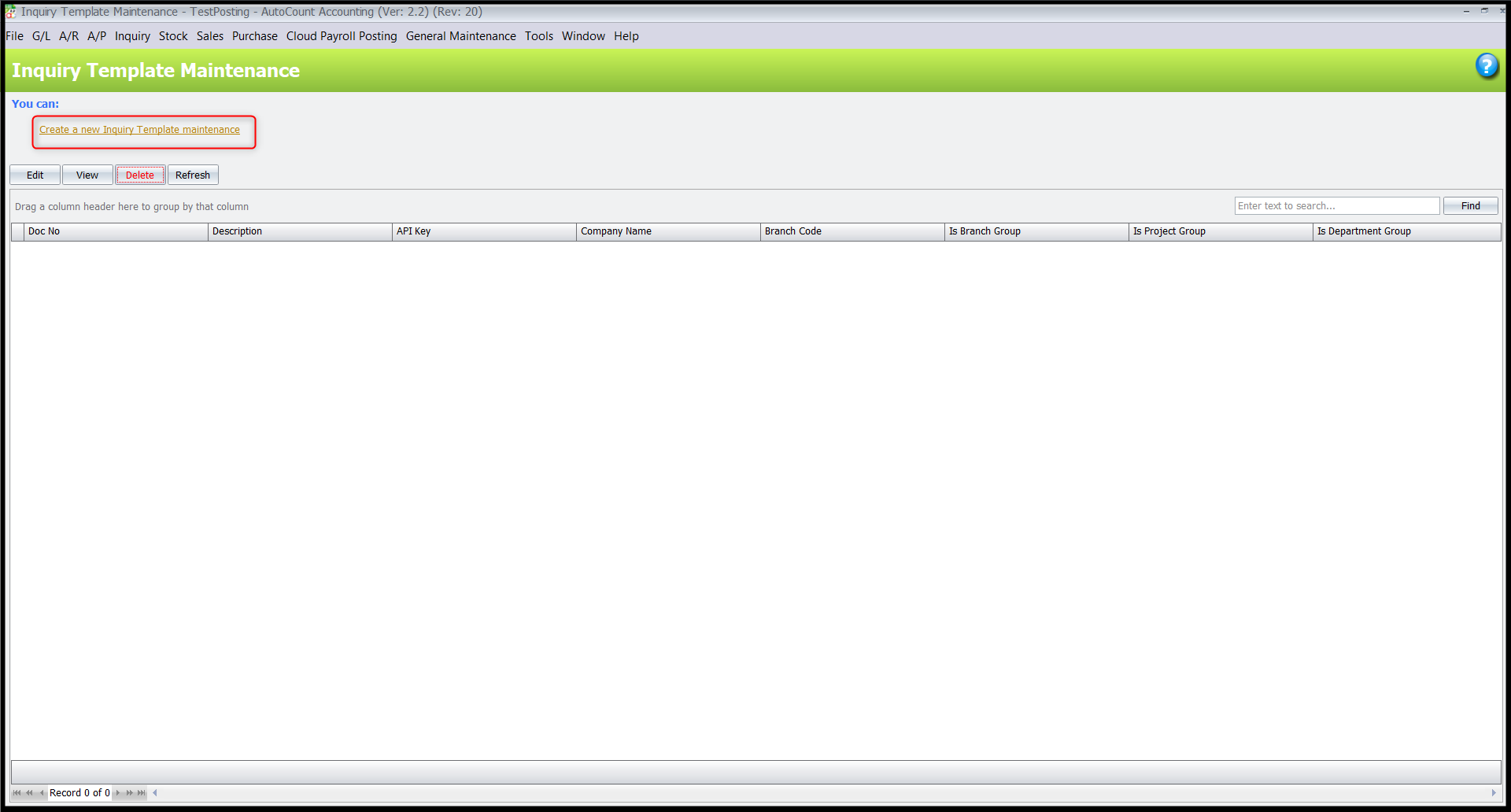
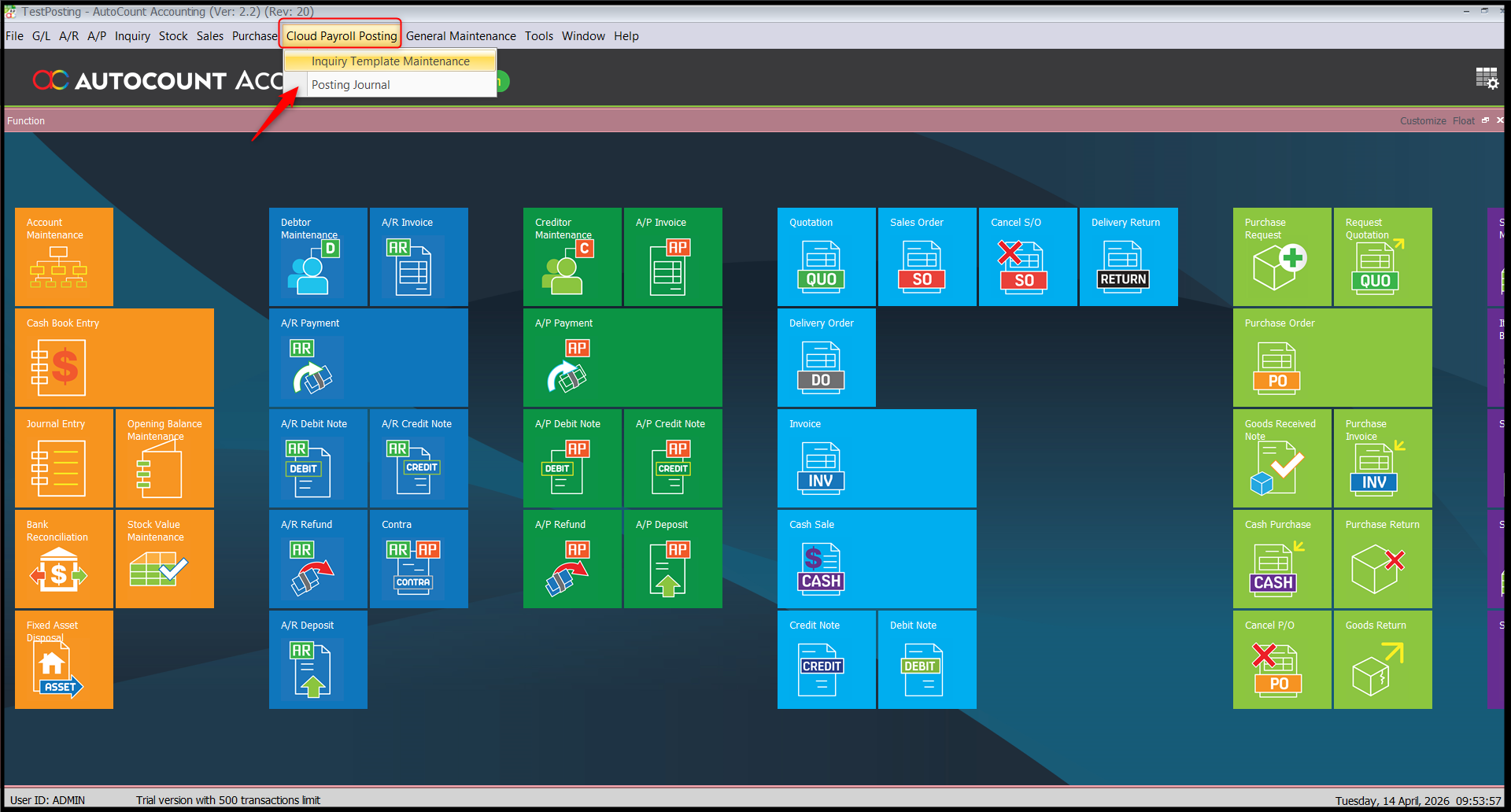
- Go to Cloud Payroll Posting > Inquiry Template Maintenance.
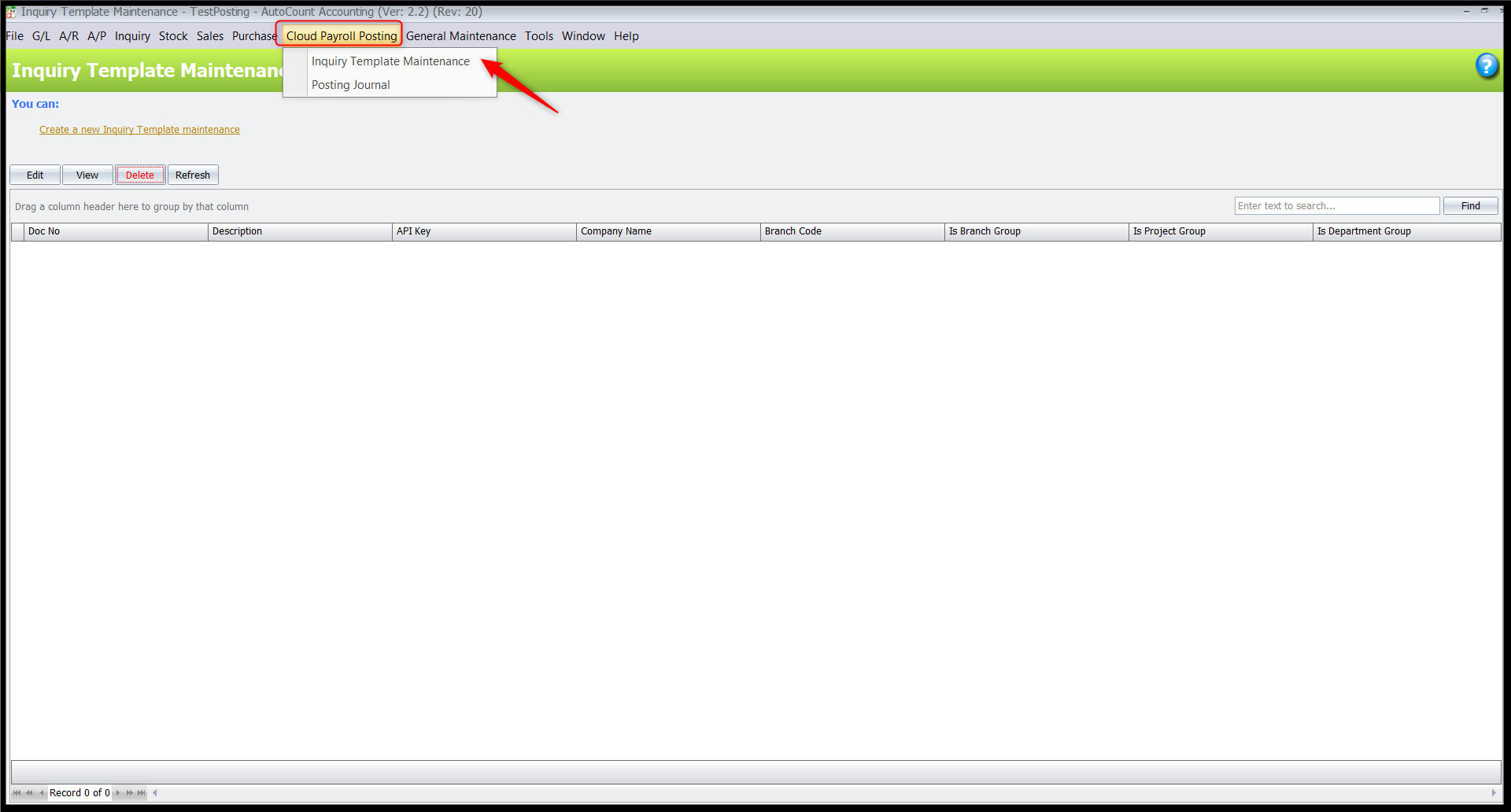
- Click Create New Inquiry Template.
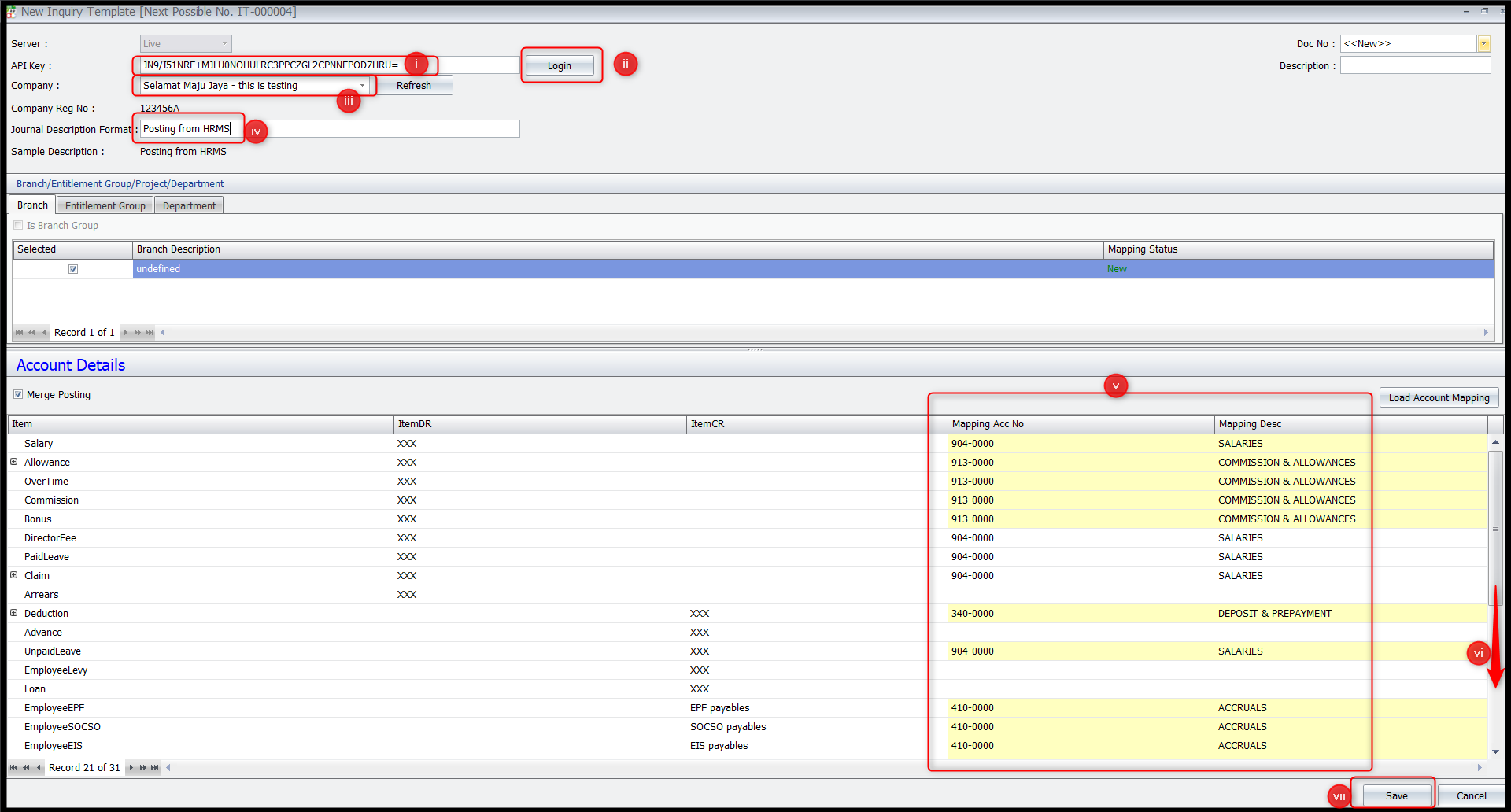
- Complete the following fields:
- API Key (retrieve from HRMS API Maintenance)
- Click Login to retrieve company details
- Select Company
- Journal Description Format
- Accounting Mapping (ensure all required mapping are selected)
- Make sure scroll to the bottom page
- Click Save once done.
Posting Journal
Once all settings are completed, proceed with journal posting:
- Go to Cloud Payroll Posting > Posting Journal.
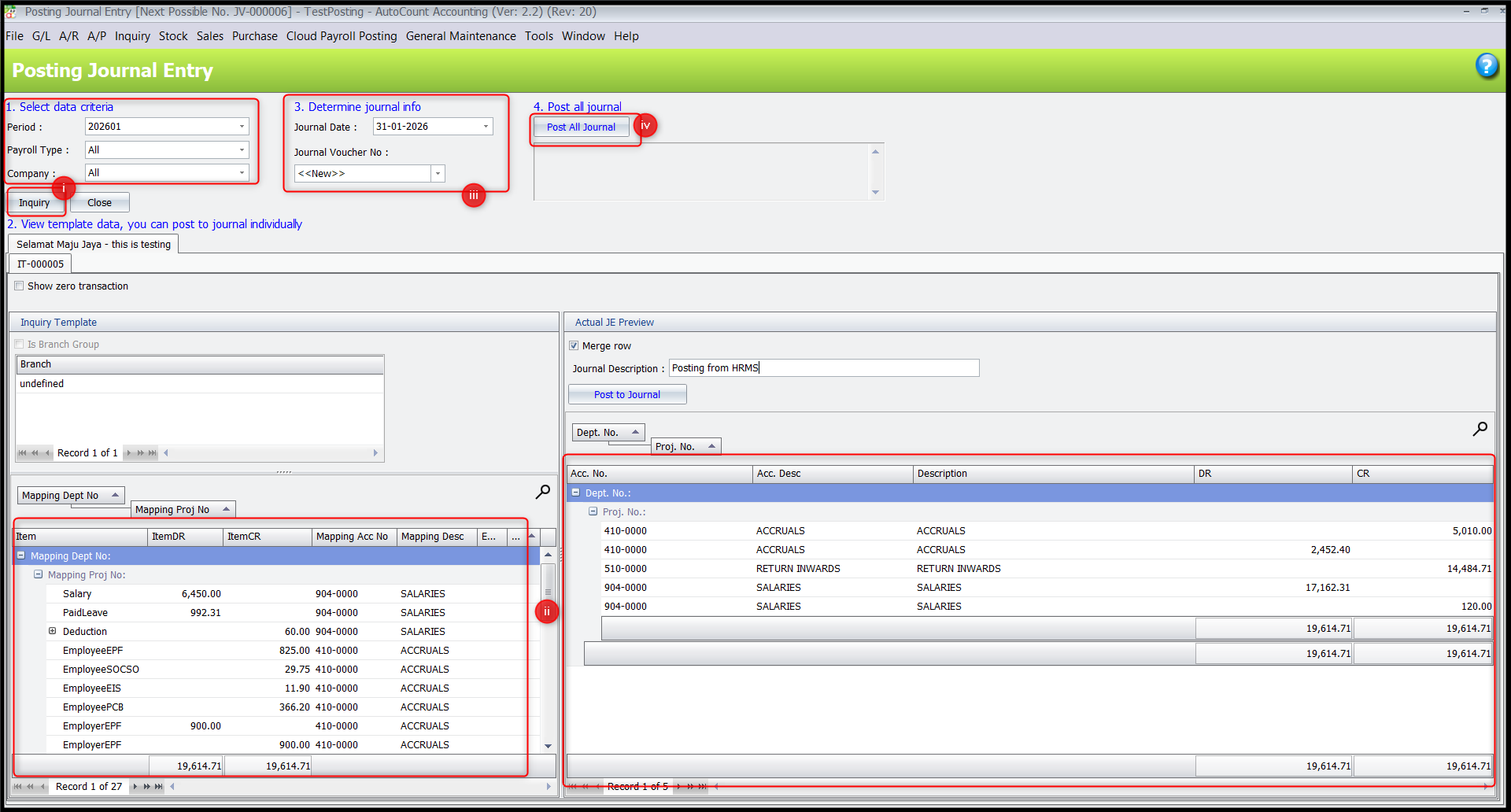
- Follow these steps :
- Select Data Criteria, then click Inquiry
- Review the template data
- Define Journal Information
- Click Post All to Journal
By Azirah 260414