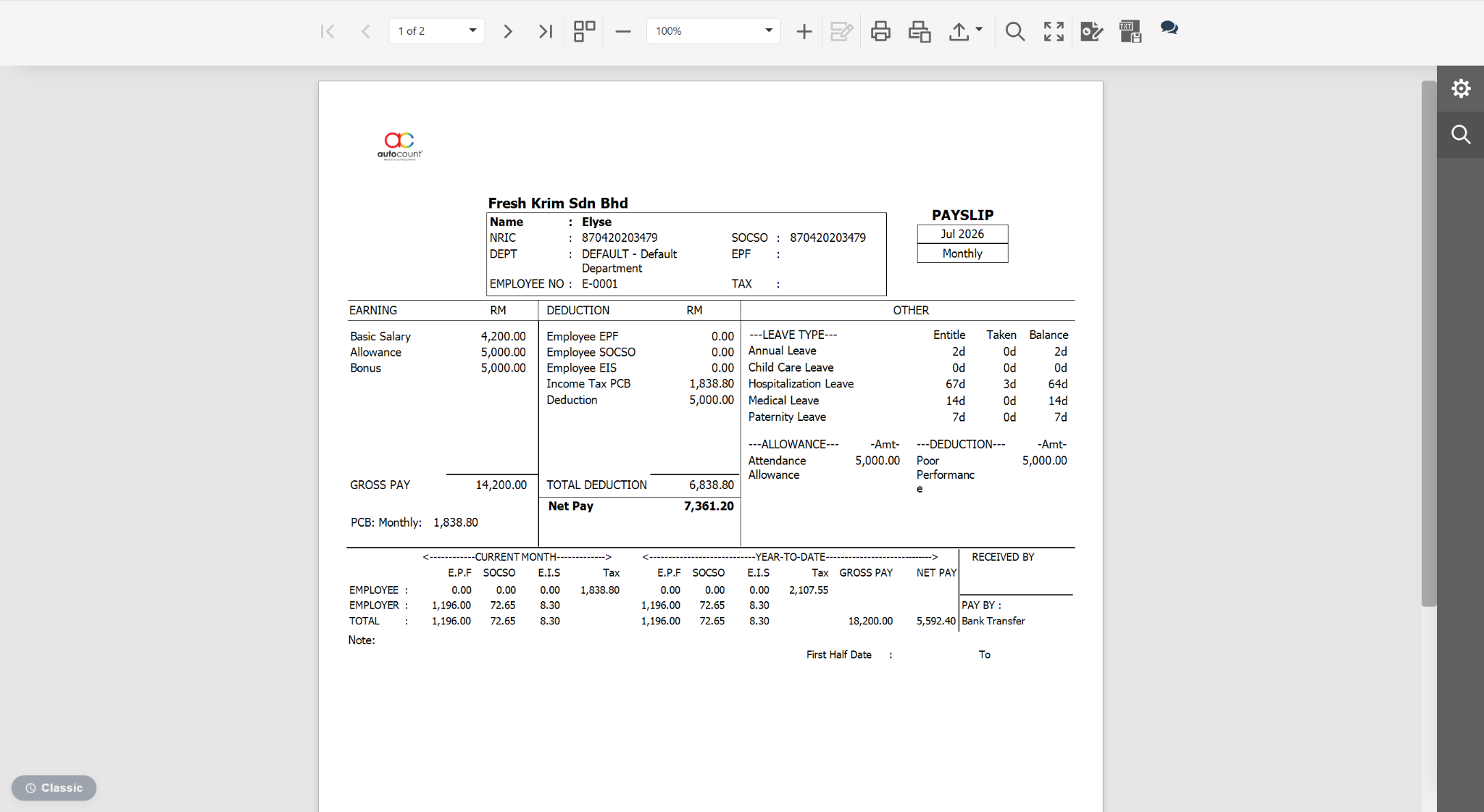
Report Designer allows users to customise payslip layouts, including adding the company logo for a more professional and branded appearance.
Steps to Add Company Logo in Payslips:
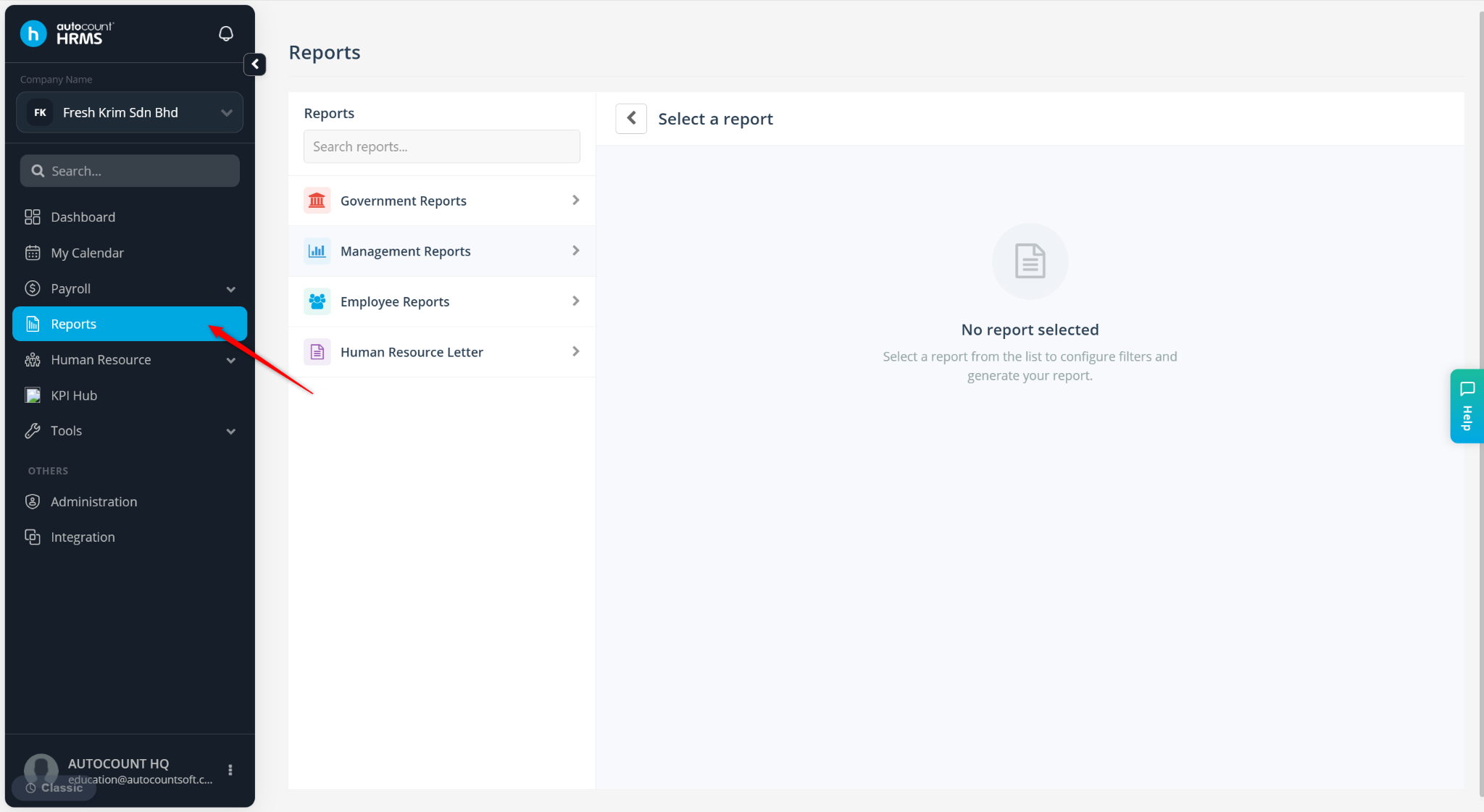
Go to Reports.
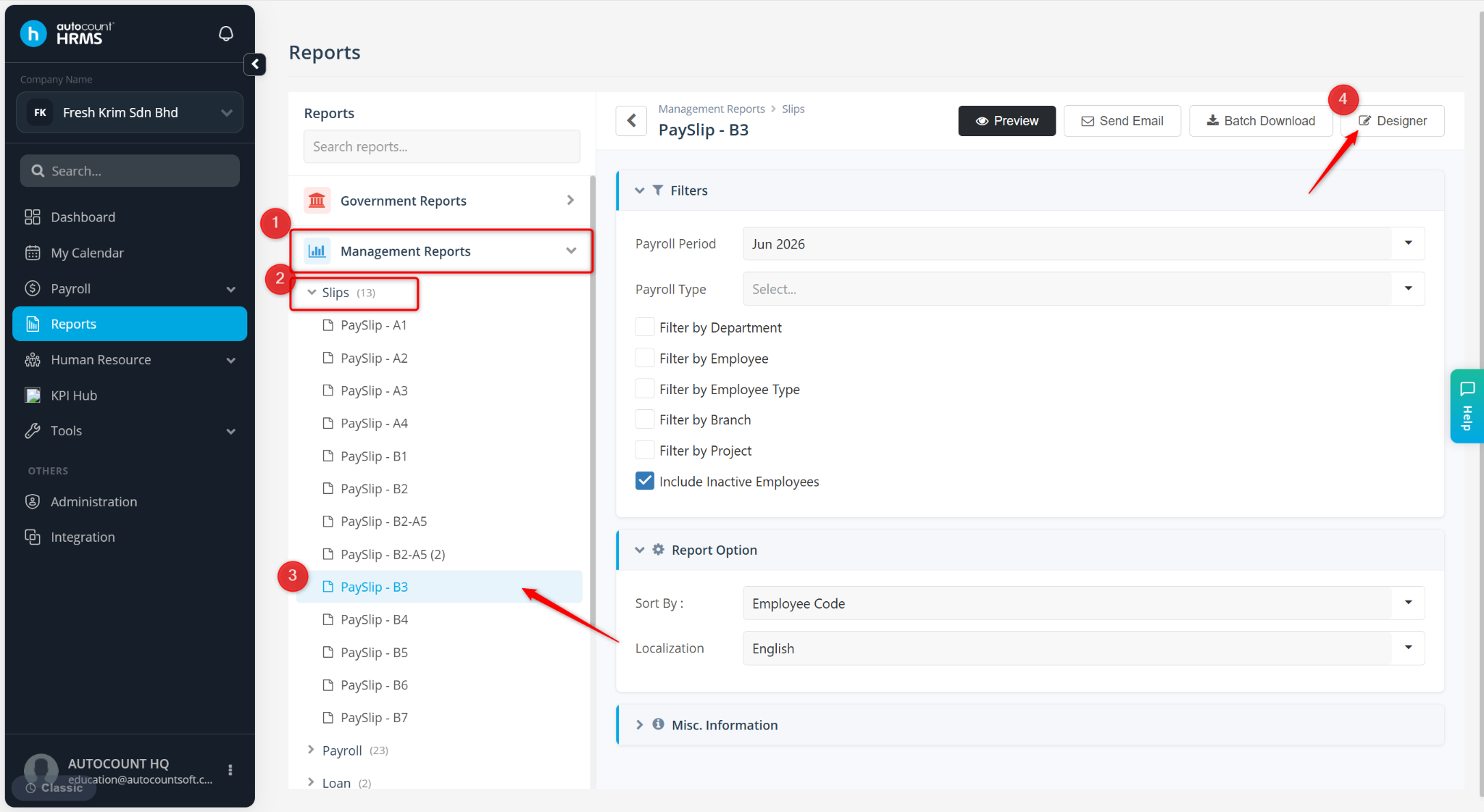
Expand Management Reports > Slips.
Select a desired payslip template.
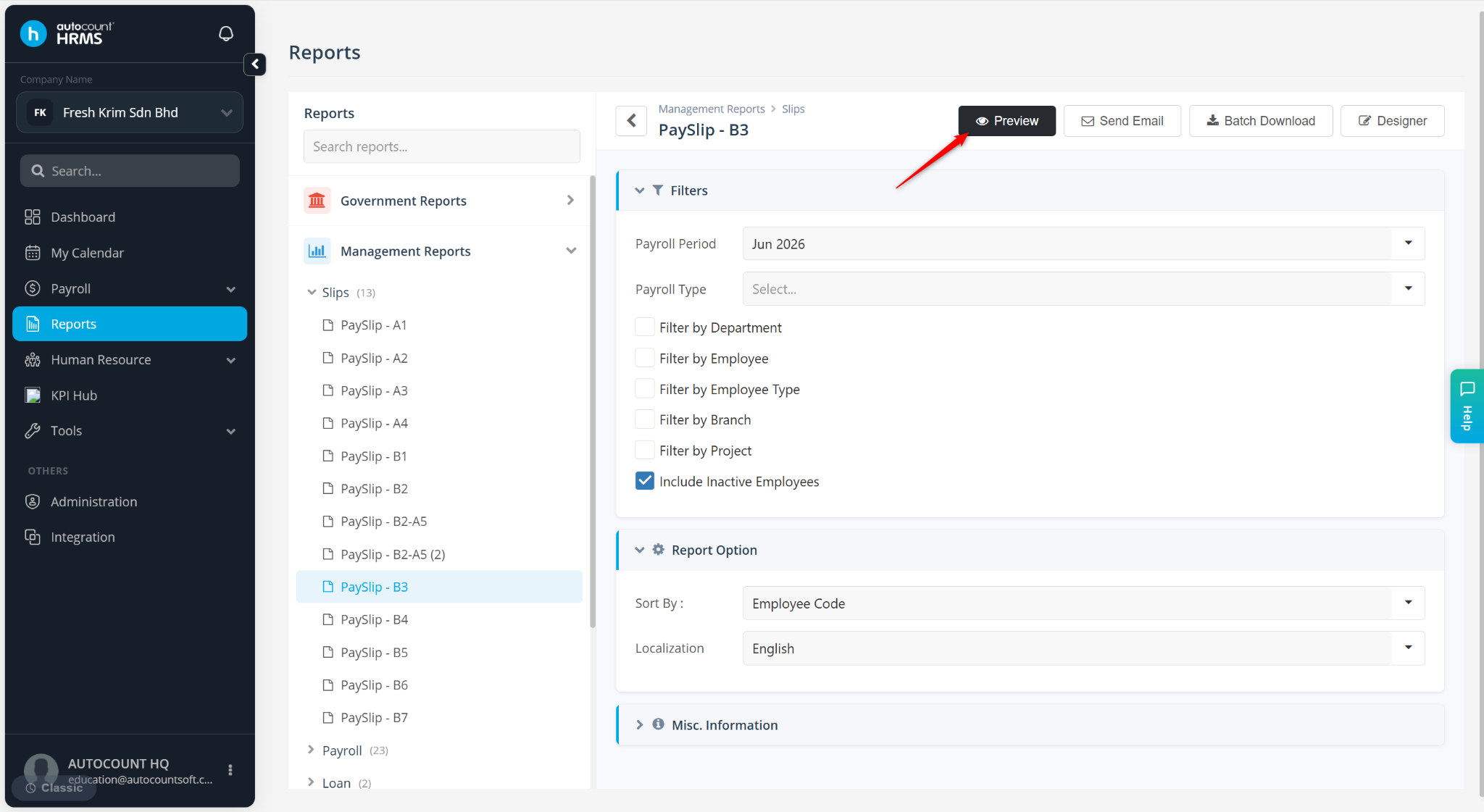
Click Designer or Preview.
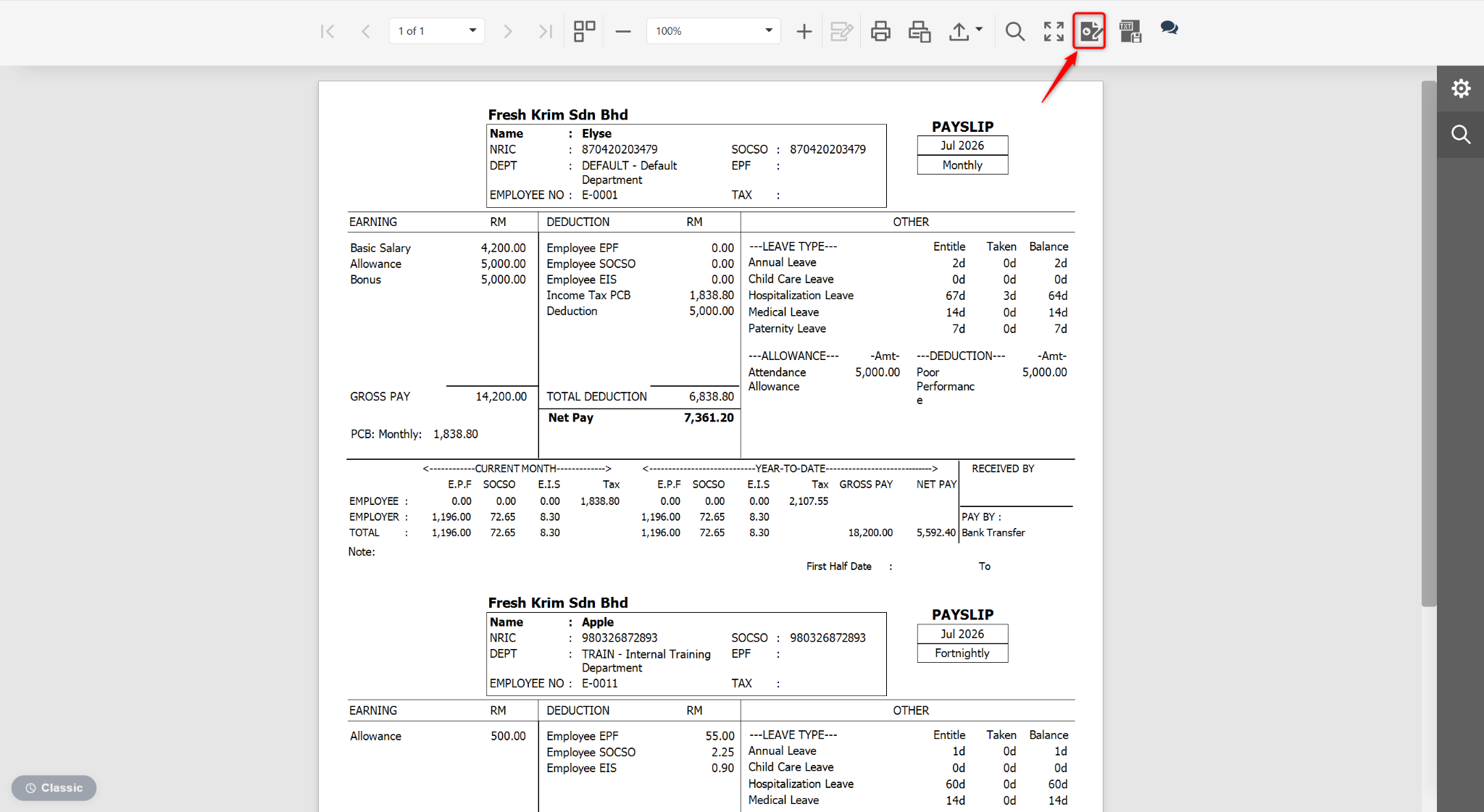
At the Preview page, click the edit icon.
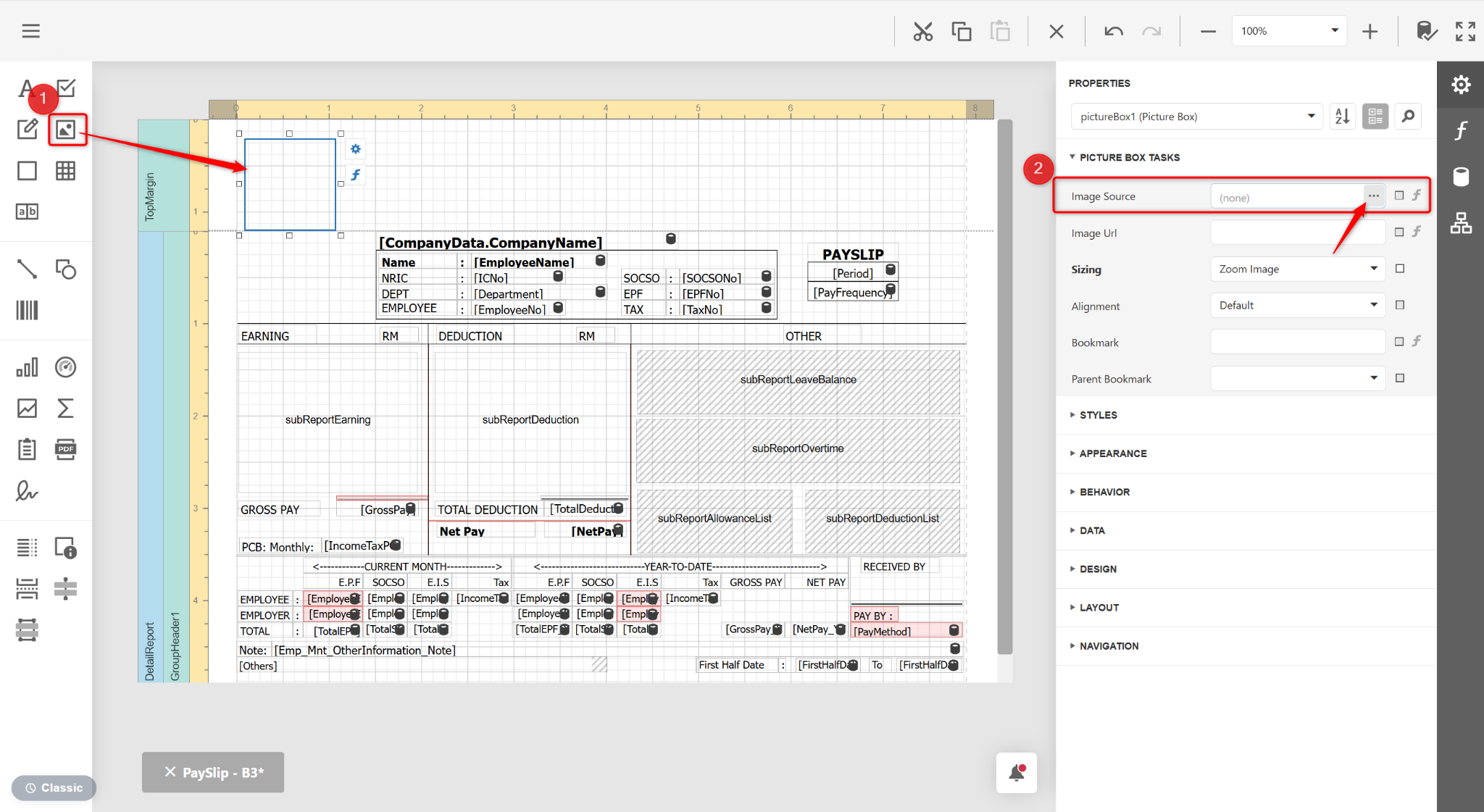
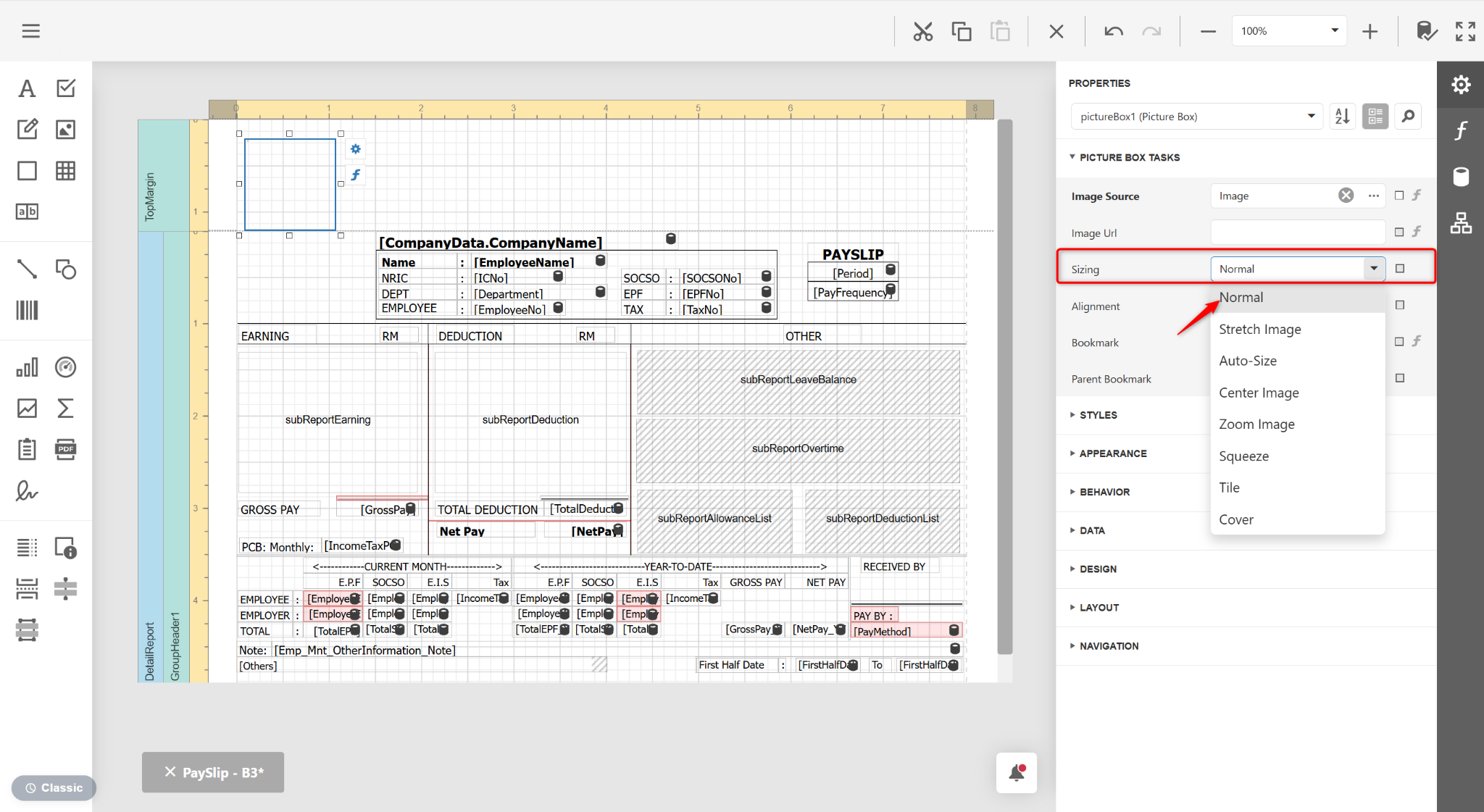
Drag the picture box from the left panel to the report. Expand PICTURE BOX TASKS and click … at the Image Source field.
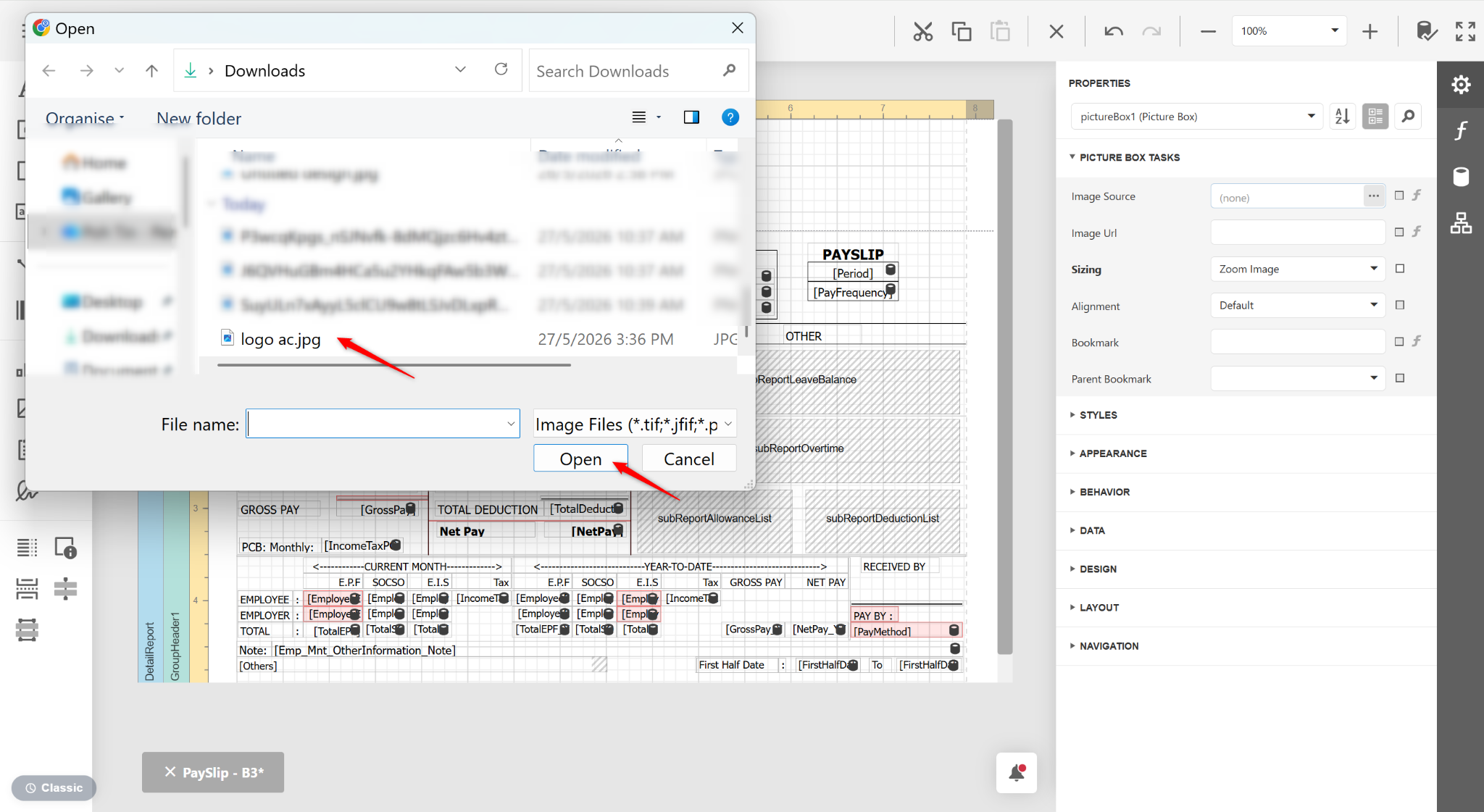
Select the file and click Open.
At the Sizing field, select Normal.
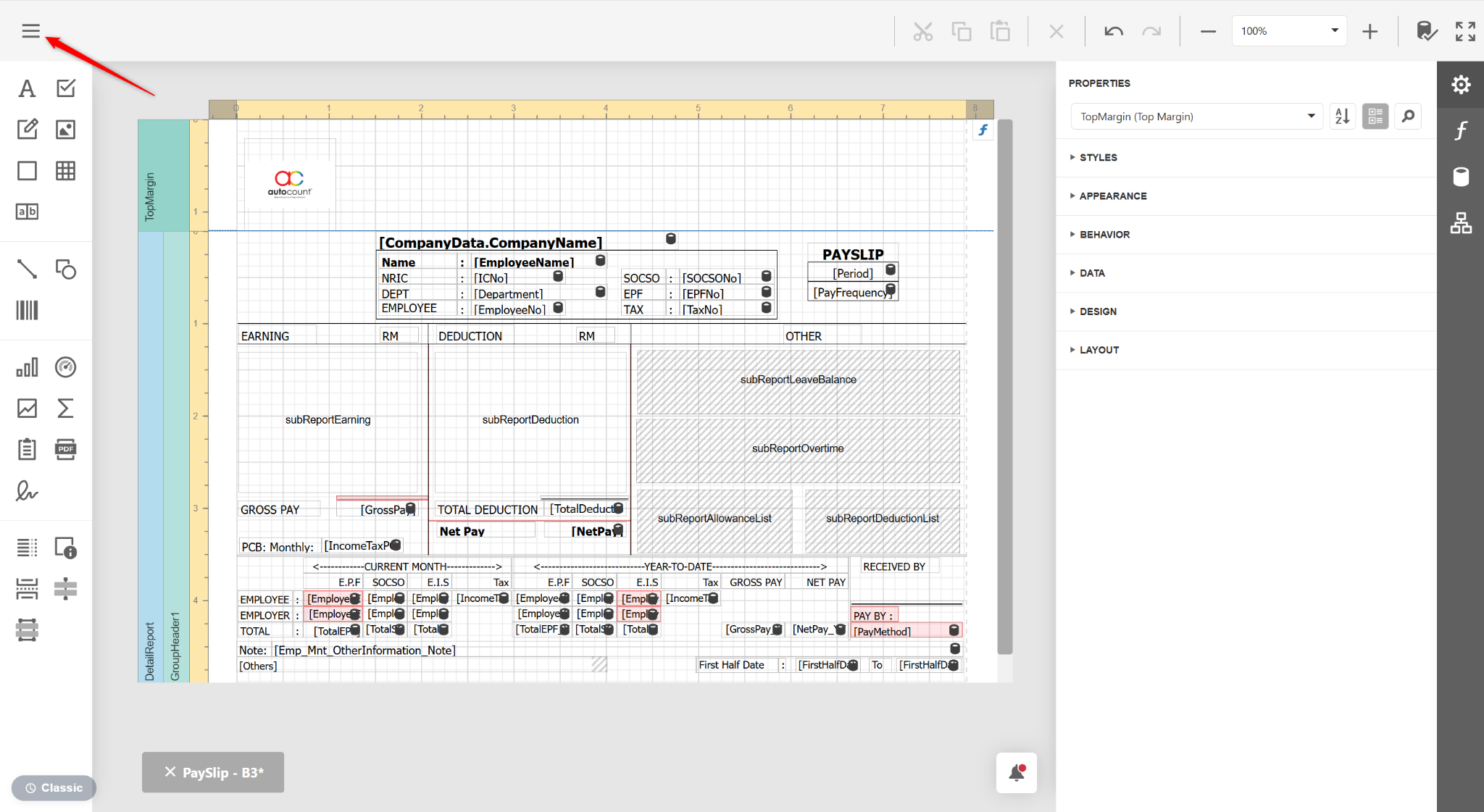
Click the three horizontal lines icon.
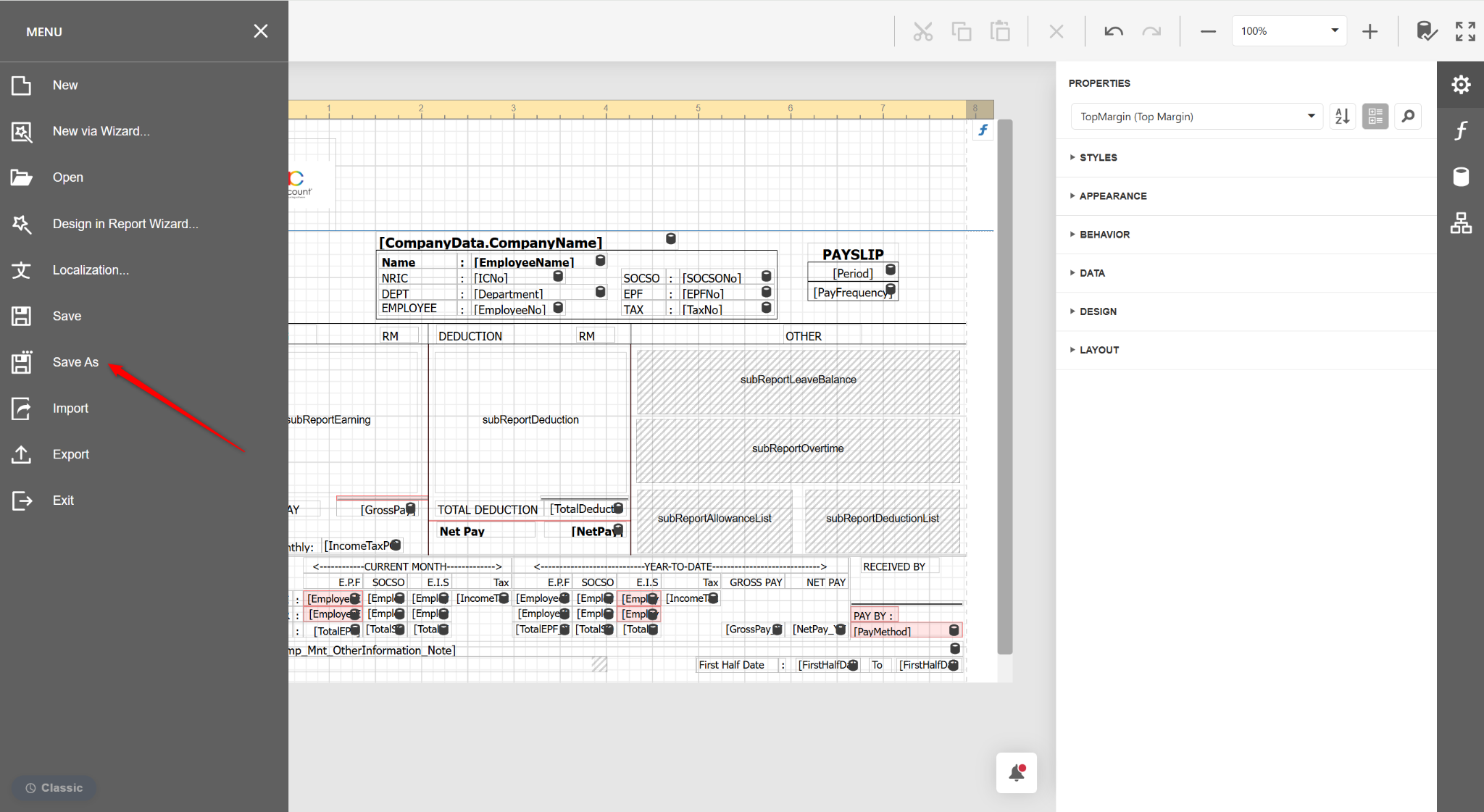
Select Save As.
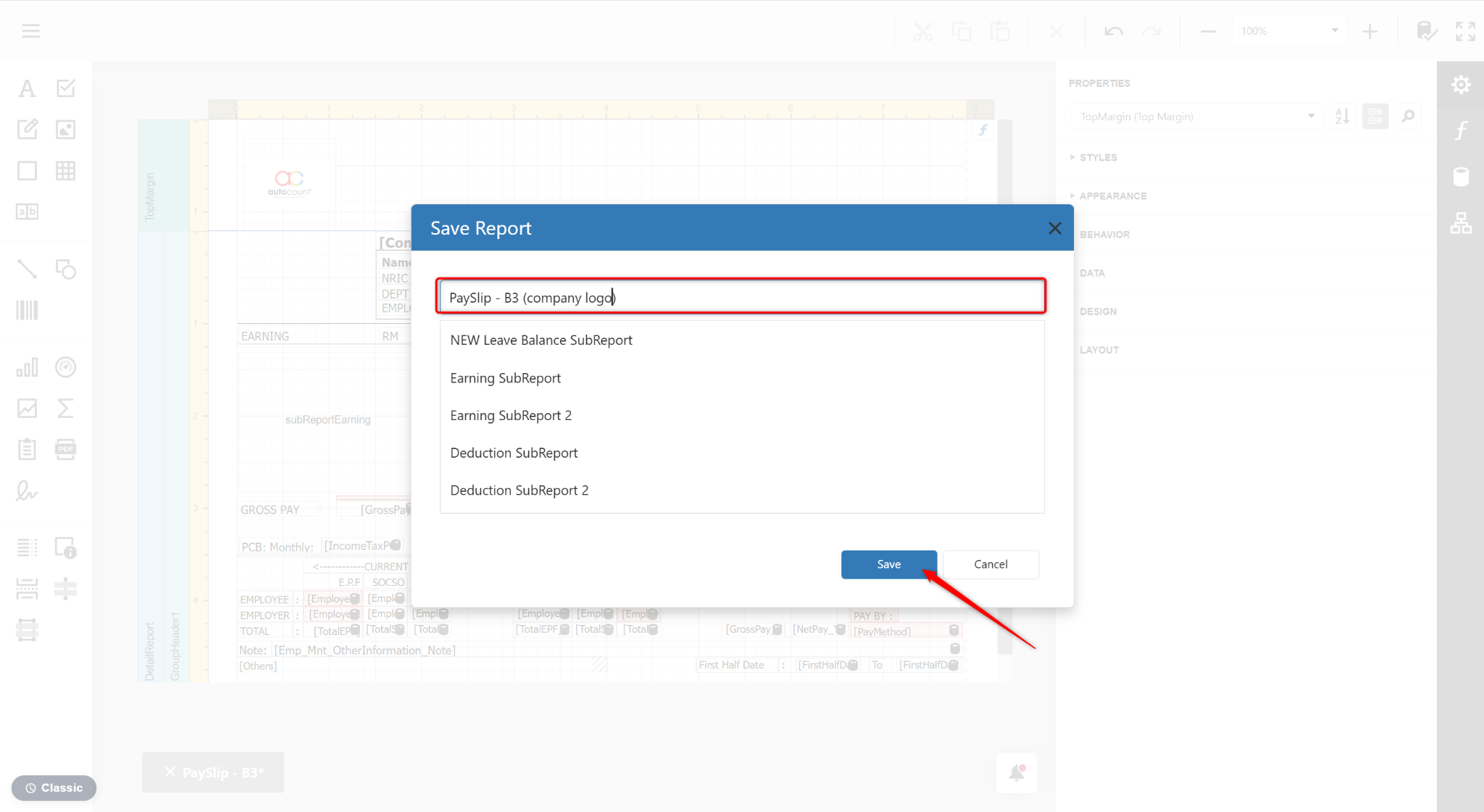
Enter the report name and click Save.
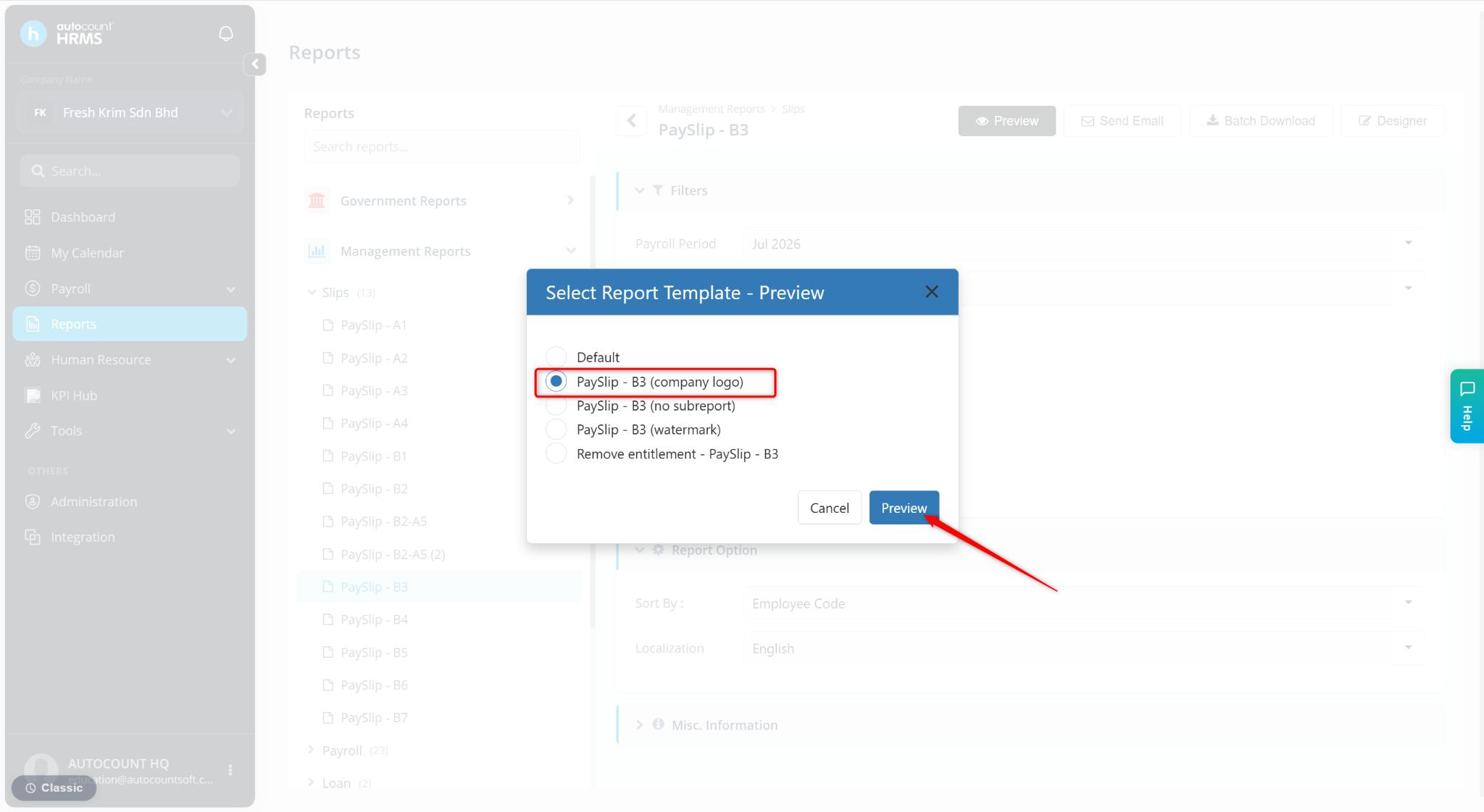
Return to the Report page and click Preview.
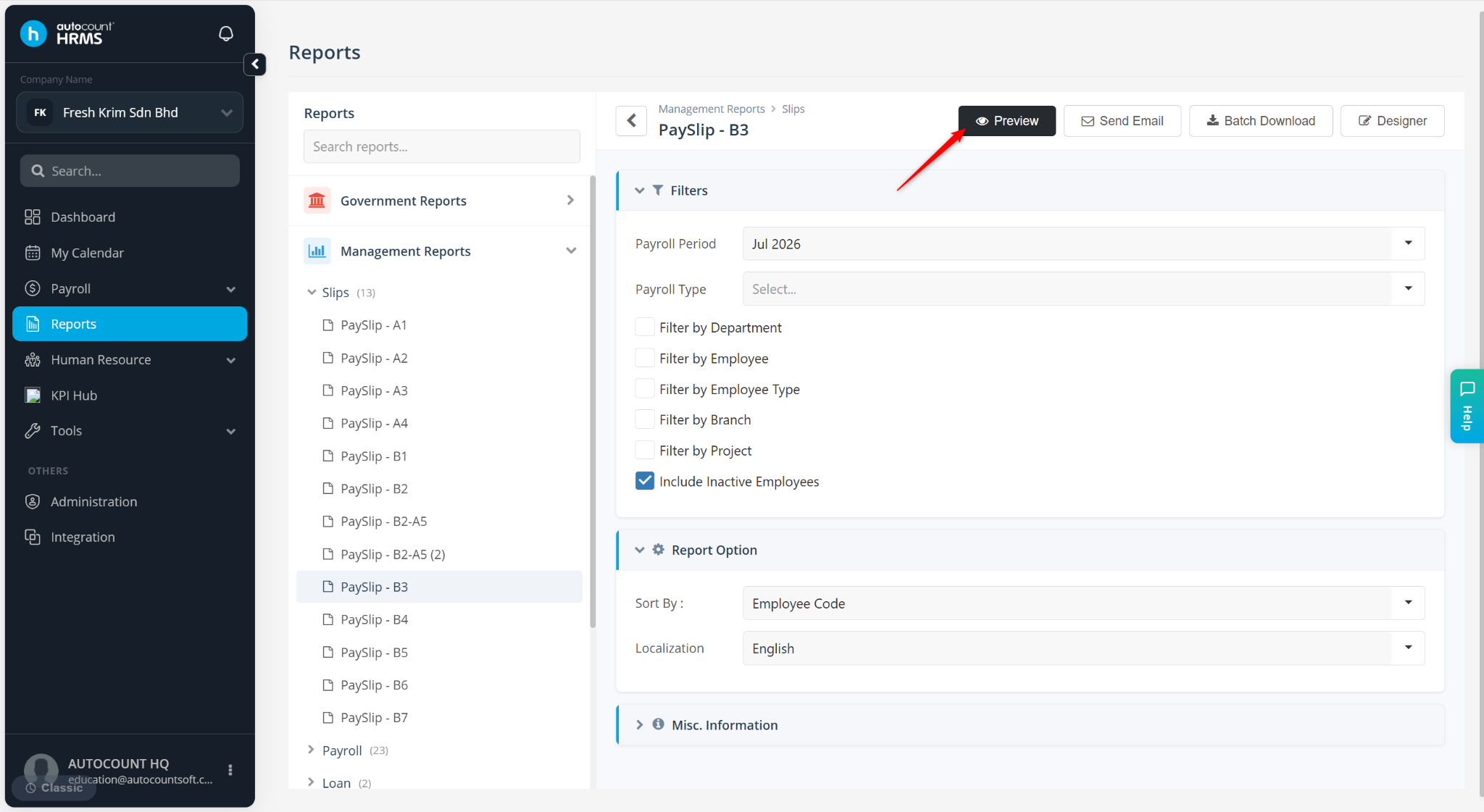
Select the customised report and click Preview.