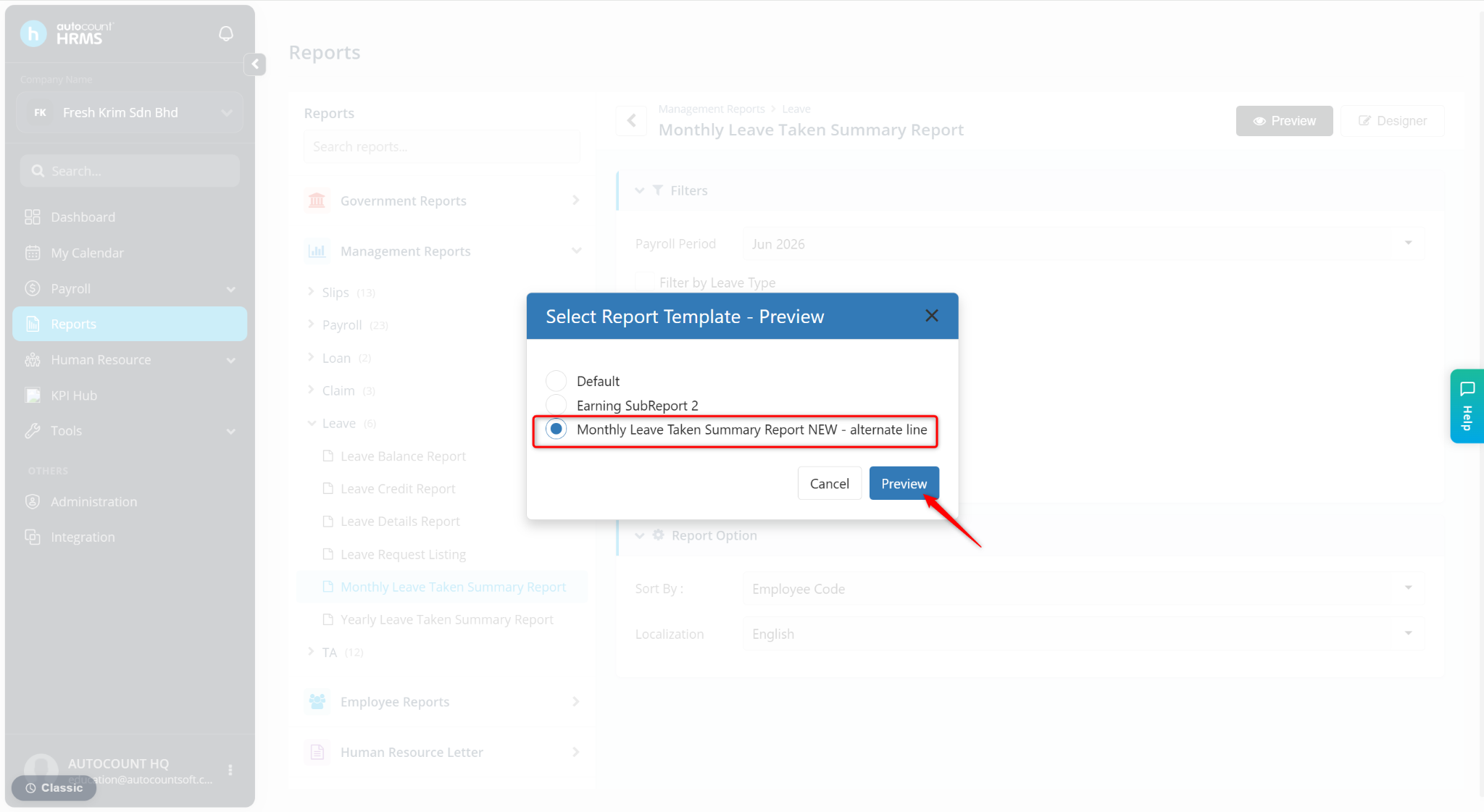
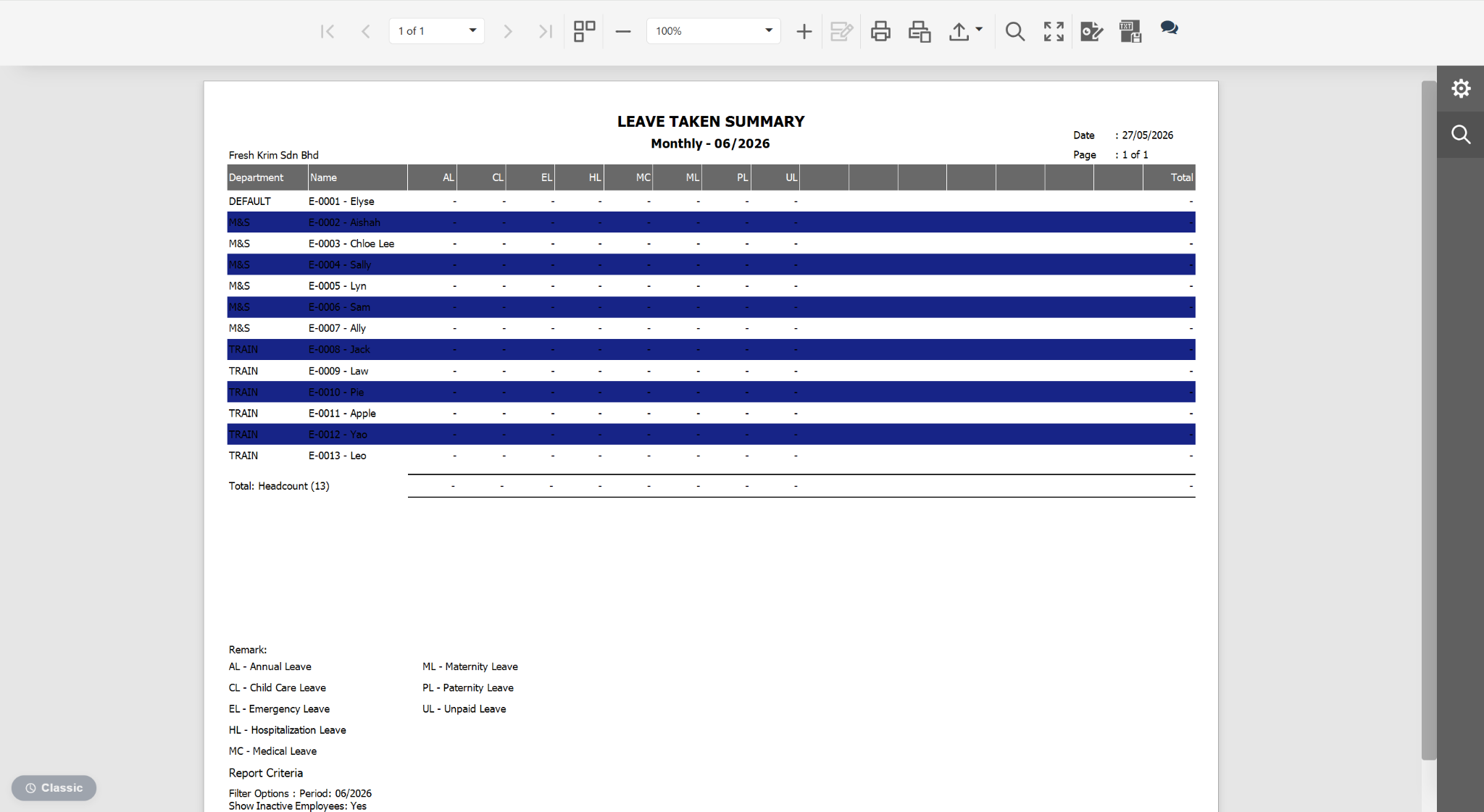
Users can apply alternating row colors to reports to improve readability and make large sets of data easier to review. This formatting is commonly used to visually distinguish adjacent rows in report previews and printed reports.
Steps to Add Alternating Background Color:
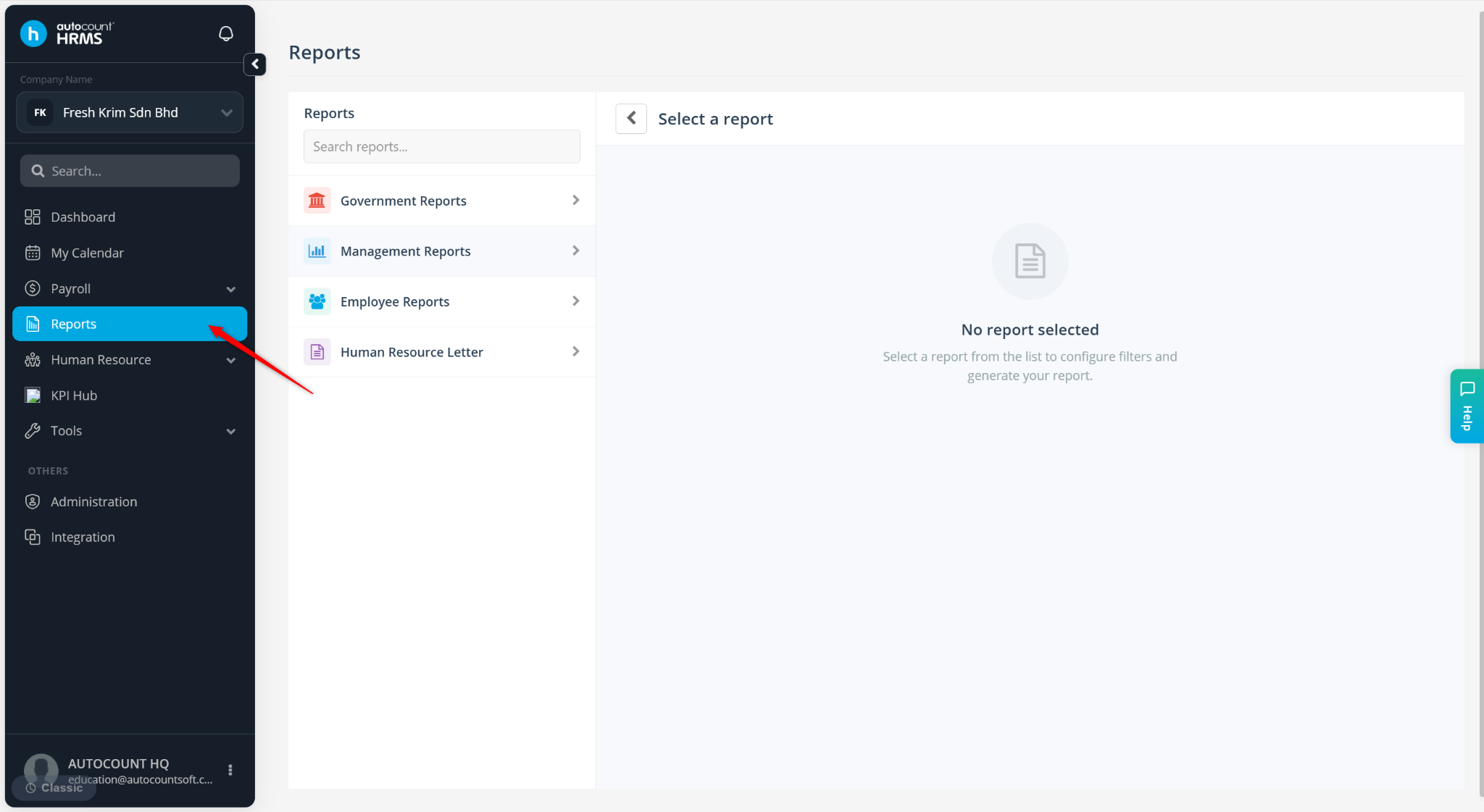
Go to Reports.
Select the desired report to customise.
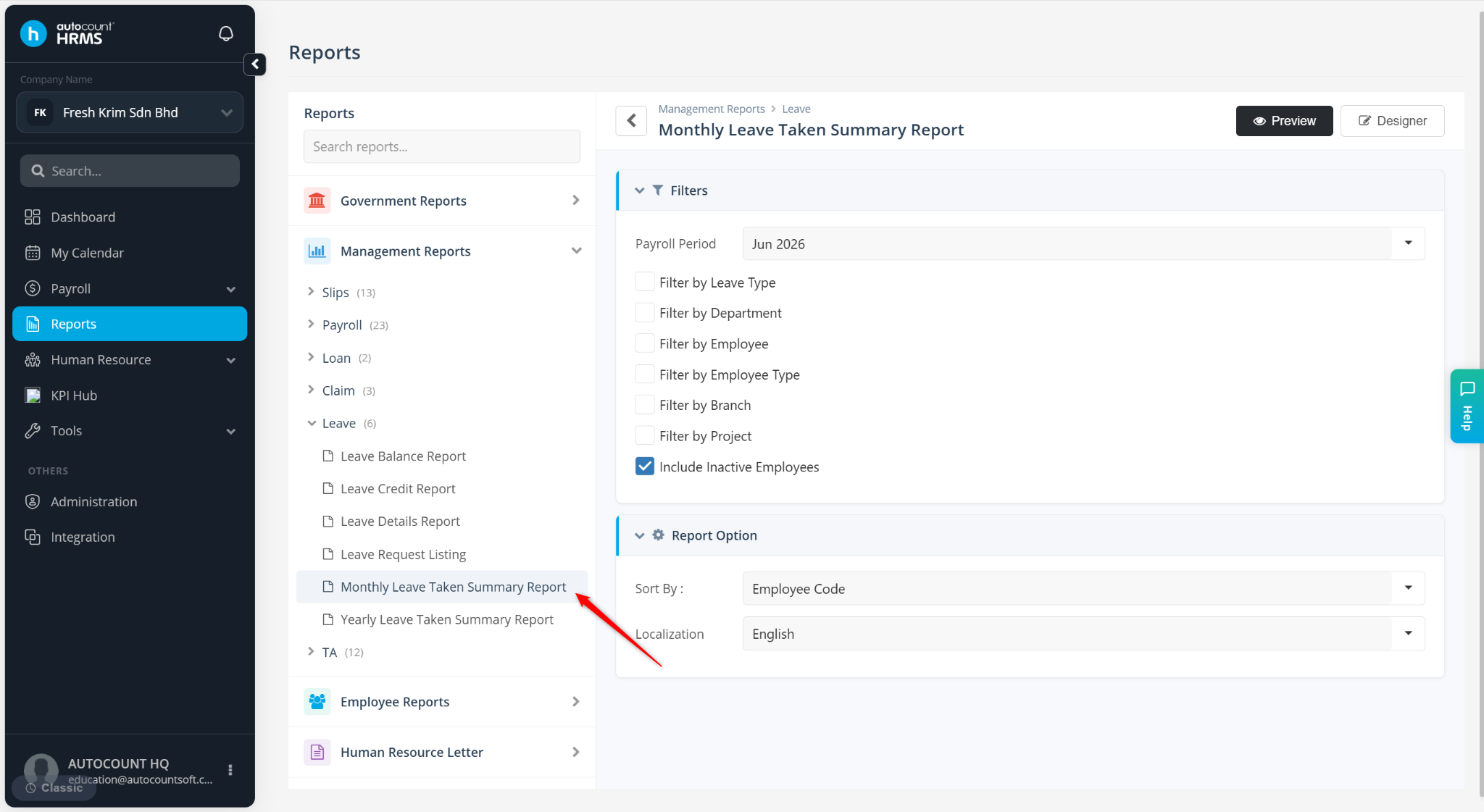
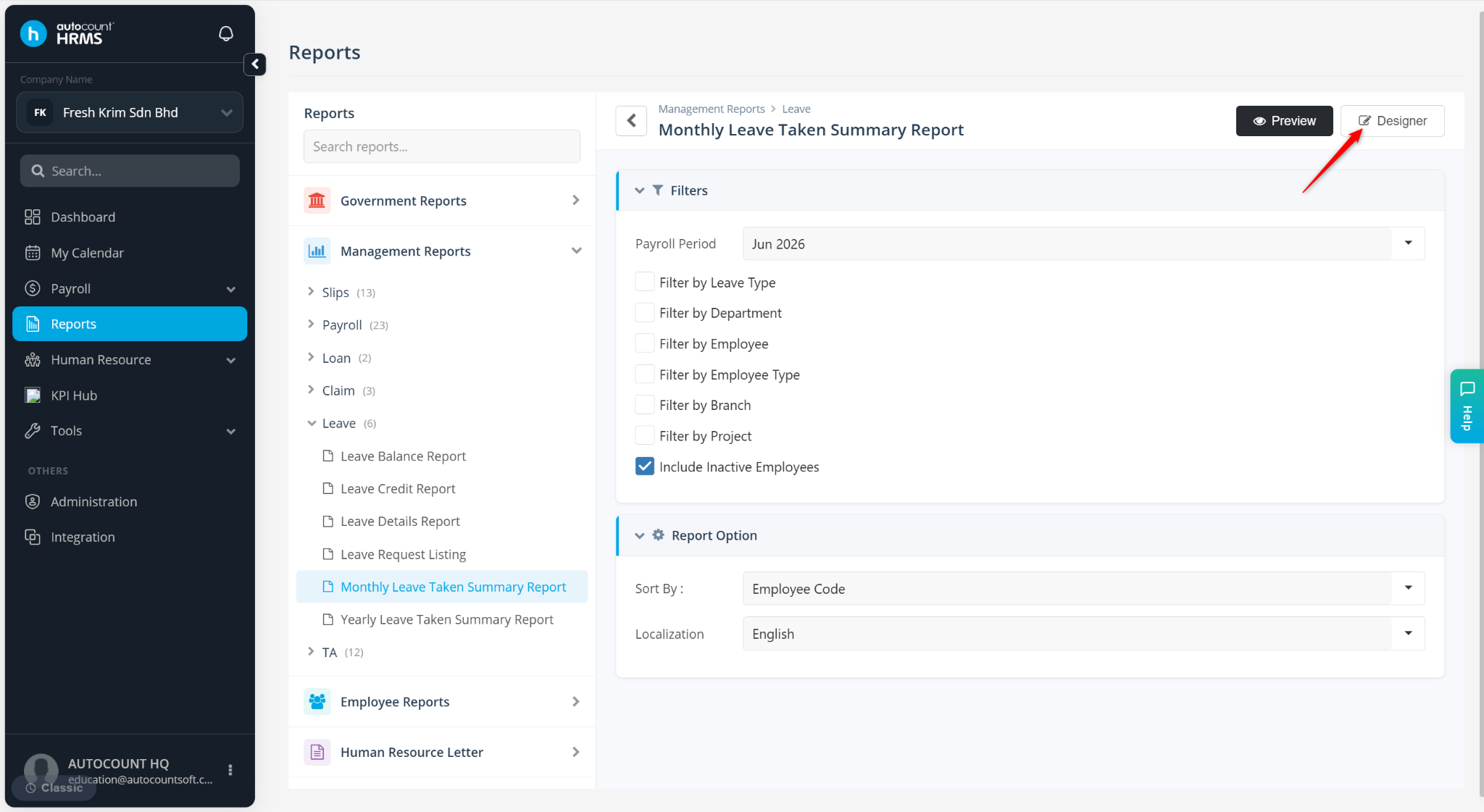
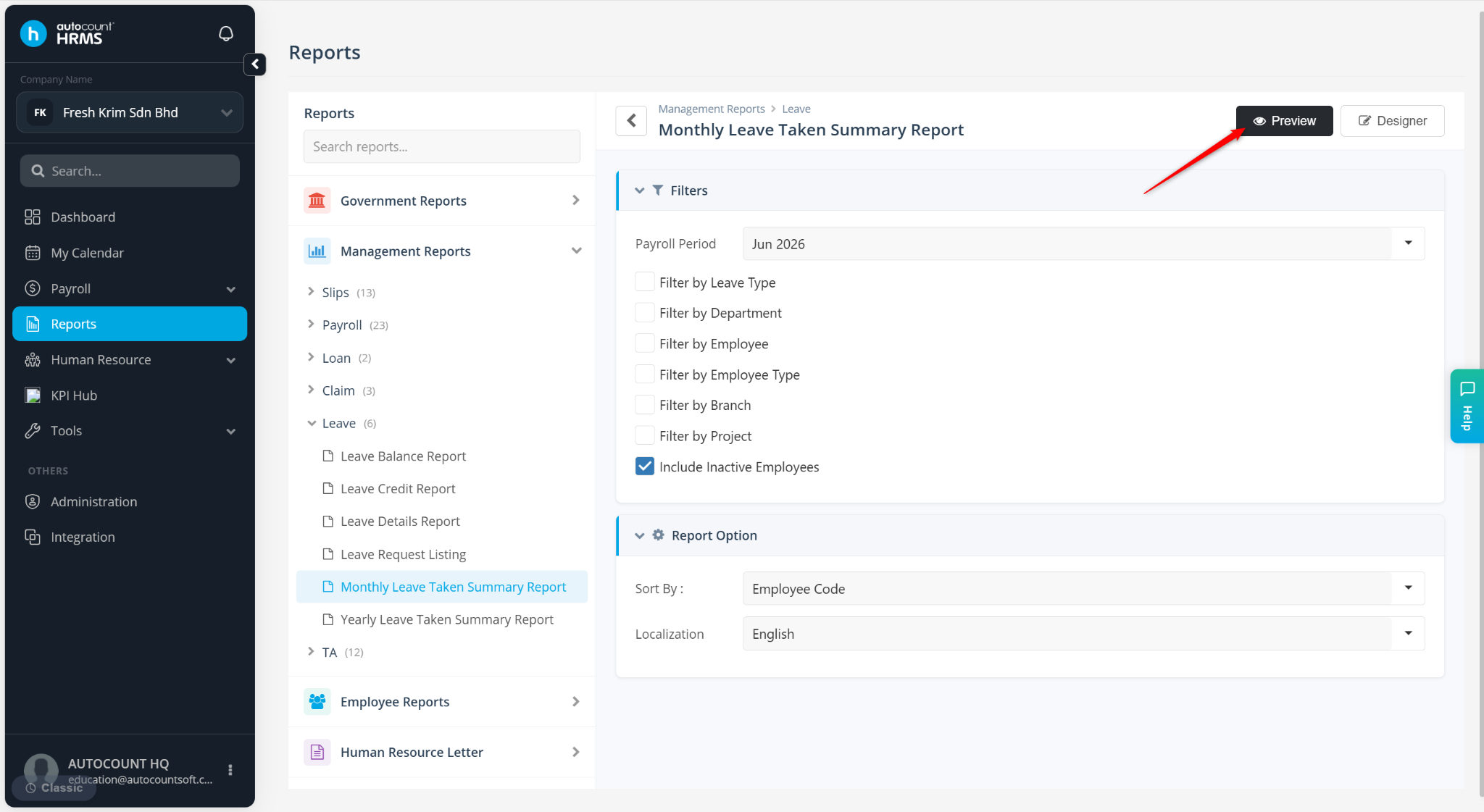
Click Designer or click Preview.
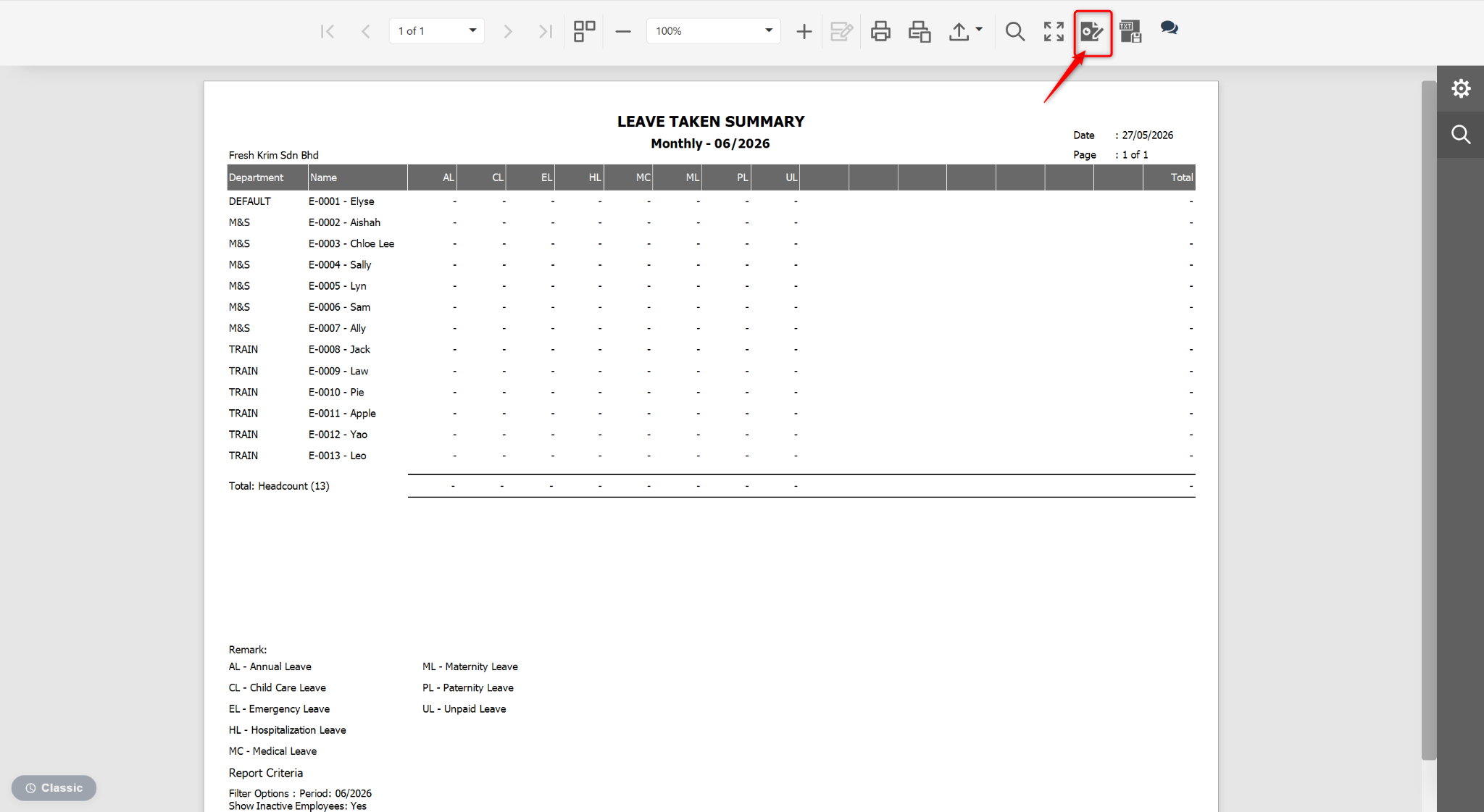
At the Preview page, click the edit icon.
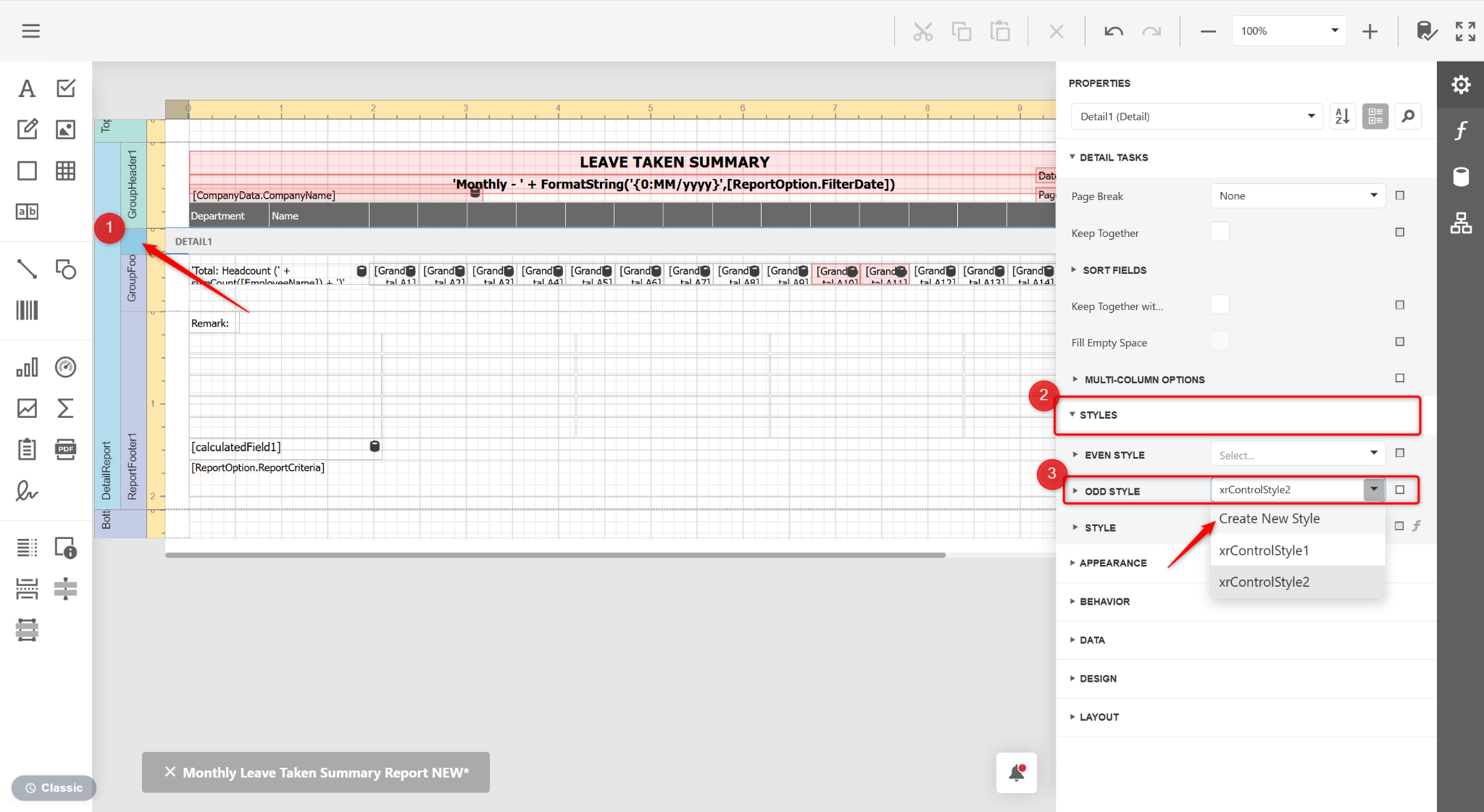
Select the Detail1 (Detail) column at the left to highlight the entire row.
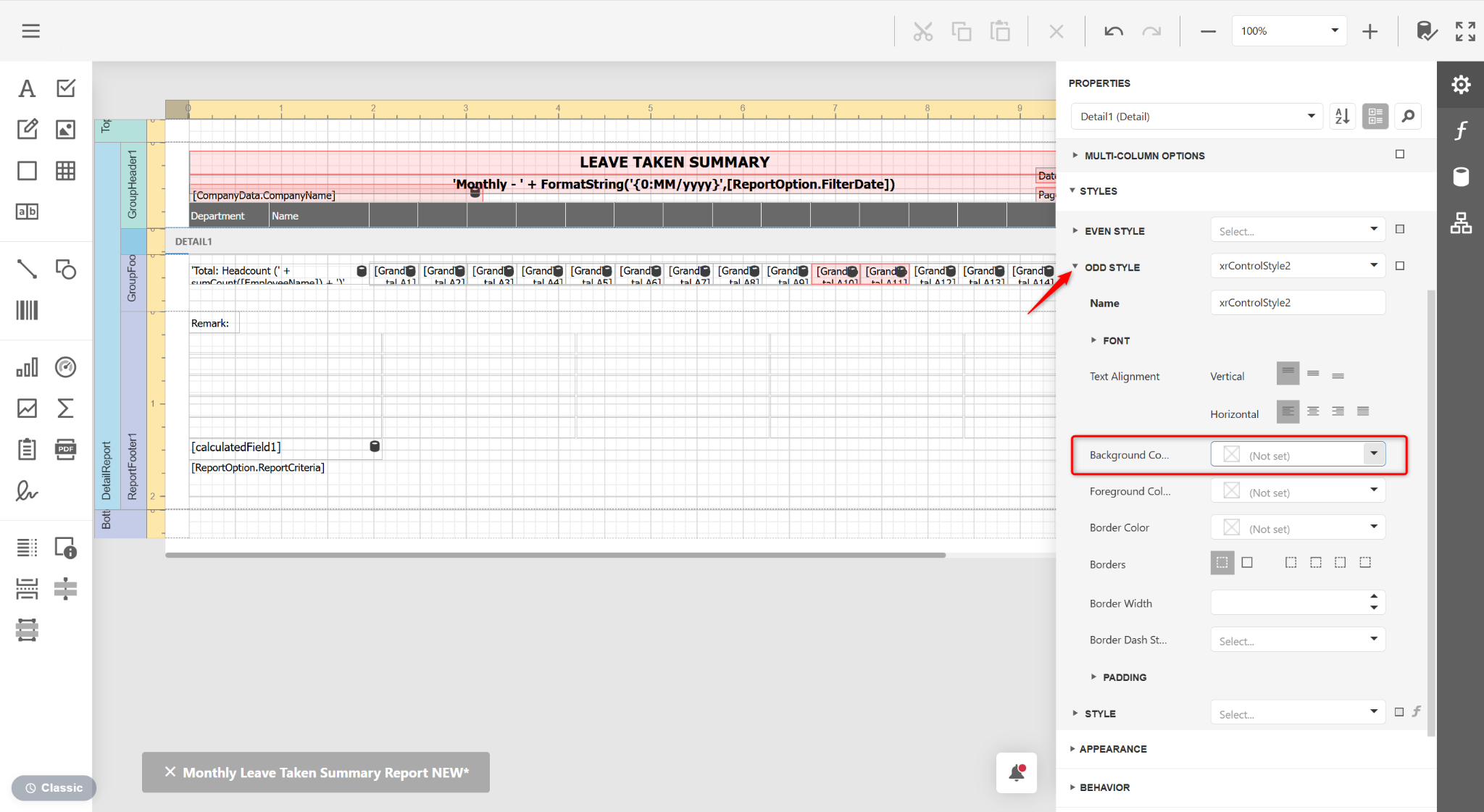
At the right panel, expand STYLES.
At the ODD STYLE field, select Create New Style.
Expand ODD STYLE. Click Background Color.
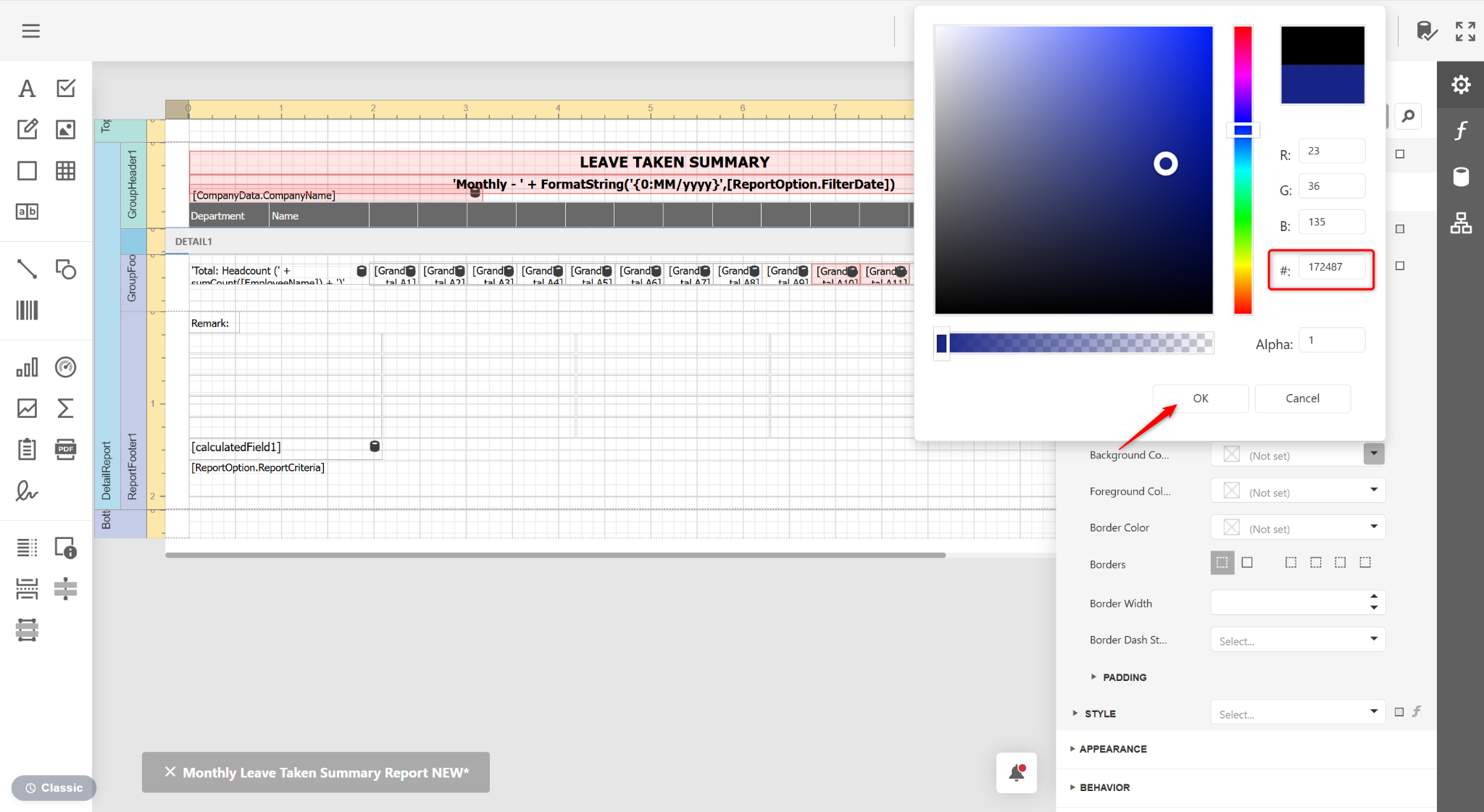
Choose the desired color and click OK.
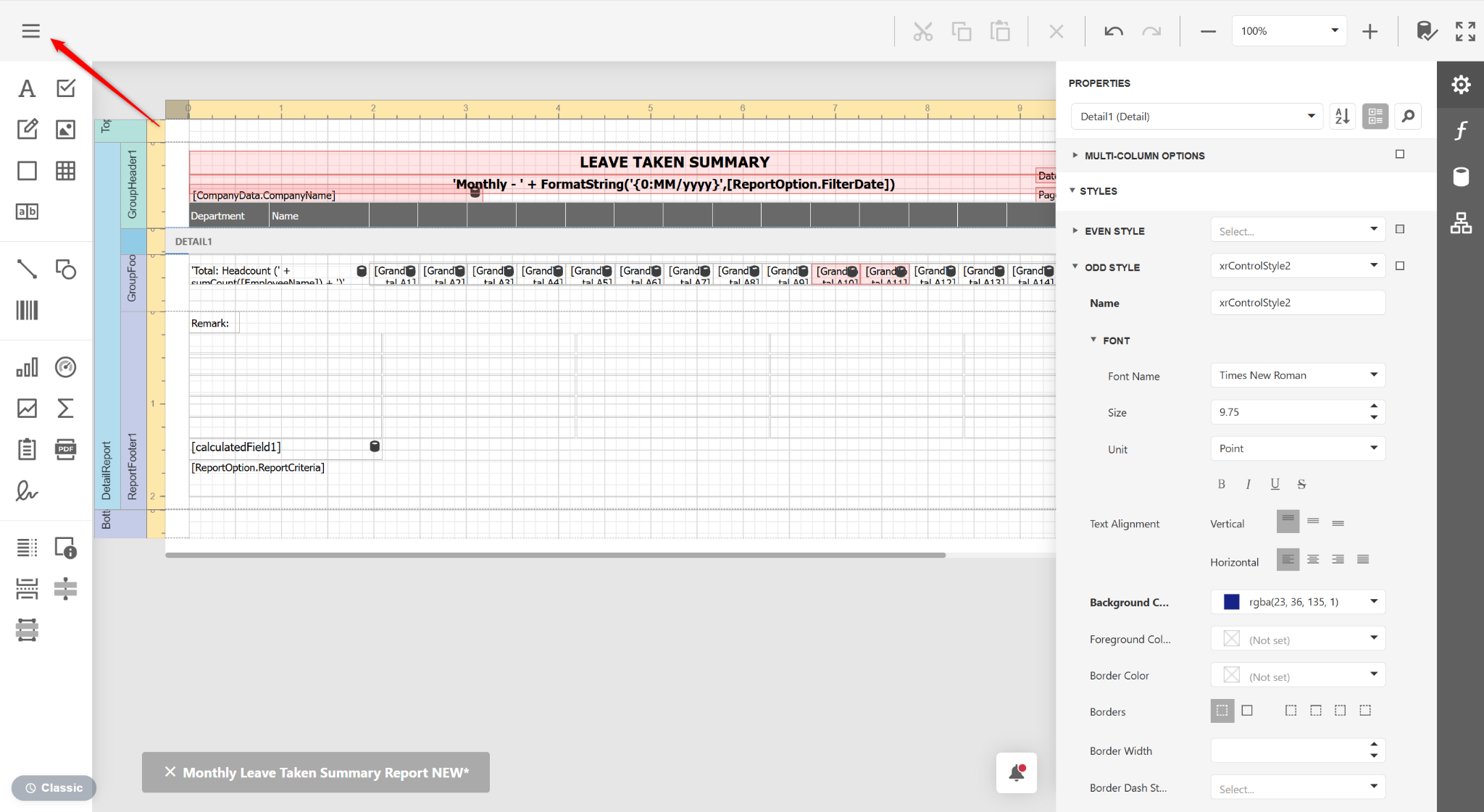
Click the three horizontal lines icon.
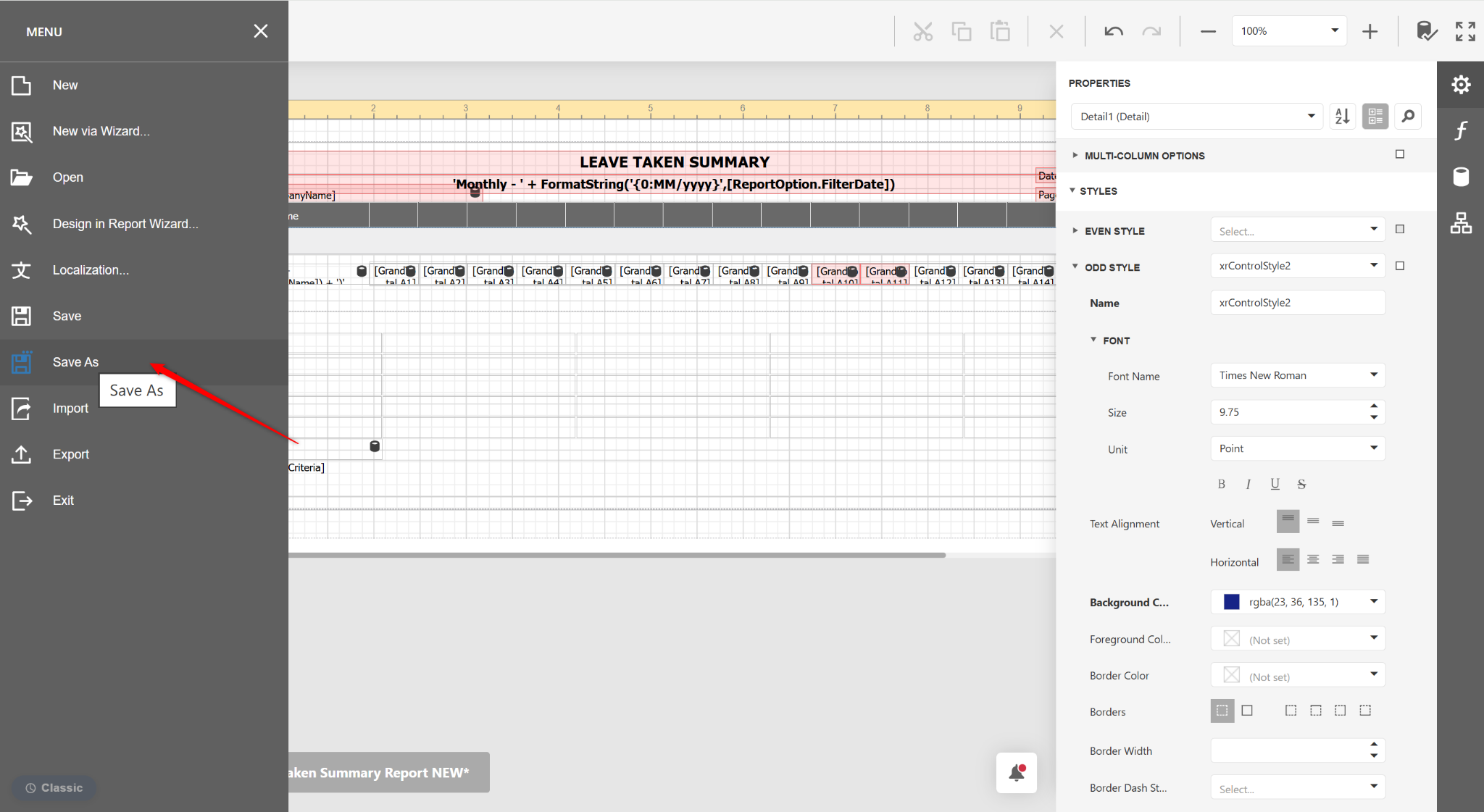
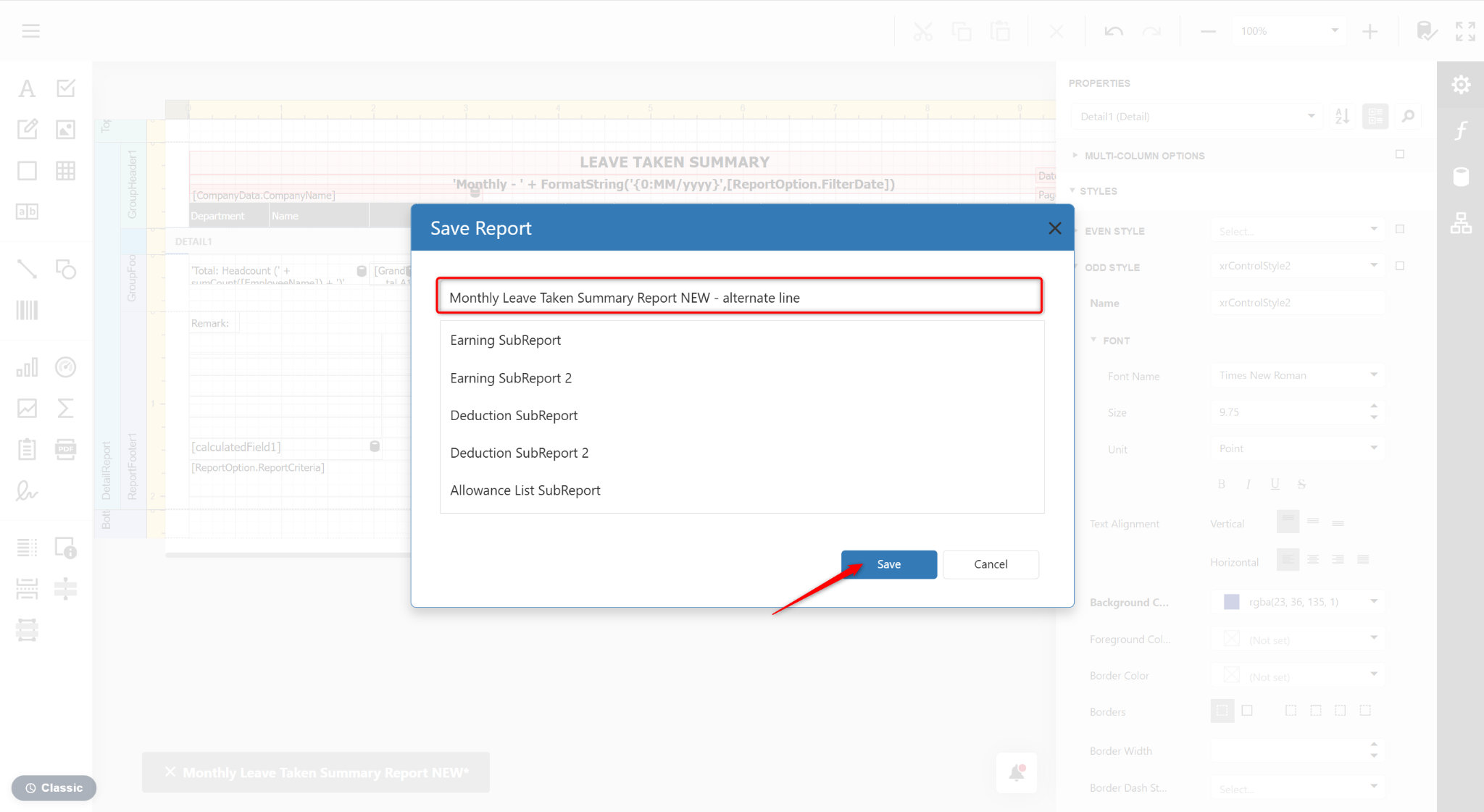
Select Save As.
Enter a name for the customised report and click Save.
Return to the main page and click Preview.
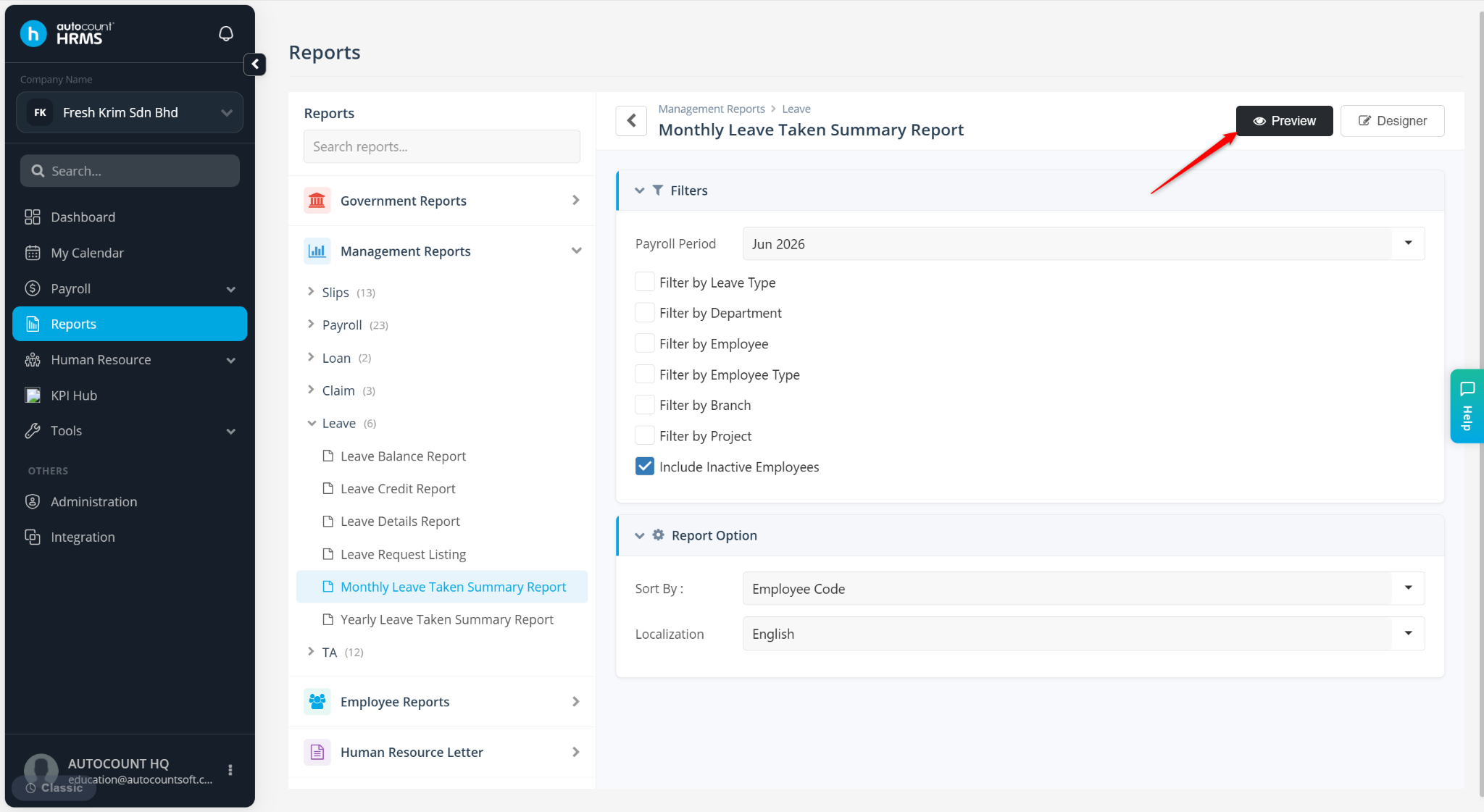
Select the template and click Preview.