
Scenario as below:
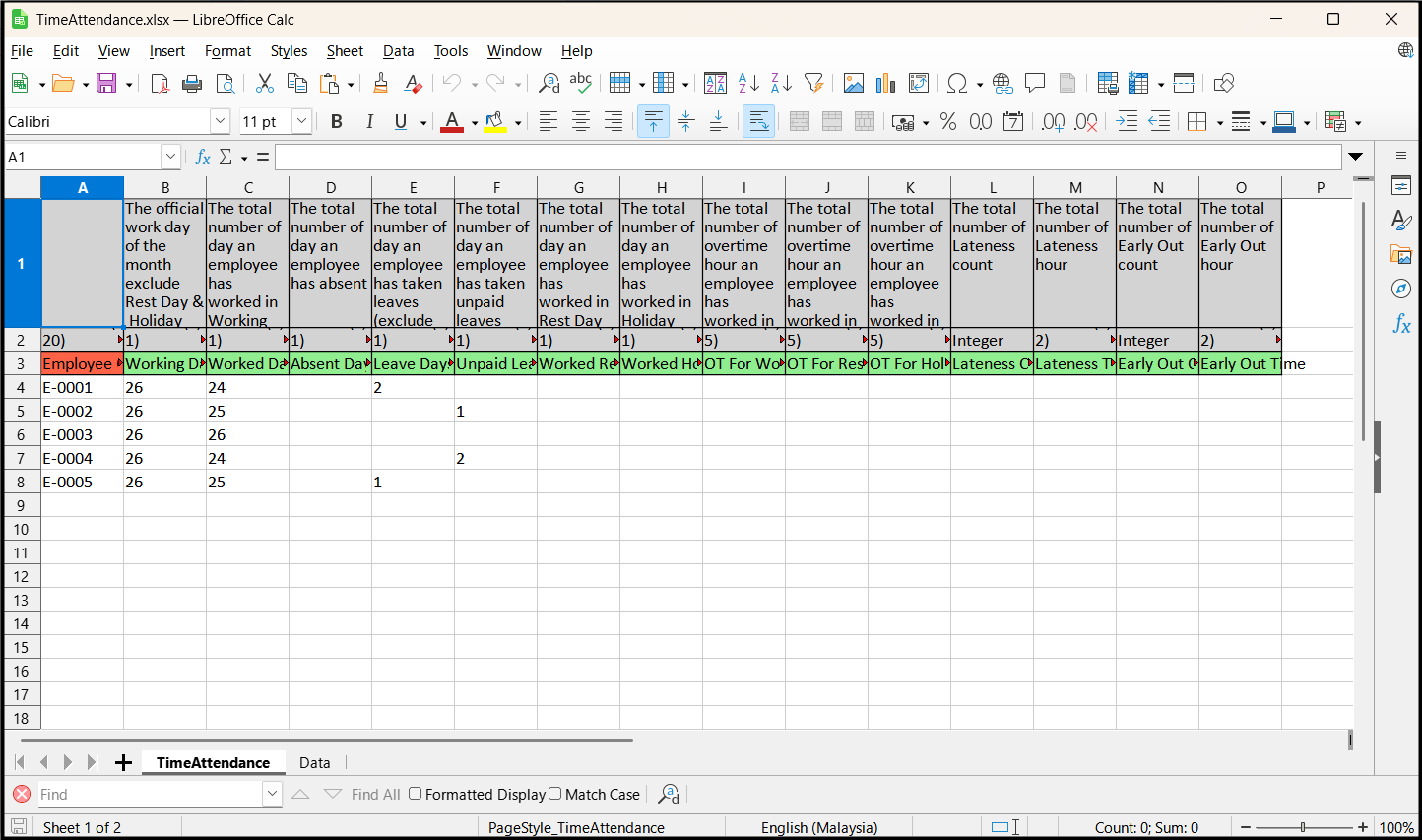
Original template:
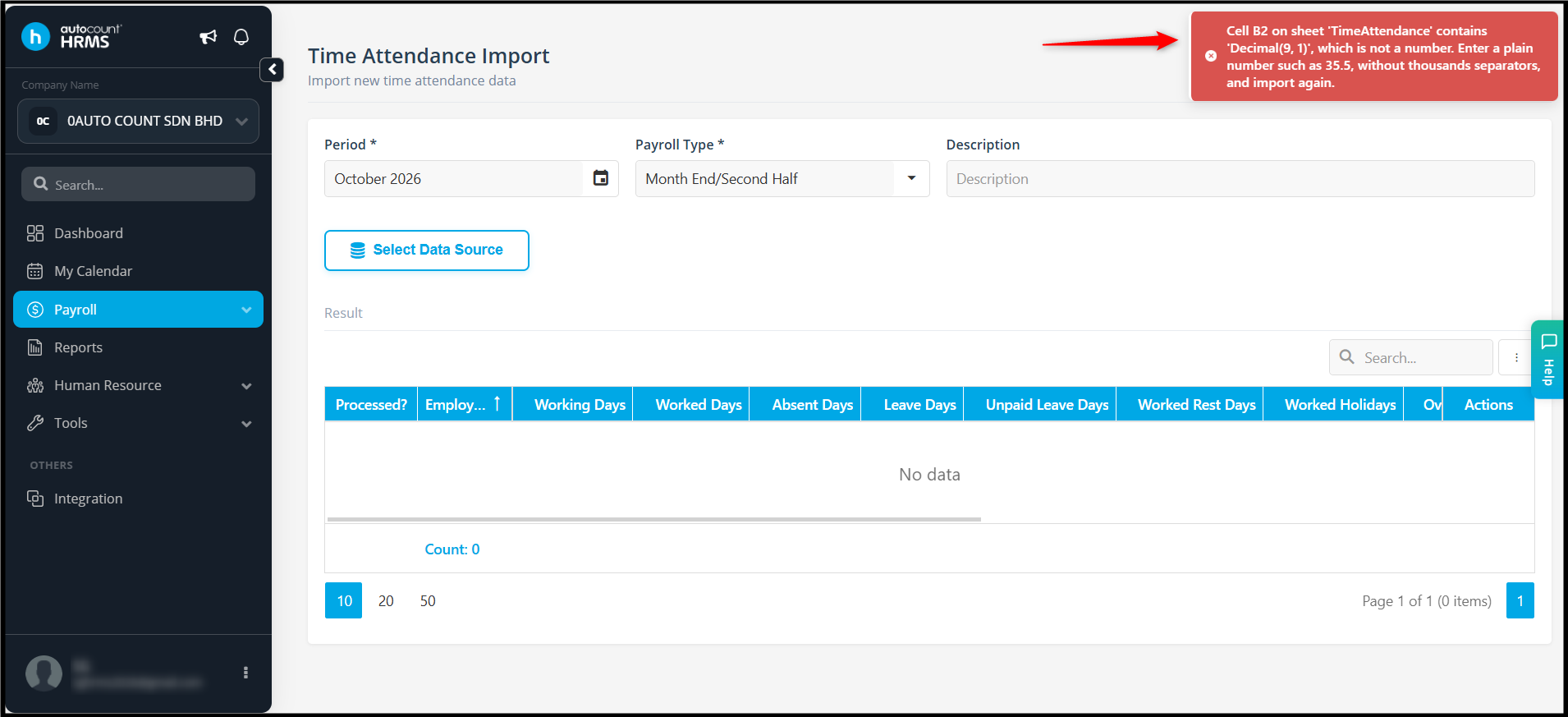
Prompt error:
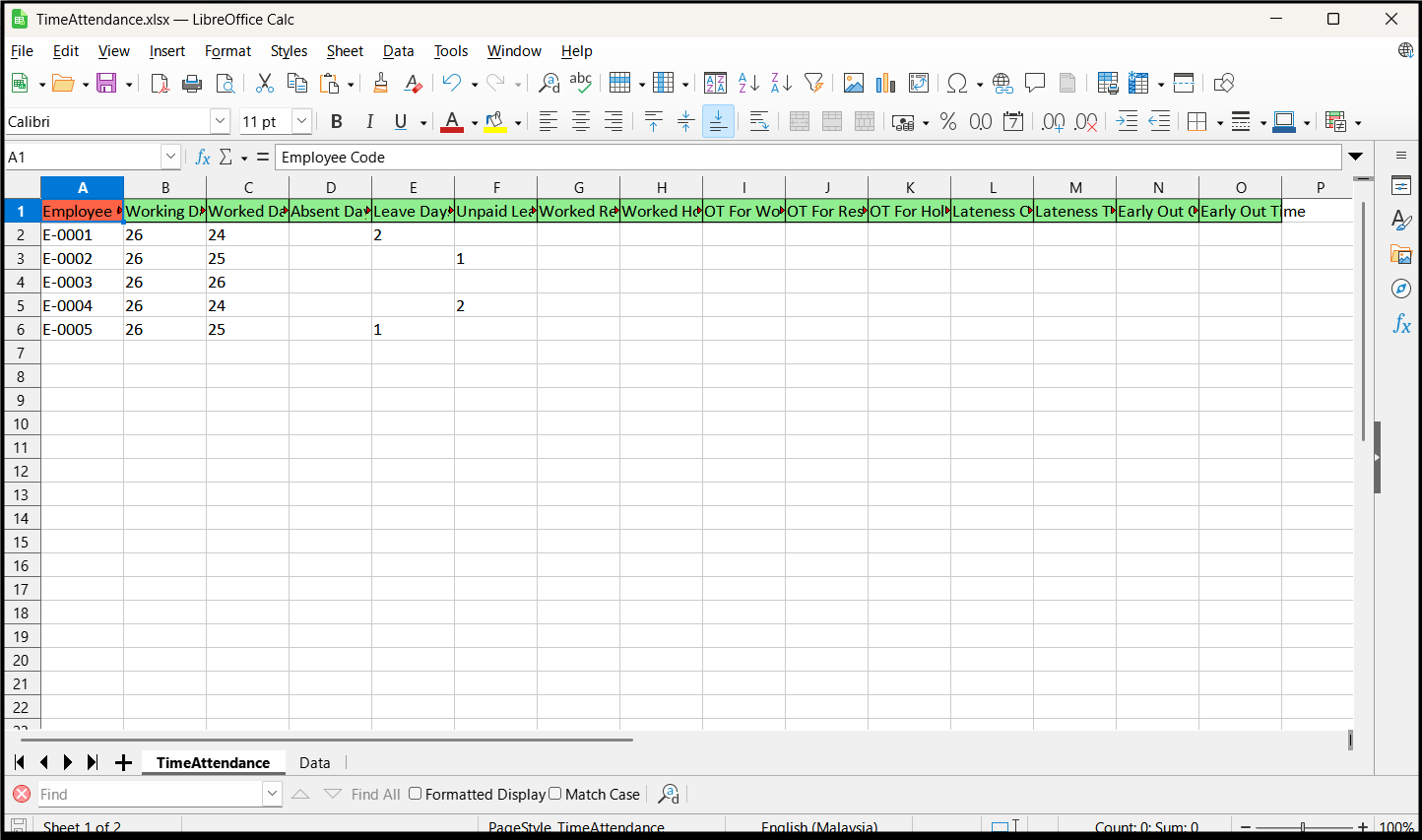
But when remove the two lines:
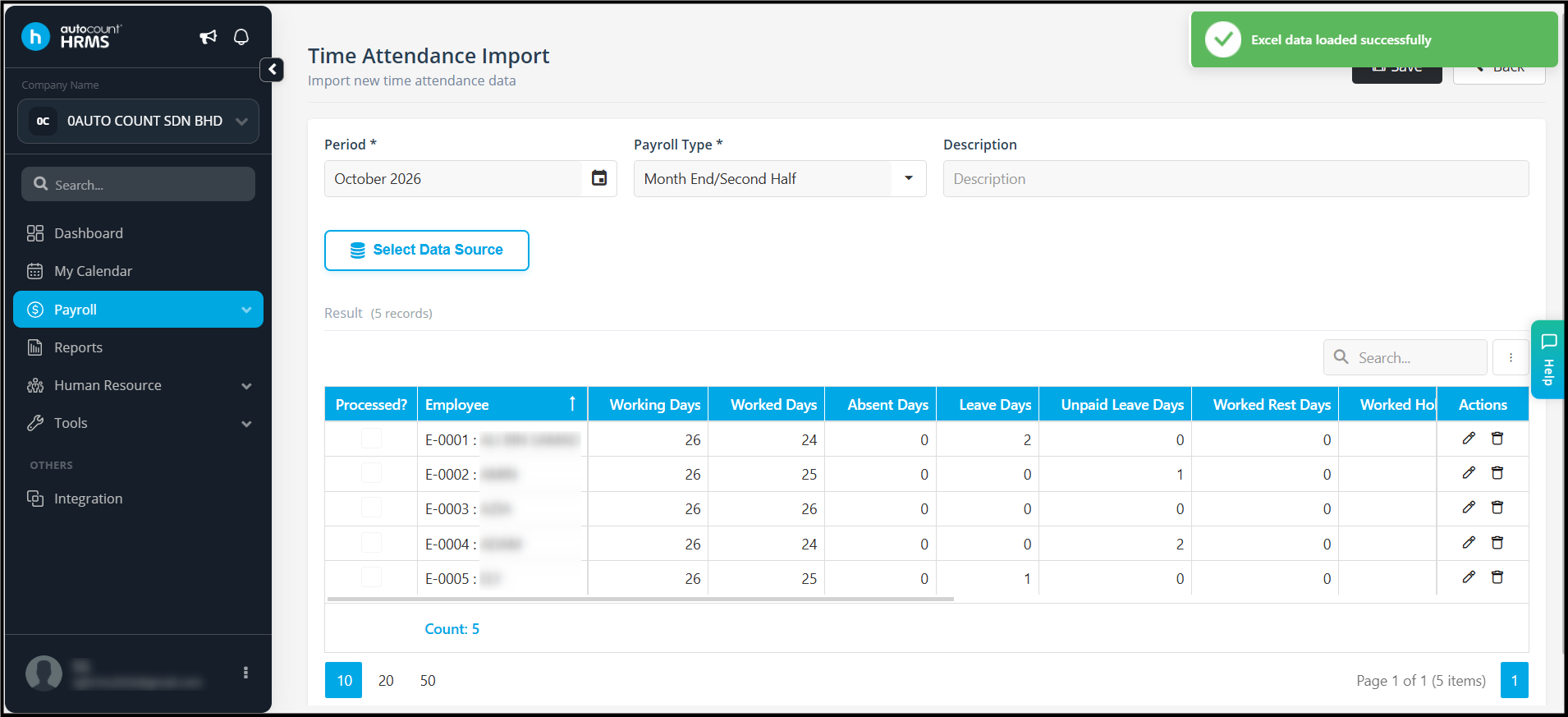
Then can import:
Possible reason:
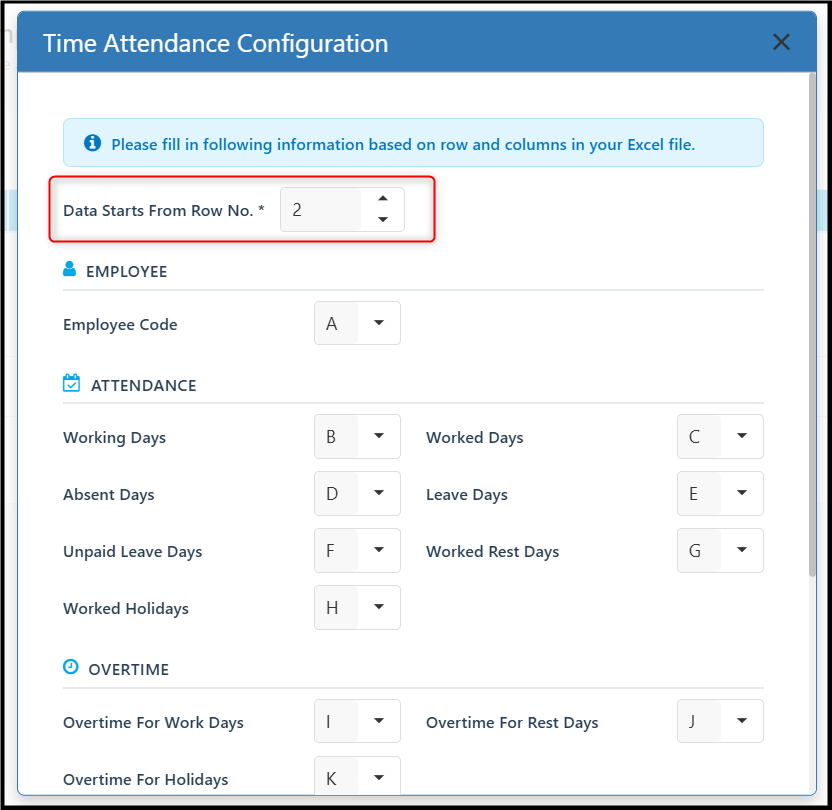
The Data Starts From Row No. setting in the Time Attendance Import Configuration may have been amended. If the starting row number does not match the default Excel template, the system may read the data from the wrong row, resulting in an import error.
Solution:
- Go to Payroll > Attendance Import > Configuration
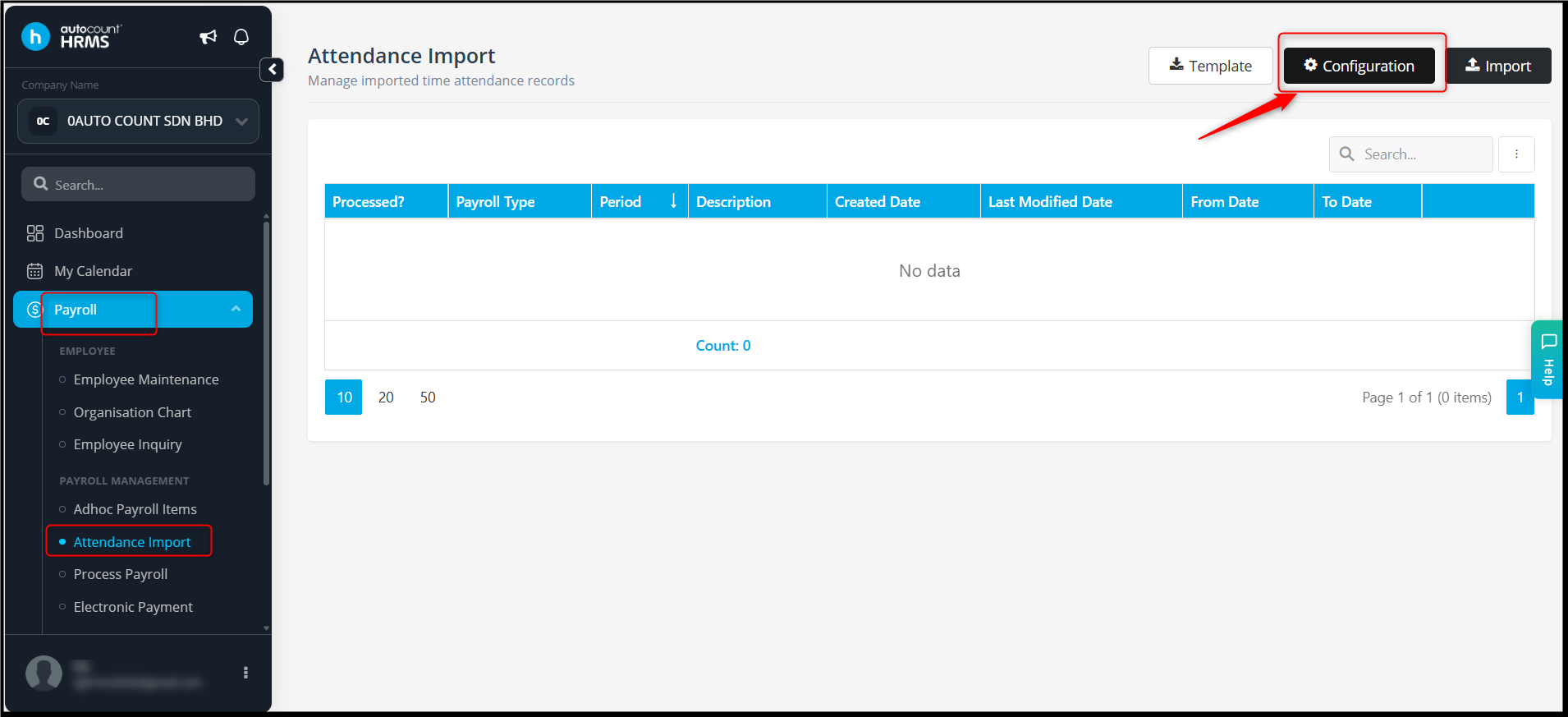
- Locate the Data Starts From Row No. field. This setting determines which row the system starts reading when importing data from the Excel file.
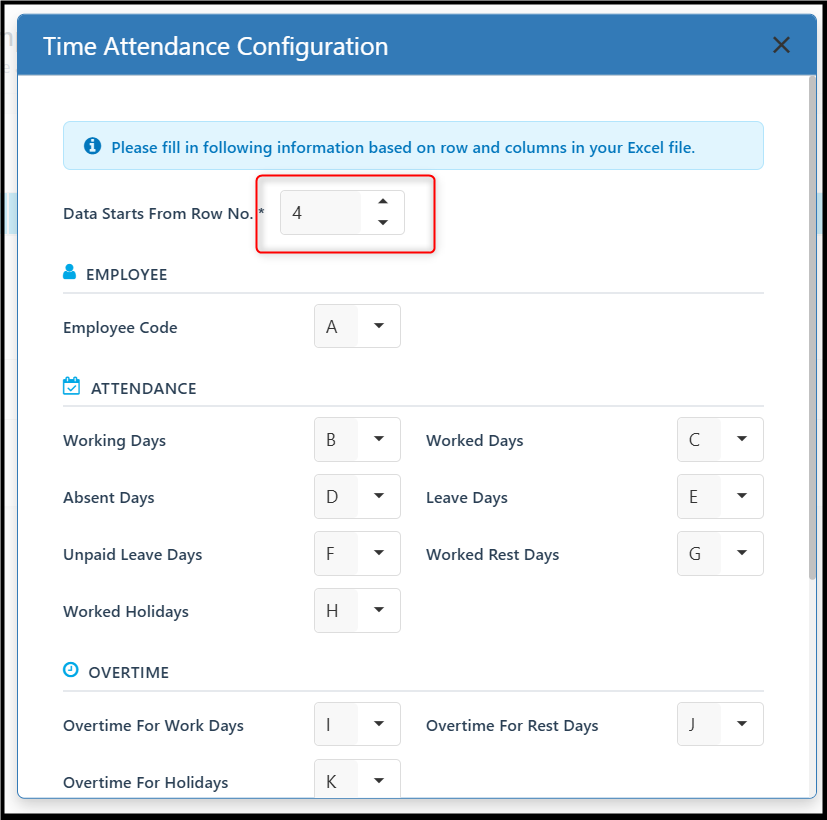
- For the system's default Excel template, ensure that the starting row is set to 4. If the value has been changed, amend it back to 4.
- After updating the configuration, try importing the original Excel template again without removing any rows.
If the issue is caused by an incorrect starting row setting, the original Excel template should be imported successfully after the configuration is corrected.
Azirah 261009