
Users may customise the Payroll Summary Report to include HRDF contribution amounts. This allows payroll users to clearly view HRDF employer contributions within payroll summaries for reporting and reconciliation purposes.
Steps to Add HRDF Contribution Amount to the Payroll Summary Report:
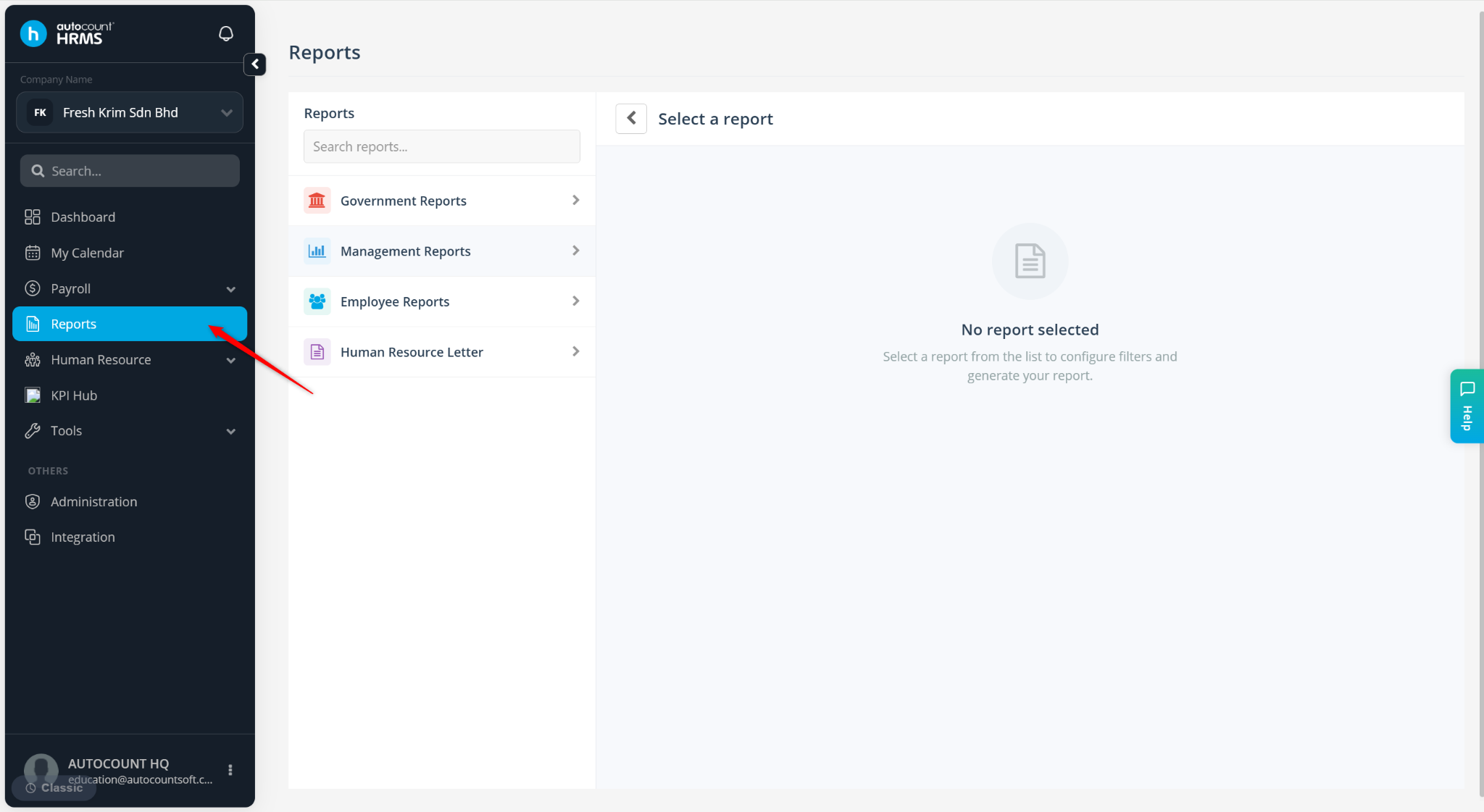
Go to Reports.
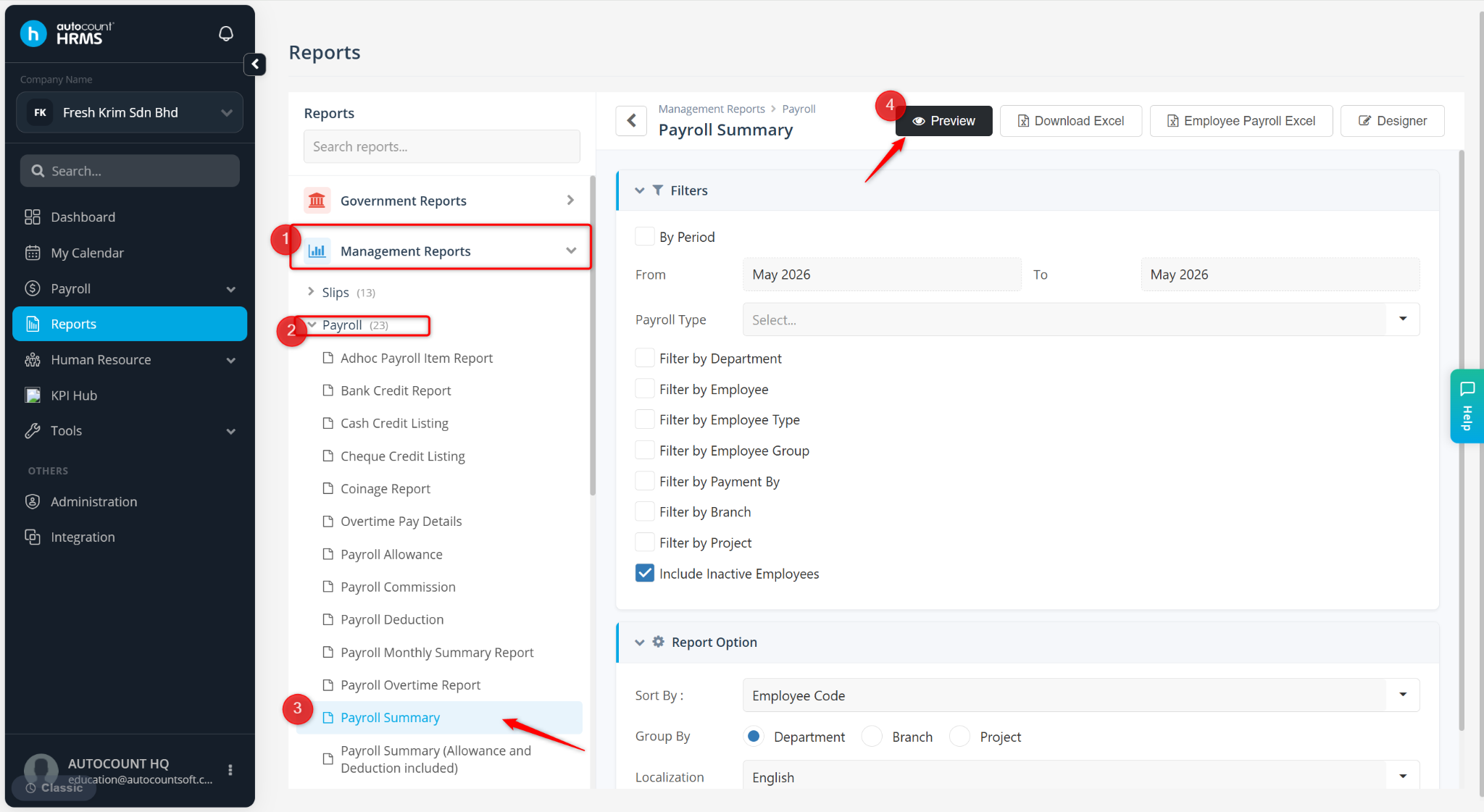
Expand Management Reports > Payroll, select Payroll Summary.
Click Preview.
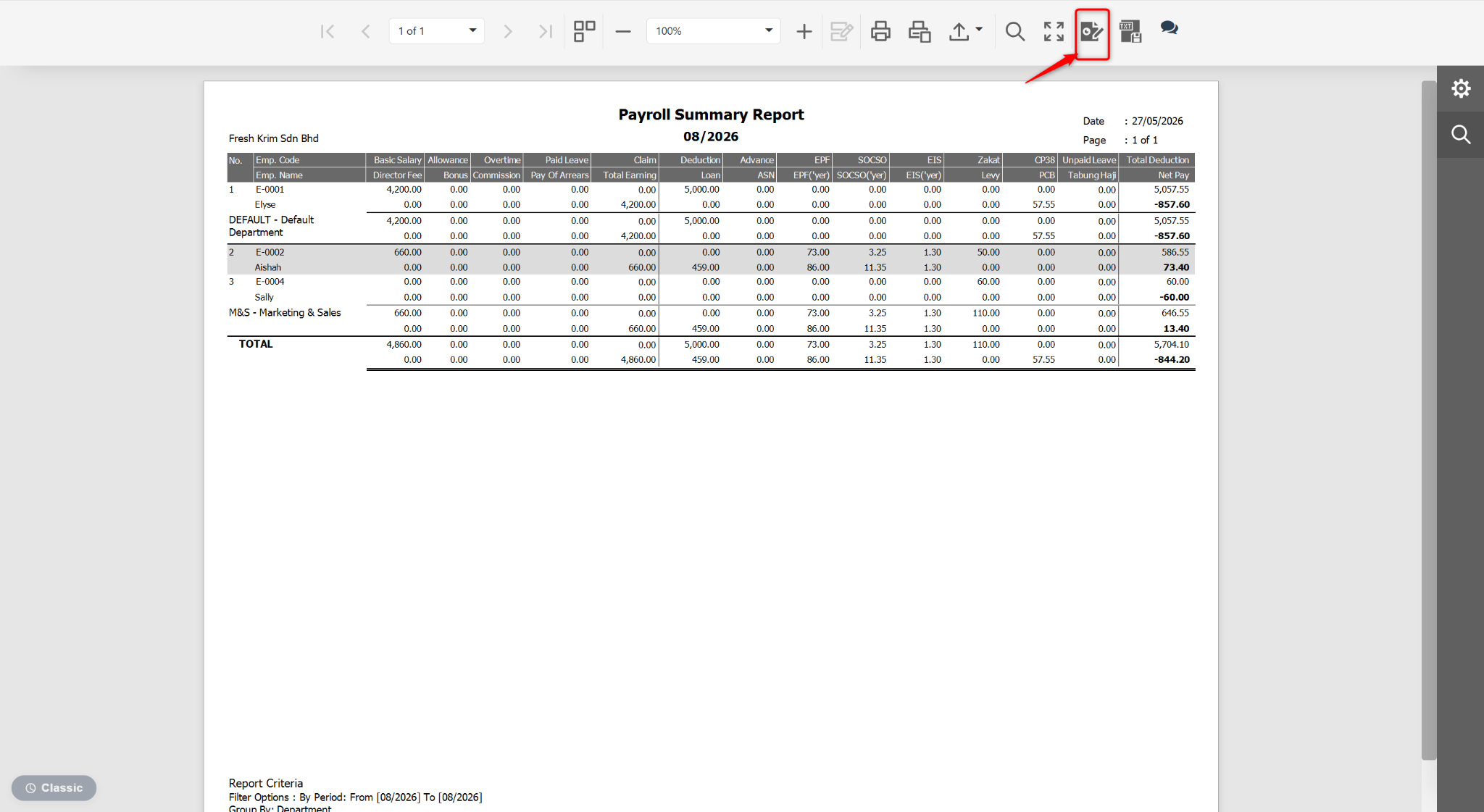
At the Preview page, click the edit icon.
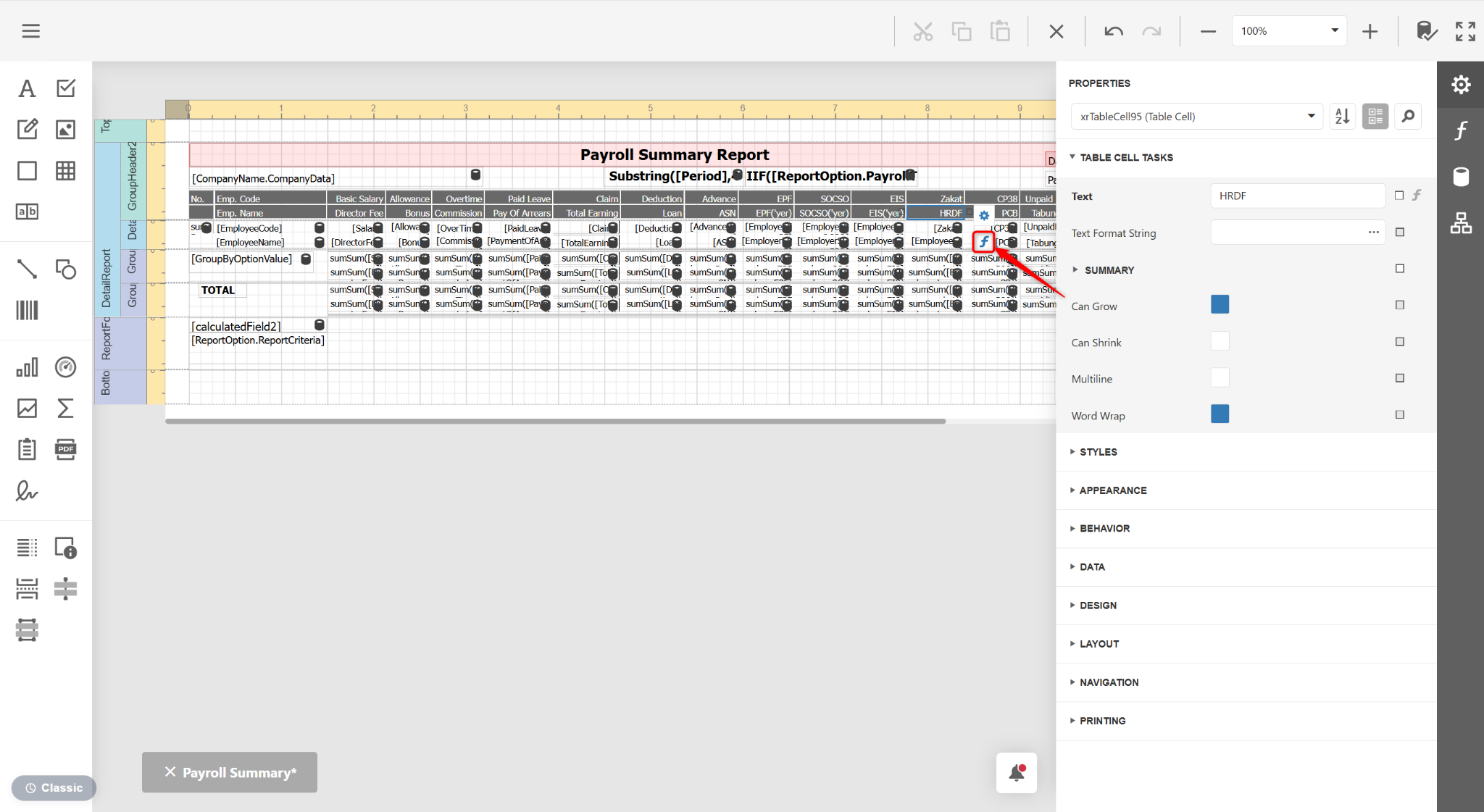
Click an unused column (e.g., Levy) and change the Text to HRDF.
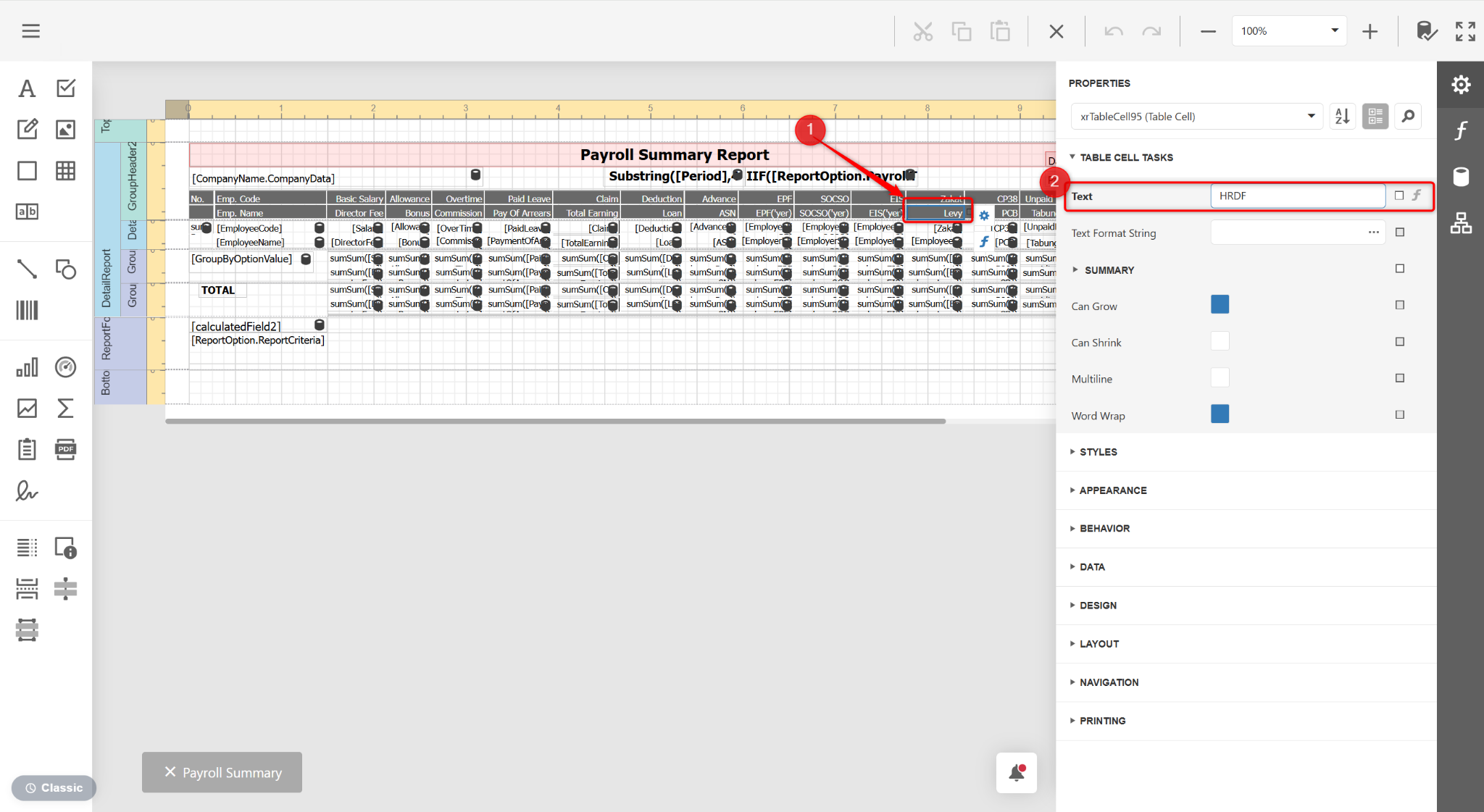
Click the Expression Editor (f icon).
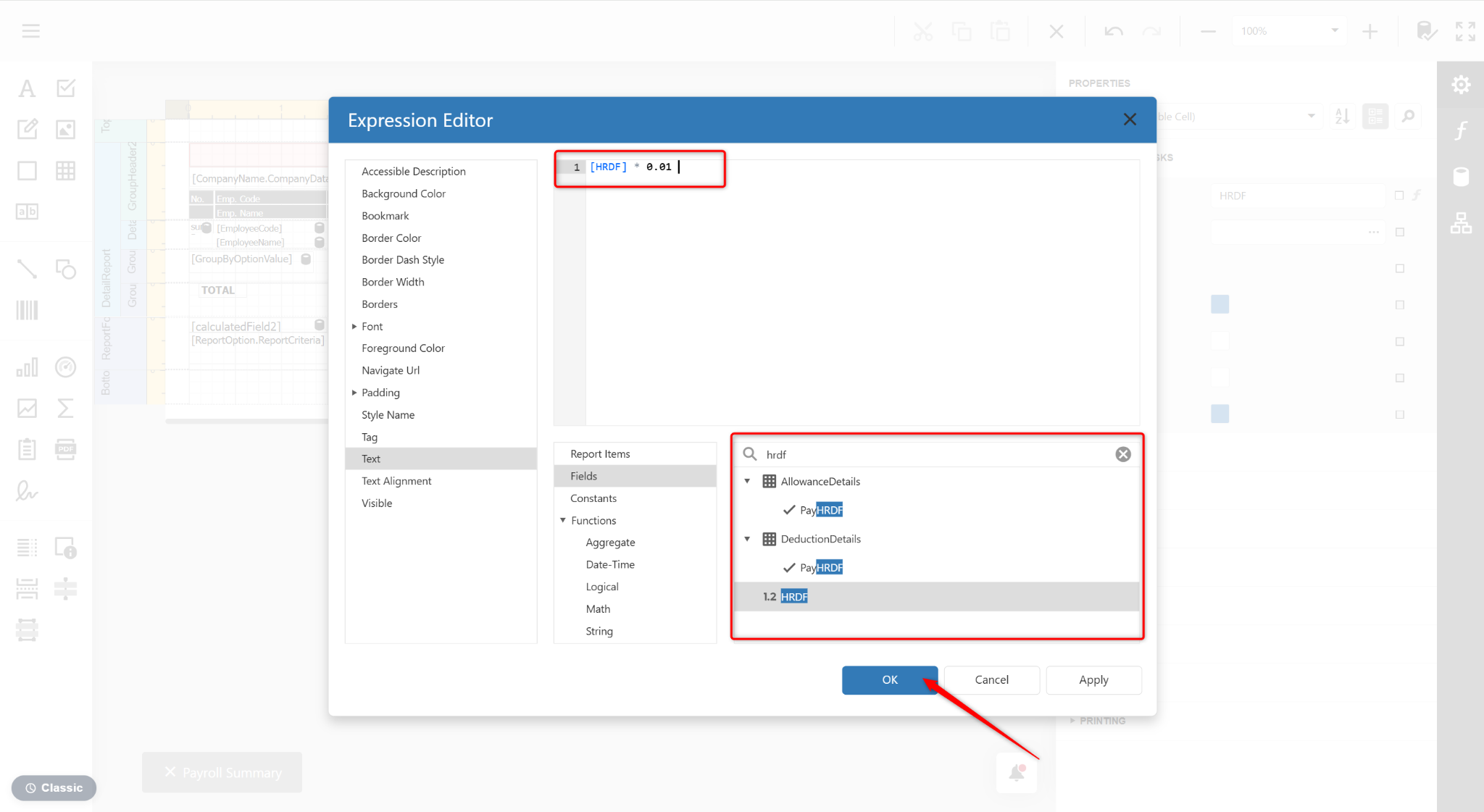
Input the formula [HRDF] * 0.01, then click OK.
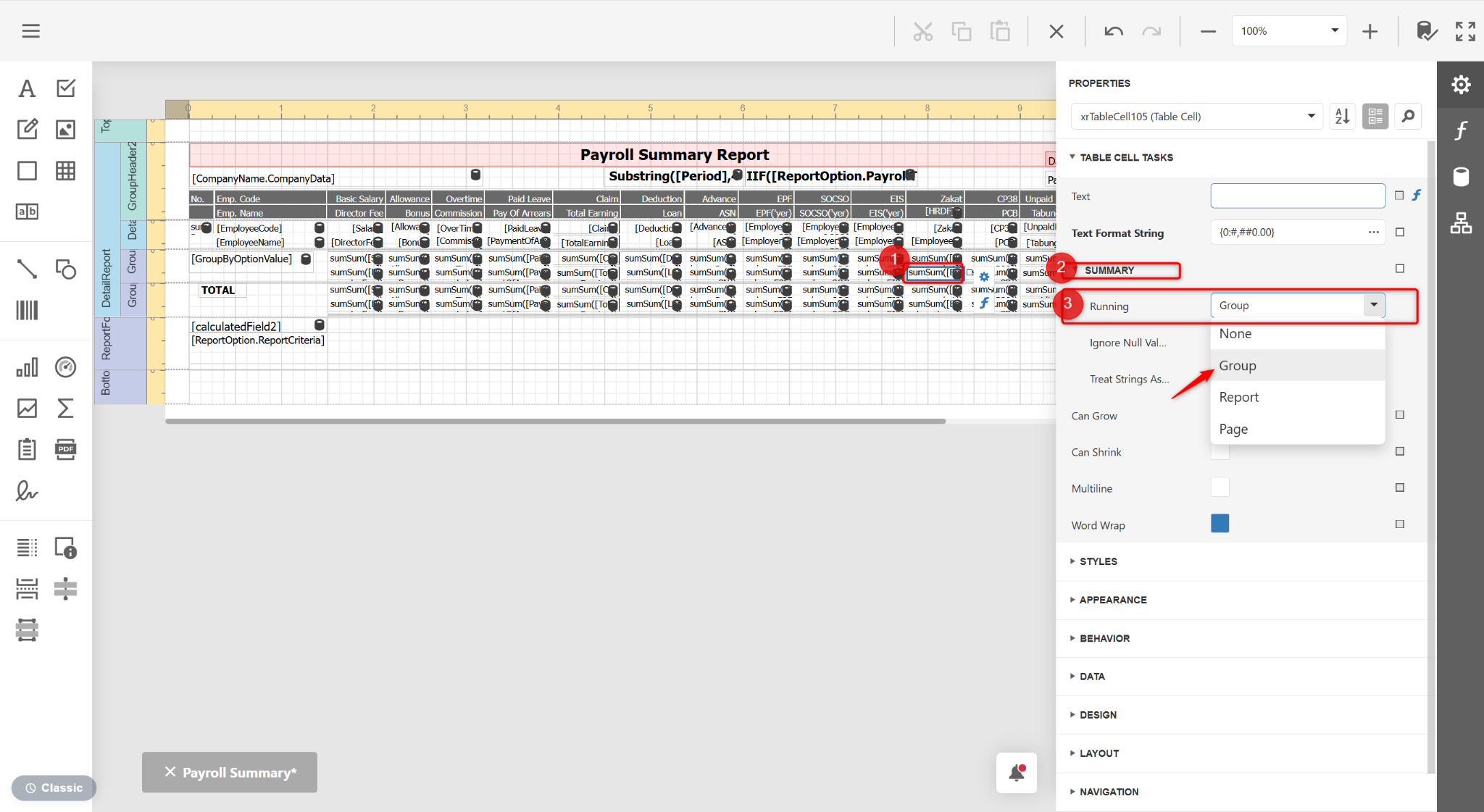
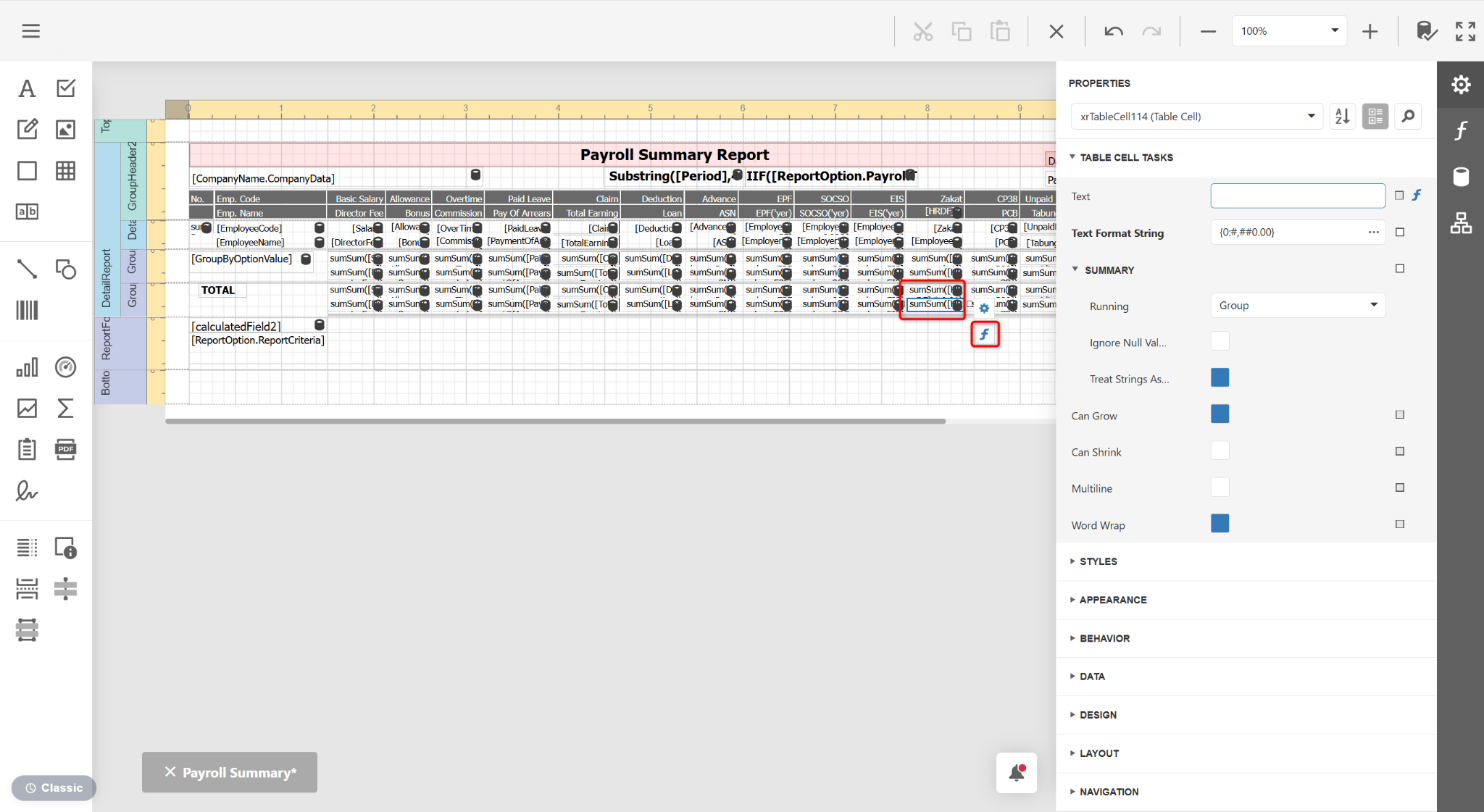
Ensure Group is selected under Properties > Summary > Running for the sumSum column.
Click Expression Editor (f icon).
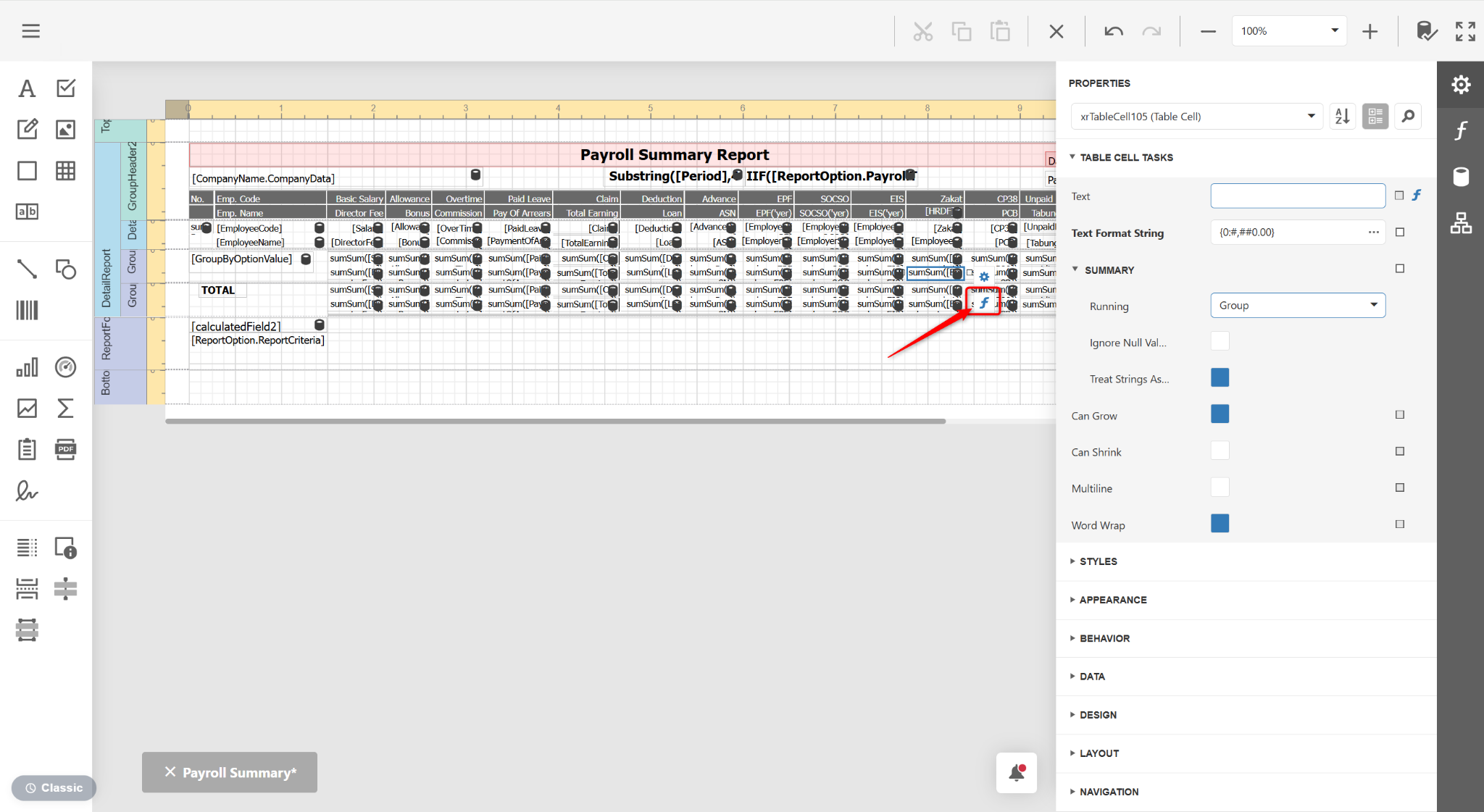
Input the formula sumSum([HRDF] * 0.01). Click OK.
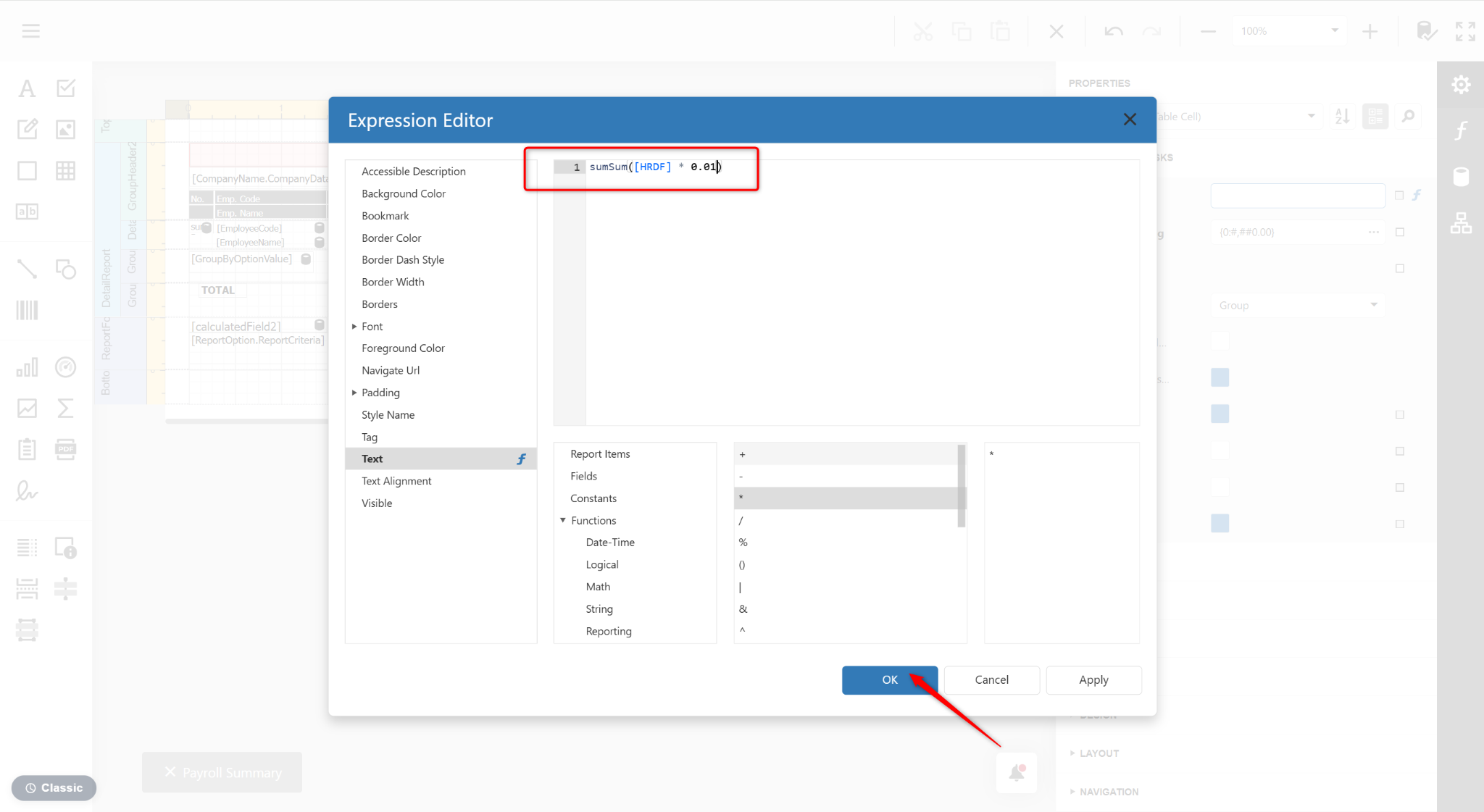
Repeat step 9 and 10 for the Grand Total column.
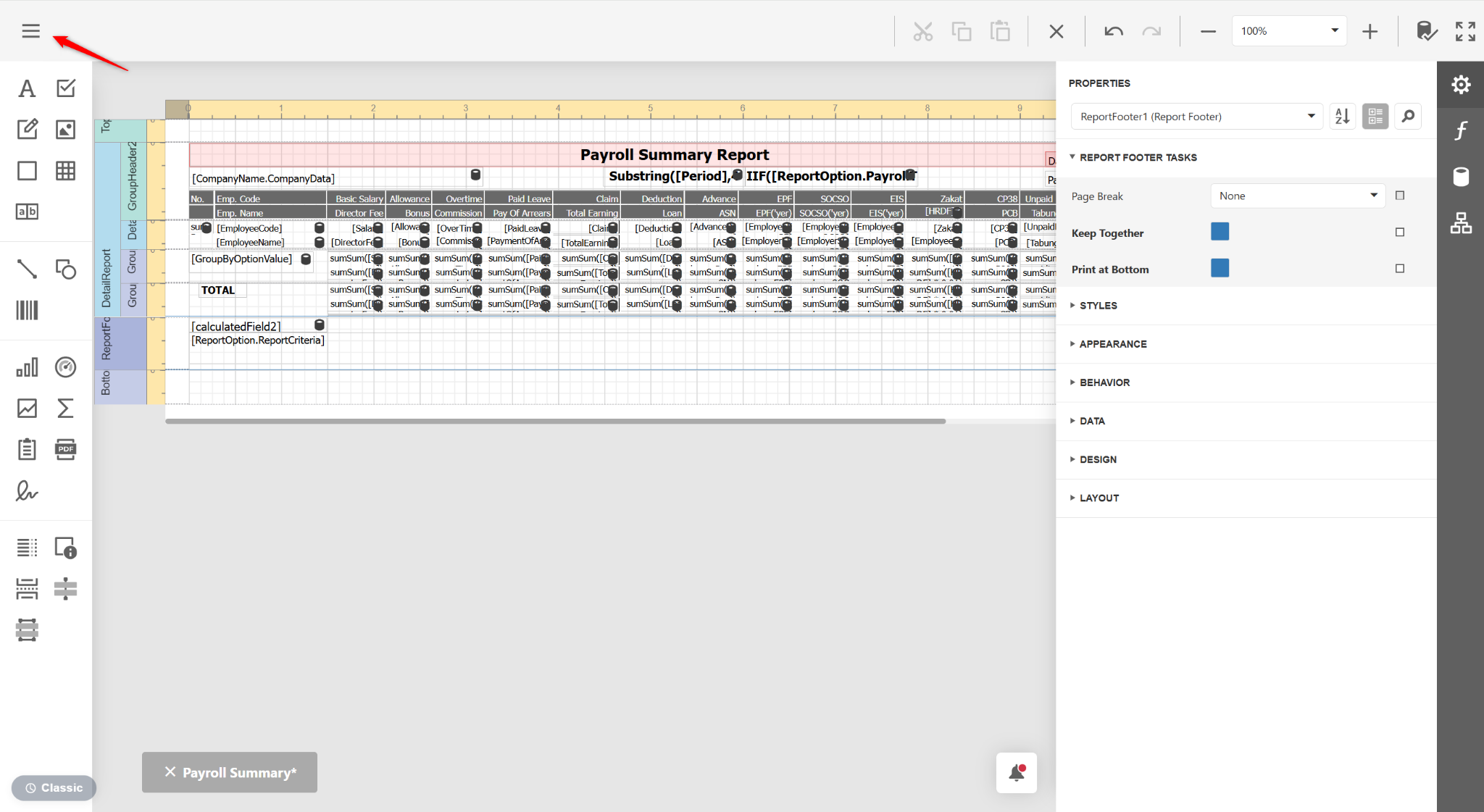
Click the three horizontal lines icon.
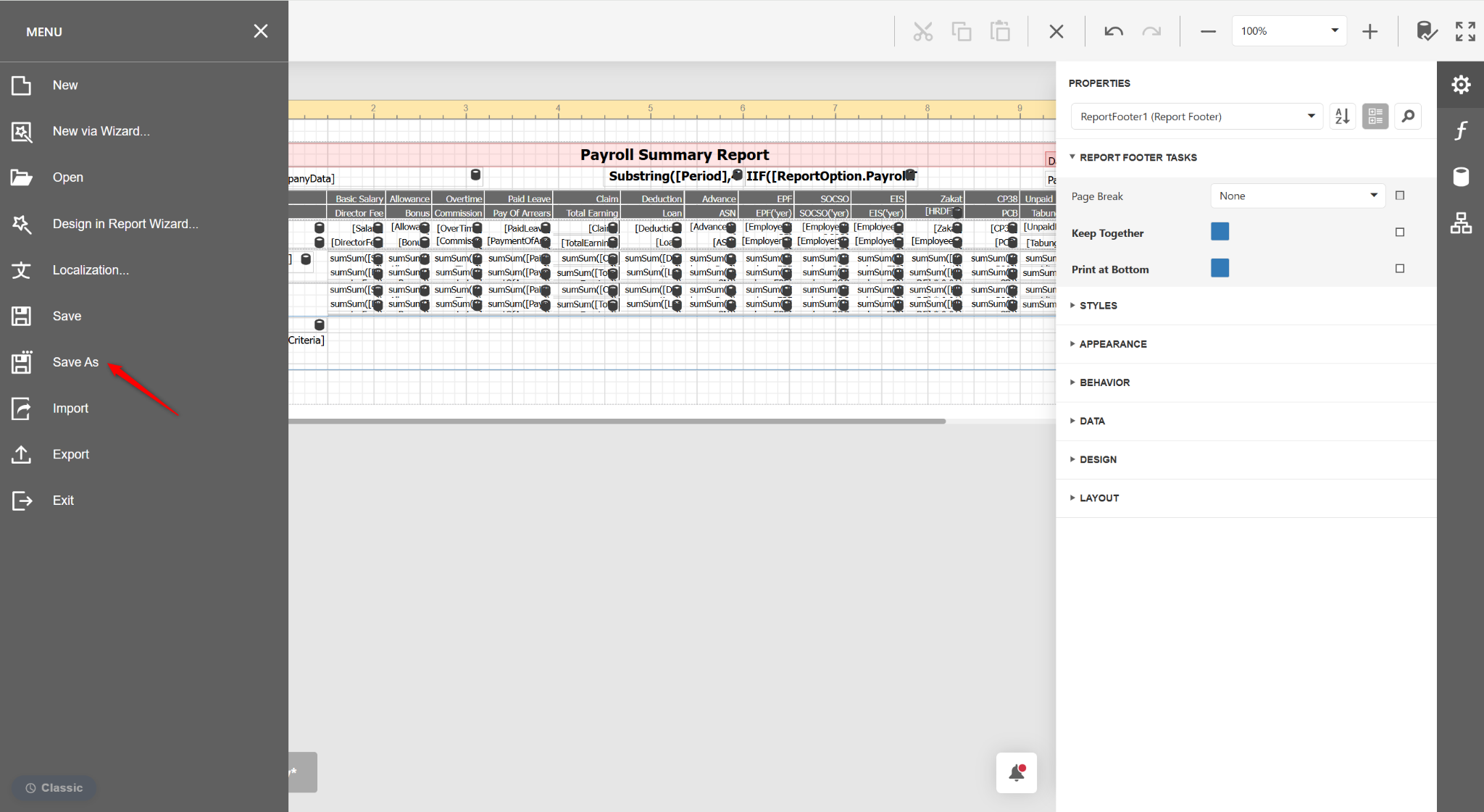
Click Save As.
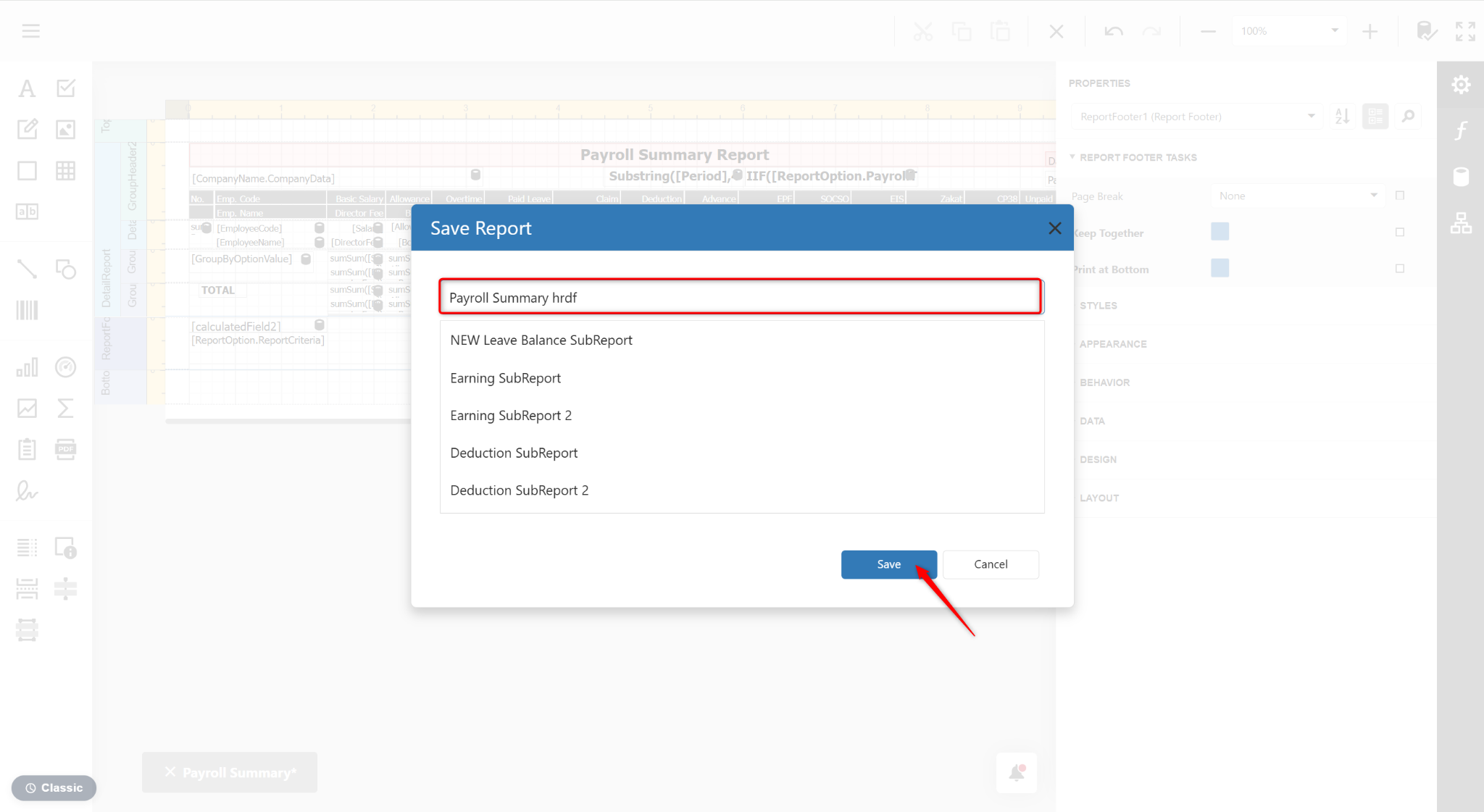
Enter a new report name and click Save.
Written by: HanYang (20250725)
Reviewed by: Azirah (20250731)