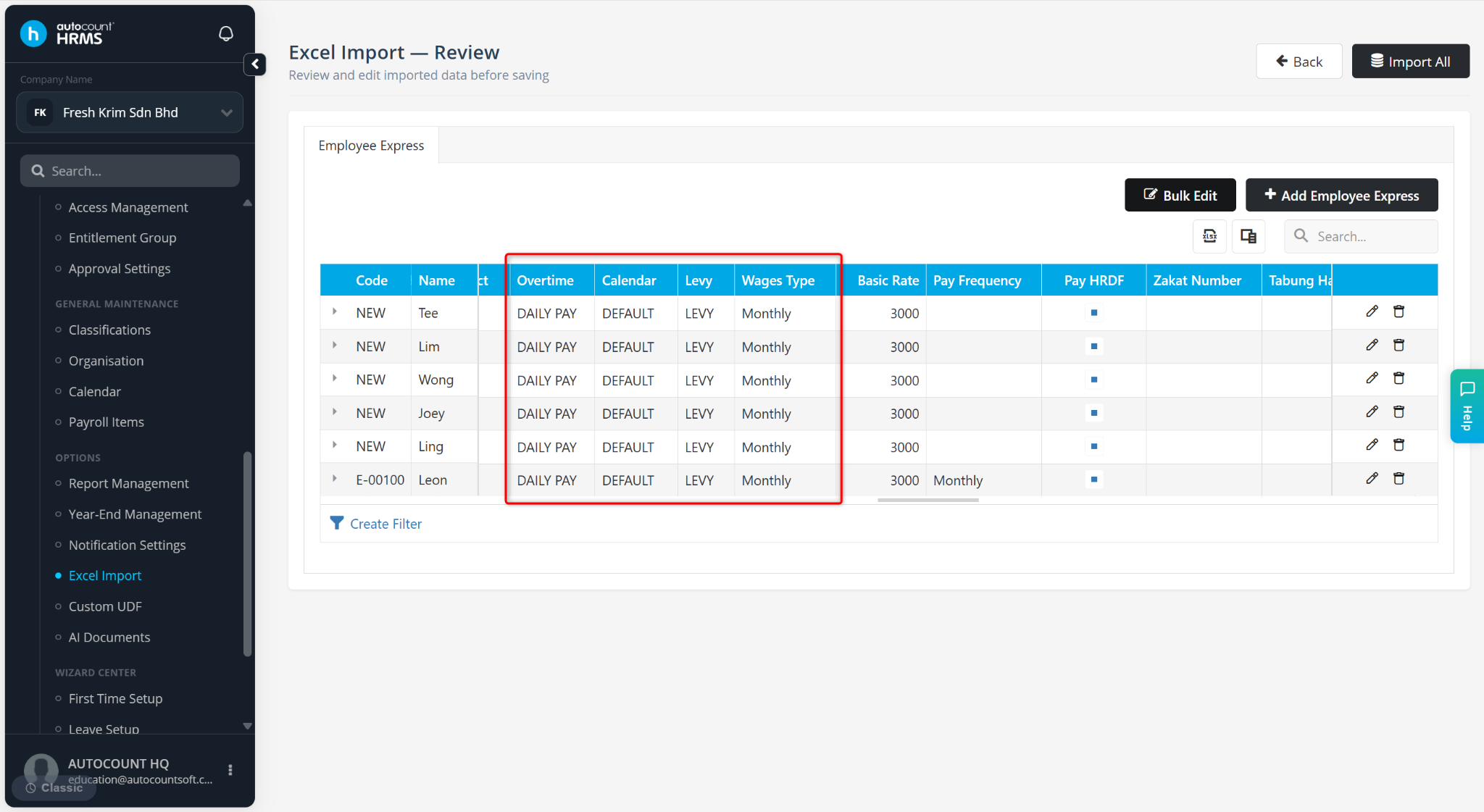
The Excel Import feature allows users to import employee, payroll, and company information in bulk using predefined Excel templates. This helps reduce manual data entry and ensures consistent and accurate data maintenance.
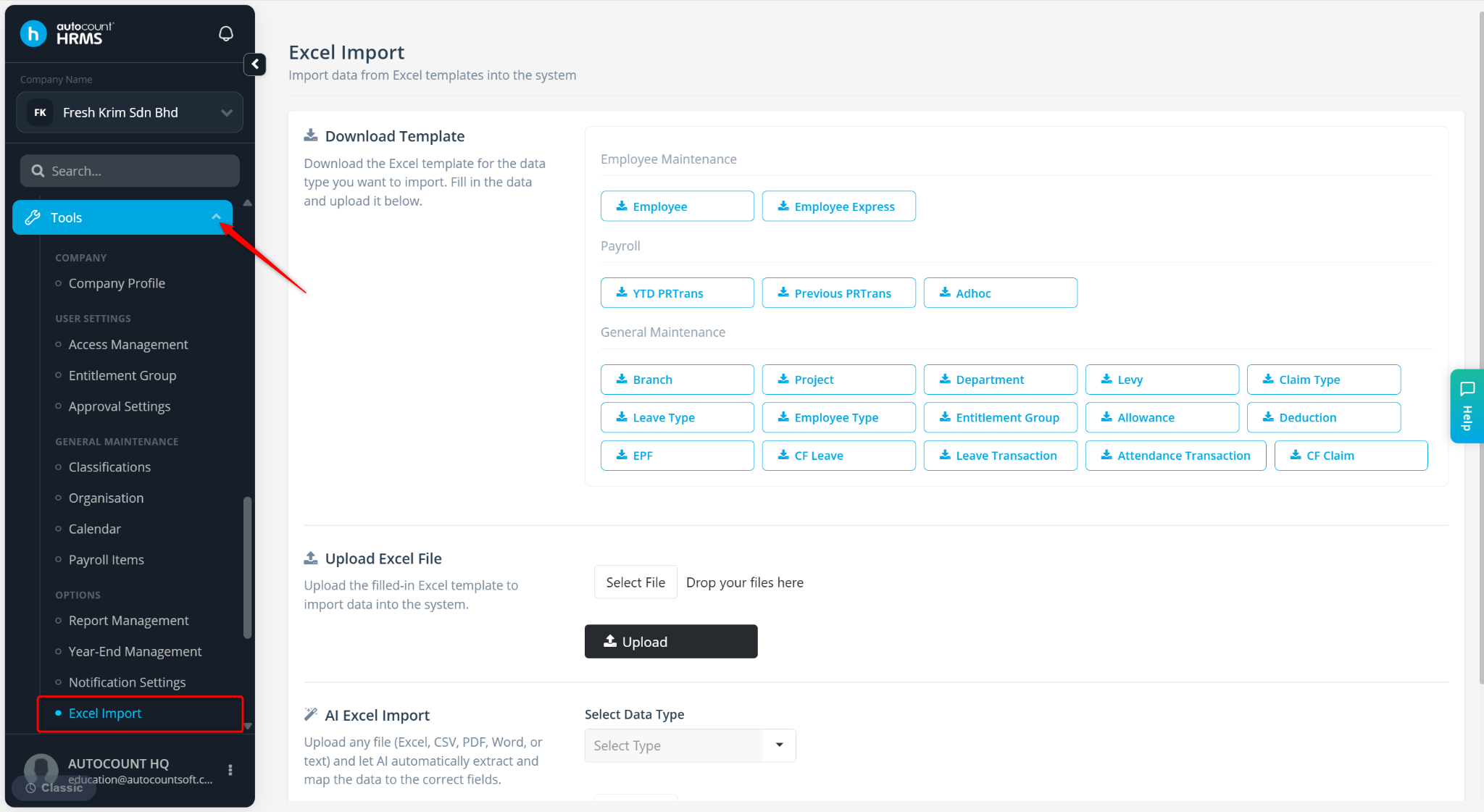
The following import templates are available:
Employee Maintenance – Employee and Employee Express.
Payroll – YTD PRTrans, Previous PRTrancs, Adhoc.
General Maintenance – Branch, Project, Department, Levy, Claim Type, Leave Type, Employee Type, Entitlement Group, Allowance, Deduction, EPF, CF Leave, Leave Transaction, Attendance Transaction and CF Claim.
Steps to Enter Data via Excel Import:
Go to Tools > Excel Import.
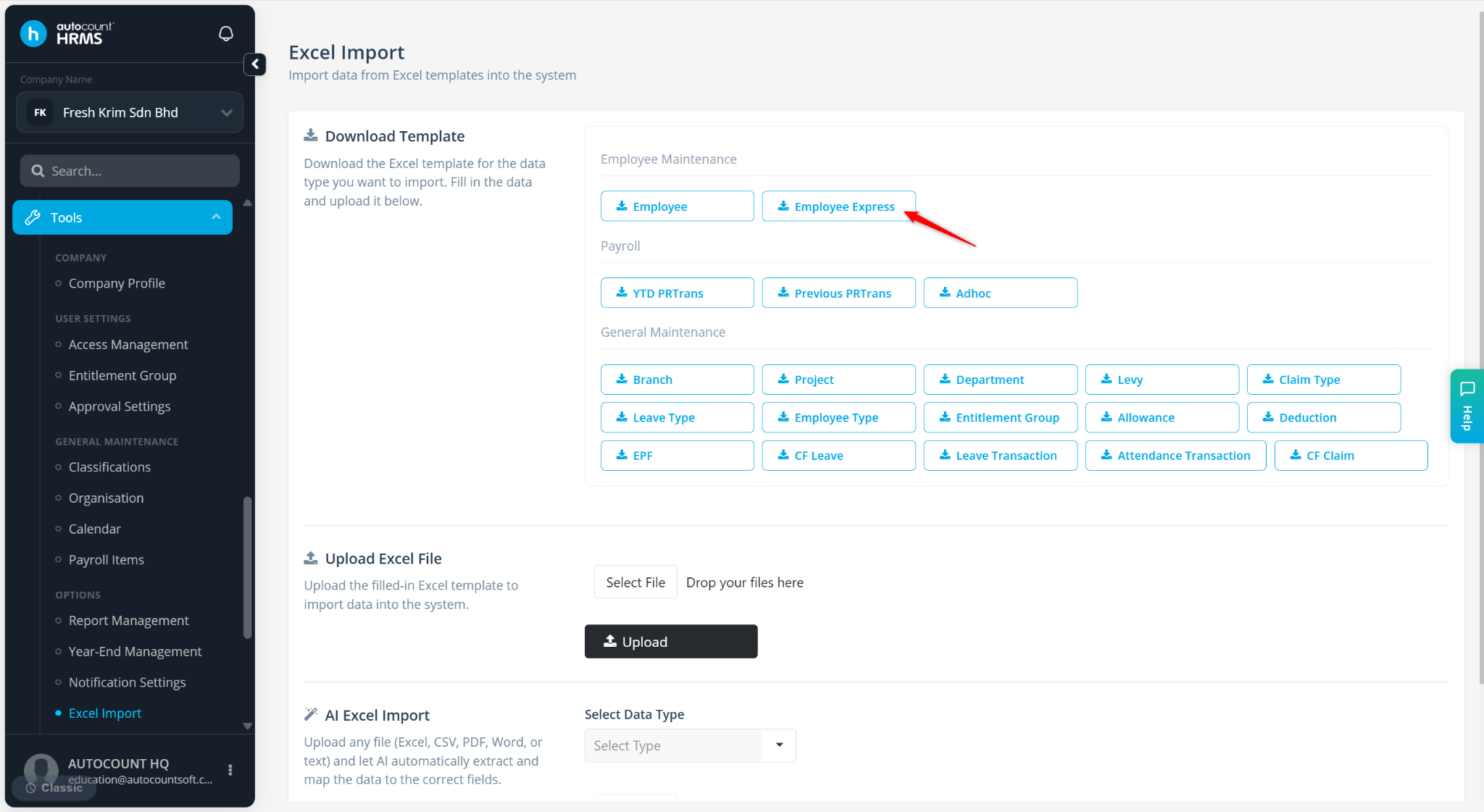
Click to download the required template.
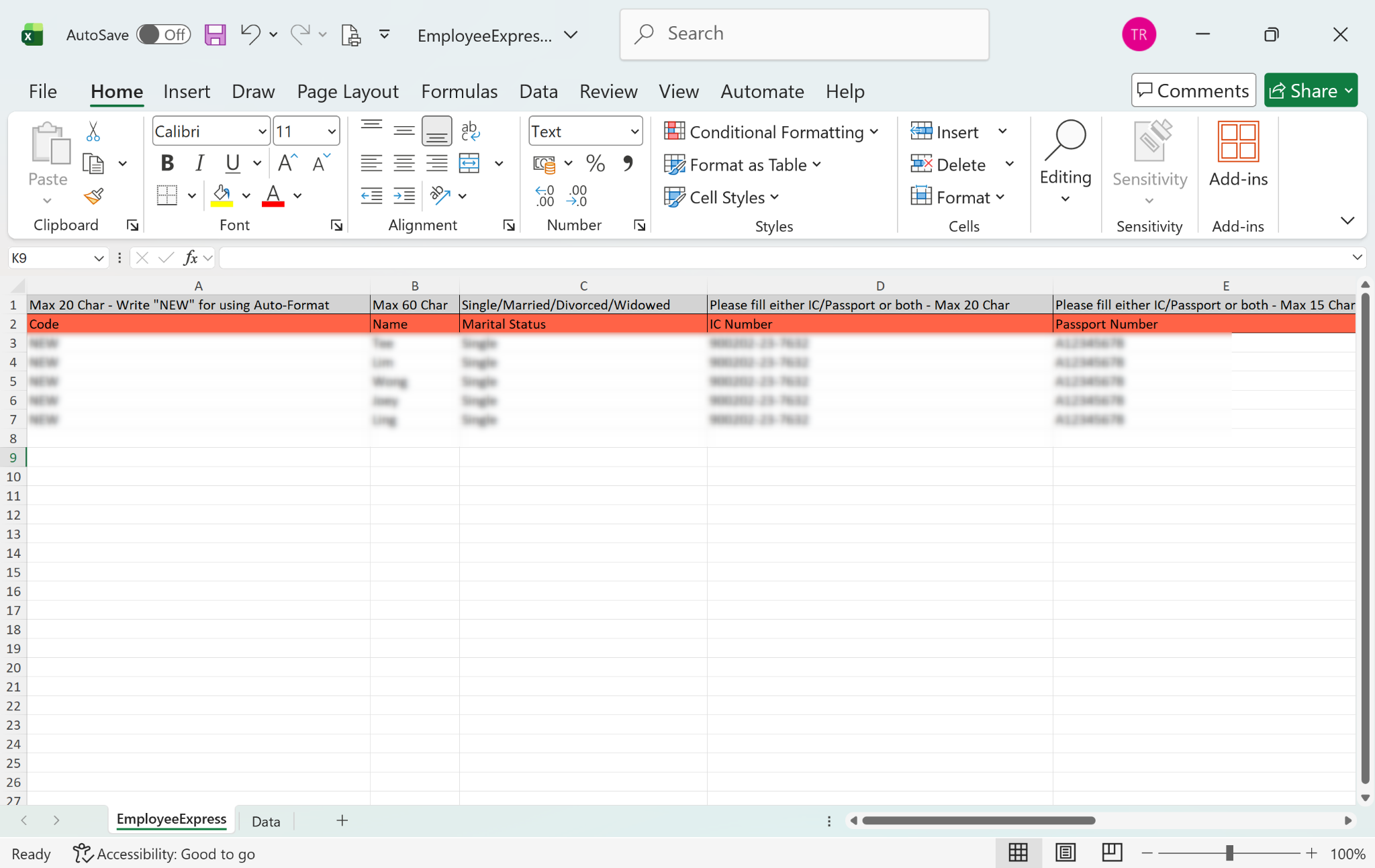
Enter the data into the Excel template and save the file.
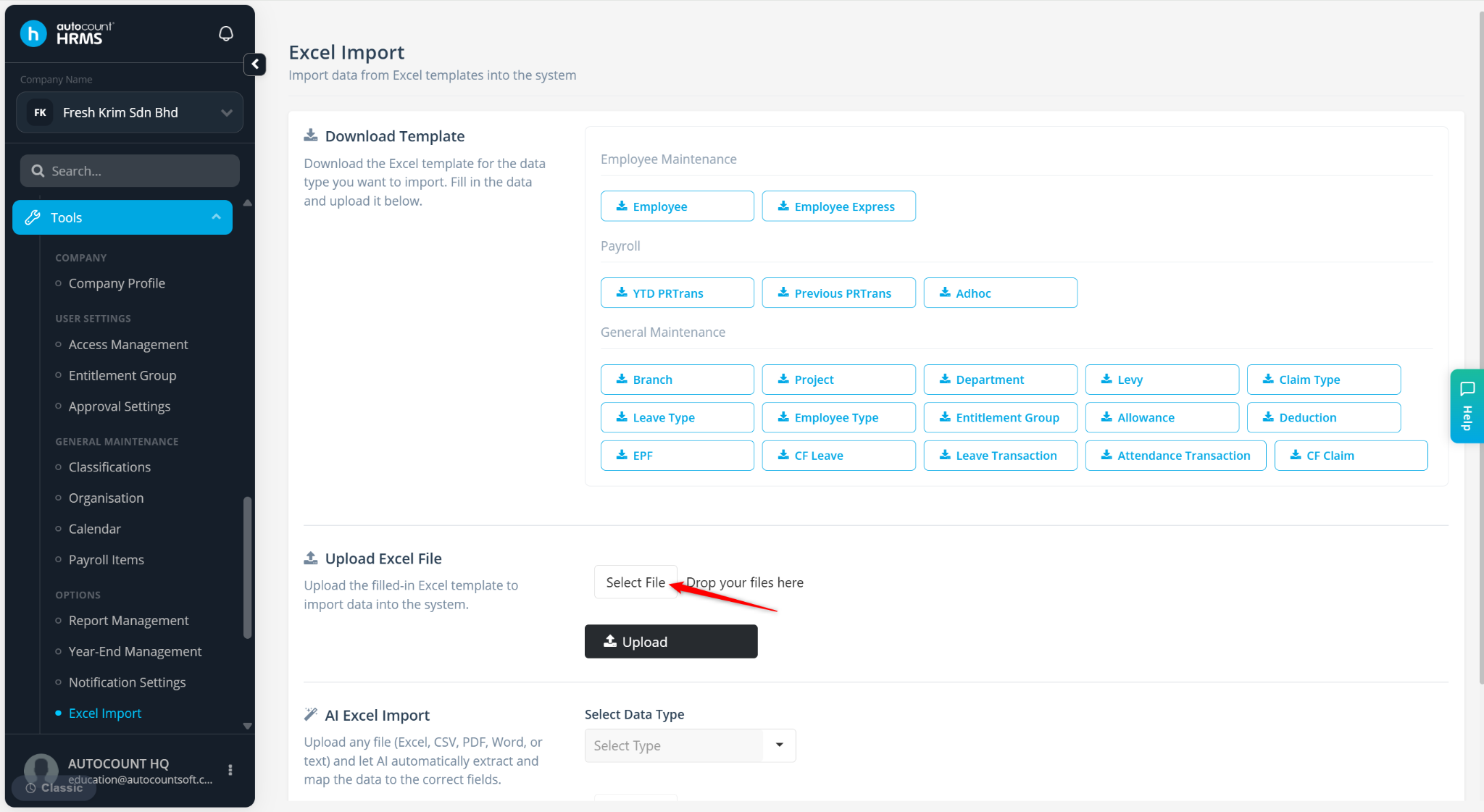
Click Select File.
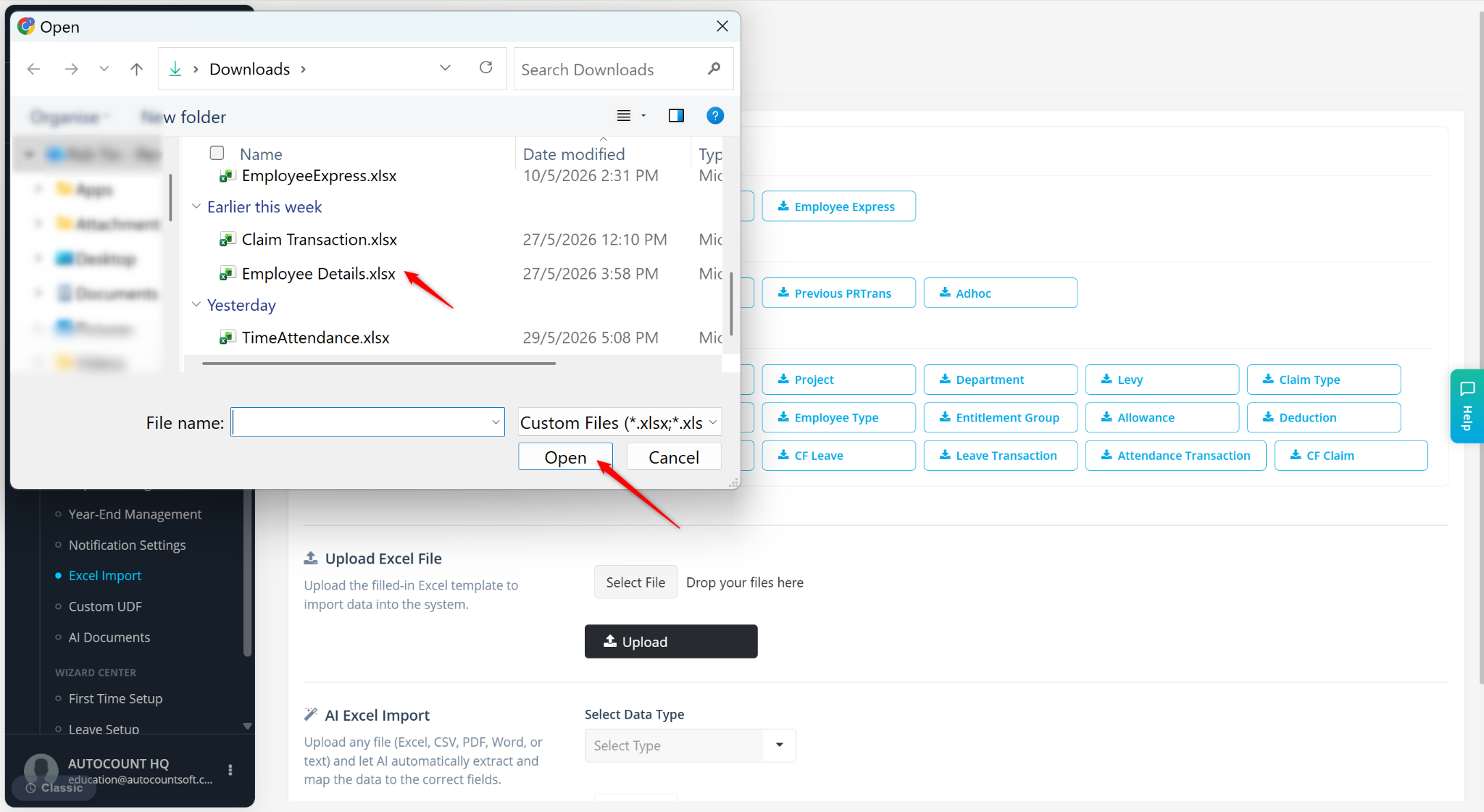
Select the excel file and click Open.
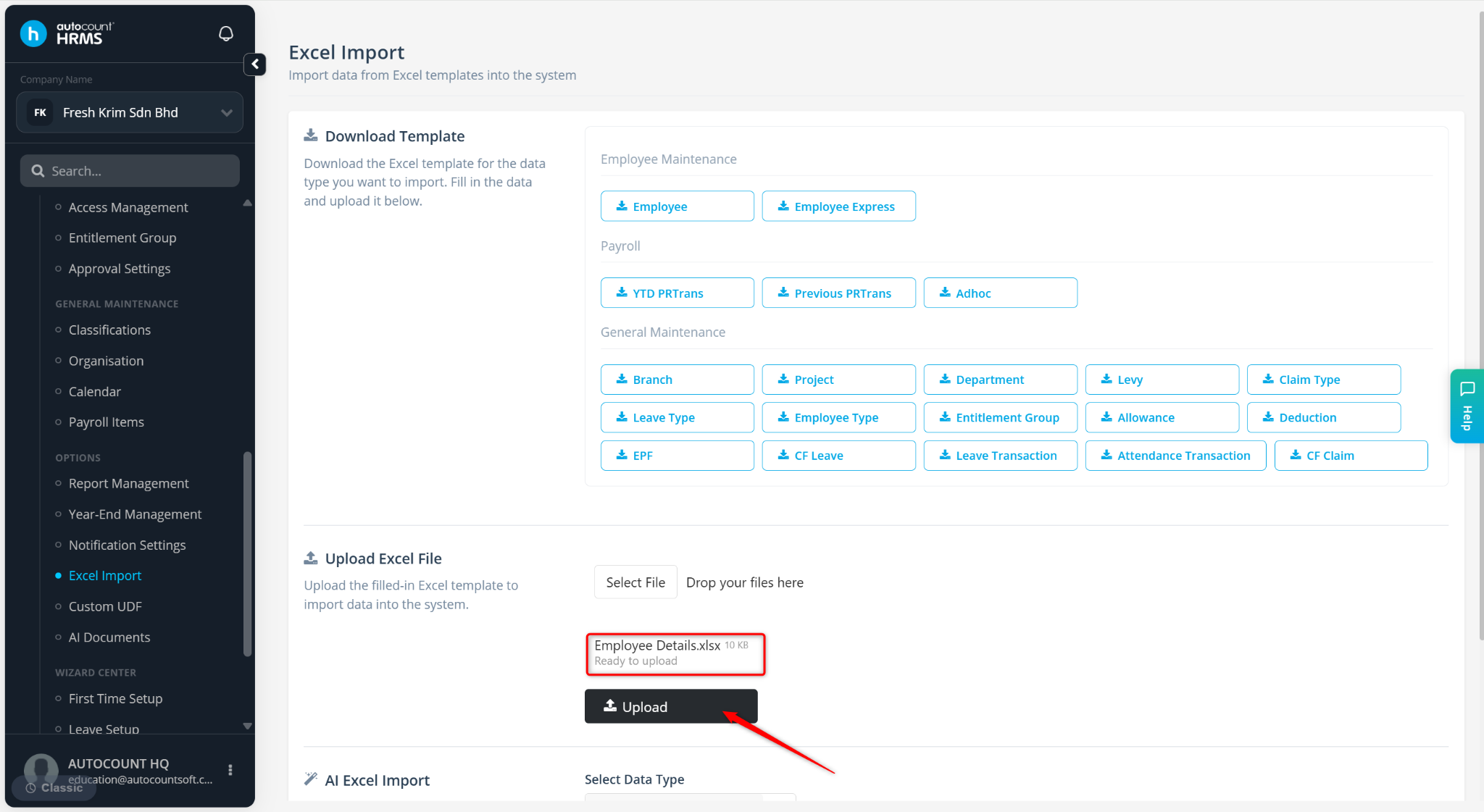
Click Upload.
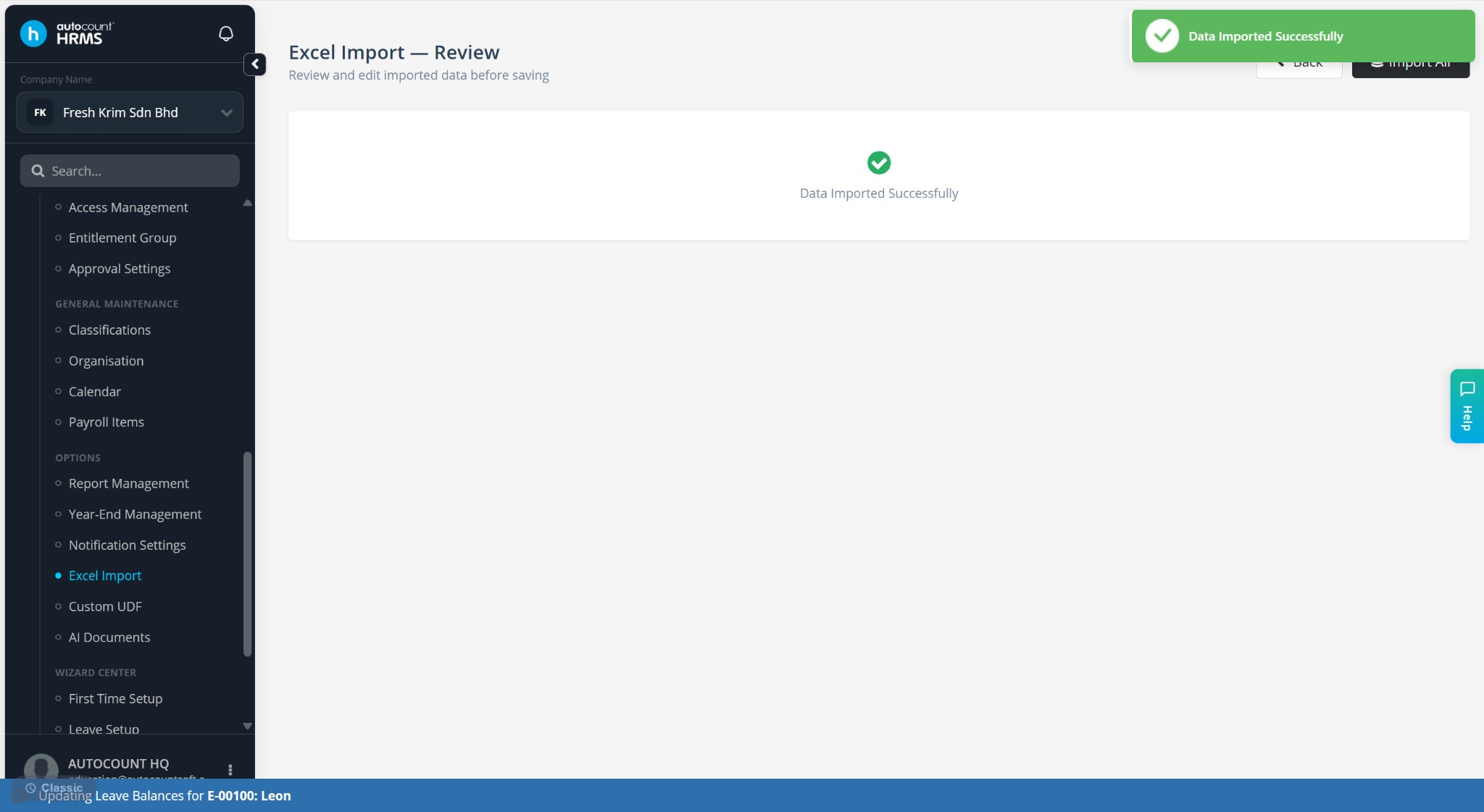
Click Import All at the top right corner.
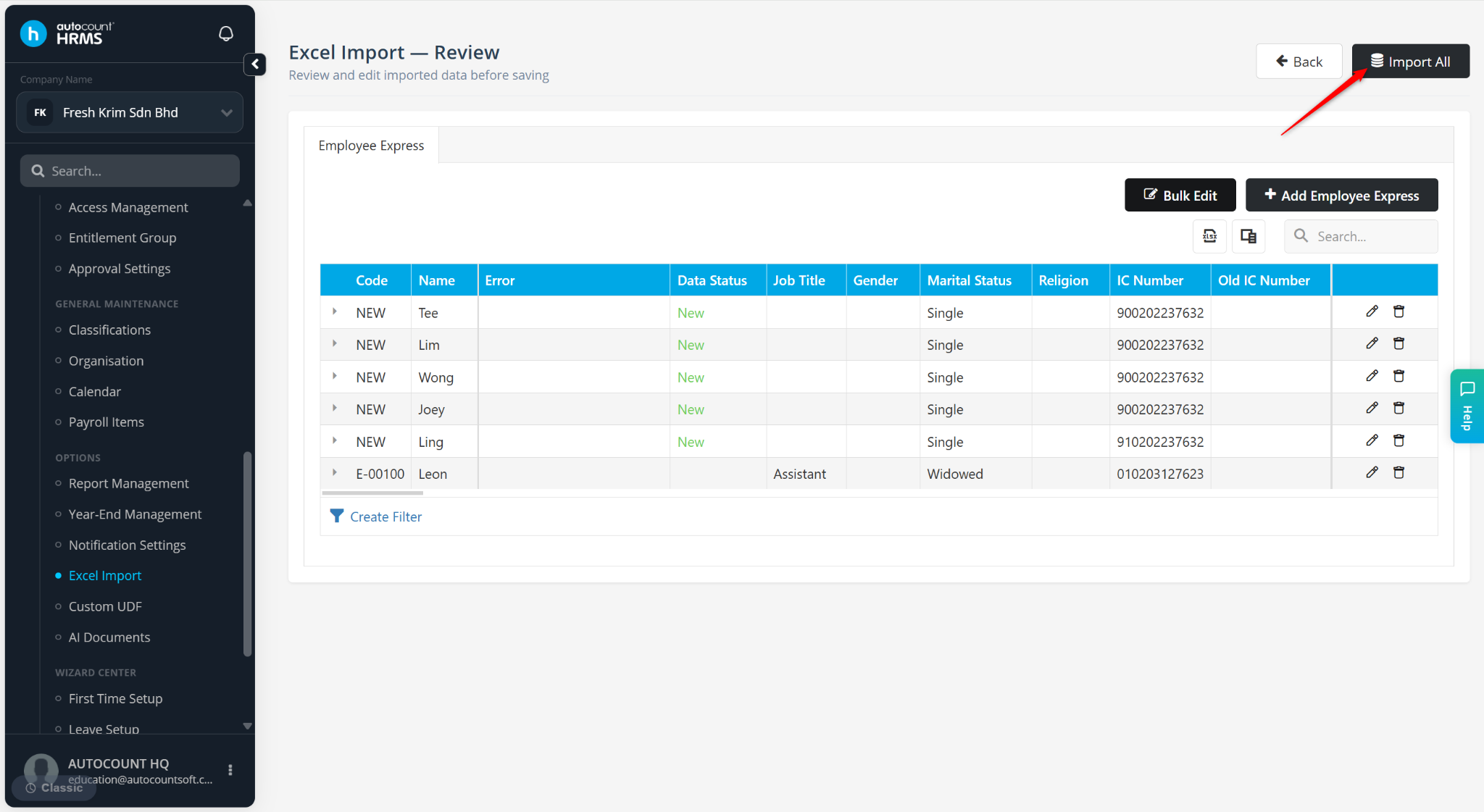
The system will process and import the data.
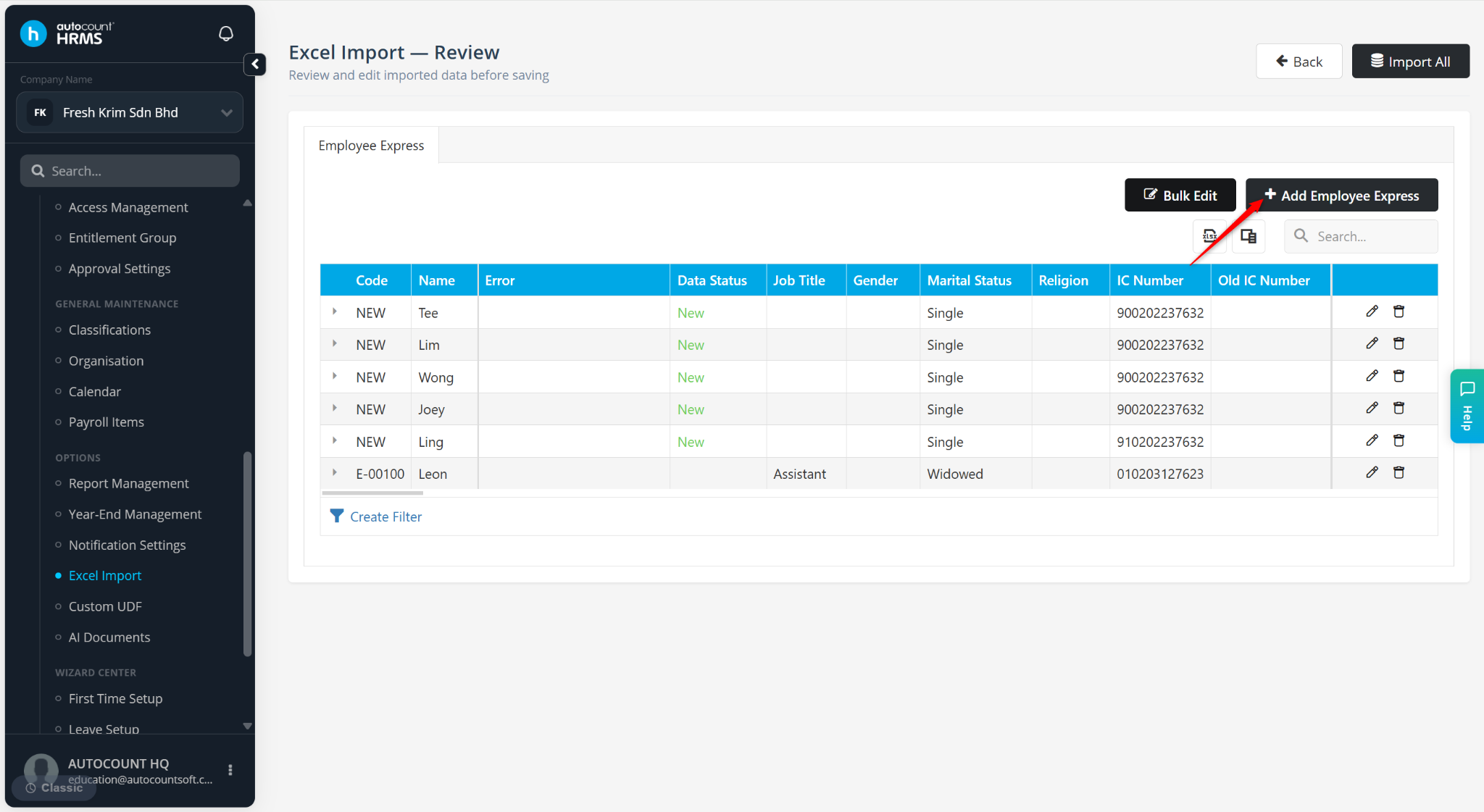
Steps to Add Additional Data before Import All:
While on the Excel Import - Review page, click + Add (Template Name) (e.g., + Add Employee Express).
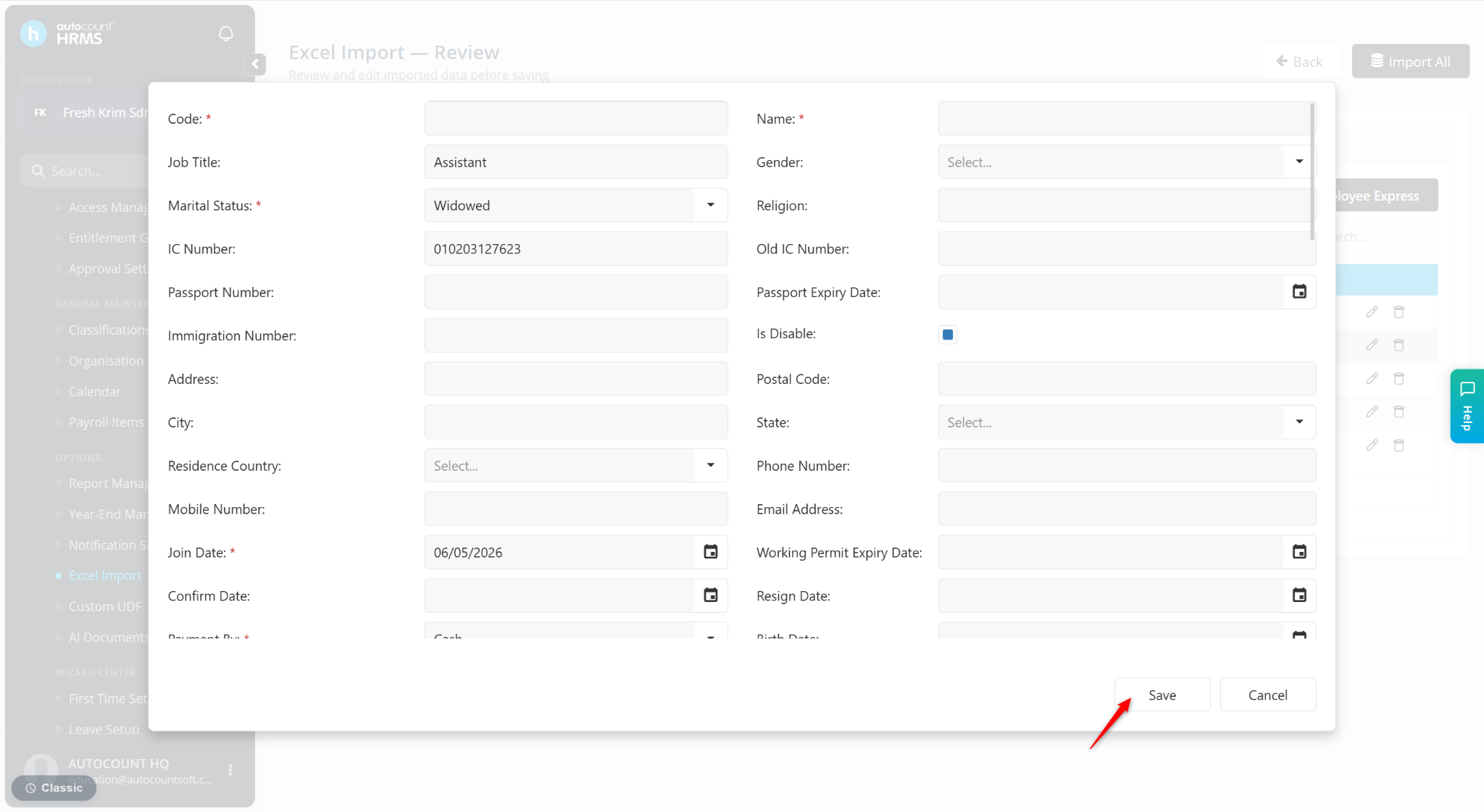
Enter the details and click Save.
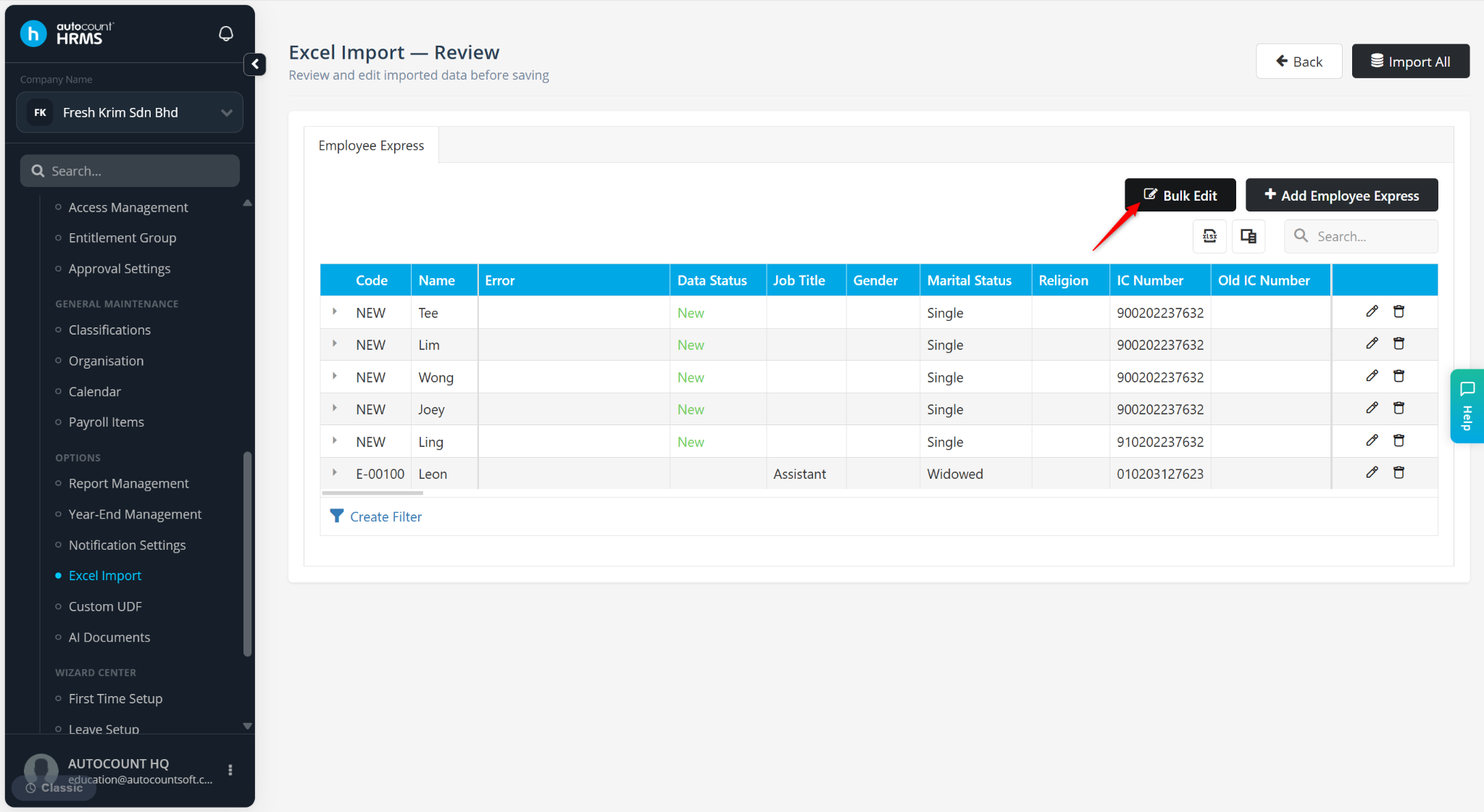
Steps to Bulk Edit Imported Data before Import All:
While on the Excel Import – Review page, click Bulk Edit.
Enter the information to be updated.
Select one of the following options:
Edit All – Apply the edits to all imported rows
Edit Blanks – Apply the edits to only blank rows and remain other data.
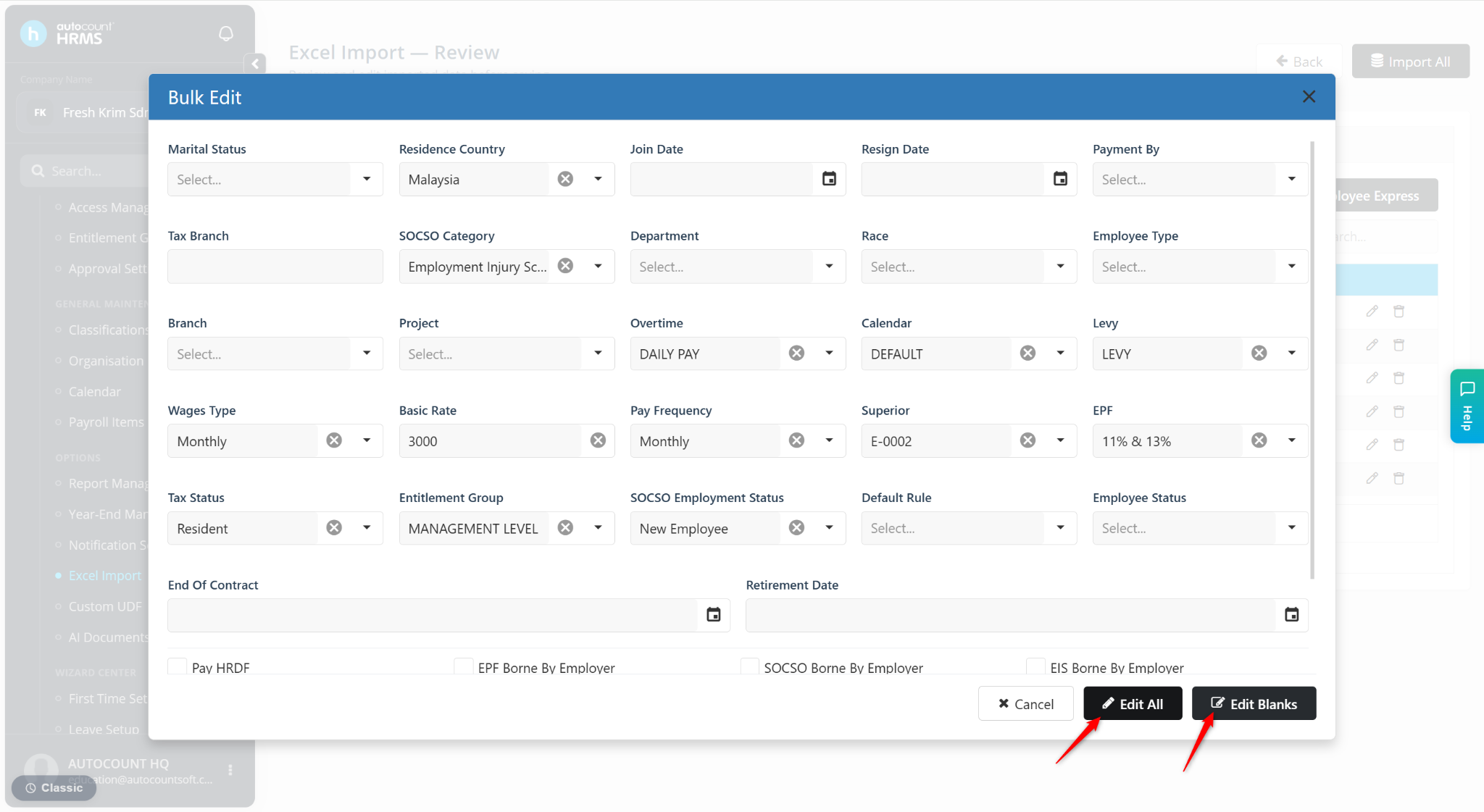
The data will be updated.