Users can update Carry Forward (CF) leave for multiple employees at once by using the Excel Import function.
Steps to Maintain Carry Forward Leave via Excel Import:
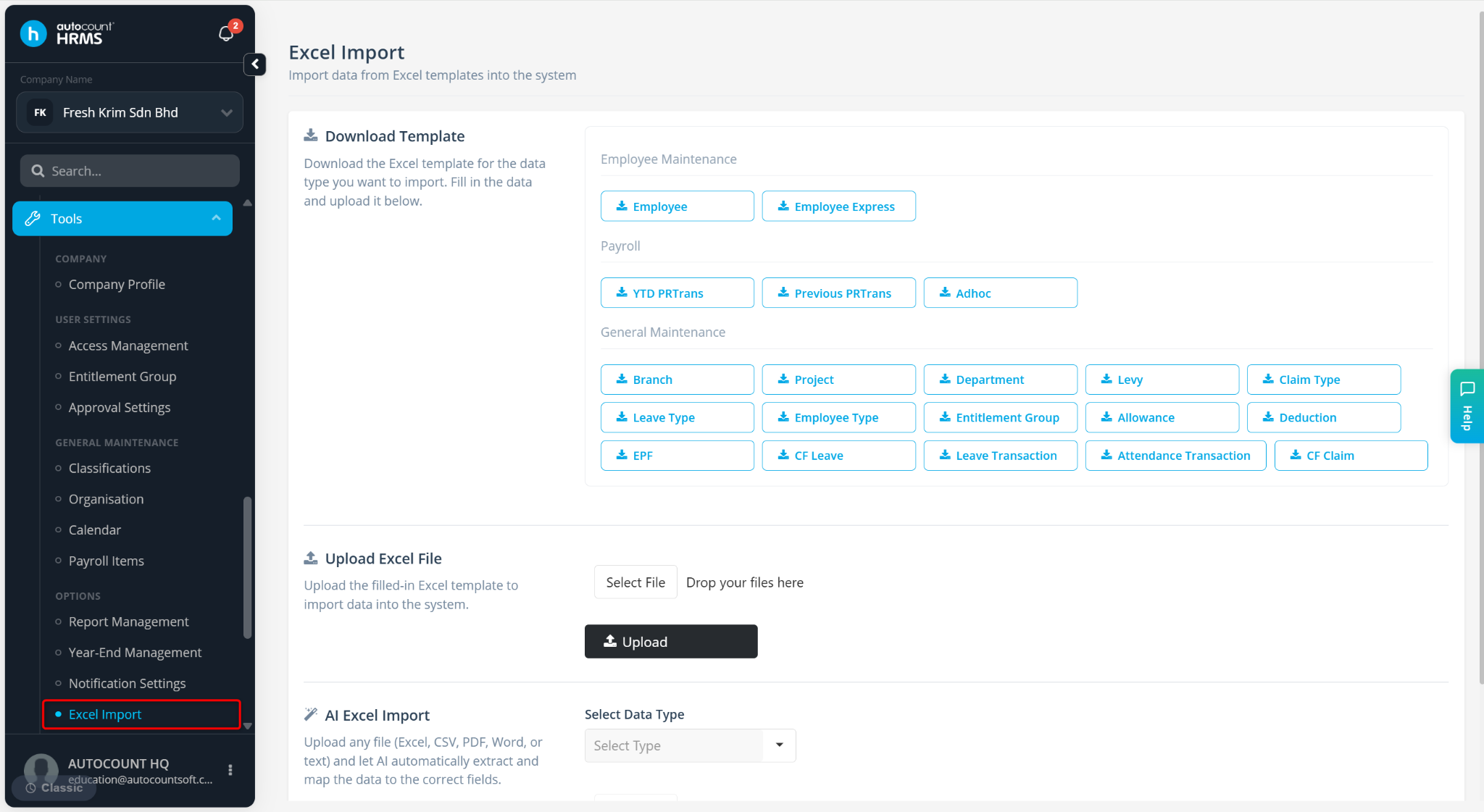
Go to Tools > Excel Import.
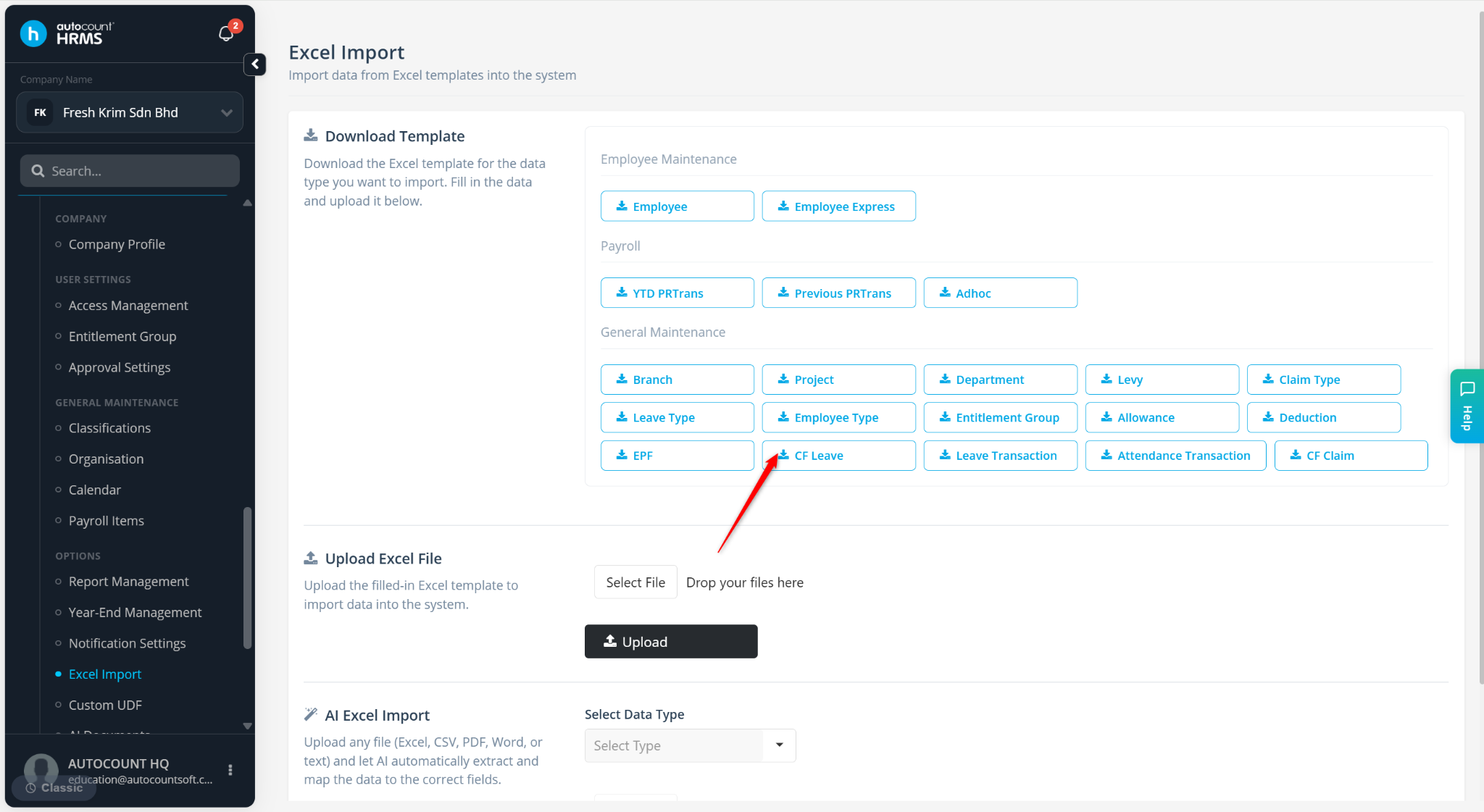
Click CF Leave to download the Carry Forward leave Excel template.
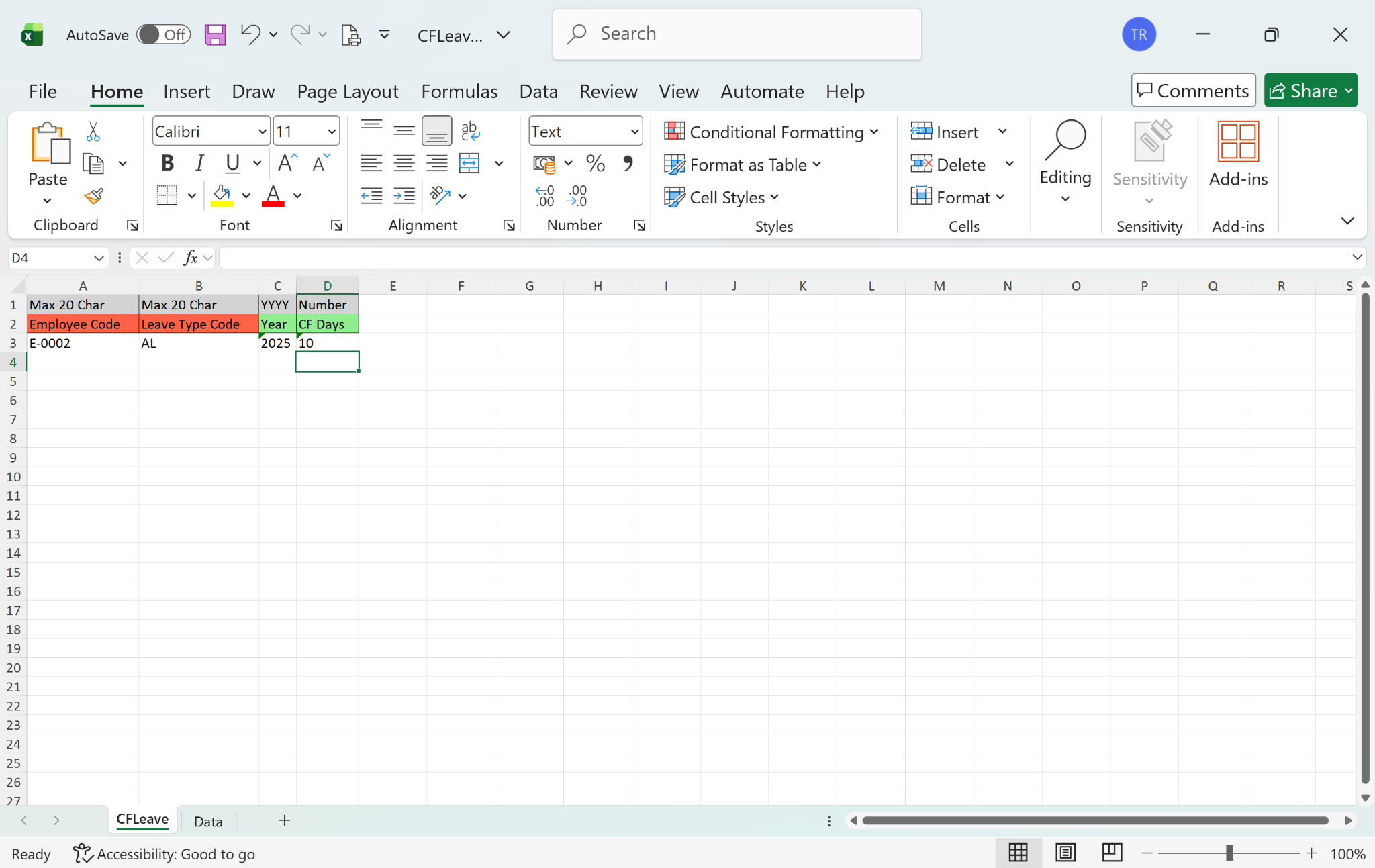
Enter the details, and save the Excel file.
Return to the Excel Import page.
Click Select File.
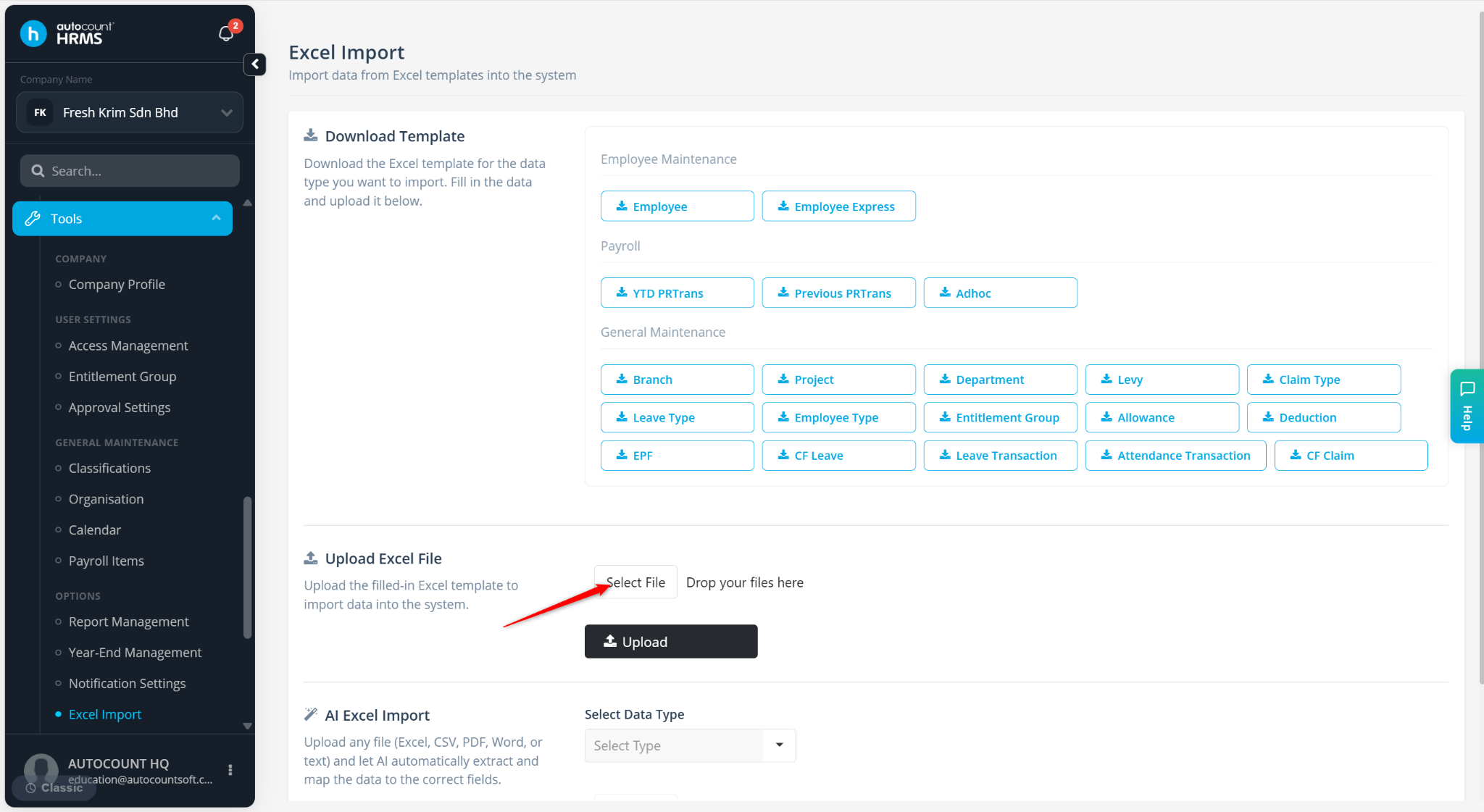
Select the excel file and click Open.

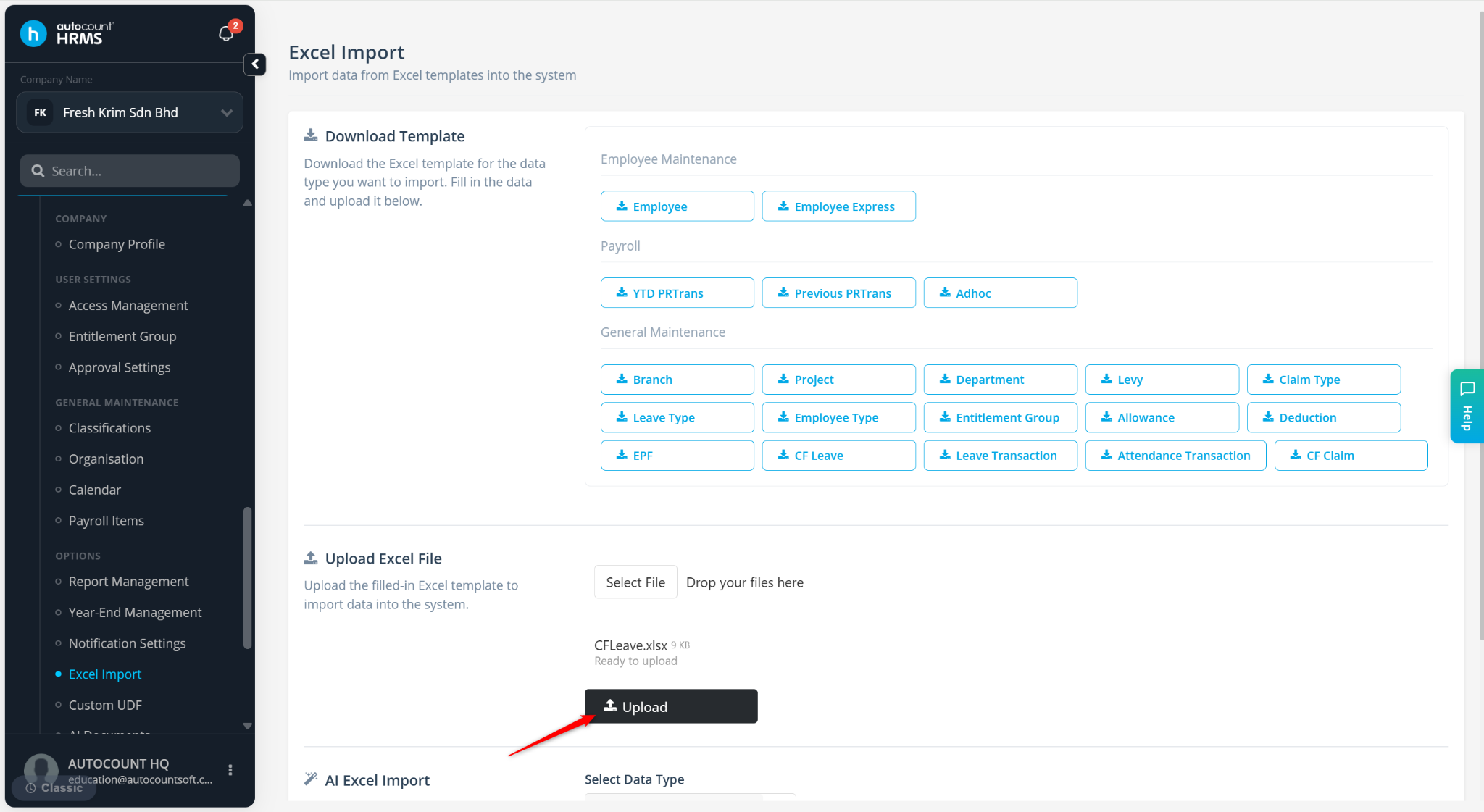
Click Upload.
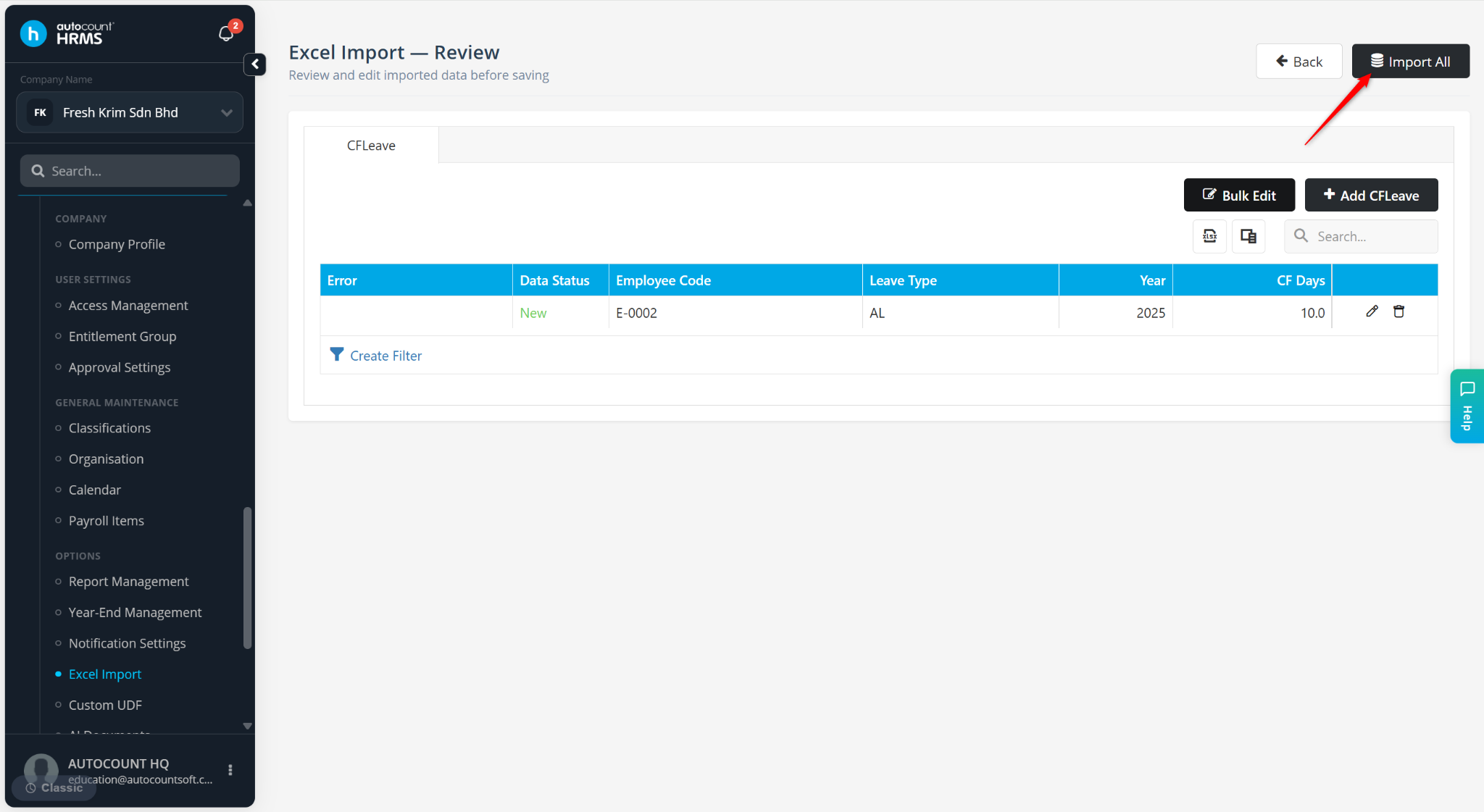
Review the data uploaded and click Import All.
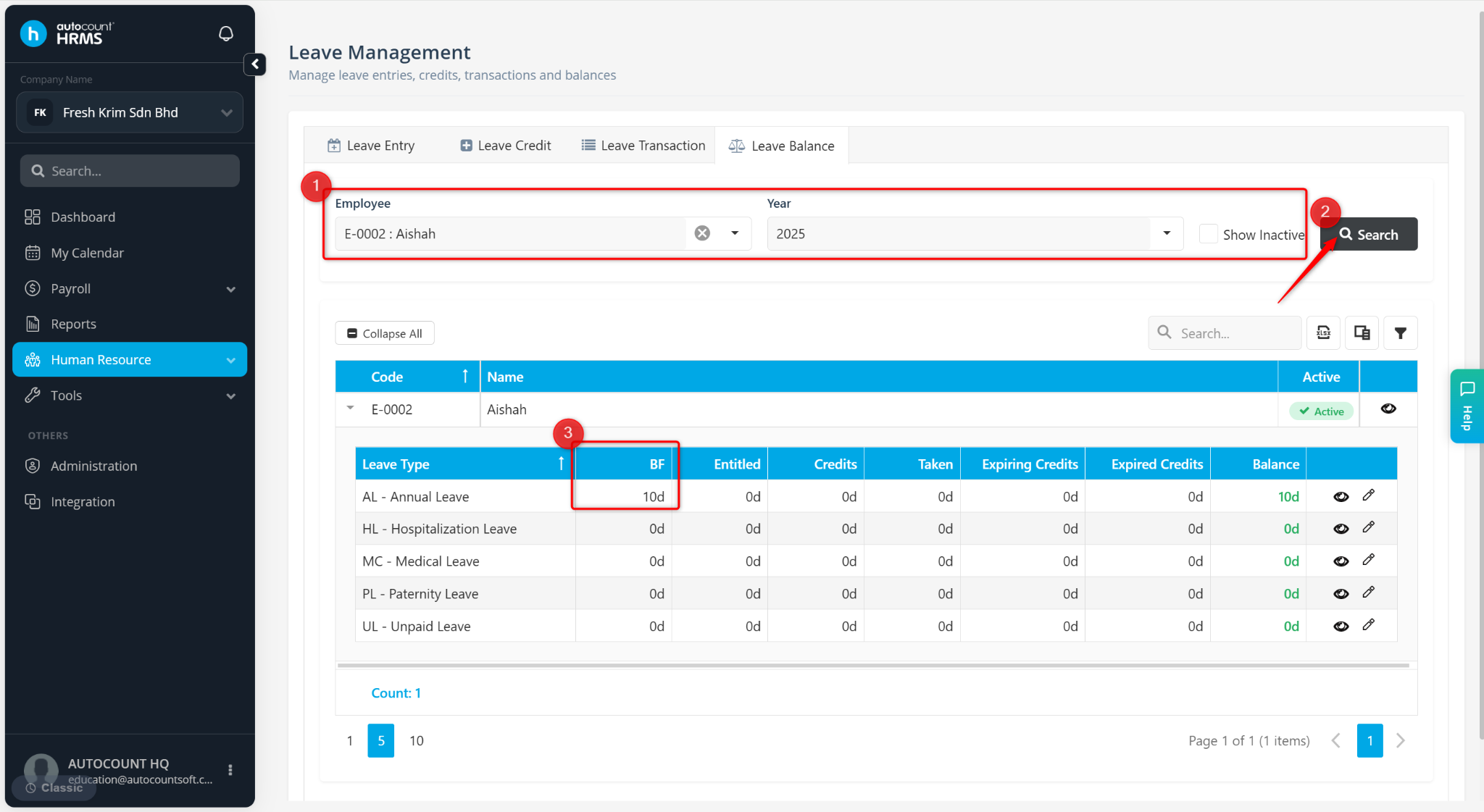
Go to Human Resource > Leave Management.
Go to Leave Balance.
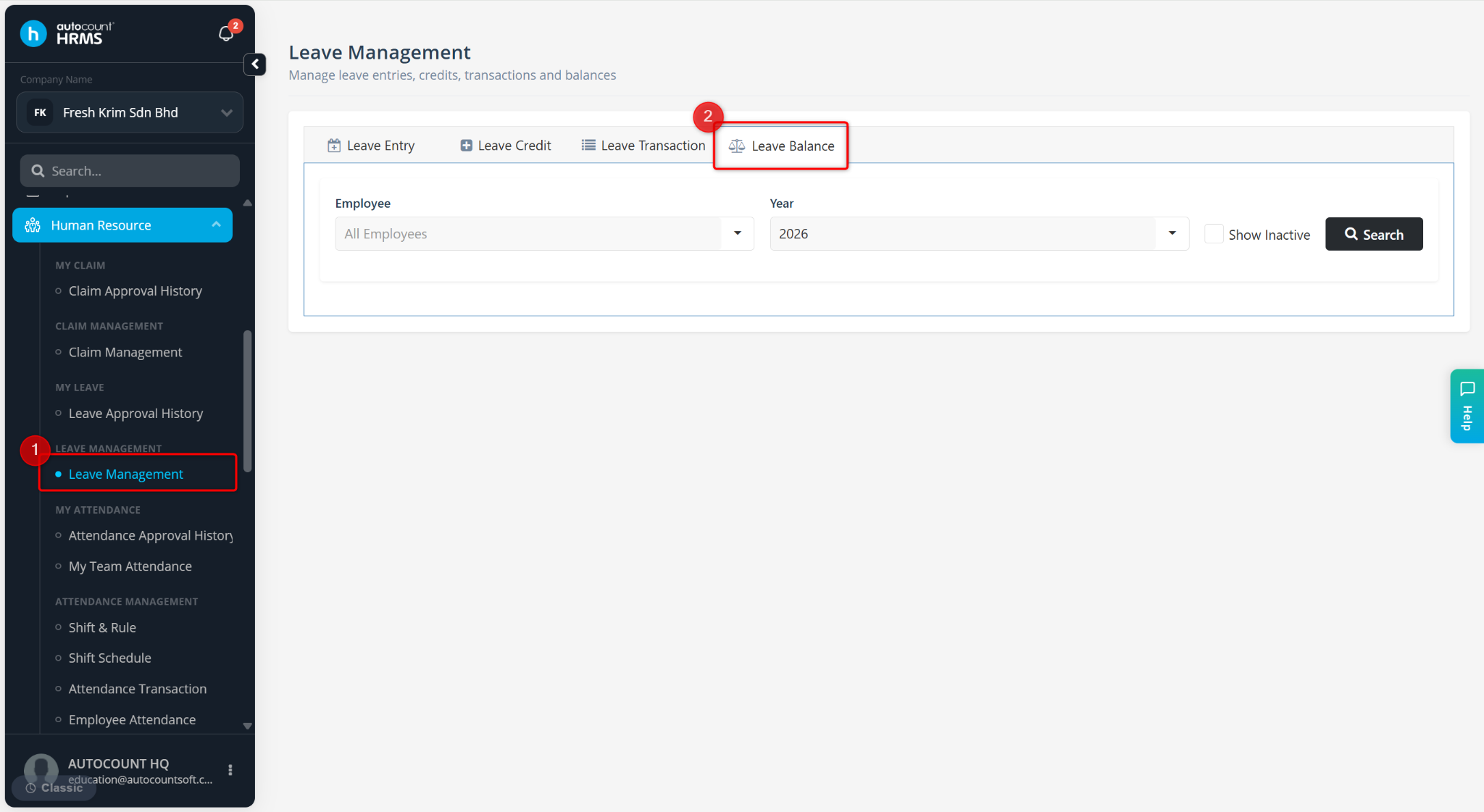
Select the Employee and Year, then click Search.
The imported CF data will be displayed under the BF column.