This feature allows users to add extra public holidays to an existing calendar. Additional holidays will be reflected in attendance and payroll calculations based on the assigned calendar.
Steps to Add an Additional Public Holiday:
Go to Tools > Calendar.
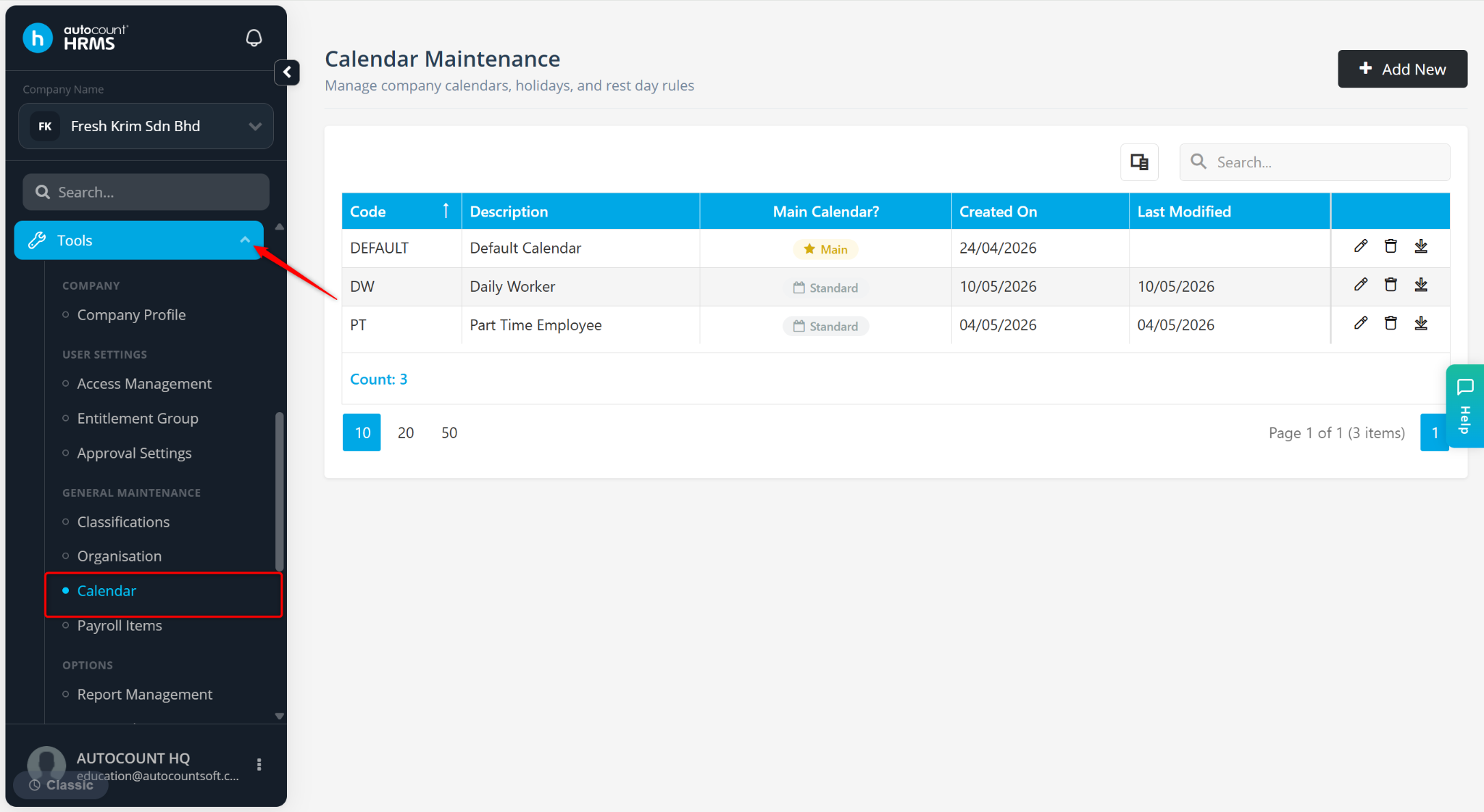
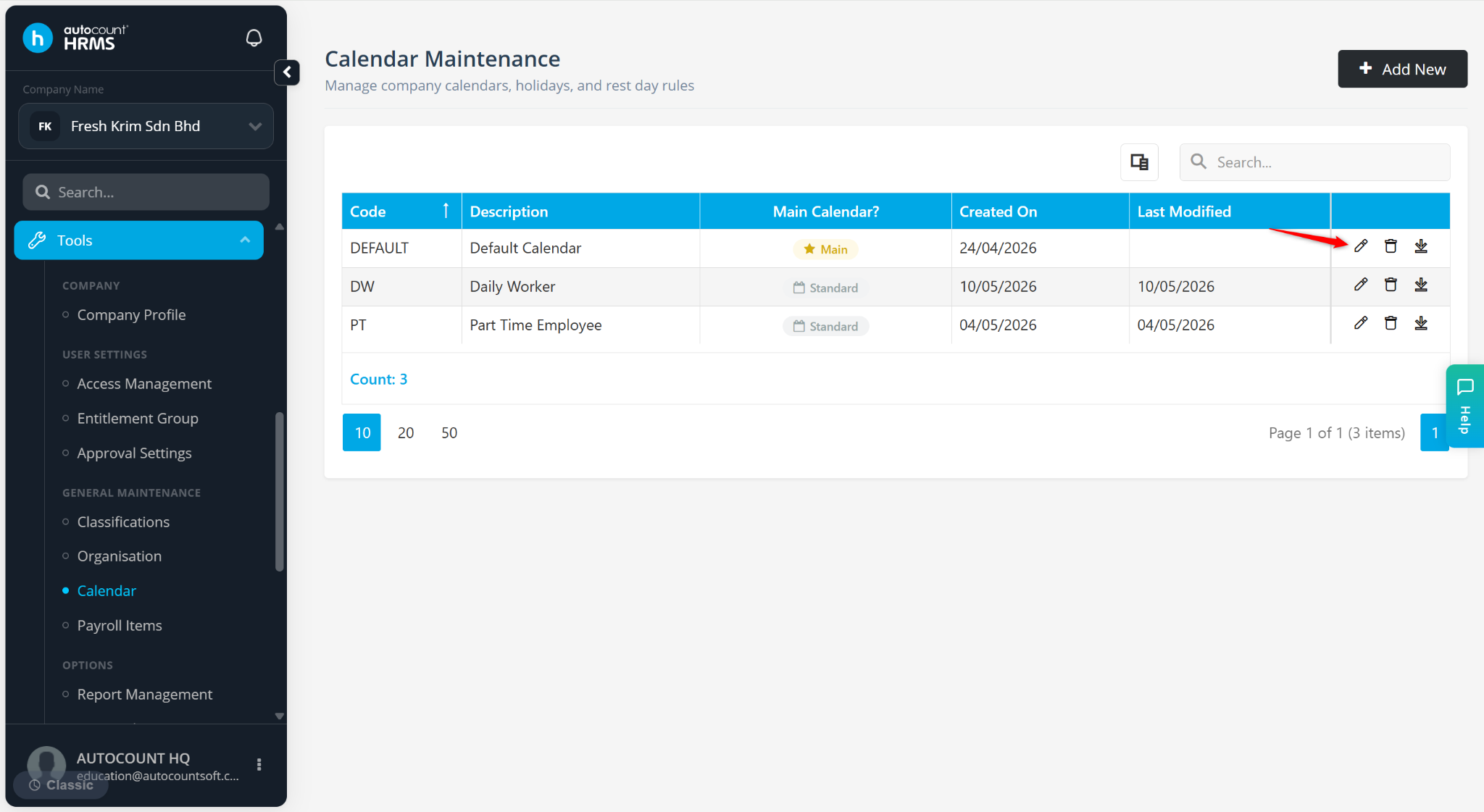
Locate the calendar and click the pencil icon.
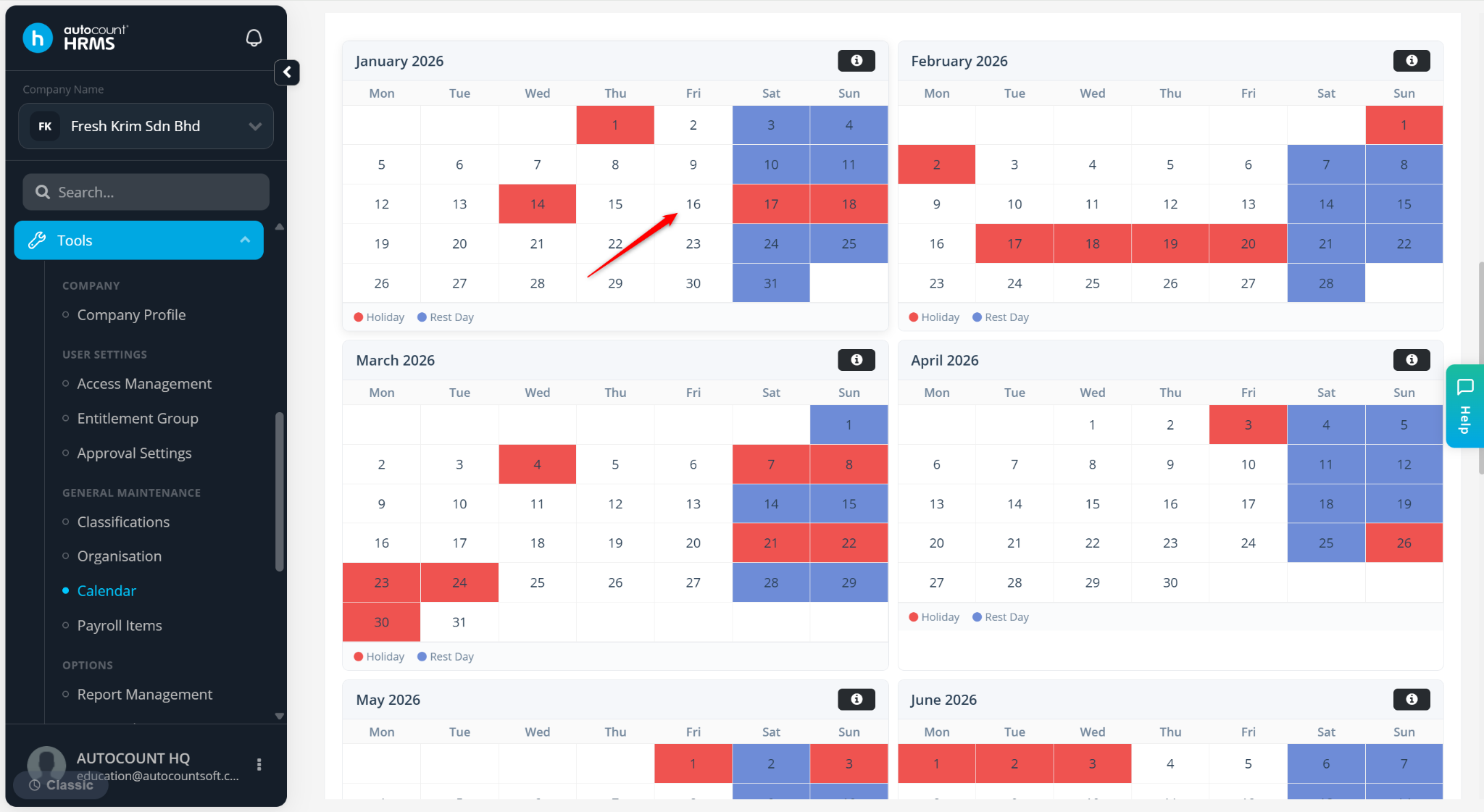
Click on the date at the calendar list.
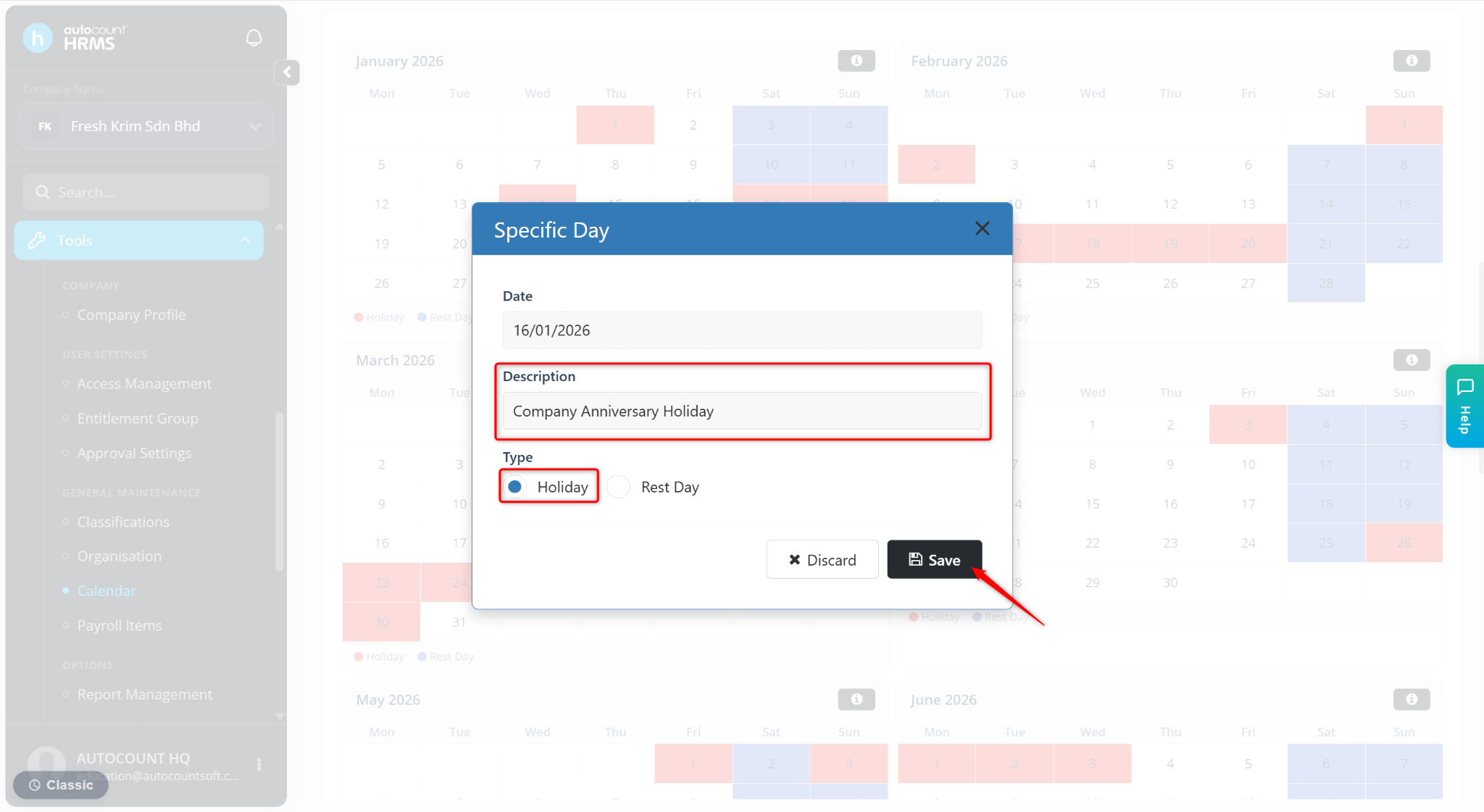
A Specific Day page will appear.
Enter the details:
Date – Ensure the selected holiday date is correct.
Description – Enter the holiday name or remark.
Type – Select Holiday.
Click Save.
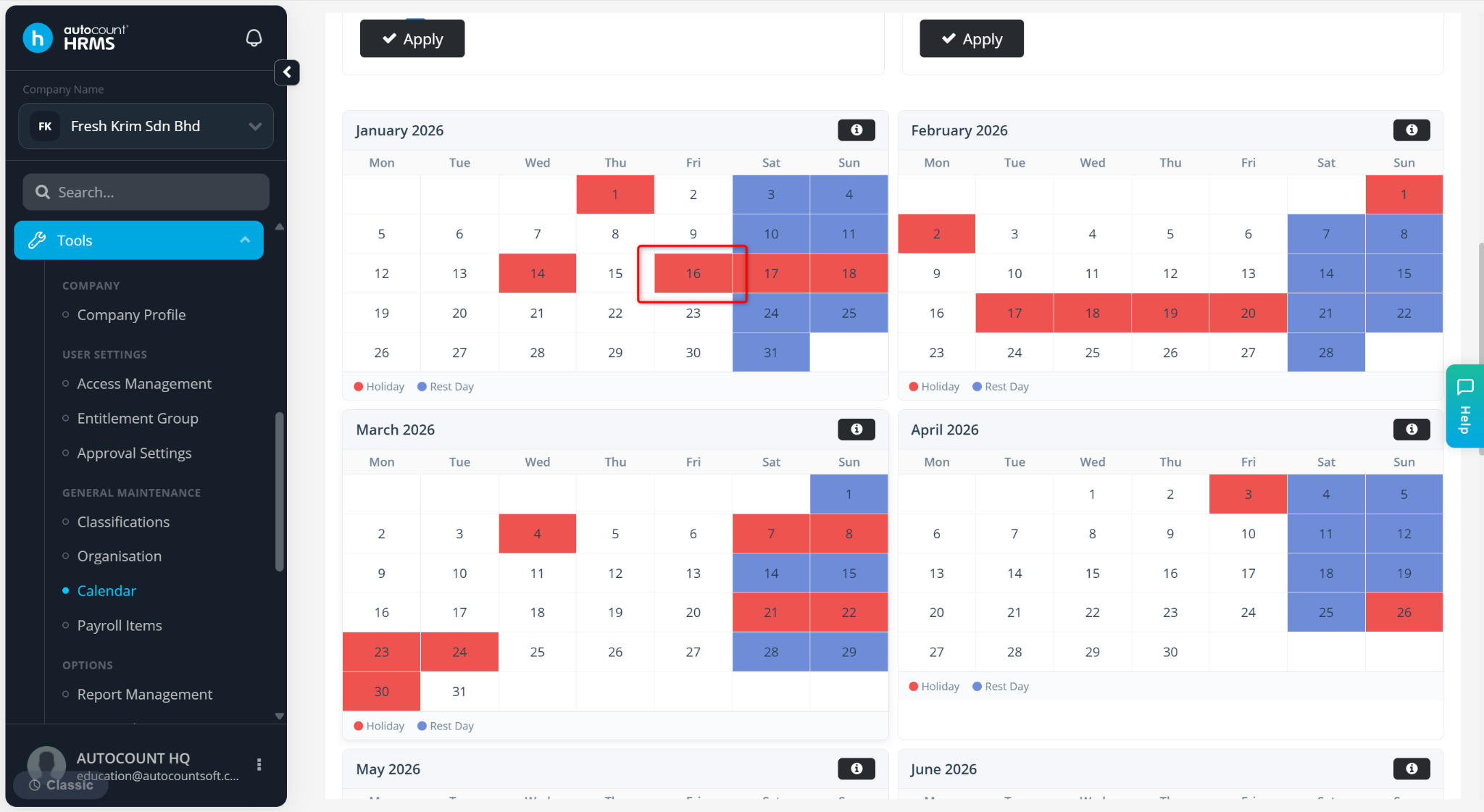
The additional public holiday will be created, and the date will be highlighted in red.
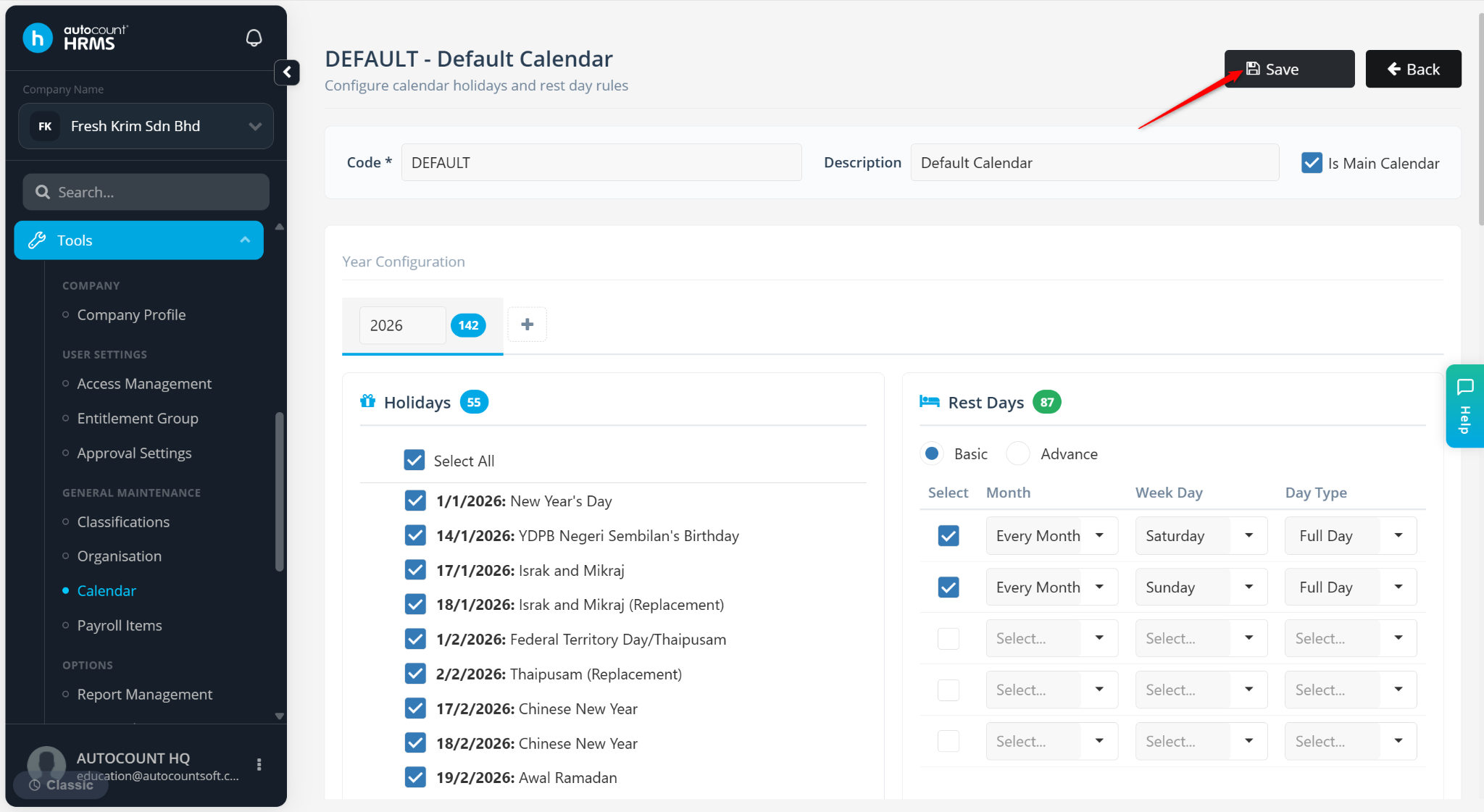
Click Save to apply.