
The Bank Accounts tab is used to maintain employees' bank account information for salary payments and payroll processing. You can assign one or multiple bank accounts and specify how the employee's salary should be distributed across them.
Steps to Maintain an Employee’s Bank Account:
Go to Payroll > Employee Maintenance.
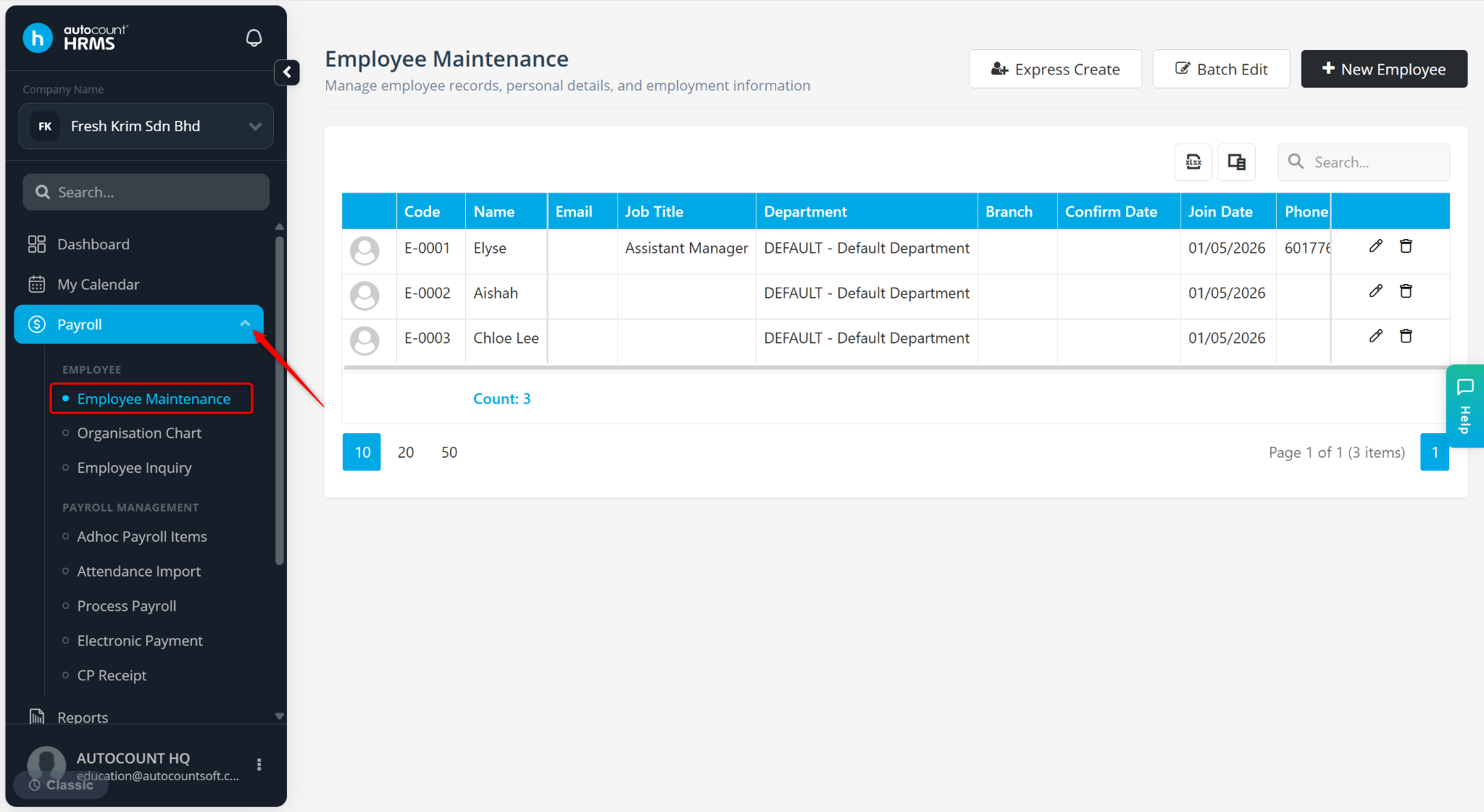
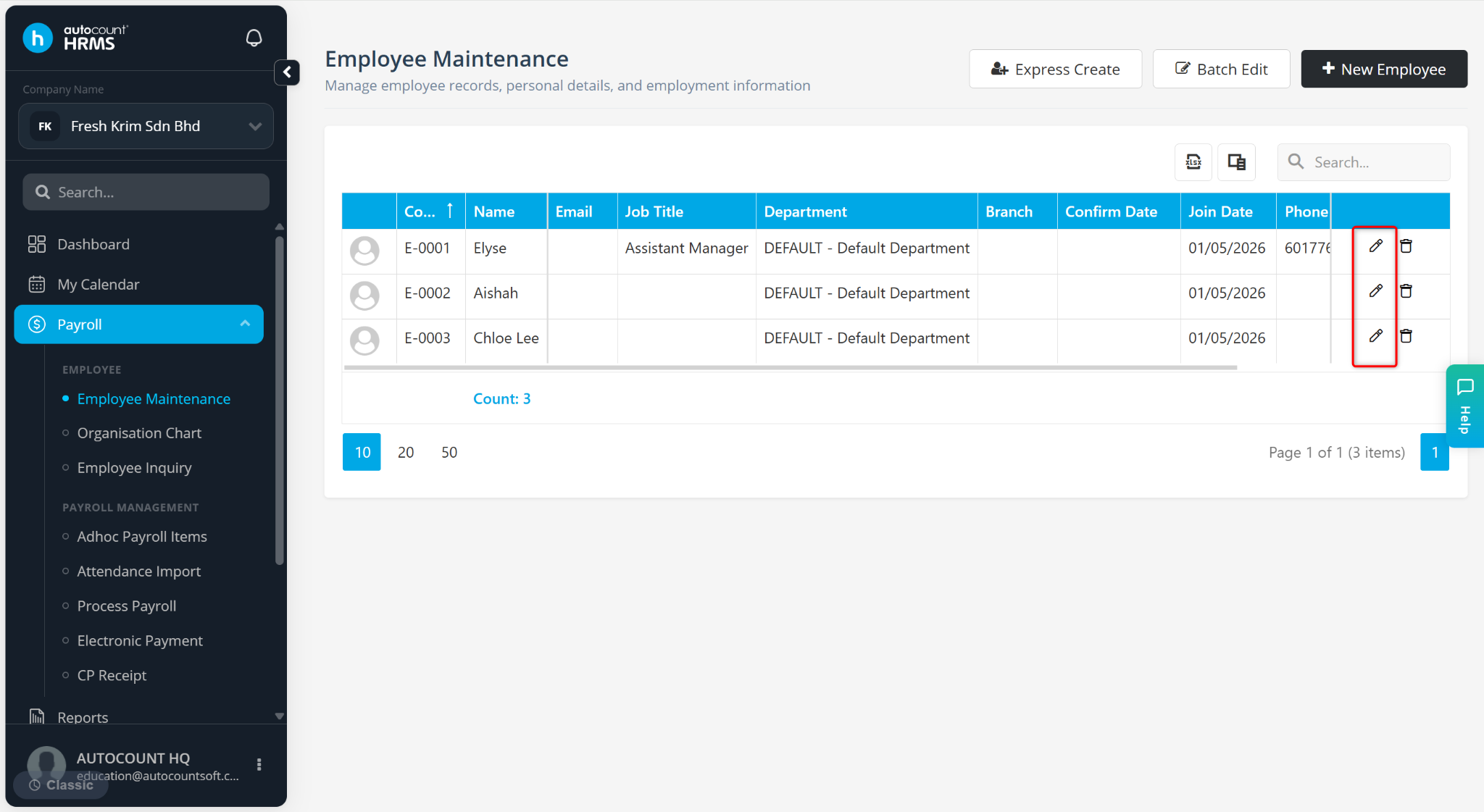
Locate the employee and click on the pencil icon next to the employee’s name.
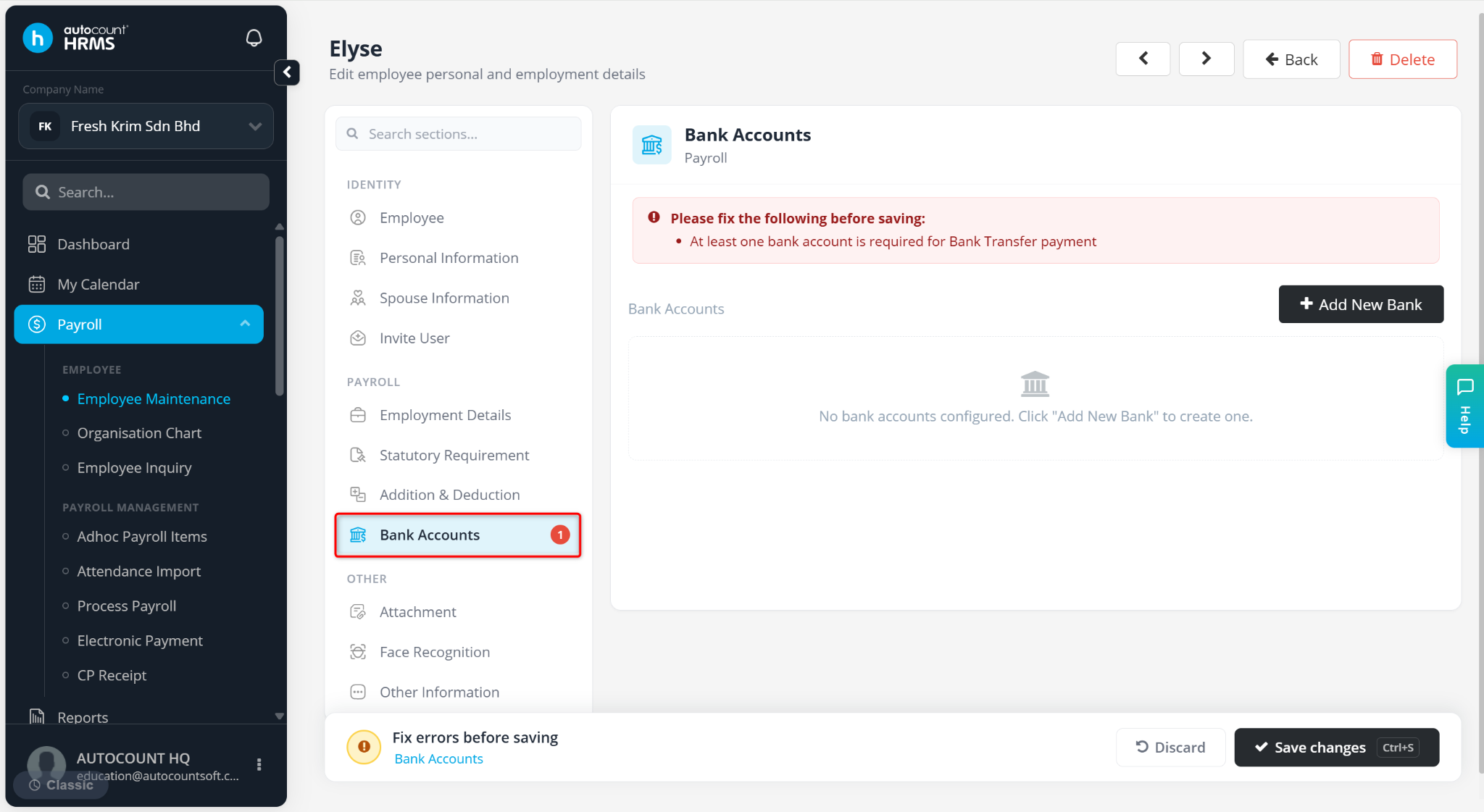
Go to the Bank Accounts tab.
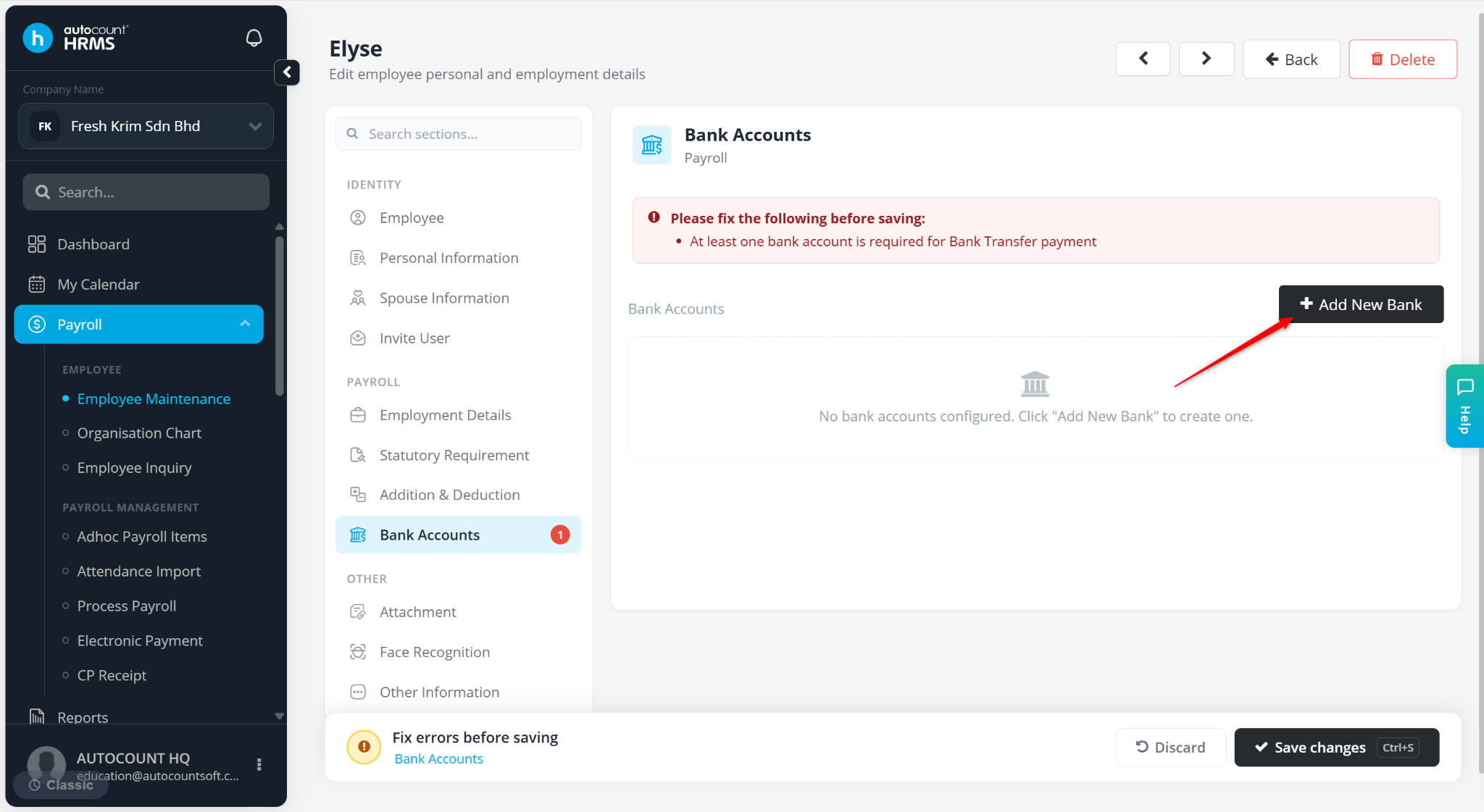
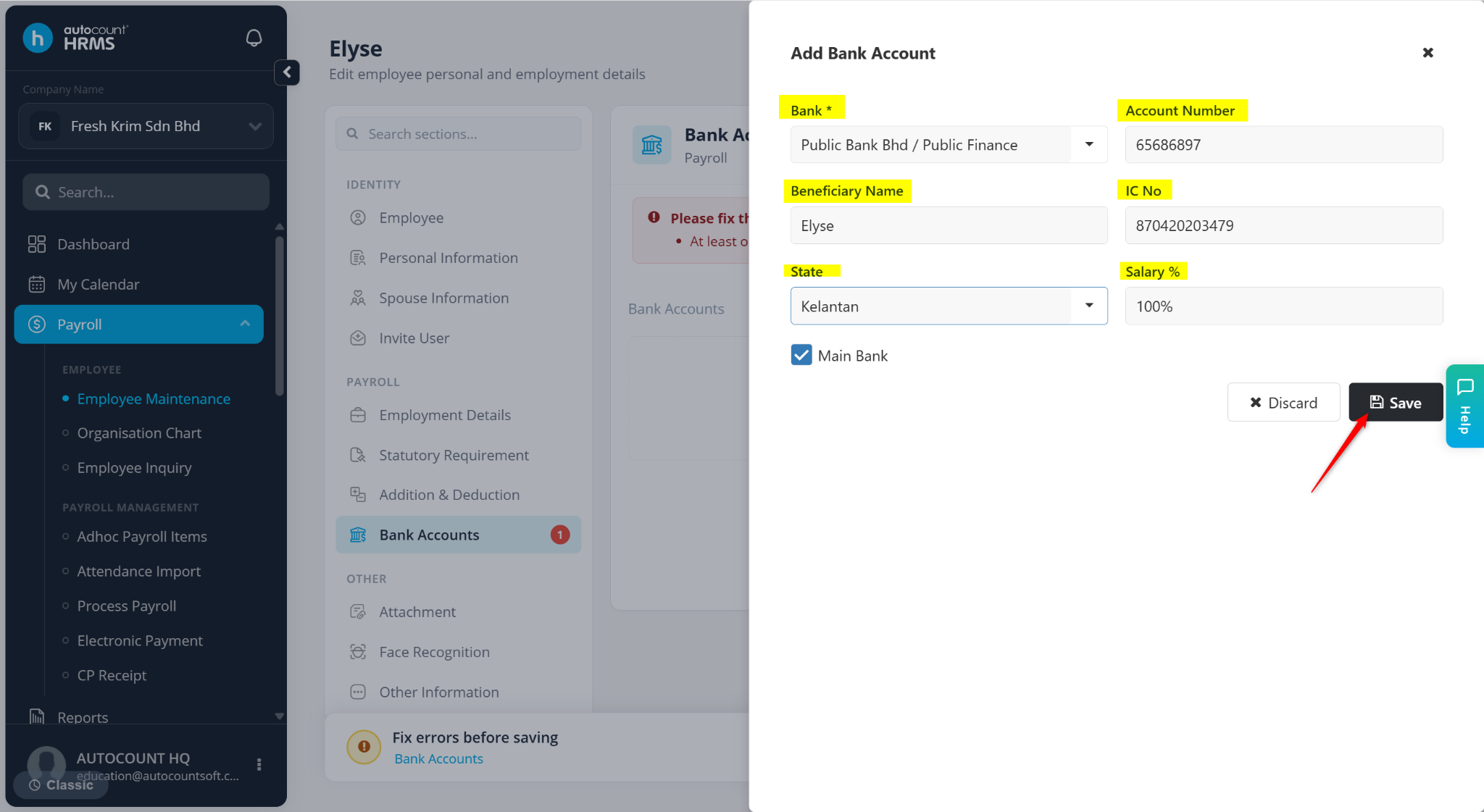
Click Add New Bank.
Enter the details:
Bank – Select the bank name (e.g., Public Bank, Maybank).
Account Number – Enter the bank account number.
Beneficiary name – Auto filled according to the employee’s details.
IC No – Auto filled according to the employee’s details
Salary % – Enter the percentage of salary to be credited to this account. The default percentage 100% is adjustable.
Main Bank – Tick if this is the employee’s primary bank account.
Click Save.
Repeat the steps to add multiple bank accounts.
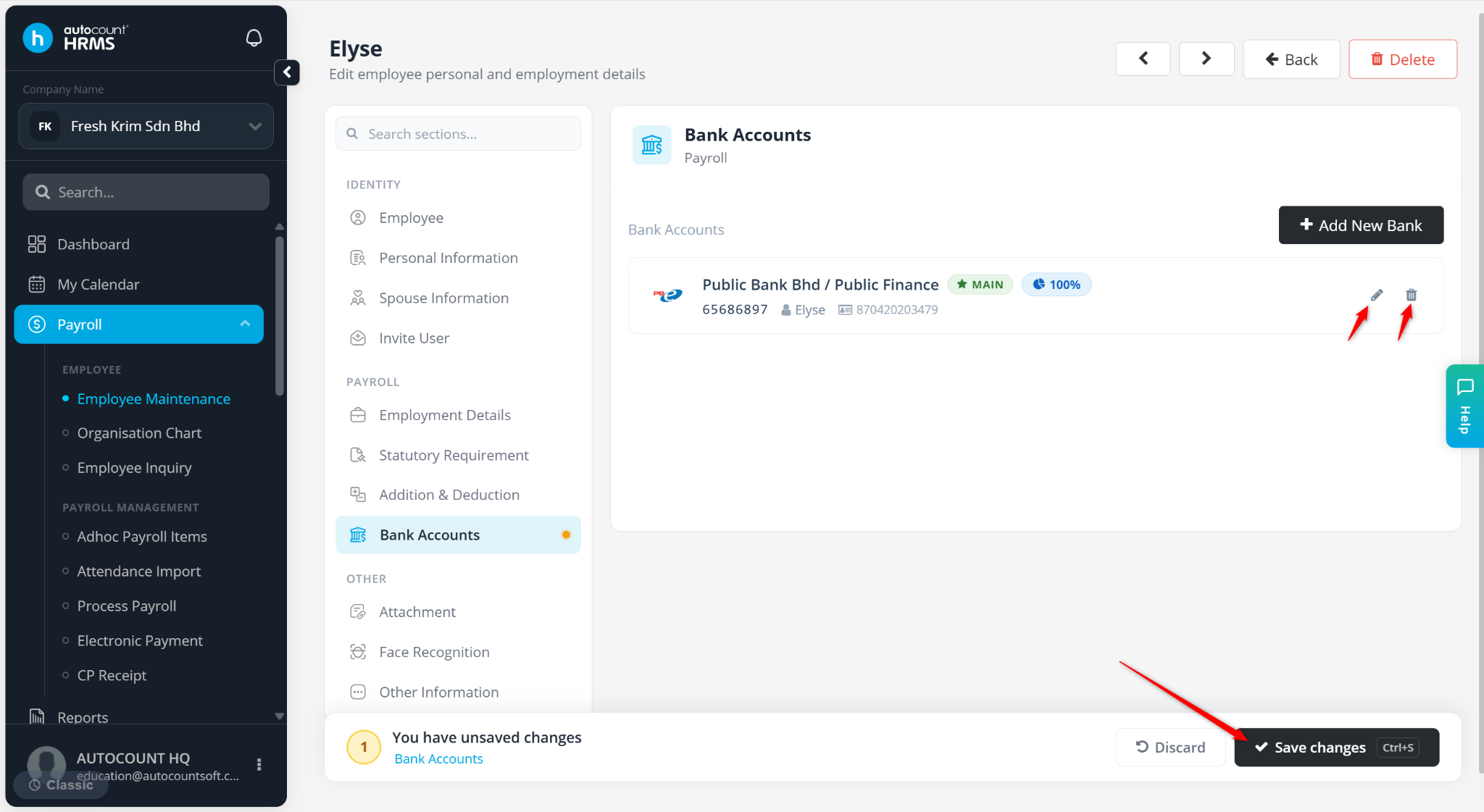
Click Save changes to apply.
ℹ️ Tips:
Ensure the total Salary % across all accounts equals 100% if multiple accounts are used.
Use the pencil icon to edit an account.
Use the trash bin icon to delete an account, then click Yes to confirm.