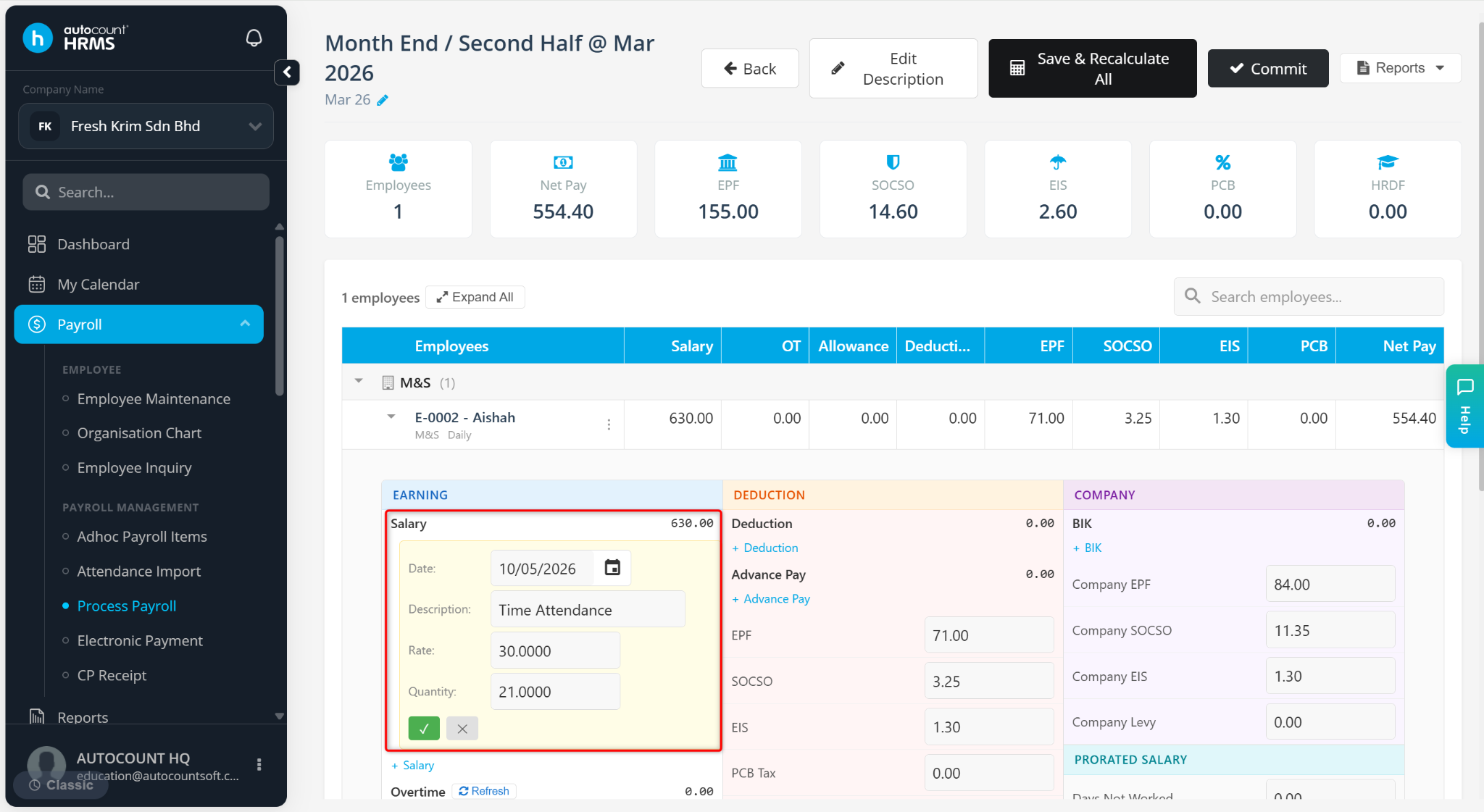
This feature allows users to automatically calculate salaries for daily-rated employees without importing attendance data through Excel. The system calculates the salary based on the employee's assigned calendar, working days, and daily rate.
This is suitable for companies that pay employees based on the number of scheduled working days rather than actual attendance transactions.
Steps to Auto-Calculate Worker’s Salary Rate:
Go to Tools > Calendar.
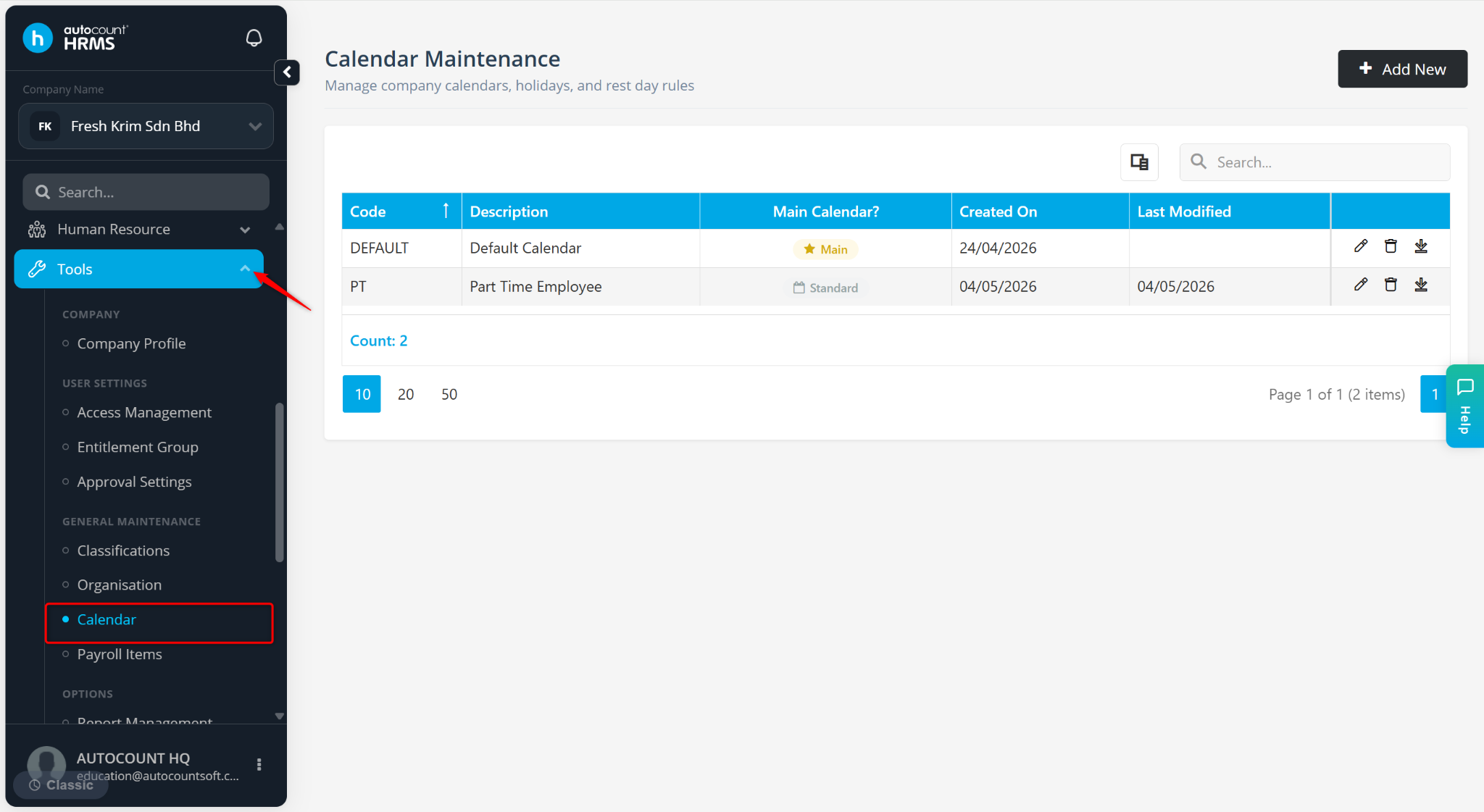
Click Add New.
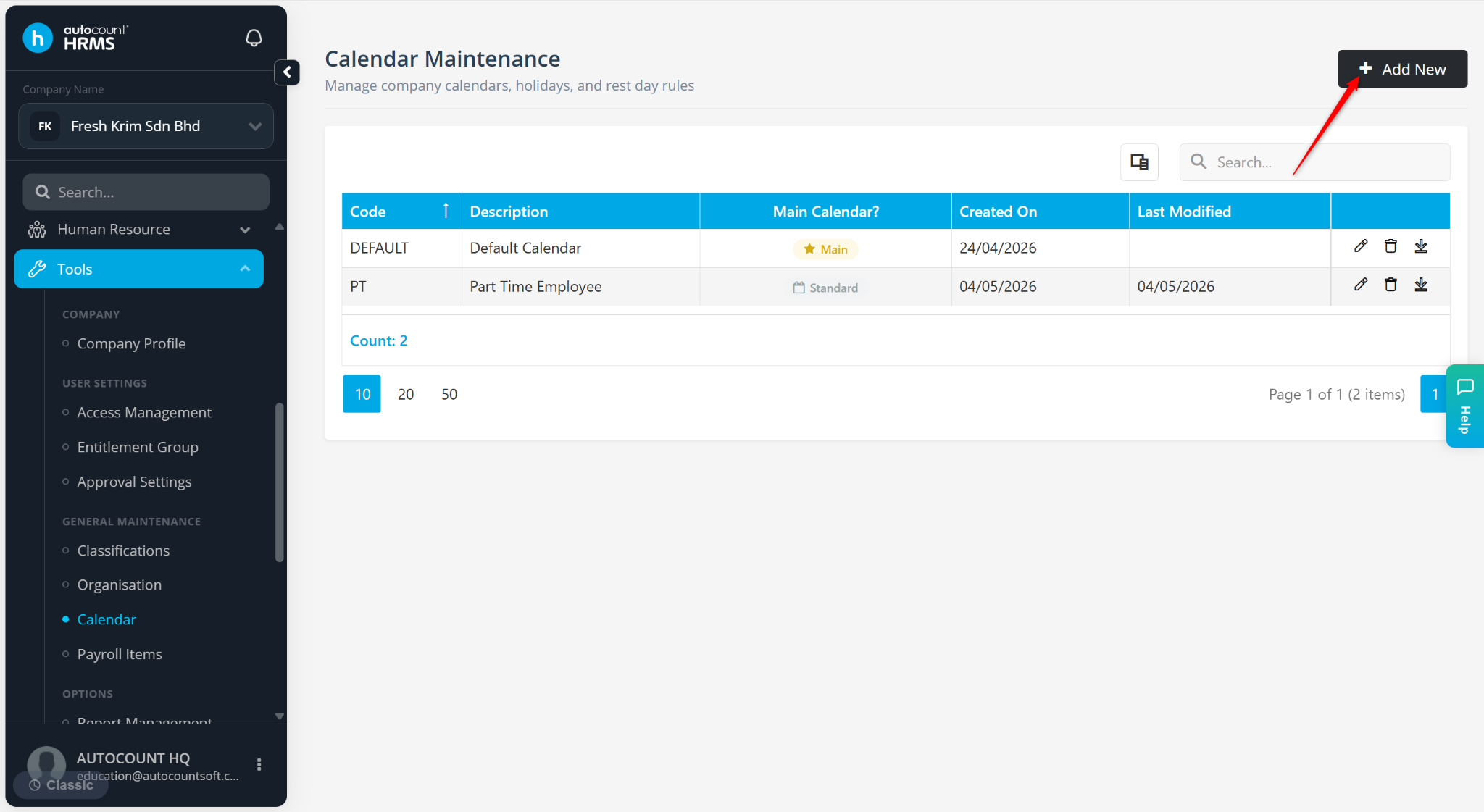
Enter the Code and Description.
Select the Public Holidays and Rest Days, then click Apply. Refer to the Calendar for detailed steps.
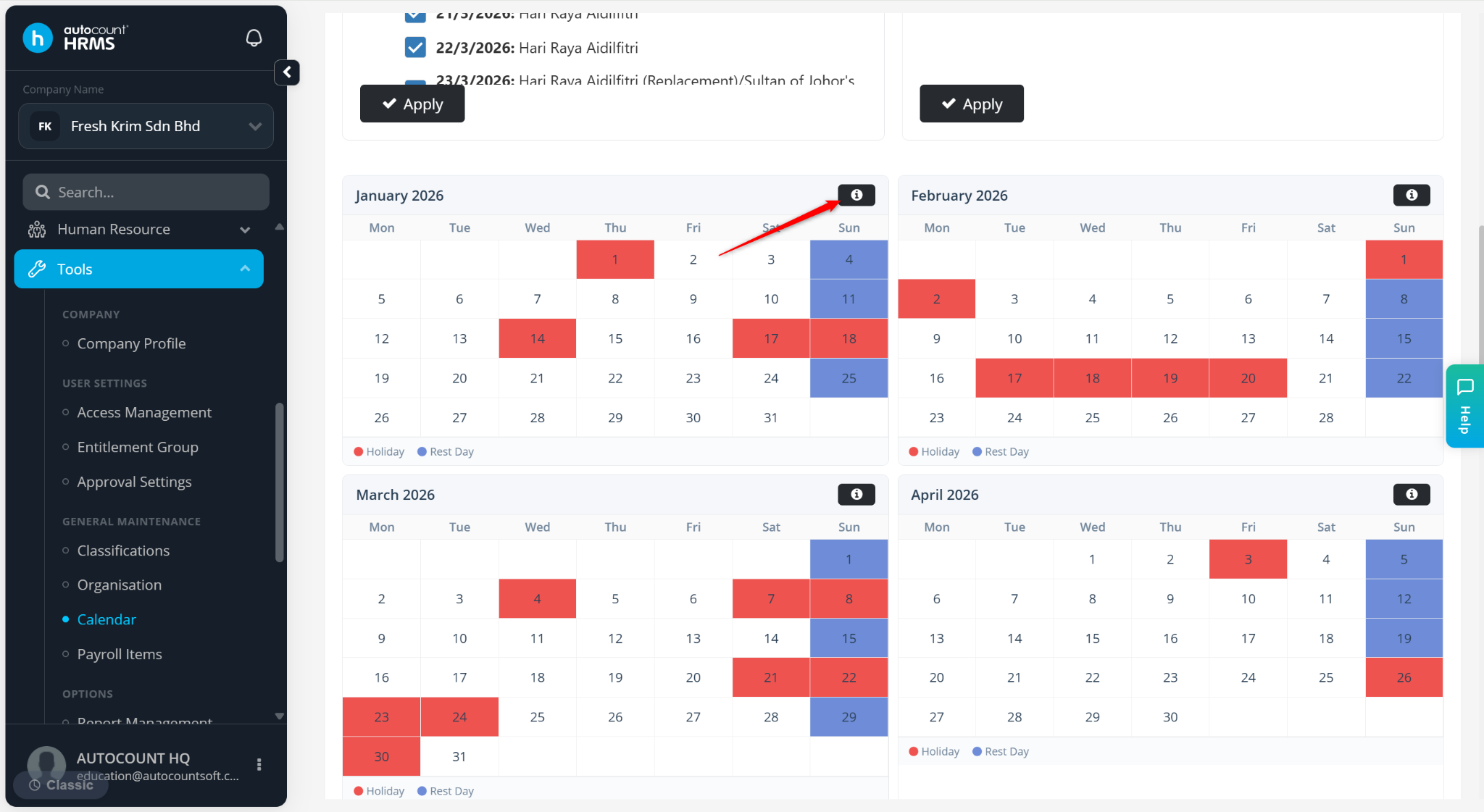
Scroll down to the calendar list and click the i icon.
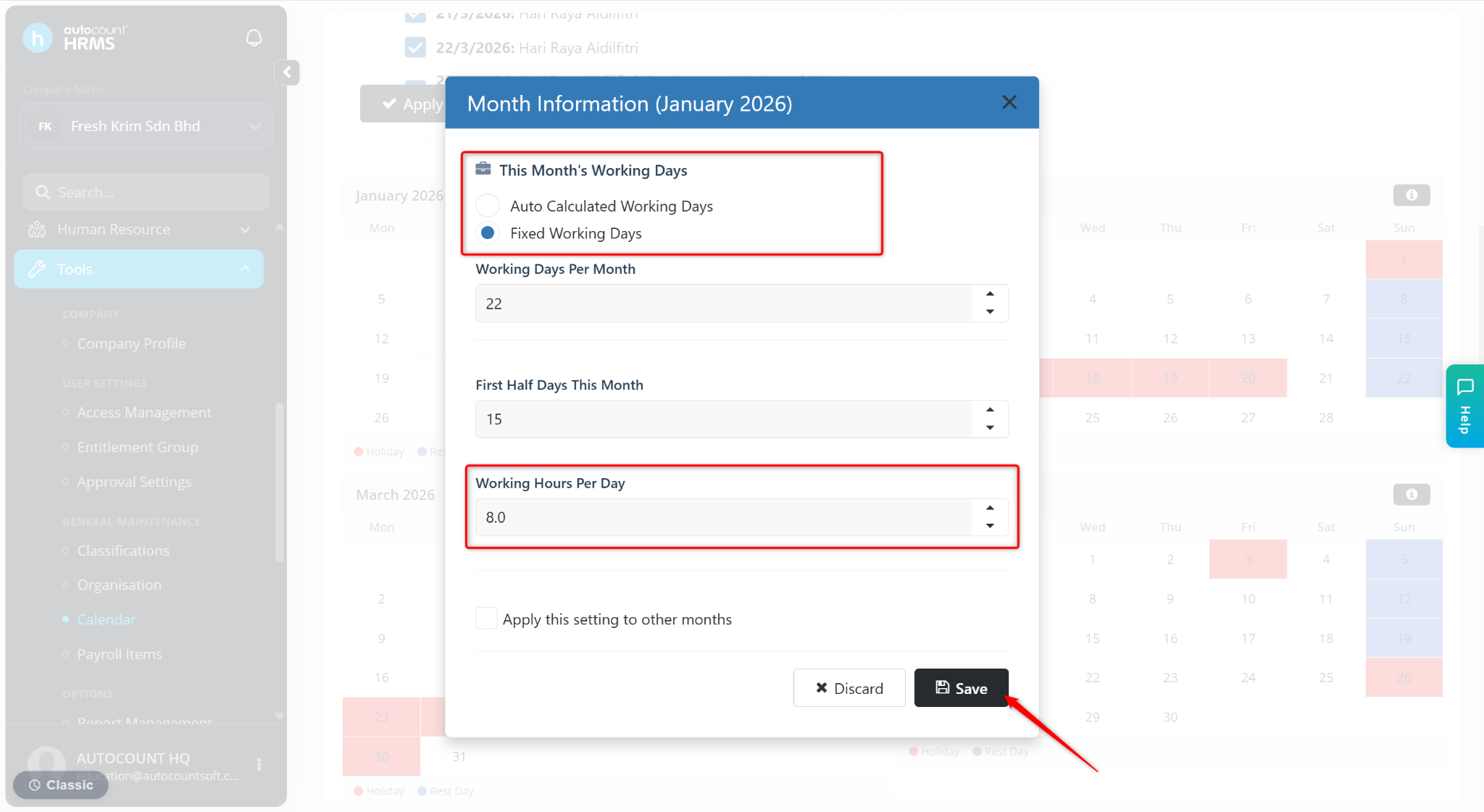
Select one of the options:
Fixed Working Days – Define a fixed number of working days for every month. Enter the Working Days per Month.
Auto Calculated Working Days – The system automatically calculates working days by deducting public holidays and rest days from the total days in the month. Working days may vary from month to month. The calculated working days cannot be edited manually.
Click Save.
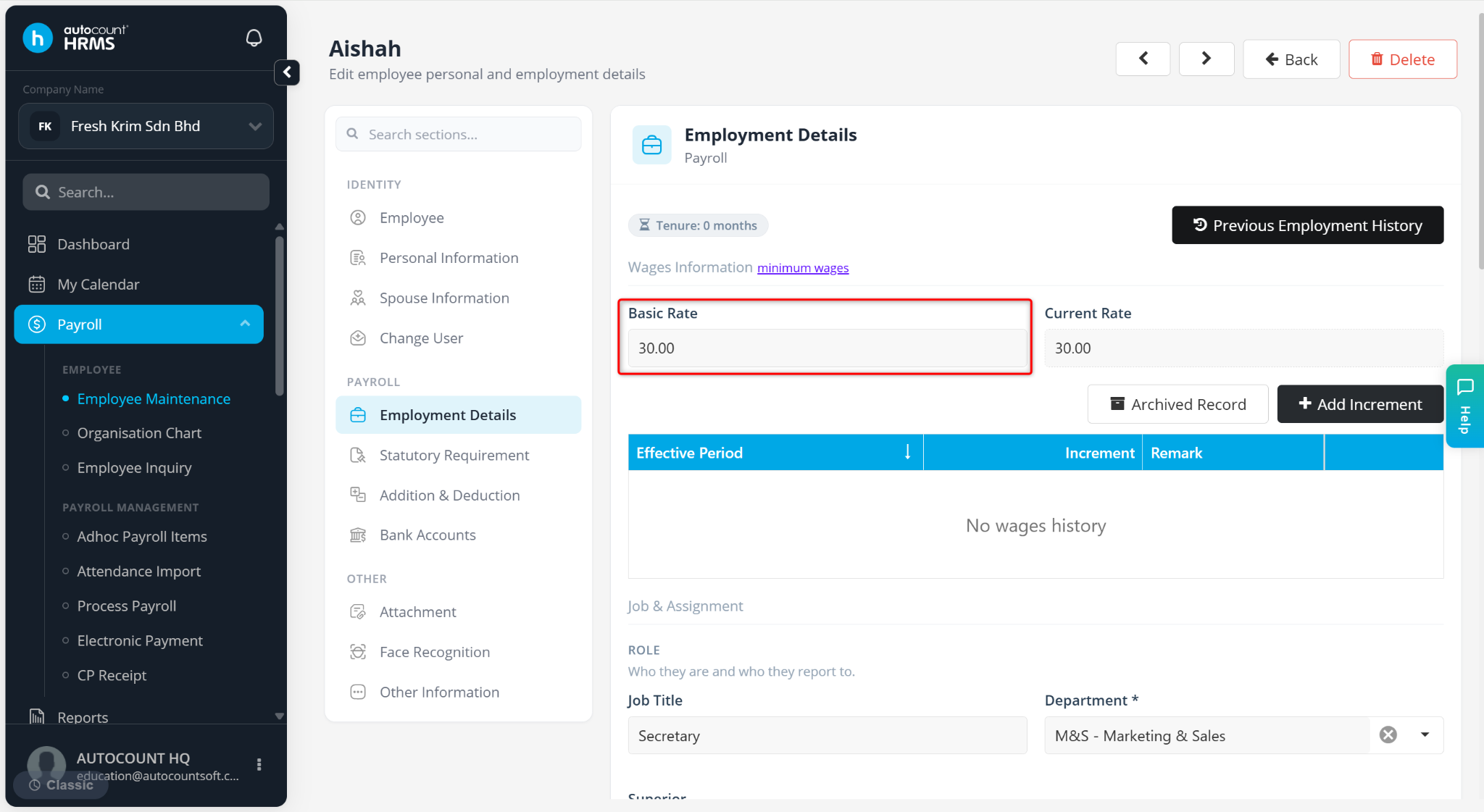
Go to Payroll > Employee Maintenance > Employment Details to assign the calendar to employees.
Enter the employee’s Basic Rate.
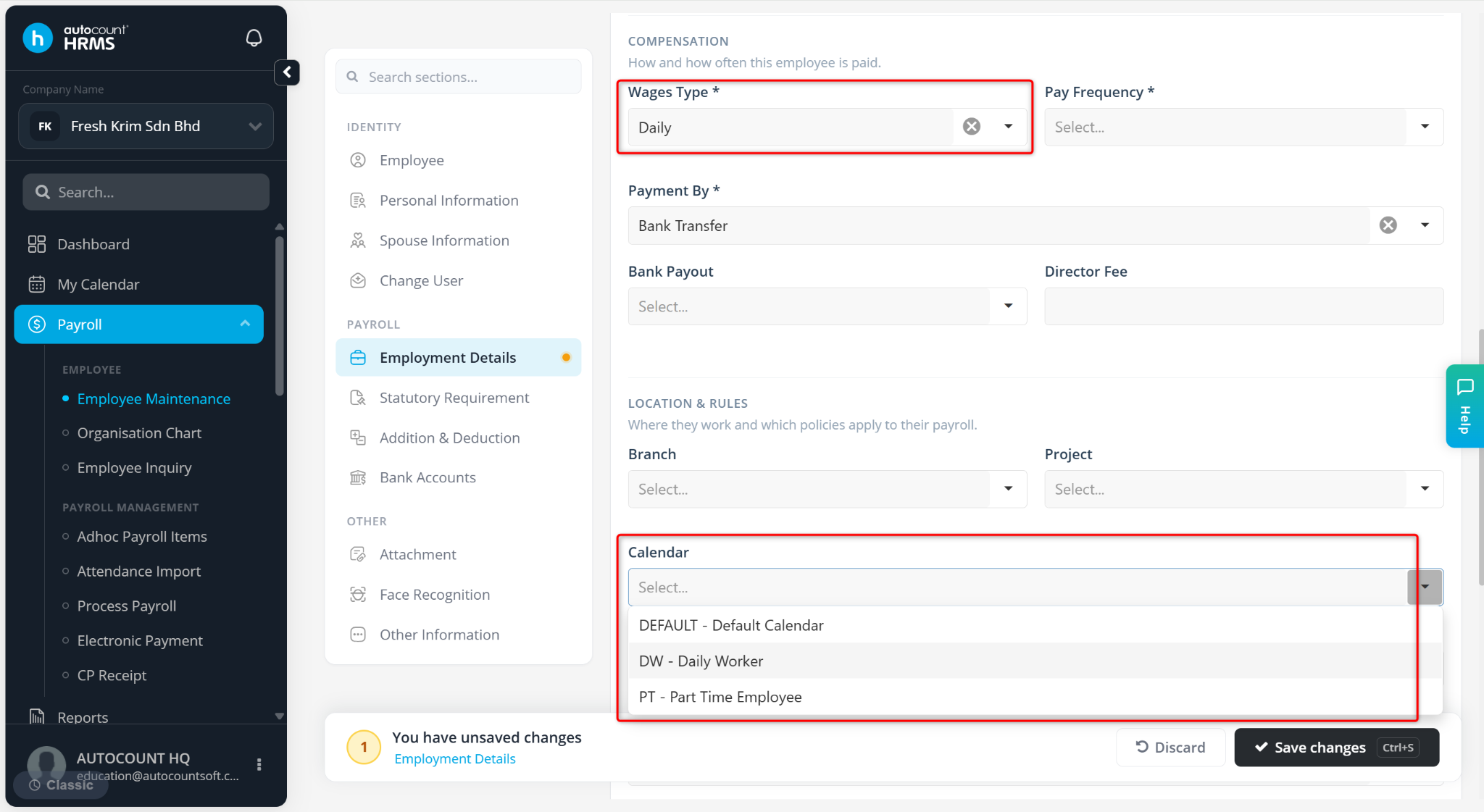
Set the Wages Type field to Daily.
Select the newly created calendar under the Calendar field.
Click Save changes.
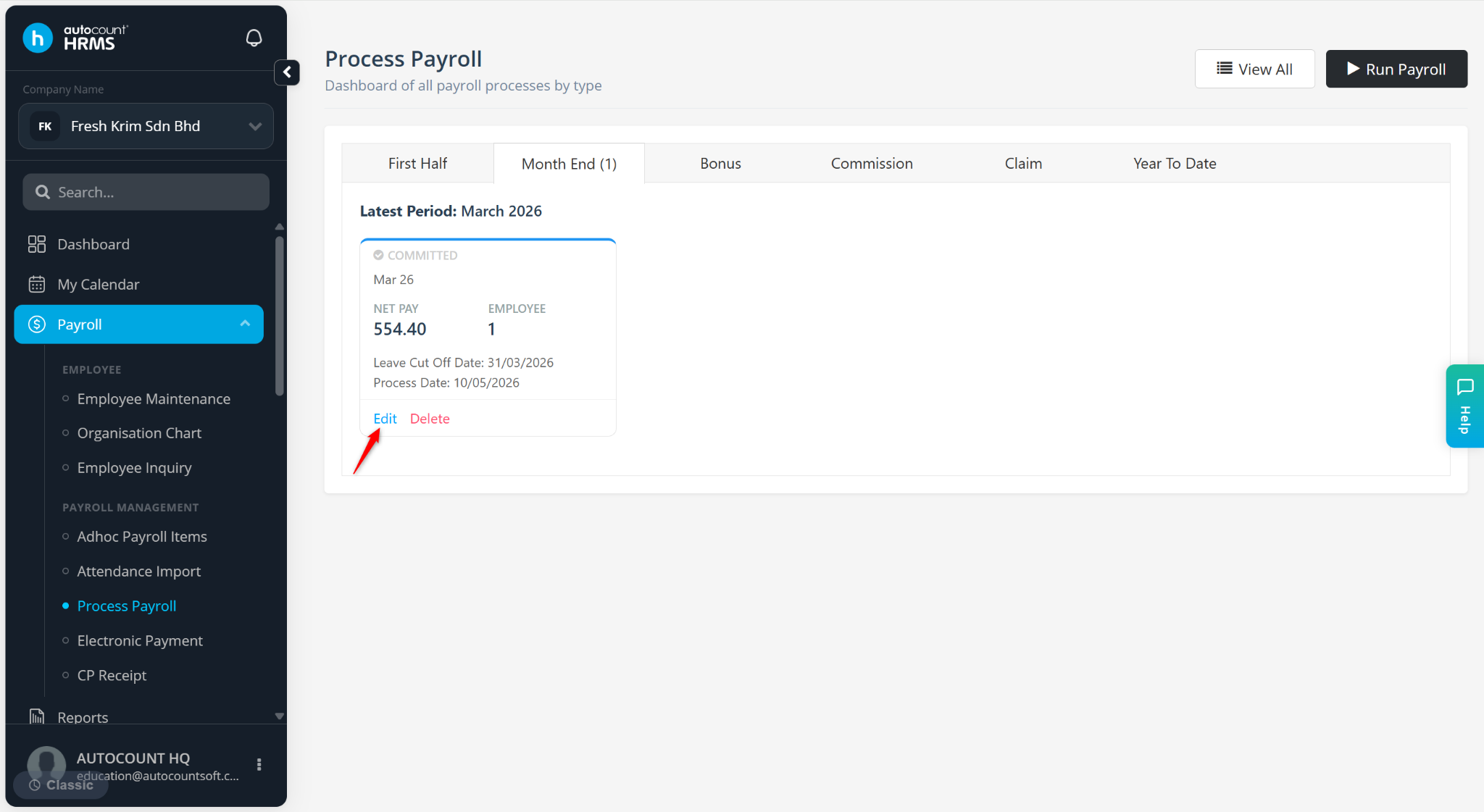
Go to Payroll > Payroll Process to run payroll.
Click Edit.
Click on the employee’s total salary amount.
The system will automatically calculate the salary based on the assigned daily rate and total working days from the calendar. For example:
Daily Rate = RM30
Working Days = 21 days
Calculated Salary = RM630