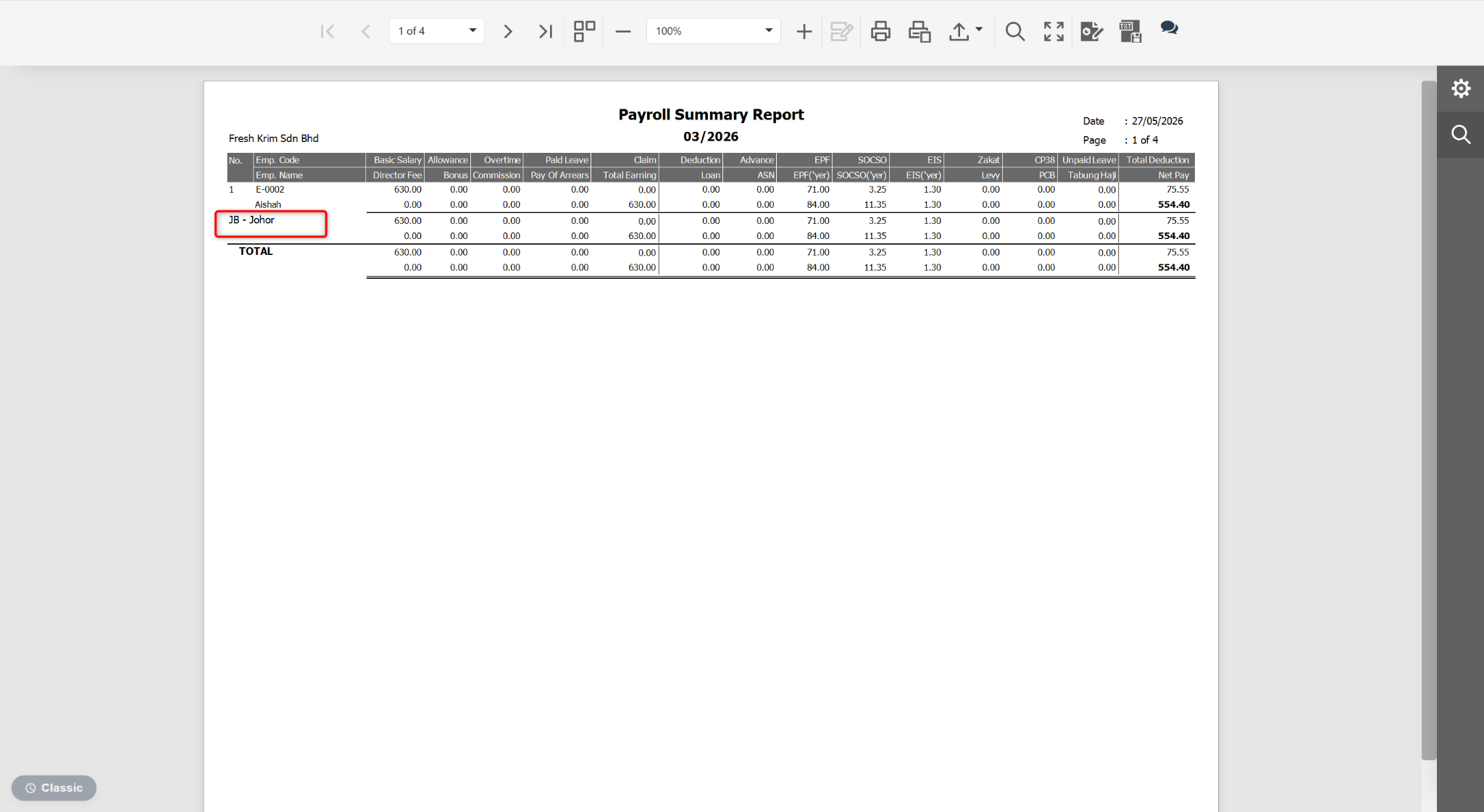
Users may customise the Payroll Summary Report to group and sort payroll data by branch.
Steps to Sort Payroll Summary Report by Branch:
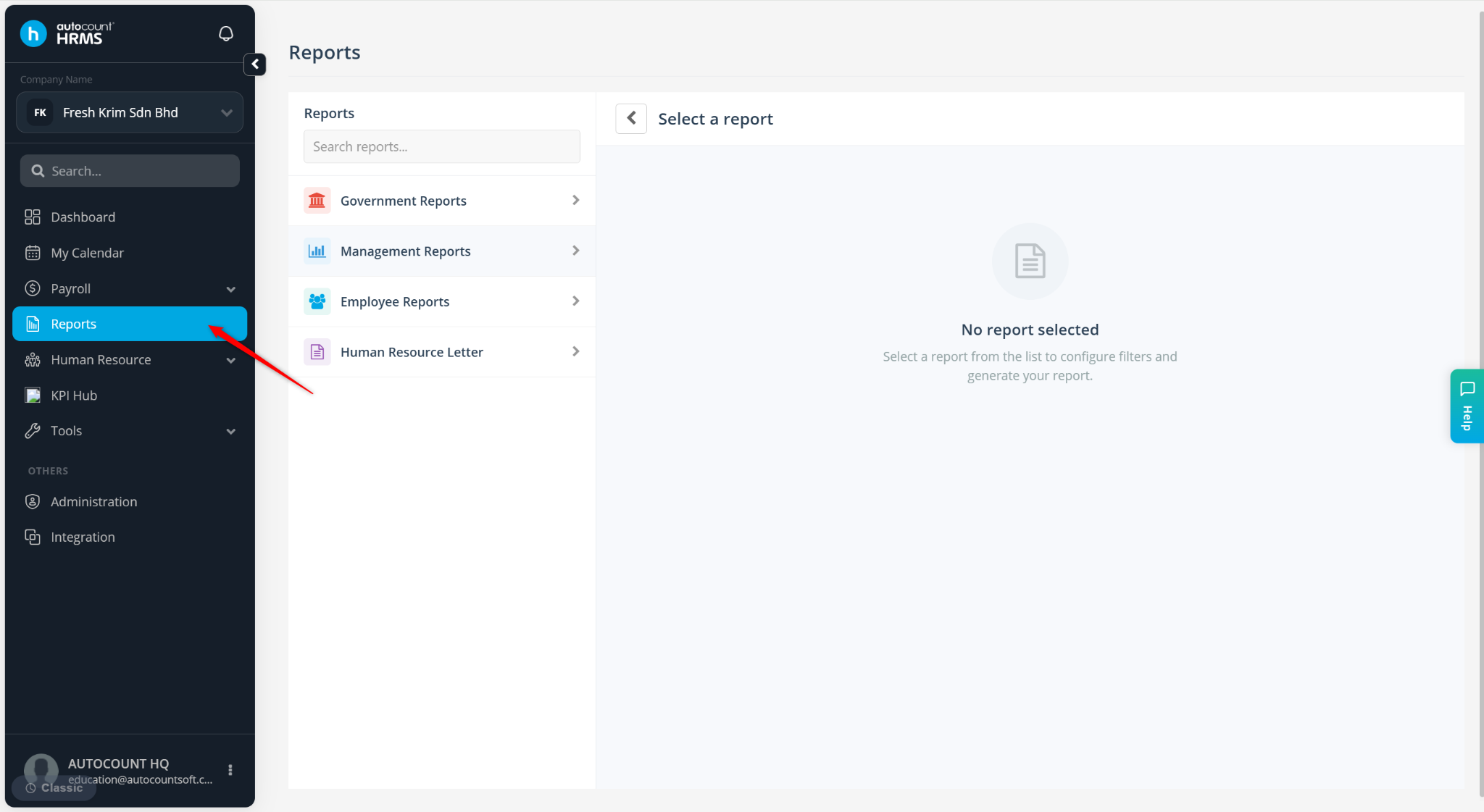
Go to Reports.
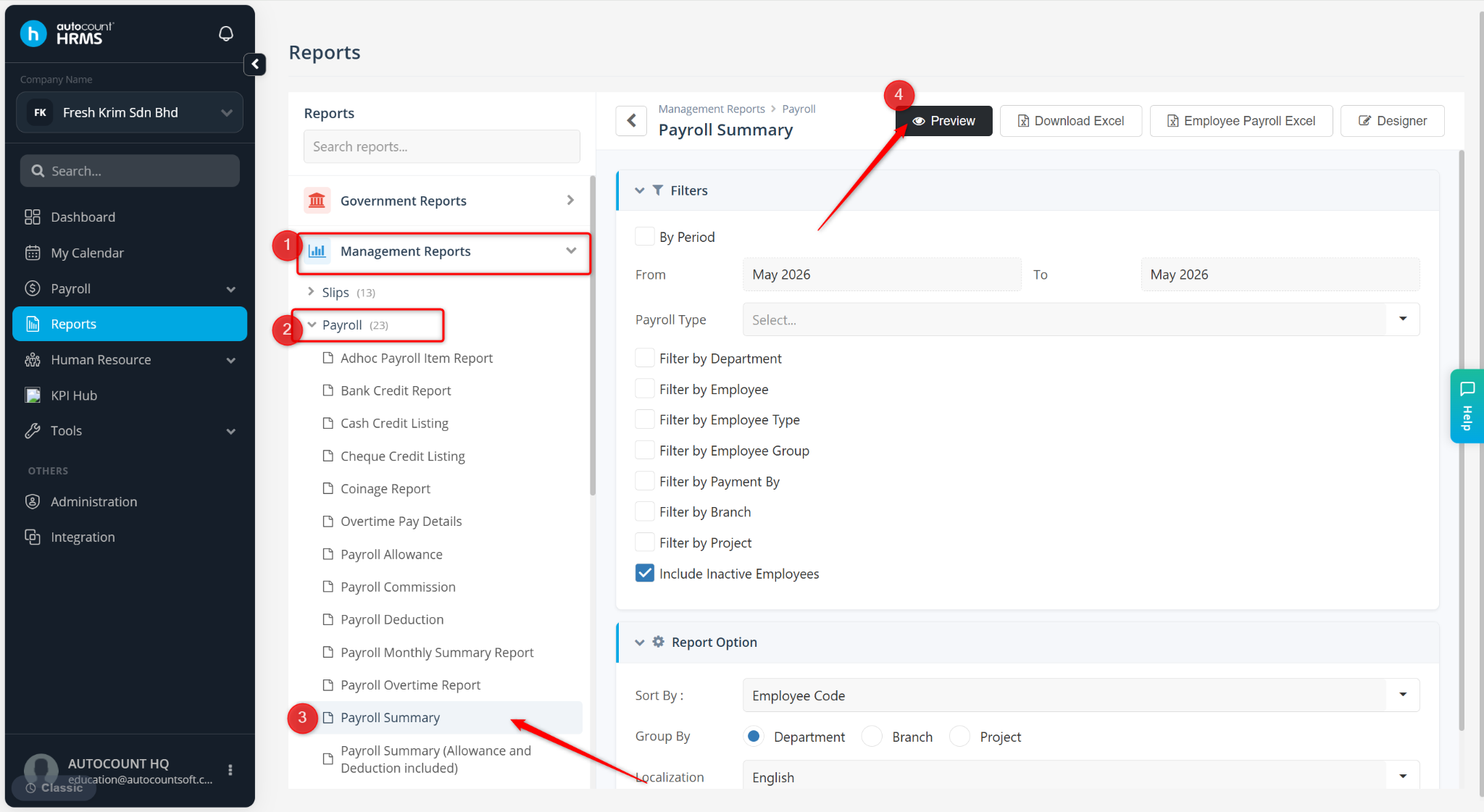
Expand Management Reports > Payroll, select Payroll Summary and click Preview.
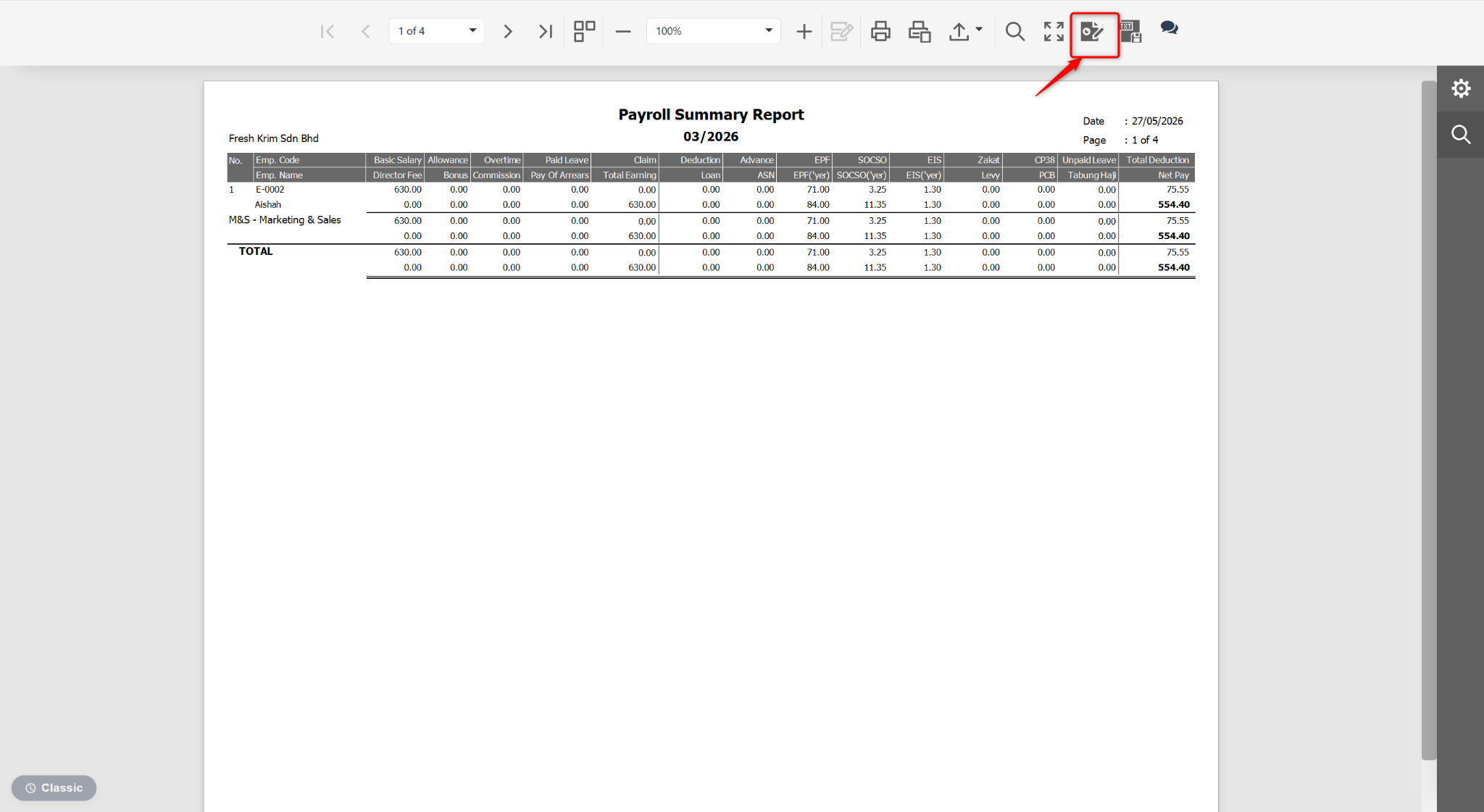
At the Preview page, click the edit icon.
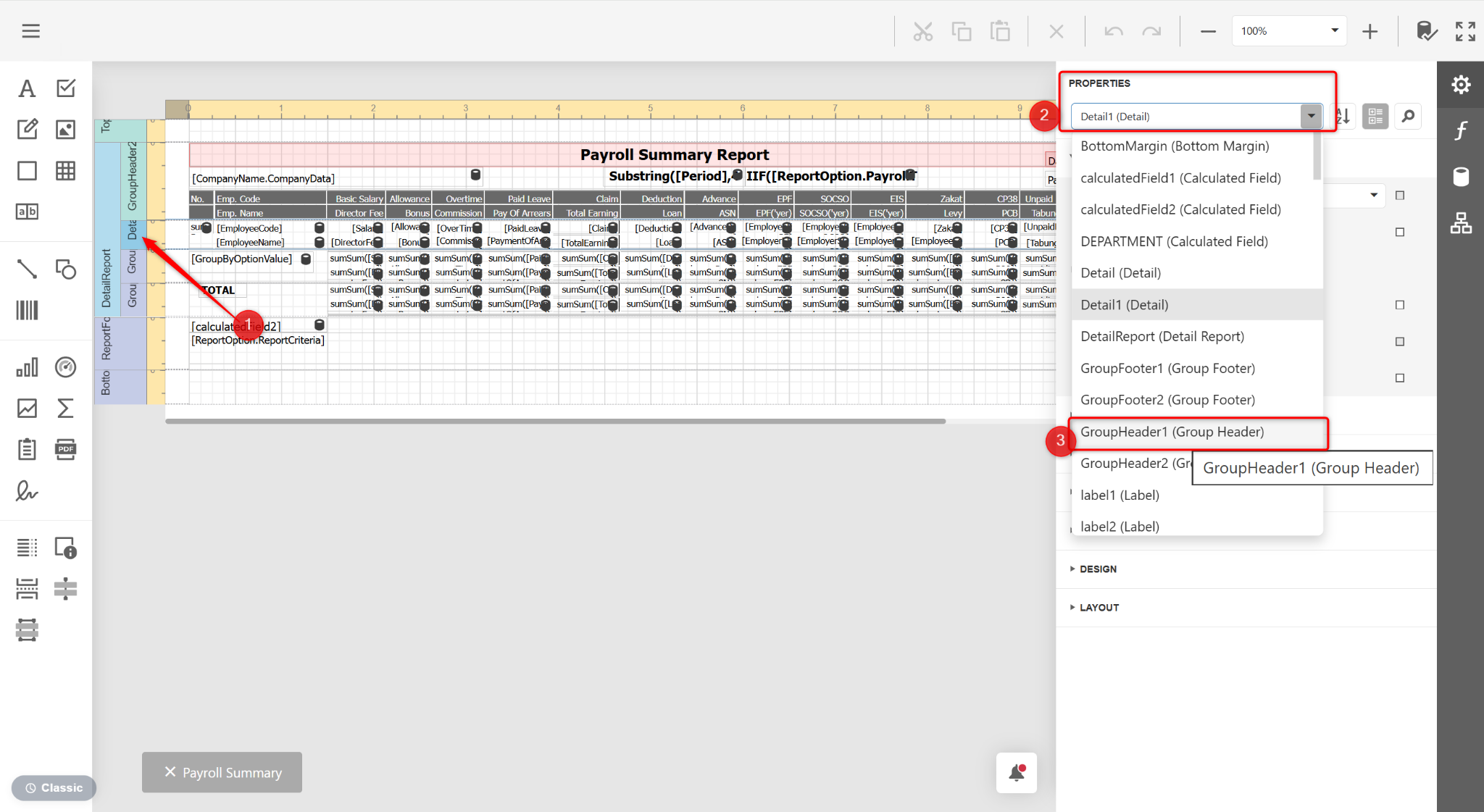
Click the Detail1 (Detail) column. Select GroupHeader1 (Group Header) under PROPERTIES.
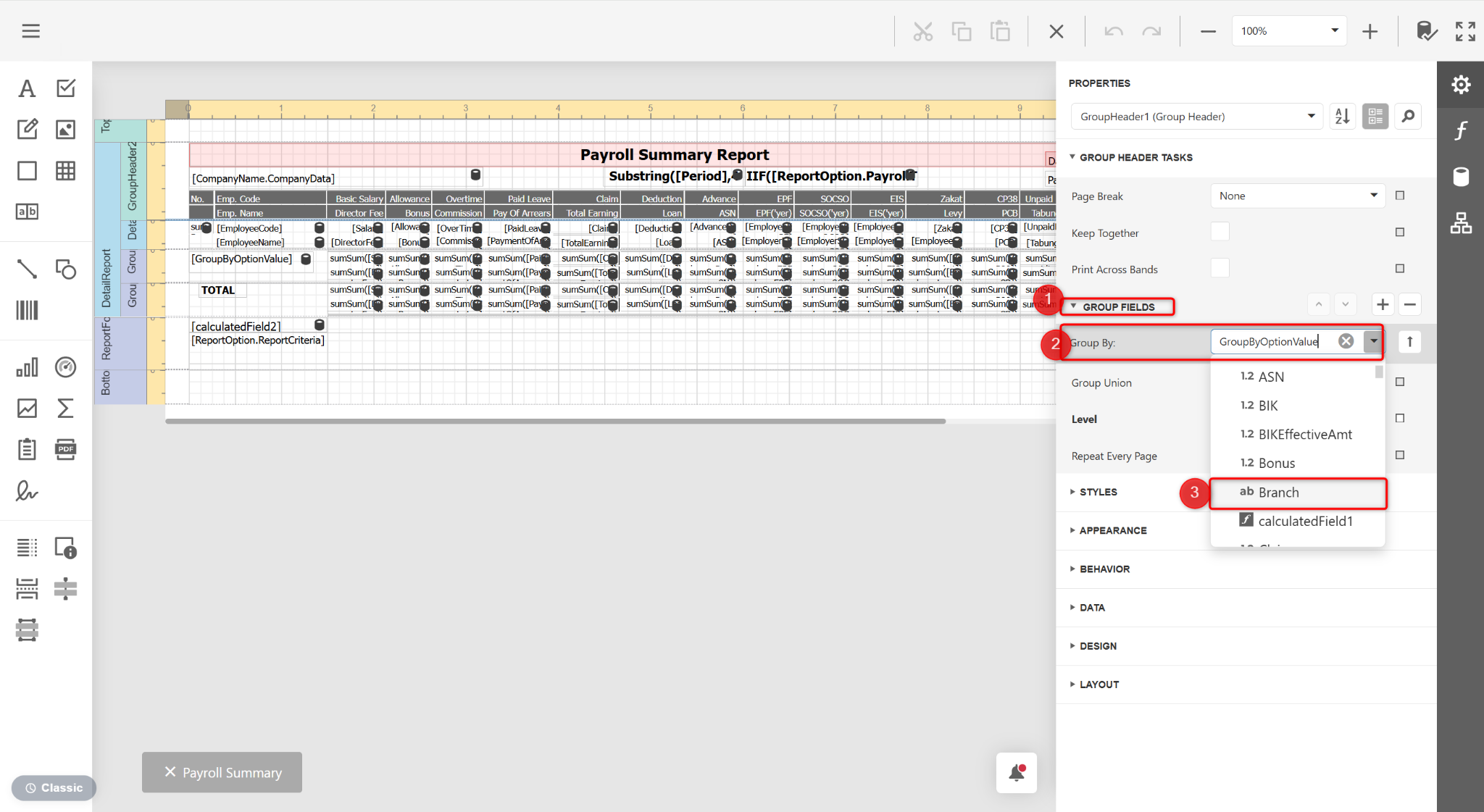
Expand GROUP FIELDS, select Branch at the Group By field.
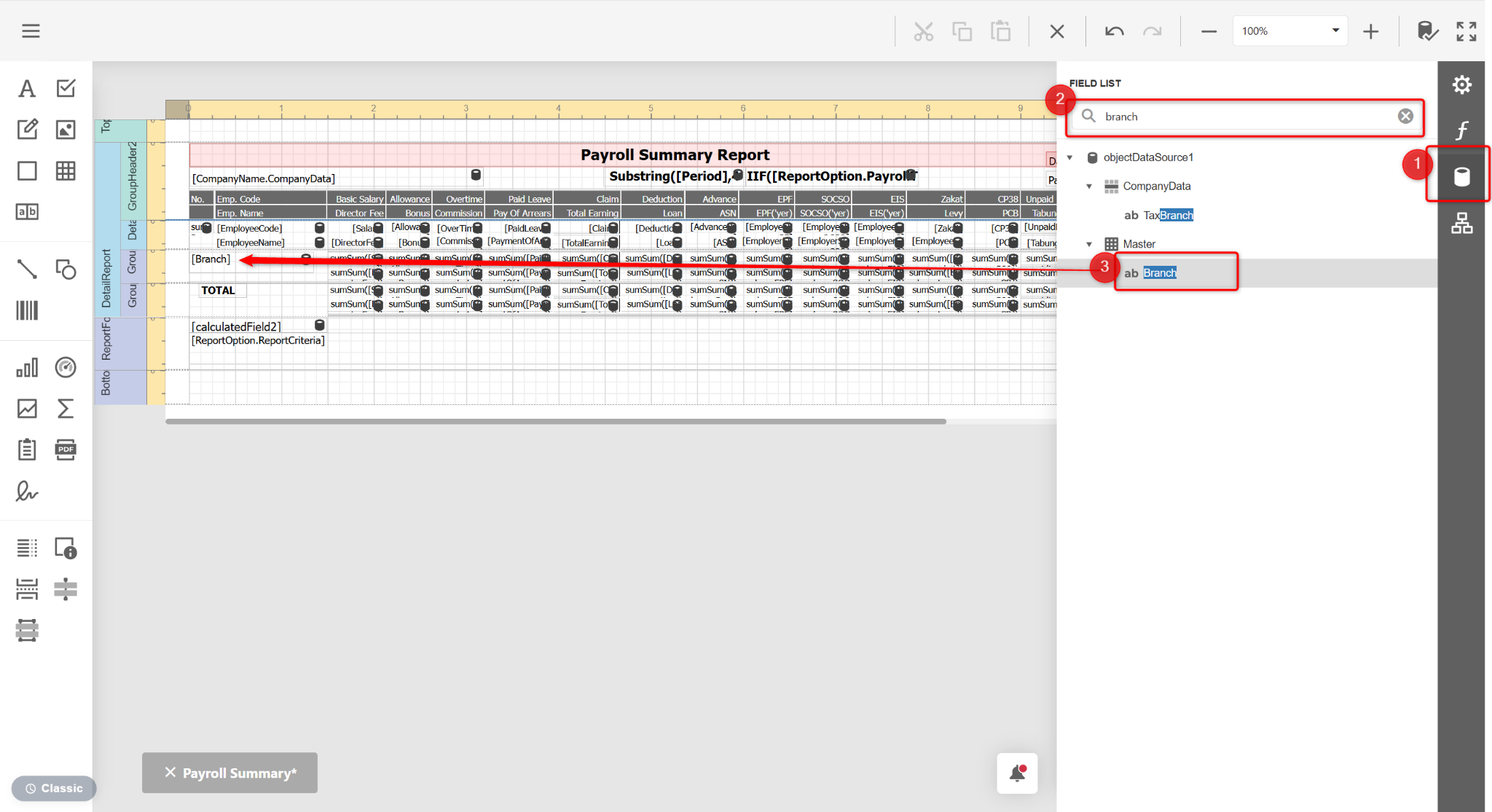
Go to Field List, search for Branch under Master. Drag and drop Branch to the desired location.
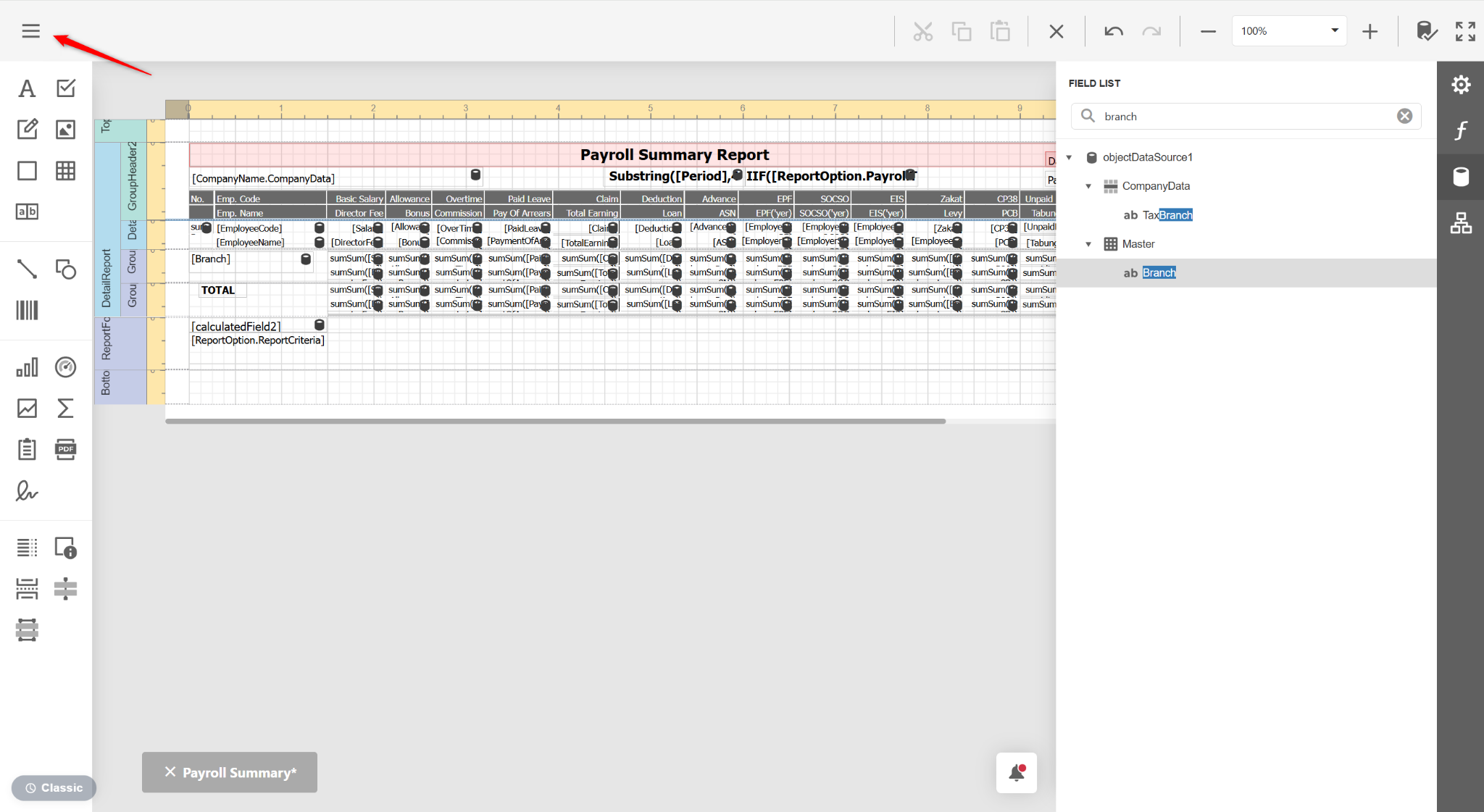
Click the three horizontal lines icon.
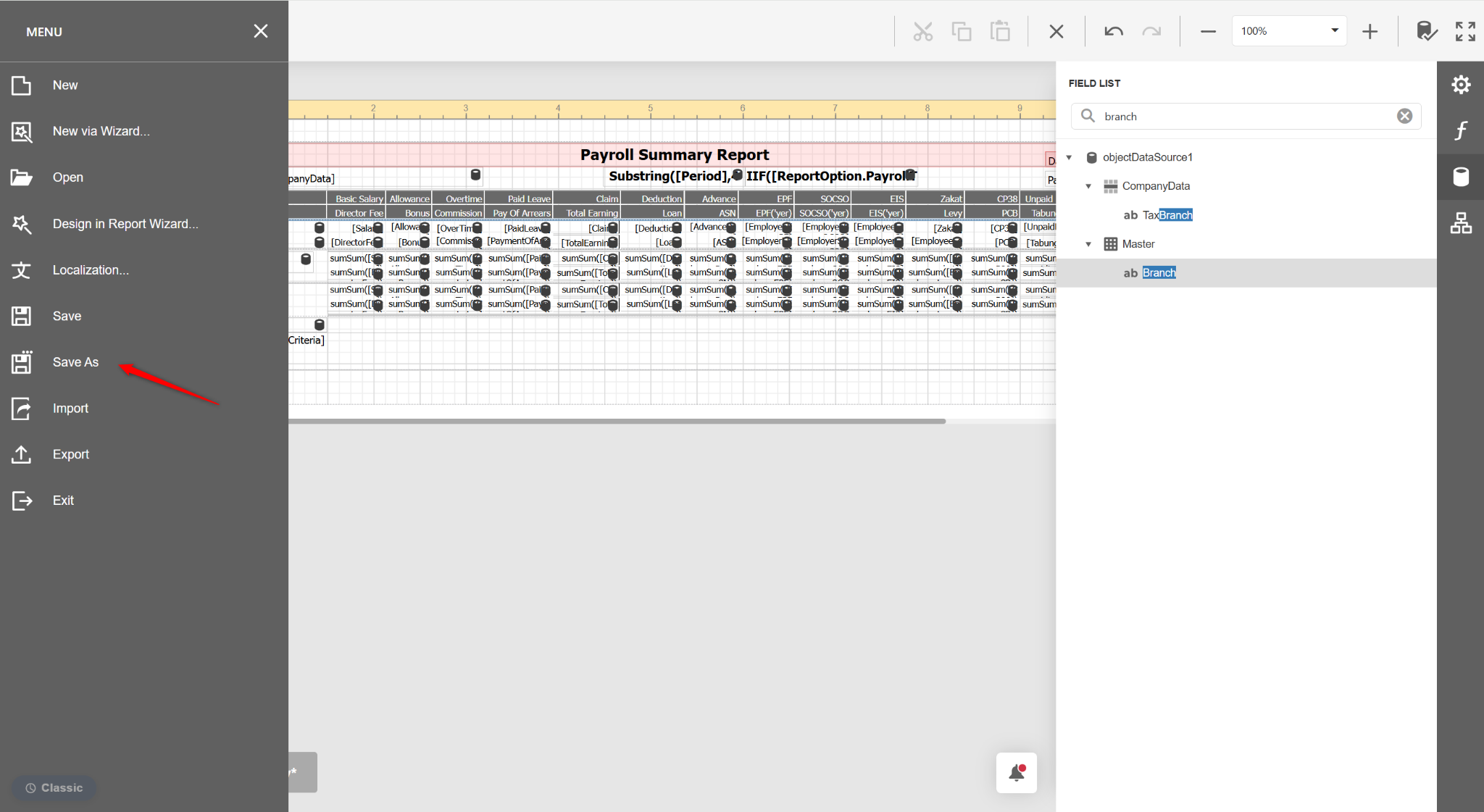
Select Save As.
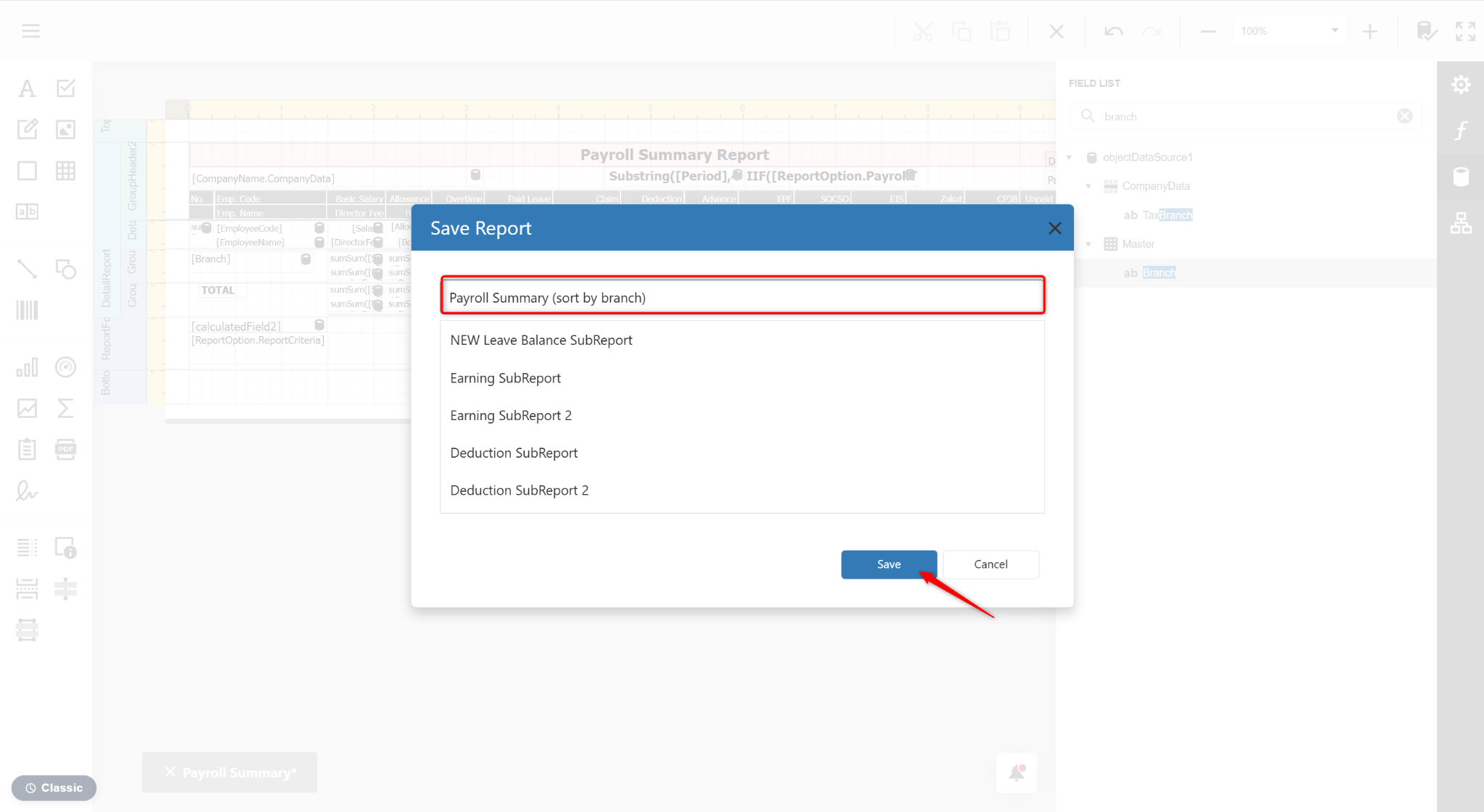
Enter a new report name and click Save.
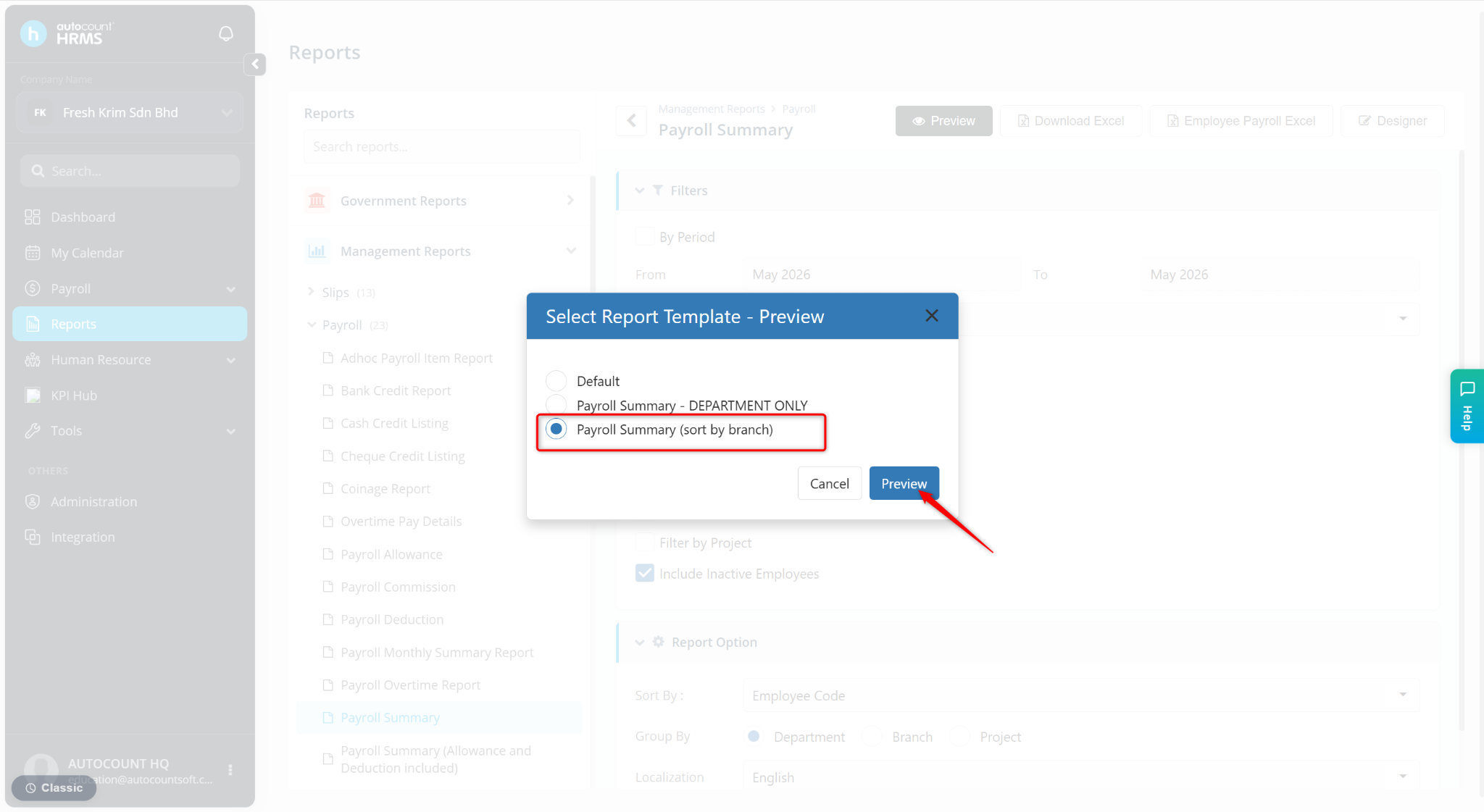
Return to the reports page and click Preview.
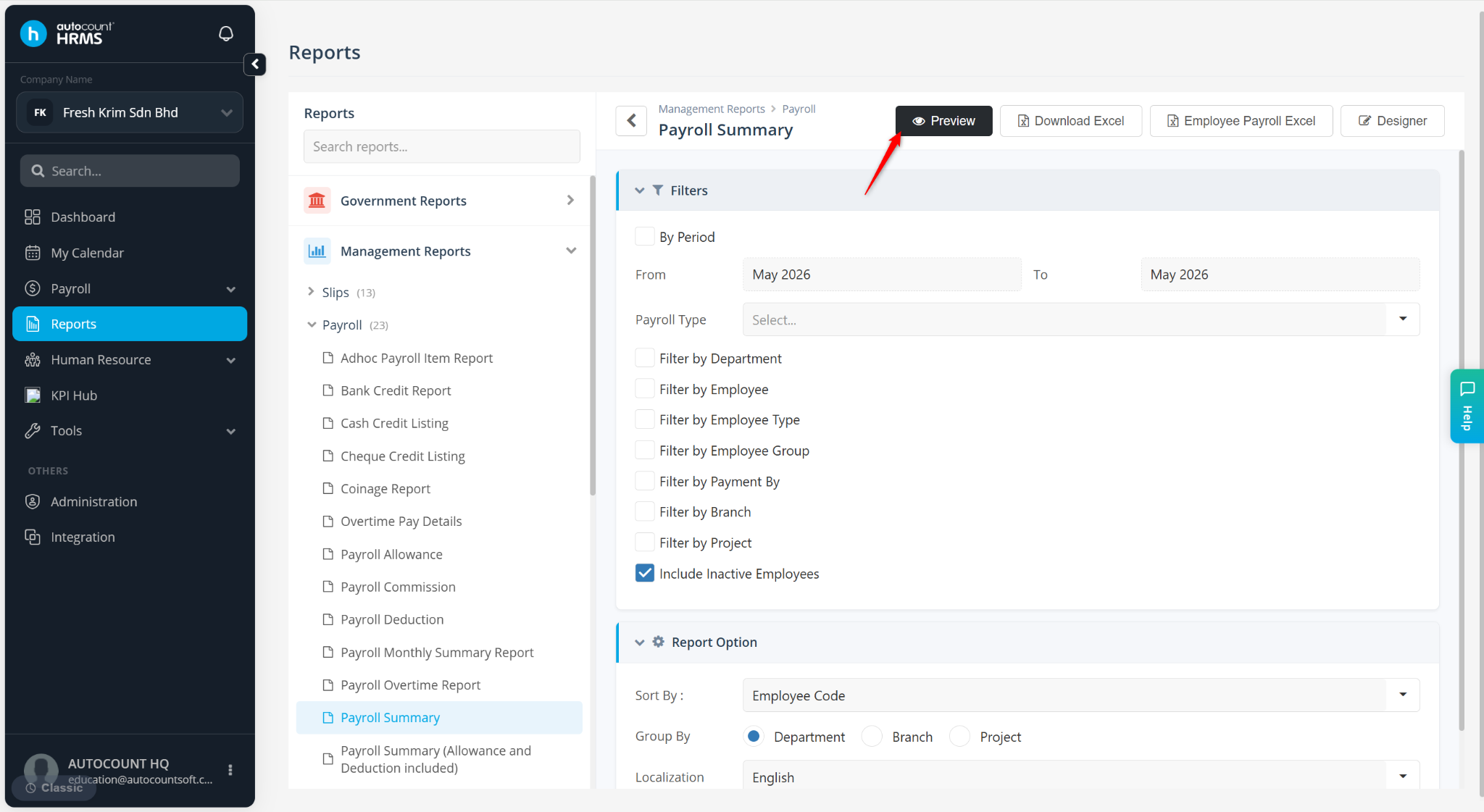
Select the newly customised report and click Preview.