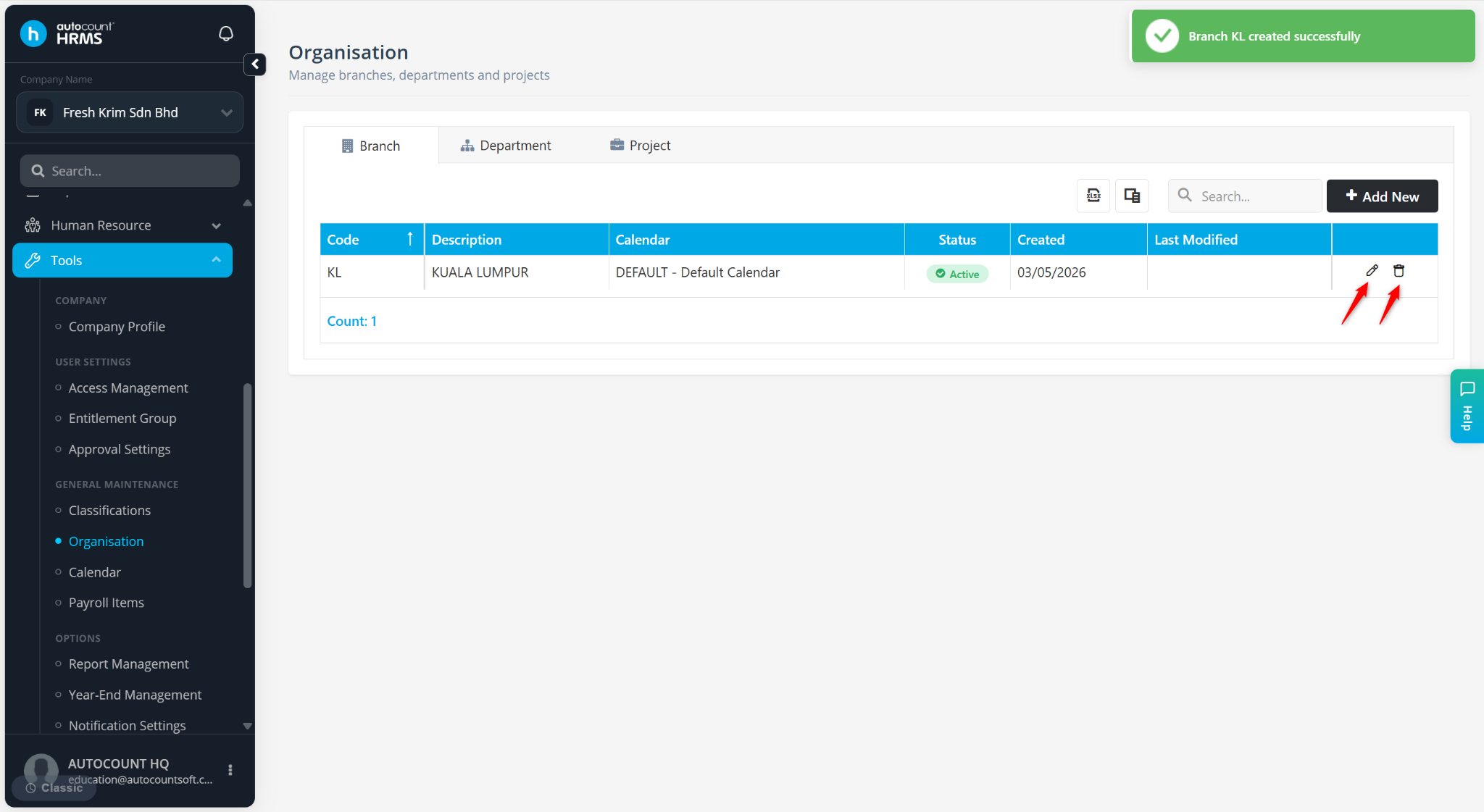
This section allows users to create and manage branches that can be assigned to employees.
Branches are used to categorise employees based on location, office, or operational unit, making it easier to organise records, and generate location-based reports. See report preview by branch and report customisation by branch for application. Note that assigning a branch to an employee does not affect the payroll process.
Steps to Create a New Branch:
Go to Tools > Organisation.
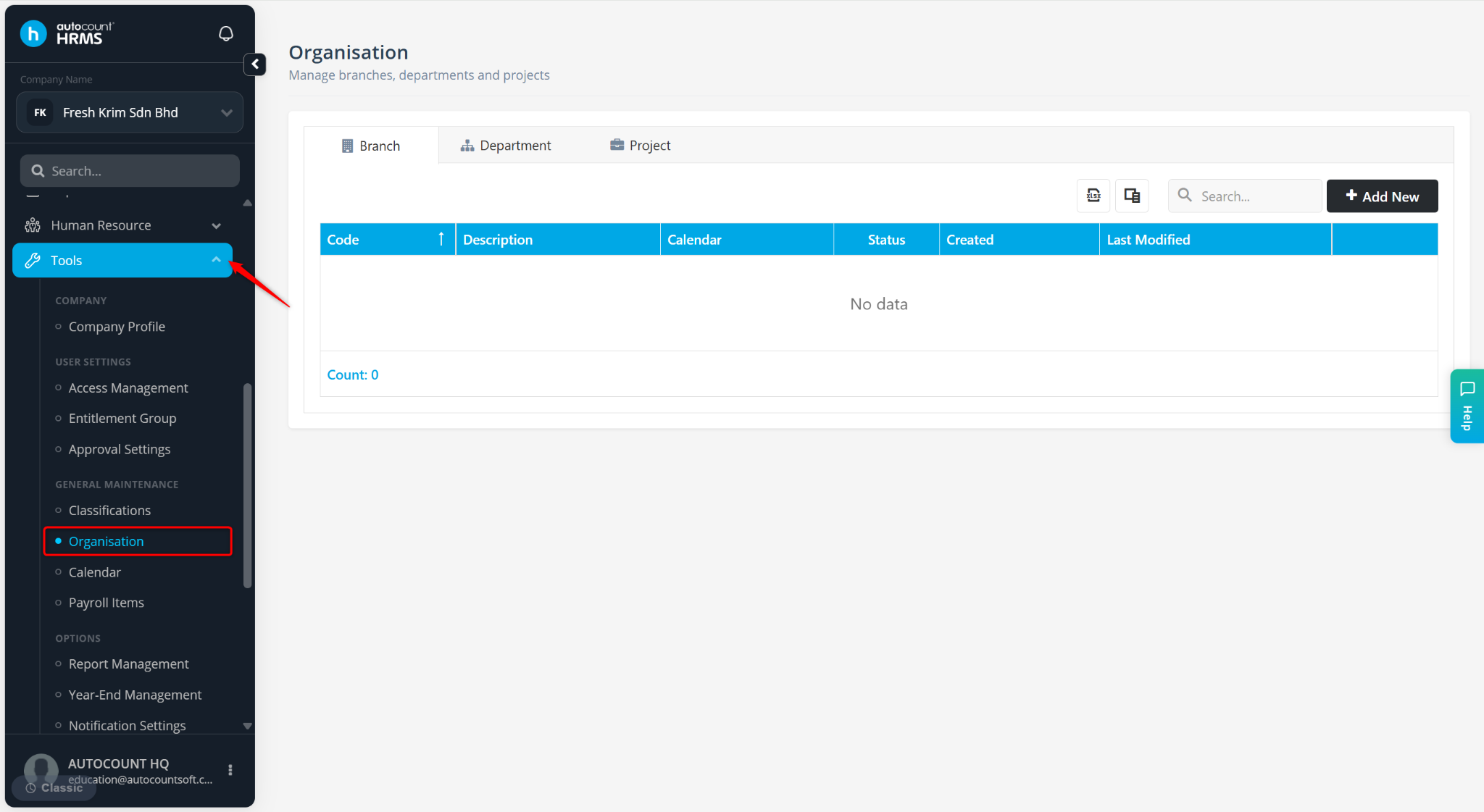
Under the Branch tab, click Add New.
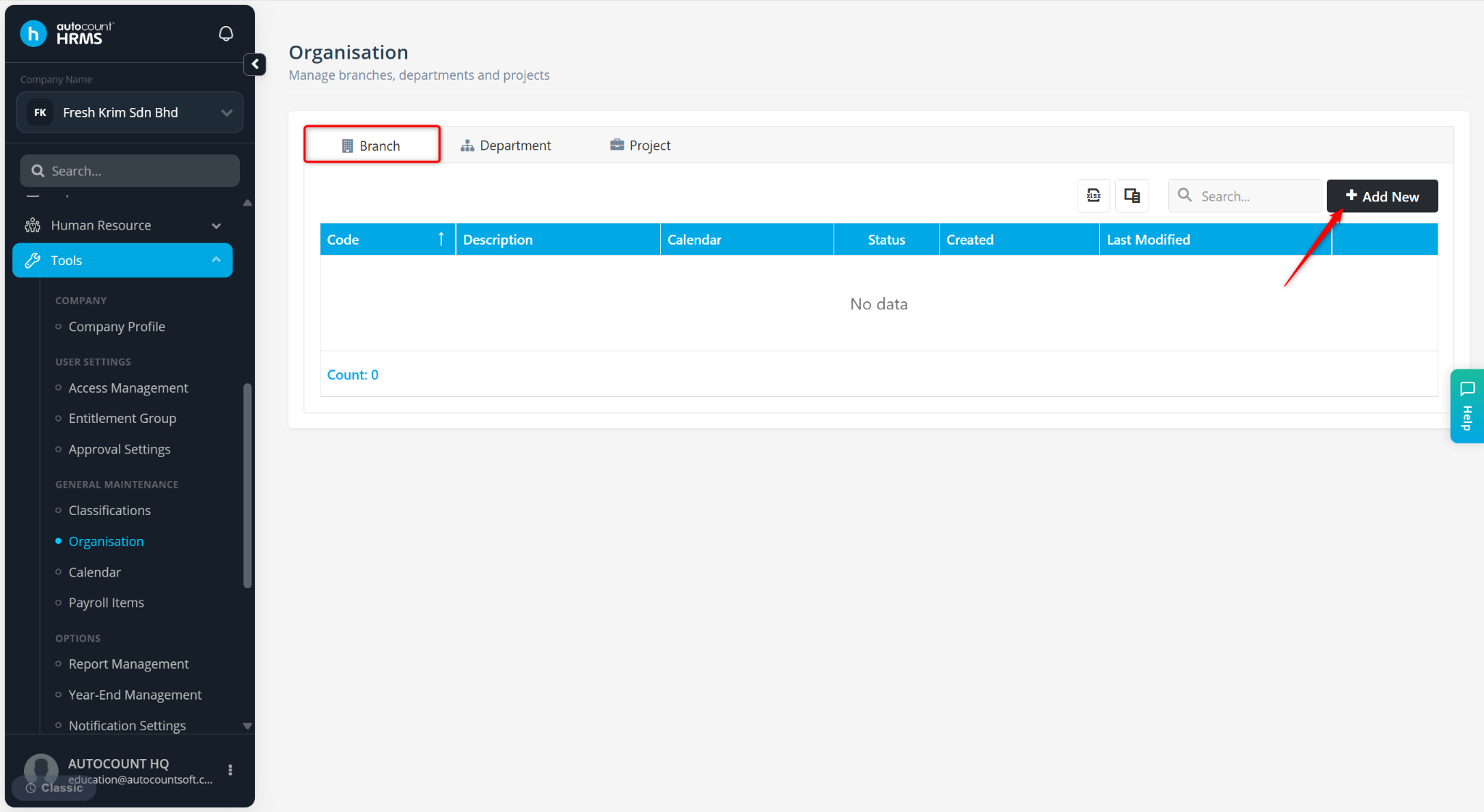
Enter the details:
Code – Enter a code for the branch. (Mandatory)
Description – Enter the branch name or location.
Calendar – Select the calendar used for the branch (maintained at Tools > Calendar).
Default Rule – Assign the rule used for the branch (maintained at Human Resource > Shift & Rule).
Is Active – Ensure this option is enabled to make the record available for selection.
Statutory Information – Enter the EPF No, EPF Address, SOCSO Number and SOCSO Address if applicable.
Click Save.
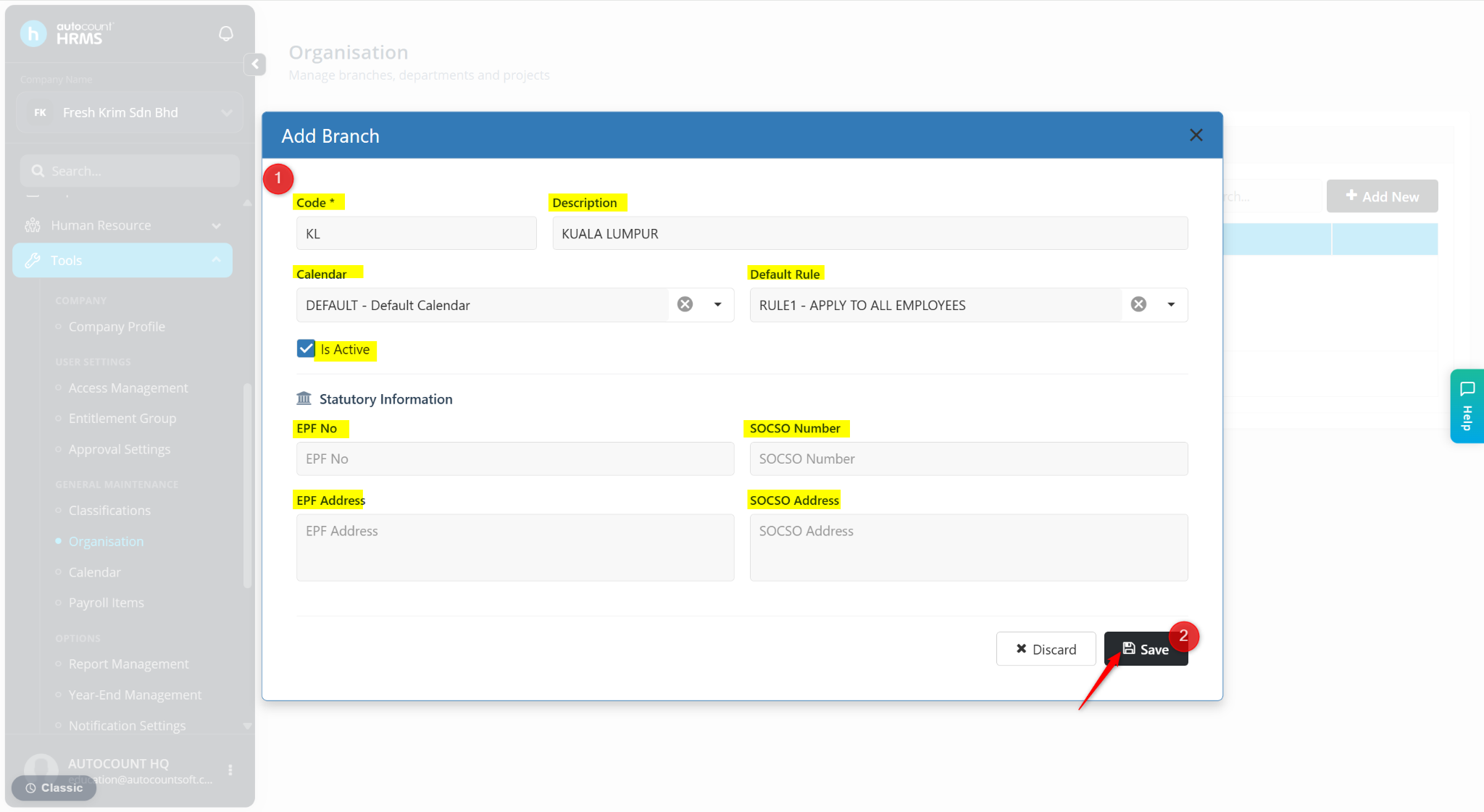
The branch will be created.
ℹ️ Tip:
Use the pencil icon to edit the branch.
Use the trash bin icon to delete the branch, then click Yes to confirm deletion.