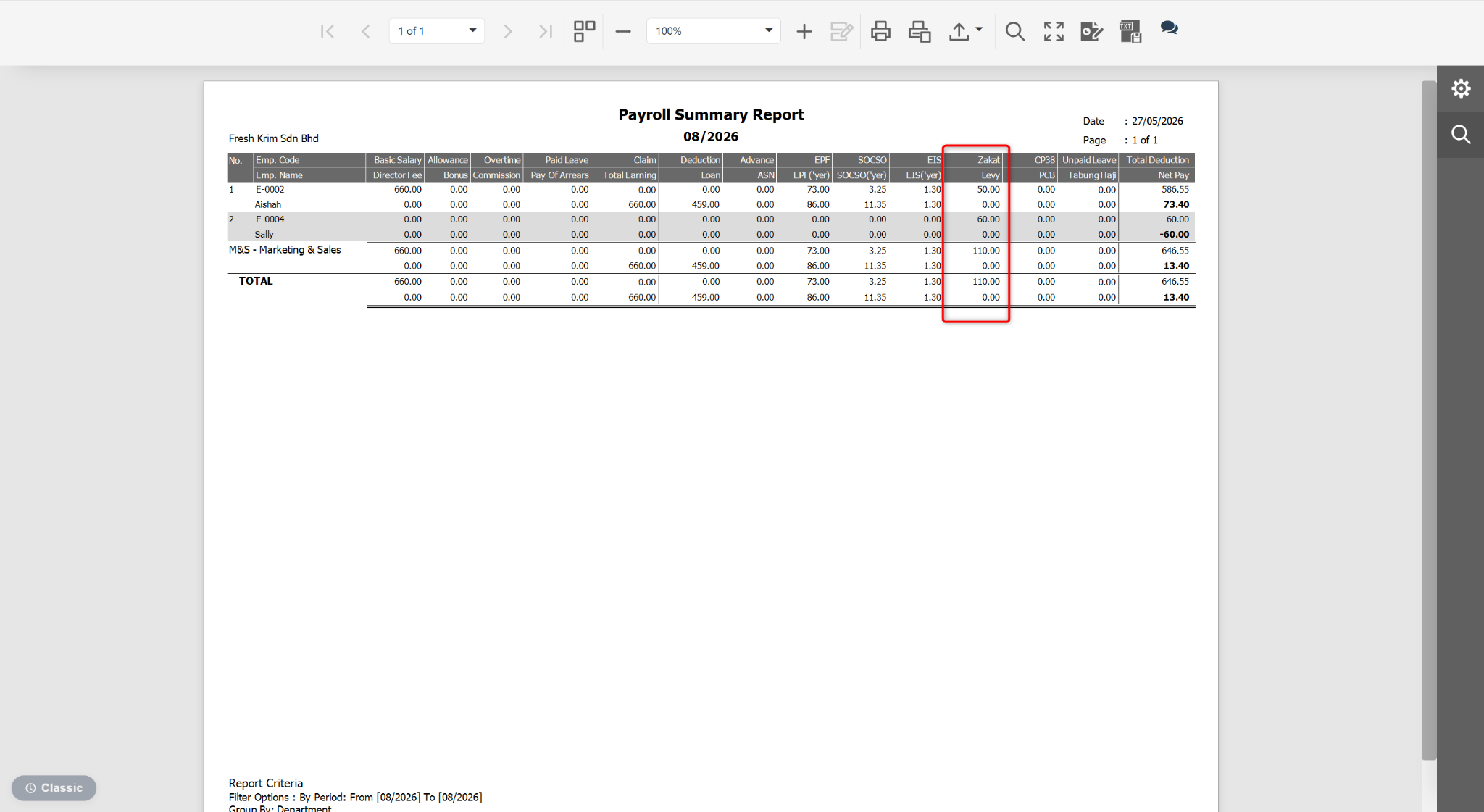
Users may customise the Payroll Summary Report to display only records with non-zero values.
Steps to Show Non-Zero Amounts only at Payroll Report:
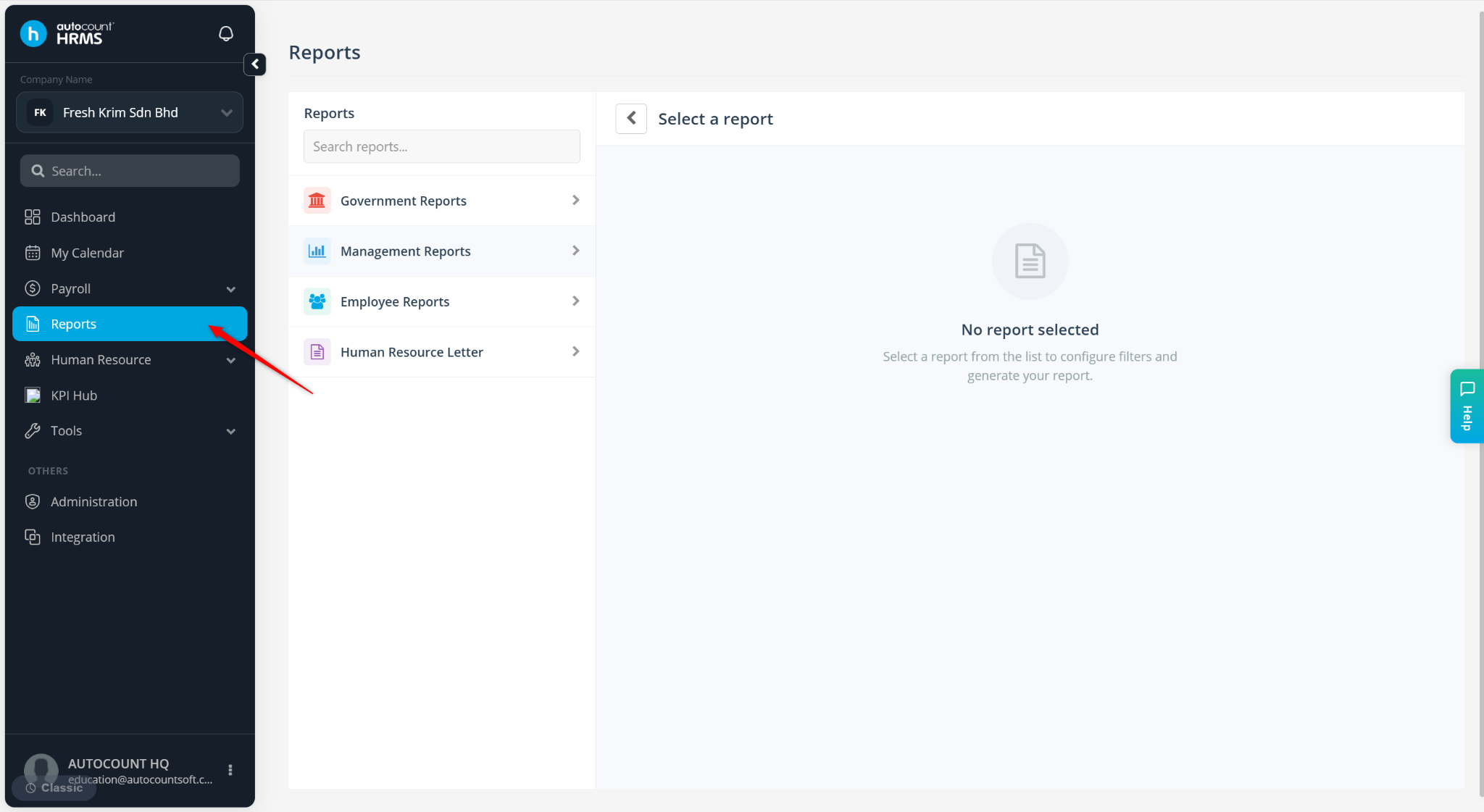
Go to Reports.
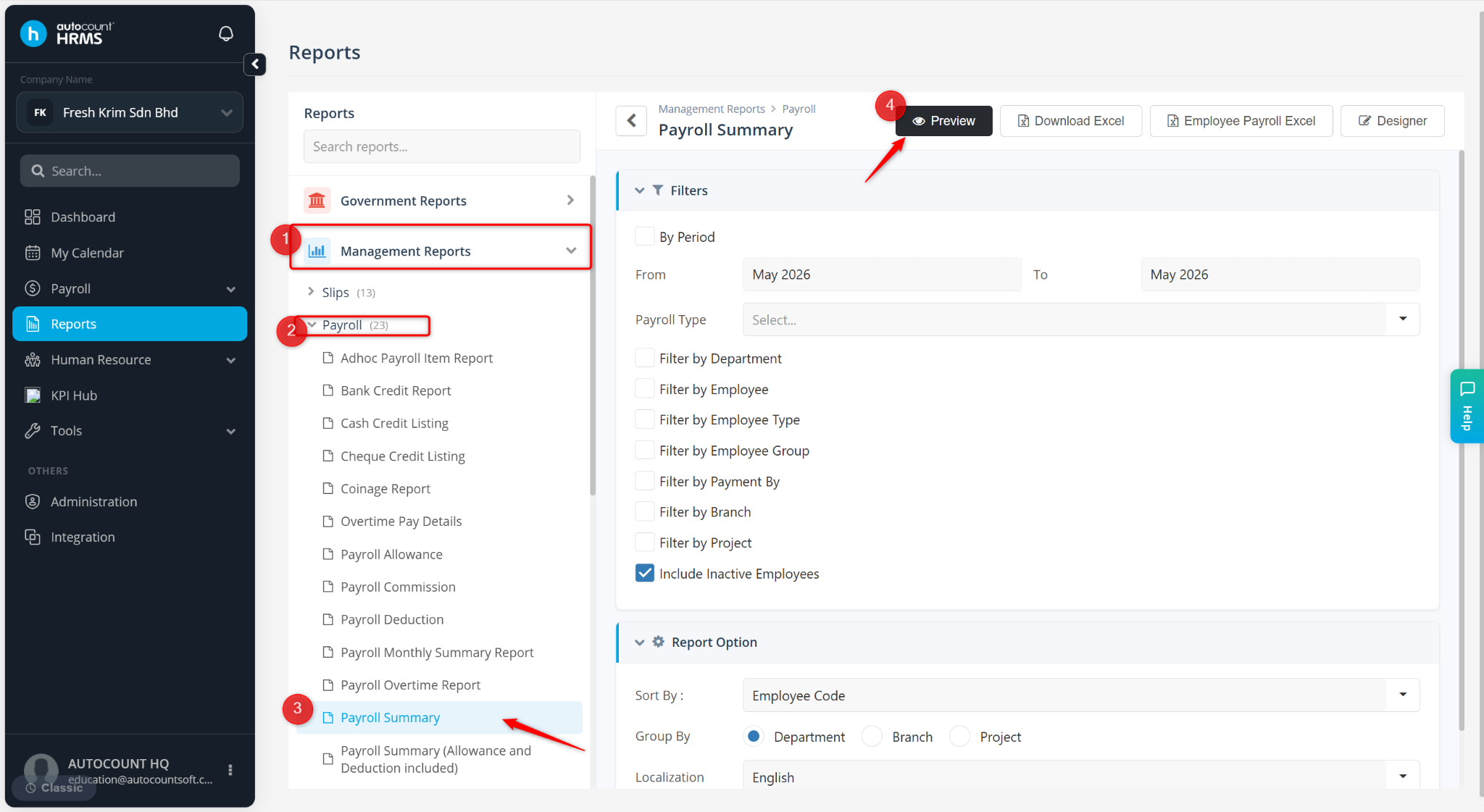
Expand Management Reports > Payroll, select Payroll Summary.
Click Preview or Designer.
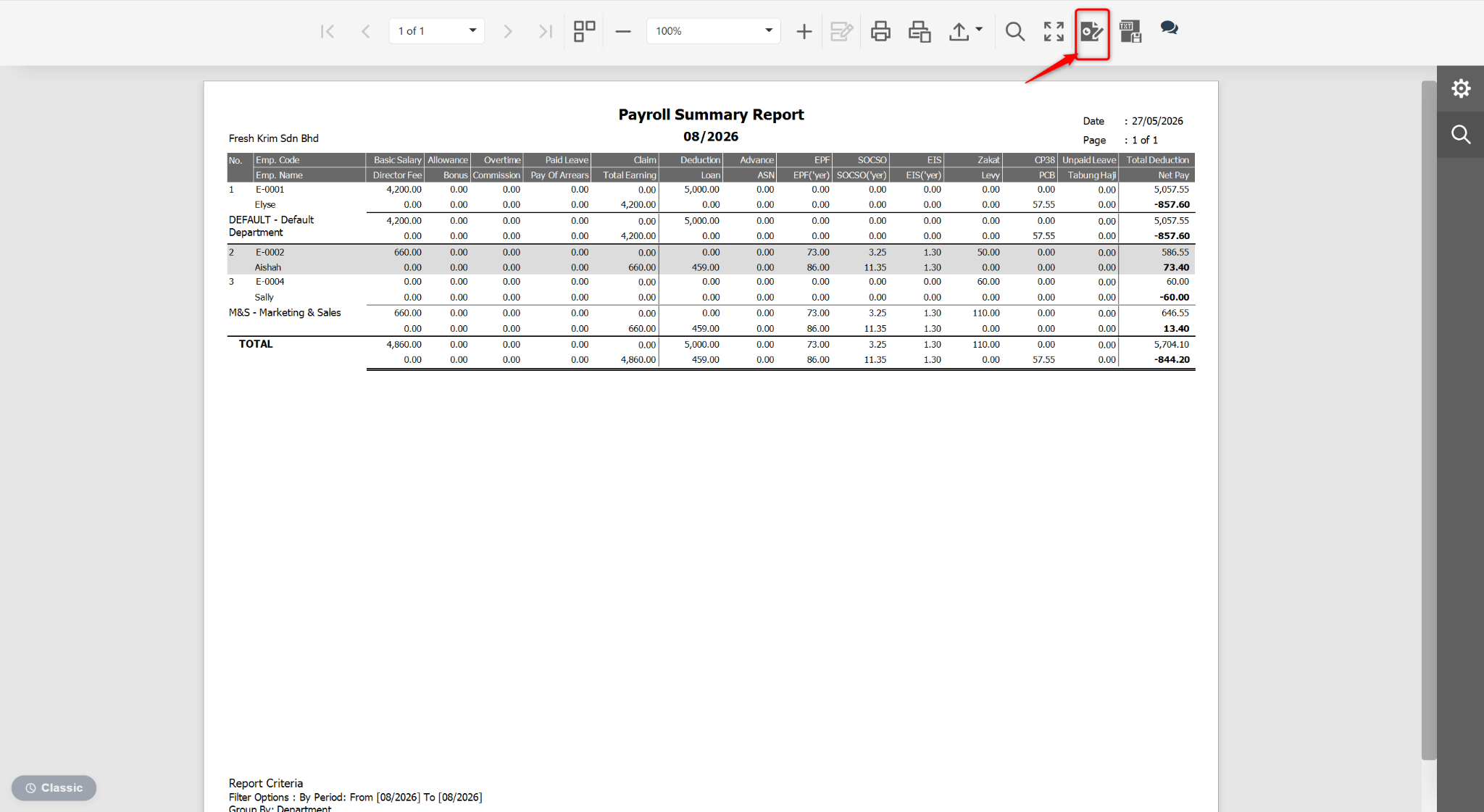
At the Preview page, click the edit icon.
Under PROPERTIES, select Detail report (Detail Report).
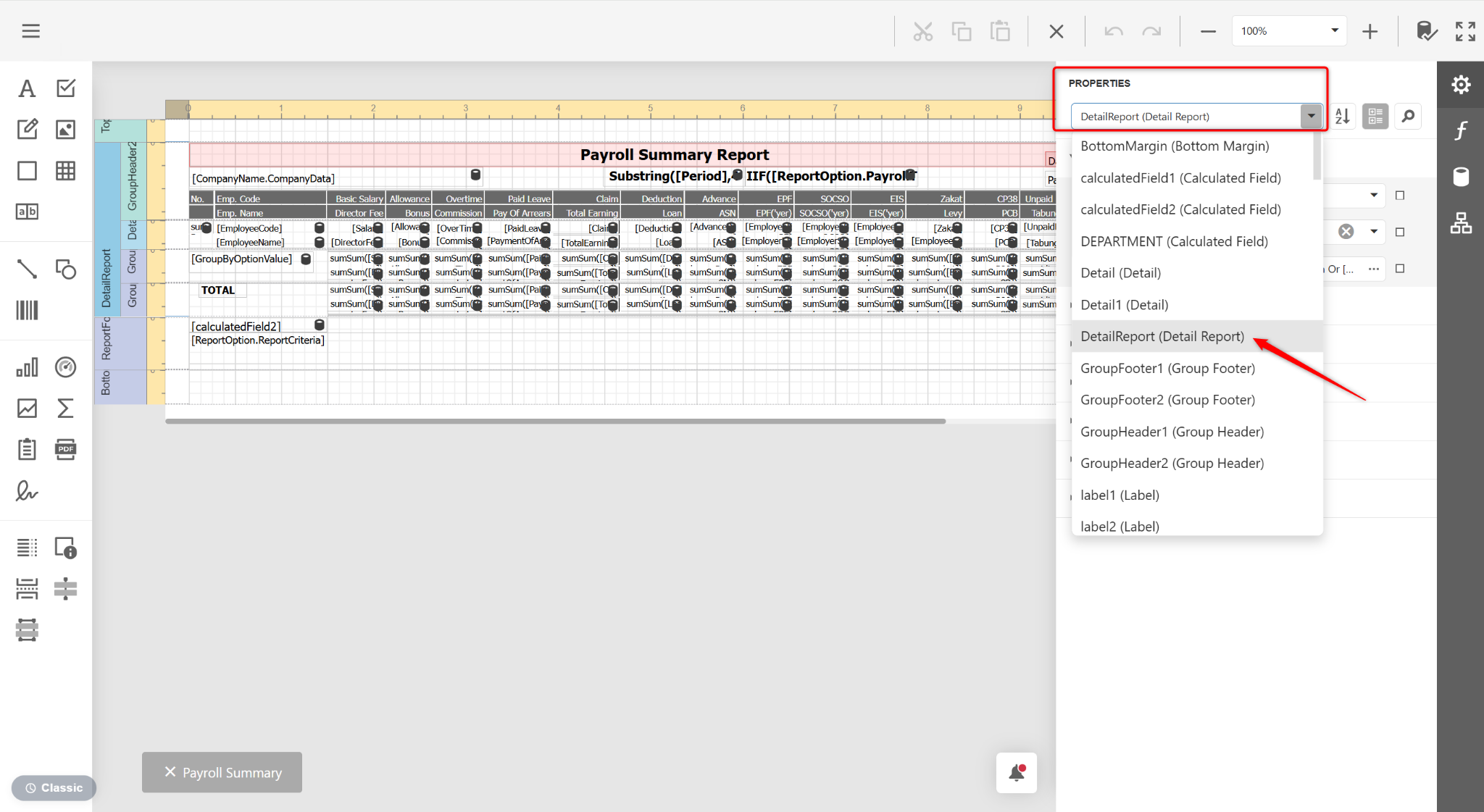
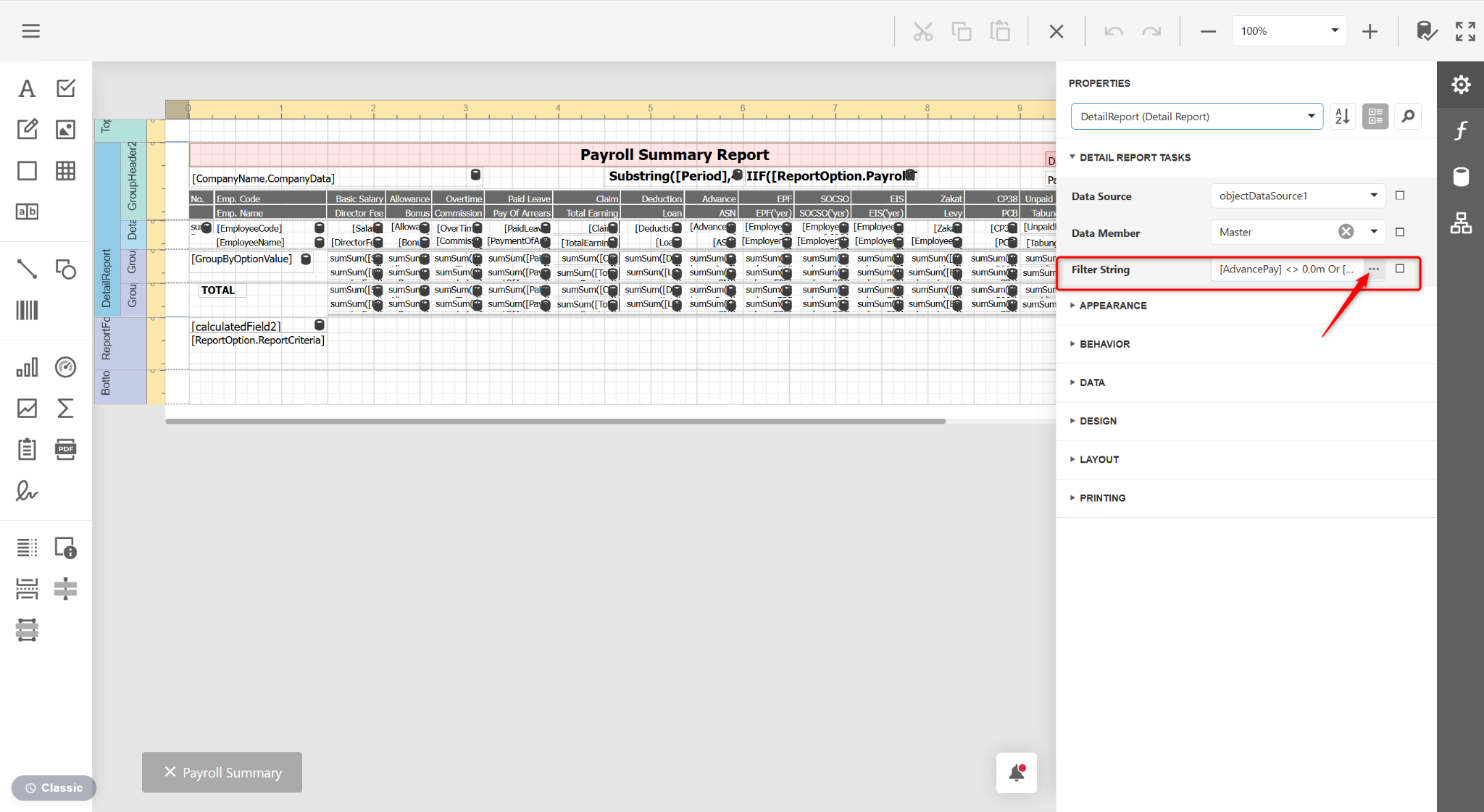
Click the … icon at the Filter String field.
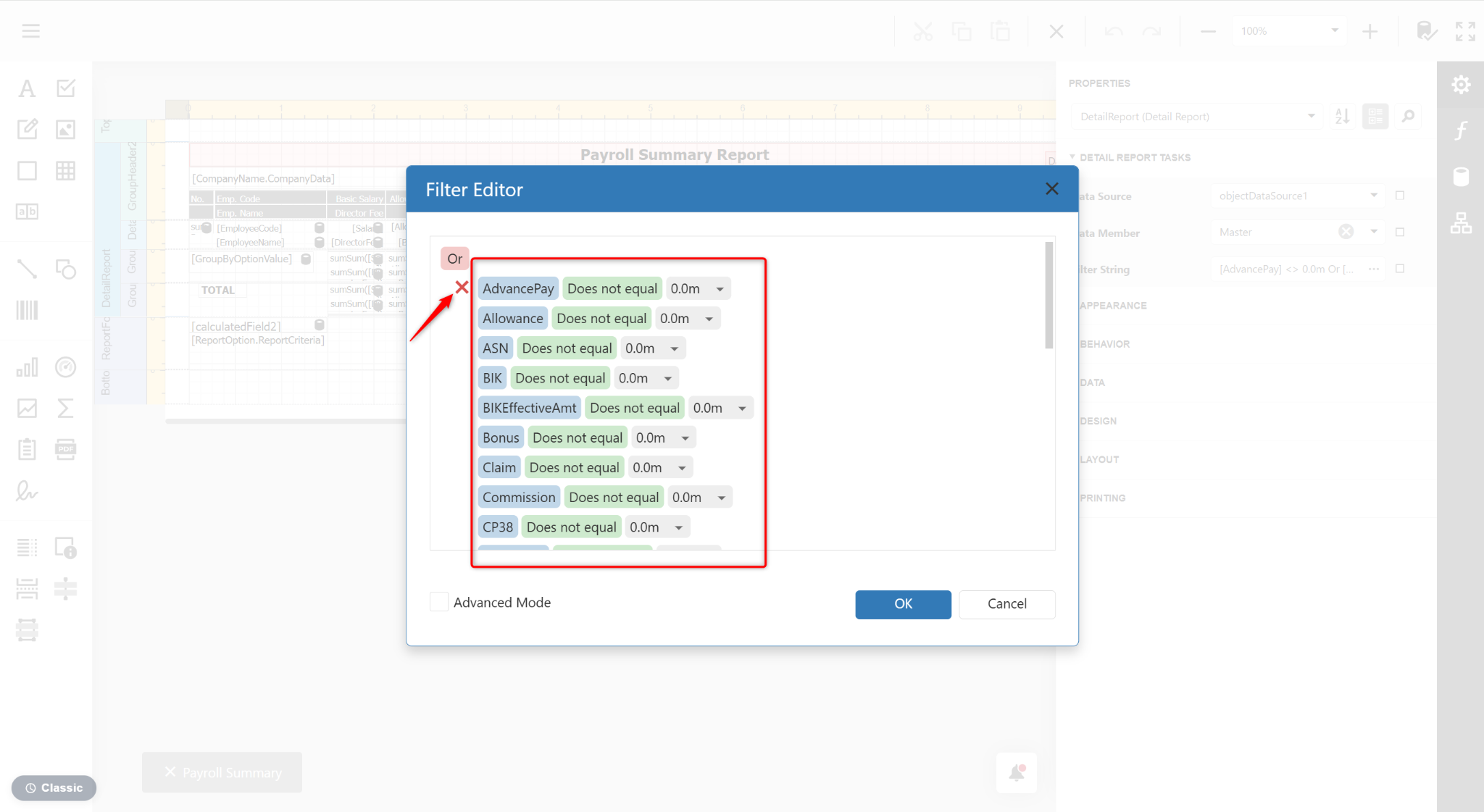
Click the x icon to remove unwanted field(s).
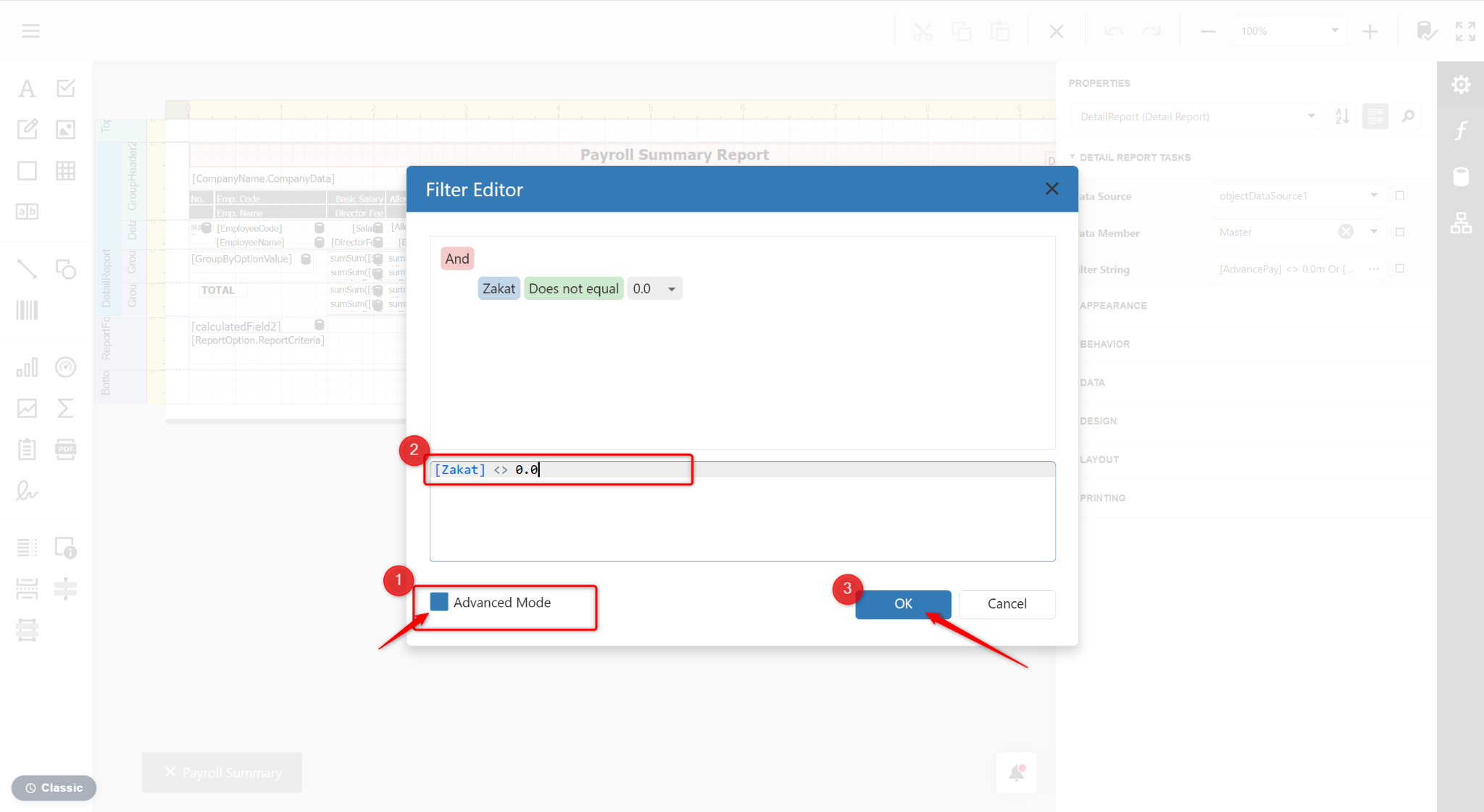
Tick Advanced Mode. The Advanced Mode filter will show [Zakat] <> ‘0.0m’. Change it to [Zakat] <> ‘0.0’.
Click OK to apply the filter.
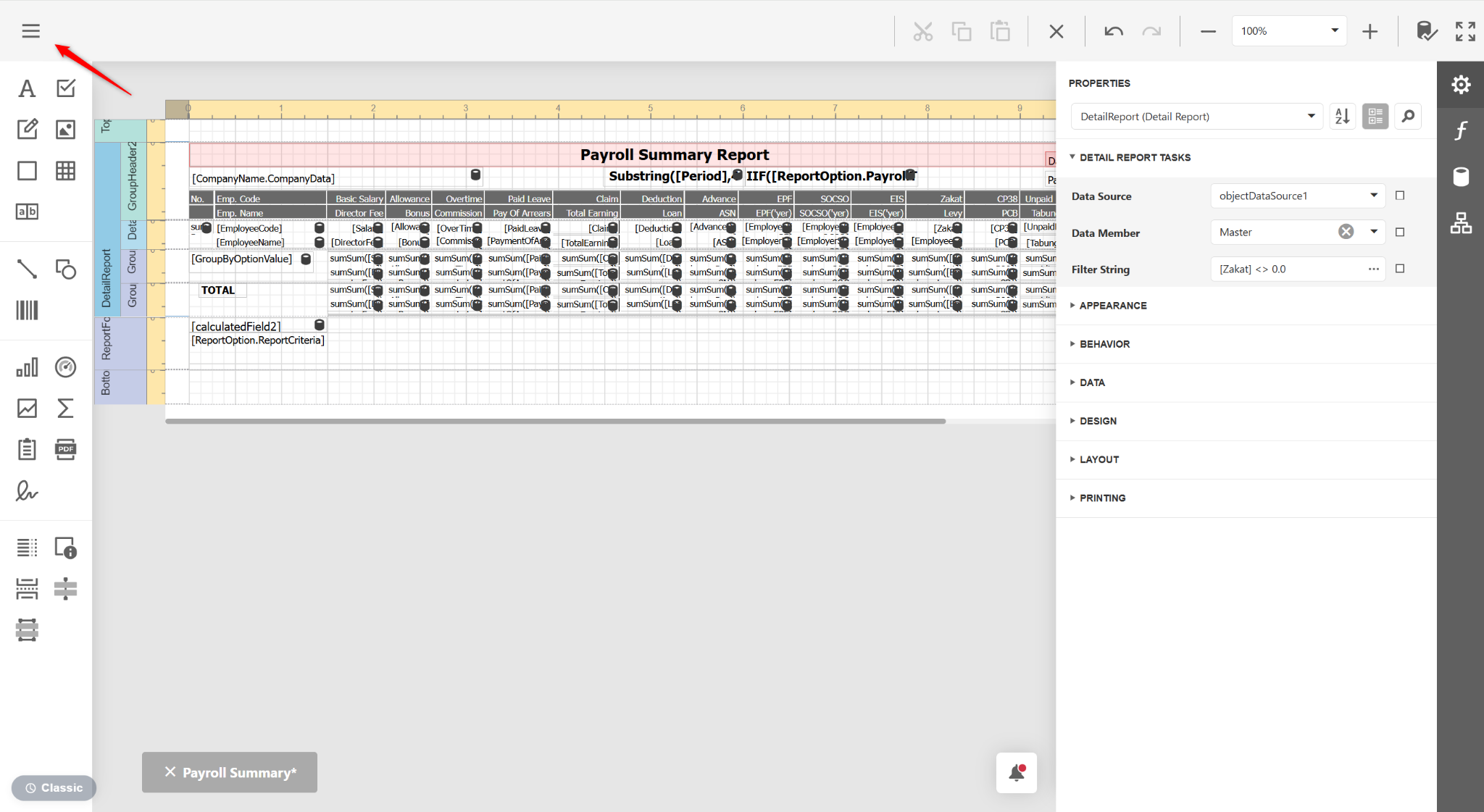
Click the three horizontal lines icon.
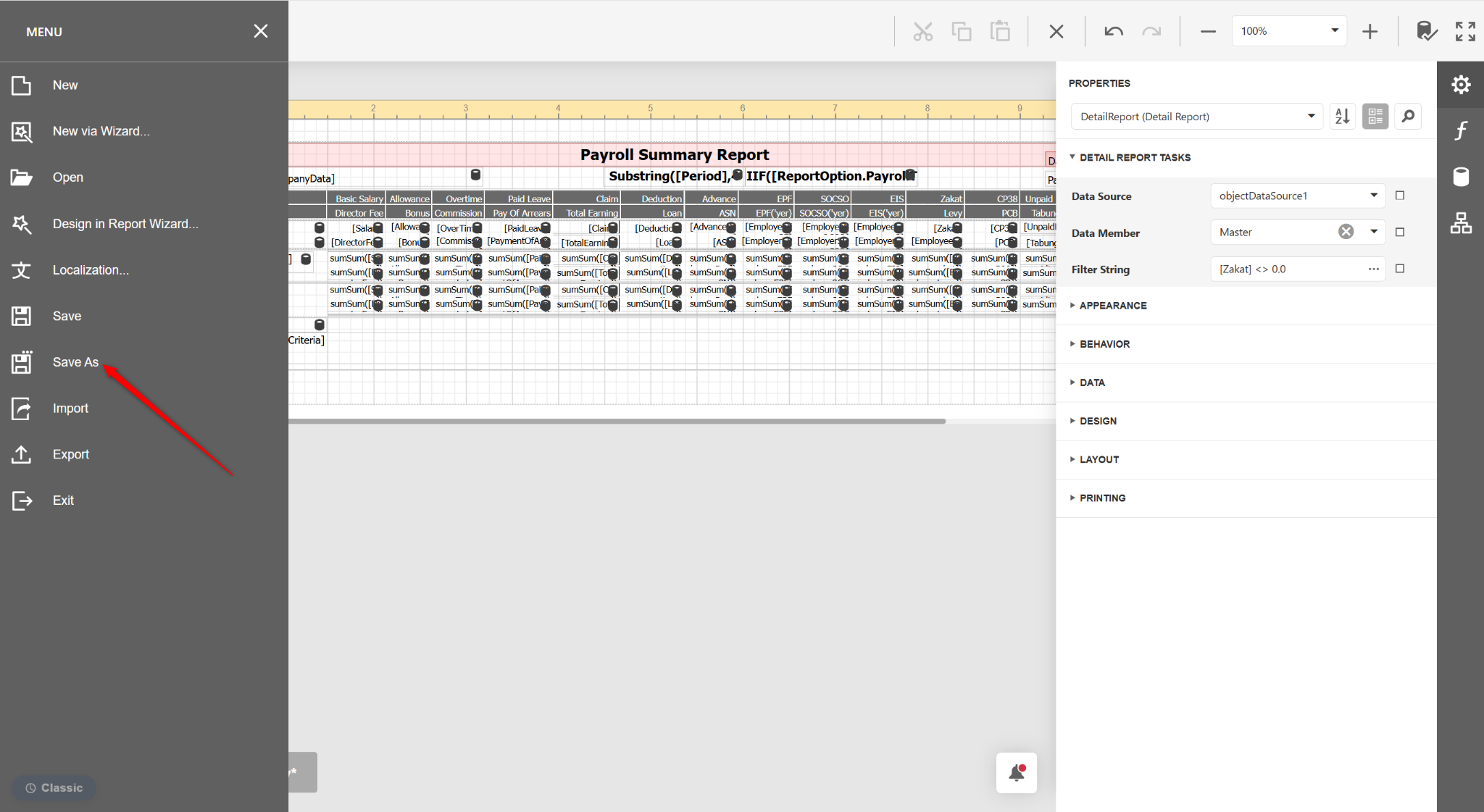
Select Save As.
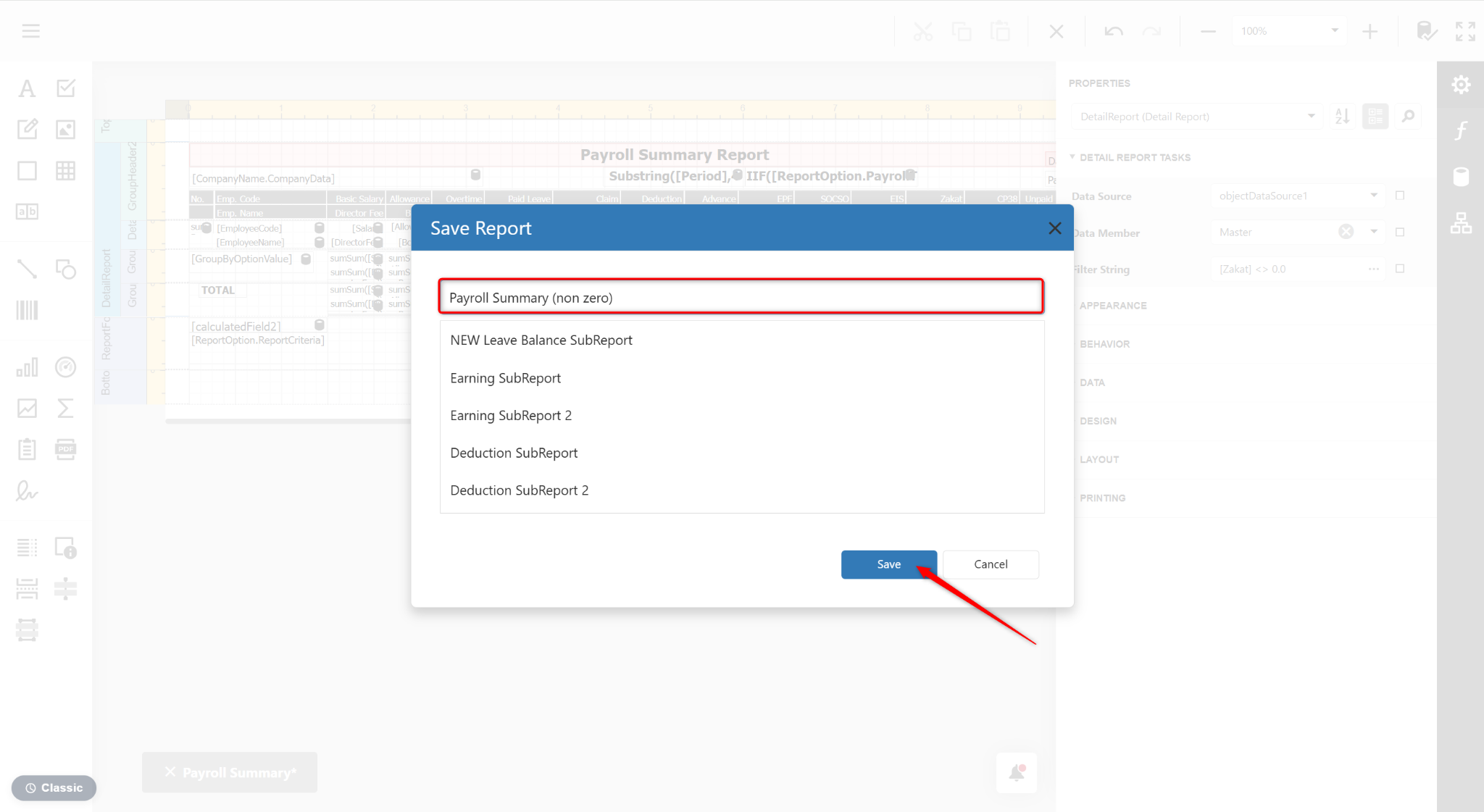
Enter a new report name and click Save.
Return to the reports page and click Preview.
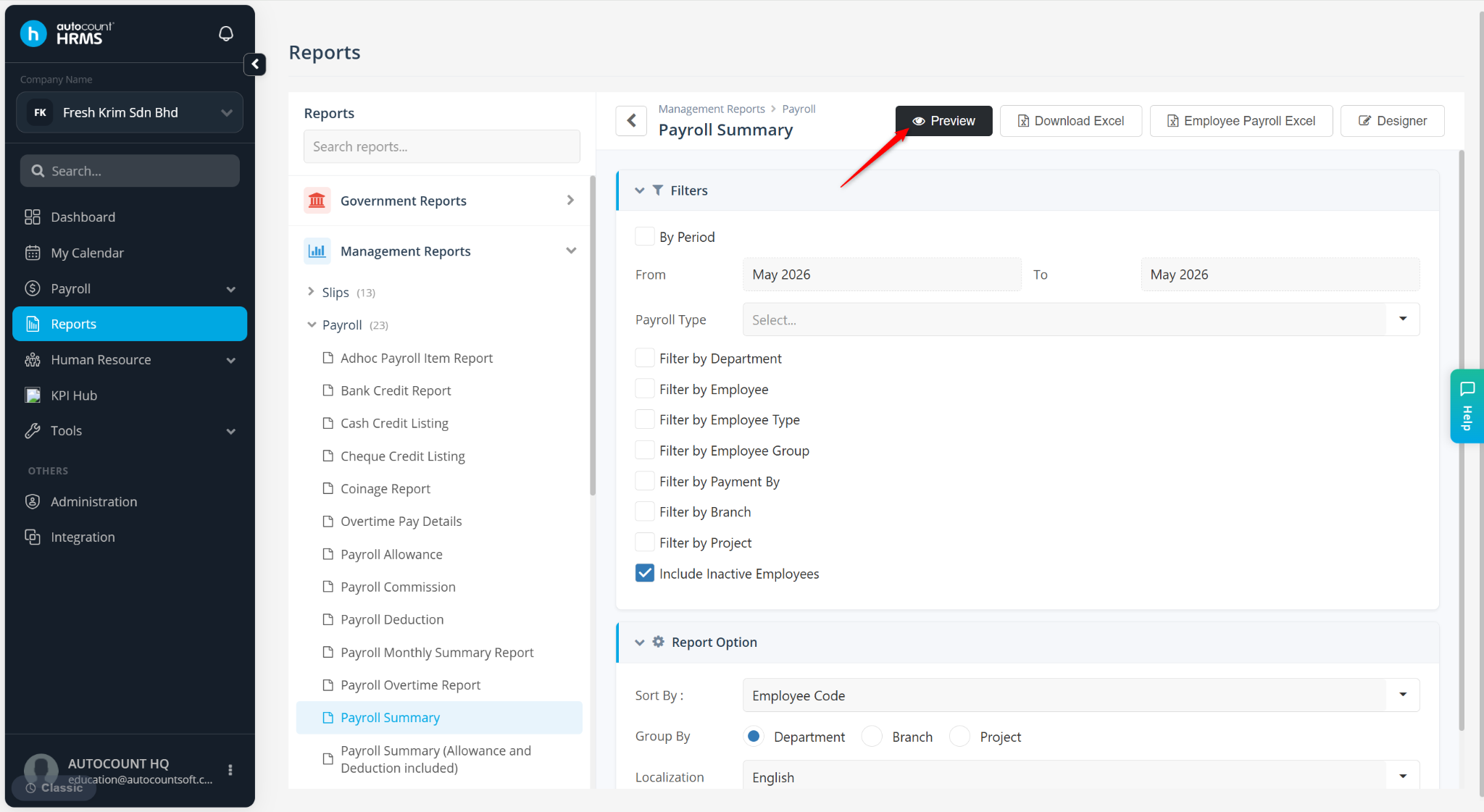
Select the newly customised report and click Preview.
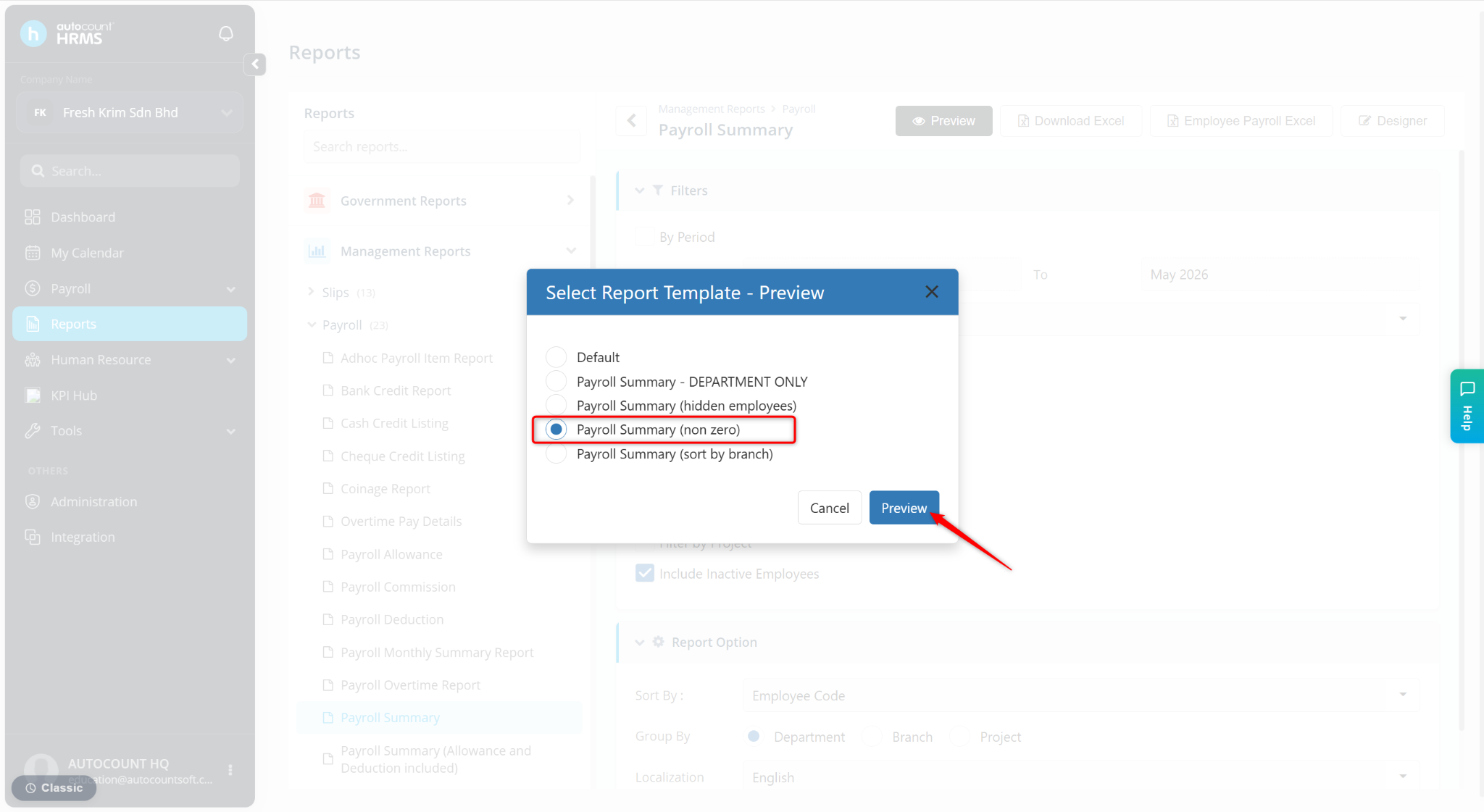
The report will now show only employee(s) with Zakat deductions.