
Users are encouraged to synchronise their attendance devices with AutoCount HRMS to ensure employee clock-in and clock-out records are updated automatically. This helps maintain accurate attendance records and supports smooth payroll processing.
Ensure the attendance device has been linked to the company in Integration > TA Device. Refer to AutoCount HRMS Setup for Time Attendance Integration for detailed setup instructions.
Steps to Sync Attendance Device with AutoCount HRMS:
Restart the attendance device and ensure it is connected to the internet.
Once connected, the device will automatically synchronise employee data if the Device Serial Number has been configured in the company setup.
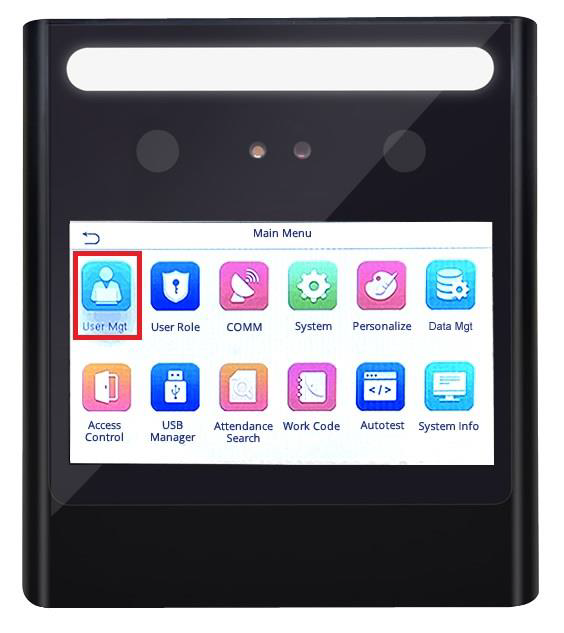
On the attendance device, go to User Mgt.
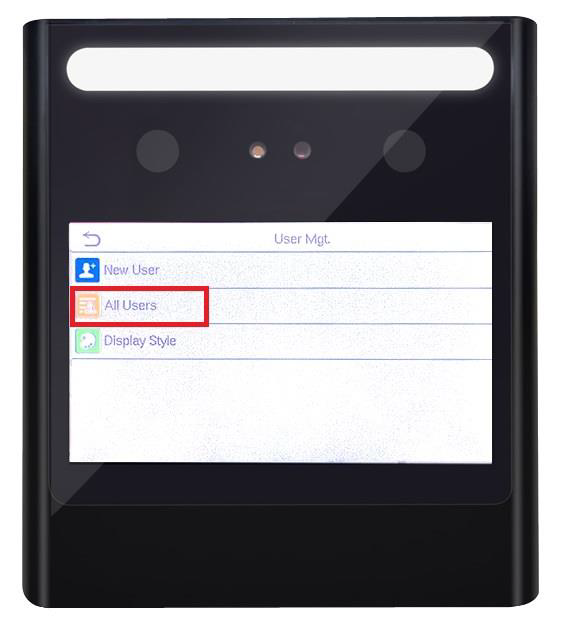
Click All Users.
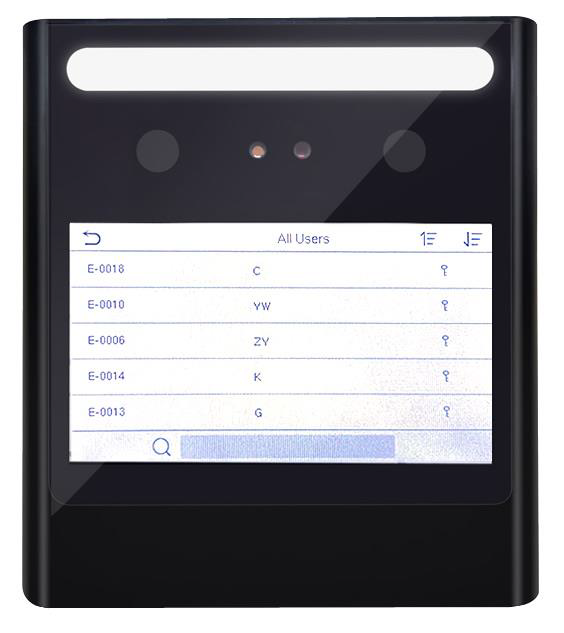
Verify that the employee information has been synchronised successfully.
Select an employee.
Click Edit.
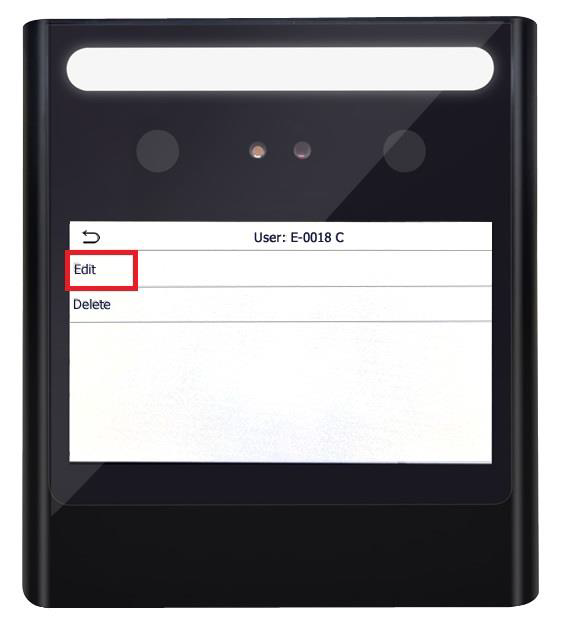
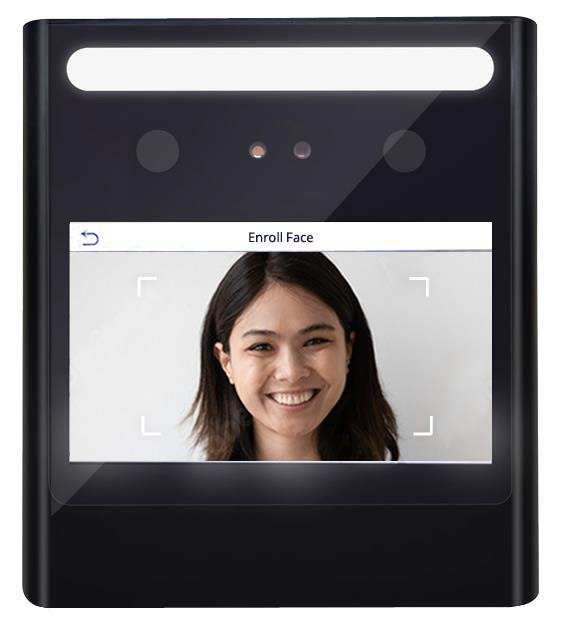
Click Face to capture or register the employee's facial recognition profile, if applicable.
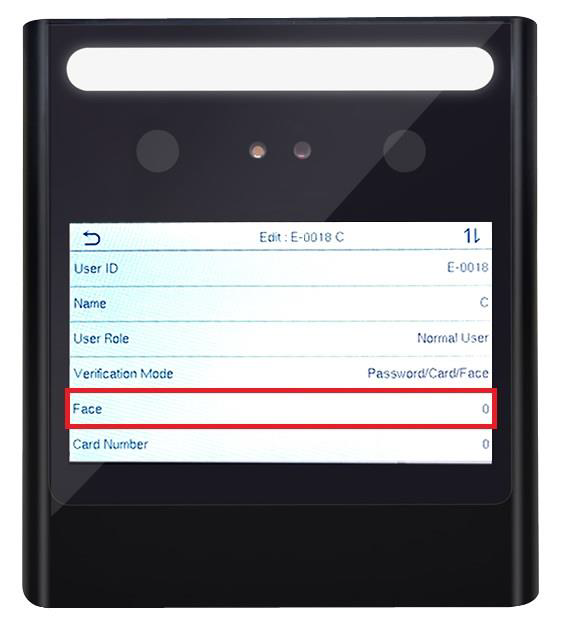
Save the changes on the attendance device.
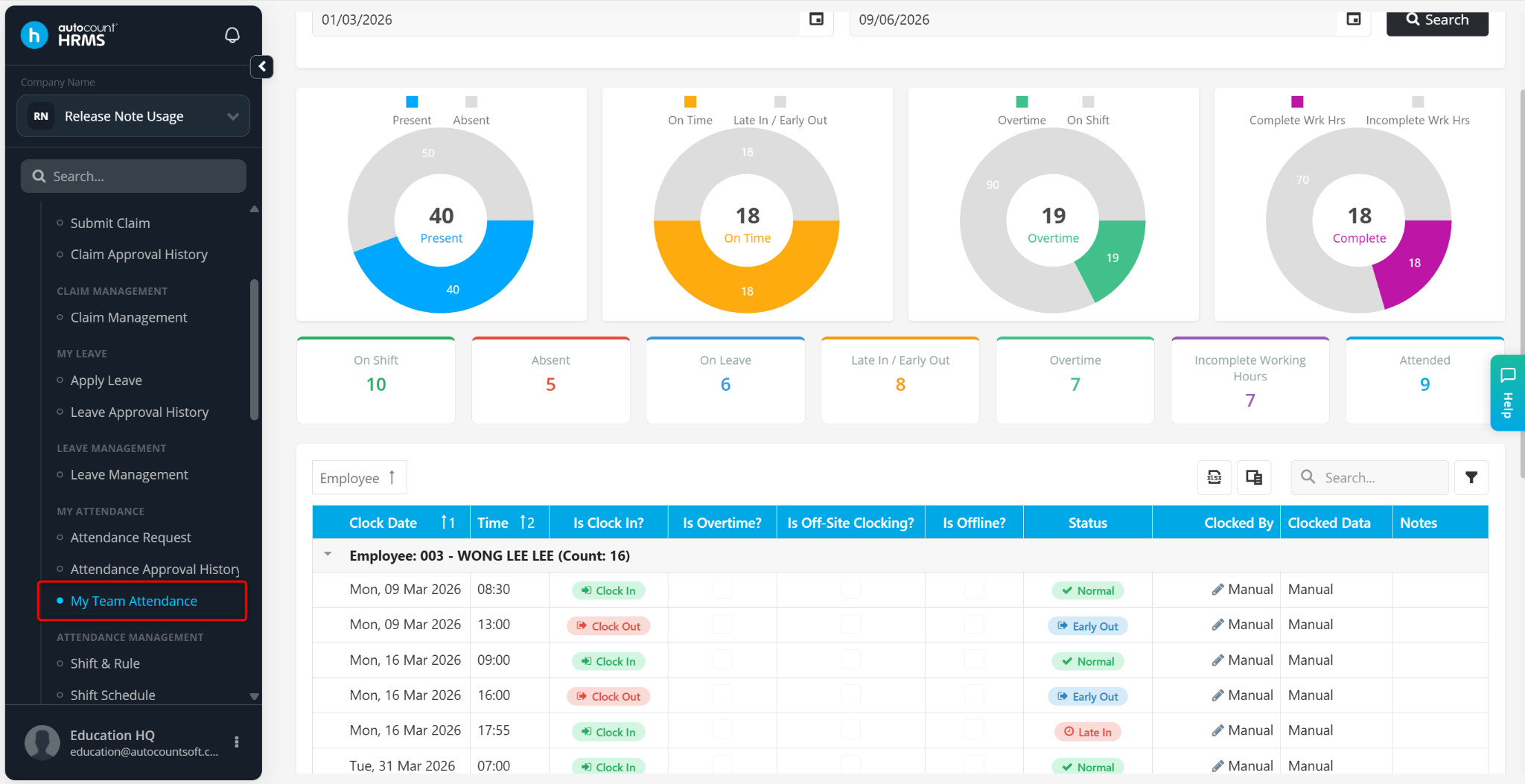
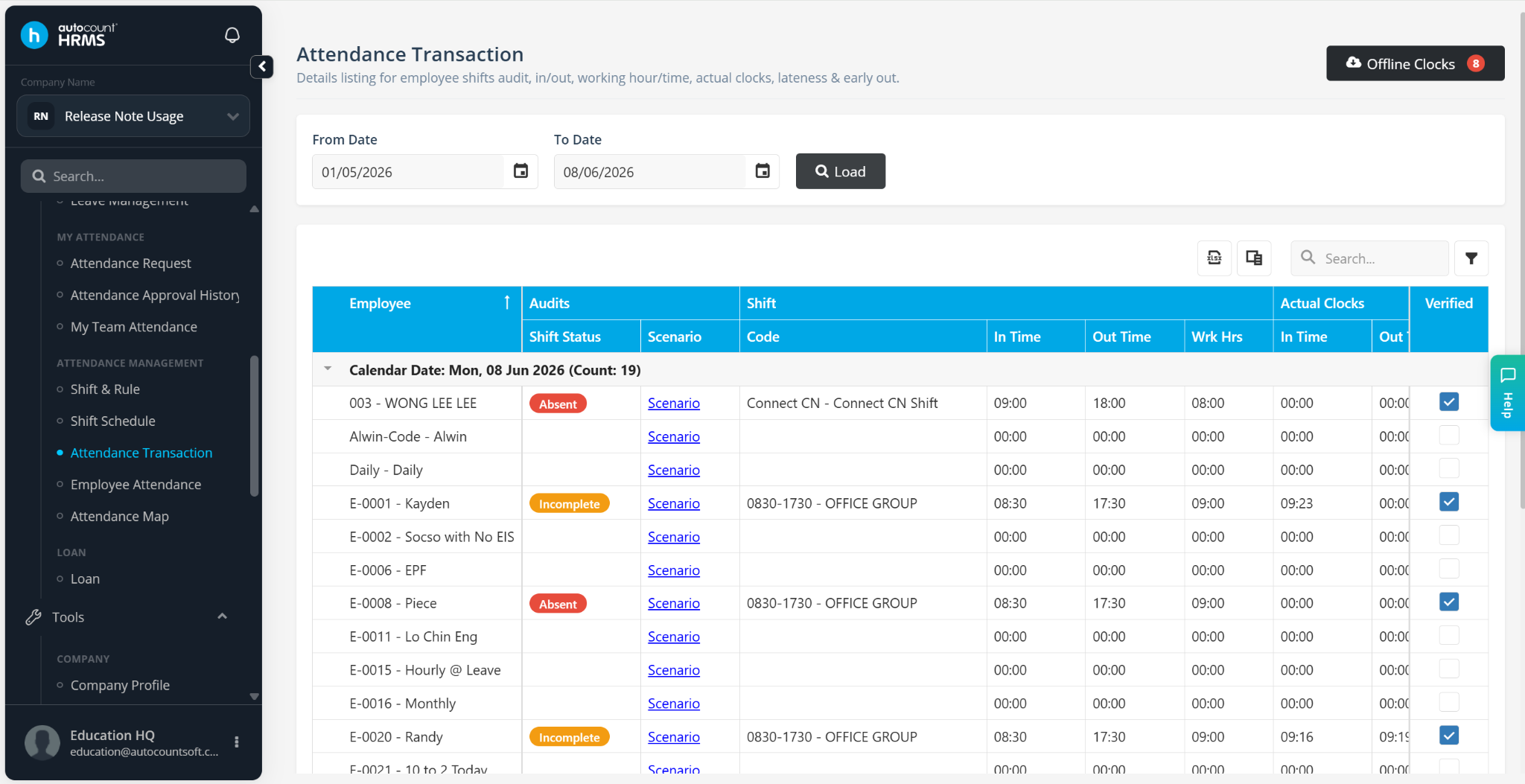
After employees have clocked in using the device, attendance records can be reviewed from:
Human Resource > My Team Attendance
Human Resource > Attendance Transaction
Updated by: Azirah (20250731)