
Before using Time Attendance (TA) Integration, users must complete the required setup to ensure that AutoCount HRMS and the Time Attendance Device are properly synchronized.
A) Enable Time Attendance for Employees
Time Attendance must be enabled for employees who will use the attendance device.
Steps to Enable Time Attendance:
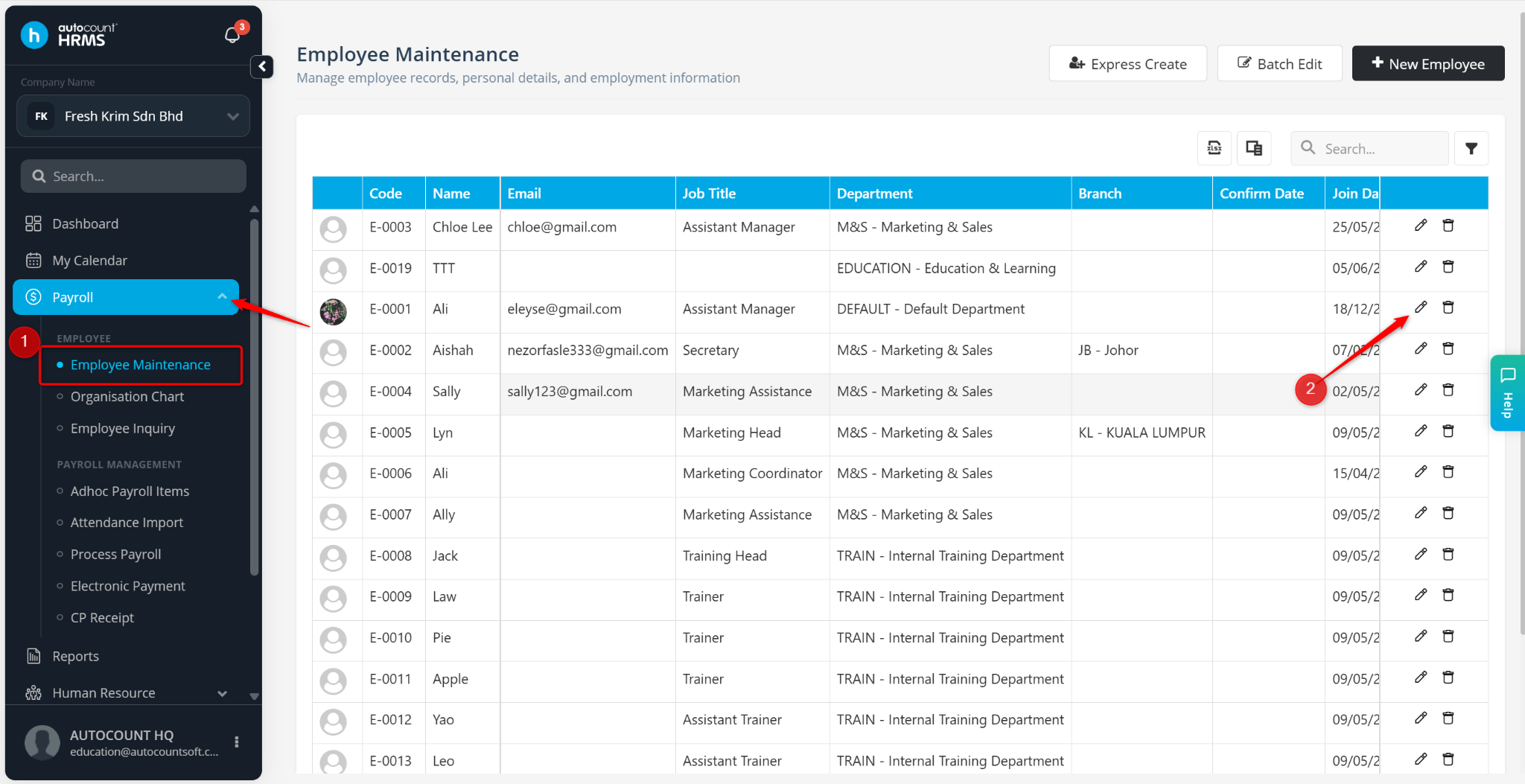
Go to Payroll > Employee Maintenance.
Locate the employee and click the pencil icon.
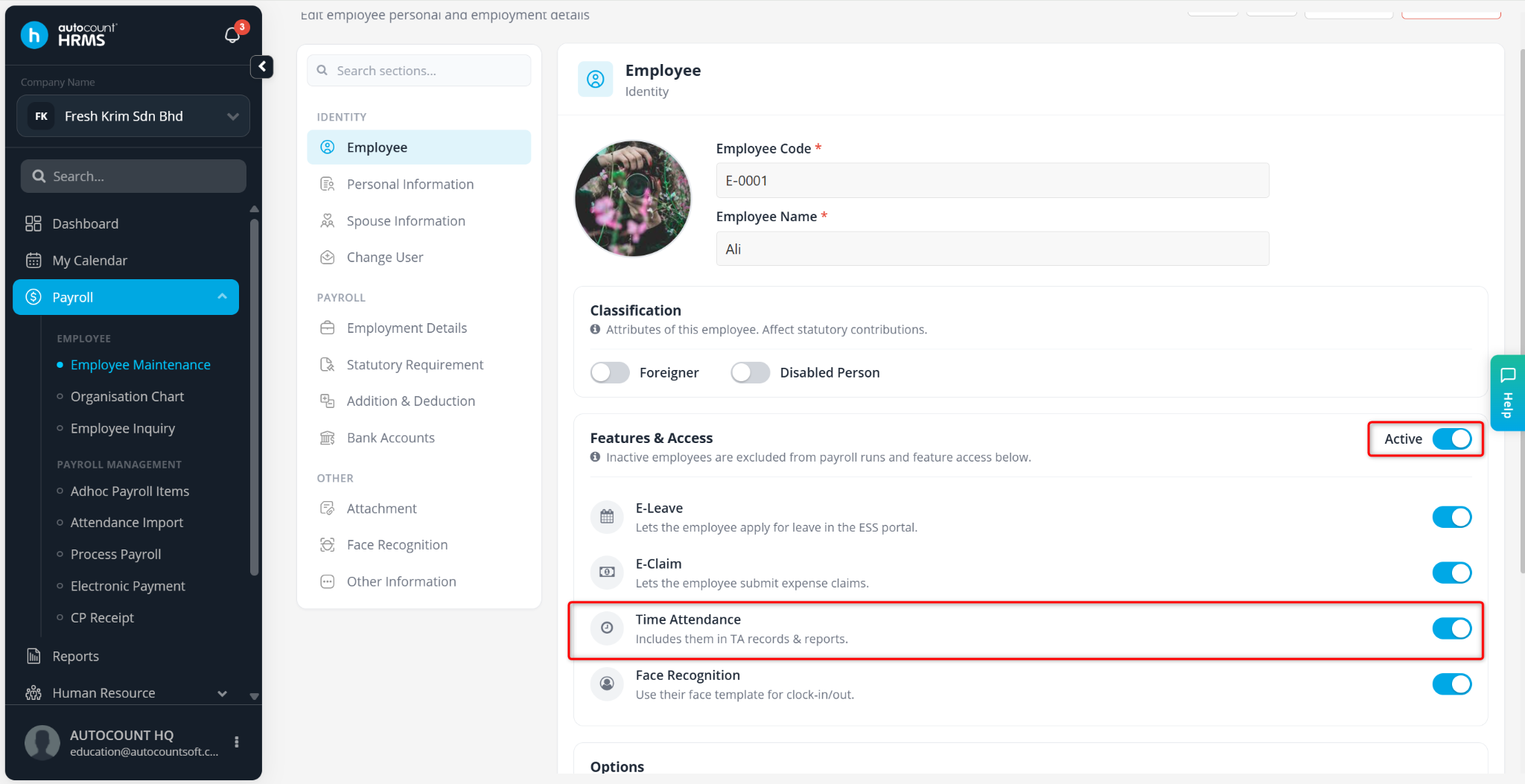
Under the Employee tab, enable Time Attendance.
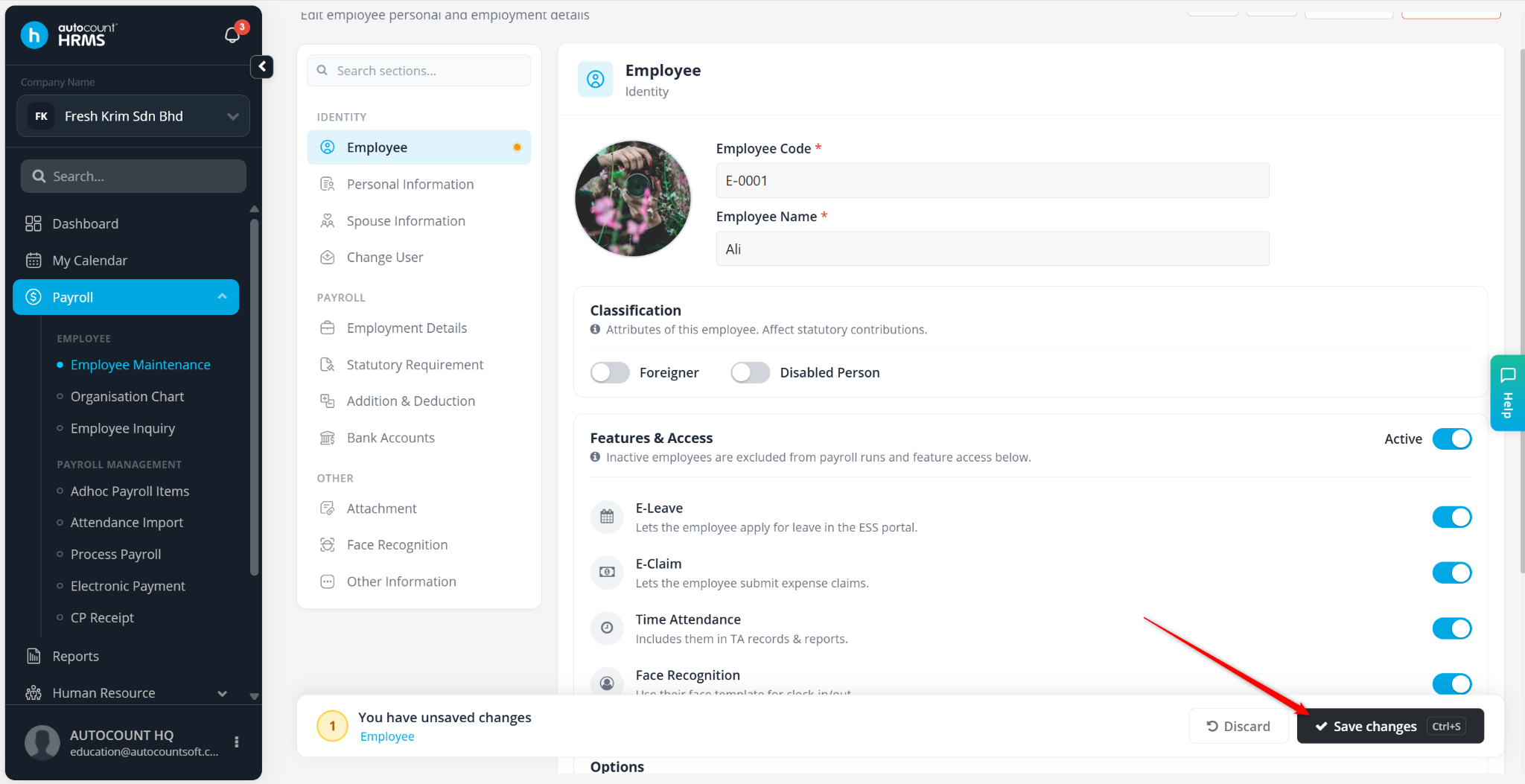
Click Save Changes.
ℹ️ Note: Ensure the employee's Active status is enabled. Inactive employees cannot be synchronized with the attendance device.
B) Link Time Attendance Device to Company
After enabling Time Attendance for employees, link the attendance device to the company.
Steps to Link a TA Device:
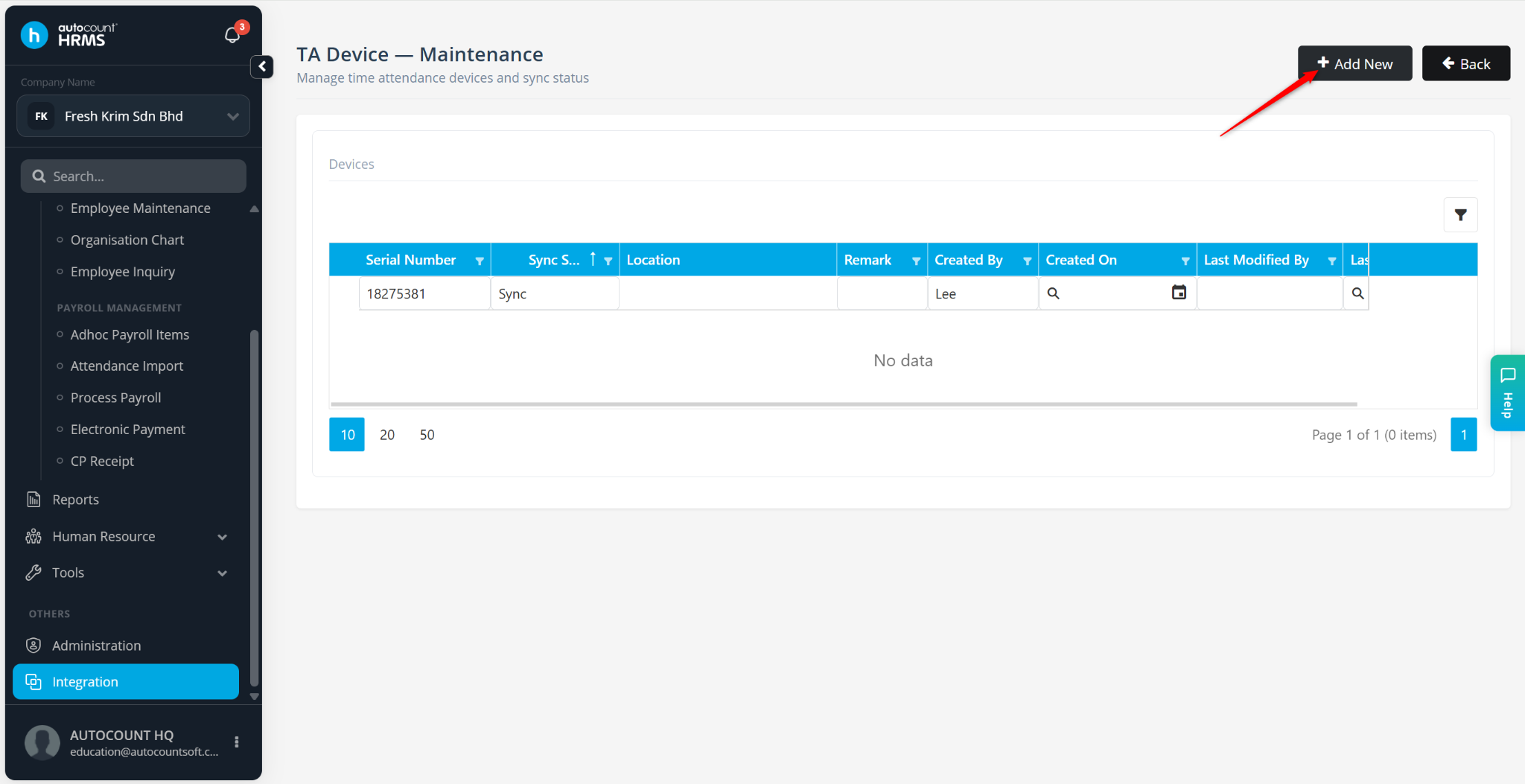
Go to Integration > TA Device.
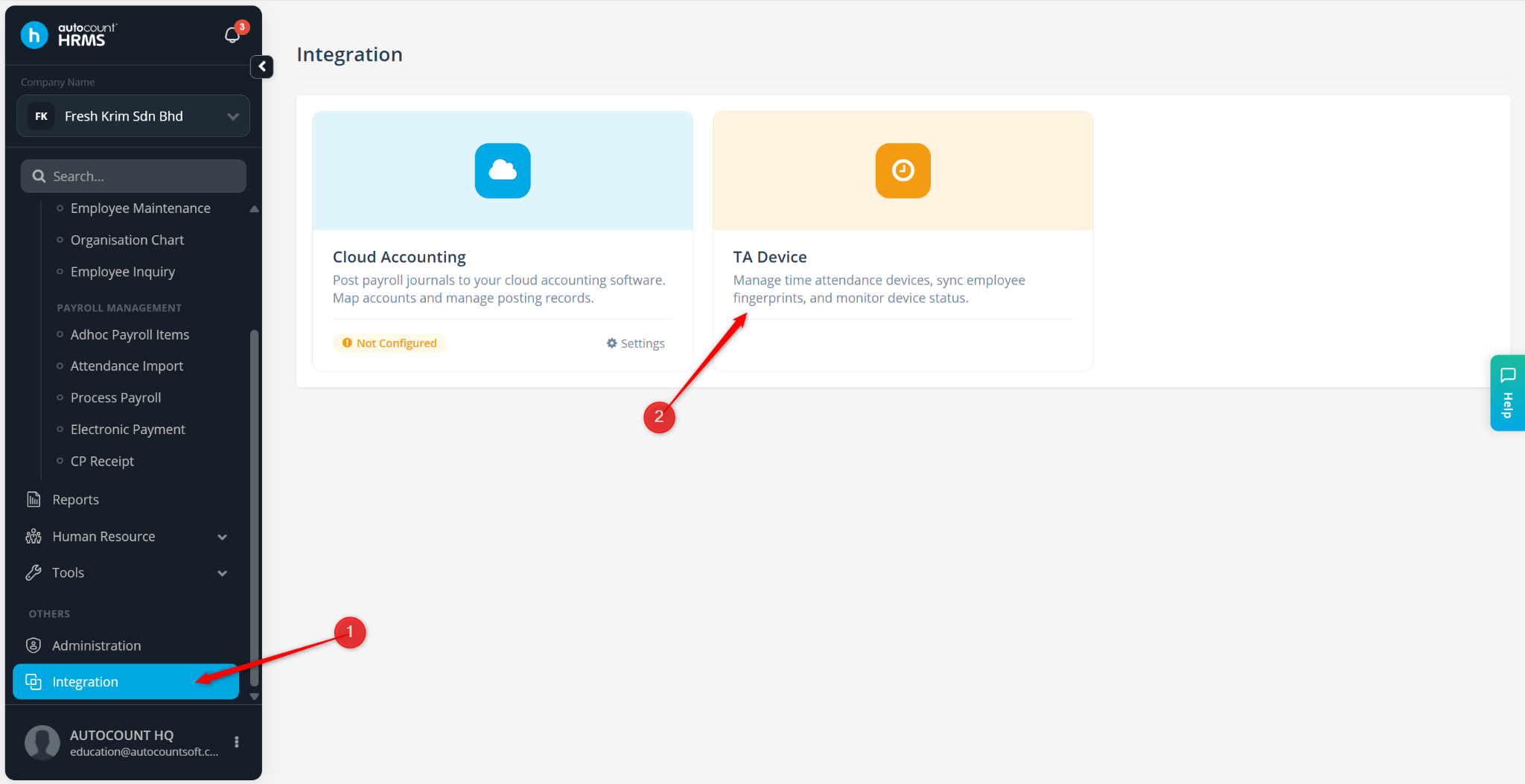
Click Add New.
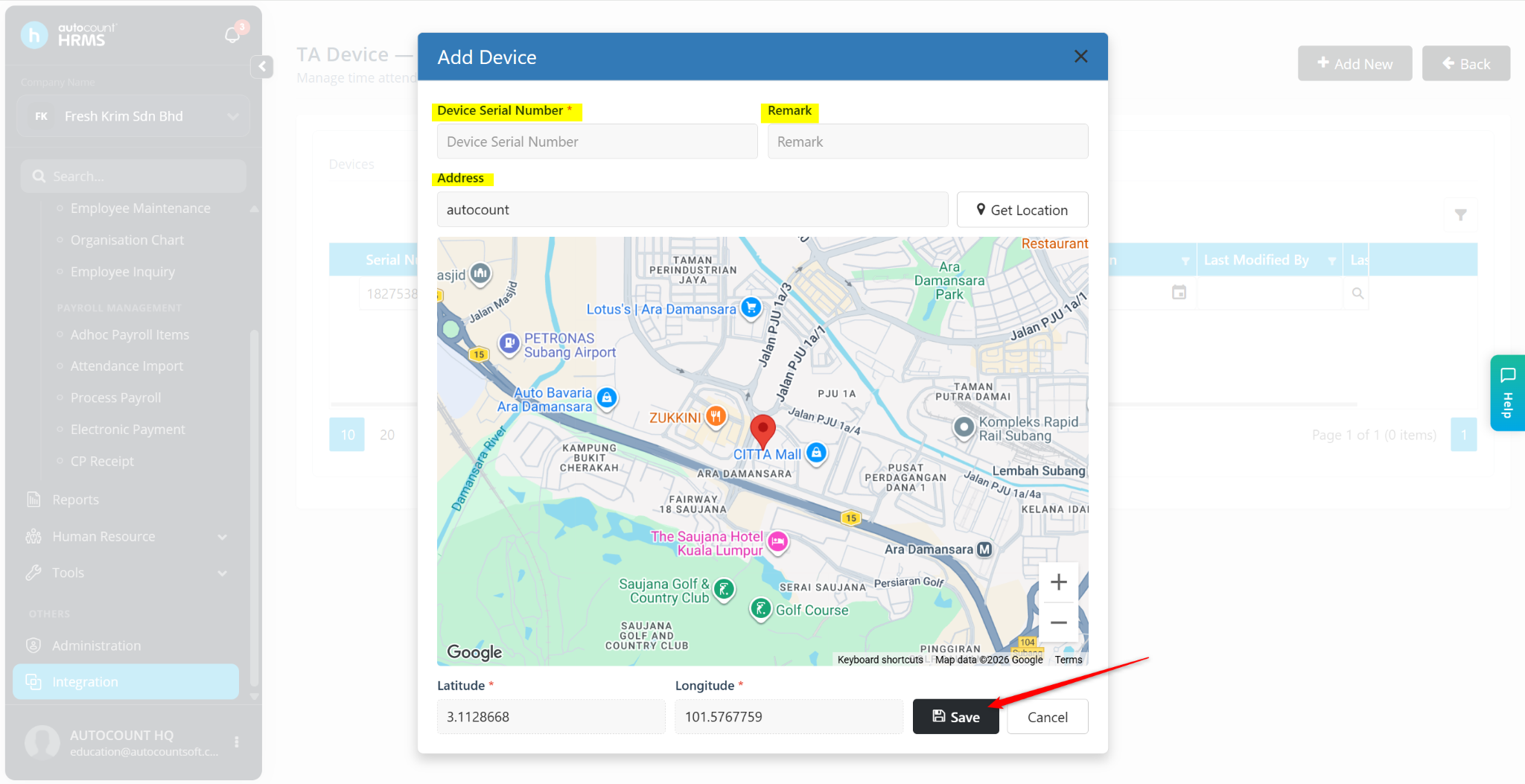
Enter the required information:
Device Serial Number – Enter the serial number of the attendance device.
Location – Enter the device location (e.g., HQ, Branch Office).
Remark – Enter additional notes if required.
Click Save.
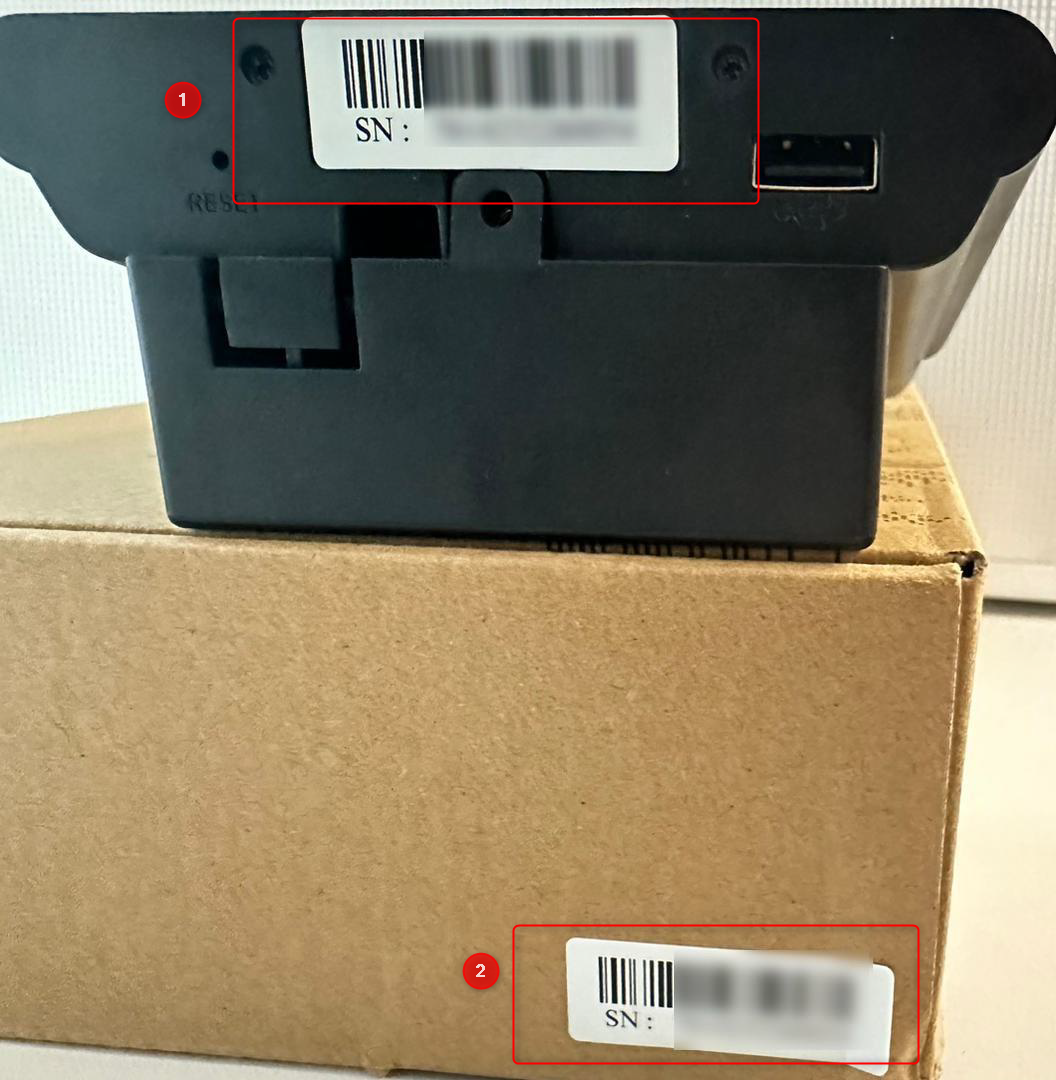
ℹ️ Note: The Device Serial Number can usually be found on the physical device or its packaging. After linking the device, verify that the connection is successful from both the HRMS and the attendance device to ensure attendance records can be synchronized correctly.
Written by: Azirah