
The Multi-Company Time Attendance Device Support feature allows a single iFace Biometric Time Attendance (TA) Device to be shared across multiple companies. This feature is available upon request. Please contact our Support Team to enable this functionality for your account.
How It Works
Step 1: Enable the Feature
Submit a request to the Support Team to activate Multi-Company TA Device Support. Once the request is approved, your existing iFace biometric device can be registered and shared with additional companies.
Step 2: Add the Device to Another Company
After the feature is enabled:
- Log in to the target company.
- Go to Integration > TA Device.
- Enter the Serial Number (SN ID) of the existing iFace biometric device and save the configuration.
- Save the configuration.
The same device can now be used by multiple companies.
Step 3: Check sync status
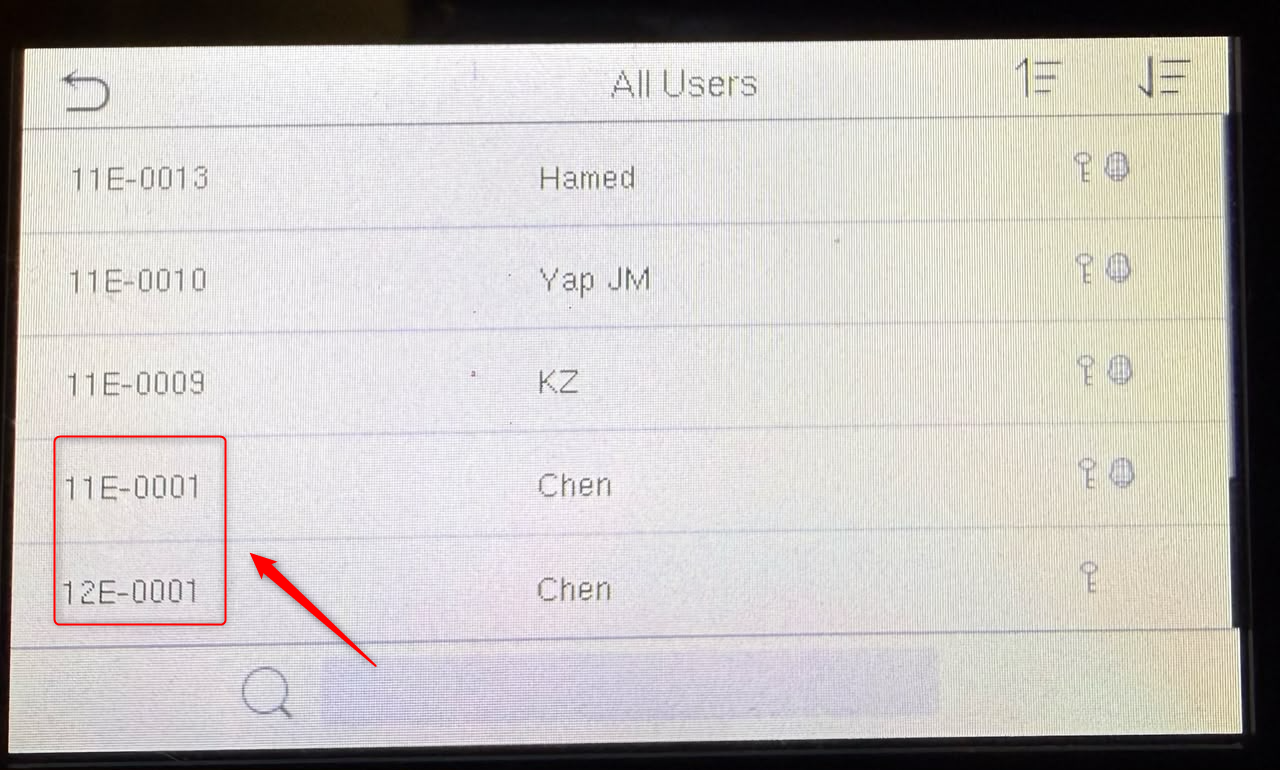
The system will automatically synchronize employee data to the shared device. Once synchronization is complete, a unique company prefix is assigned to each employee's Device Employee ID to prevent ID conflicts.
Company | Employee Code | Device Employee ID |
Company A | E-001 | 11E-001 |
Company B | E-001 | 12E-001 |
Registration Rules
✅ Employees from different companies may have the same Employee Code and Employee Name.
✅ The system automatically assigns a unique employee device ID prefix for each company during synchronization.
✅ Users should not manually assign or modify the employee device ID prefix.
✅ Do not manually add employees directly on the iFace biometric device.
All employee records must be created and maintained in HRMS. The system will automatically synchronize employee information to the shared device.
❌ Duplicate face registration is not supported. Since the iFace biometric device does not allow duplicate facial profiles, the same employee face cannot be enrolled more than once on the shared device.
By ChenOng 260717