
The TA Device Maintenance page now allows users to view clock punches received from iFace devices that could not be matched to an employee.
Users can match the device PIN to the related employee in and sync the punches.
1. View Unmatched Punches
Go to Integration > TA Device – Maintenance
The Unmatched Punches section displays clock punches that could not be linked to an employee.
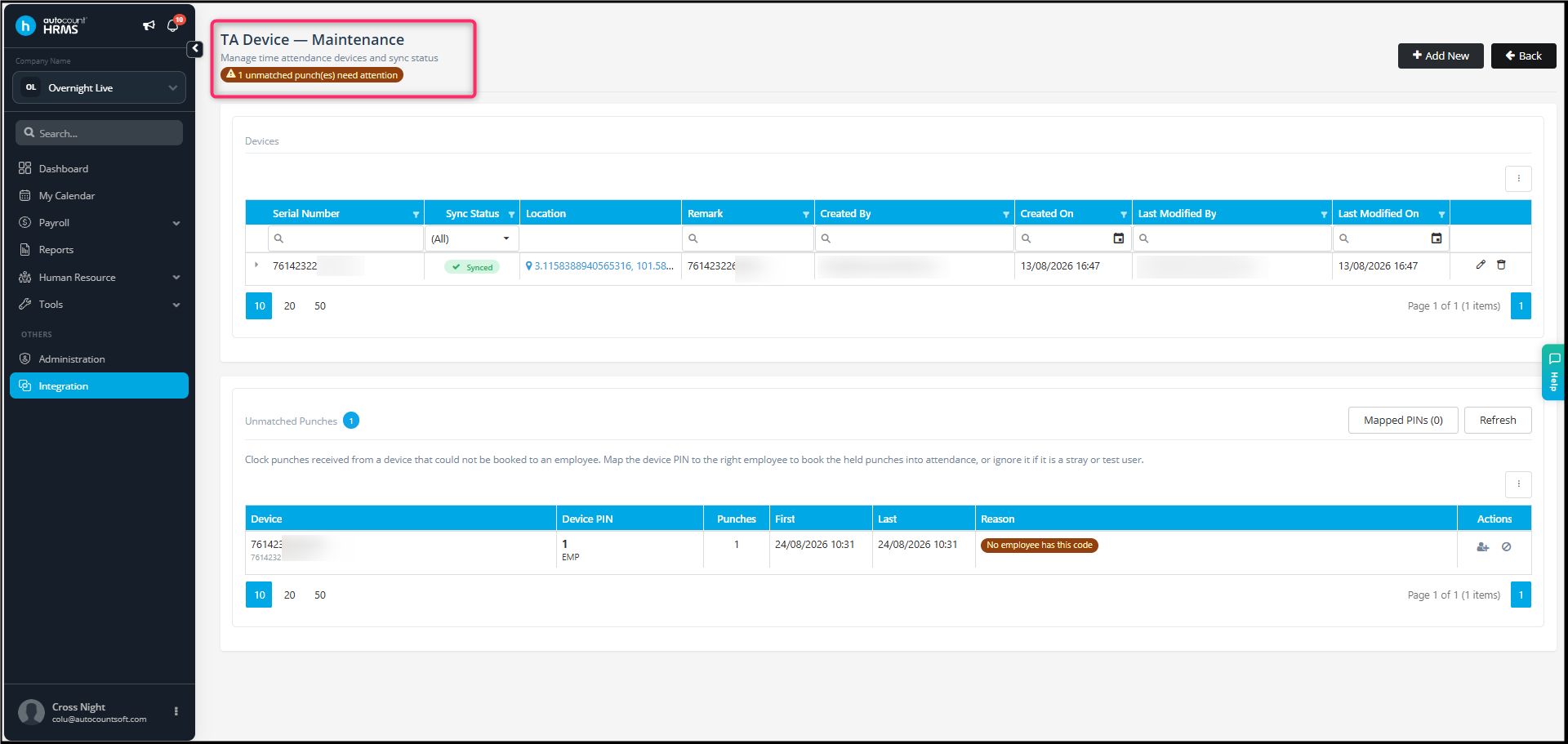
The list shows:
- Device – The iFace device that received the clock punch.
- Device PIN – The PIN recorded by the device.
- Punches – The number of unmatched clock punches recorded by the device.
- First / Last – The date and time of the first and last unmatched clock punches.
- Reason – The reason why the clock punch could not be matched to an employee.
- Actions – Actions available to manage the unmatched device PIN.
Example: The reason may show “No employee has this code” when the device PIN is not assigned to any employee.
2. Map the Device PIN to an Employee
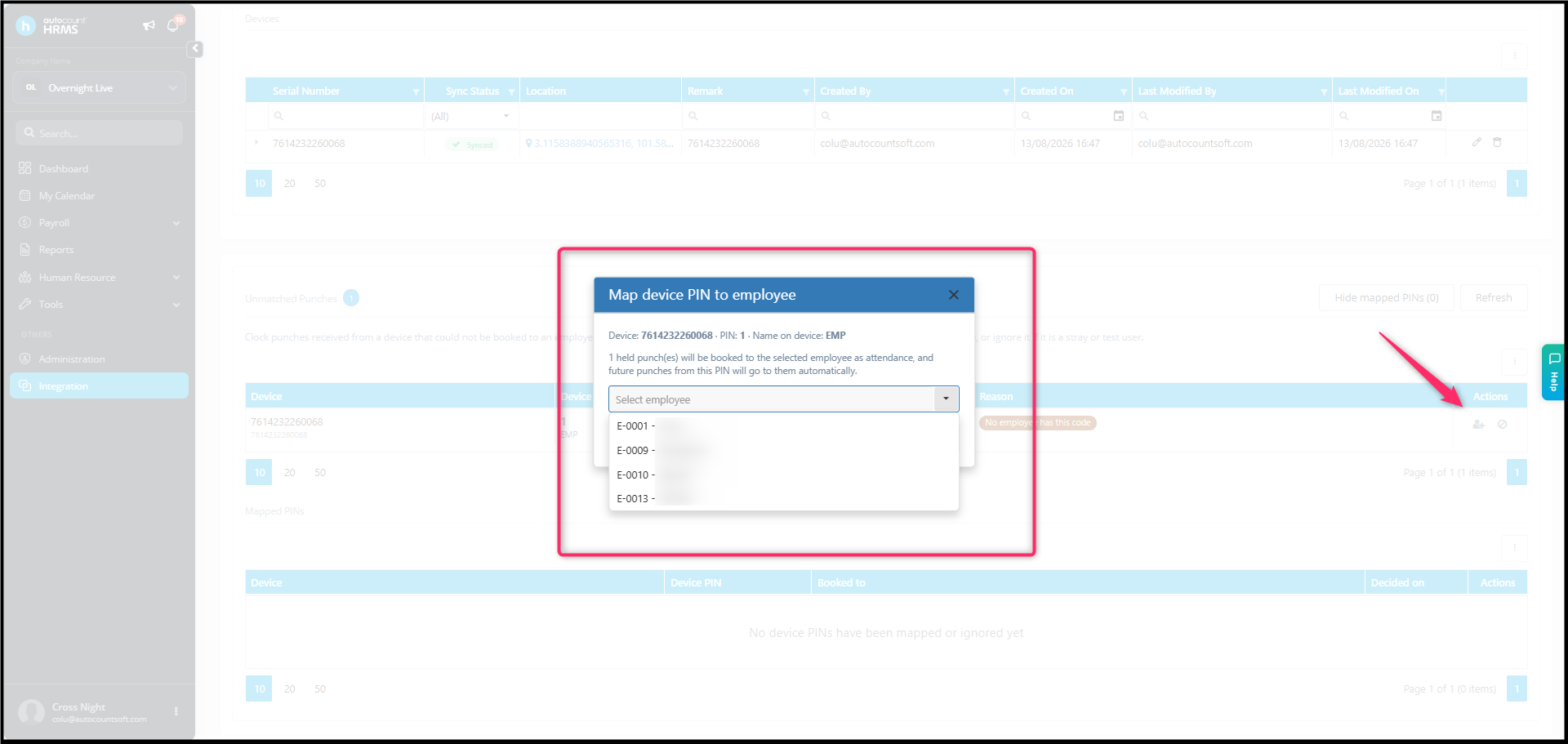
- Under Unmatched Punches, locate the unmatched device PIN.
- Click the Employee icon under Actions.
- The Map Device PIN to Employee window will appear.
- Select the corresponding employee from the Select Employee dropdown.
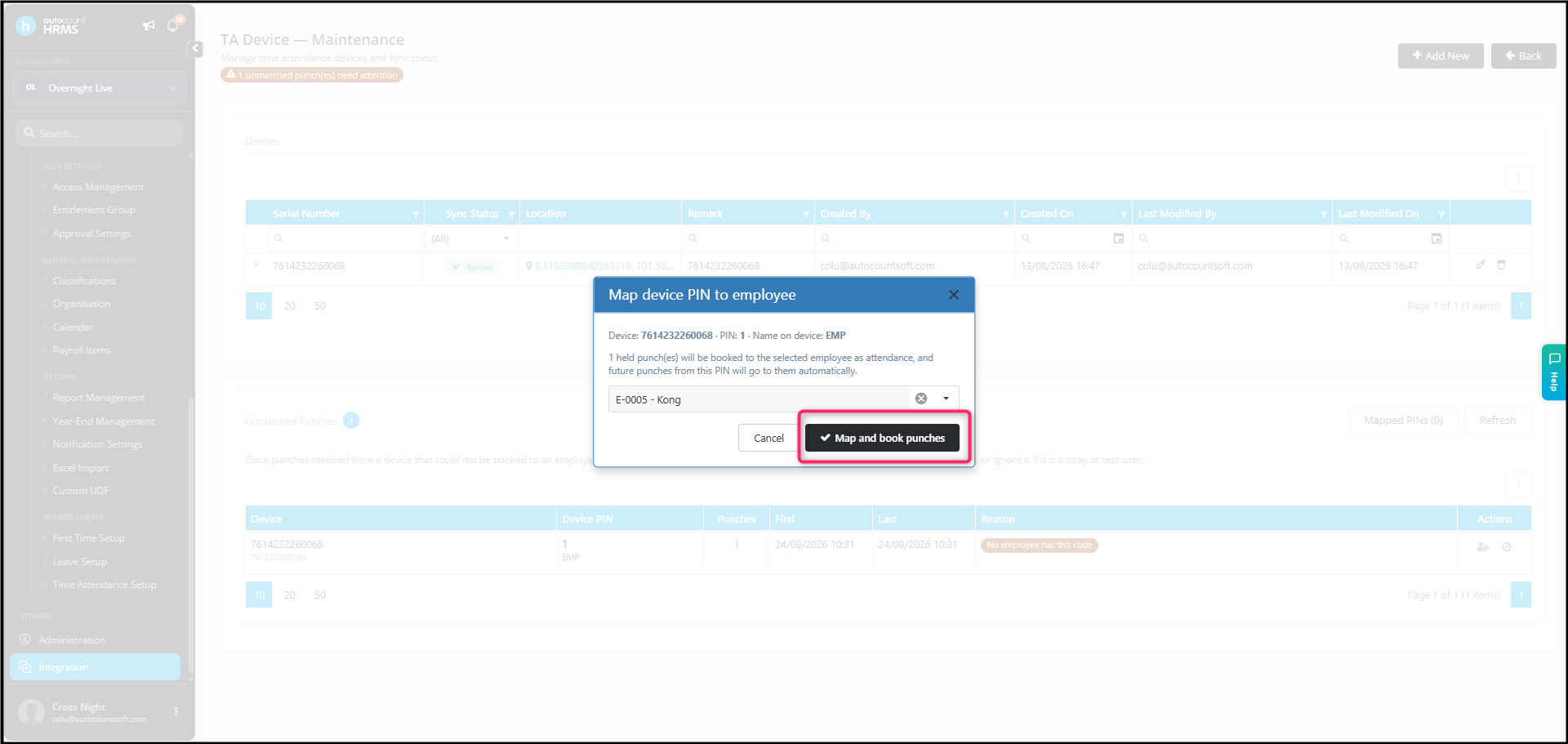
- Verify that the selected employee is correct.
- Click Map and Book Punches.
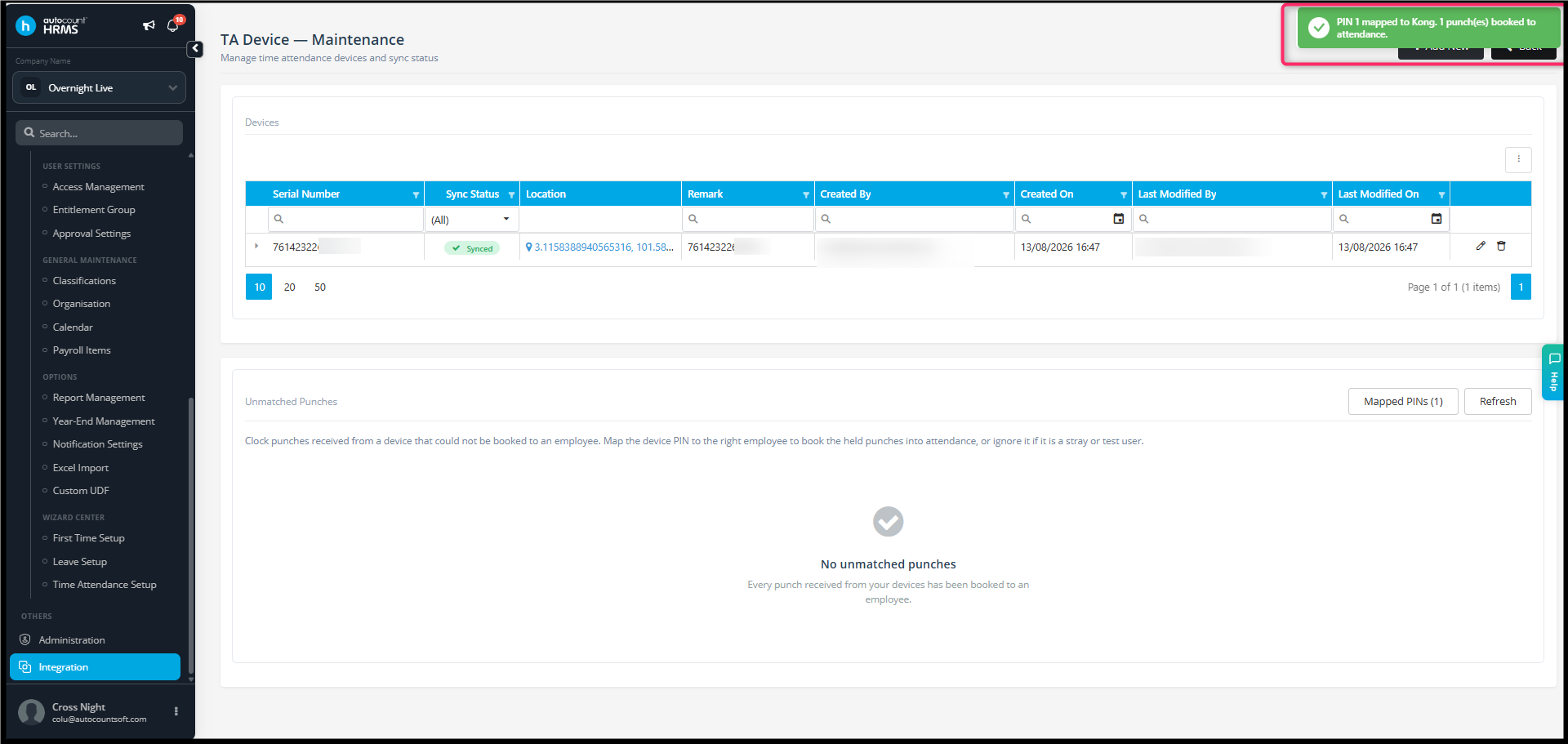
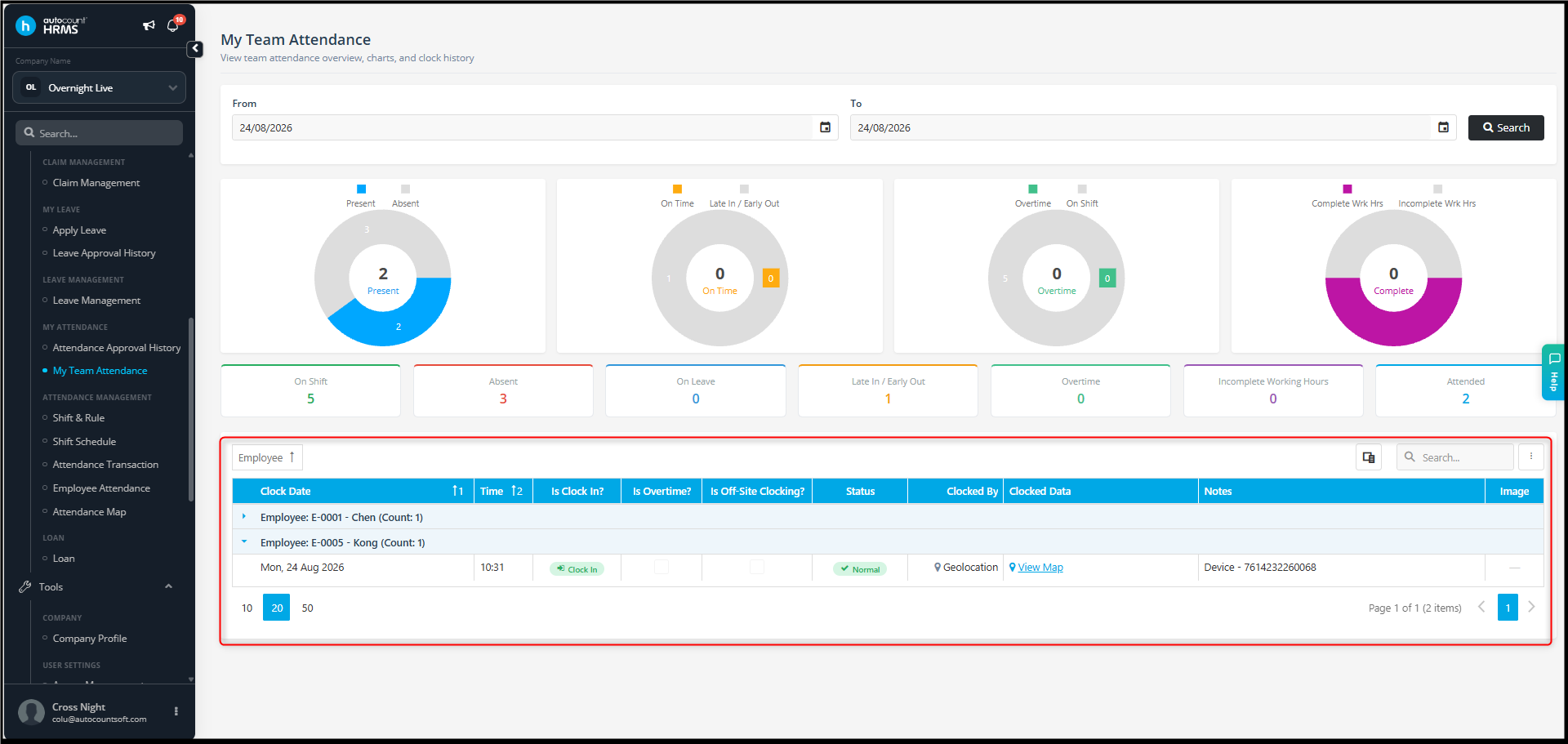
- The unmatched clock punches will be booked to the selected employee and reflected in My Team Attendance
Result – My Team Attendance
3. View Mapped PINs and Sync Punches
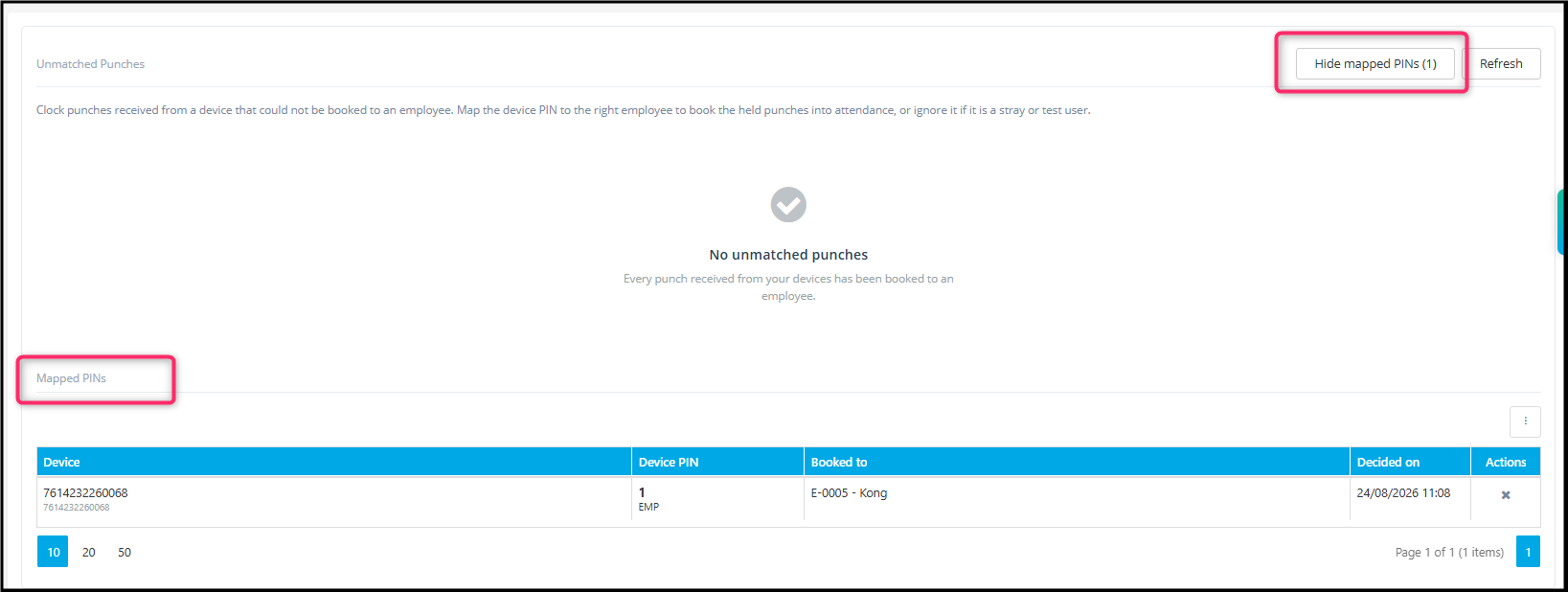
After mapping the device PIN:
- Existing held punches will be booked to the selected employee.
- Future punches from the same device PIN will automatically be assigned to the employee.
- Click Mapped PINs to view the mapped device PIN, employee, and mapping date.
Note: For devices activated with Multi-Company Device Support, unmatched punches may appear in the TA Device – Maintenance page of both companies because the system cannot determine which company the punch belongs to.
Users should:
Check and identify the correct company for the unmatched punch.
In the respective company, map the device PIN to the correct employee and book the punches.
In the other company, ignore the unmatched punch if it does not belong to that company.
This prevents the same punch from being incorrectly assigned to employees in the wrong company.
By ChenOng 260824