
Question 1: What should I do if the i-Face device shows duplicate employees or photos?
Answer:
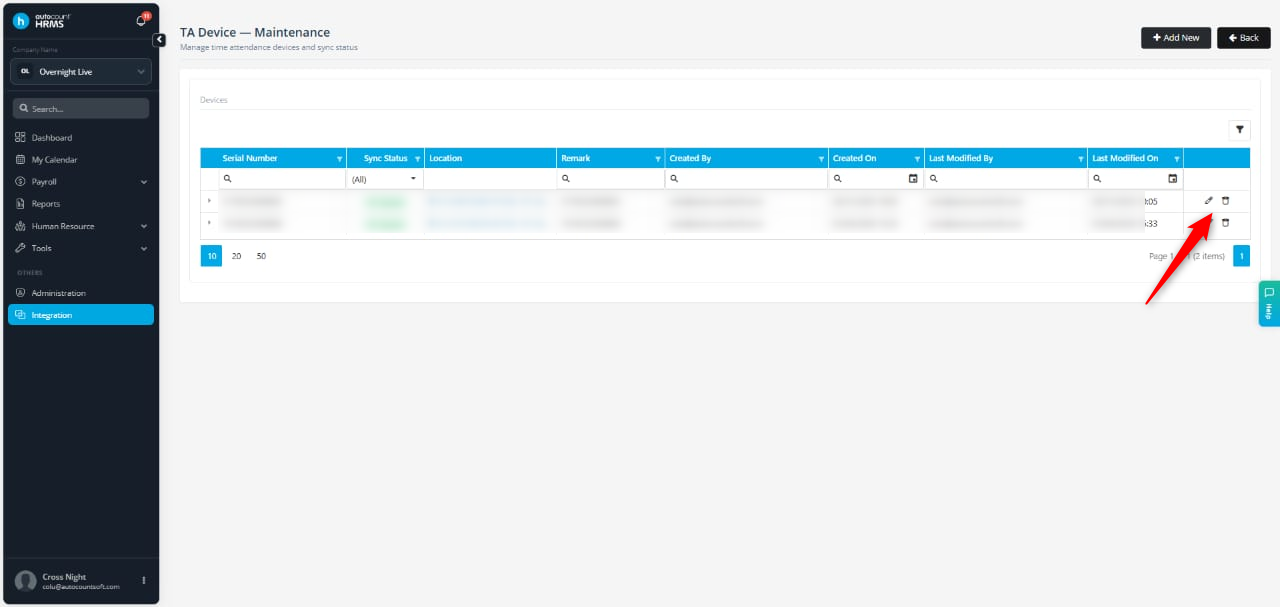
In HRMS, go to Integration > TA Device. Click the trash bin icon to delete Serial Number.
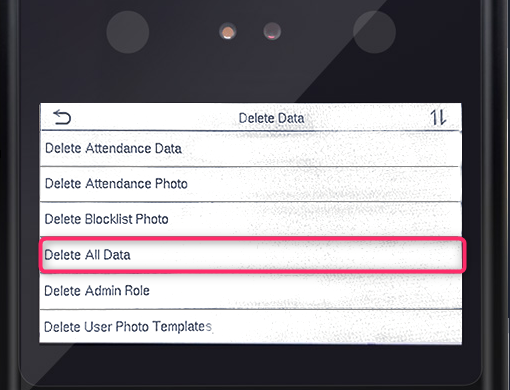
On the i-Face device, go to Data Mgt > Delete Data > Delete All Data.
Re-sync by re-entering the serial number in HRMS and initiating sync again.
ℹ️ Note: Ensure all time attendance data is fully synchronised with HRMS before deleting any data.
Question 2: What should I check first if the i-Face device is not syncing?
Answer:
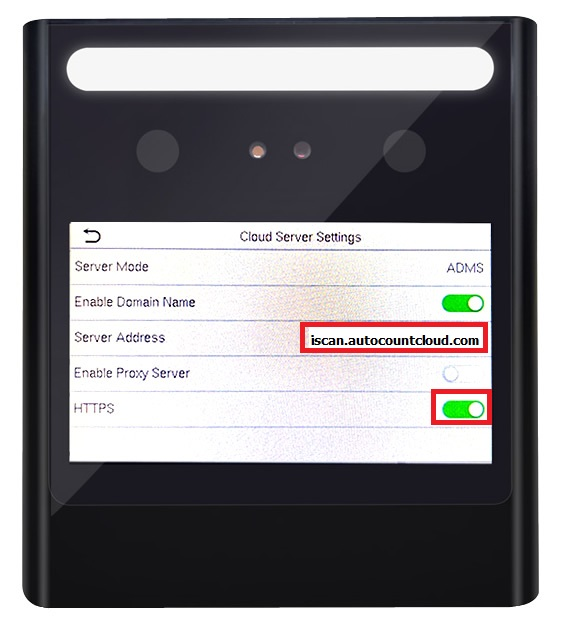
Verify the device IP address is correctly configured in HRMS.
Ensure the connection matches: iscan.autocountcloud.com.
Incorrect or missing IP settings will prevent syncing.
Question 3: Could an employee photo issue affect syncing?
Answer:
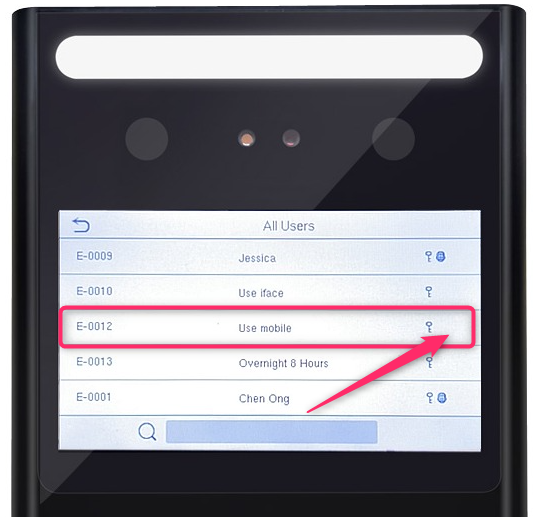
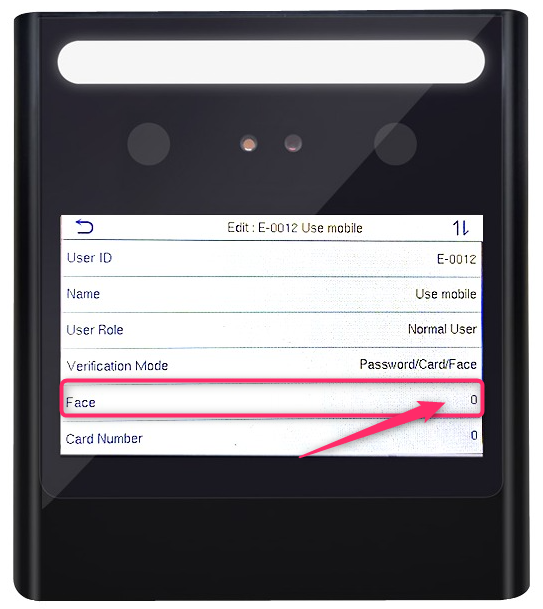
Yes. In HRMS > Integration > TA Device, check if any employee photo upload is pending or failed. Any pending or incomplete uploads can block syncing. Retake the employee photo on the device if necessary to re-trigger sync.
Time Attendance Integration - Status Pending
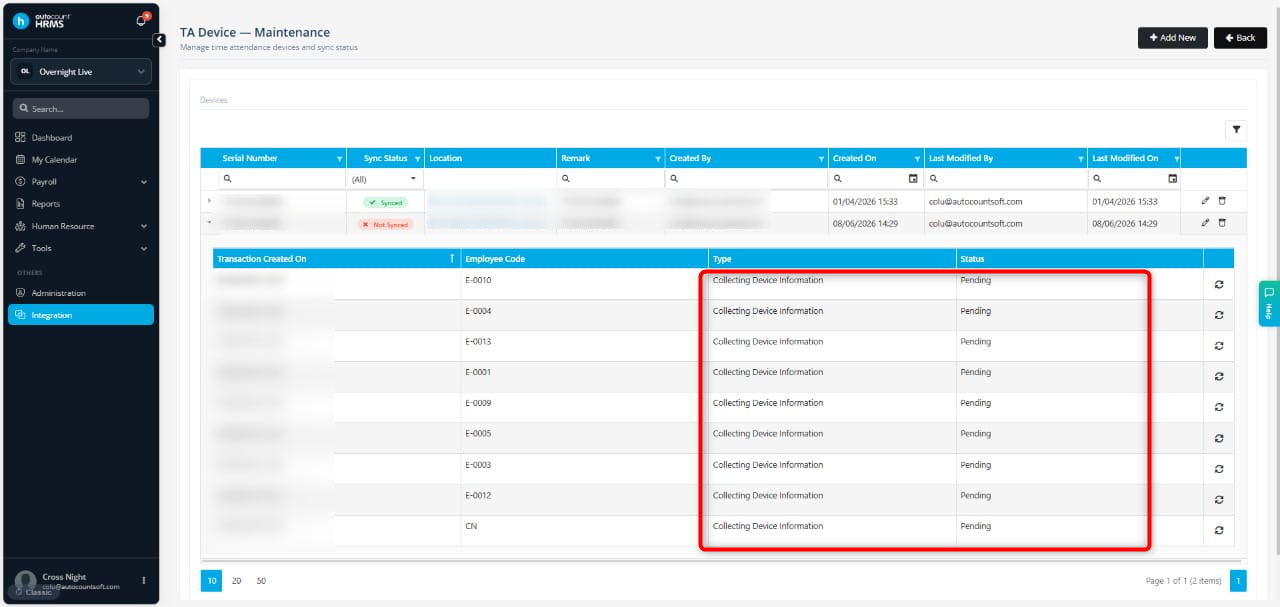
i-Face Devices - No Photo is synchronised.
Question 4: Can special characters in Employee Code affect syncing?
Answer:
Yes. Employee codes must only contain allowed letters, numbers, and symbols. Unsupported characters like 《》 ? @ “” may cause sync failure.
Question 5: What happens if the employee code contains a hyphen?
Answer:
The hyphen must match exactly in both HRMS and device:
Short hyphen: “-” (ASCII hyphen-minus)
Long dash: “–” (em dash)
Mismatch will cause sync errors.
Question 6: Can spaces in employee code cause issues?
Answer:
Yes. Even leading or trailing spaces can cause sync failure. Always ensure employee codes are clean and consistent.
Question 7: Could network connectivity cause sync problems?
Answer:
Yes. Ensure:
WiFi is connected and stable
Internet access is available
Signal strength is strong
No firewall is blocking HRMS server
If needed, restart the router or test another network.
Written by: Chen Ong (20250903)
Reviewed by: Azirah (20250904)