
The Missing Clock Request feature allows employees to submit a request when they forget to clock in or clock out.
Instead of requiring an administrator to manually update the attendance transaction, employees can submit the missing clock information for approval through the Web Portal or AC HRMS Mobile App.
Employees are required to update the AutoCount HRMS Mobile App to the latest version to use the Missing Clock Request feature.
This feature is not supported in the Classic View.
Once the request is approved, the attendance record will be updated automatically and included in attendance calculations such as working hours, lateness, overtime (if applicable), and other attendance-related calculations.
Submission Rules
Employees may only submit a Missing Clock Request under the following conditions:
- The request must be for a past date and time/ earlier than the current time.
Example:
Current time: 10:45 PM
- 10:44 PM — Allowed
- 10:45 PM — Not Allowed
- 10:46 PM — Not Allowed
This prevents employees from submitting future clock times.
Notes
A Missing Clock Request requires approval before it affects attendance records. Rejected requests will not update the attendance transaction.
i. For Employee
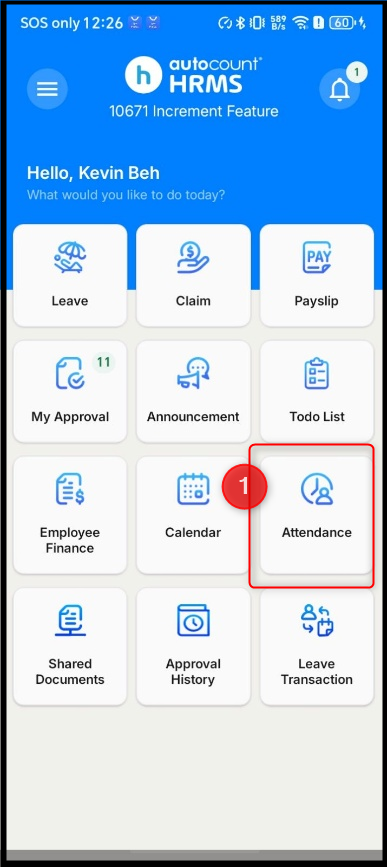
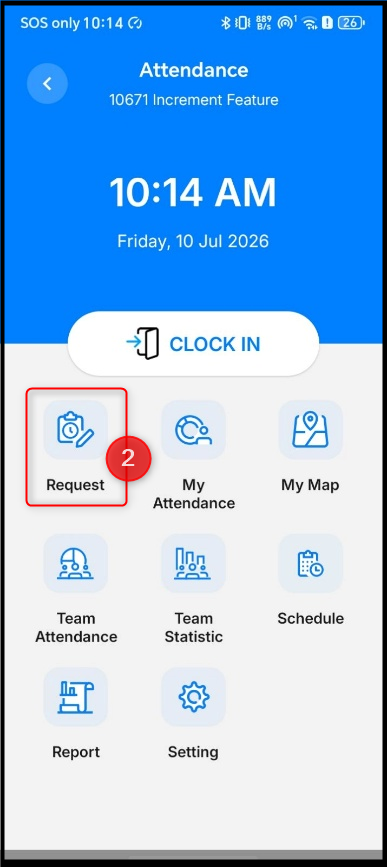
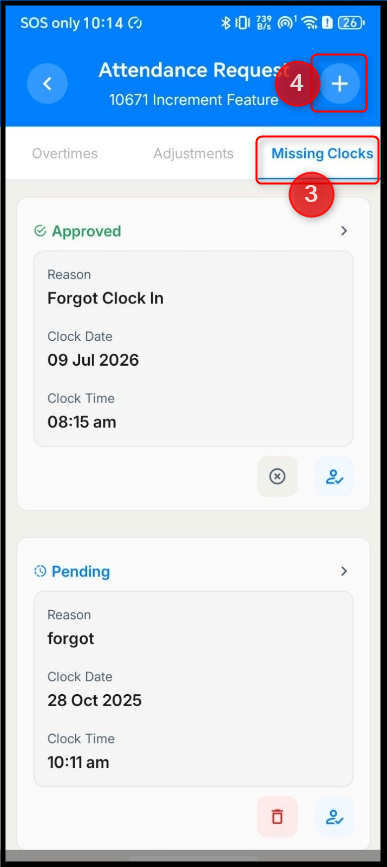
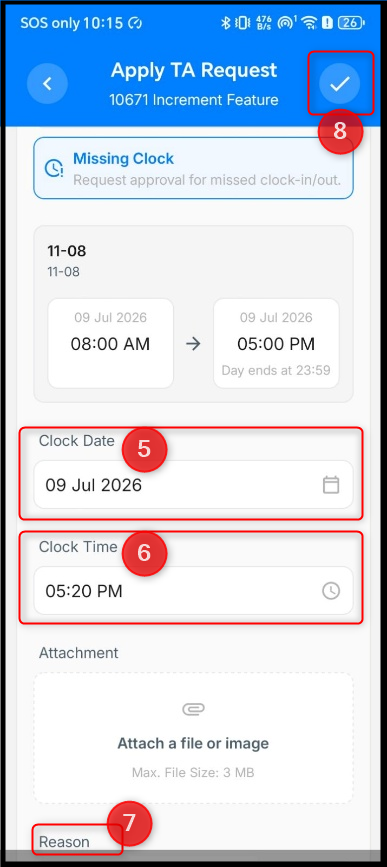
How to Submit a Missing Clock Request using AC HRMS Mobile App
 |  |
 |  |
1. Go to Attendance.
2. Tap Request.
3. Select Missing Clocks and tap “+”.
4. Complete the required information:
- Date > Select the attendance date with the missing clock.
- Clock Time > Enter the actual clock-in or clock-out time.
- Attachment (Optional) > Upload supporting documents (PDF, JPG, PNG, DOC, maximum 3MB).
- Reason > Provide the reason for the missing clock.
5. Tap “✓” to submit the request.
How to Submit a Missing Clock Request using Web
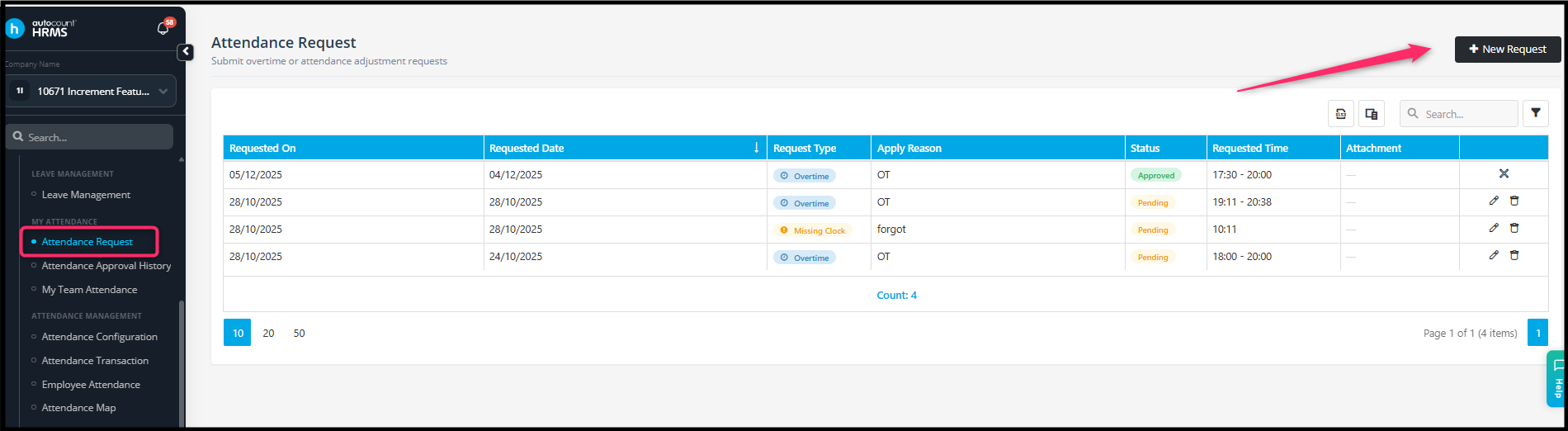
1. Go to Attendance Request.
2. Click New Request.
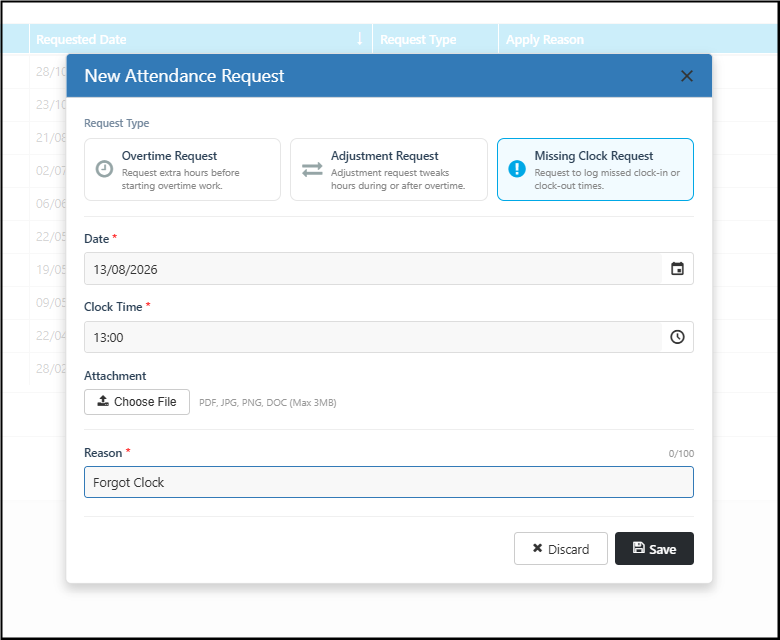
3. Select Missing Clock Request.
4. Complete the required information:
- Date > Select the attendance date with the missing clock.
- Clock Time > Enter the actual clock-in or clock-out time.
- Attachment (Optional) > Upload supporting documents (PDF, JPG, PNG, DOC, maximum 3MB).
- Reason > Provide the reason for the missing clock.
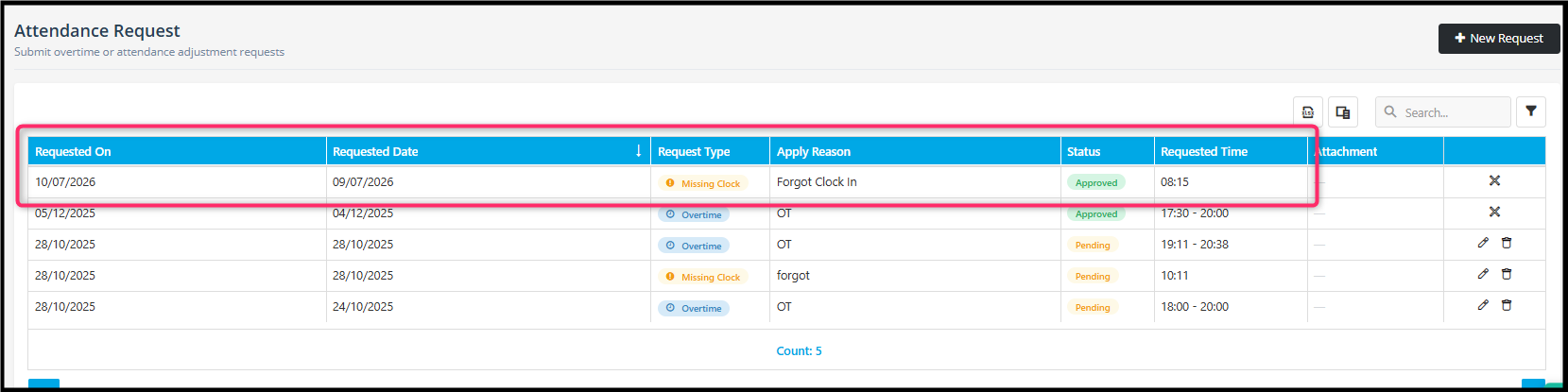
5. Click Save to submit the request.
ii. For Subscriber/ Payroll User/ Approver
Approval Process
The Missing Clock Request follows the same approval workflow as Overtime Request and Shift Adjustment Request.
After the employee submits the request:
- The request is sent to the designated approver based on the Attendance approval settings.
- The approver reviews the request and either Approves or Rejects it.
- Once approved, the missing clock record is automatically updated in Attendance Transaction, and the attendance will be recalculated accordingly (e.g., working hours, lateness, early out, overtime where applicable).
- If rejected, no changes will be made to the attendance record.
Viewing the Approved Result
a. My Team Attendance

b. Attendance Transaction
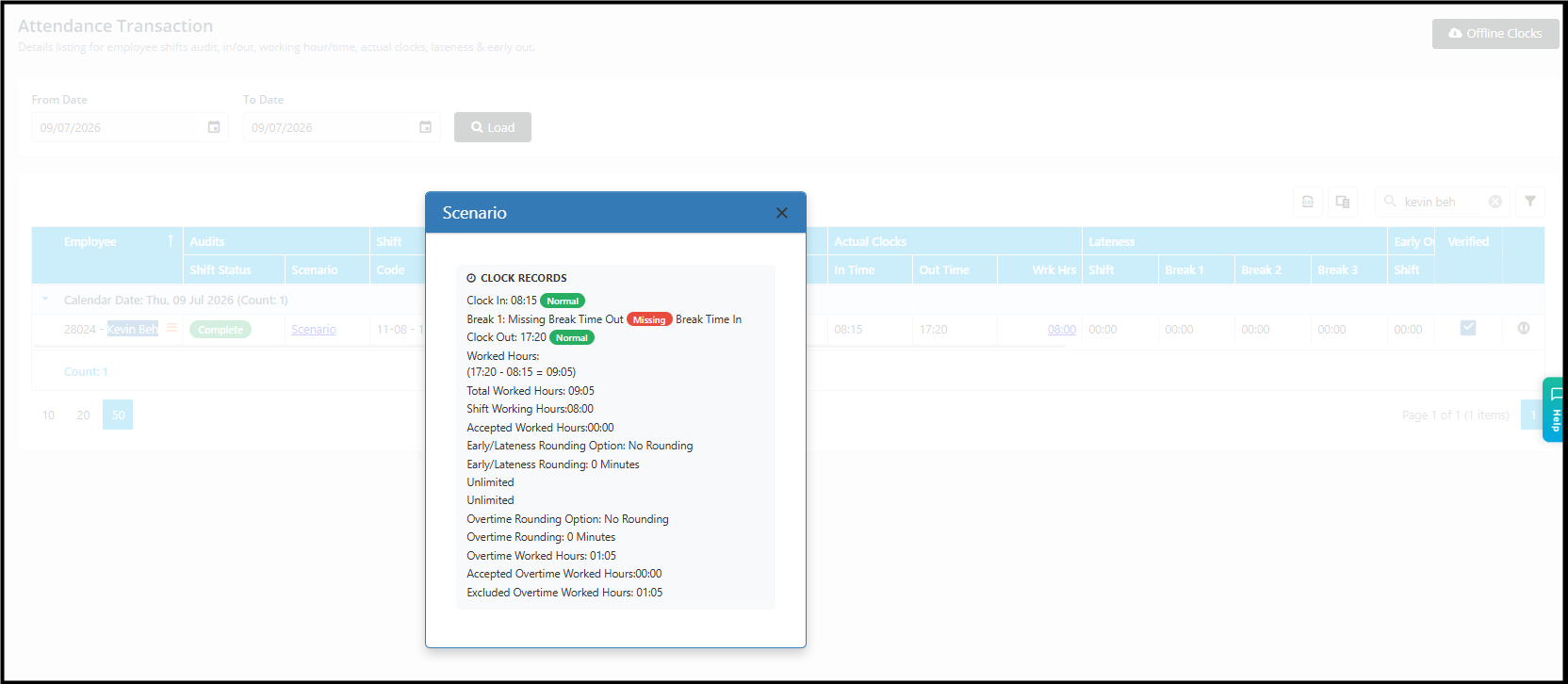
Once a Missing Clock Request has been approved, the updated clock record can be viewed in the following pages:
a. My Team Attendance
Managers and supervisors can view the approved clock record in My Team Attendance. The newly added clock-in or clock-out time will be reflected in the employee's attendance details.
b. Attendance Transaction
Administrators can view the updated attendance record in Attendance Transaction. The approved clock entry will be included in attendance calculations such as working hours, lateness, early out, and overtime based on the attendance rules.
The attendance record is automatically recalculated after the Missing Clock Request is approved. No manual update in Attendance Transaction is required.
By ChenOng 260717