
This documentation provides guidance on configuring and using the Overnight Shift feature in AutoCount HRMS. The Overnight Shift feature is designed for employees whose working hours span across midnight, ensuring accurate calculation of working hours, overtime, attendance transactions, and leave applications.
A. Setting
Shift Maintenance
Navigate to: Human Resource > Shift & Rule > Shift Maintenance.
Configure the employee’s working schedule, including:
Clock In time
Break Time(s)
Clock Out time
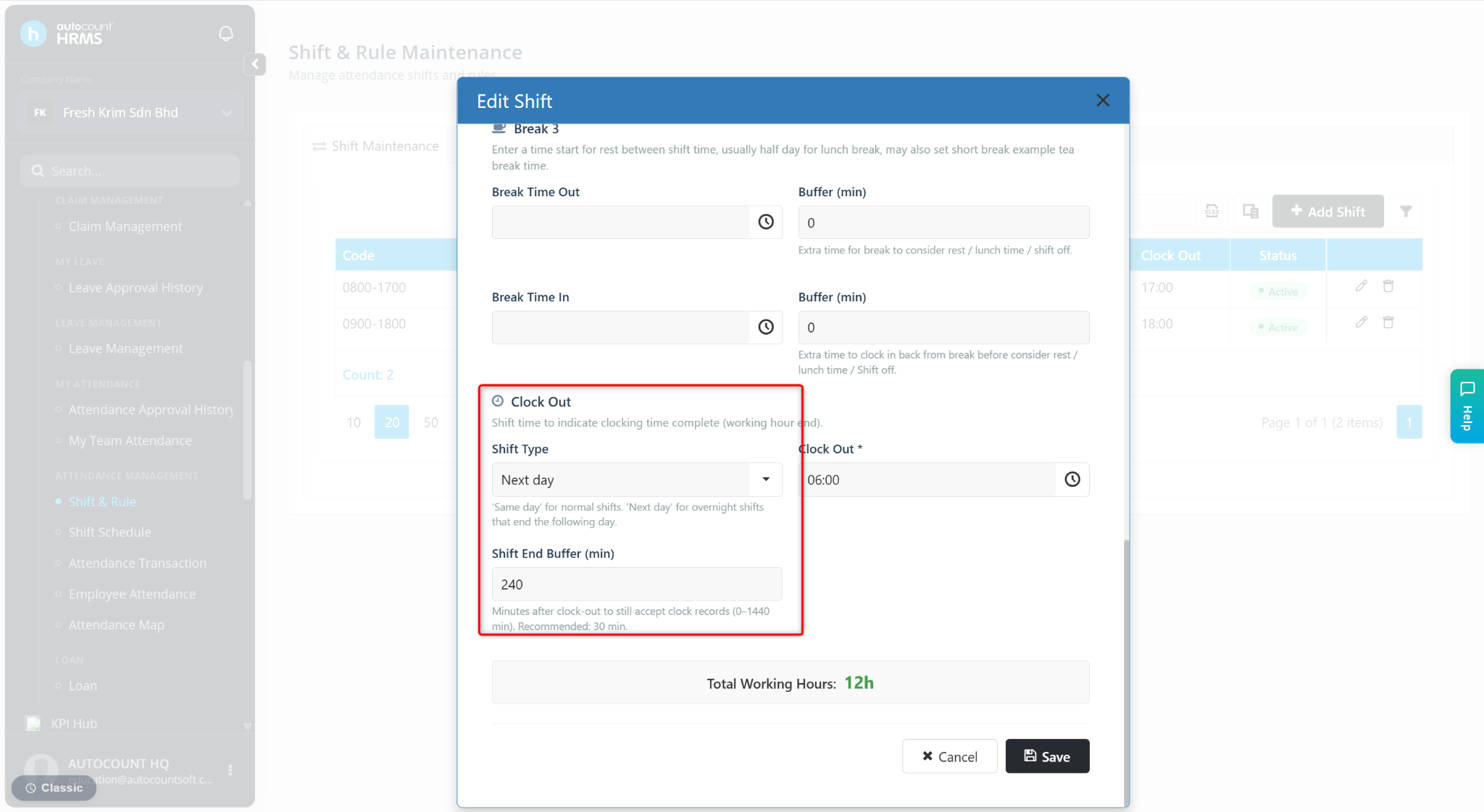
Configure Shift Type:
Same Day – For standard shifts that end on the same day
Next Day – For overnight shifts that continue past midnight. Select this option for night shifts.
Shift End Buffer
Appear when Next Day is selected for Shift Type.
This defines the maximum cutoff period after the shift end time. Attendance transactions recorded within the buffer period will still be treated as part of the same shift and may be calculated as overtime if applicable.
Any attendance transaction after the buffer period will be considered part of the next shift transaction.
Total working hours including buffer time must not exceed 24 hours.
Example:
Scenario:
Shift Start: 9:00 PM
Shift End: 6:00 AM (Next Day)
Shift End Buffer: 240 minutes
Result:
Attendance transactions between 6:00 AM and 10:00 AM will be treated as overtime for the same shift if applicable.
Transactions after 10:00 AM will be considered the next shift transaction.
Rule Maintenance
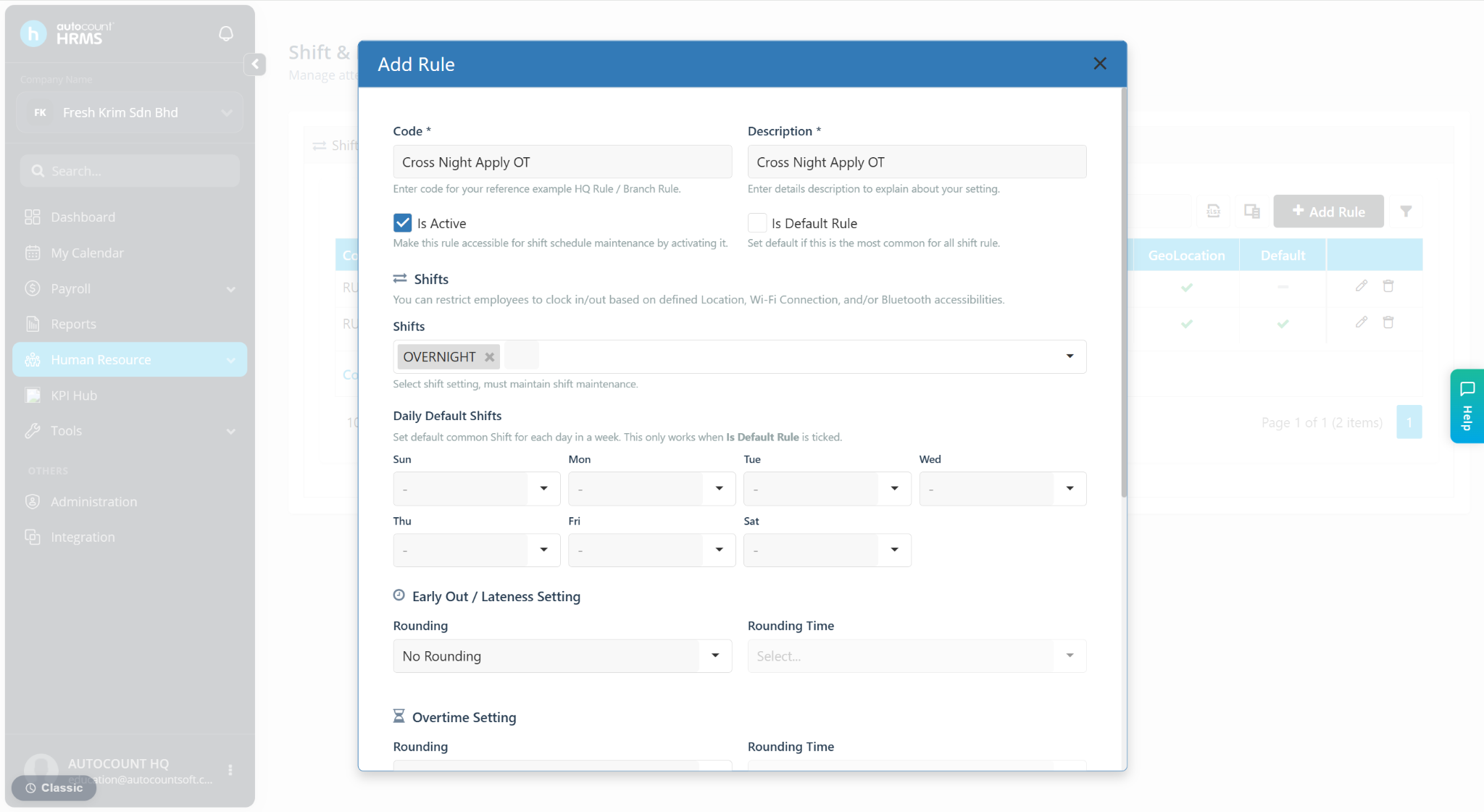
Navigate to: Human Resource > Shift & Rule > Rule Maintenance.
Used to configure:
Default rule and default shift settings
Early Out and Lateness settings
Overtime settings
Clock in/out restrictions
Clock in/out based on pre-defined Location, Wi-Fi and/or Bluetooth devices
Face Recognition – Request to take photo during clock in/out.
Shift Schedule Setting
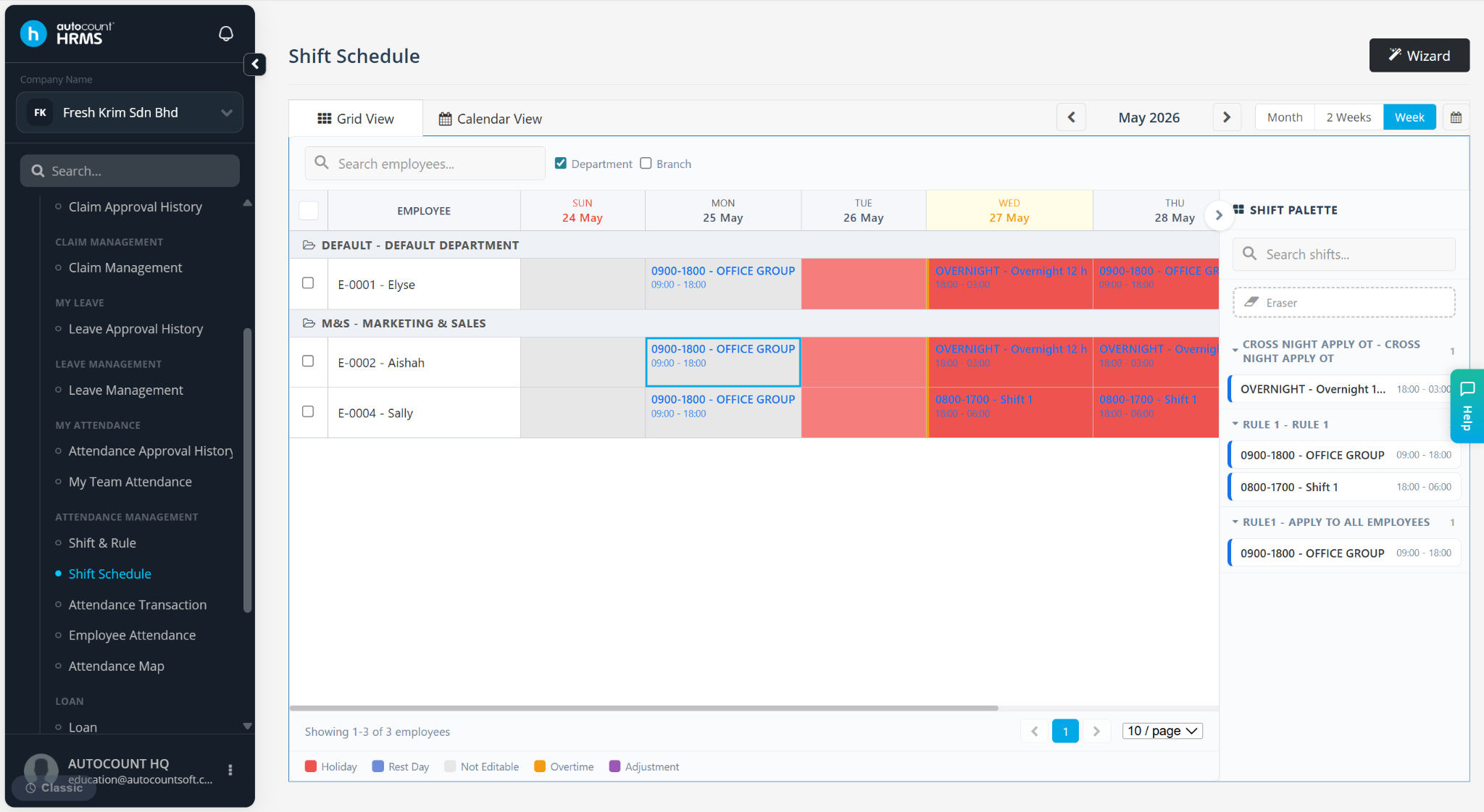
Navigate to: Human Resource > Shift & Rule > Shift Schedule
Used to assign shifts to employees.
Features:
Setup Wizard for easier scheduling
Copy existing employee schedules
B.Calculation
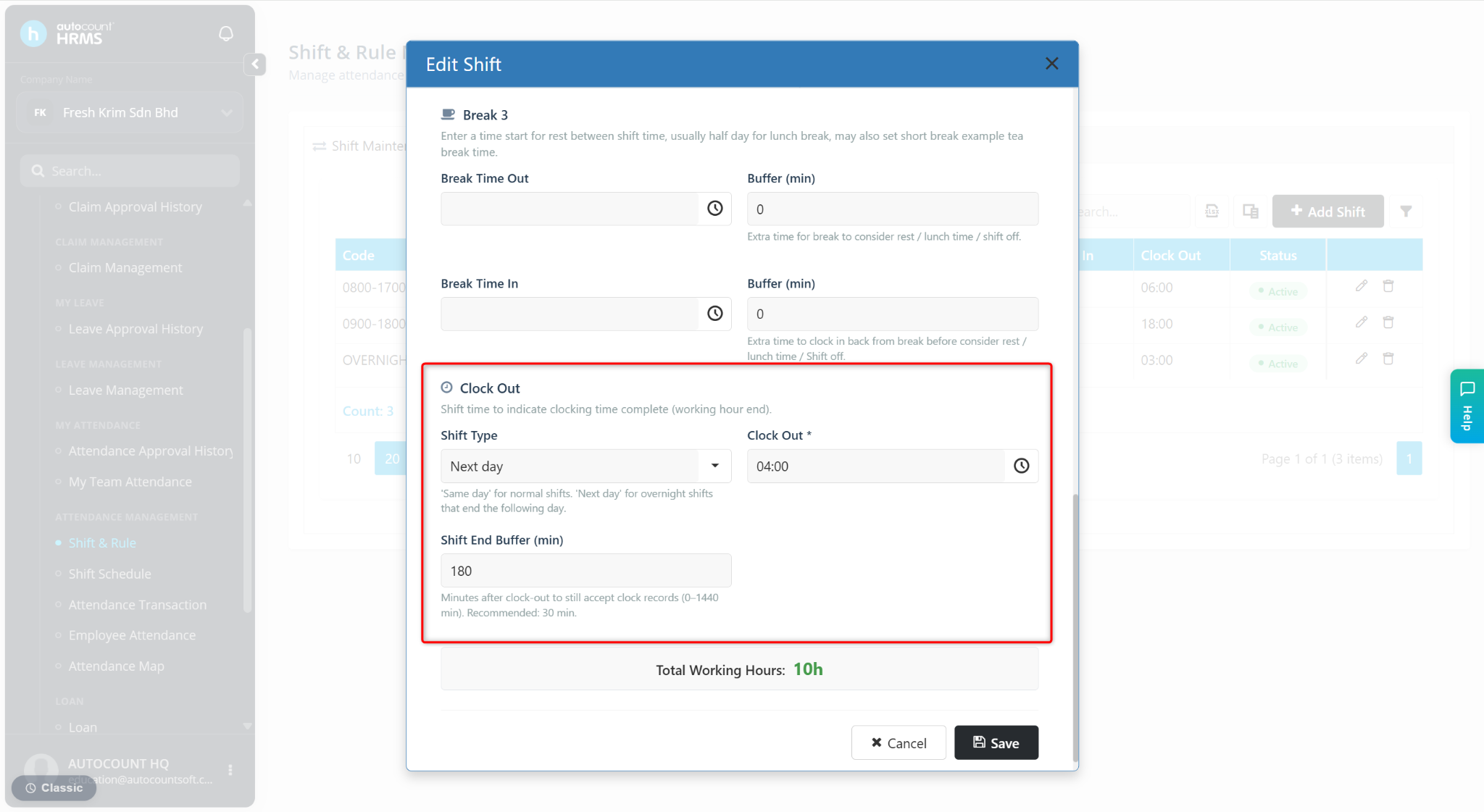
Shift End Buffer Calculation
Example:
Shift: Monday 8:00 pm to Tuesday 4:00 am
Shift End Buffer: 180 minutes
Employee Actual clock in time: 8 pm
Employee Actual clock out time: 6 am
Results:
Worked 8 hours and OT 2 hours for Monday Shift.
Note:
Clock out before 7.00 am: 3 hours will be considered as extra hours for the same day's shift.
Clock out after 7.00 am: The system will force clock out at 7.00am. The extra working hours will be treated as Overtime for next day shift if applicable.
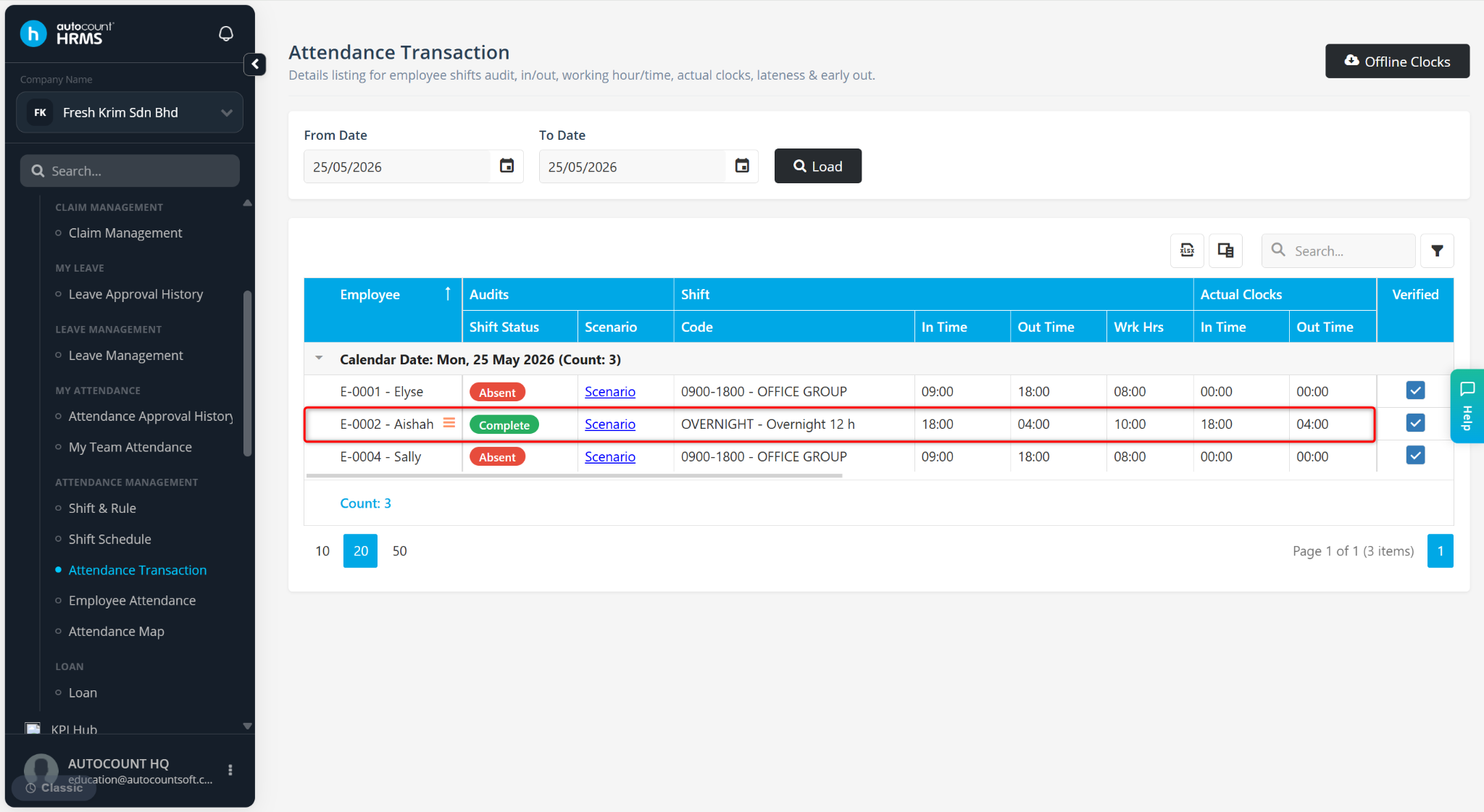
Attendance Transaction
Navigate to: Human Resources > Attendance Transaction.
Users may review:
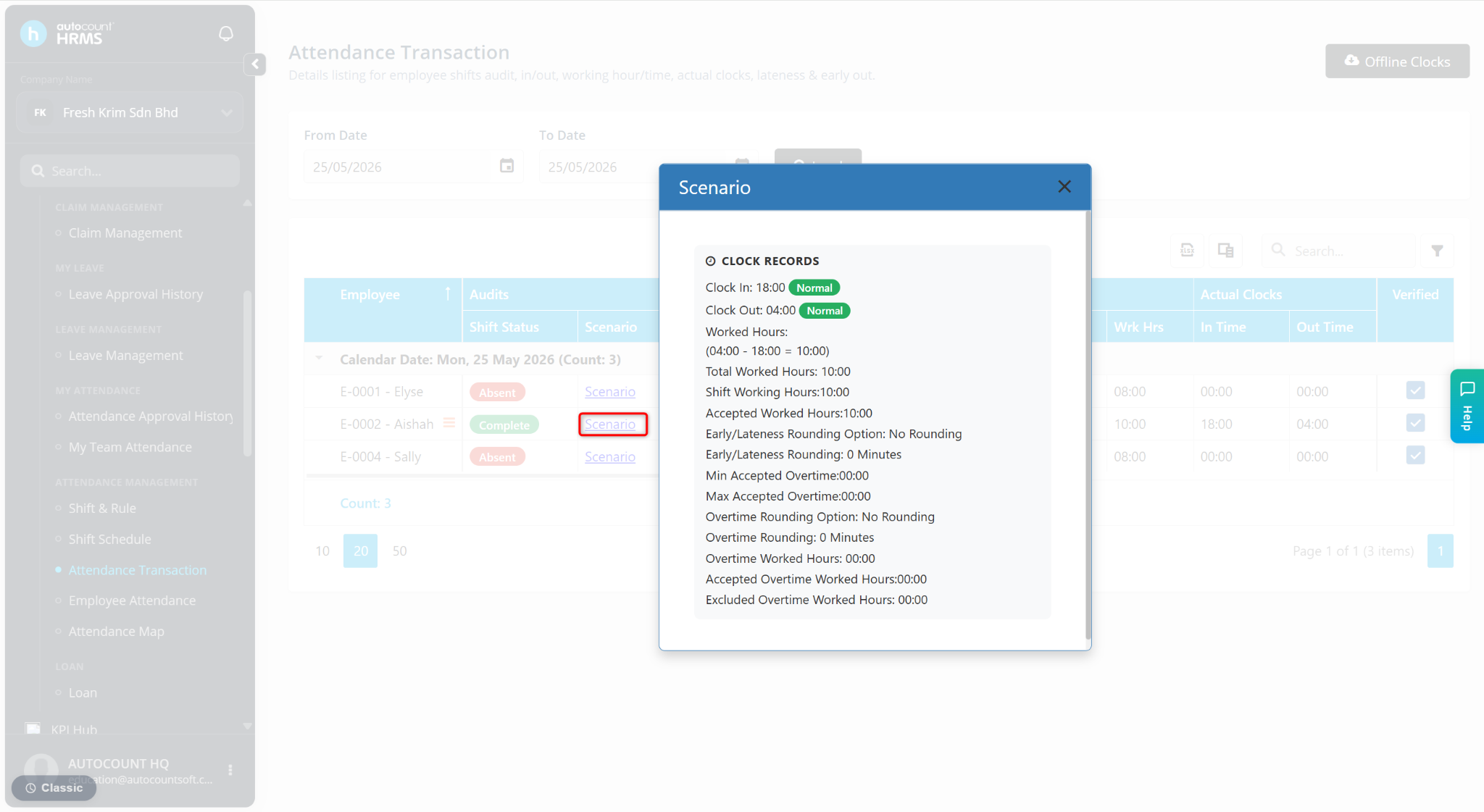
Attendance scenario
Attendance status
Clock in/out records
Lateness
Early out
Overtime
For overnight shifts, the system requires up to 24 hours after shift end to finalise attendance and overtime calculations.
Attendance Map
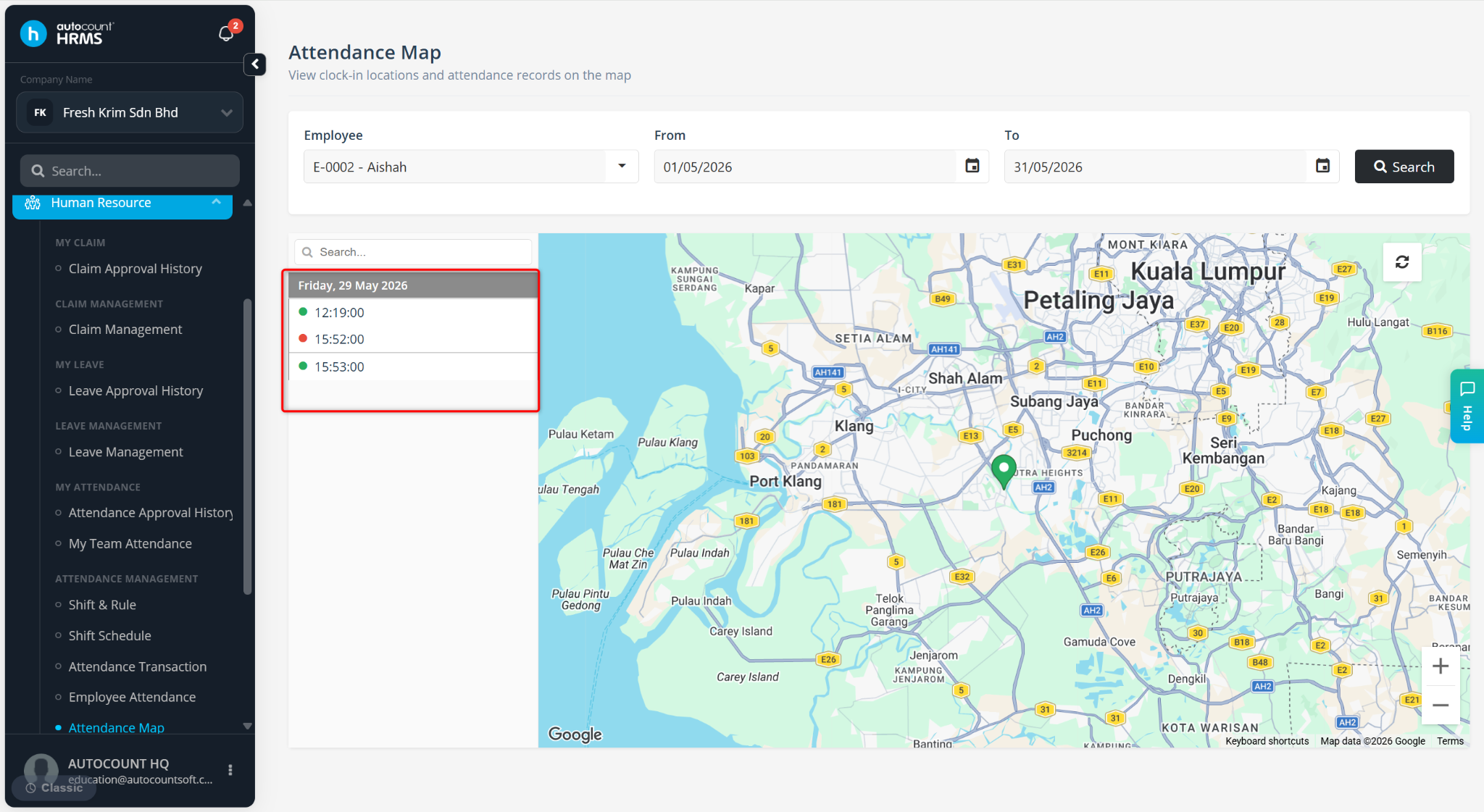
Navigate to: Human Resources > Attendance Map
Displays employee clock-in locations.
Features:
Sorted by ascending date
Green colour – Clock In
Red colour – Clock Out
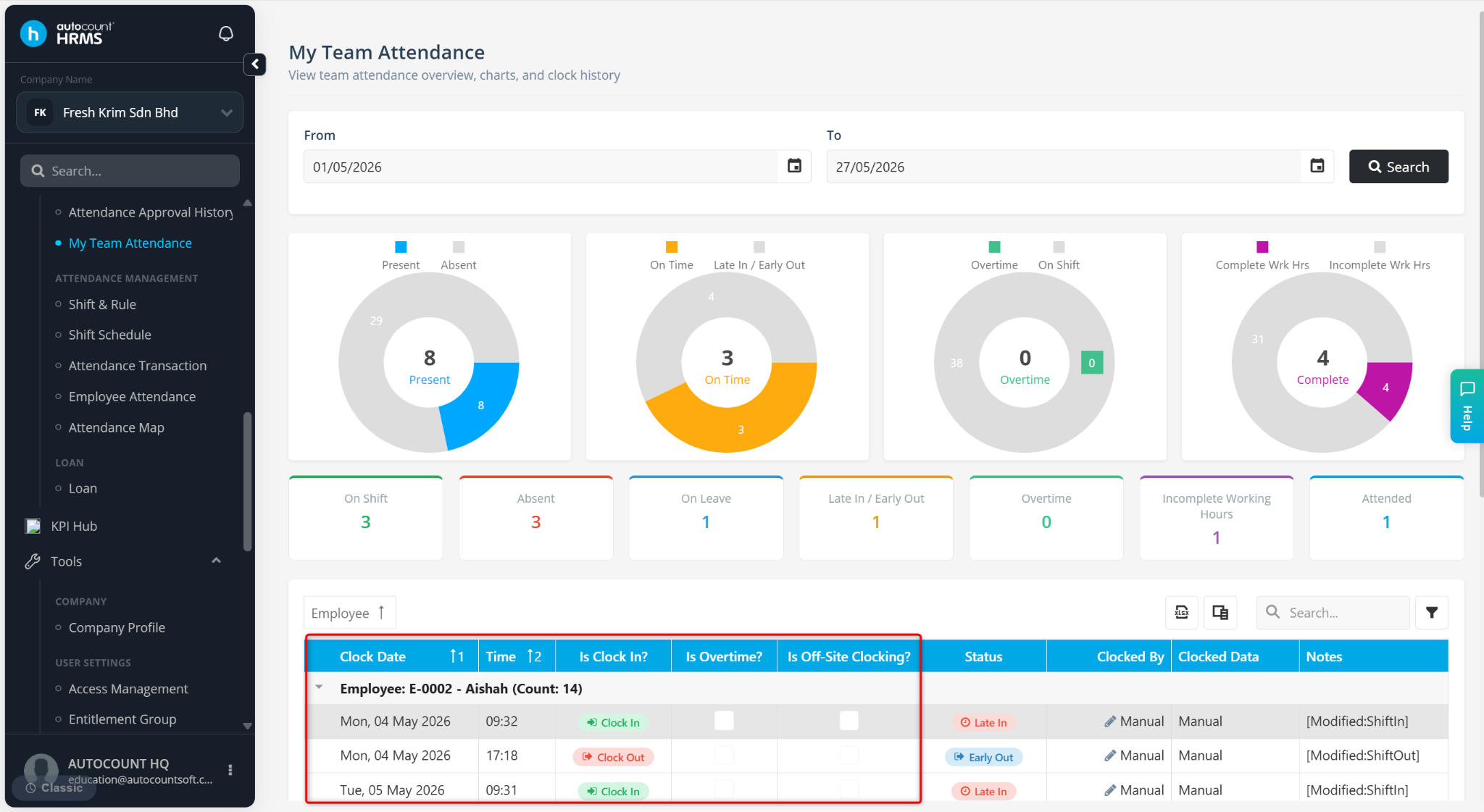
My Team Attendance
Managers may preview employee attendance status including overnight shifts.
For overnight shift clock, the date clock in and date clock out will be shown.
Example: Filtering by date 2 December 2024. The system will display Clock In on 2 December 2024 and Clock Out on 3 December 2024.
C. Attendance Report
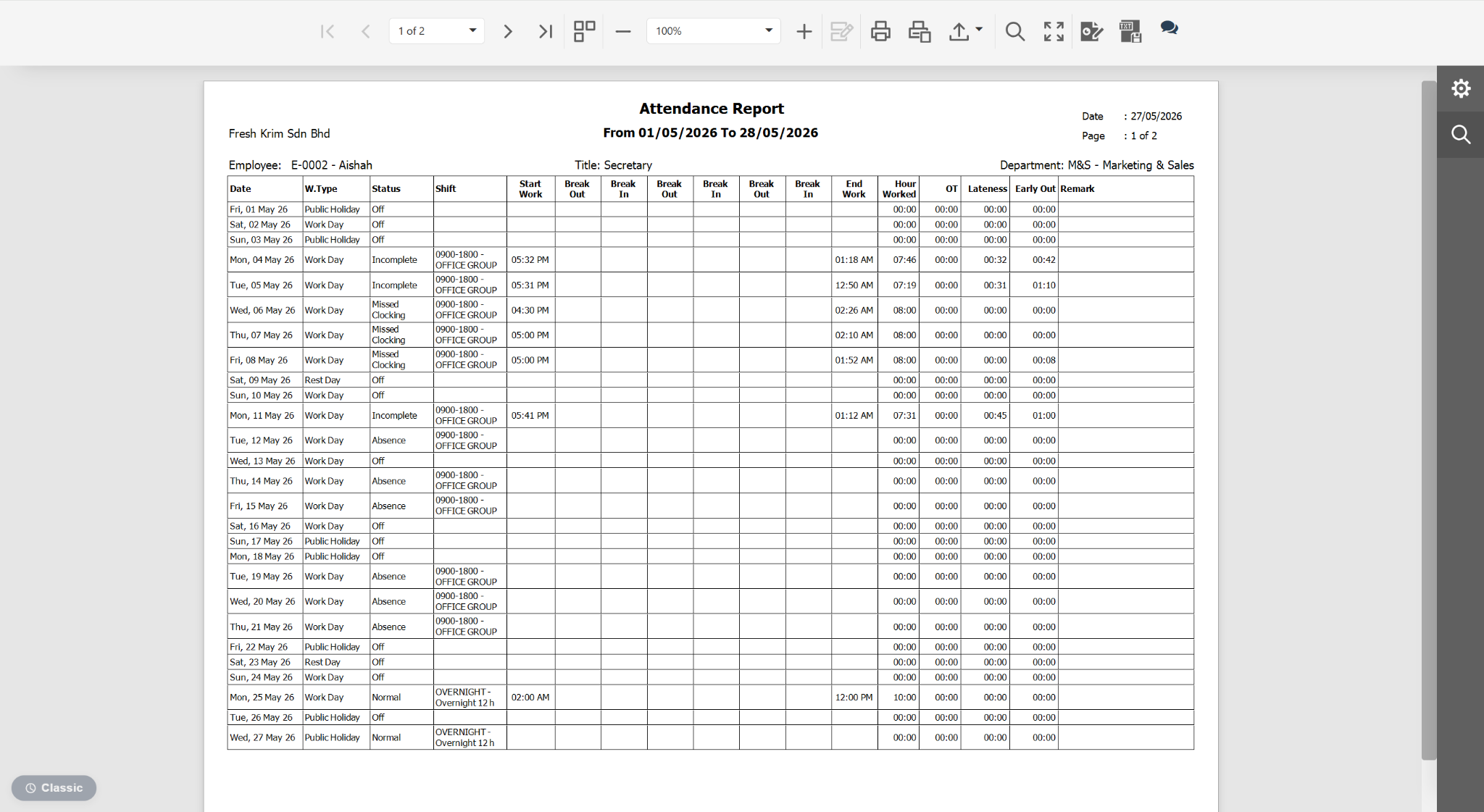
Attendance Report – No changes available.
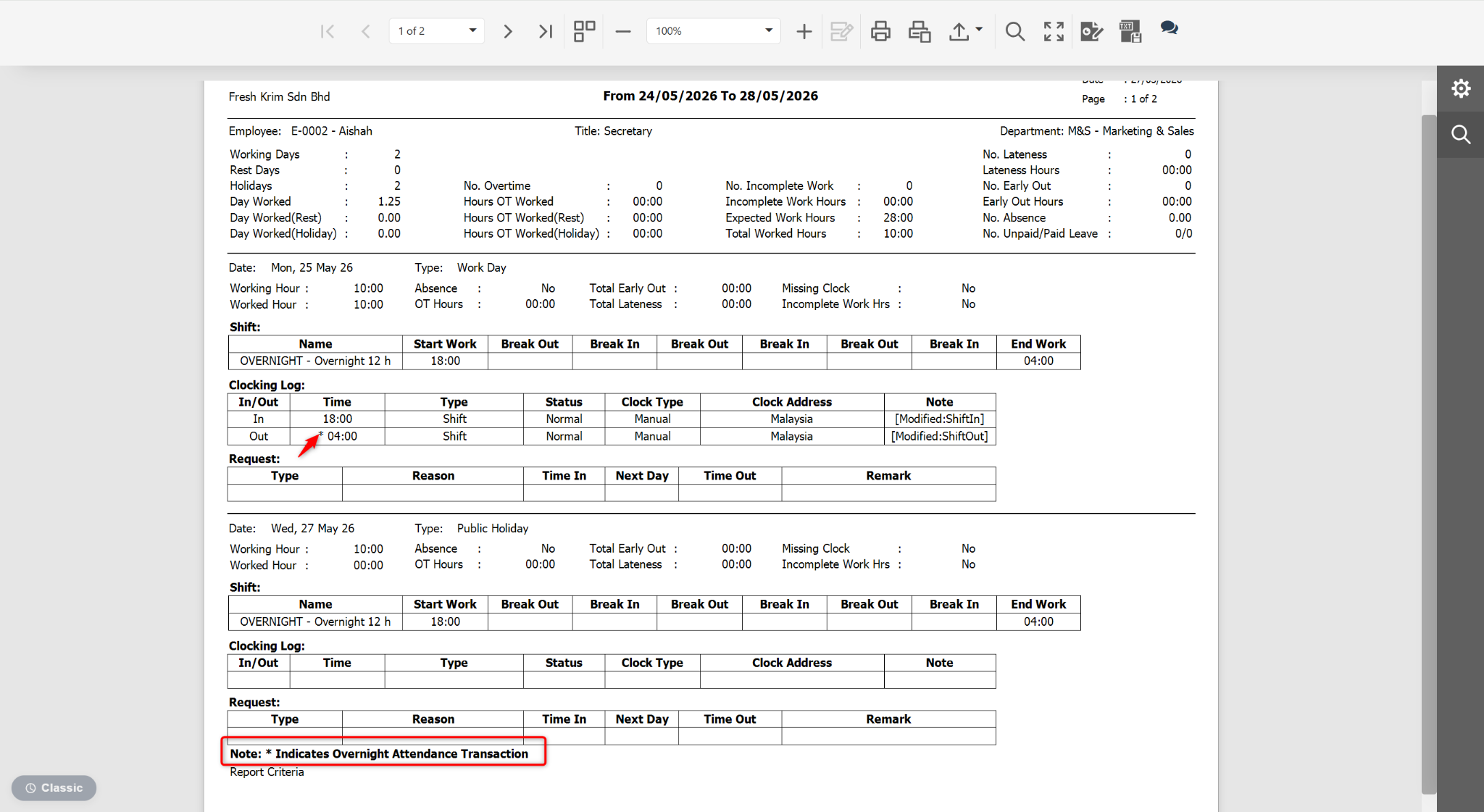
Attendance Detail Report – A symbol (*) is added to indicate overnight attendance transactions.
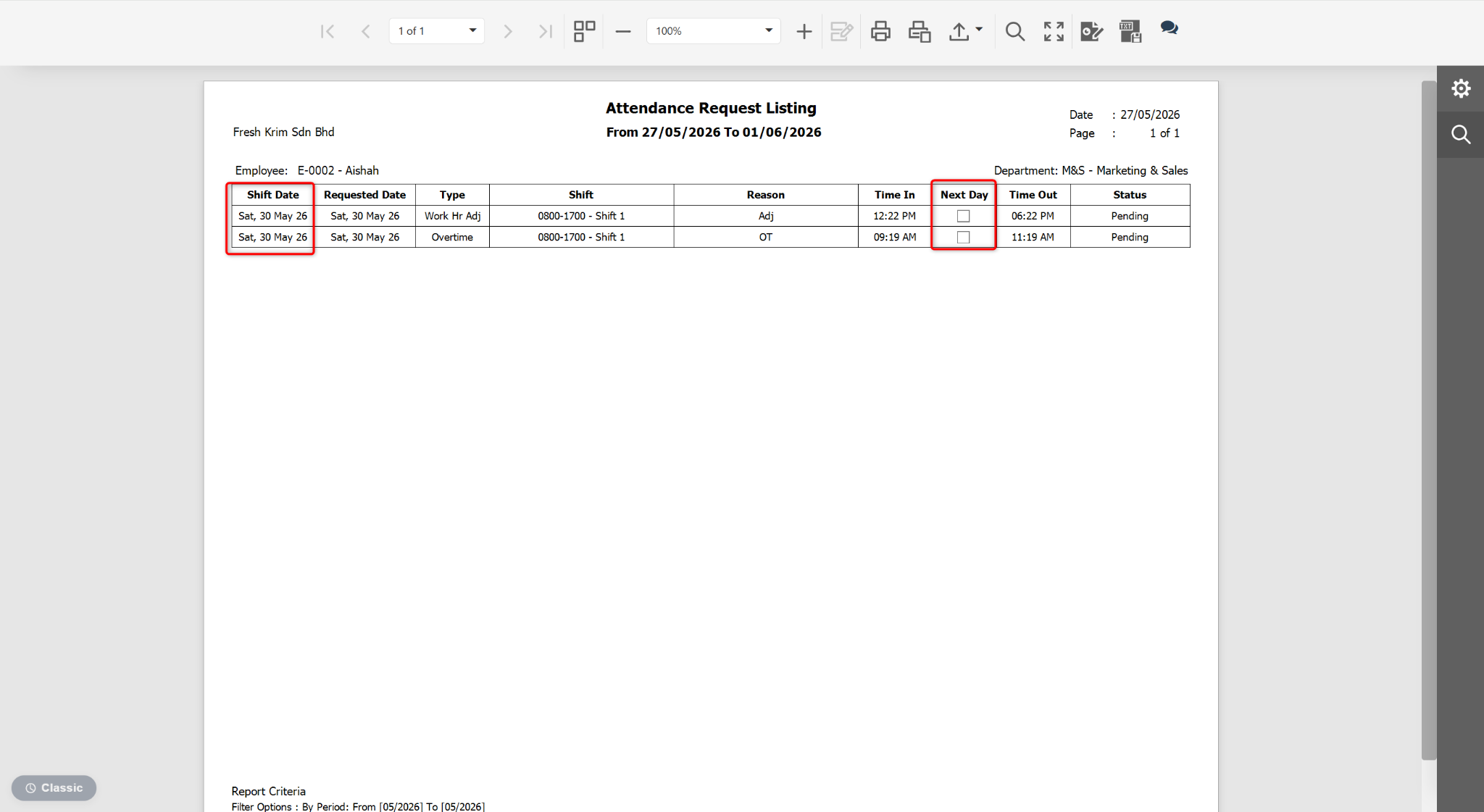
Attendance Request Listing Report – Additional fields:
Shift Date
Next Day Information
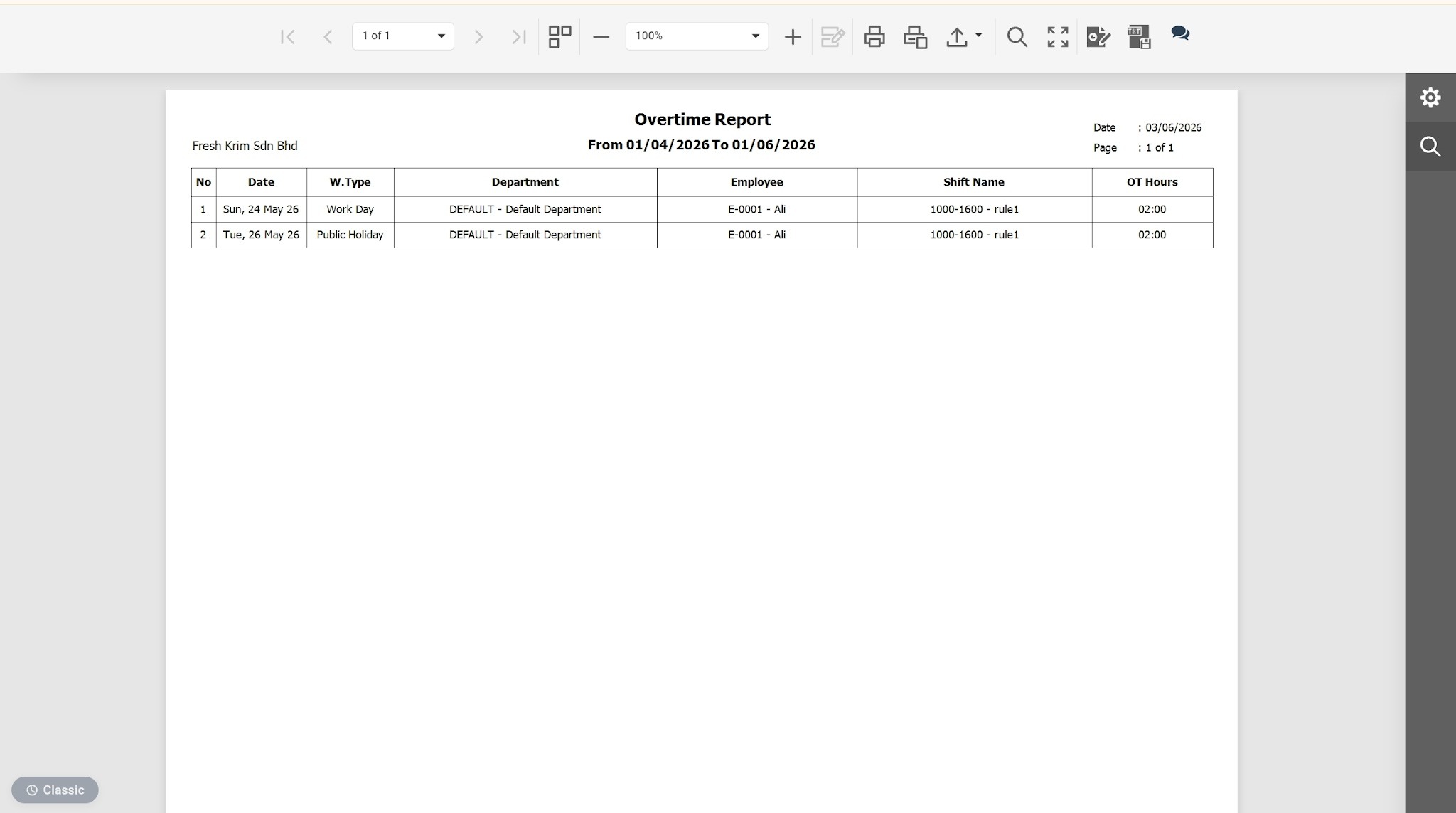
Overtime Report – No changes available.
D. AC Payroll Application and Employee Self Service (ESS)
Employee using AC Payroll to clock – No changes available.
AC Payroll > Attendance > Clock In/Out
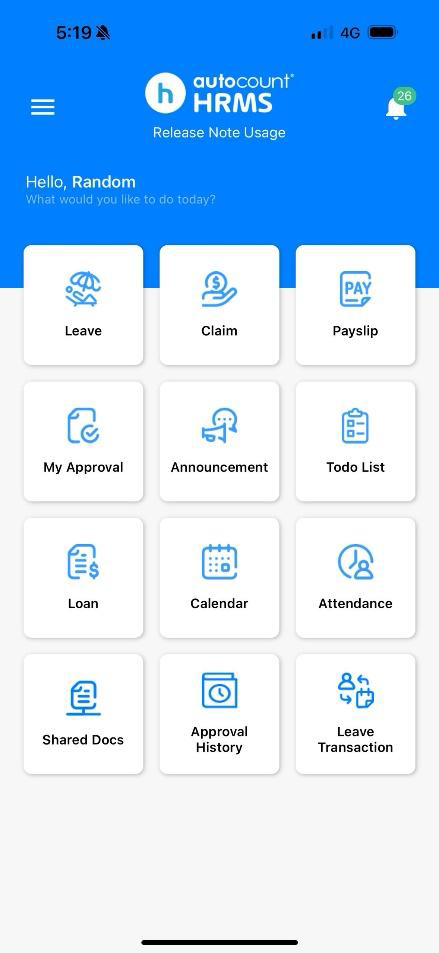
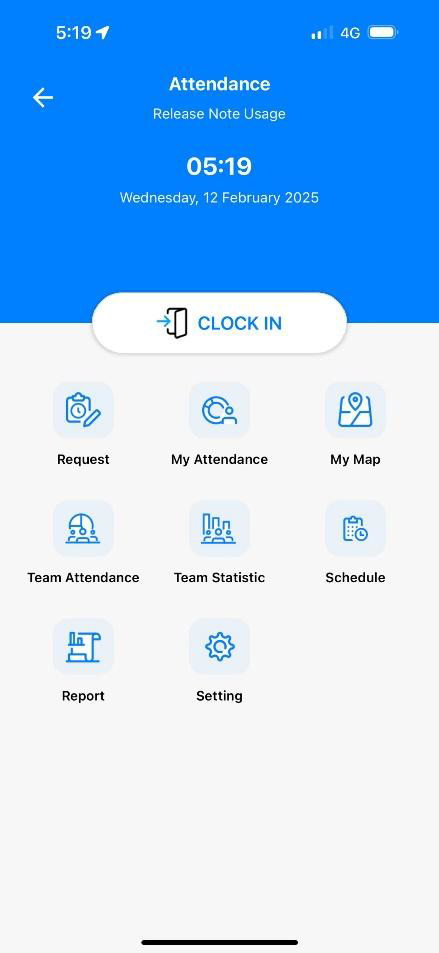
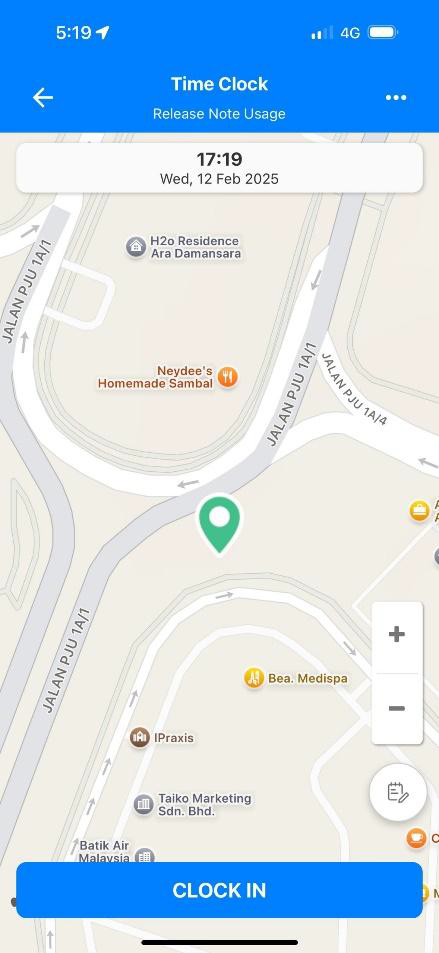
Apply Overtime through ESS or Mobile App – New Layout available.
Web: Human Resource > My Attendance > Attendance Request > Add New
Mobile App: Attendance > Request > Add
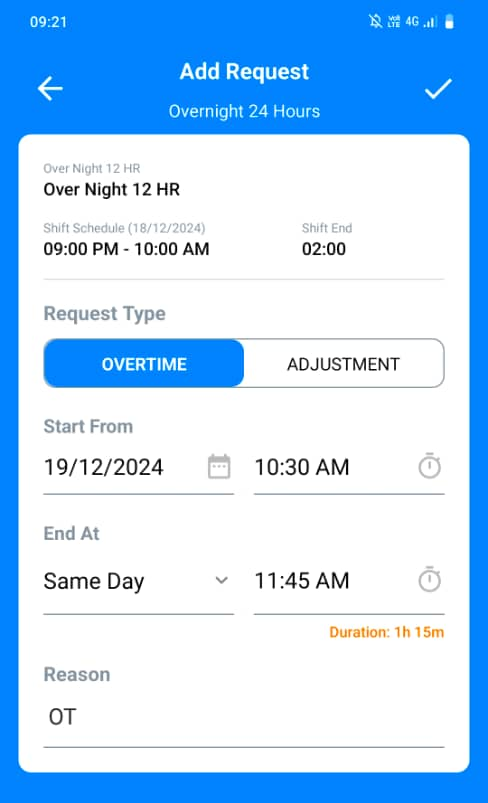
Features:
The selected date shift provides info on the shift including the shift cut-off time information.
Users are required to select date, start, end time and provide reason.
Apply Shift Adjustment through ESS or Mobile App - New Layout available
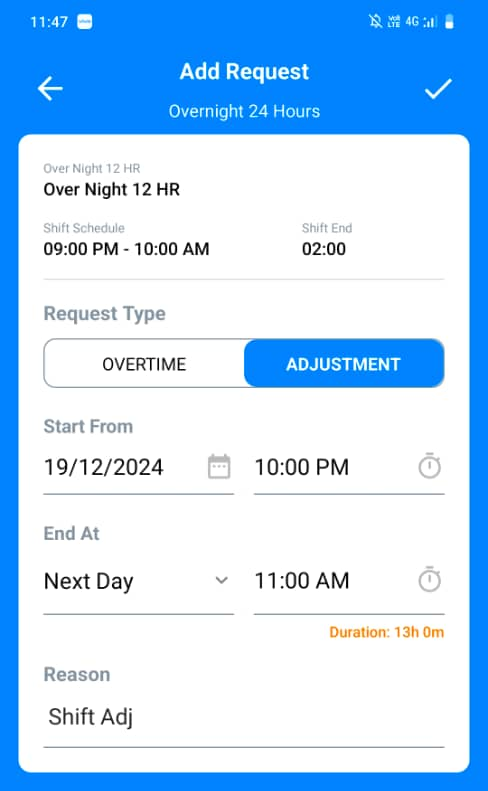
The selected date shift provides info on the shift including the shift cut-off time information.
Select the date, start, end time and enter a reason.
The start time cannot overlap with the previous shift end buffer.
If the adjustment involves the next working day, select Next Day.
Example: Current Shift is 21:00 - 06:00. Employees are able to apply for Over Night 20:00 - 05:00 or Same Day 14:00 - 21:00.
Apply Leave through ESS or Mobile - New Layout
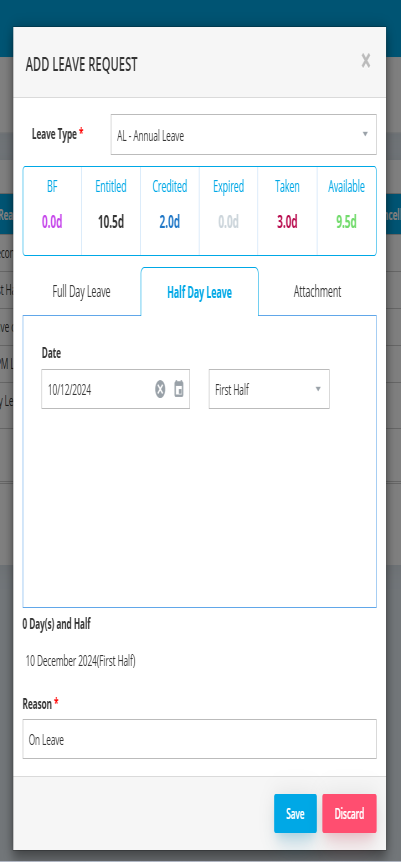
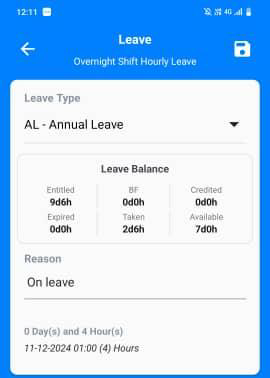
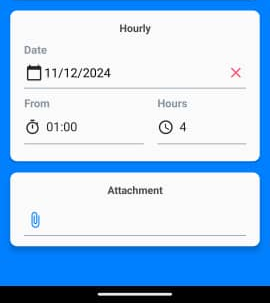
Leave date must be selected based on the shift start date.
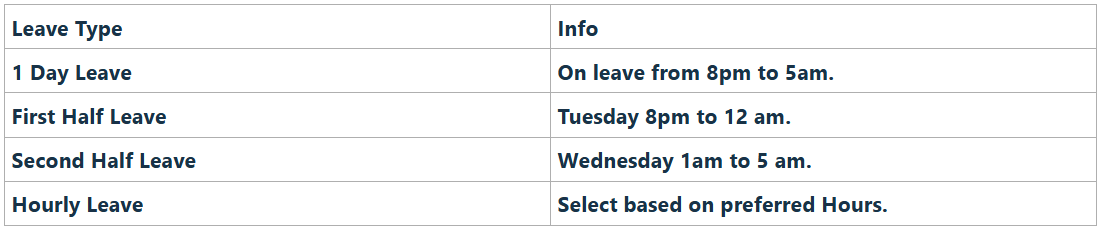
Half Day Leave – AM Leave has been renamed to First Half and PM Leave renamed to Second Half.
Example: Shift Starts on Tuesday 10/12/2024 at 8.00pm, with 1 hour break from 12 am to 1 pm. Shift Ends on Wednesday 11/12/2024 at 5.00am.
Appendix
Appendix 1 – Scenario Calculation Examples
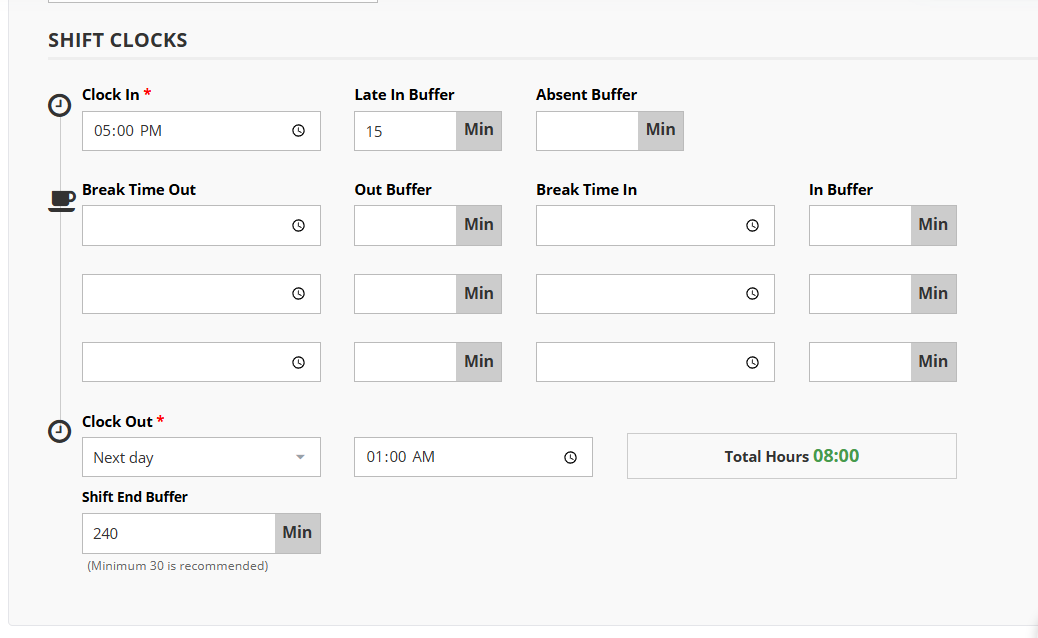
Scenario 1
Shift: Thursday 5 pm to next day Friday 1 am
Shift End Buffer: 240 min
1st Actual clock in: 5 pm
1st Actual clock out: Next day 1 am
2nd Actual clock in: 1:30 am
2nd Actual clock out: 4 am
Expected result: Worked hours 8 hours and OT 2.5 hours for Thursday shift.

Scenario 2
Shift: Monday 10 am to Tuesday 1 am with 4 hours break.
Shift End Buffer: 240 min
1st Actual clock in – 10 am
1st Actual clock out: 1 pm
2nd Actual clock in: 5 pm
2nd Actual clock out: 3 am
Result: Worked 11 hours and OT 2 hours for Monday shift.


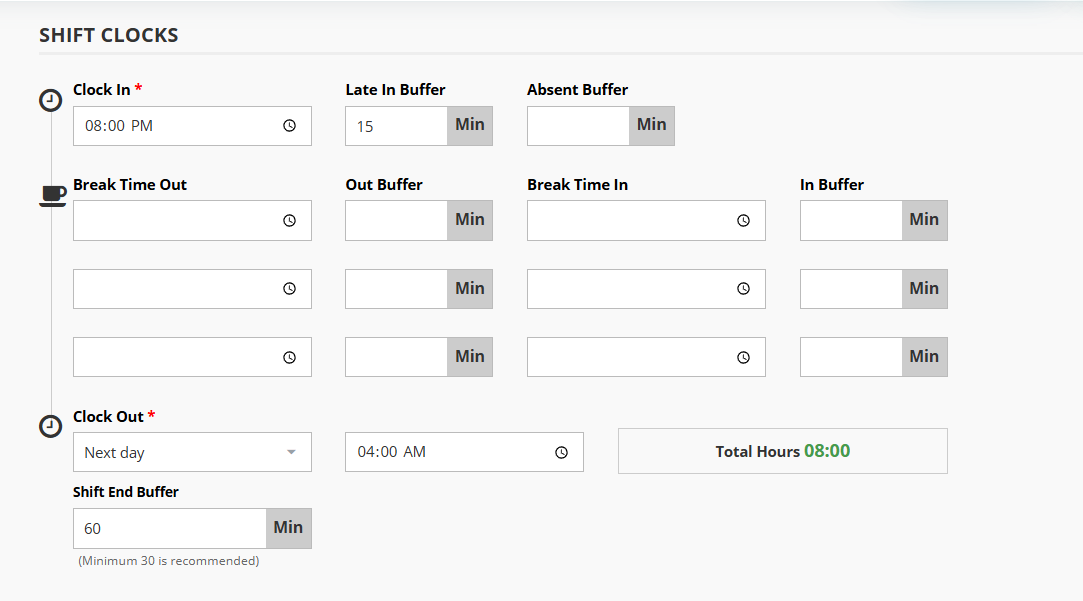
Scenario 3
Shift: Wednesday 8 pm to Thursday 4 am
Shift End Buffer: 60 min
Actual clock in: Wednesday 8 pm and Thursday 6am
Result: Incomplete for today’s shift. Worked Early OT for next day shift if applicable.

Appendix 2- Things to take note on Cross Night Shift
Shift Duration: The total working hours with overtime, including the shift end buffer, must not exceed 24 hours.
Shift Scheduling: Each employee is allowed only one shift per day.
Shift End Buffer: Recommend putting minimum 30 minutes.
Overtime Request: Overtime must be scheduled within the designated day end buffer time, ensuring both the start and end times fall within this window.
Shift Adjustment: Shift adjustment is permitted for both overnight shifts and same-day shifts.
Leave Applications: Half-day leave now named as First Half and Second Half.
Leave Settings: For cross night shifts, it is recommended to use full day or hourly leave settings to achieve more accurate results.
Leave Modifications: Switching between half-day leave and hourly leave is not recommended, as it may cause discrepancies in attendance and leave records.
Clock-In Restrictions: For shifts beginning at 12 AM, clocking in prior to 12 AM is not permitted.
Overtime Limitations: If a shift ends at 11 PM, any overtime worked cannot extend beyond 12 AM on the same day.