
Users can post payroll journals from AutoCount HRMS to AutoCount Cloud Accounting through API integration.
Steps to Configure Cloud Accounting Integration
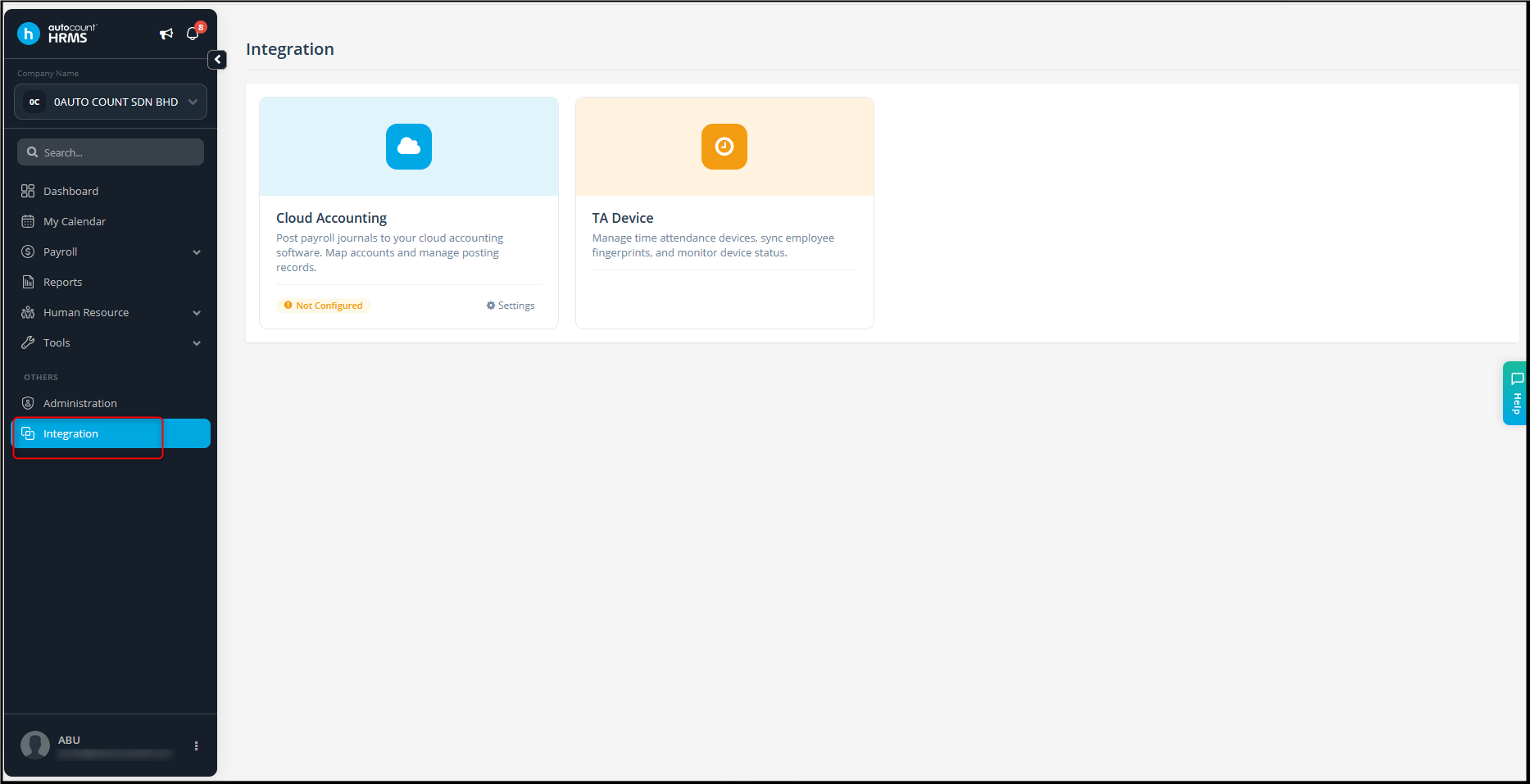
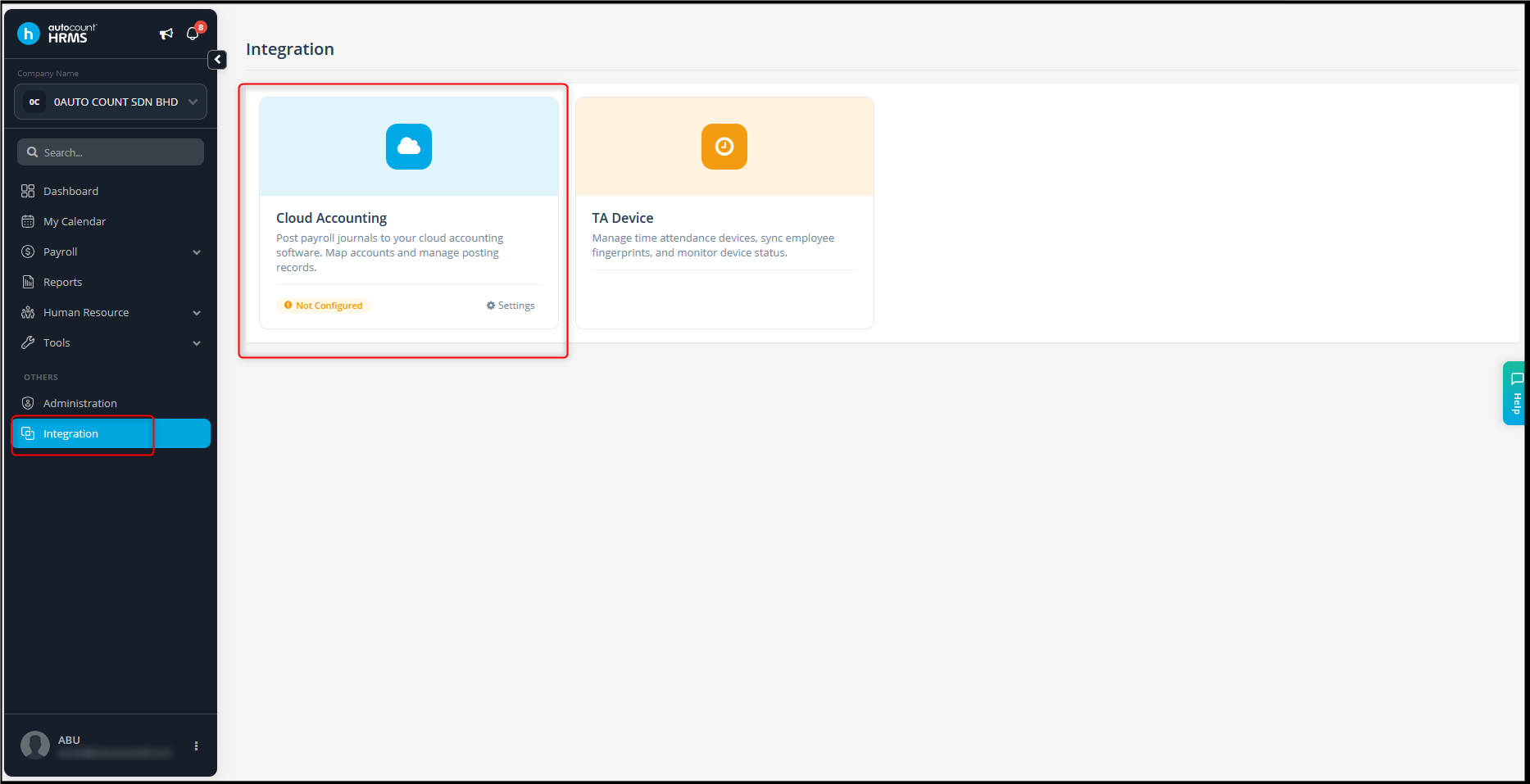
- Go to Integration.
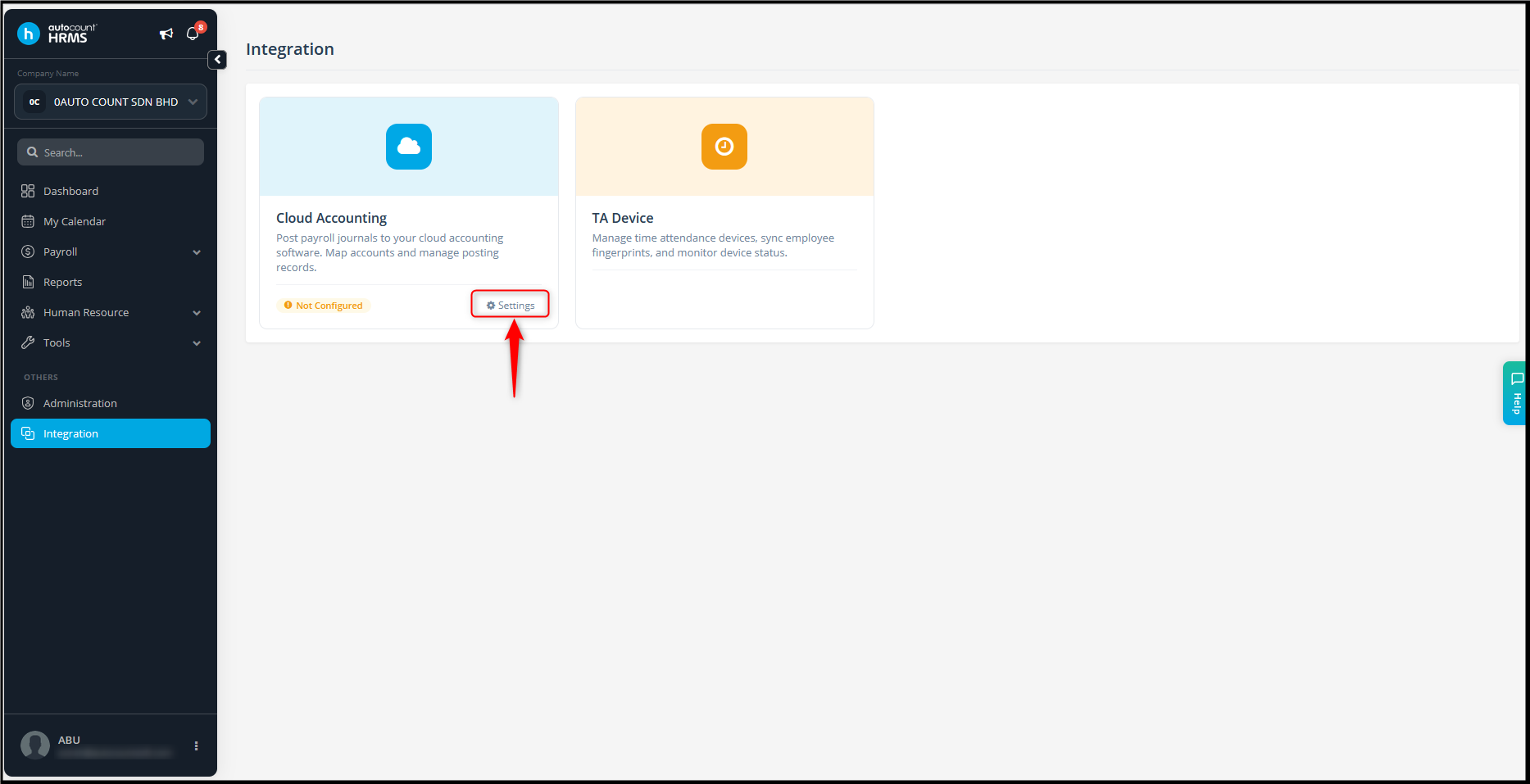
- For the first time configuration, click Settings.
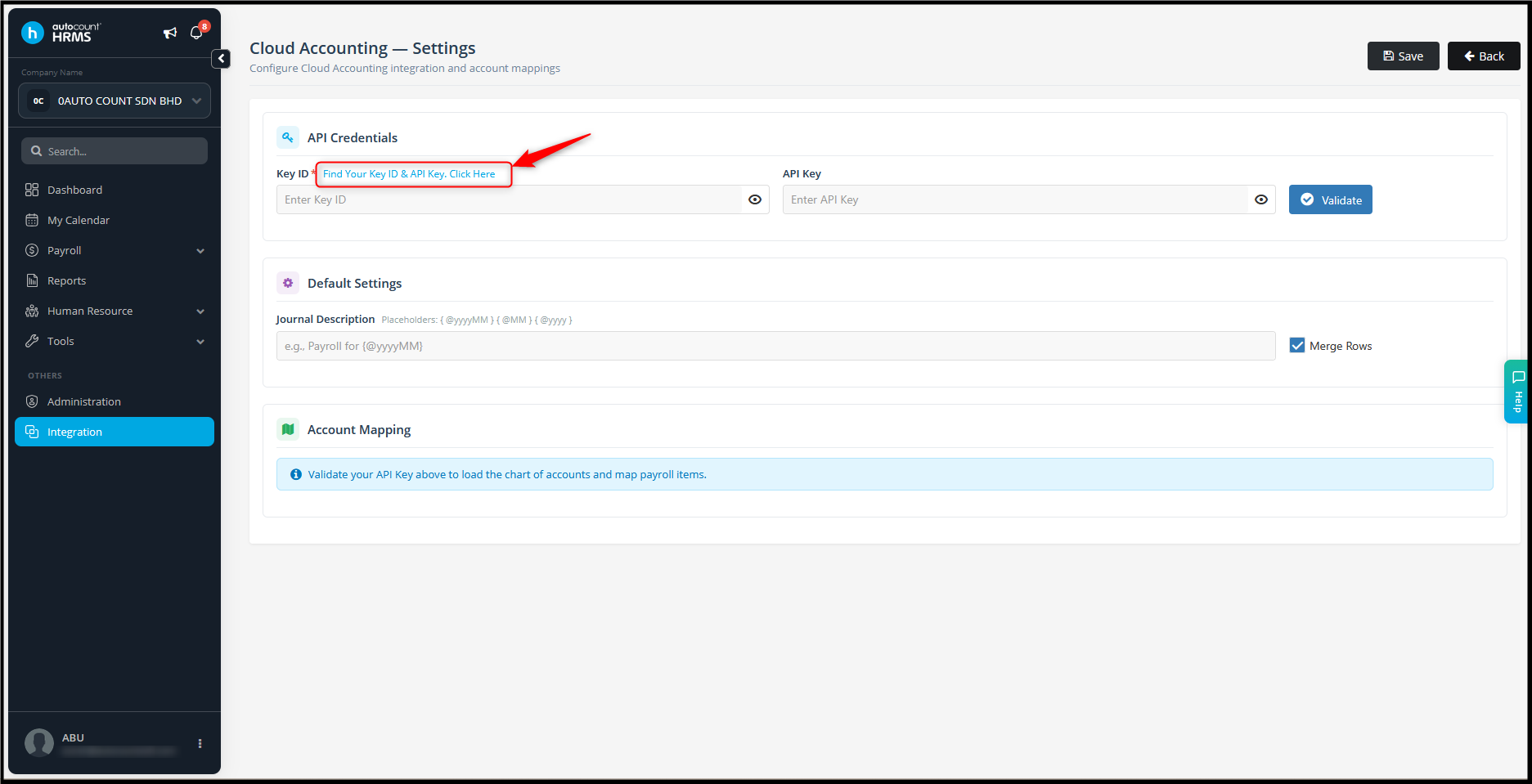
- Enter the required information.
Key ID and API Key- Click Find Your Key ID & API Key. Click Here.
- The Settings > API Keys page in AutoCount Cloud Accounting will be opened.
*This only auto prompt if the subscriber for both HRMS and Cloud Accounting is same. Else, can go to Settings > API Key*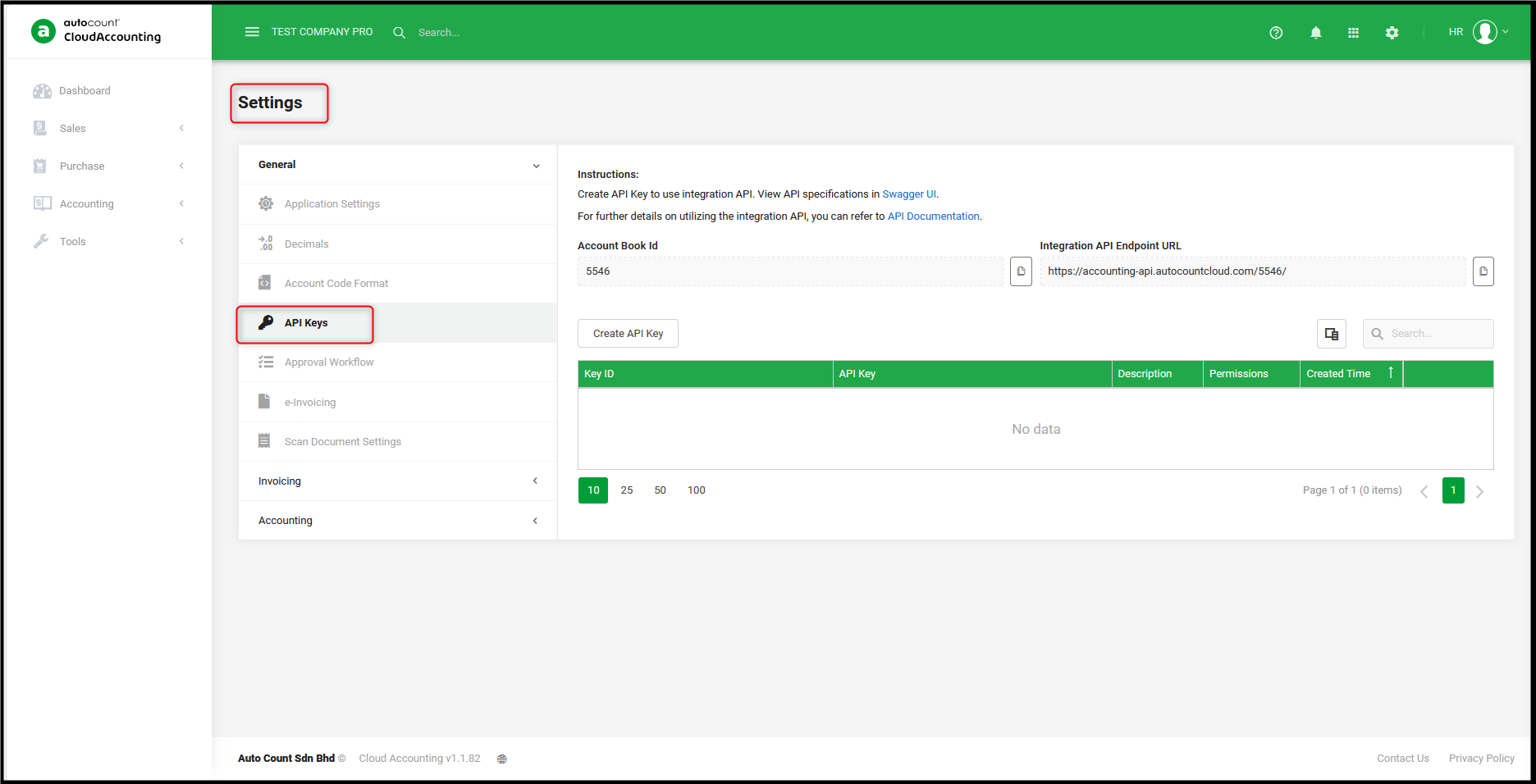
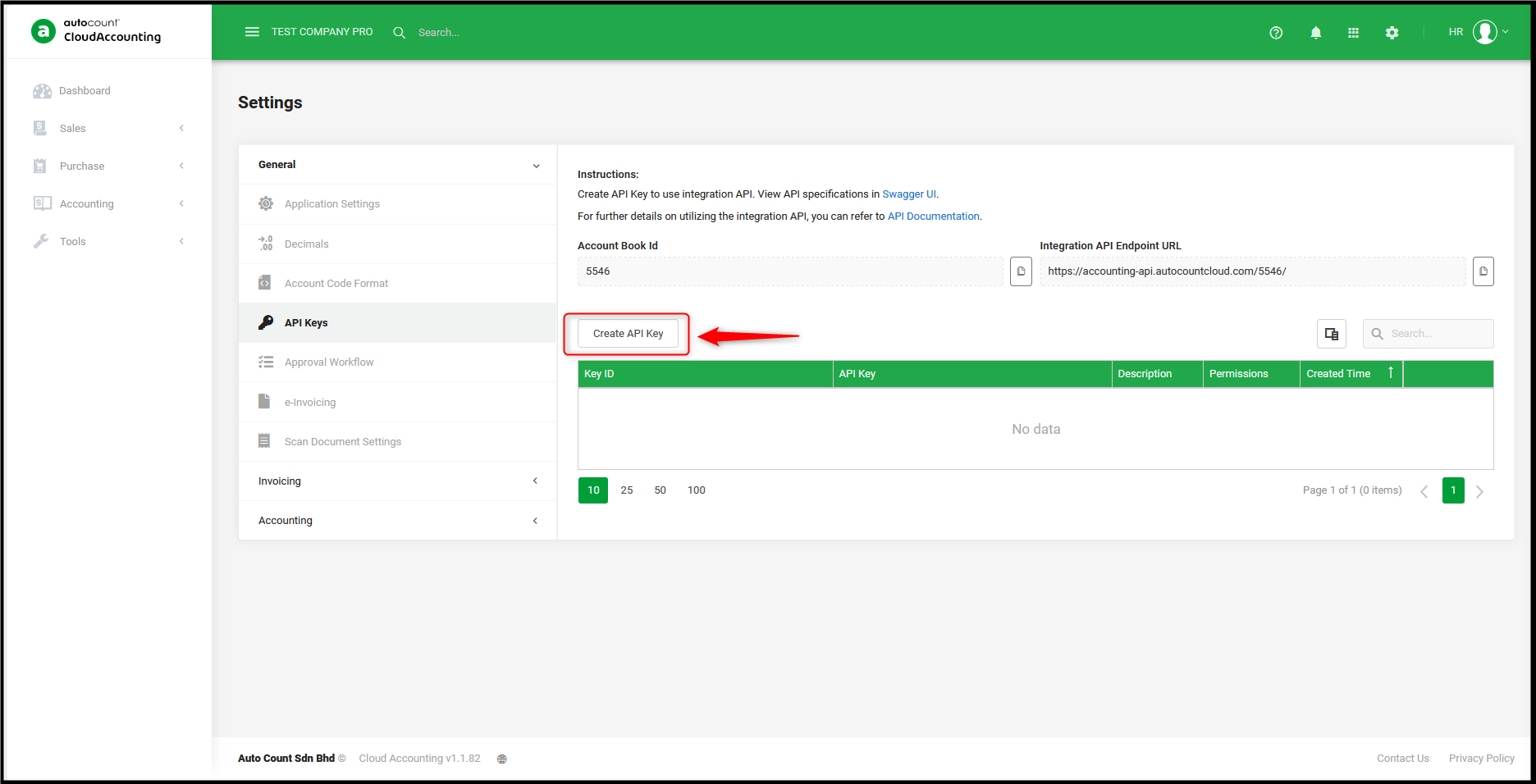
- Click Create API Key.
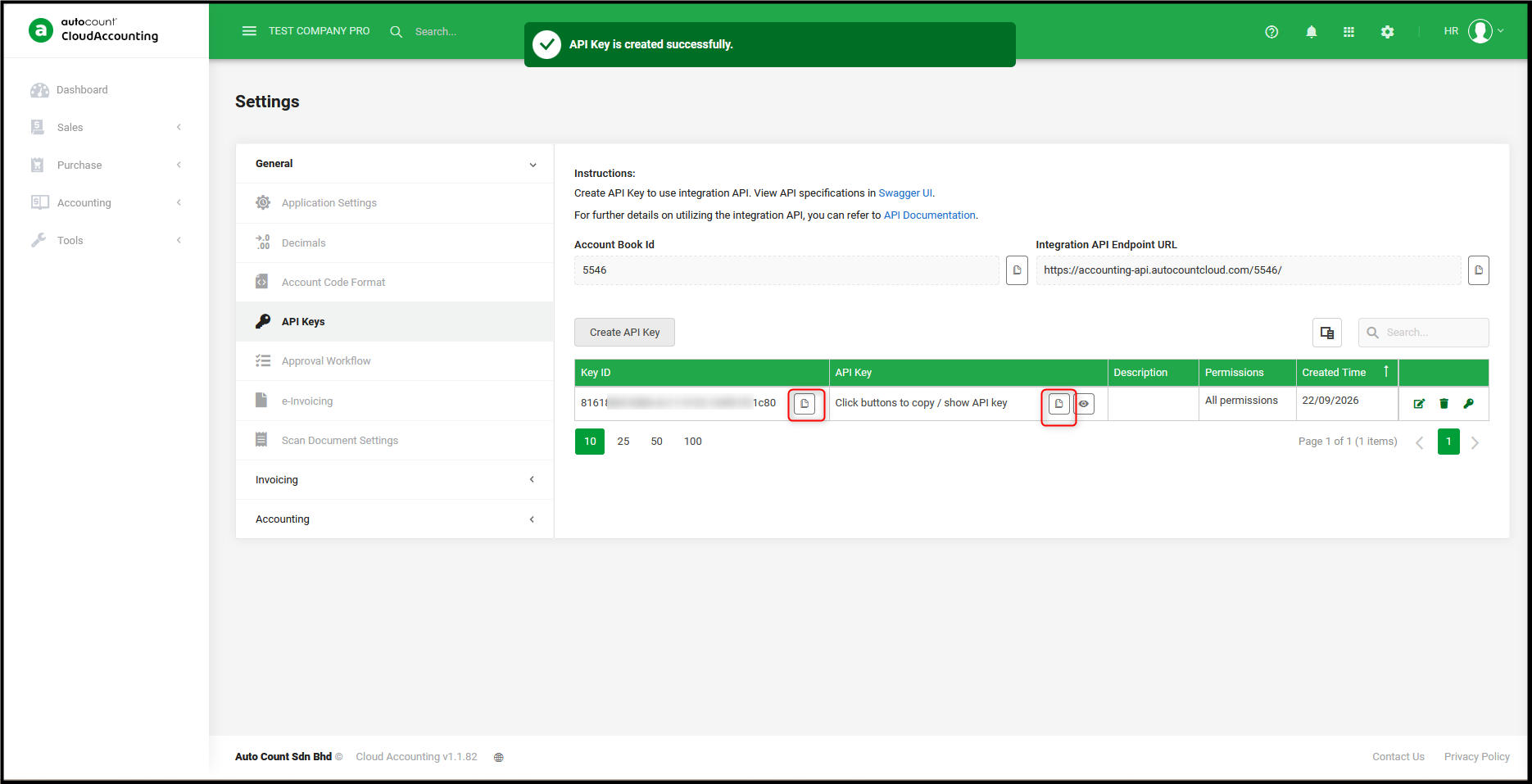
- Once the API Key is created successfully, copy the Key ID and API Key.
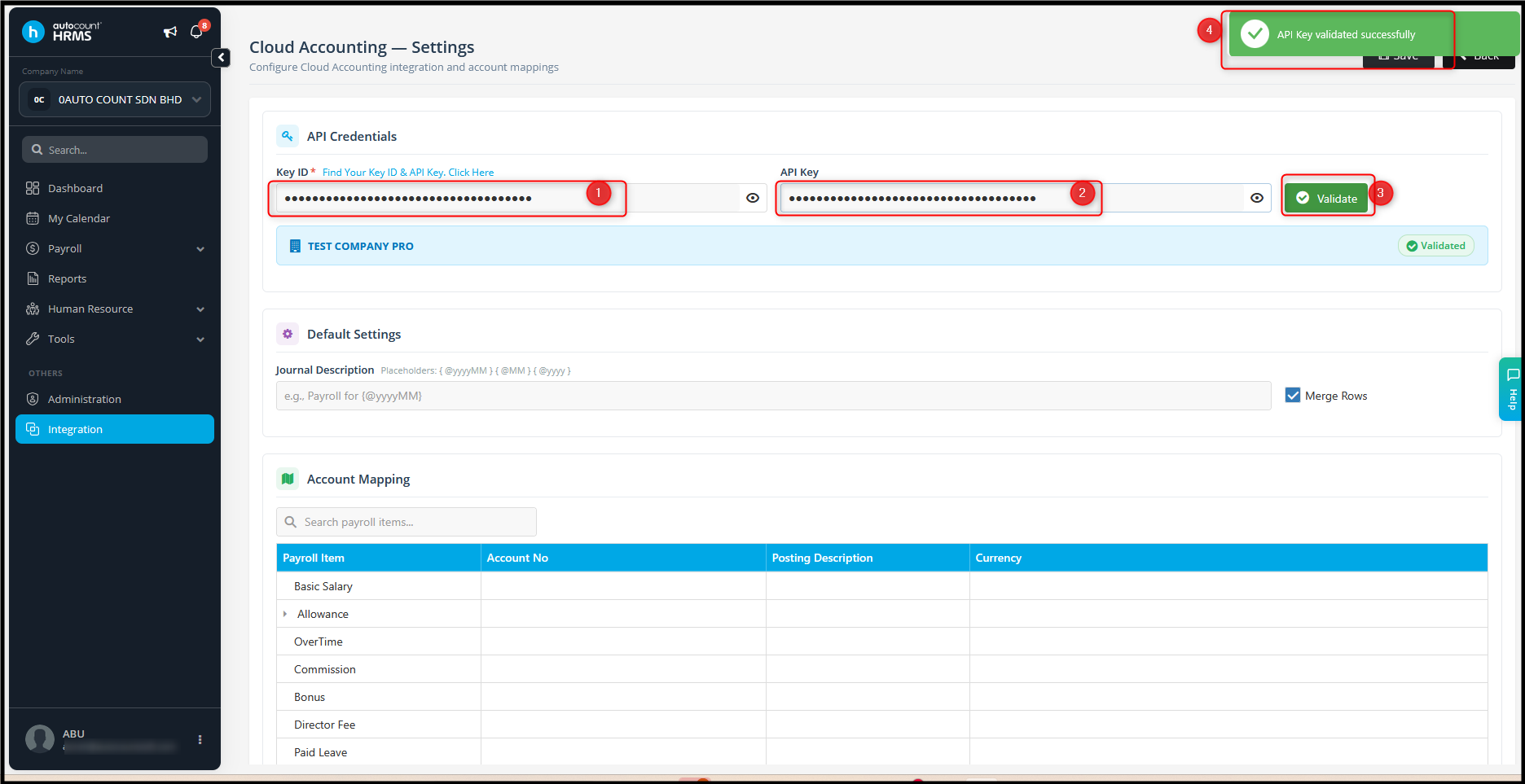
- Paste the Key ID and API Key into the Integration Settings in AutoCount HRMS and click Validate. The system will show Validated if the connection is successful.
- Click Find Your Key ID & API Key. Click Here.
- Enter the Journal Description.
Example: Payroll process for {@yyyyMM}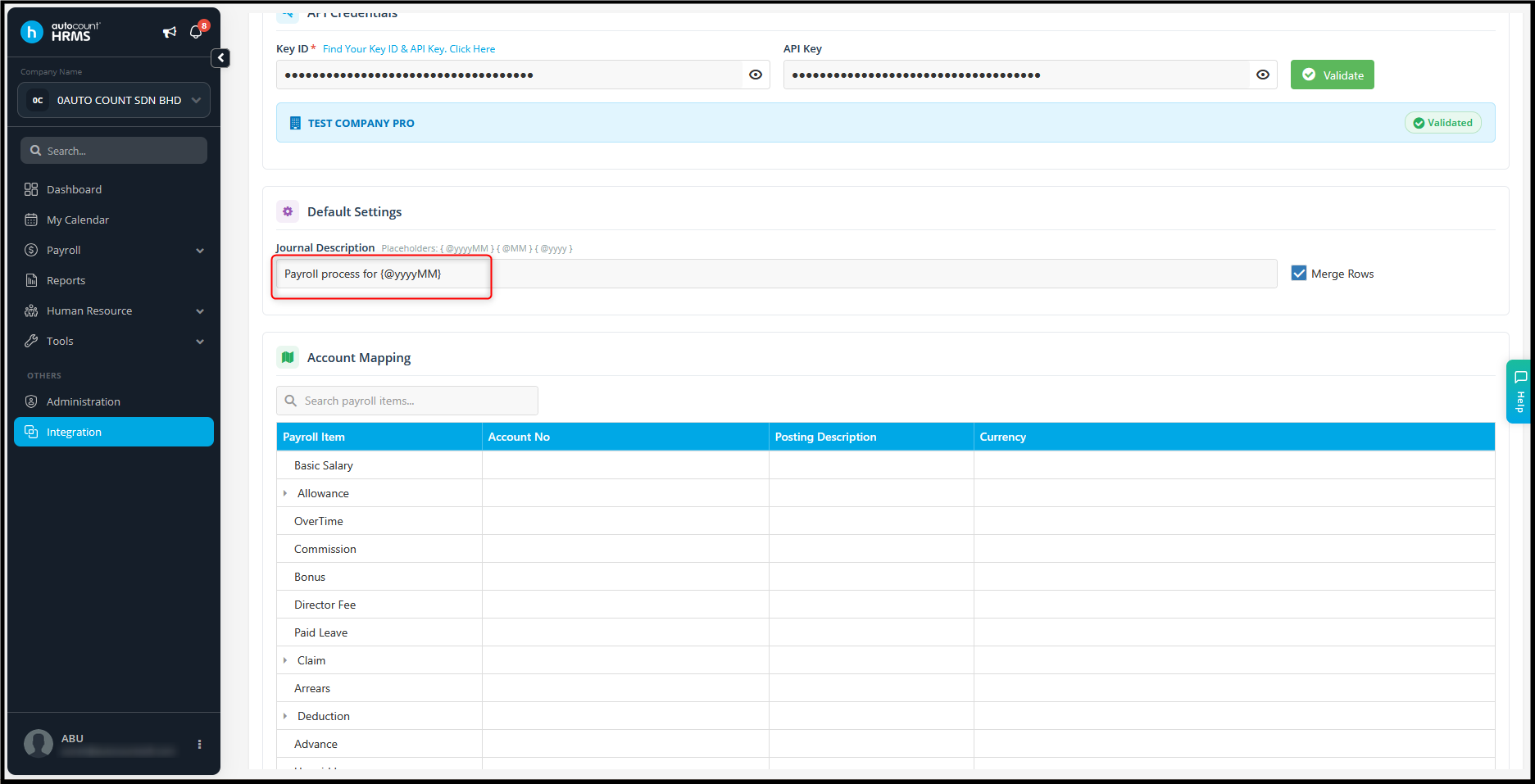
- Merge Rows is used to merge transactions with the same account number. Tick this option if required.
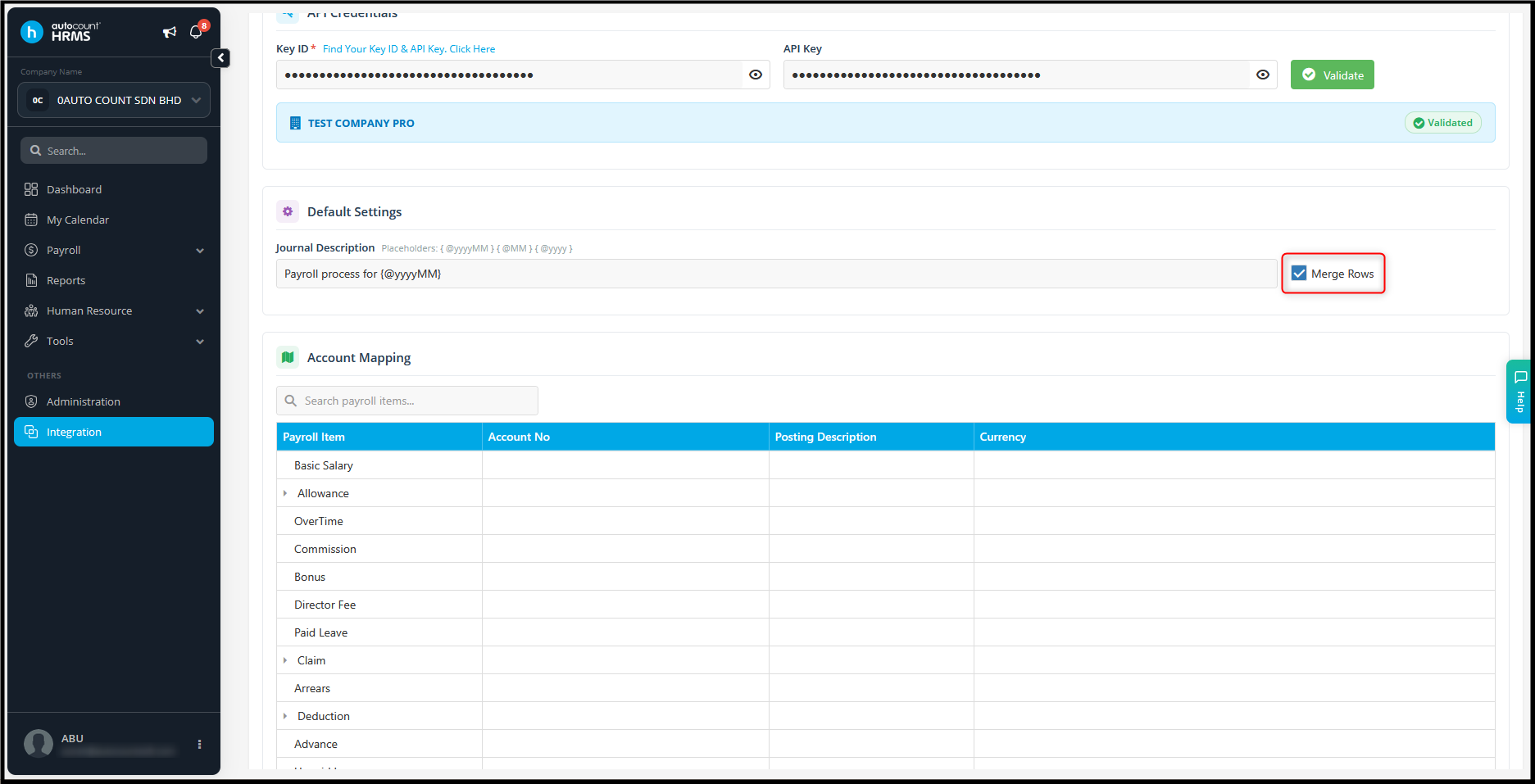
- Under Accounting Mapping, enter the designated account number for each payroll item.
It is recommended to complete all accounting mapping fields, including items that are not currently used, to avoid incorrect or misaligned account mapping during posting.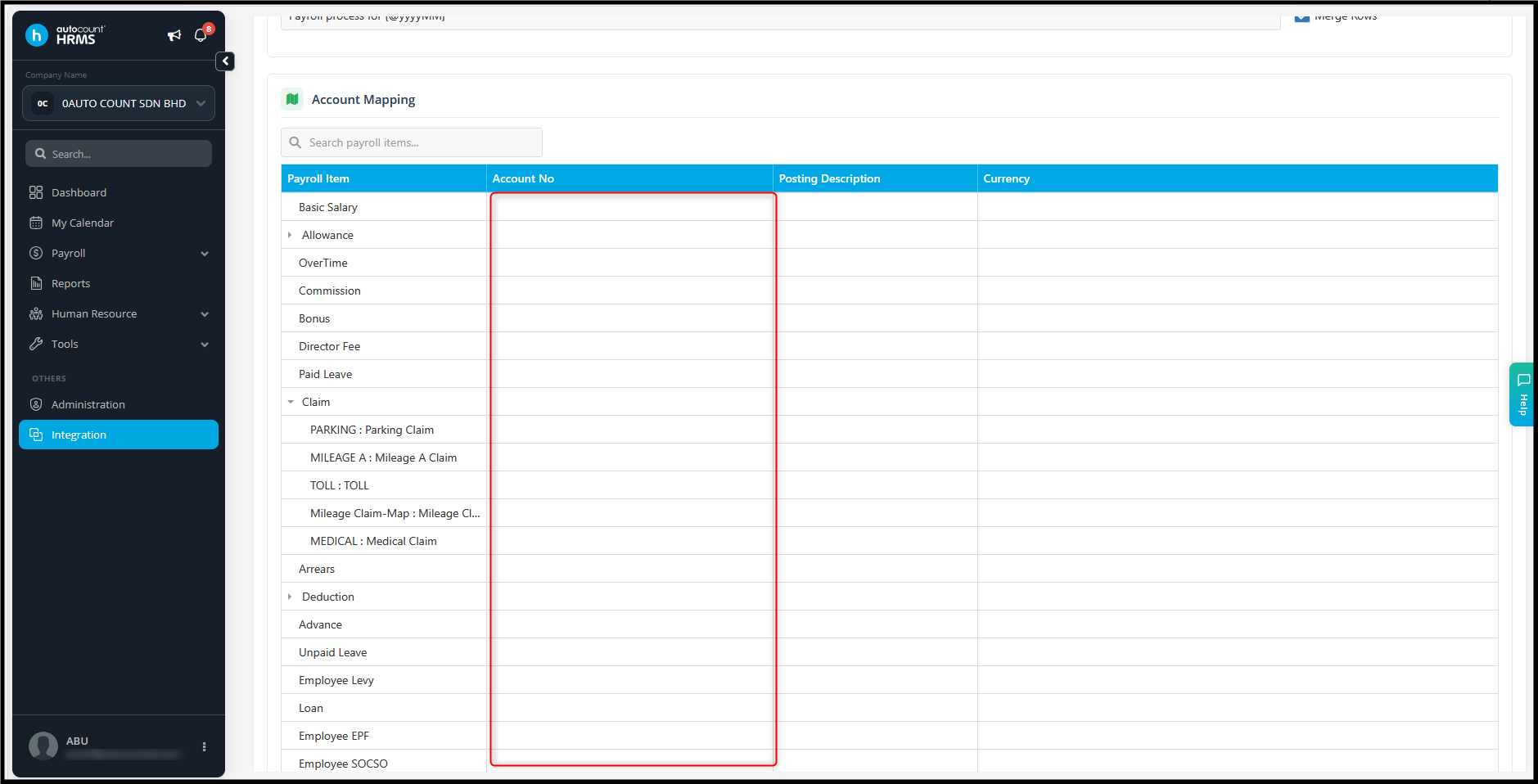
- For payroll items that contain additional details, click the expand icon to view and maintain the additional mapping.
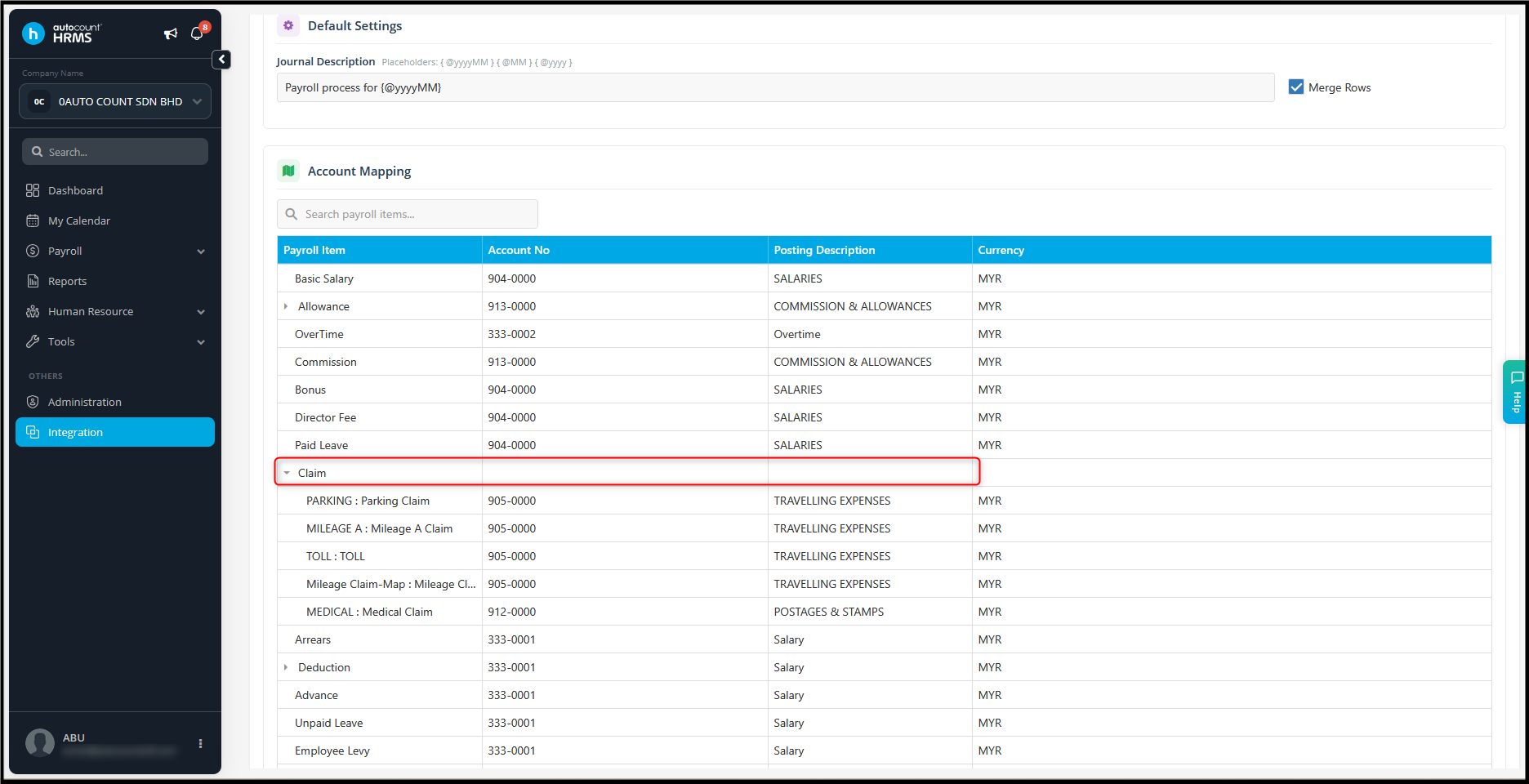
- If the system displays Incomplete mapping, review the accounting mapping and make sure all required fields are selected.
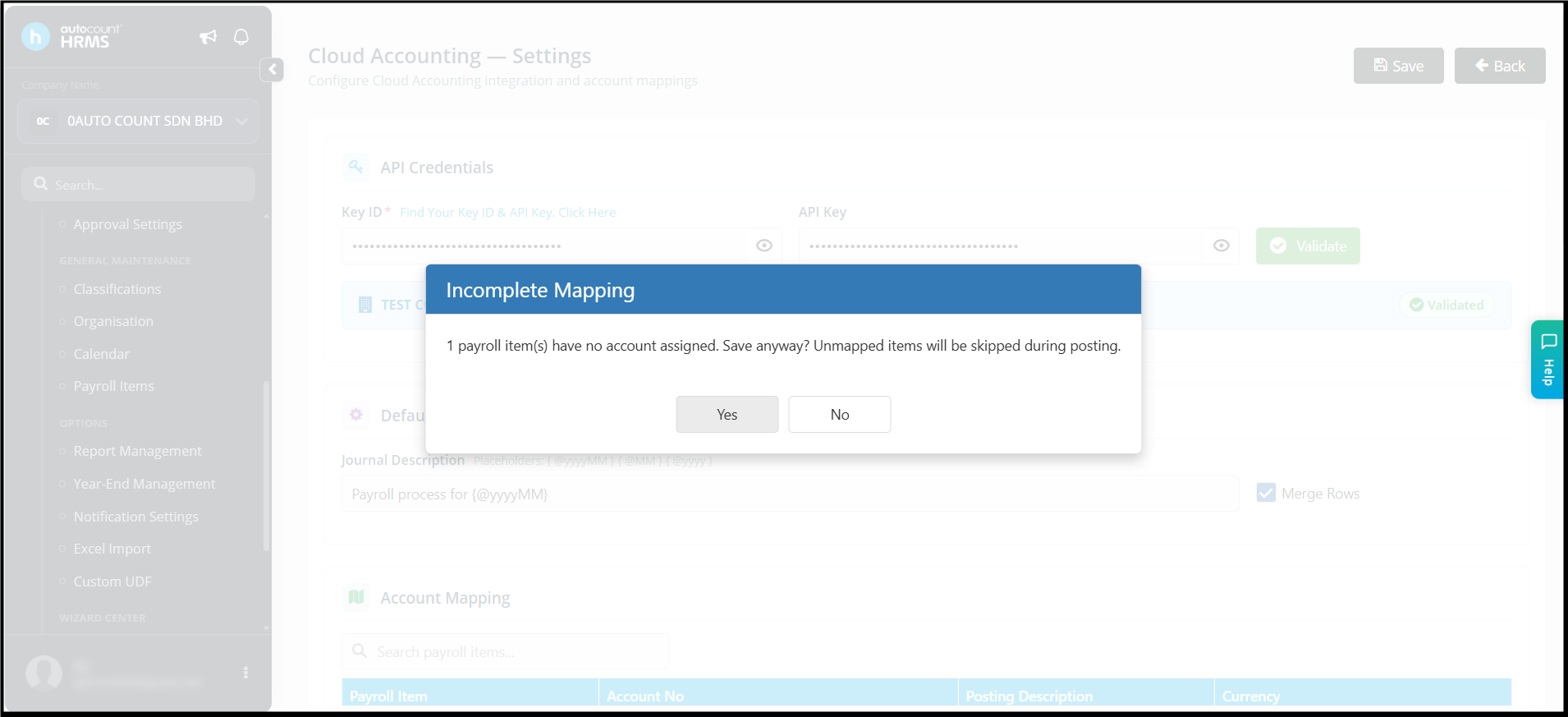
- Click Save once all settings and mappings are completed.
Steps to Post Payroll Journal to Cloud Accounting
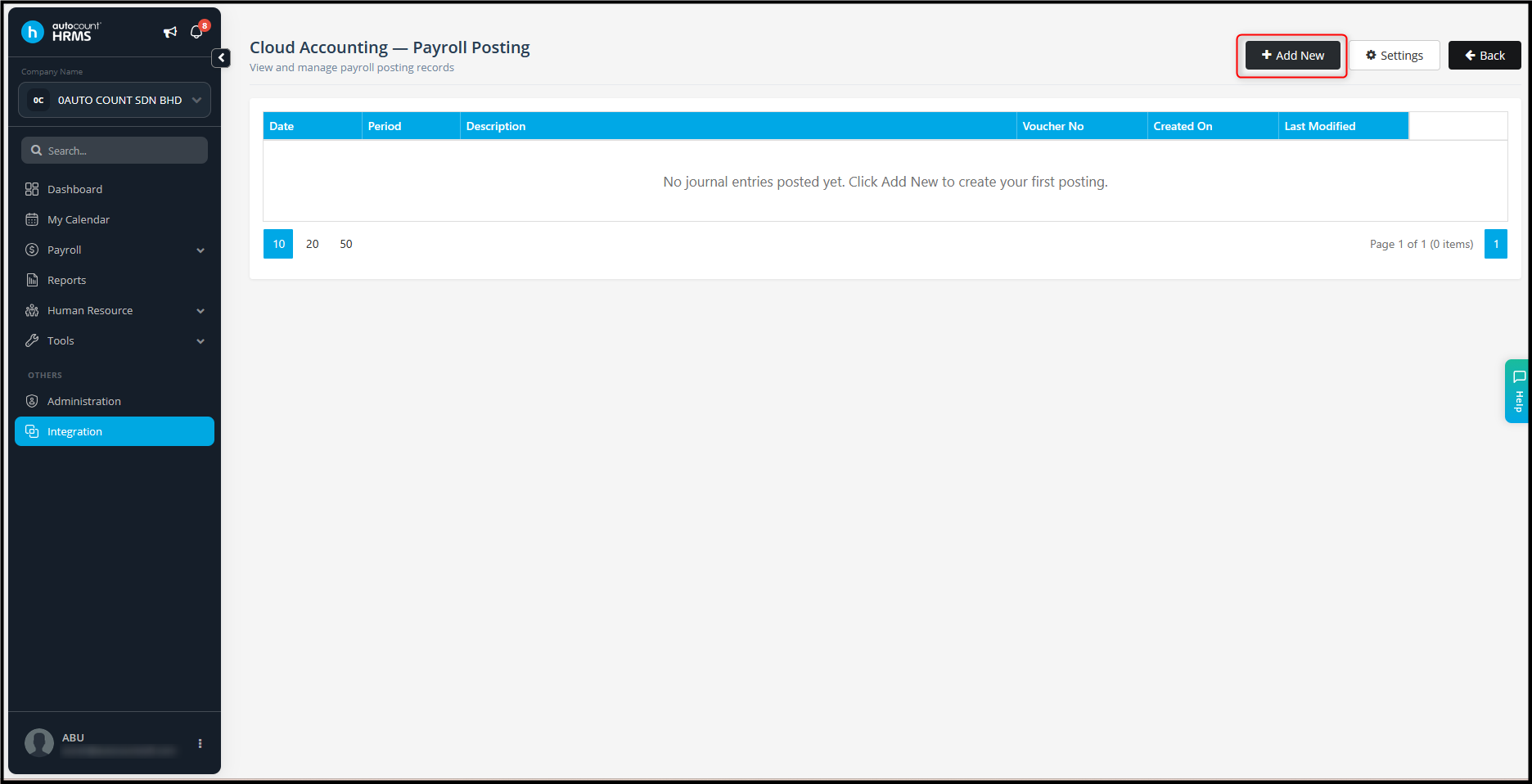
- Go to Integration > Cloud Accounting.
- Click Add New.
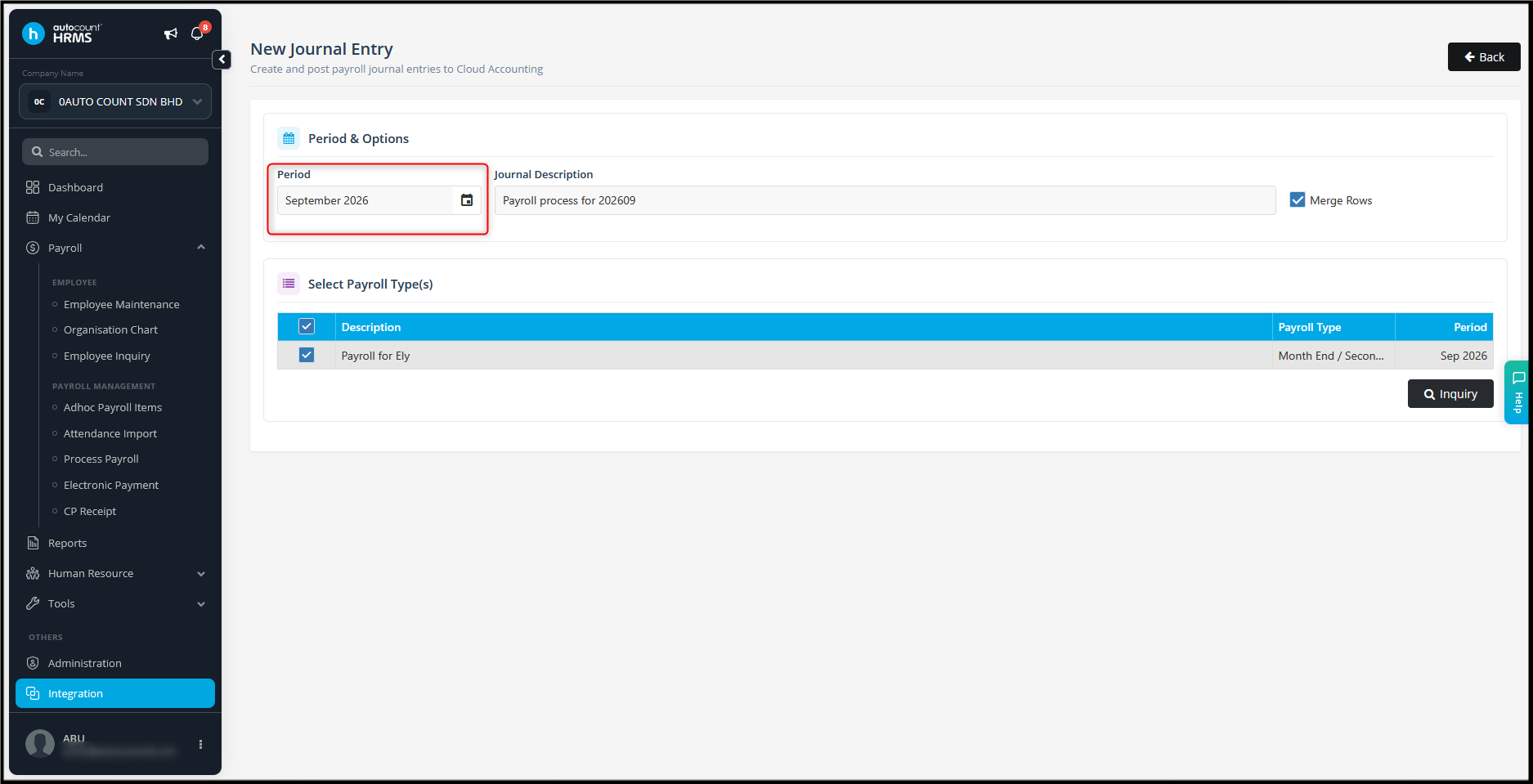
- Select the required Period.
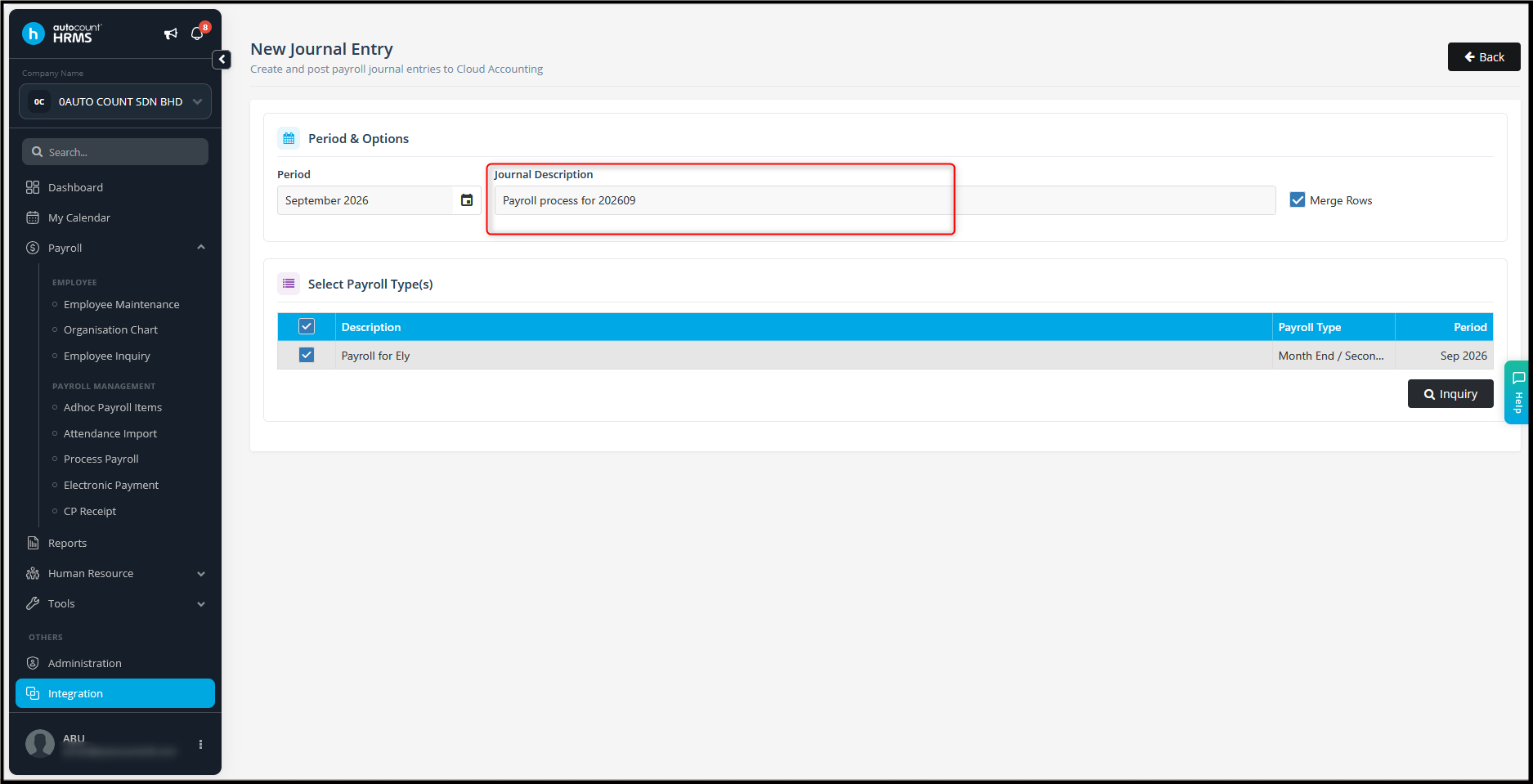
- The Journal Description will be displayed according to the format configured in the Integration Settings.
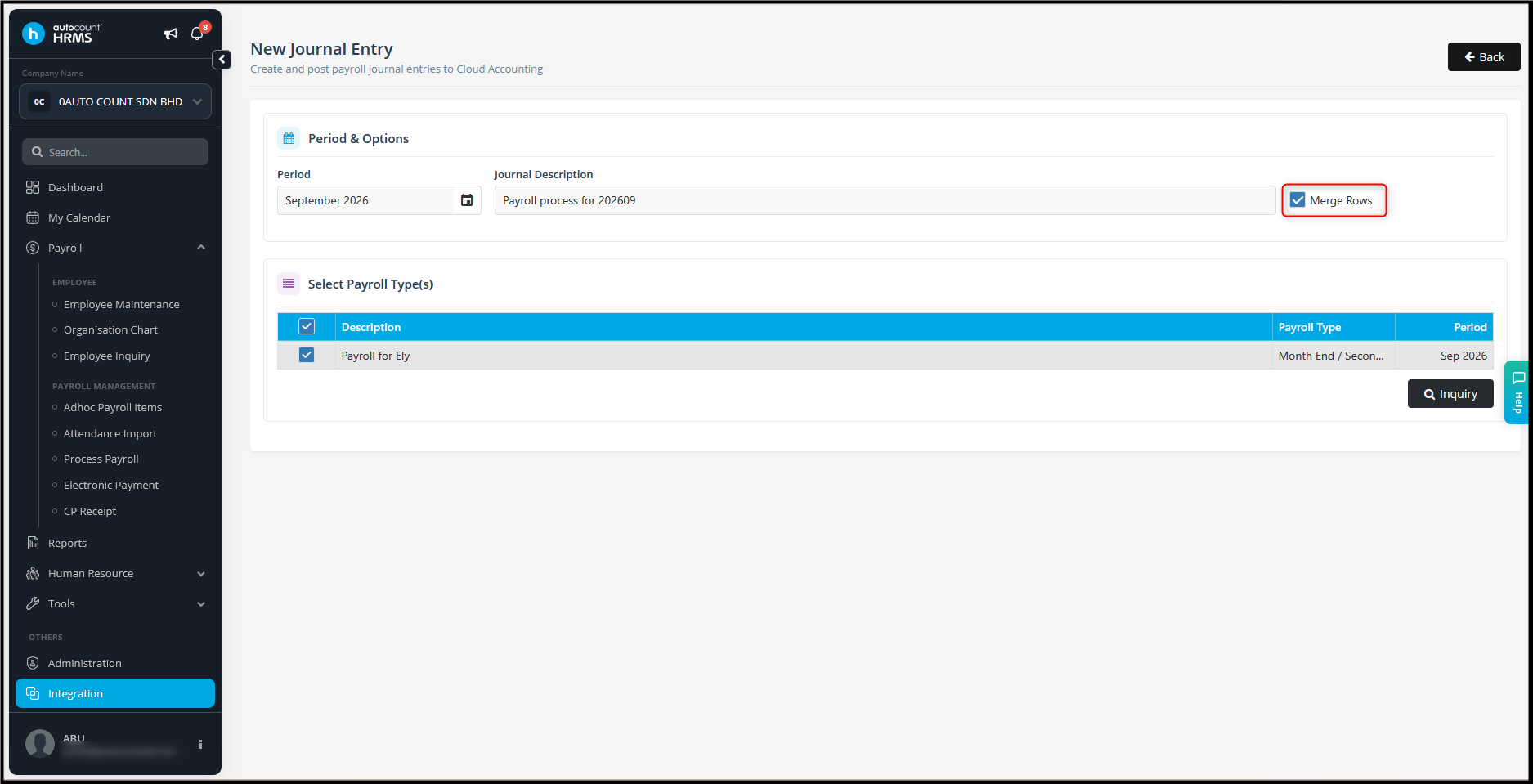
- Select Merge Rows if you want to merge transactions with the same account number.
- Select the required Payroll Type.
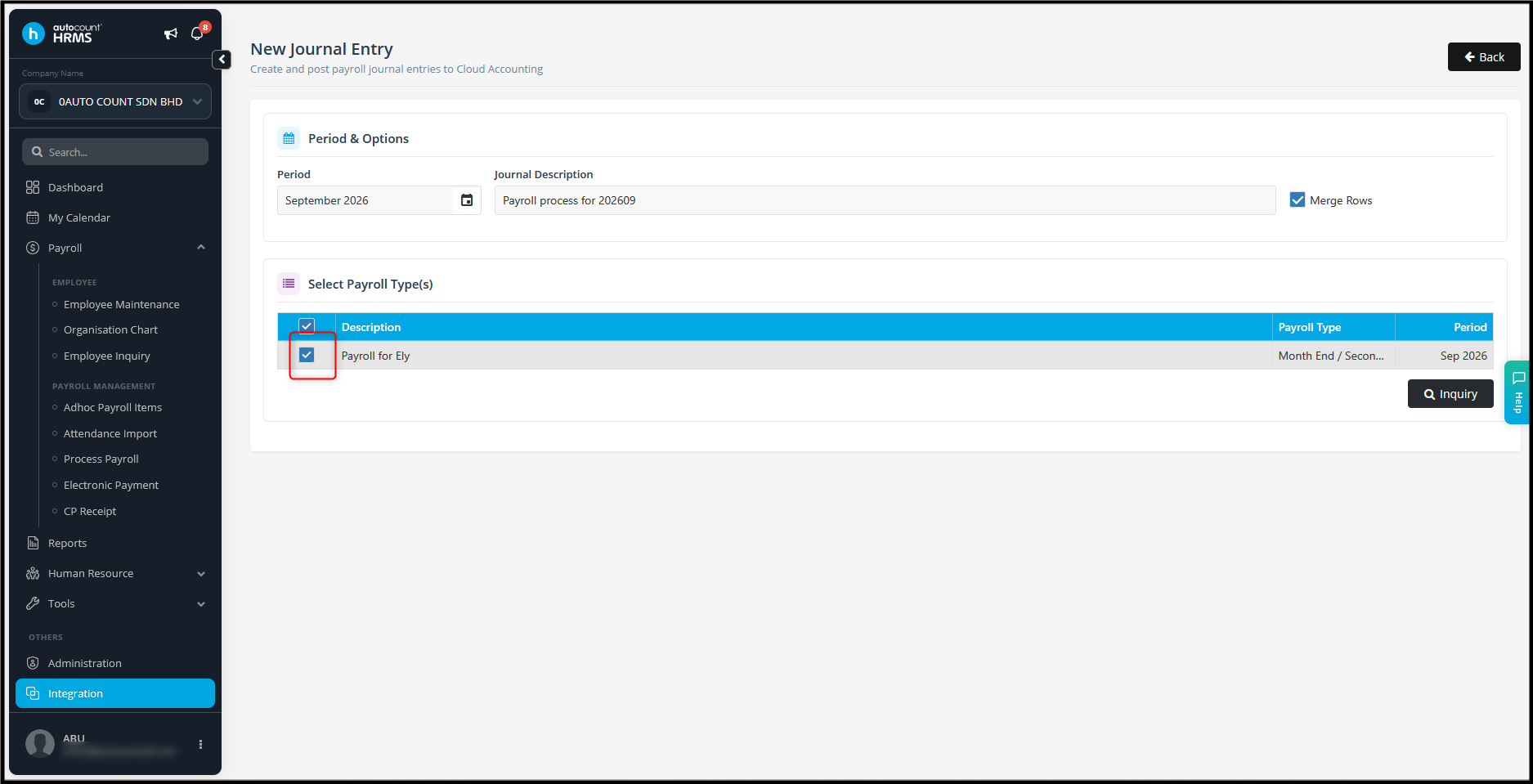
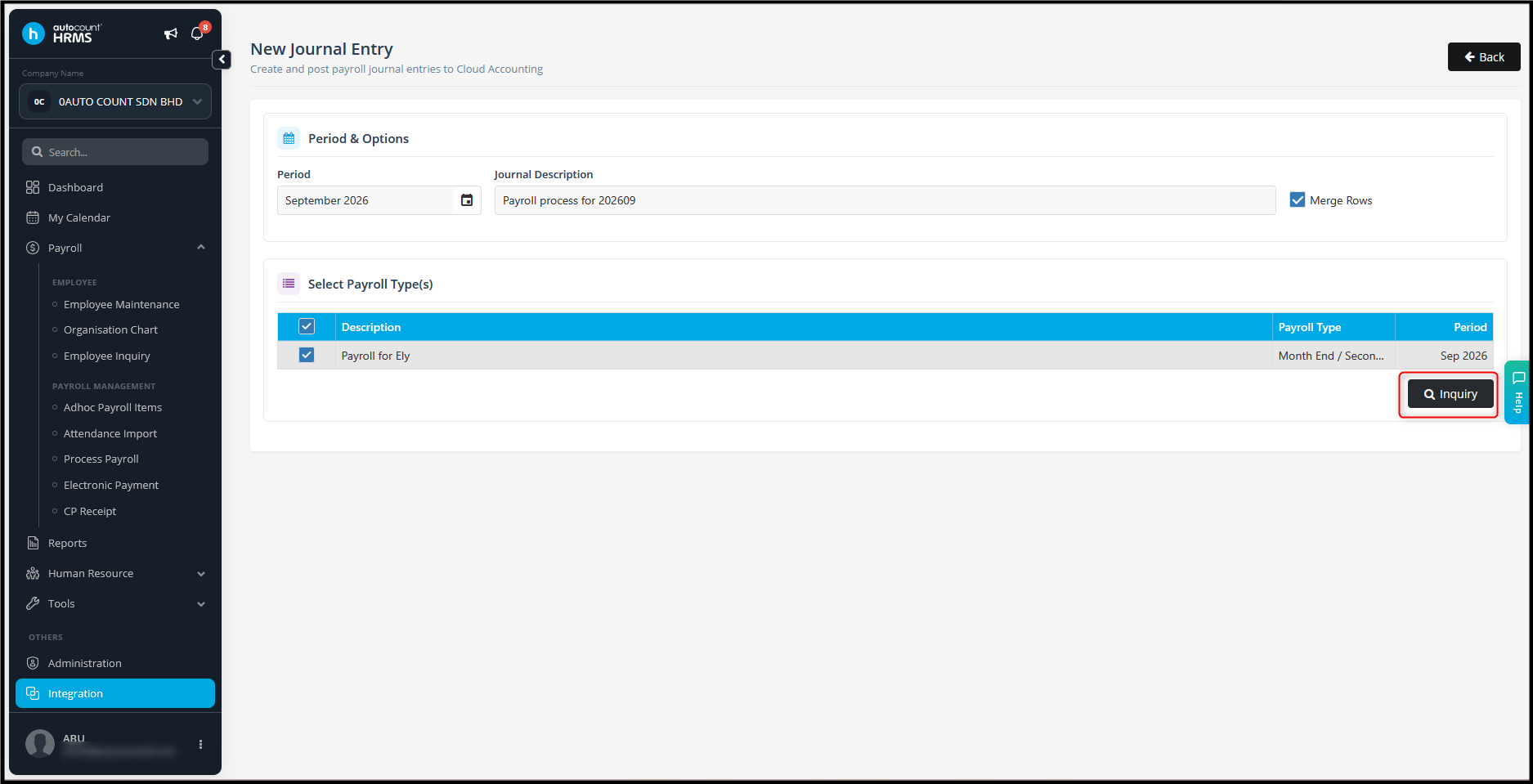
Only committed payroll processes will be available for selection. - Click Inquiry.
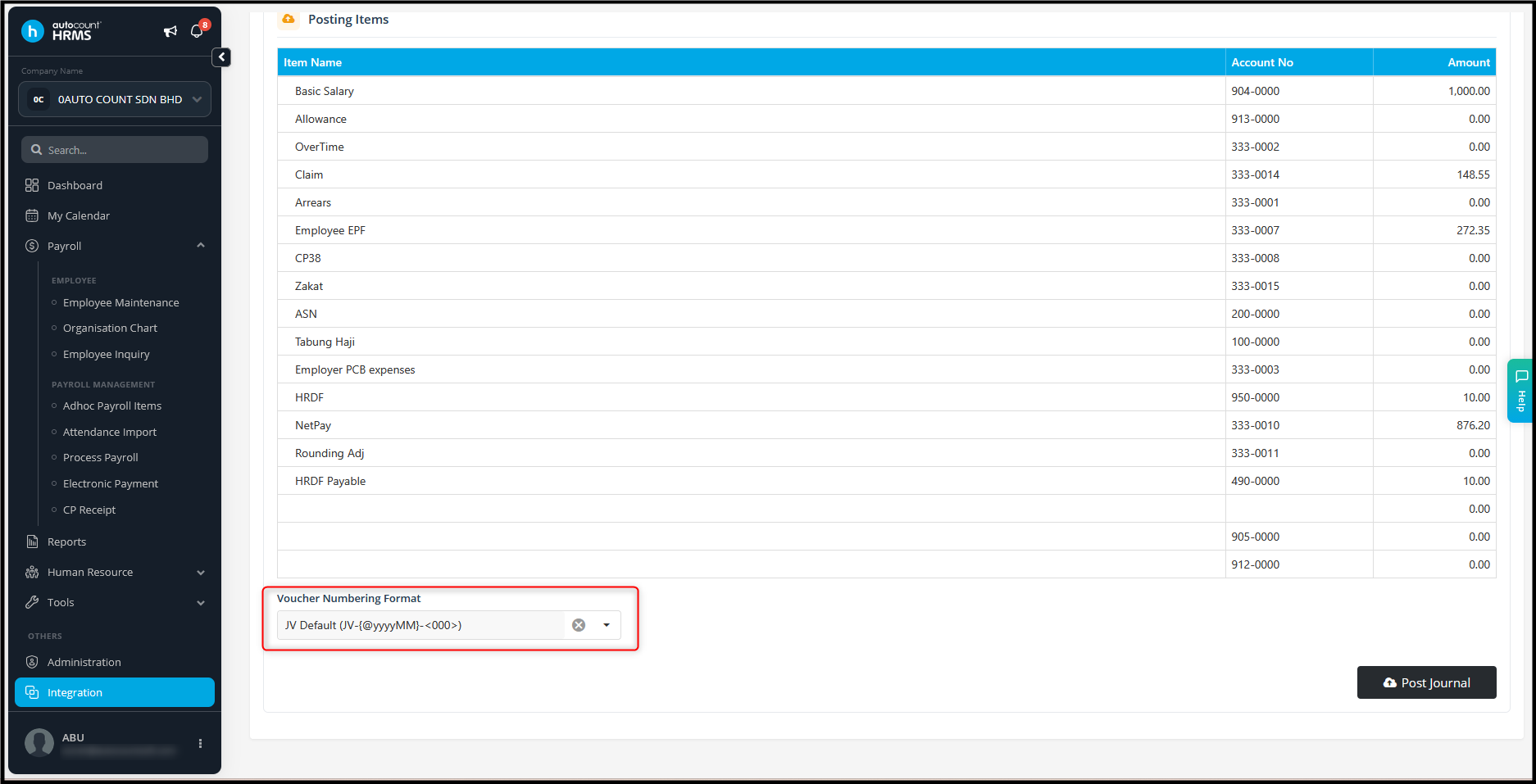
- Review the payroll journal details.
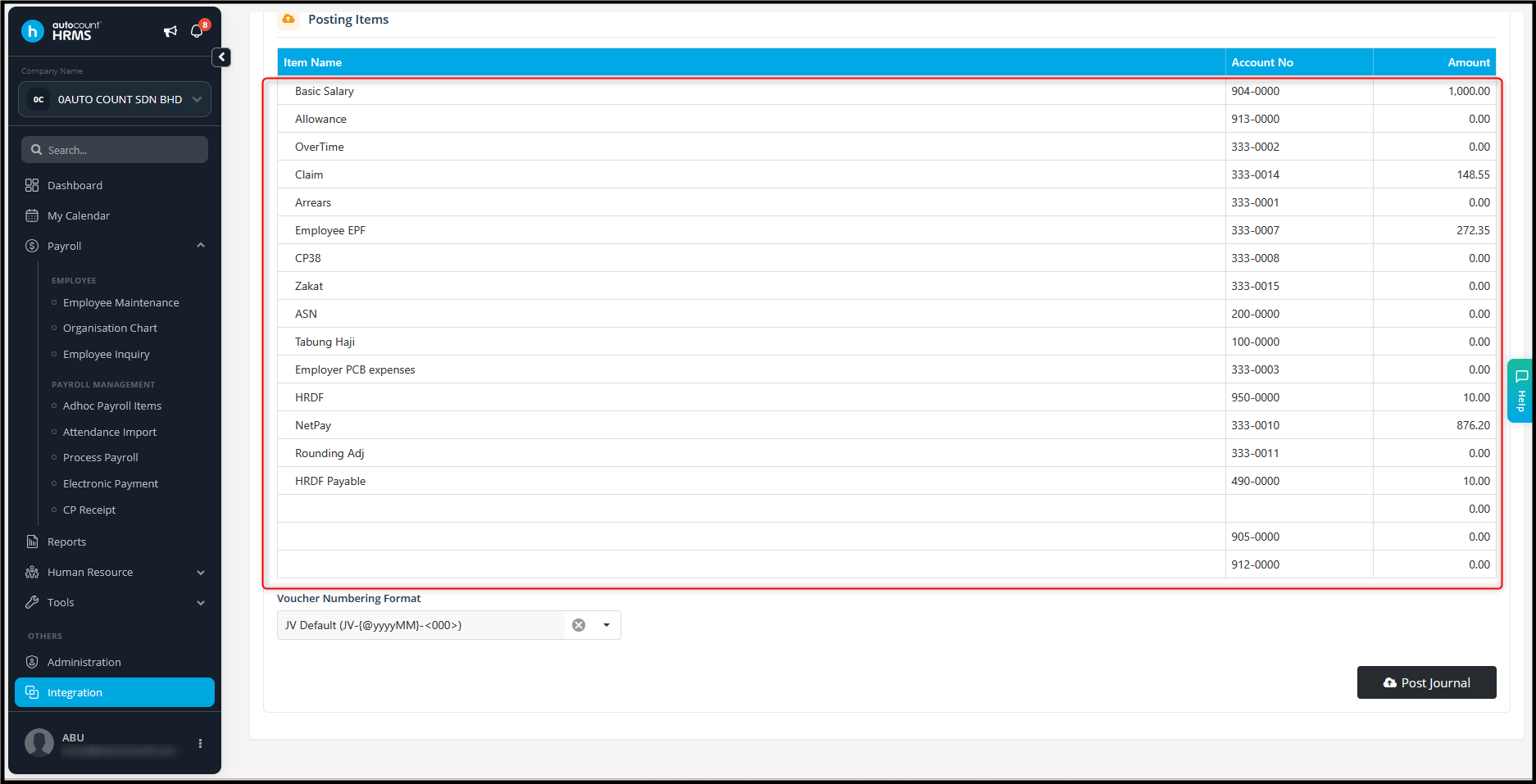
- Maintain the Voucher Numbering Format.
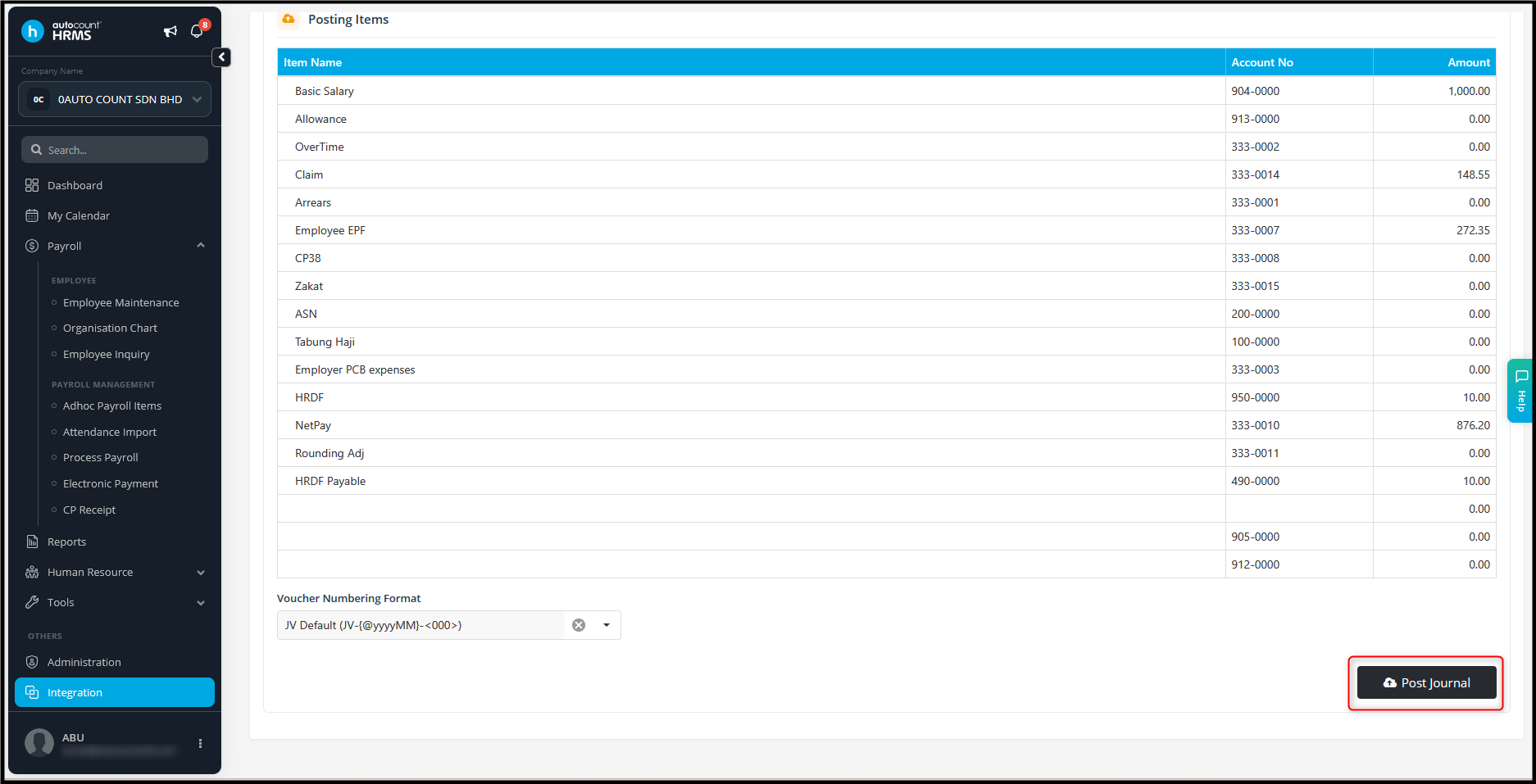
- Click Post Journal.
- The system will display a confirmation message when the journal is posted successfully.
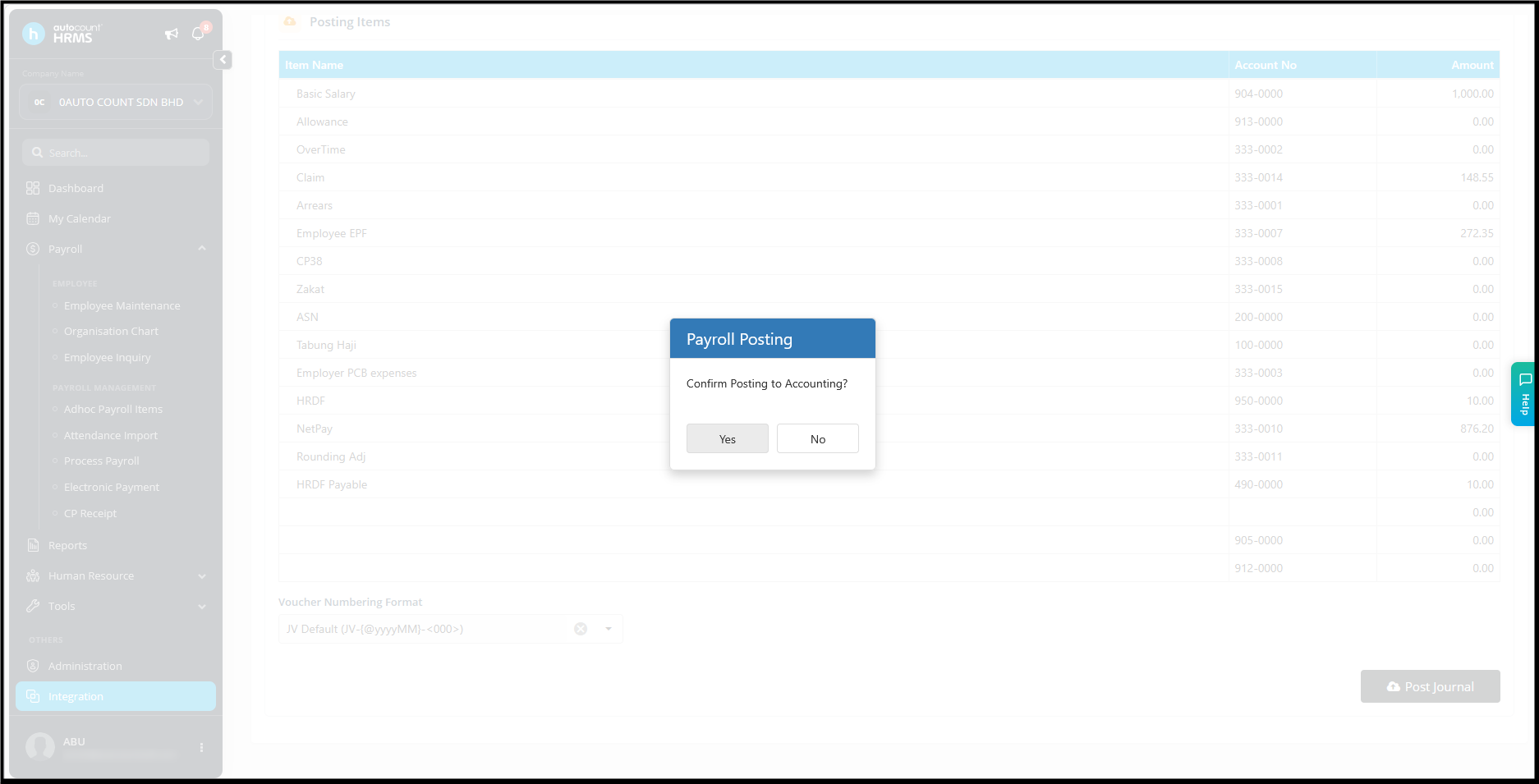
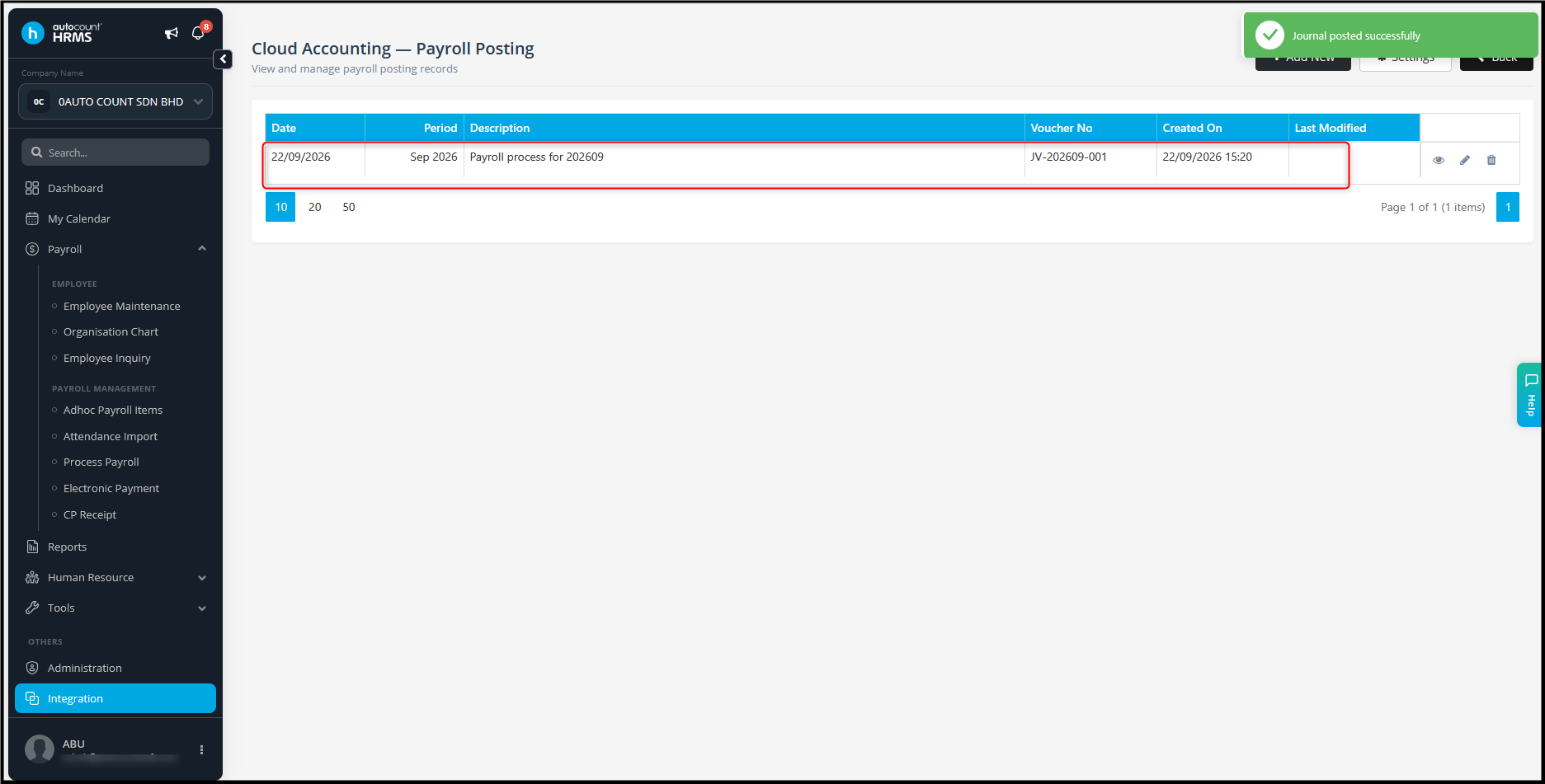
- Click Yes and the Journal will be created successfully.
Steps to View Posted Journal in Cloud Accounting
- Log in to AutoCount Cloud Accounting.
- Go to Accounting > Journal Entry.
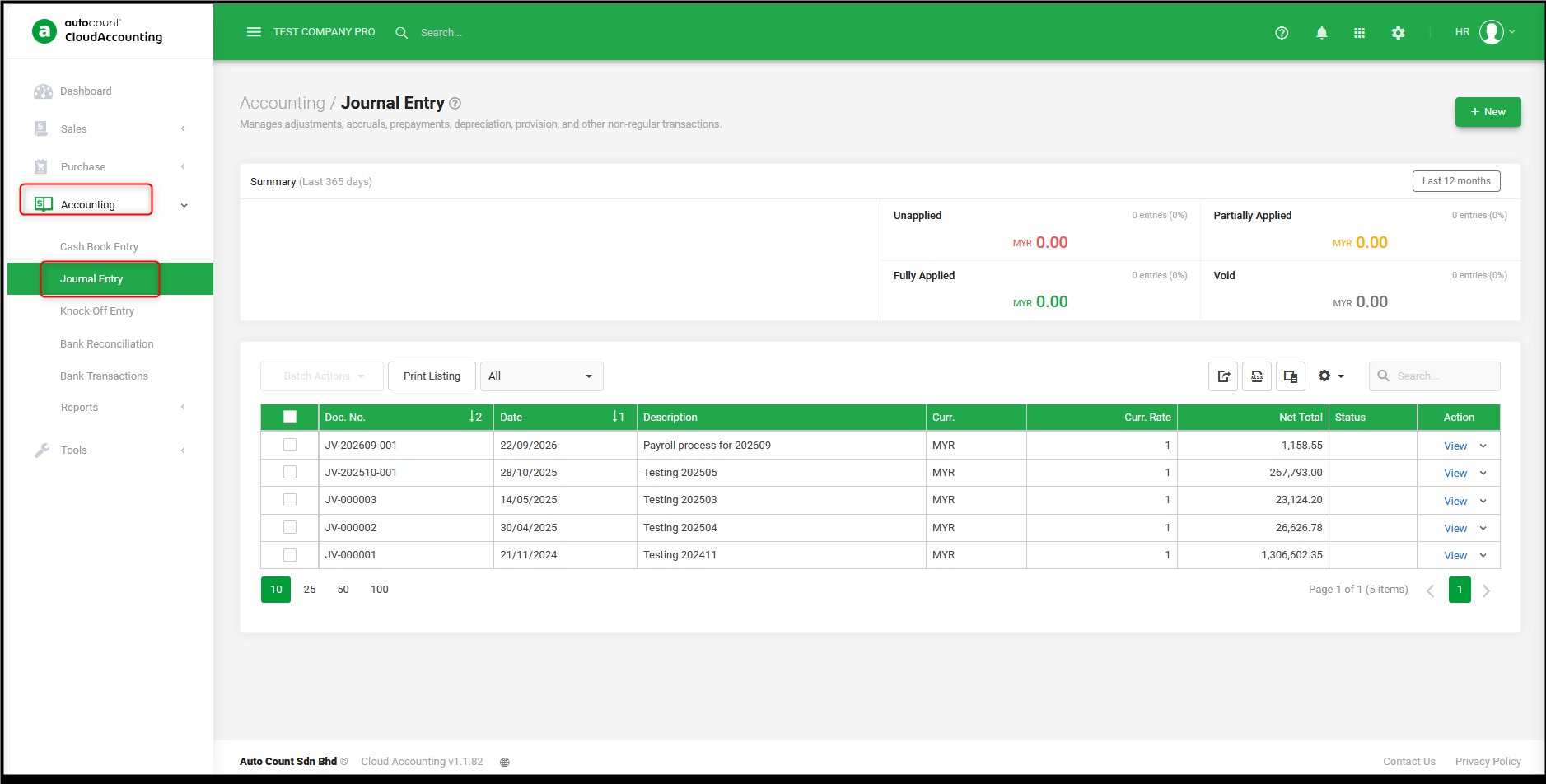
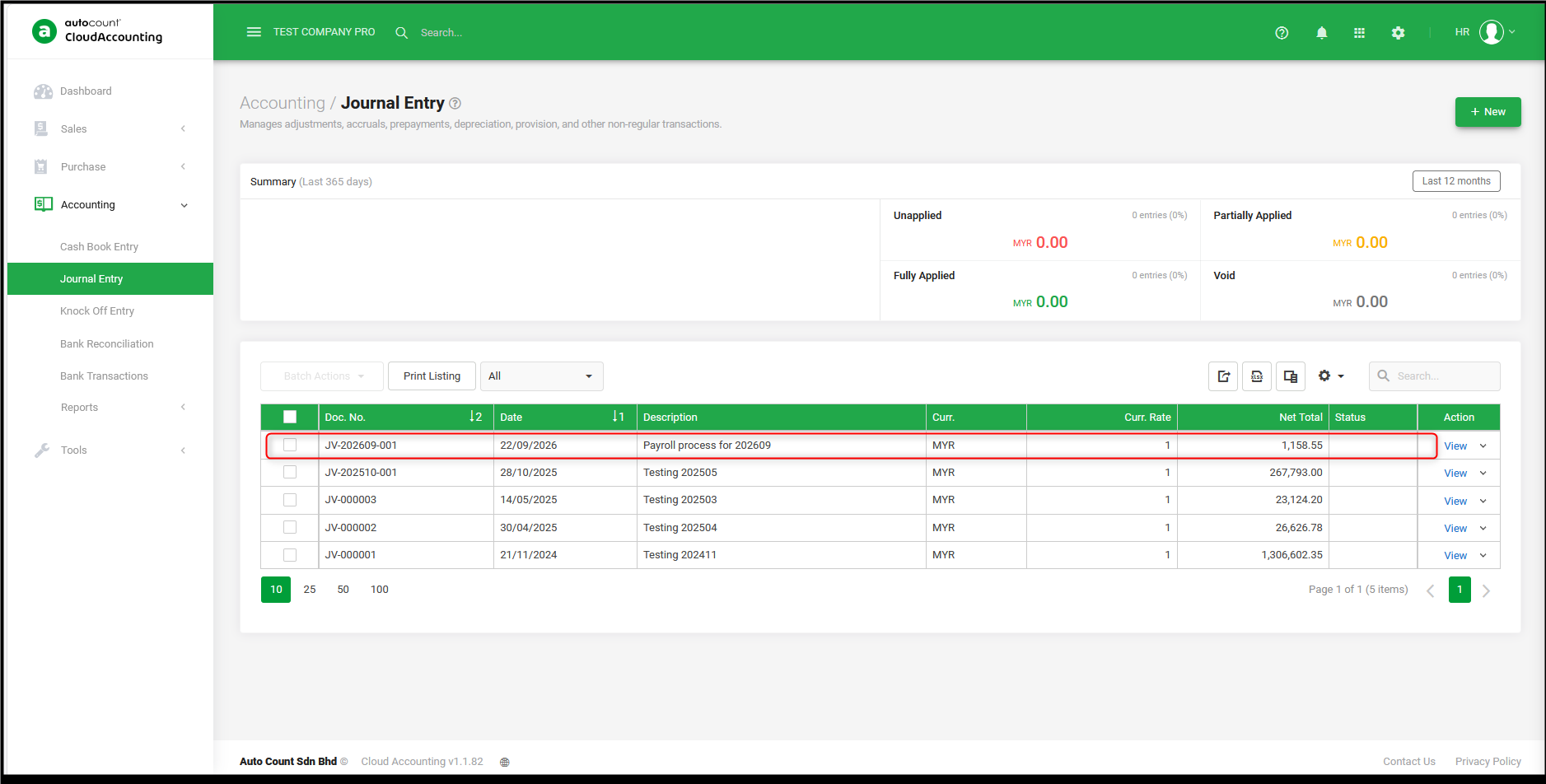
- Locate the posted payroll journal.
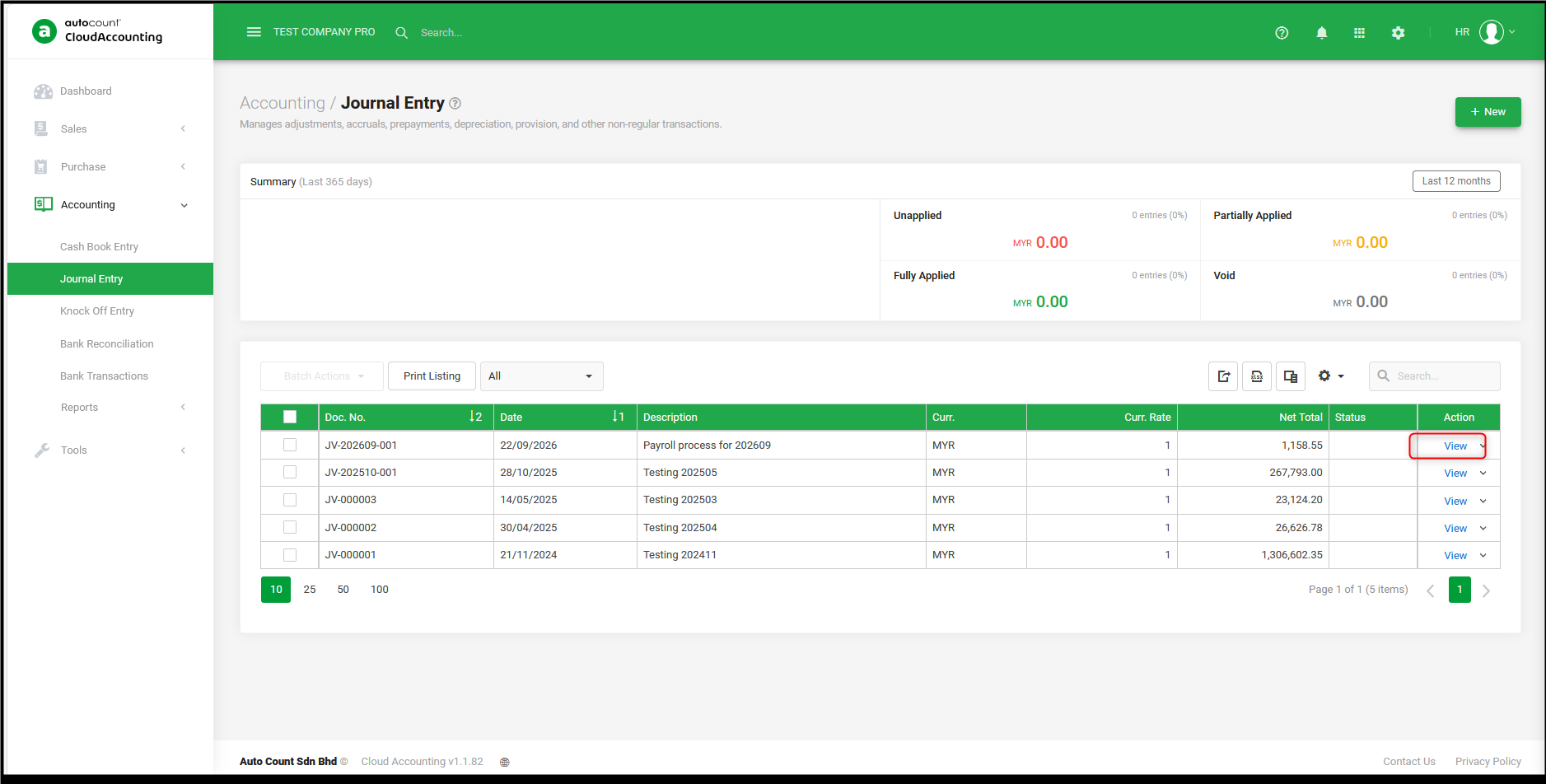
- Click View to view the journal details.
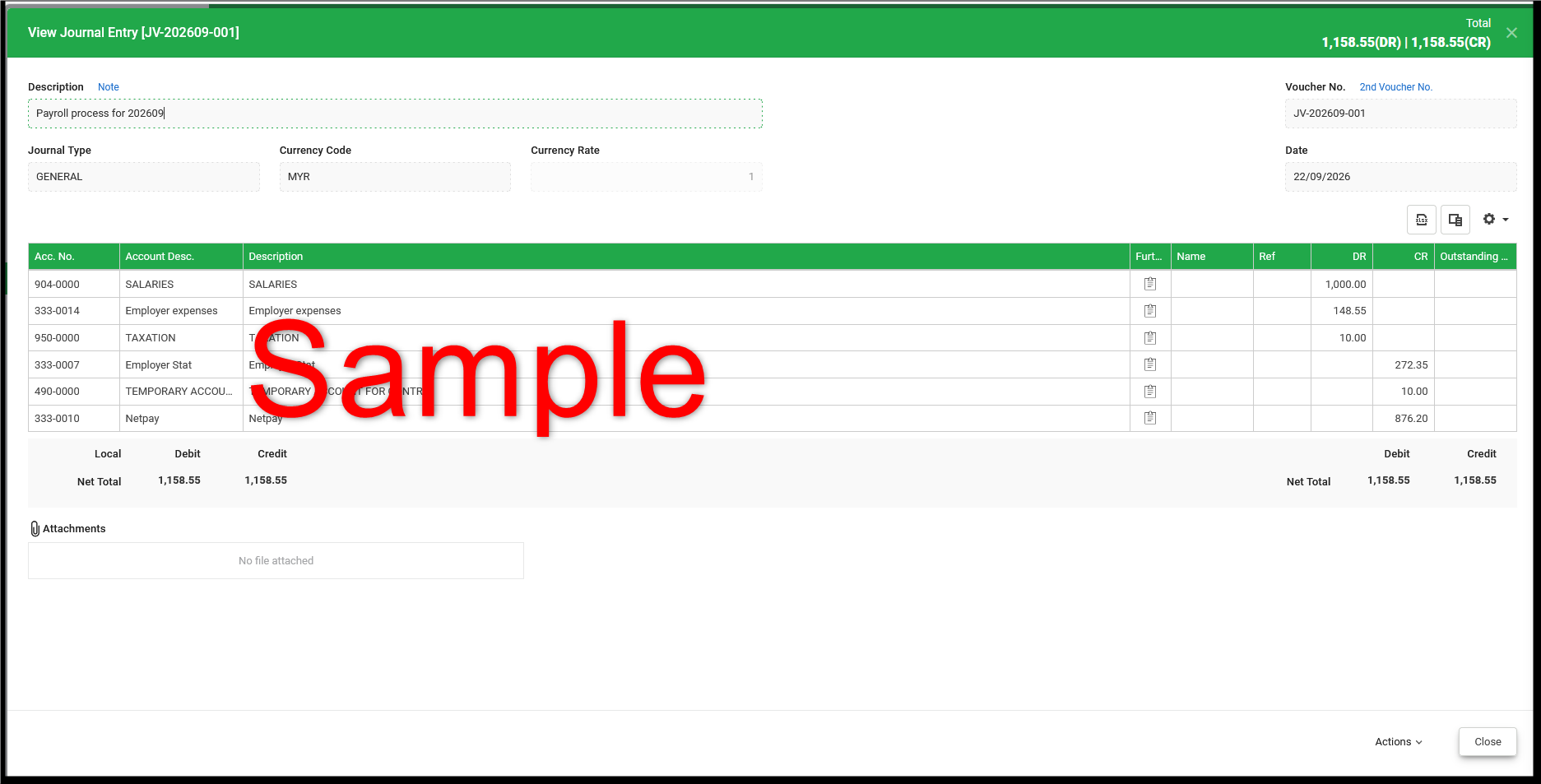
- Sample of the journal entry posted to cloud accounting.
By Azirah 261009