
Users can post payroll journals from AutoCount HRMS to an on-premise AutoCount Accounting system through API integration.
Steps to Configure API Maintenance:
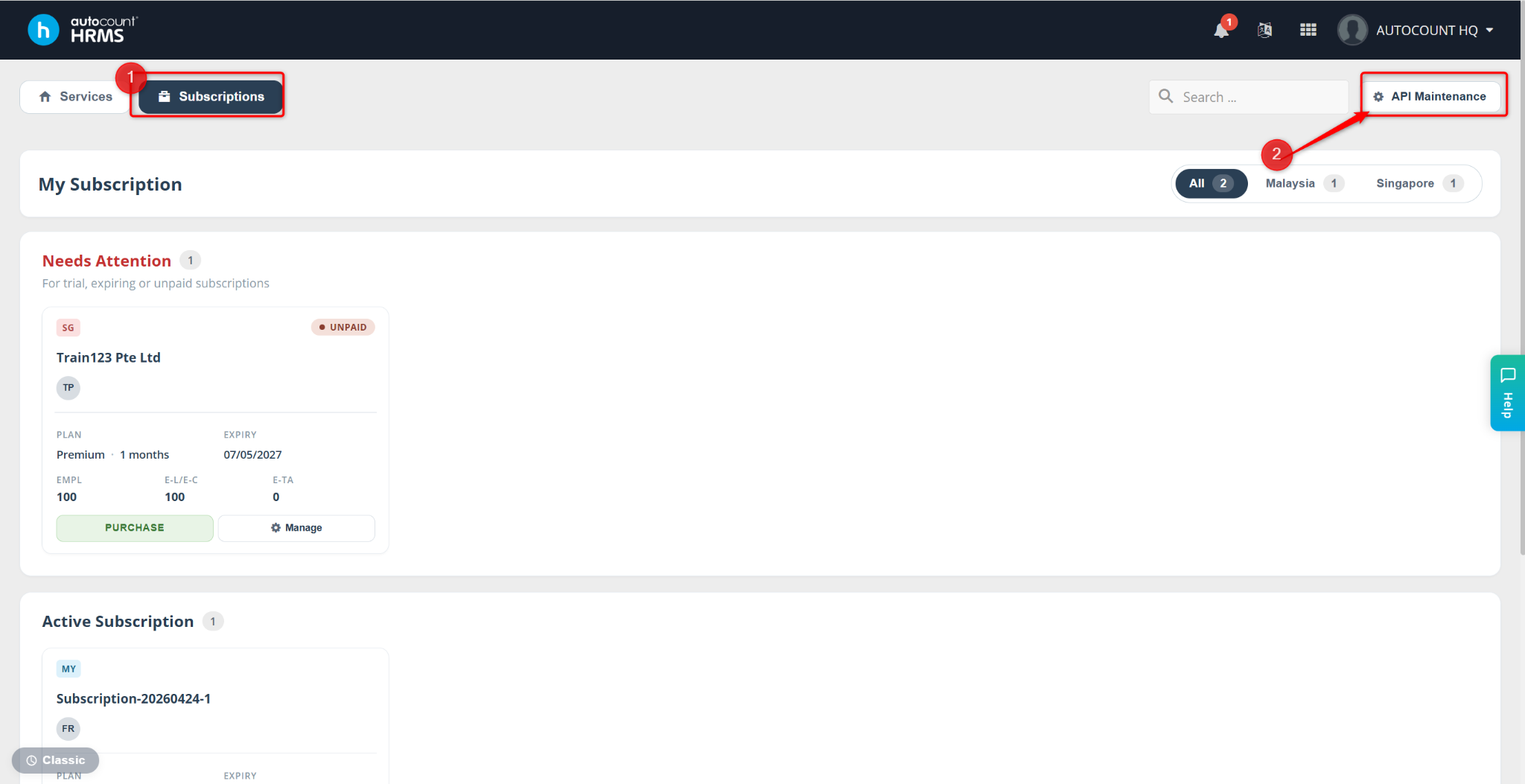
Go to Subscriptions > API Maintenance.
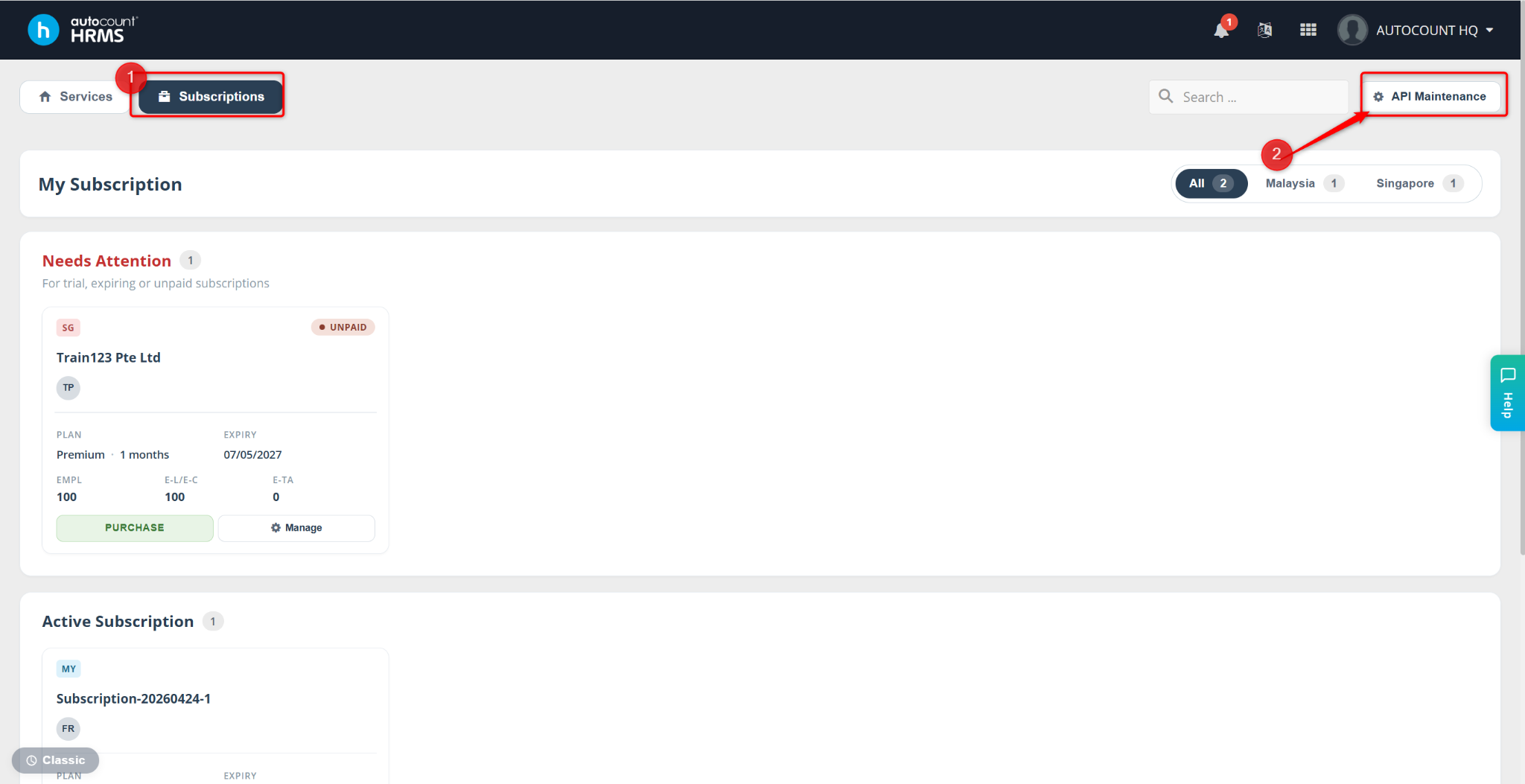
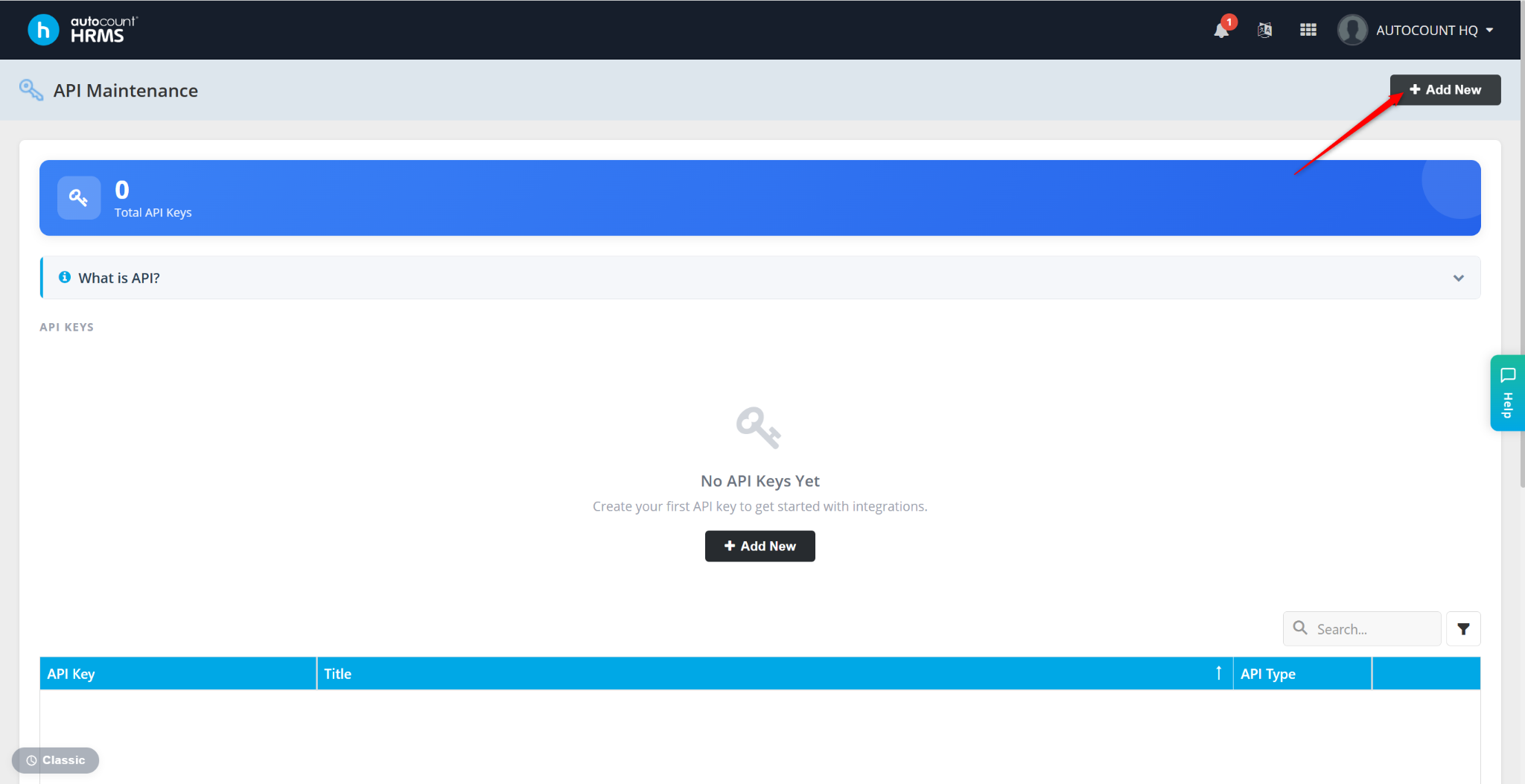
Click Add New.
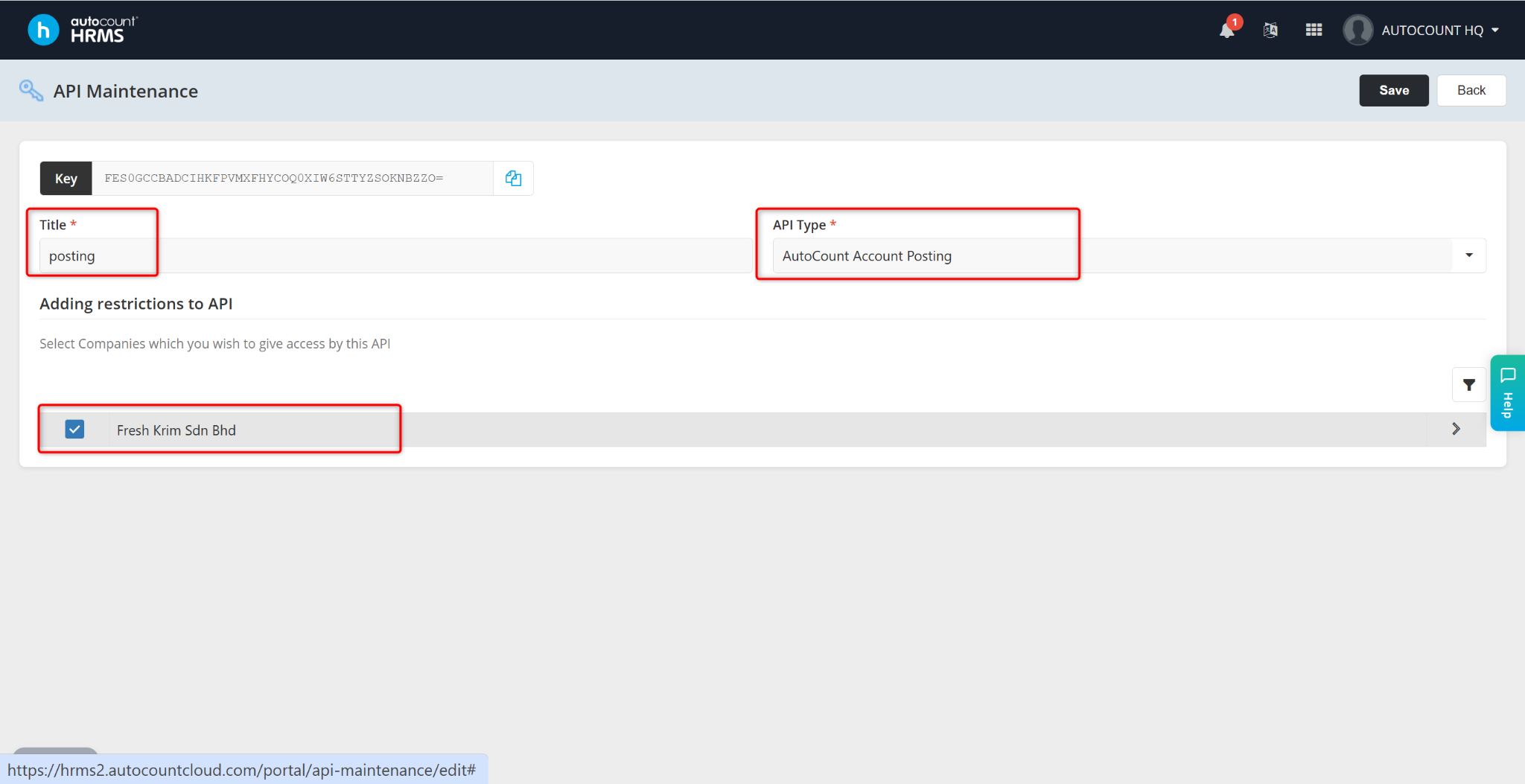
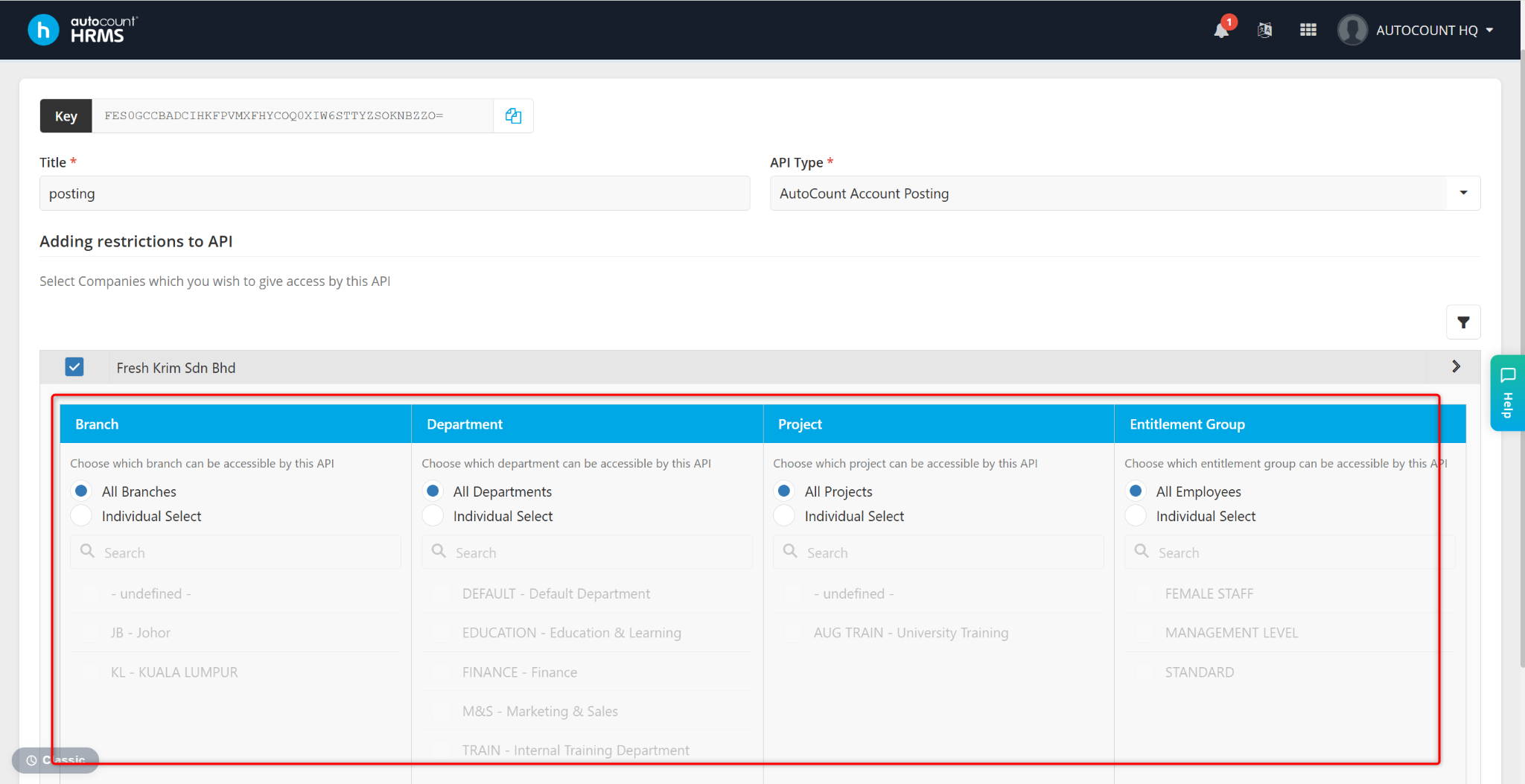
Enter the required information:
Title
API Type
Company
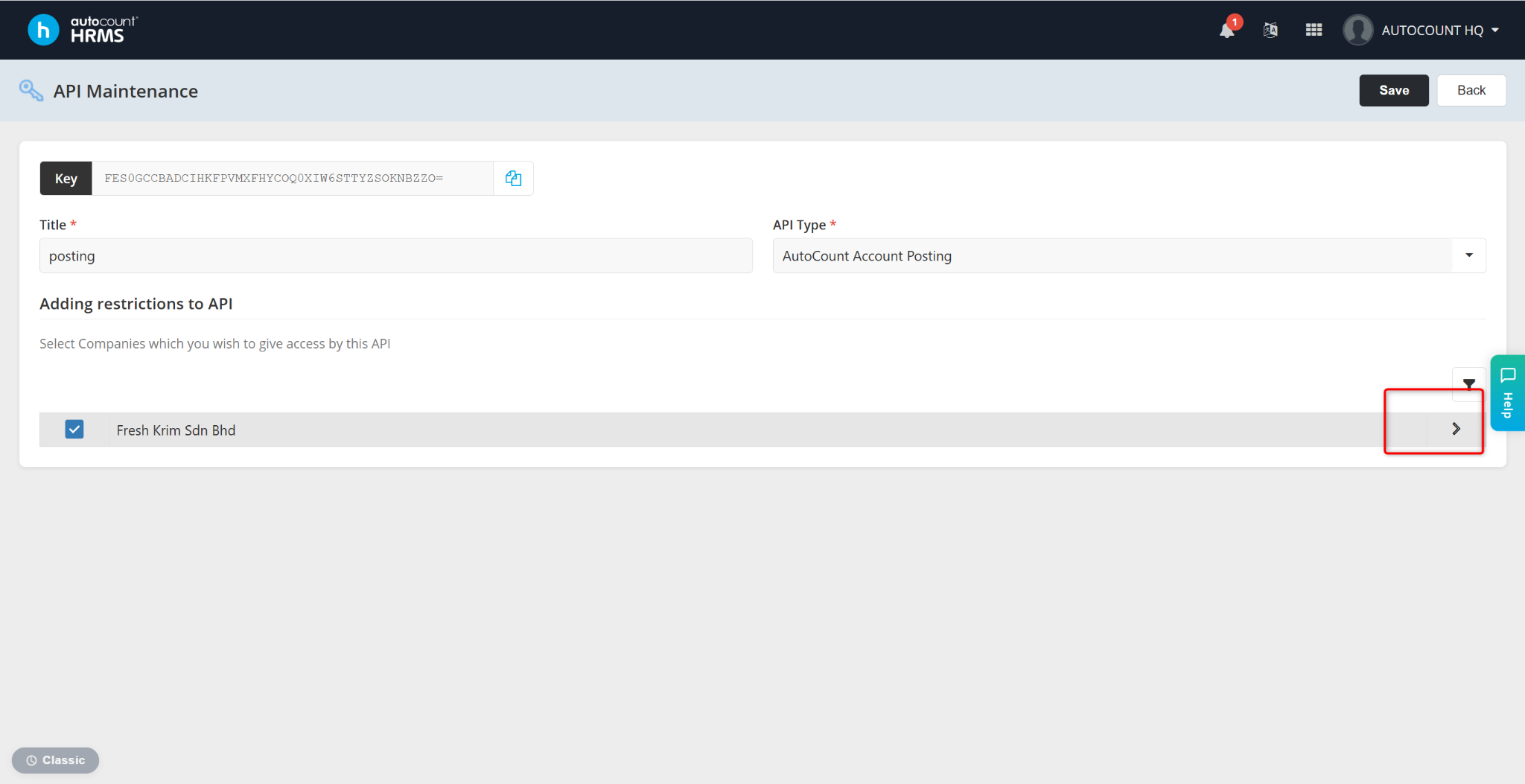
Under Posting Options, click the dropdown arrow to view the available options.
Select the posting method (optional):
Branch
Department
Project
Entitlement Group
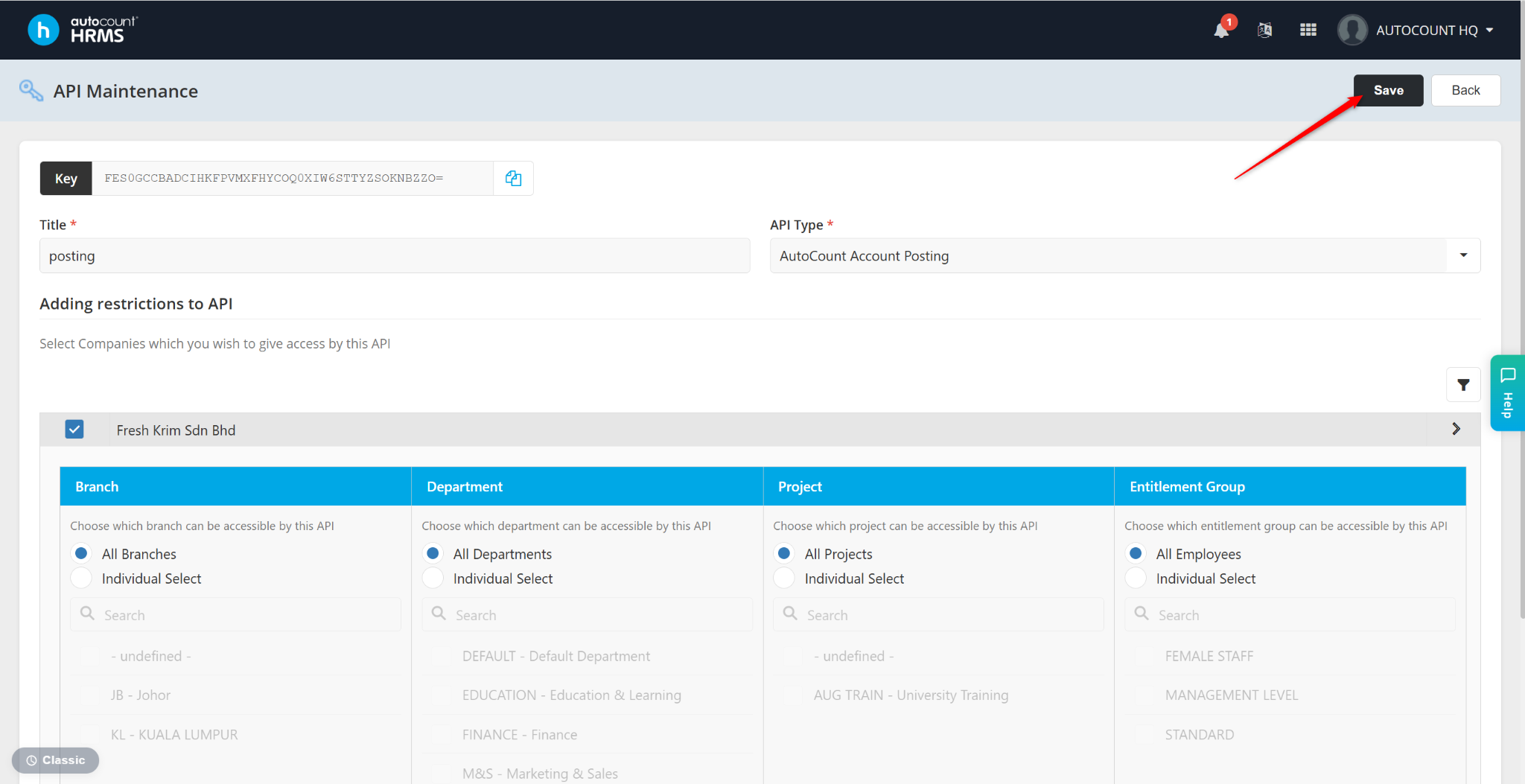
Click Save.
Steps to Download Plugin:
Go to the HRMS Services page.
Click API Maintenance.
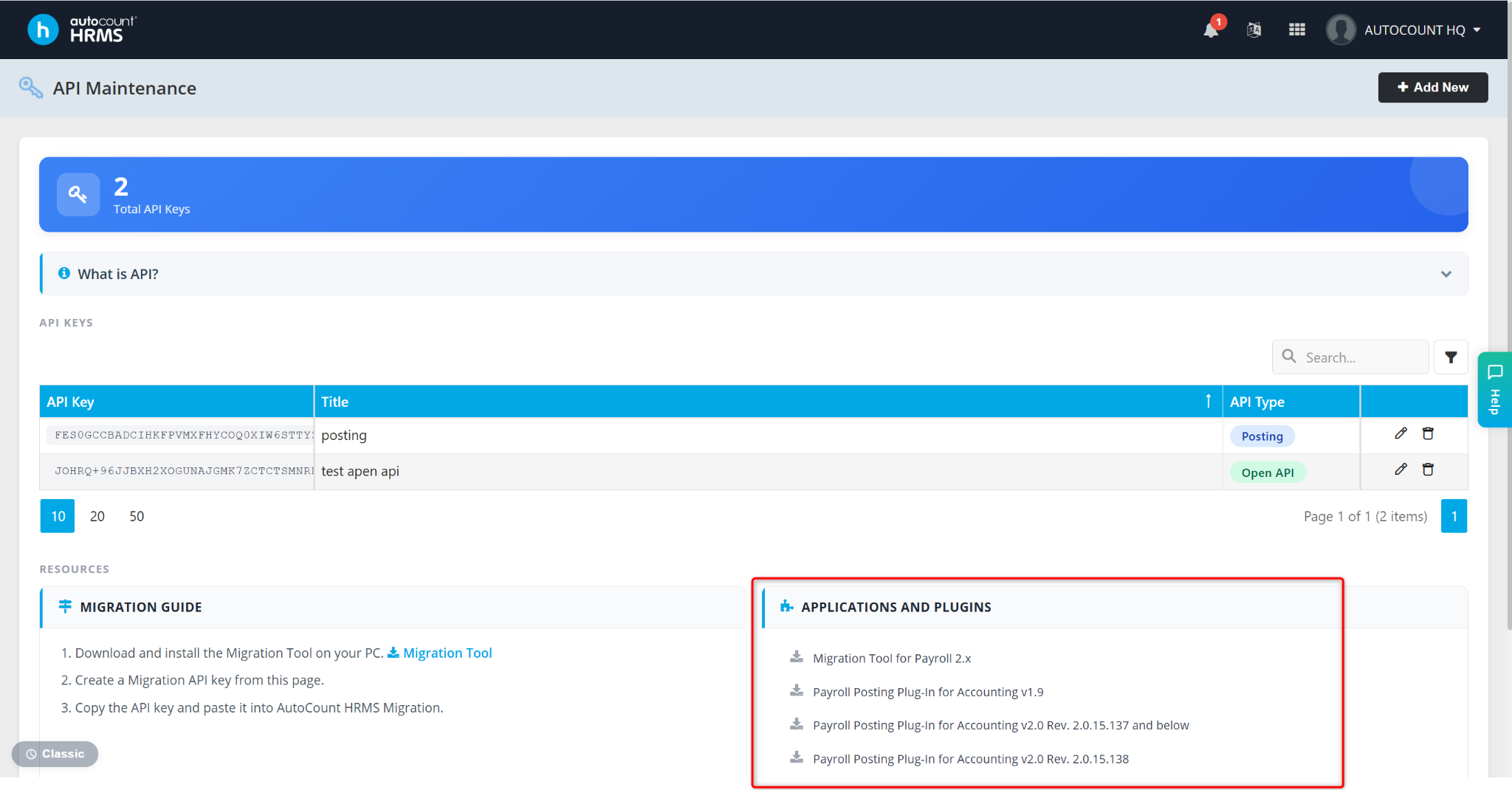
Click to download the required plug-in. Select the your AutoCount Accounting version (e.g., AutoCount Accounting V2)
Steps to Install Plugin at AutoCount Accounting:
Login to AutoCount Accounting.
Go to Tools > Plugin Manager.
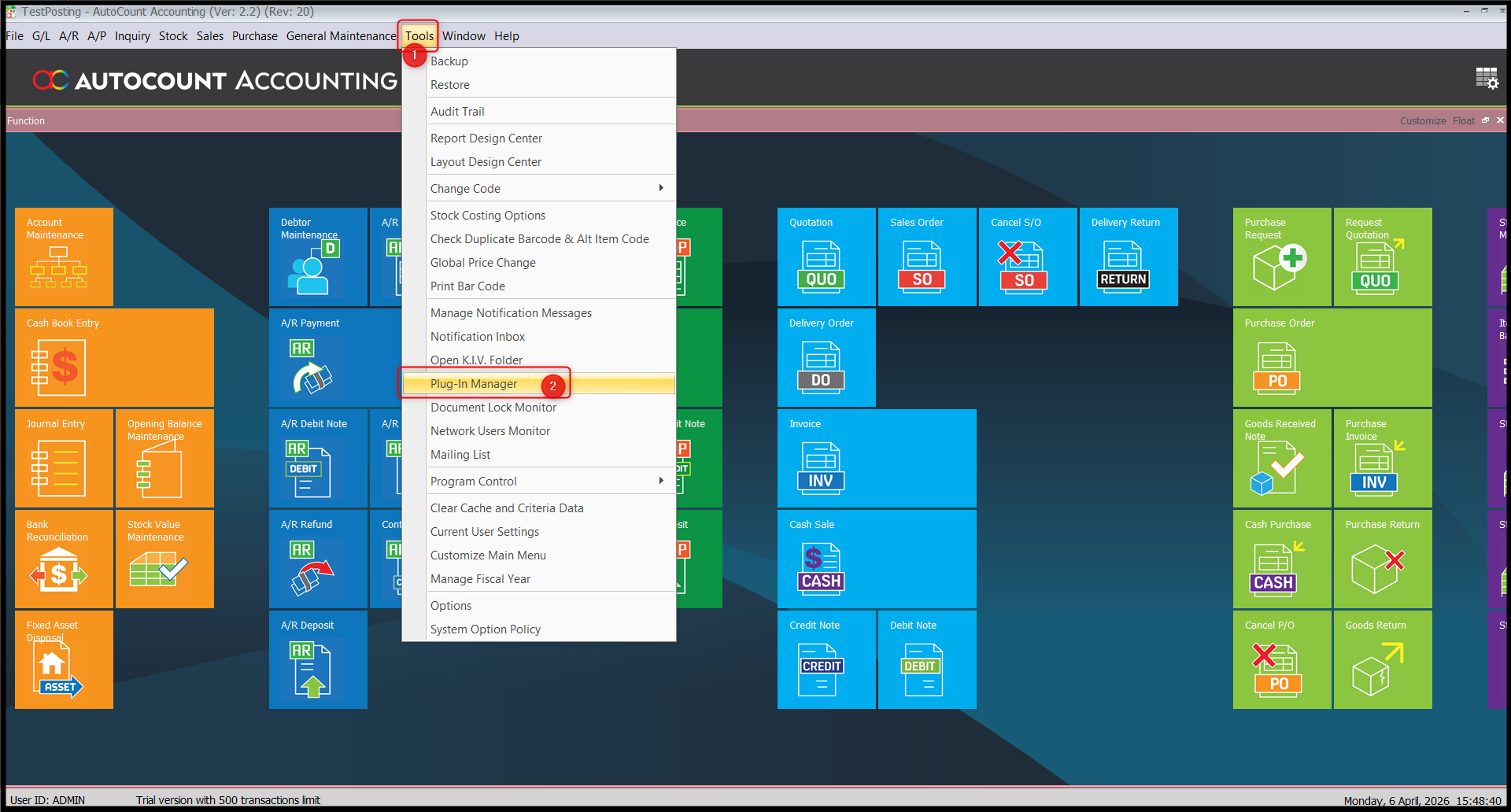
Click Install.
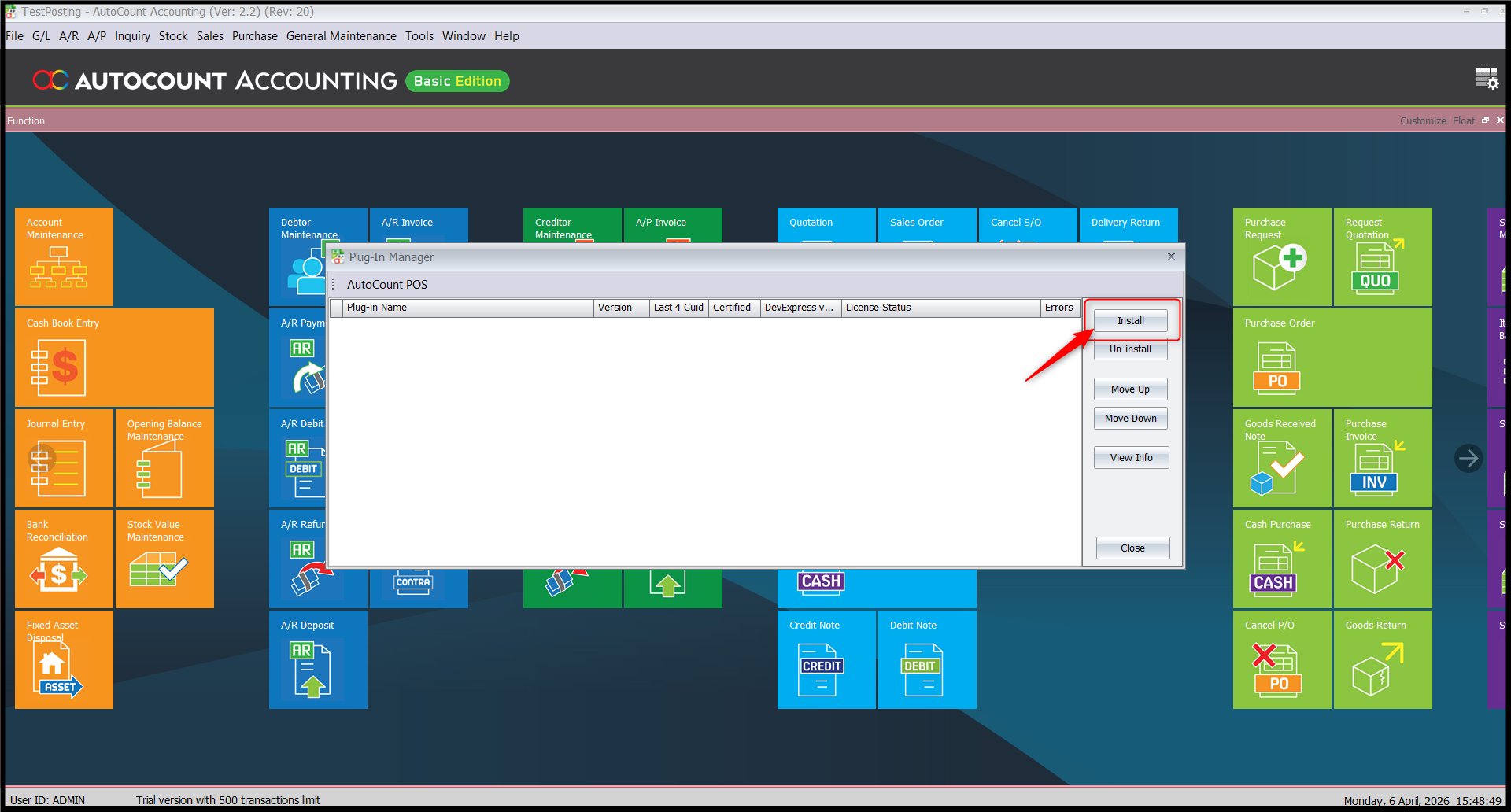
Select the downloaded plugin file and click Open.
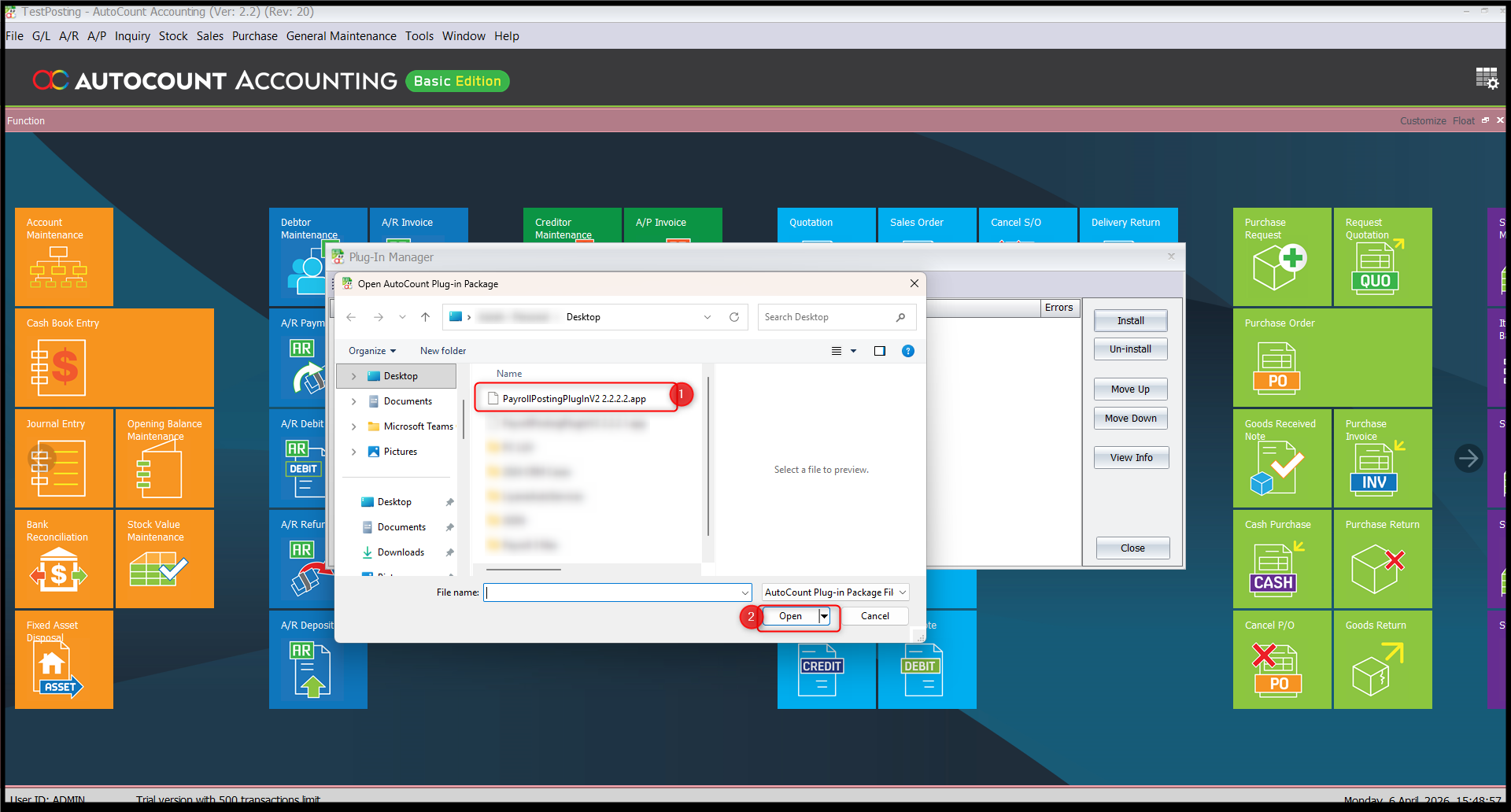
Click Install.
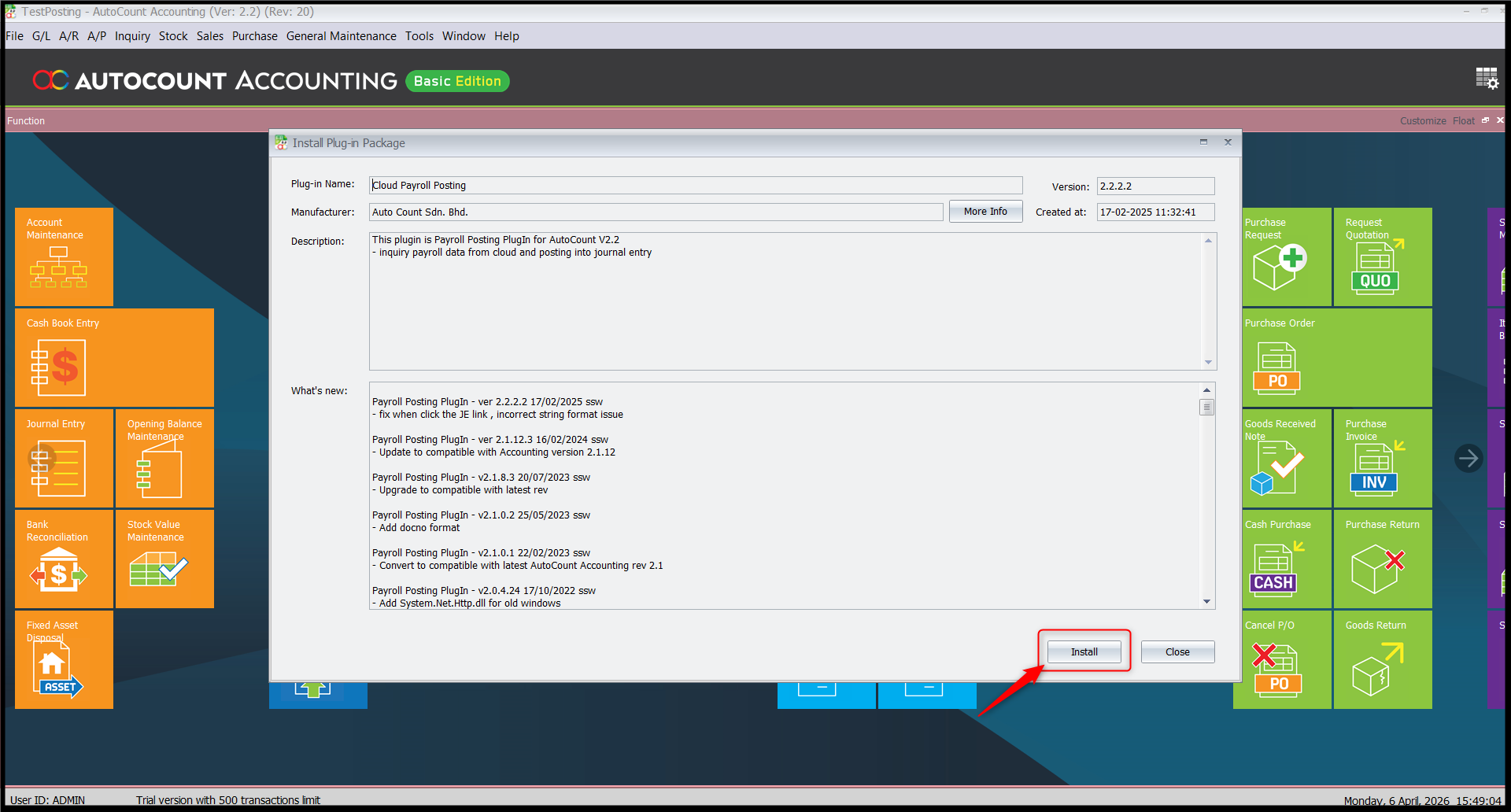
The confirmation message Plugin “Cloud Payroll Posting” is installed successfully will appear. Click OK.
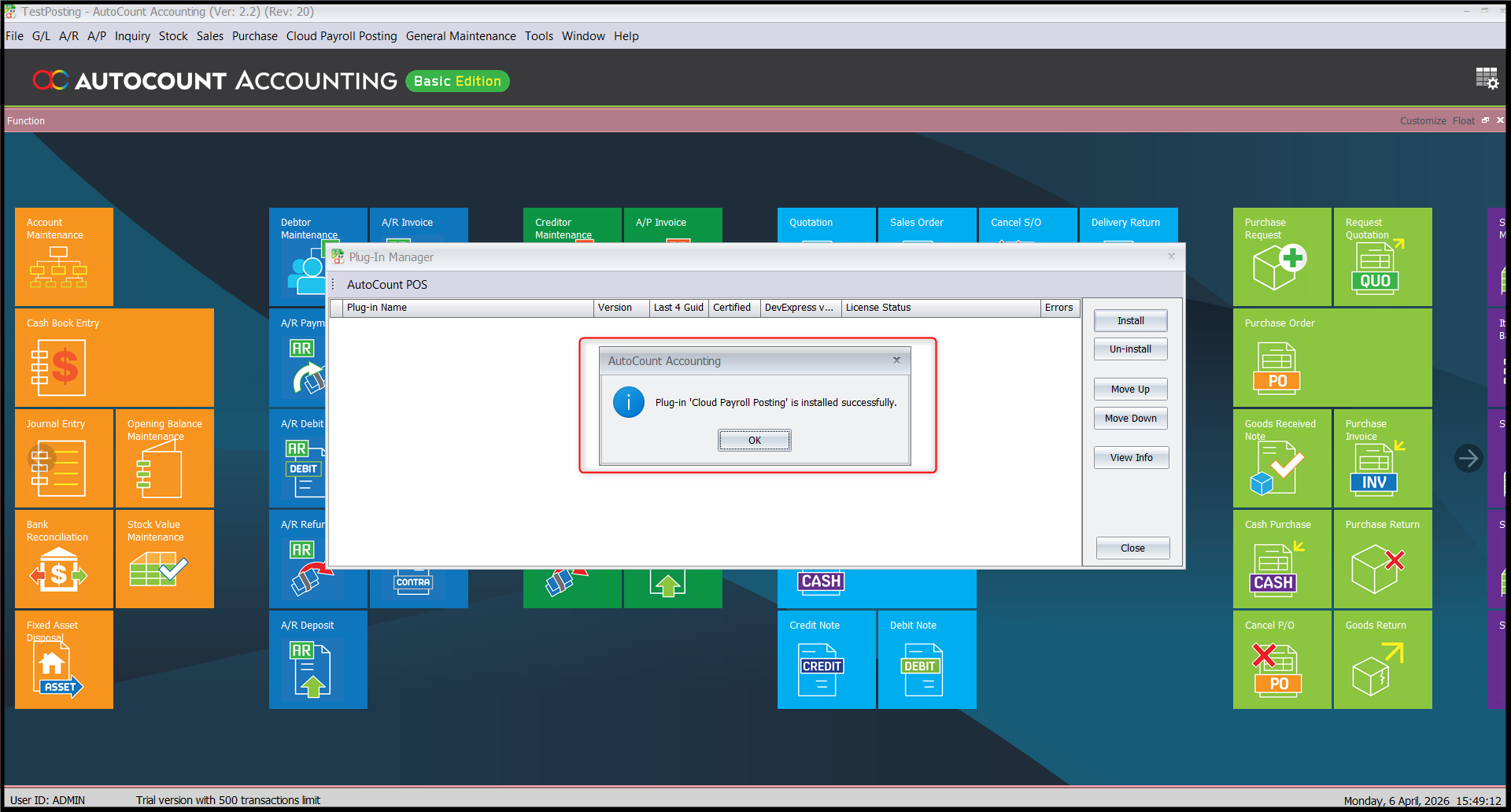
Verify that Cloud Payroll Posting is listed in the Plugin Manager.
Steps to Set Up Access Right for the Plugin:
Go to General Maintenance > Access Right Maintenance.
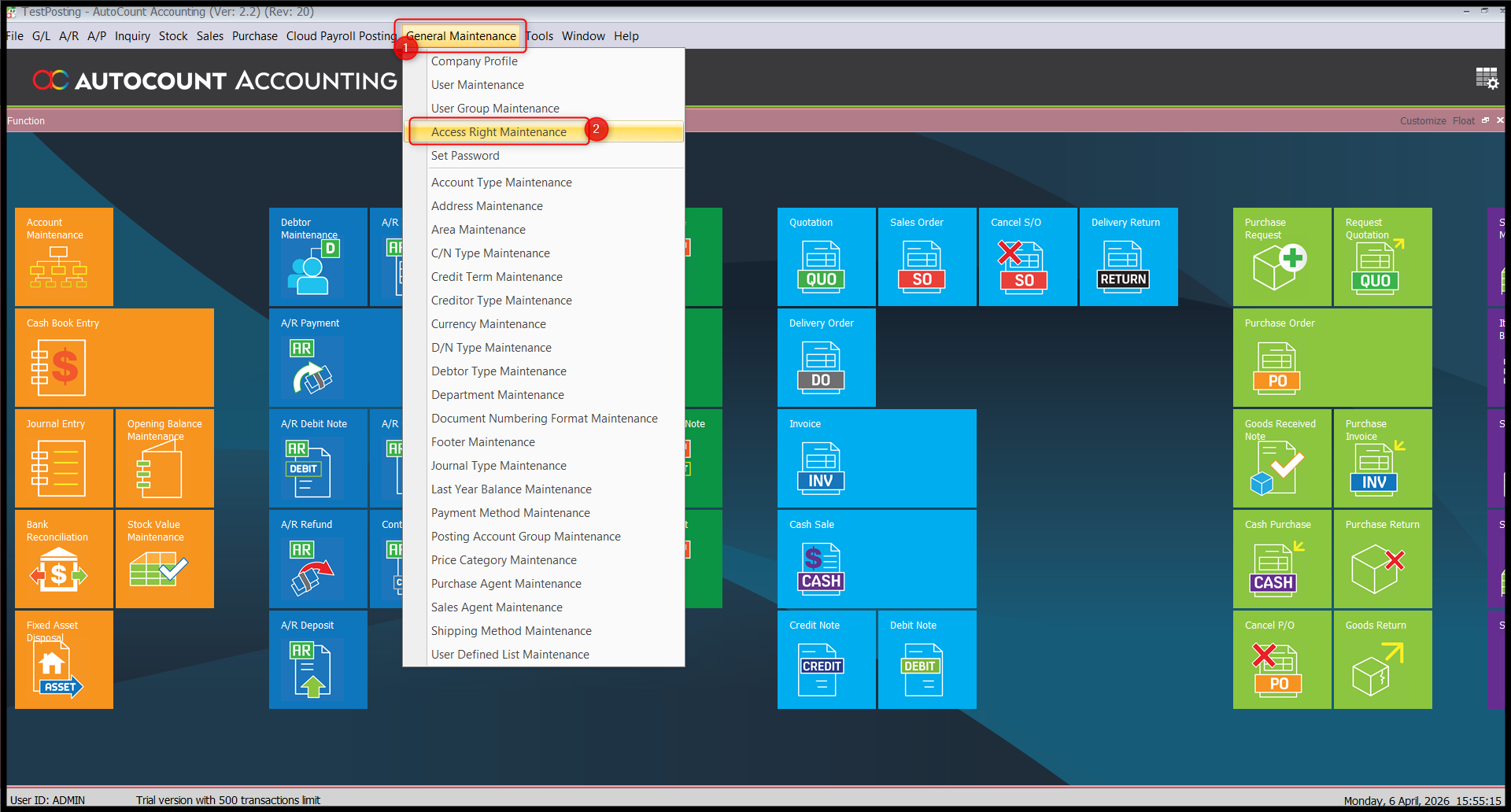
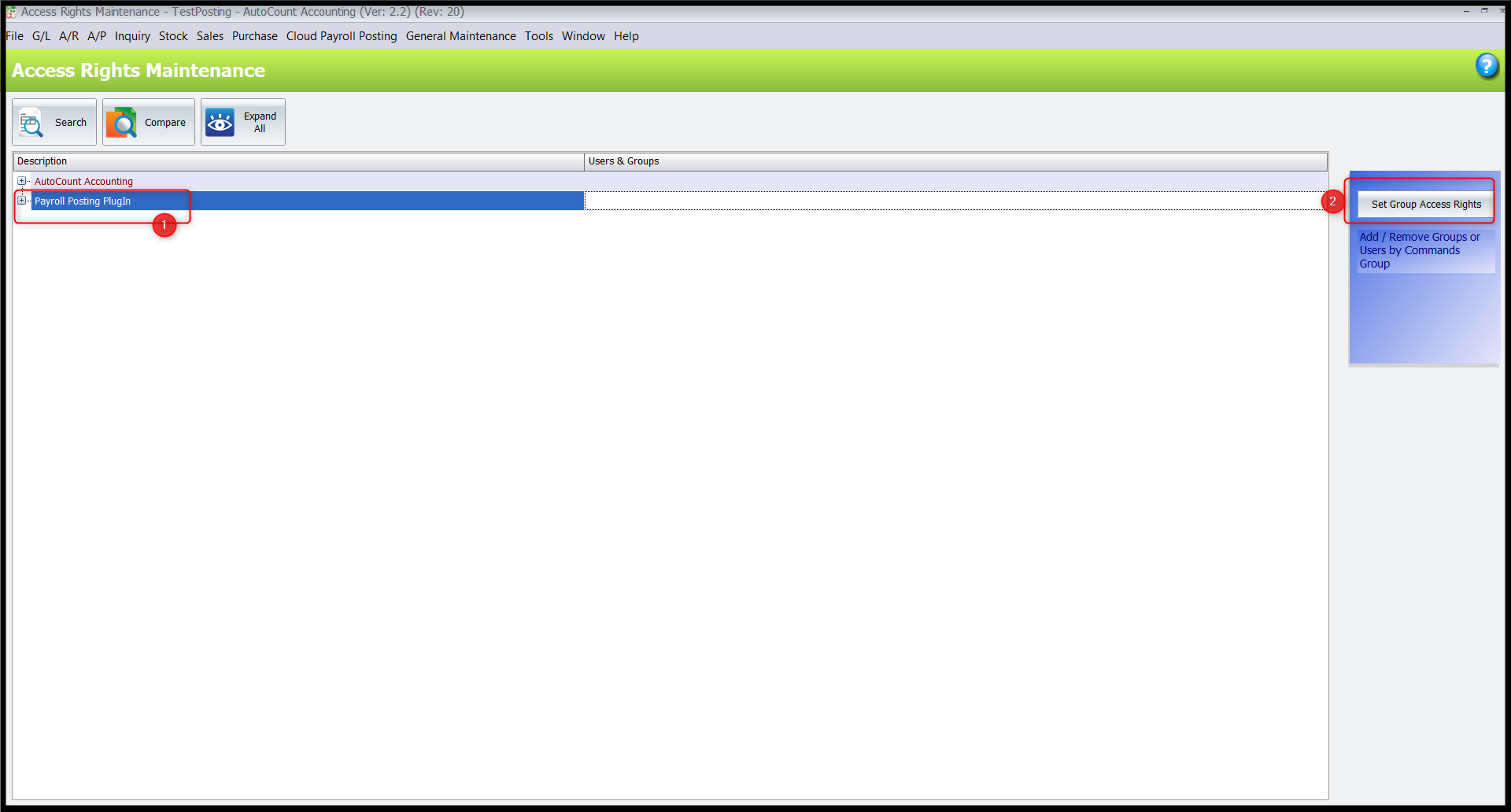
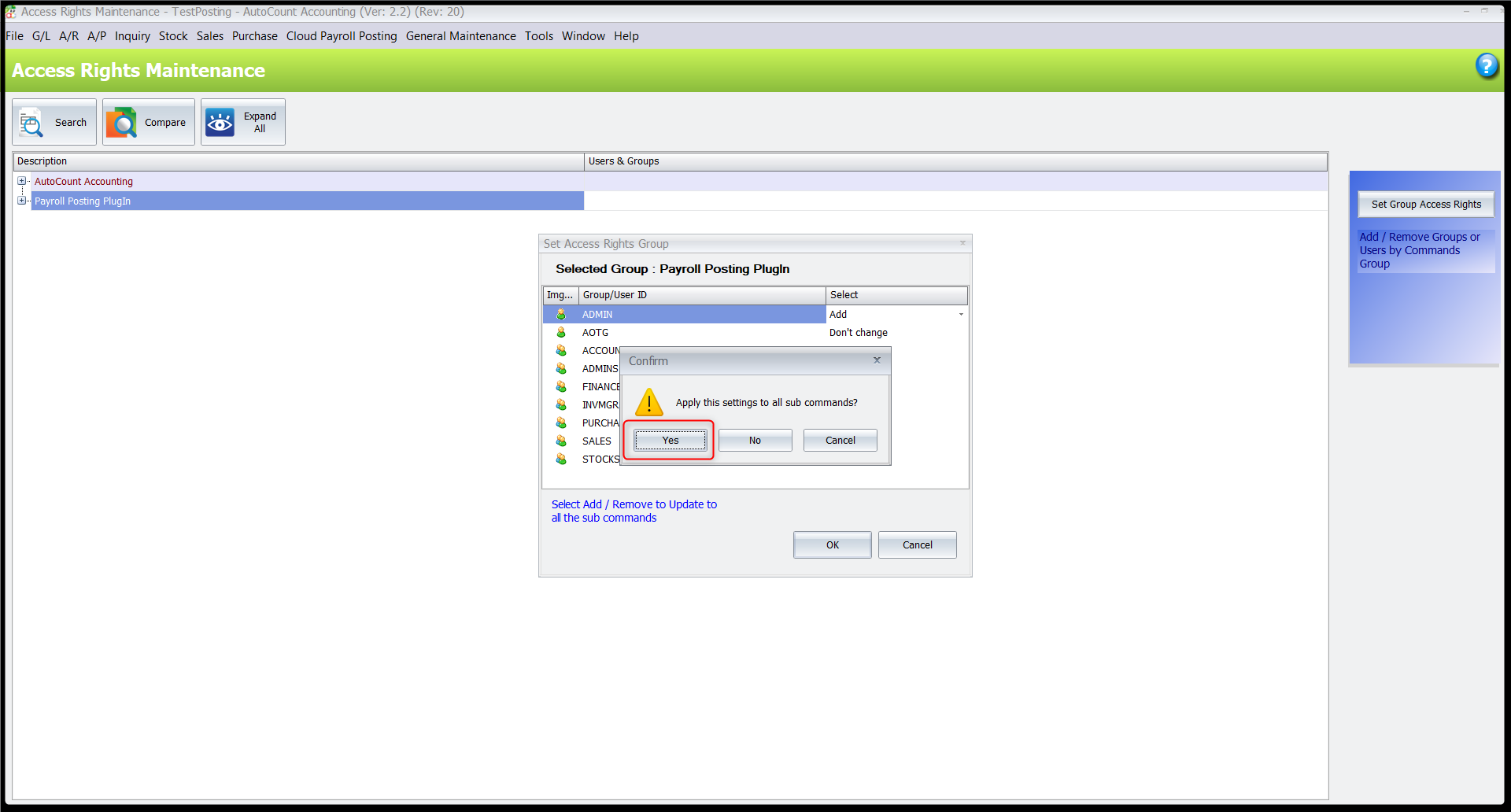
Select Payroll Posting Plug-In, then click Set Group Access Rights.
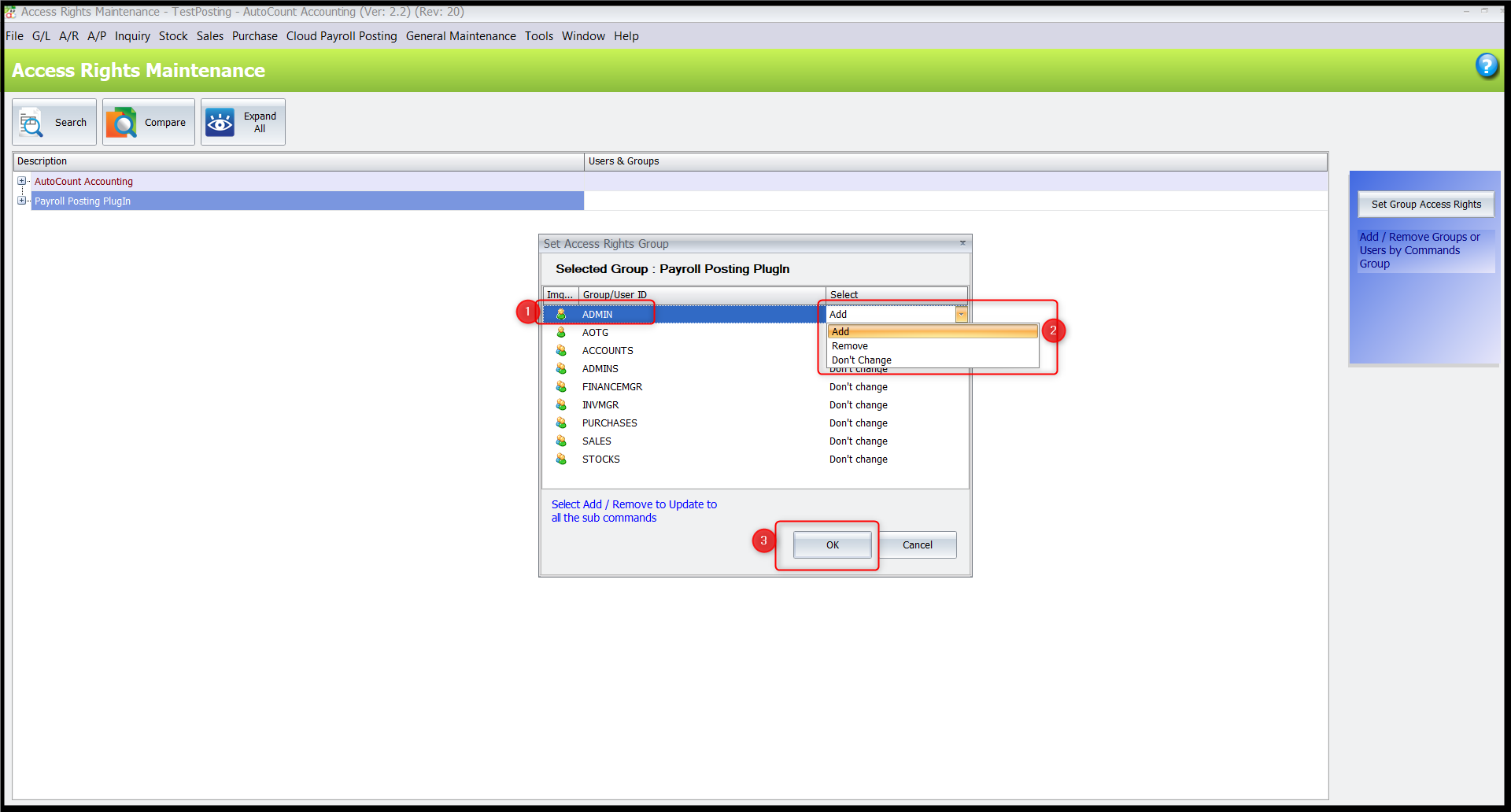
Select the appropriate user groups, click Add, then click OK.
Click Yes to apply the settings to all sub commands.
Steps to Set Up Template Maintenance:
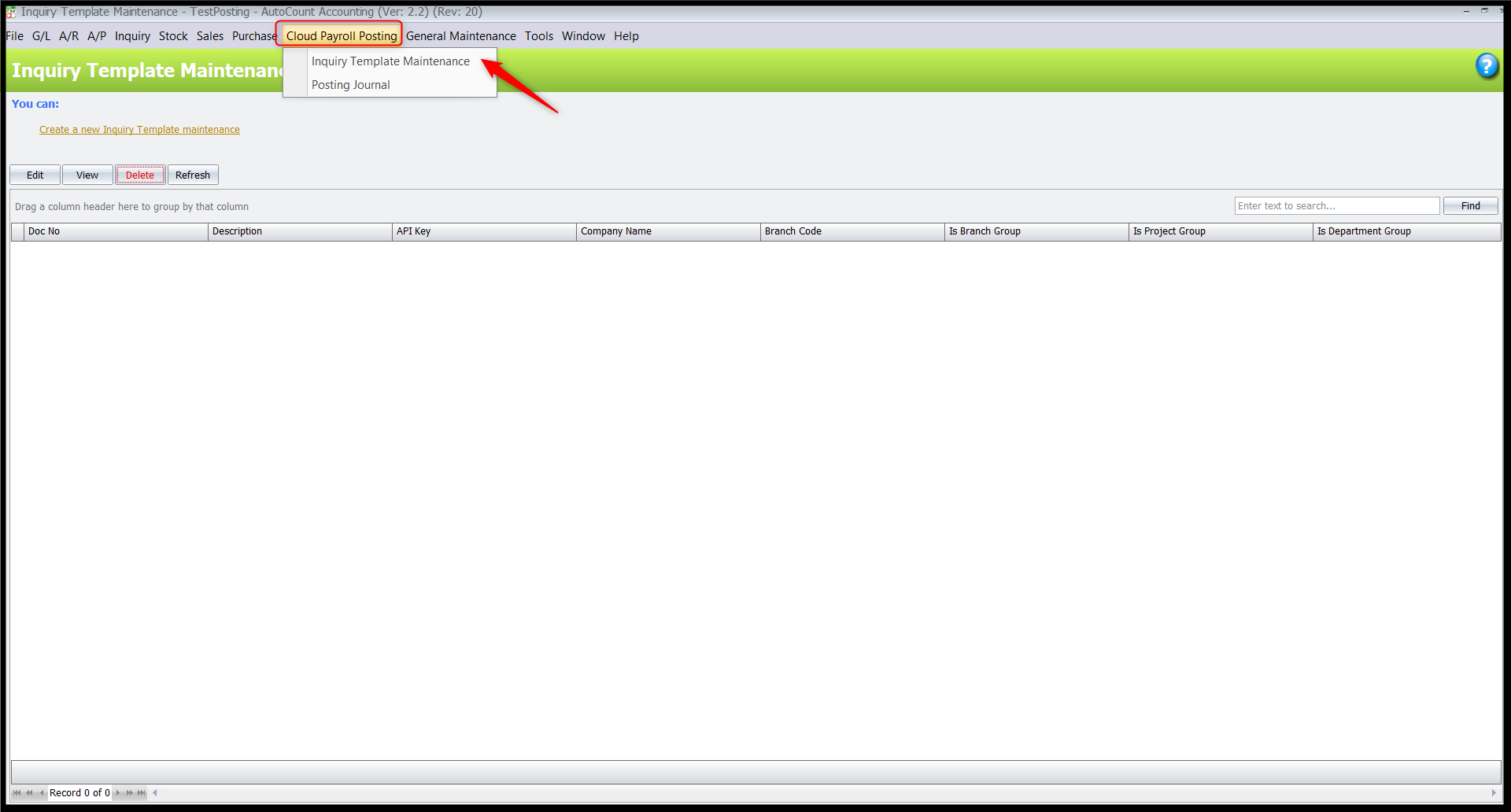
Go to Cloud Payroll Posting > Inquiry Template Maintenance.
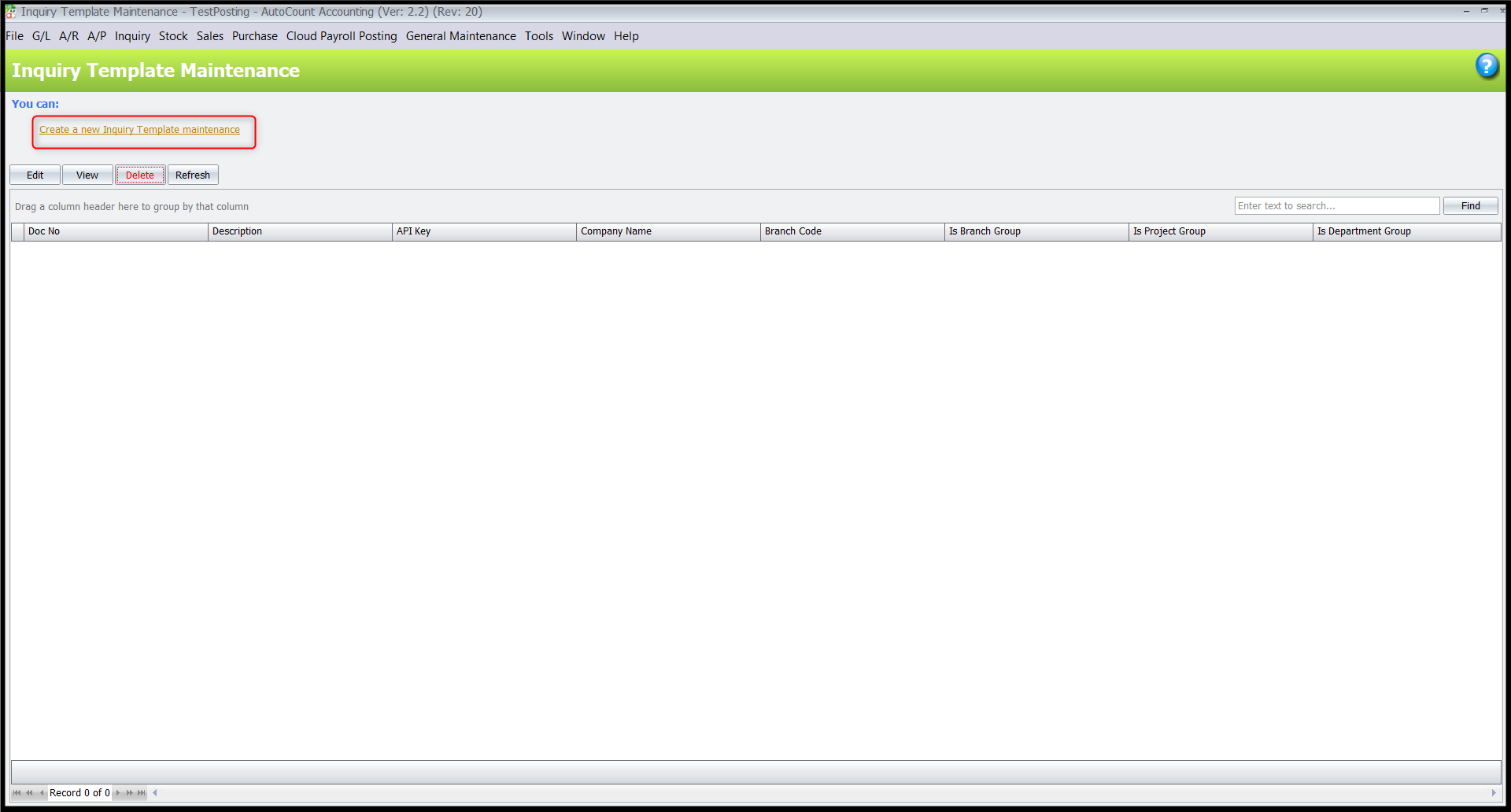
Click Create New Inquiry Template.
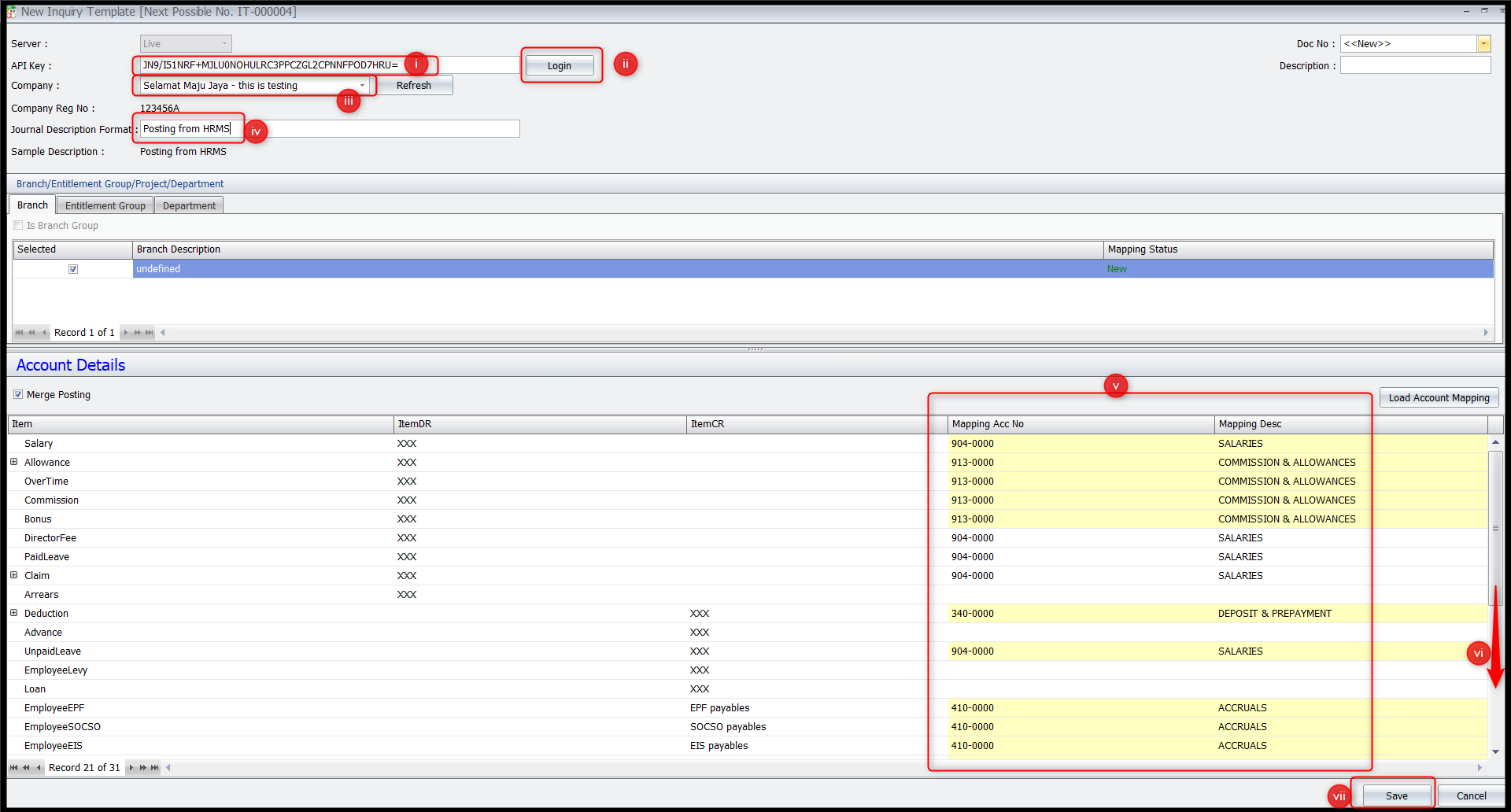
Complete the following fields:
API Key – Enter the key retrieved from HRMS API Maintenance.
Login – Click to retrieve company details.
Company – Select the company.
Journal Description Format
Accounting Mapping – Ensure all required mapping are selected.
Scroll to the bottom of the page to check all details.
Click Save.
Steps to Post Journal:
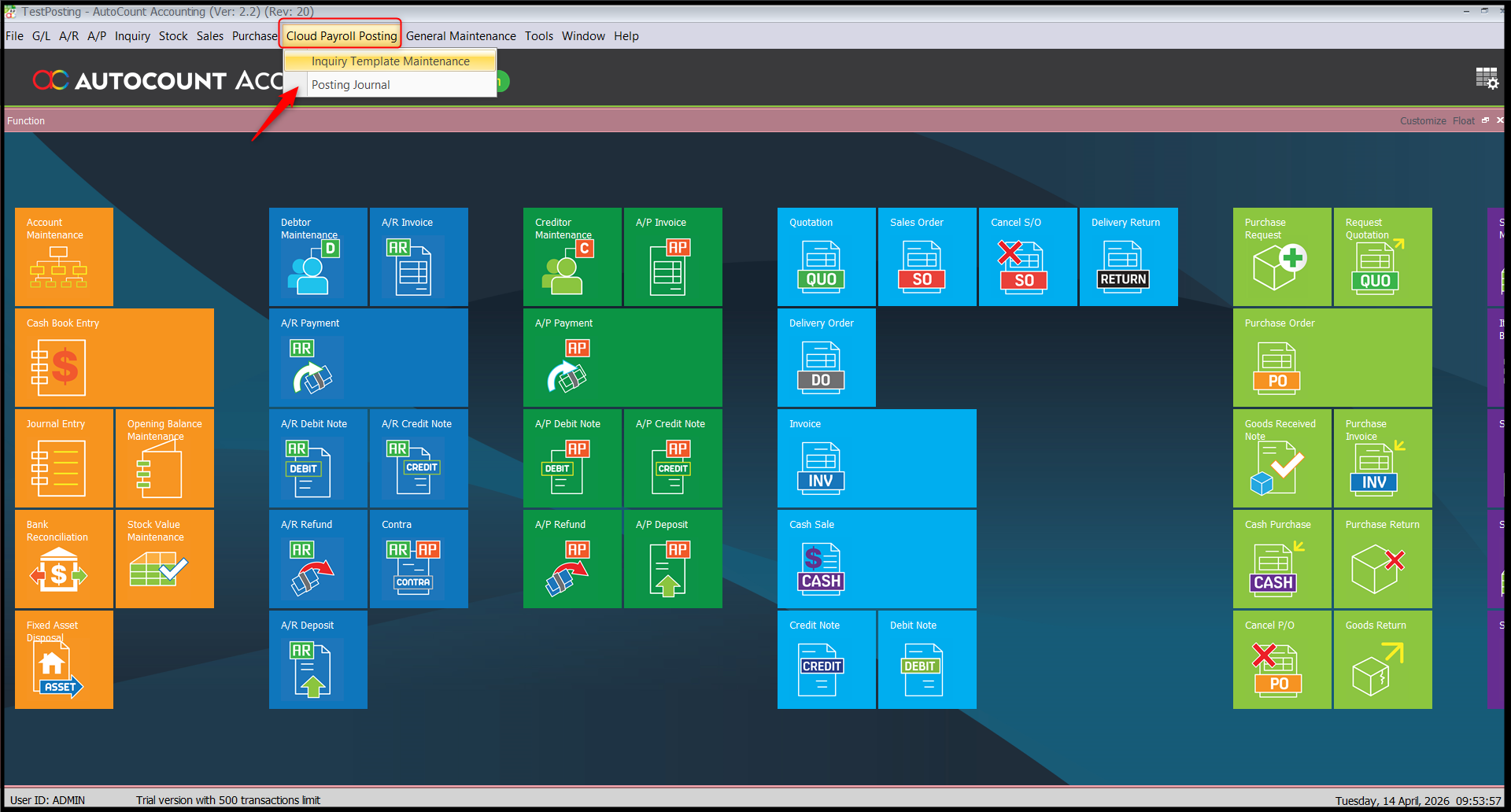
Go to Cloud Payroll Posting > Posting Journal.
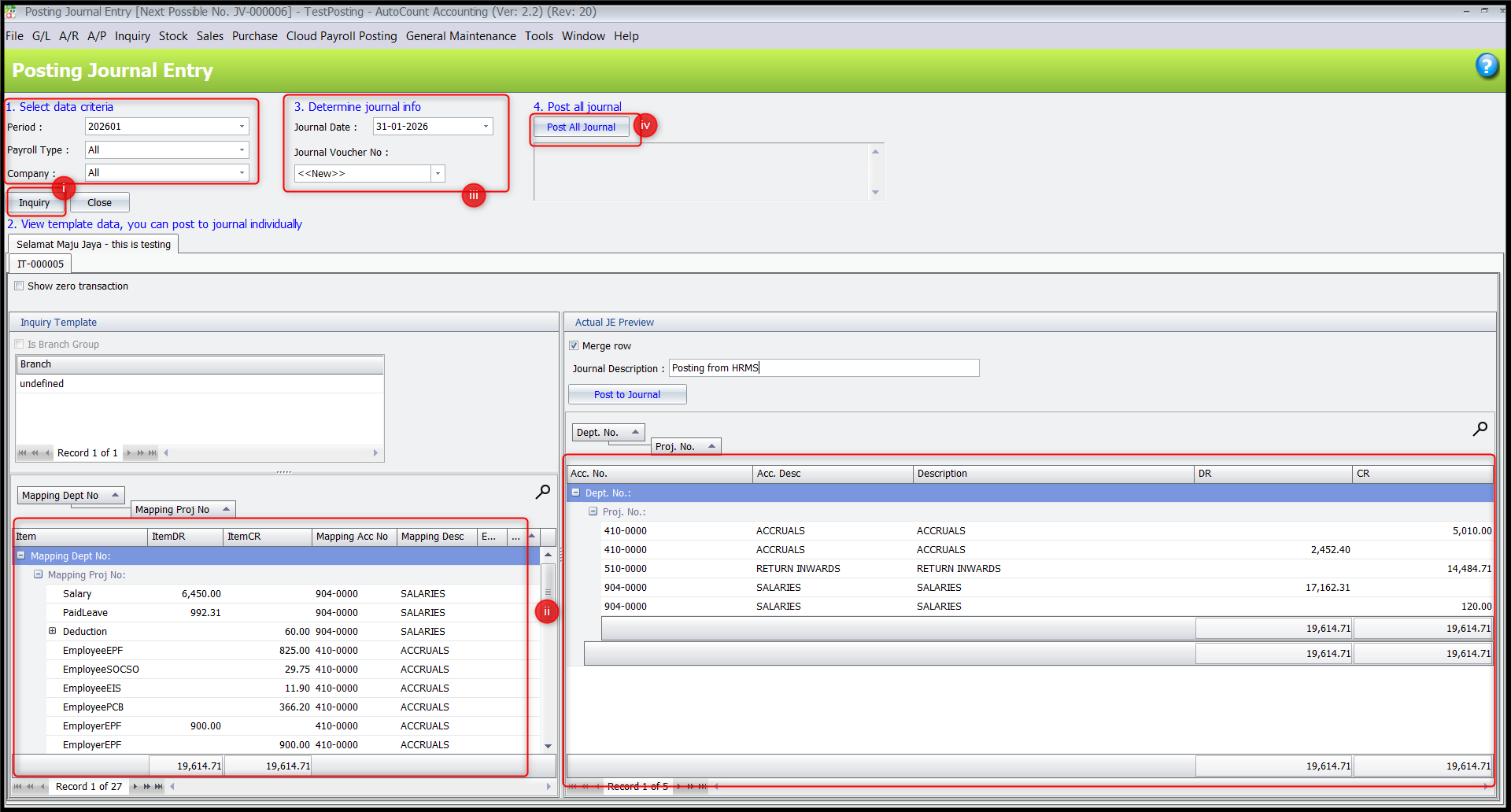
Select Data Criteria and click Inquiry.
Review the template data.
Define Journal Information.
Click Post All to Journal.
Written by: Azirah (20260414)