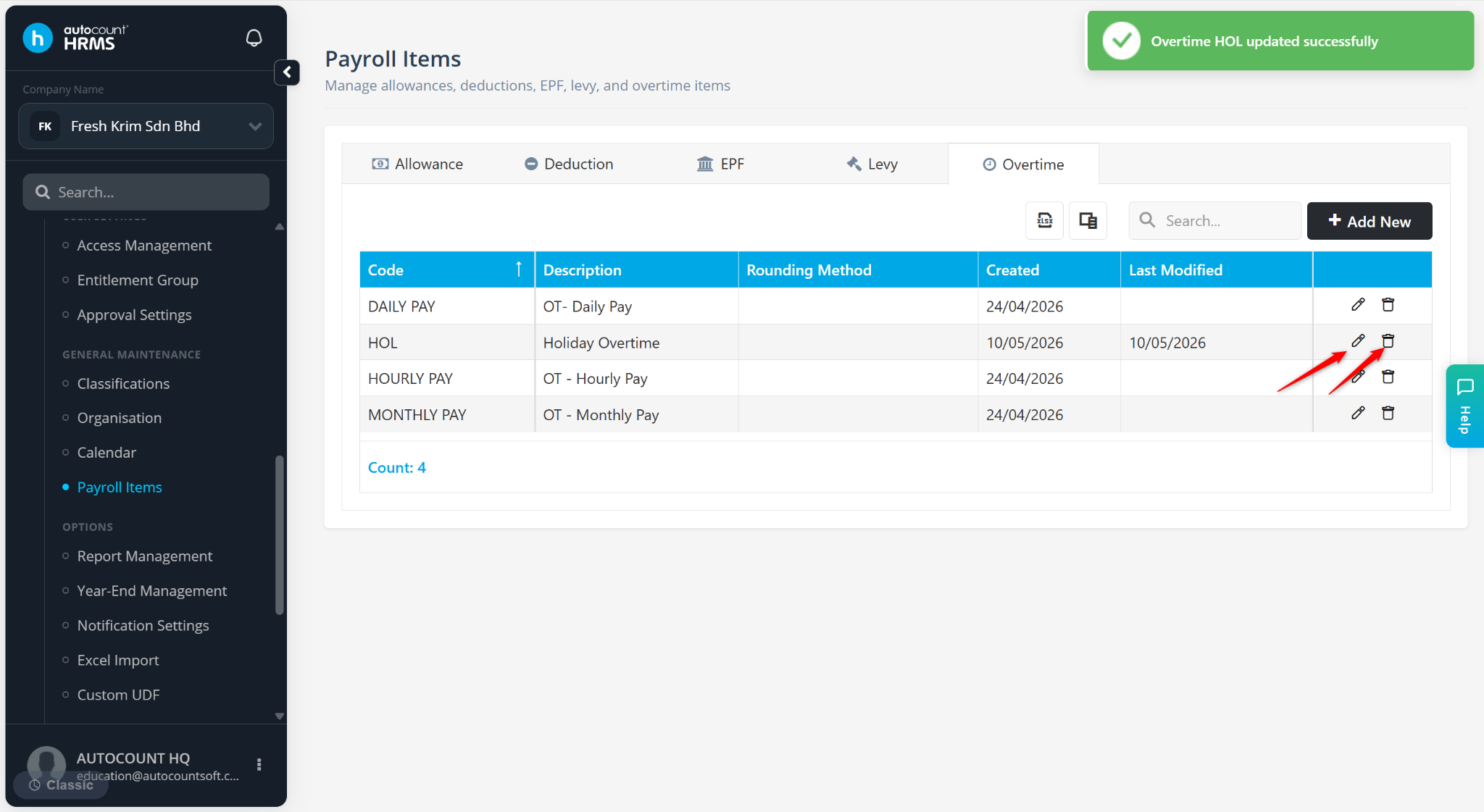
The Overtime feature is used to create and manage overtime pay items for payroll processing. Overtime items define how overtime payments are calculated based on working days, rest days, public holidays, and statutory requirements. The system default overtime types include Daily Pay, Hourly Pay, and Monthly Pay.
Steps to Create a New Overtime Item:
Go to Tools > Payroll Items.
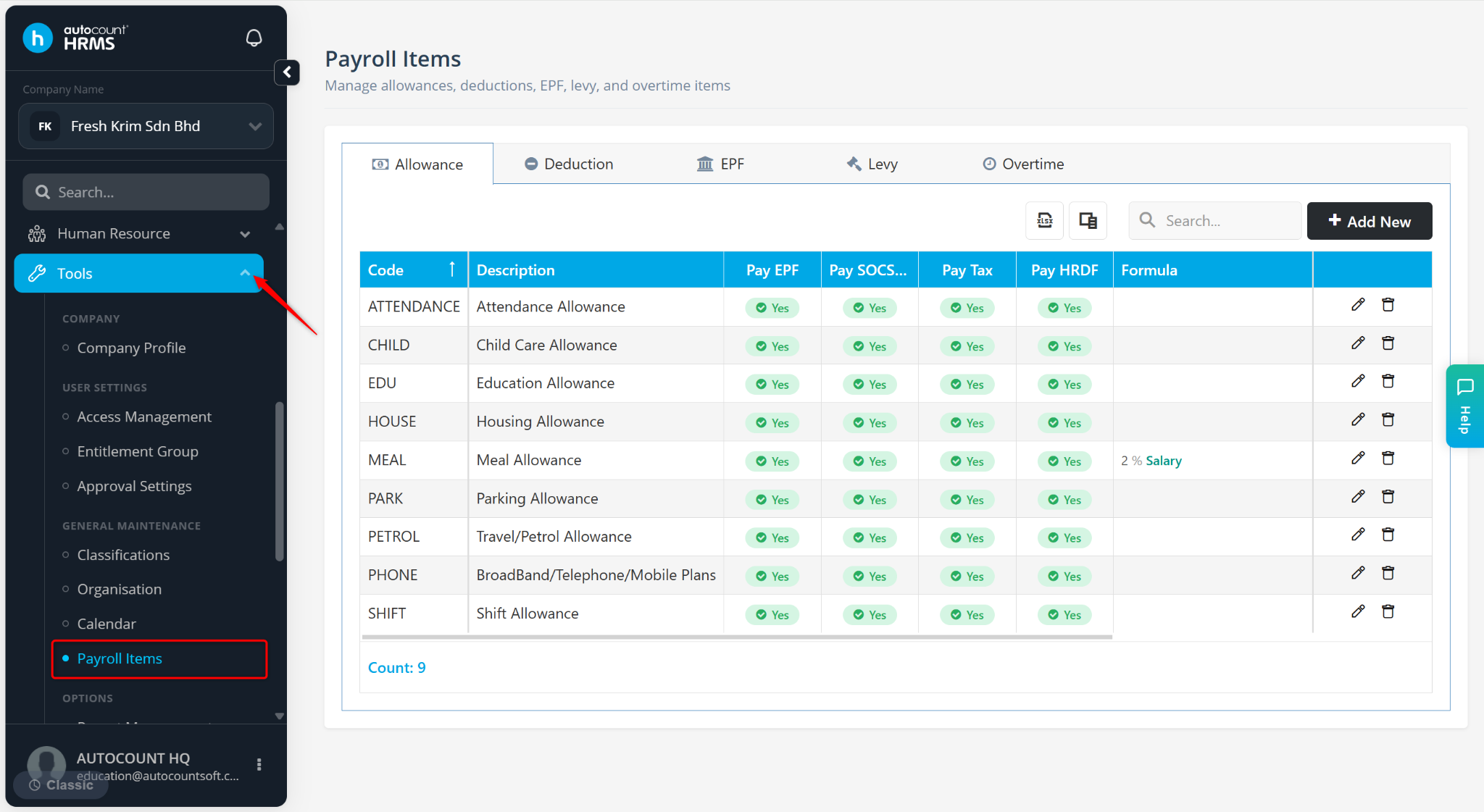
Go to the Overtime tab.
Click Add New.
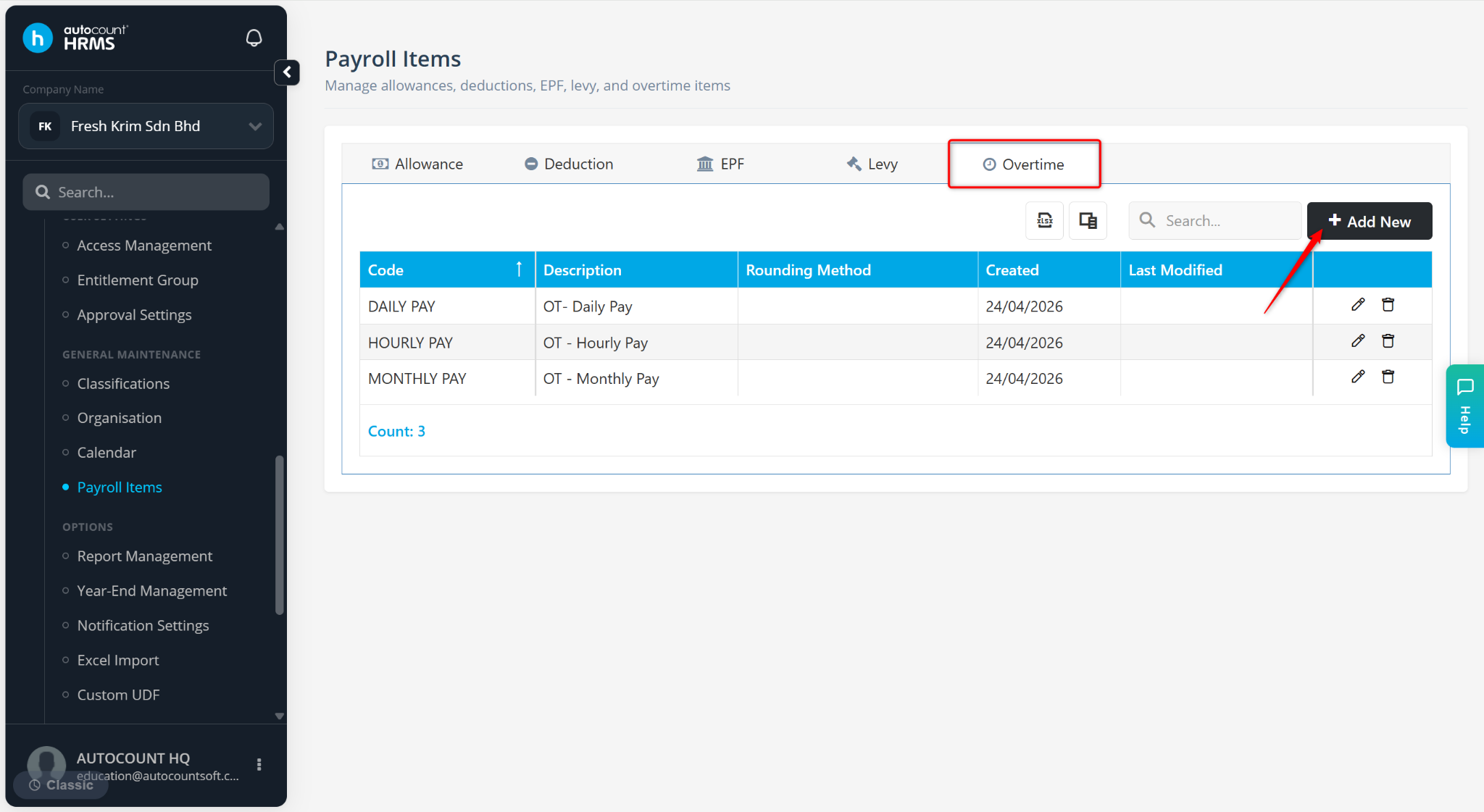
Under Setup section:
Code – Enter a unique code for the overtime item.
Description – Enter a short remark for the overtime item.
Rounding Method – Select rounding option Round to 5 cents or Round to 10 cents if applicable.
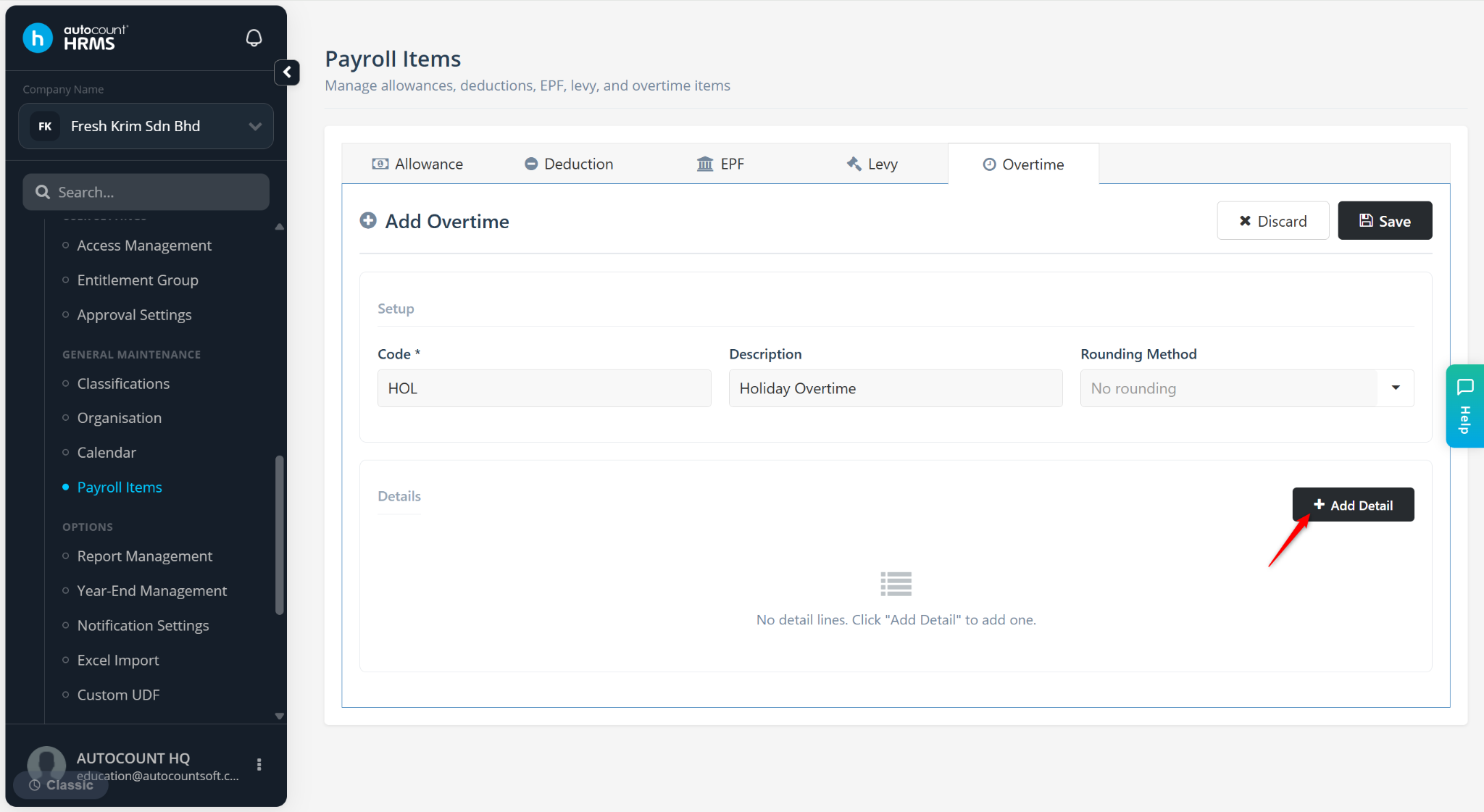
Under the Details section:
Click Add Detail.
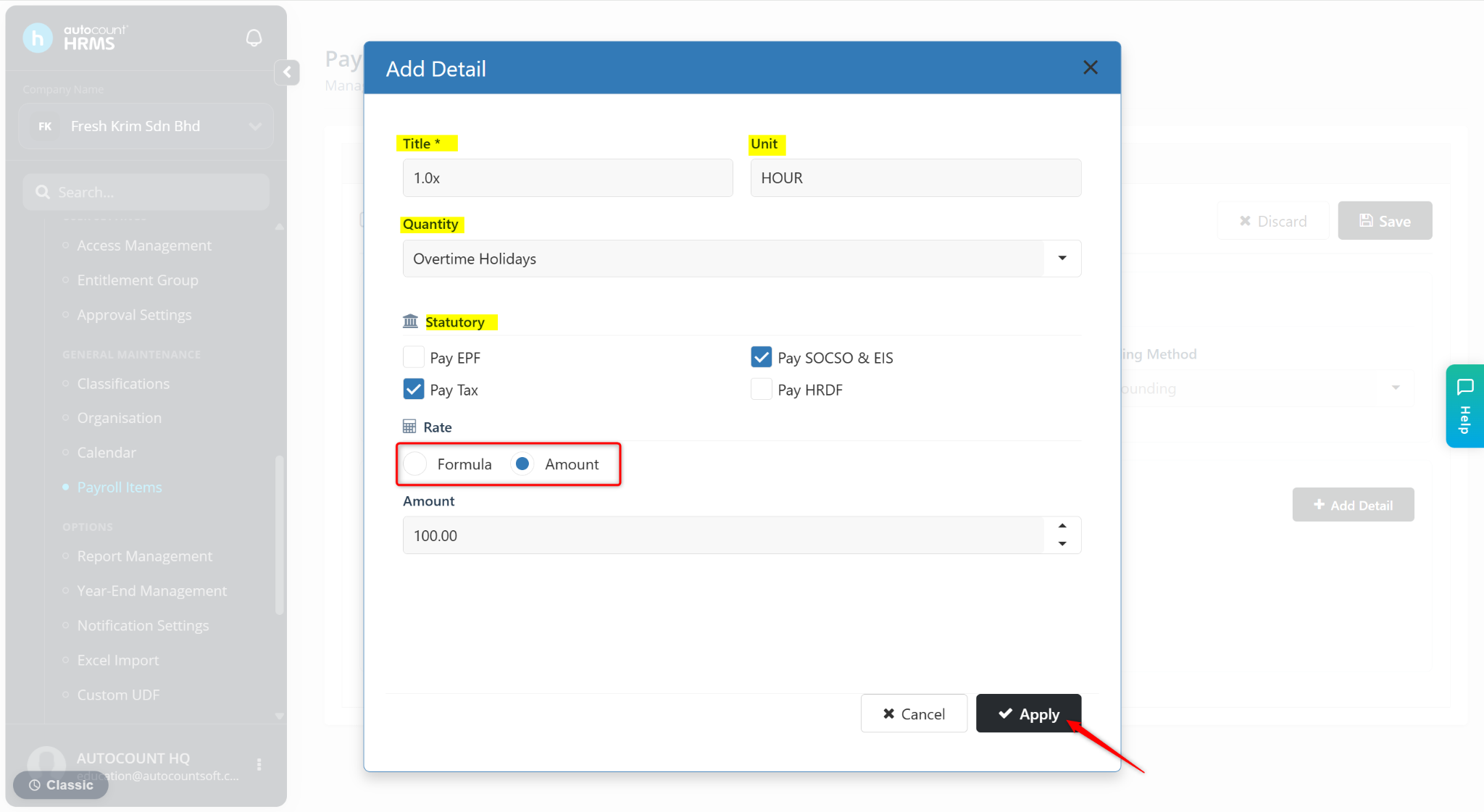
Enter the details.
Title – Enter the name of the overtime rule.
Unit – Enter the unit of calculation.
Quantity – Select Overtime Work Days, Overtime Rest Days, Overtime Holidays, Worked Rest Days or Worked Holidays.
Statutory – Select the applicable statutory requirement.
Rate – Select to calculate by Formula or Amount. Then, enter the required formula or value.
Click Apply.
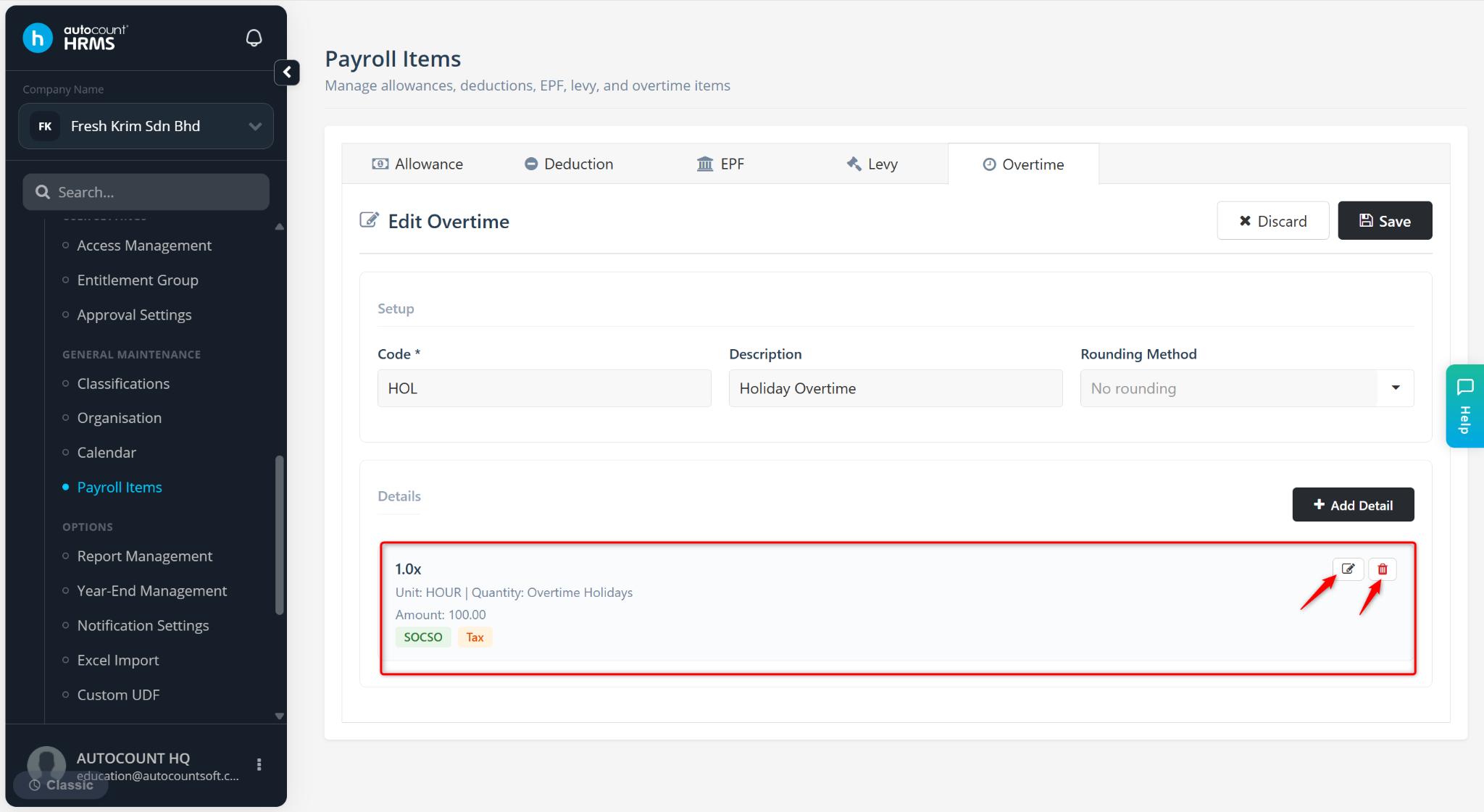
The information will be added.
Click the edit icon to edit.
Click the trash bin icon to delete
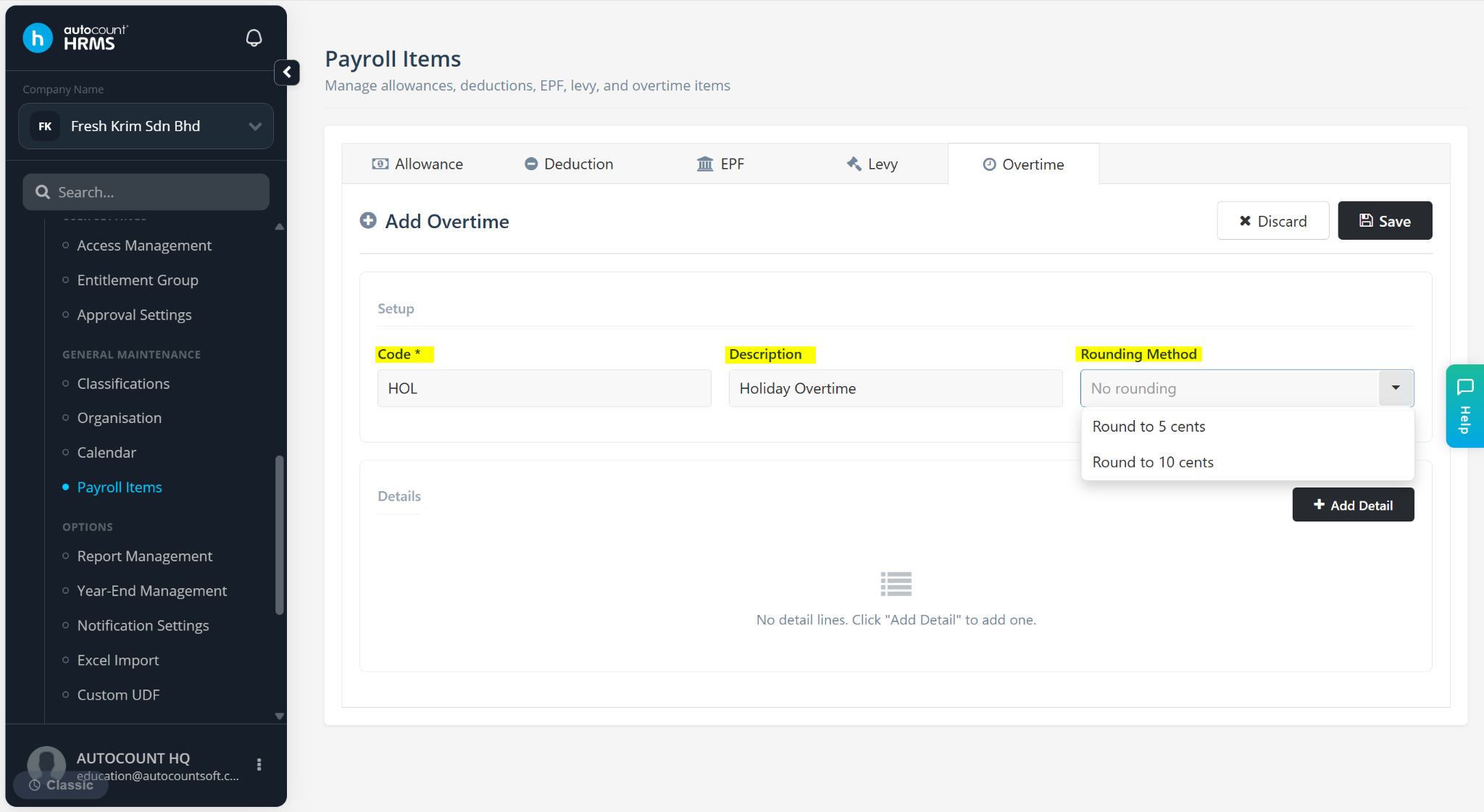
Click Save.
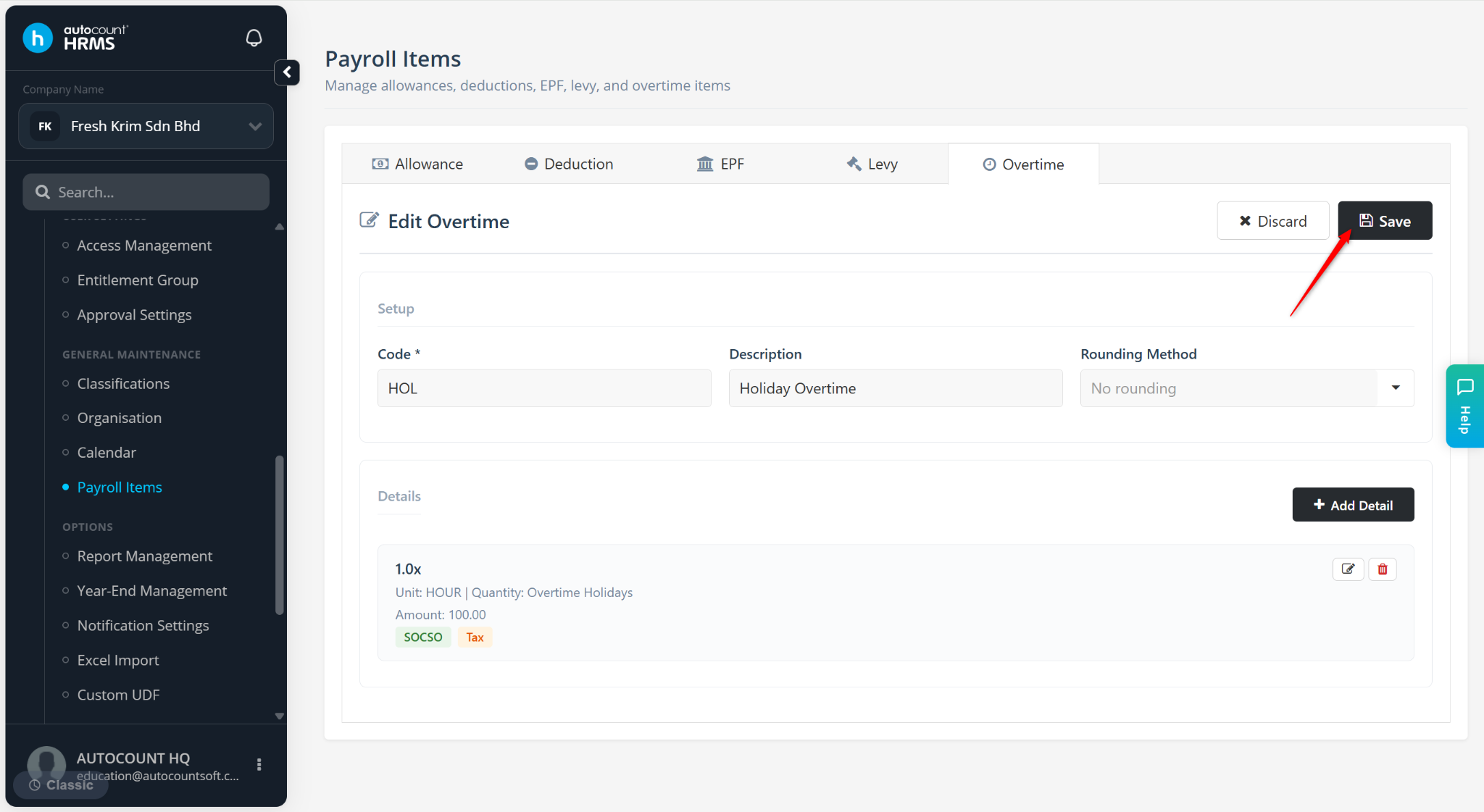
The overtime item will be created.
Use the pencil icon to edit the allowance.
Use the trash bin icon to delete the allowance.