
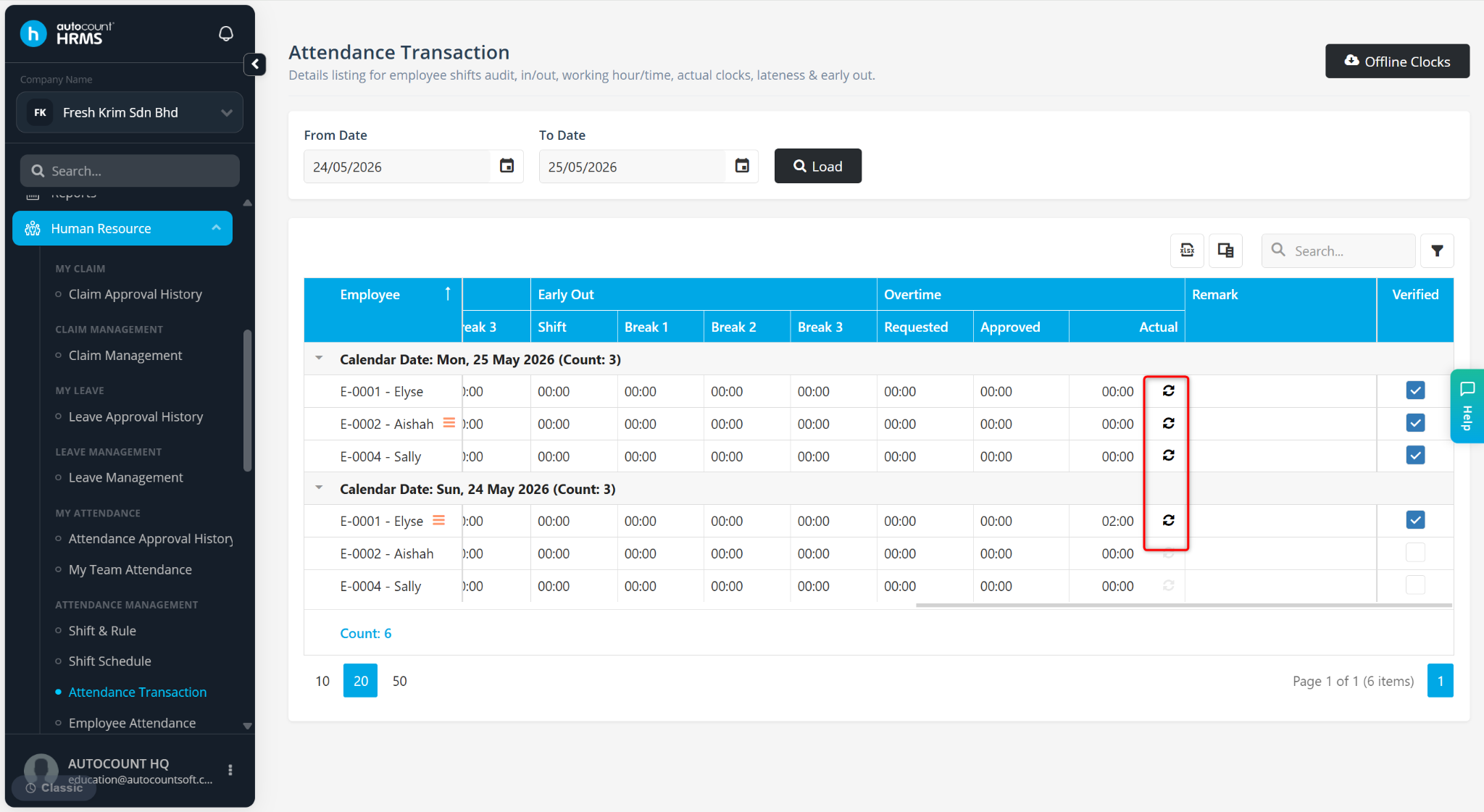
The Recalculate Overtime function allows users to manually refresh overtime values after updating an employee's clock-in or clock-out time. This ensures overtime is recalculated accurately based on the latest attendance data. After clicking Recalculate, the system will recalculate overtime using the updated attendance records, shift rules, and break settings. The Actual Overtime value is updated instantly without requiring a page refresh.
Users may use Recalculate Overtime when:
An employee's clock-in or clock-out time is edited manually.
Overtime values do not reflect the updated working hours.
Steps to Recalculate Overtime:
Go to Human Resource > Attendance Transaction.
Filter the From and To Date and click Load.
Locate the relevant employee and date.
Update the clock in/out time if required.
In the Overtime Actual column, click the recalculate icon.
The system will immediately recalculate and update the OT value.
ℹ️ Note:
Ensure attendance time changes are saved before clicking Recalculate.
The Recalculate function only affects the Actual Overtime value.
Approved overtime or overtime request records are not affected by this function.
Written by: Chen Ong (20260111)
Reviewed by: Azirah (20260112)