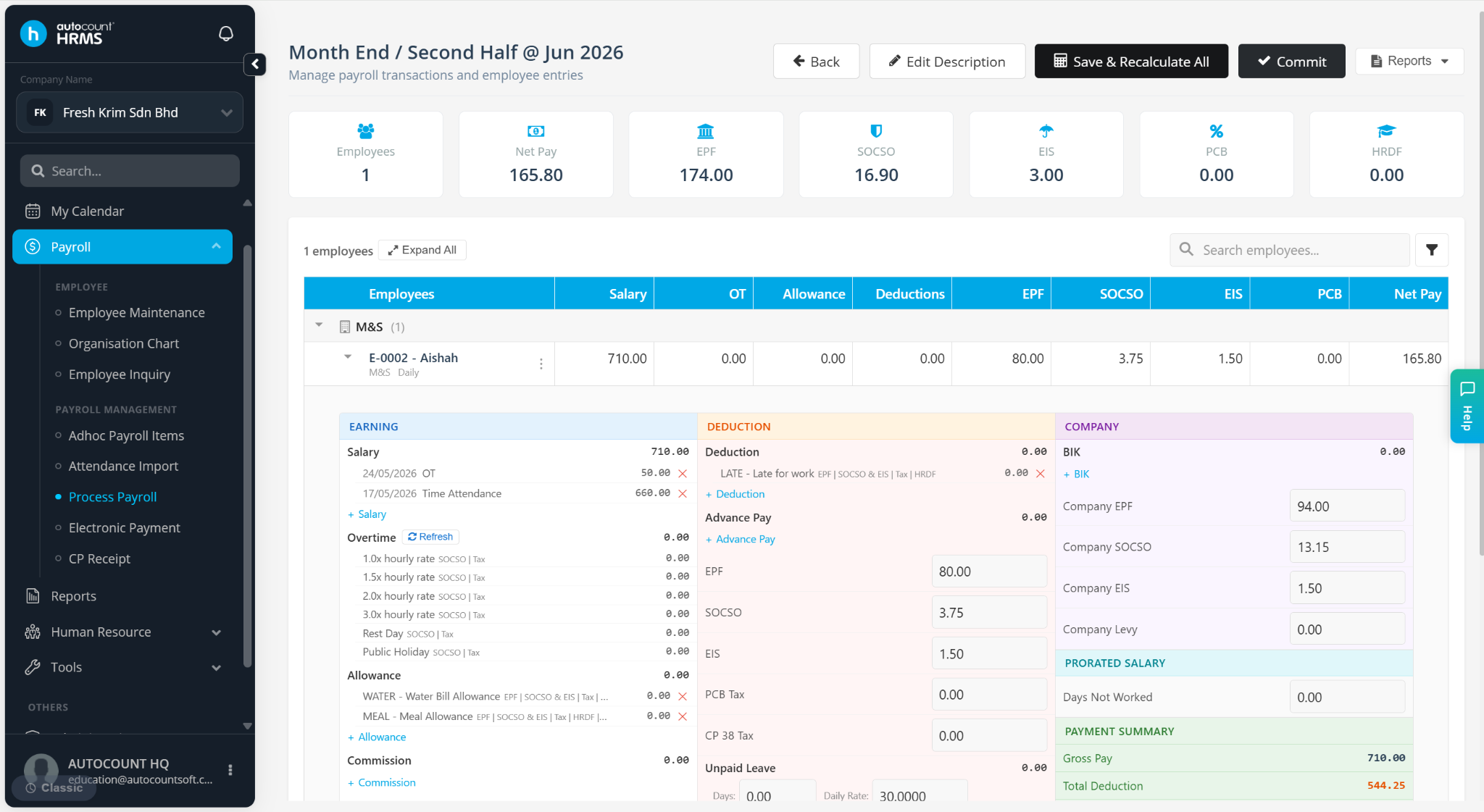
After a payroll has been processed, users can still edit employee payroll details before the payroll is committed. This allows corrections and adjustments to be made, such as updating allowances, deductions, overtime, claims, or other payroll items.
When any payroll value is modified manually, the payroll must be recalculated to ensure all statutory contributions and payroll totals are updated based on the latest figures.
Steps to Edit Payroll Process:
Go to Payroll > Process Payroll.
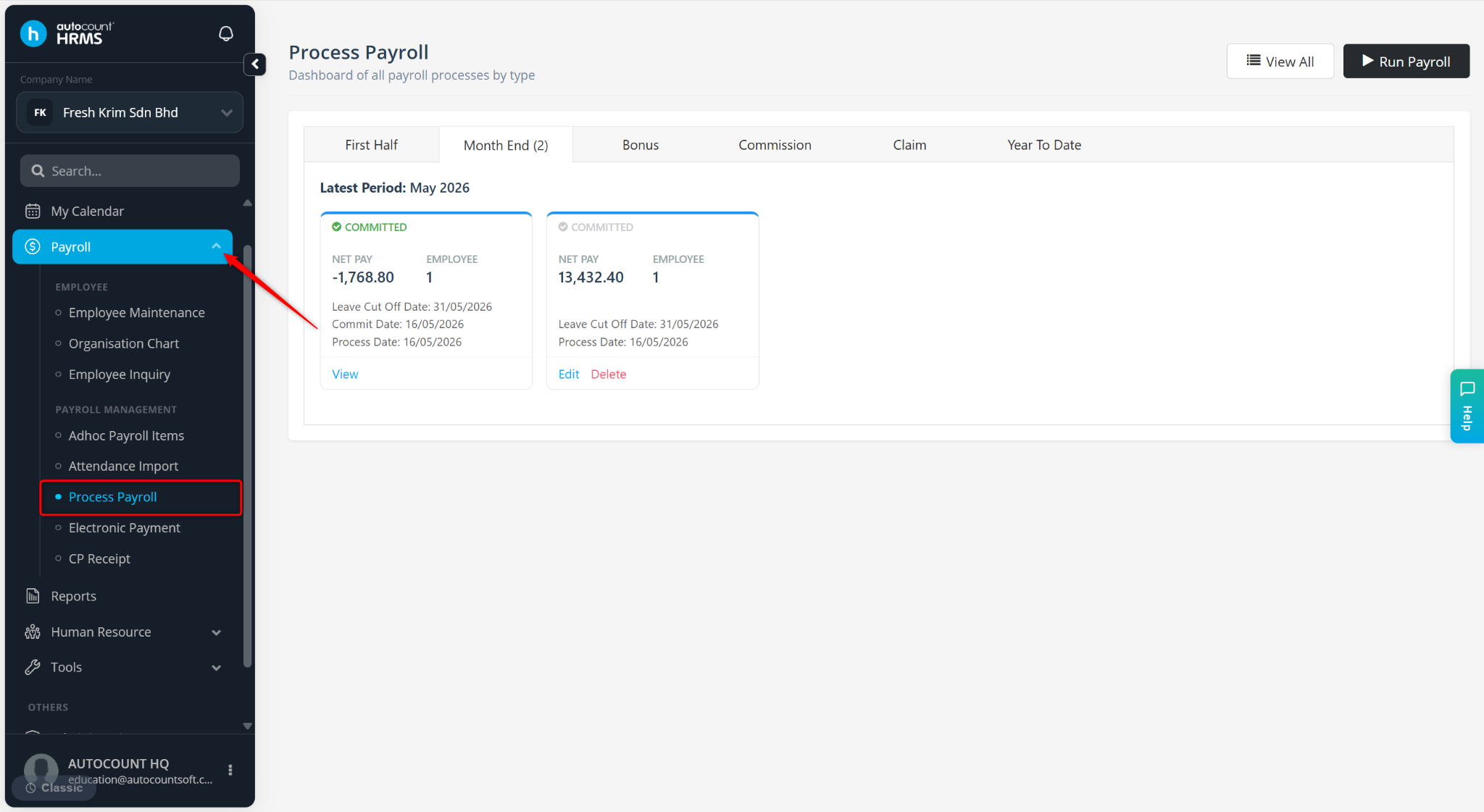
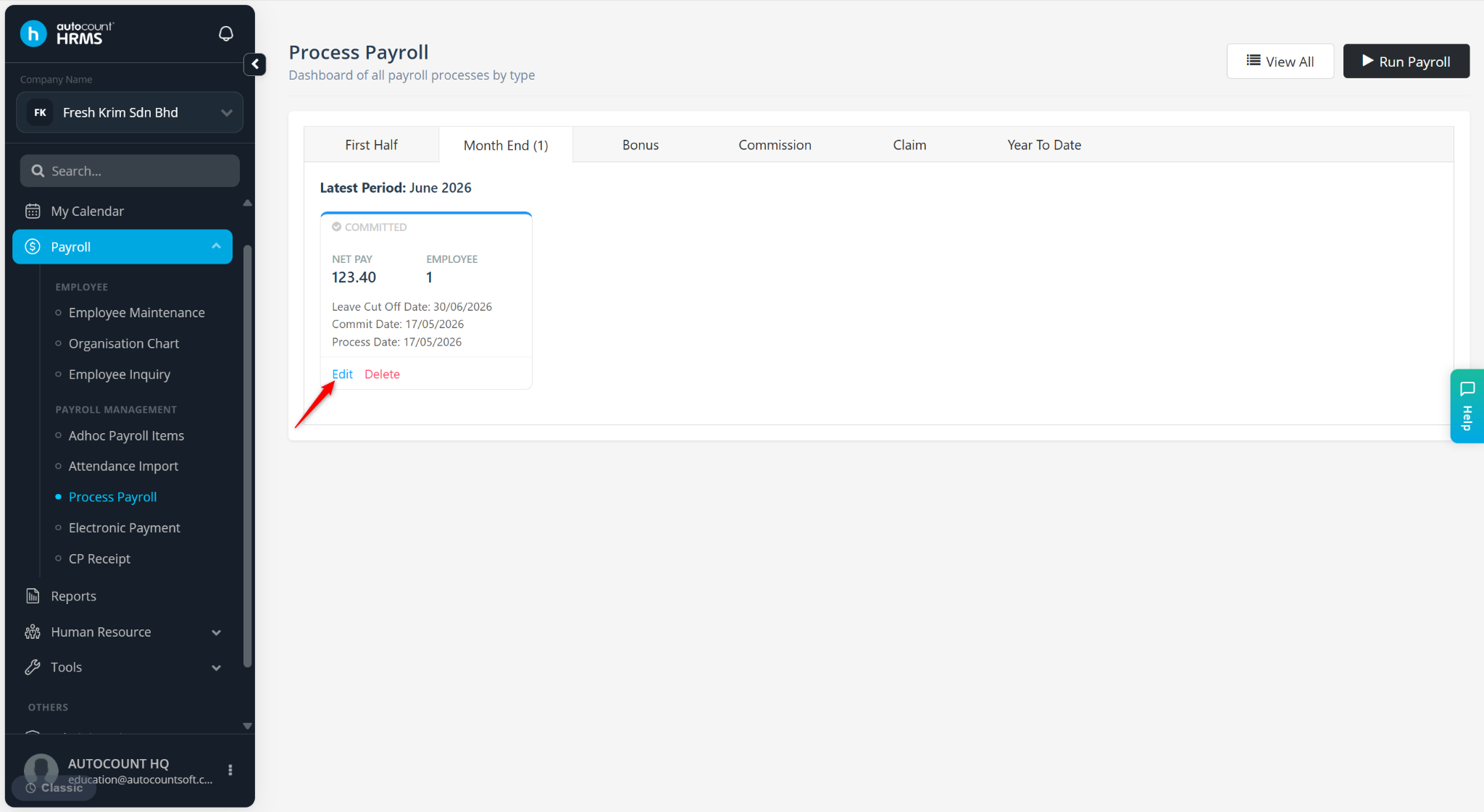
Locate the uncommitted payroll and click Edit.
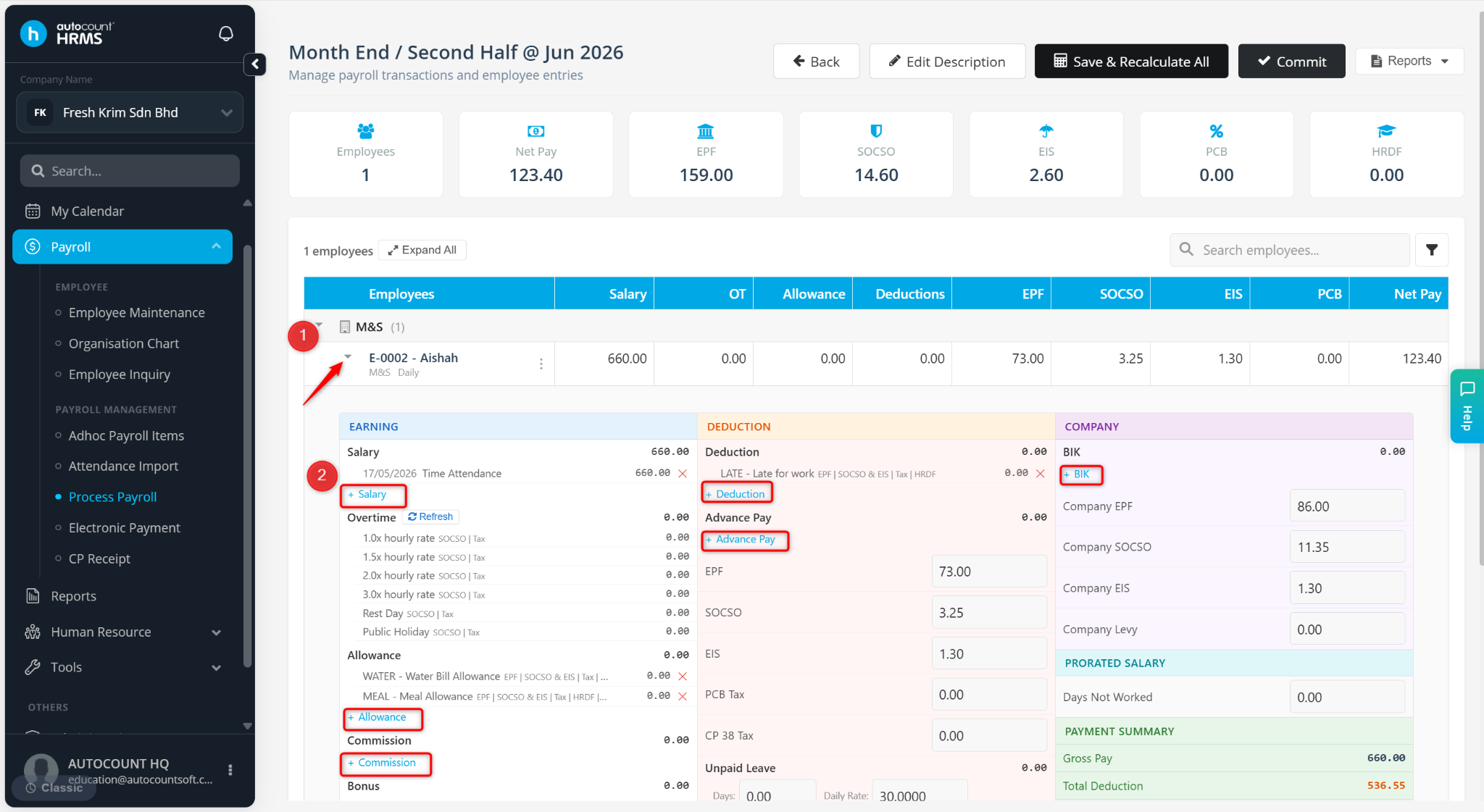
Expand the employee that you would like to edit
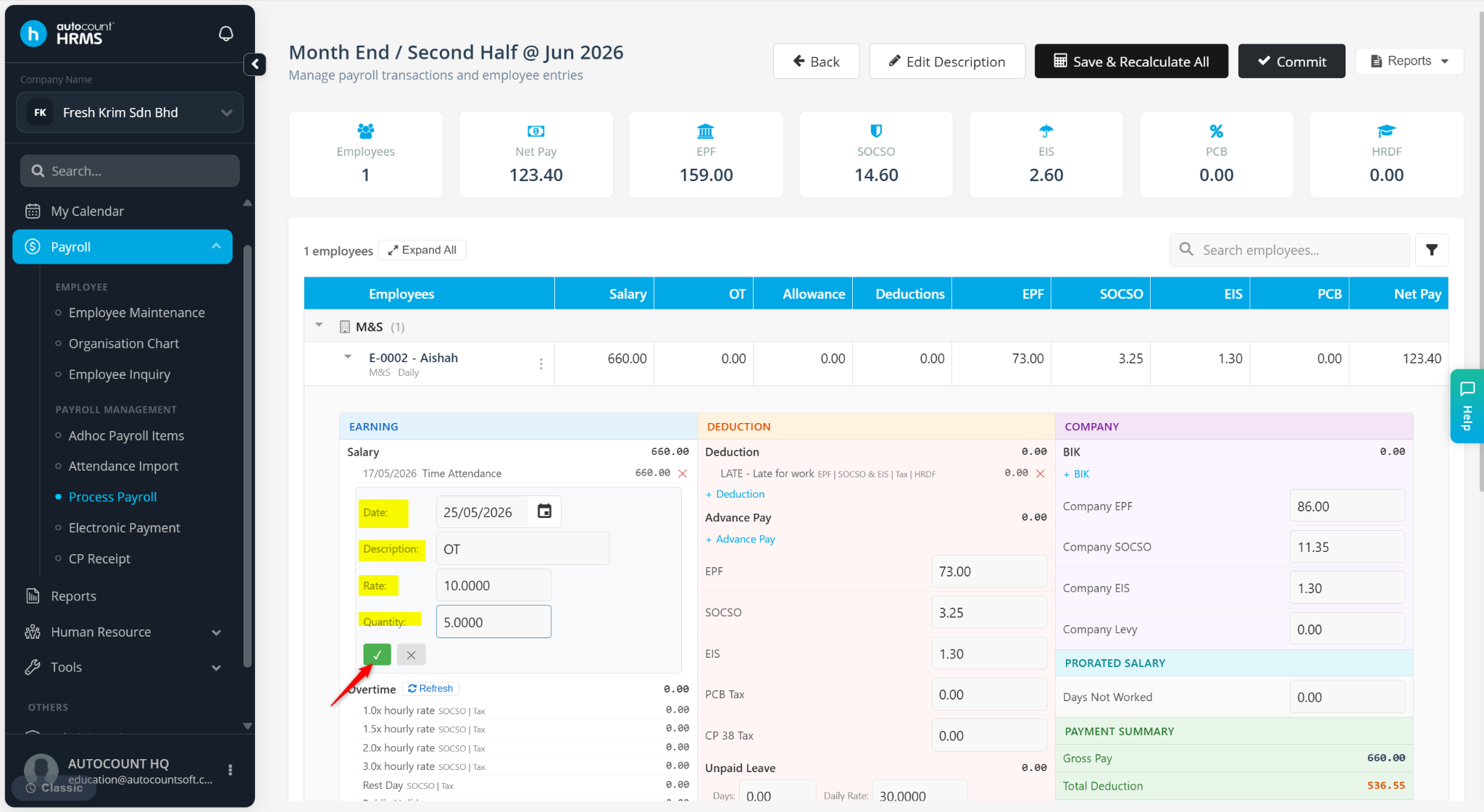
Under the item you would like to edit, click + item. (e.g., + Salary, + Allowance)
Enter the required details and click the tick icon.
Click Recalculate next to the employee name or click Save & Recalculate All at the top left corner.
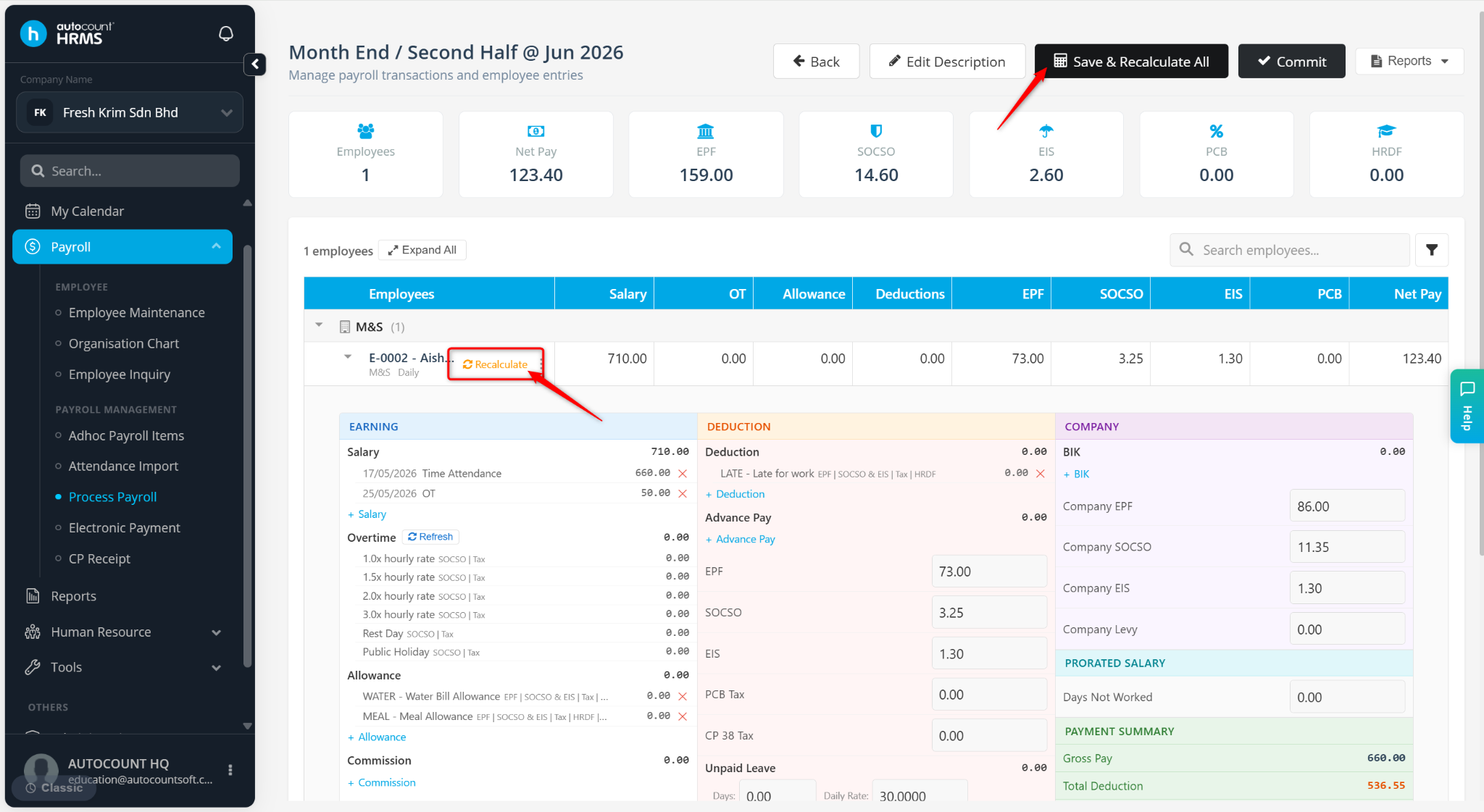
The changes will be saved and payroll will be updated accordingly.