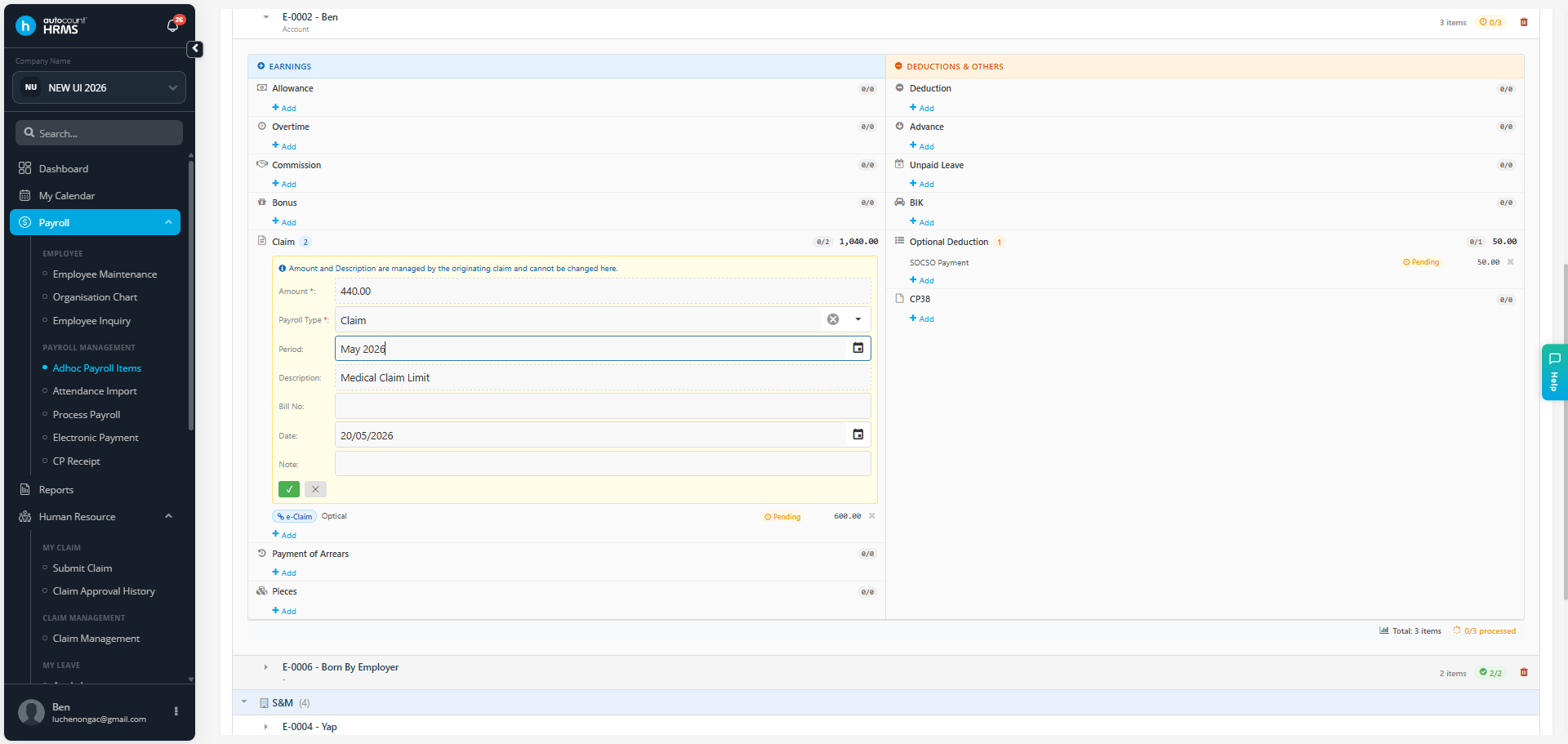
You can change the period of an Ad-hoc Payroll Item before it has been processed in payroll. This allows you to move the payroll item to the correct payroll period if it was entered incorrectly.
Note: Once an Ad-hoc Payroll Item has been included in a payroll run, its period can no longer be modified.
Steps to Change Ad-hoc Payroll Item Period:
Go to Payroll > Ad-hoc Payroll Items.
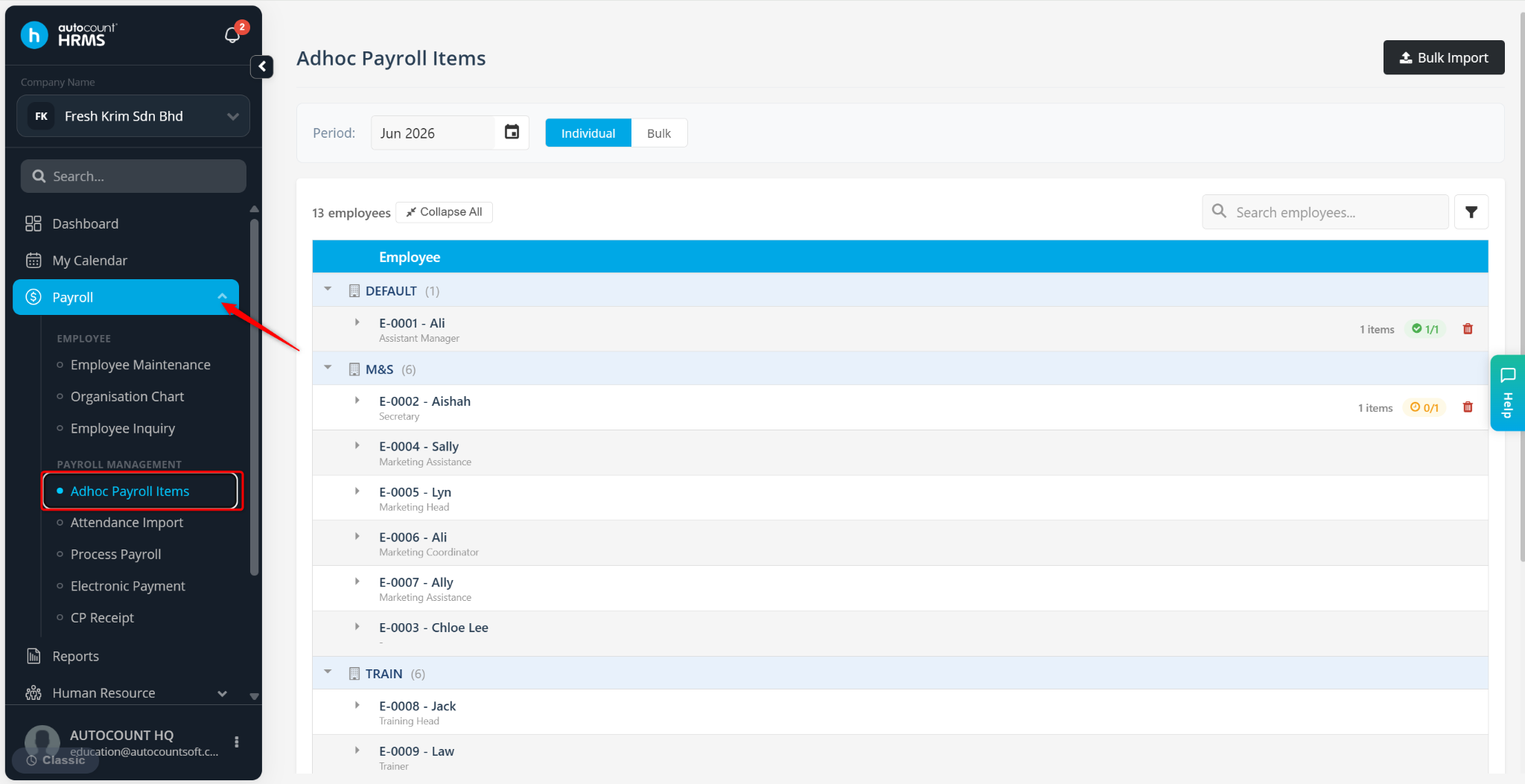
Select the relevant Period.
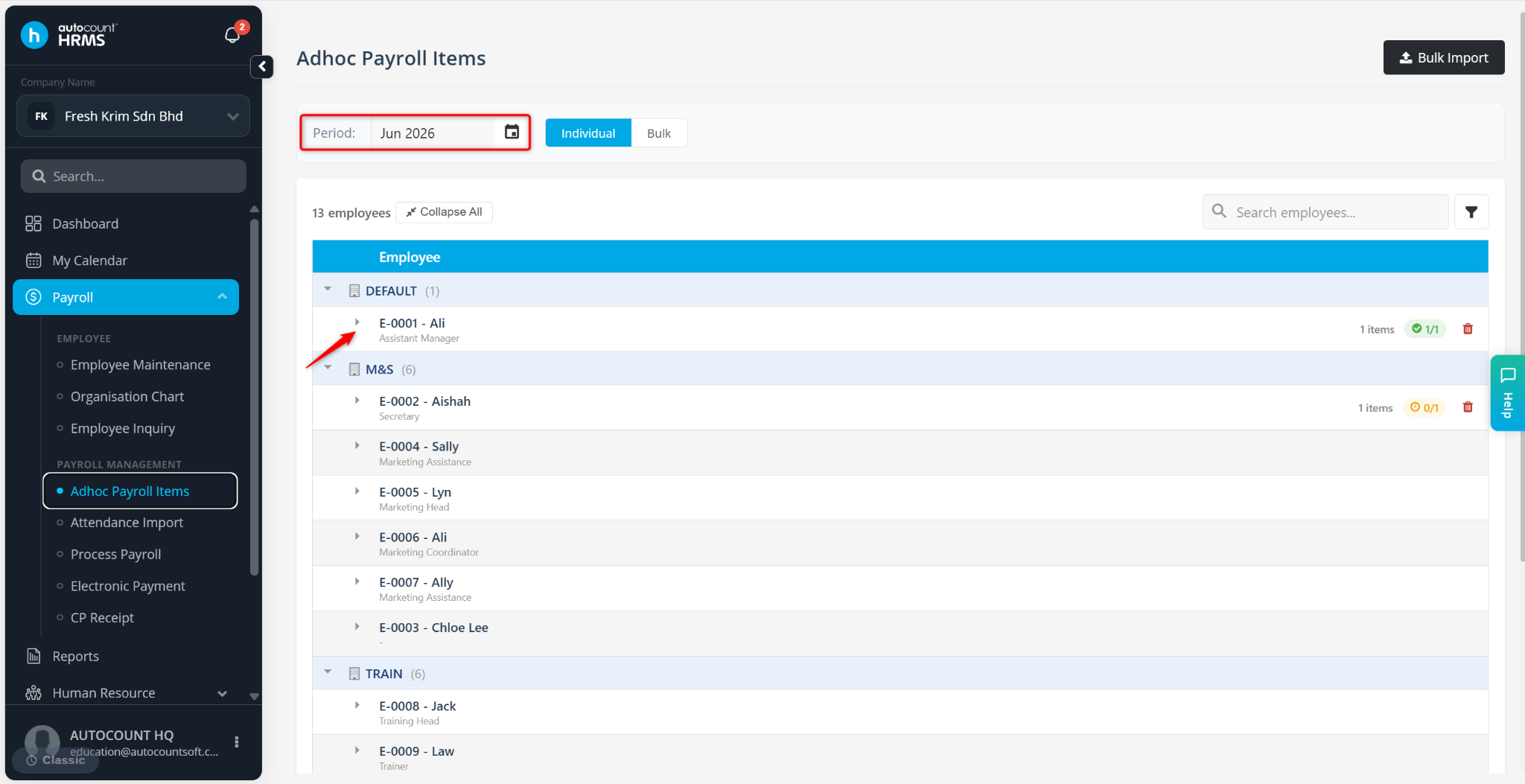
Locate the employee and click the > icon to expand the payroll item details.
Under the Period field, click the calendar icon and select the new period for the payroll item.
Click the tick icon to save the changes.