
The Batch Edit feature allows users to update specific employee settings for multiple employees simultaneously. This helps ensure consistency across employee records, reduces manual effort, and saves time when making bulk changes.
Steps to Batch Edit Employee Settings:
Go to Payroll > Employee Maintenance.
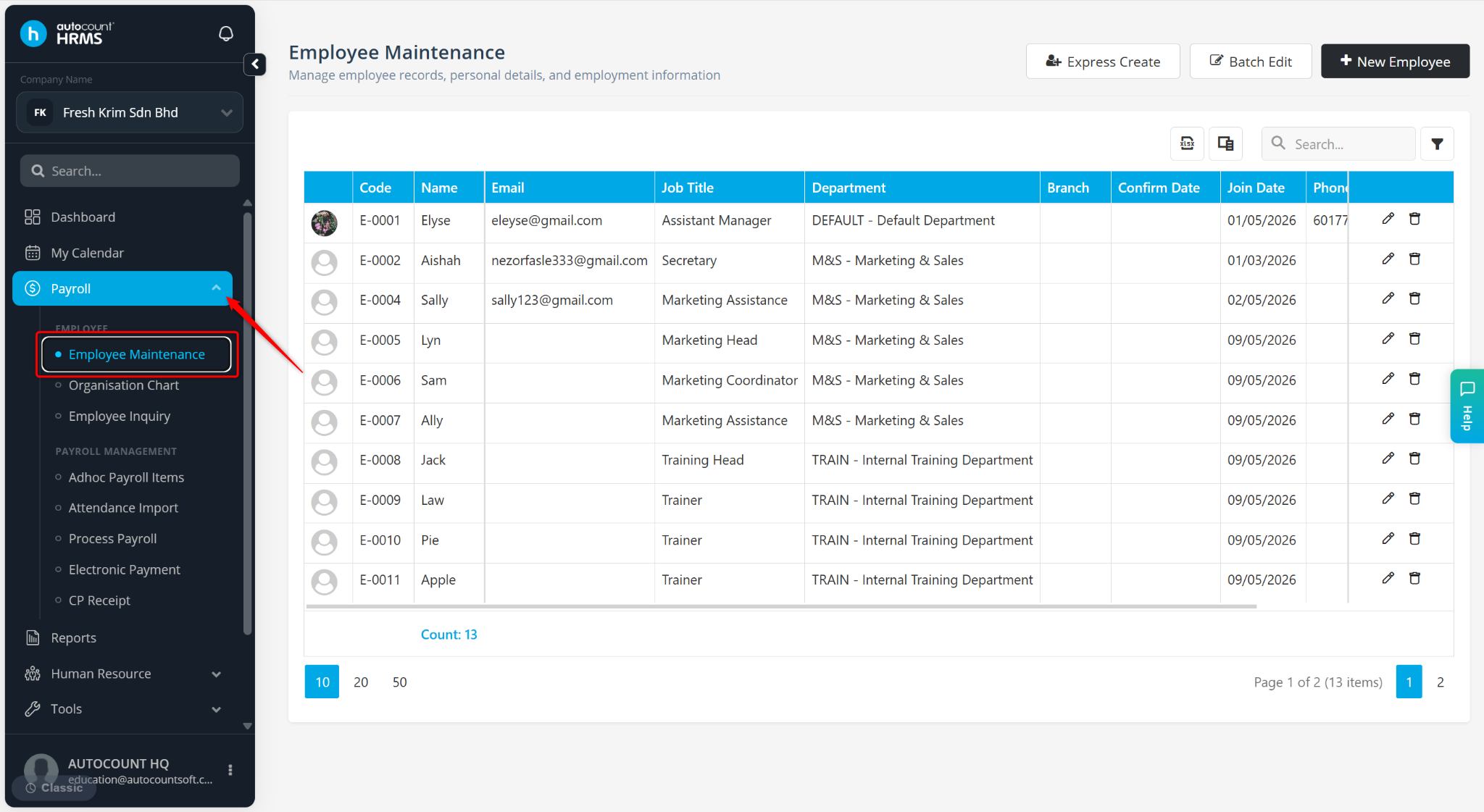
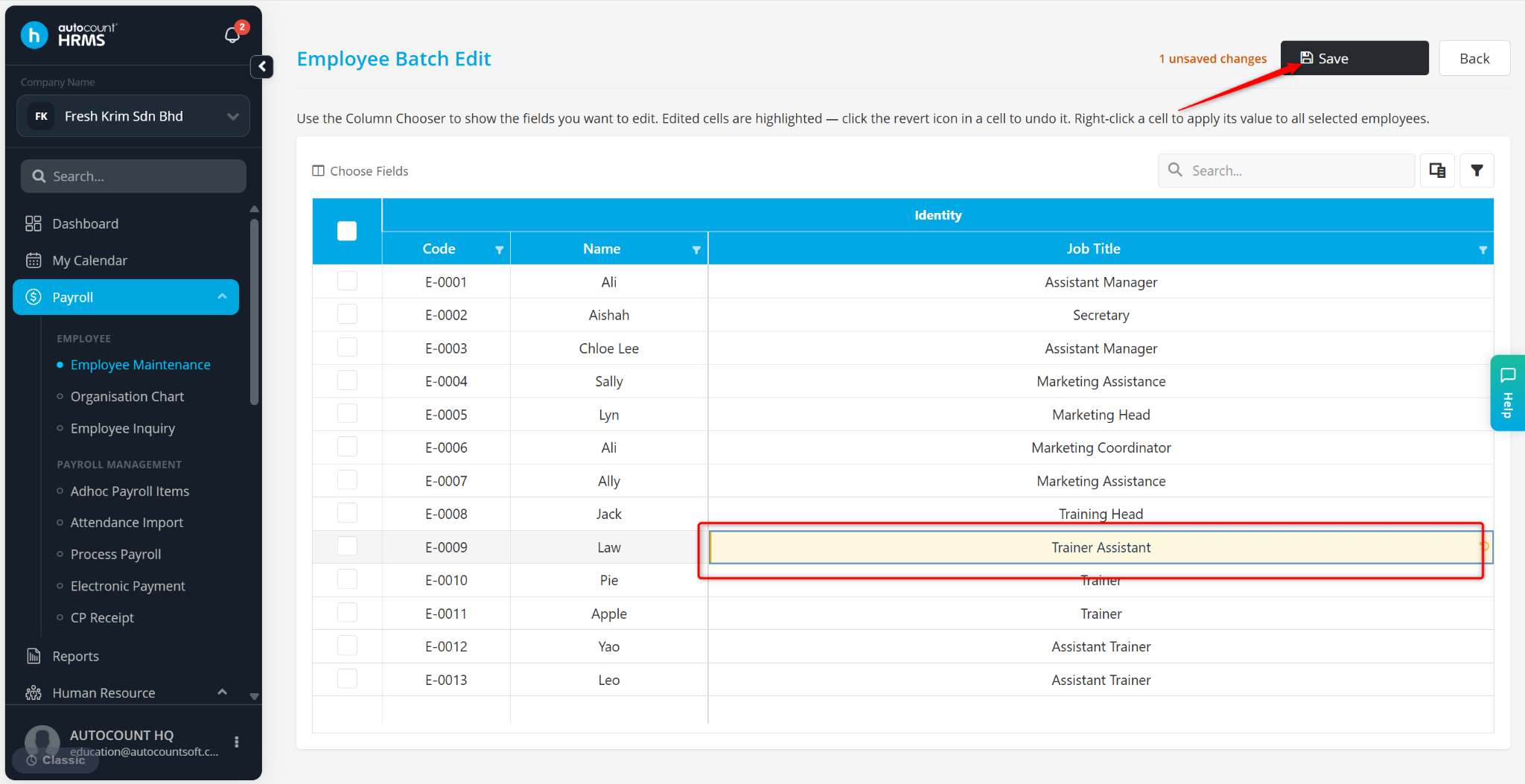
Click Batch Edit.
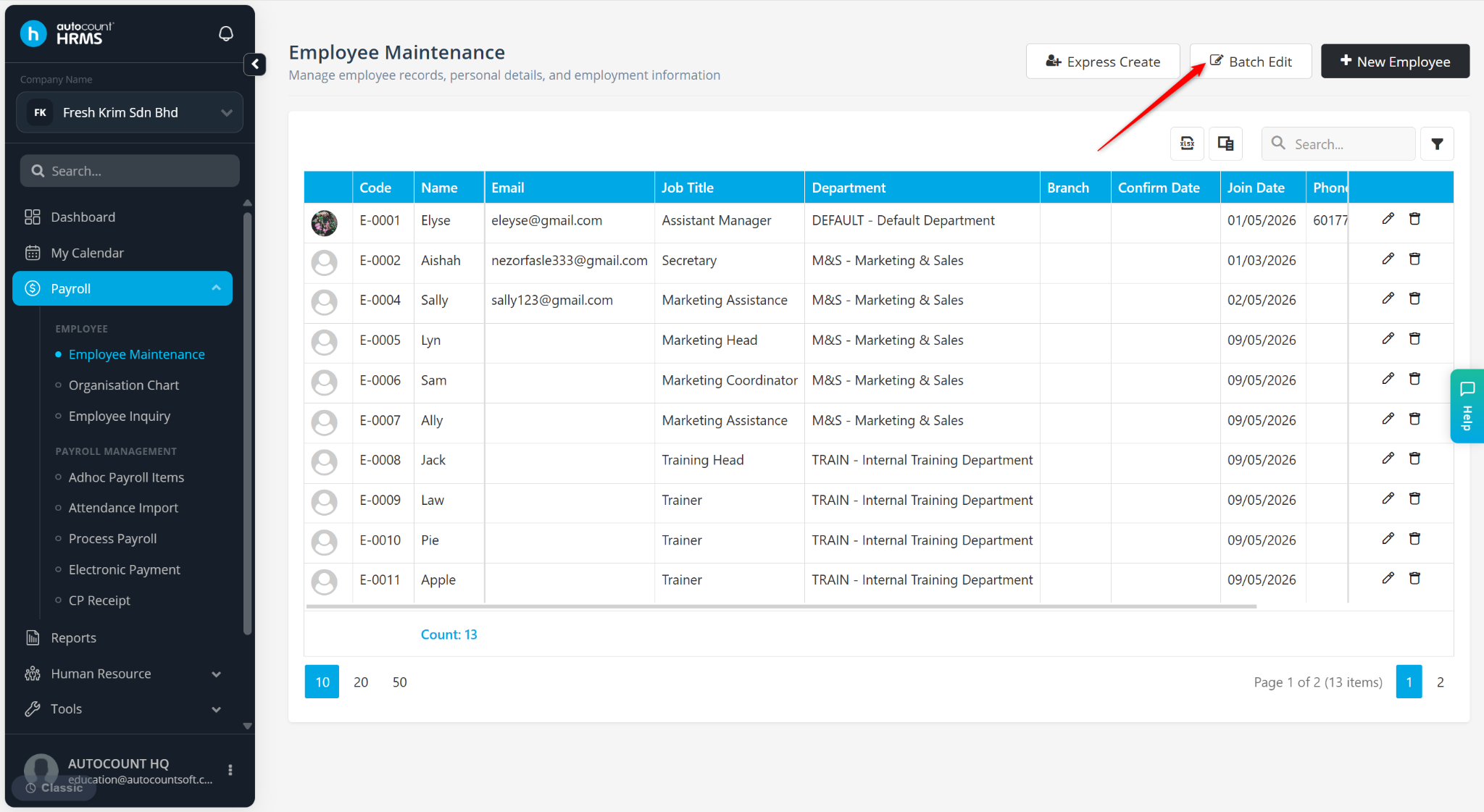
Click the Column Chooser icon and select the field you want to update (e.g., Overtime, Calendar, or Entitlement Group).
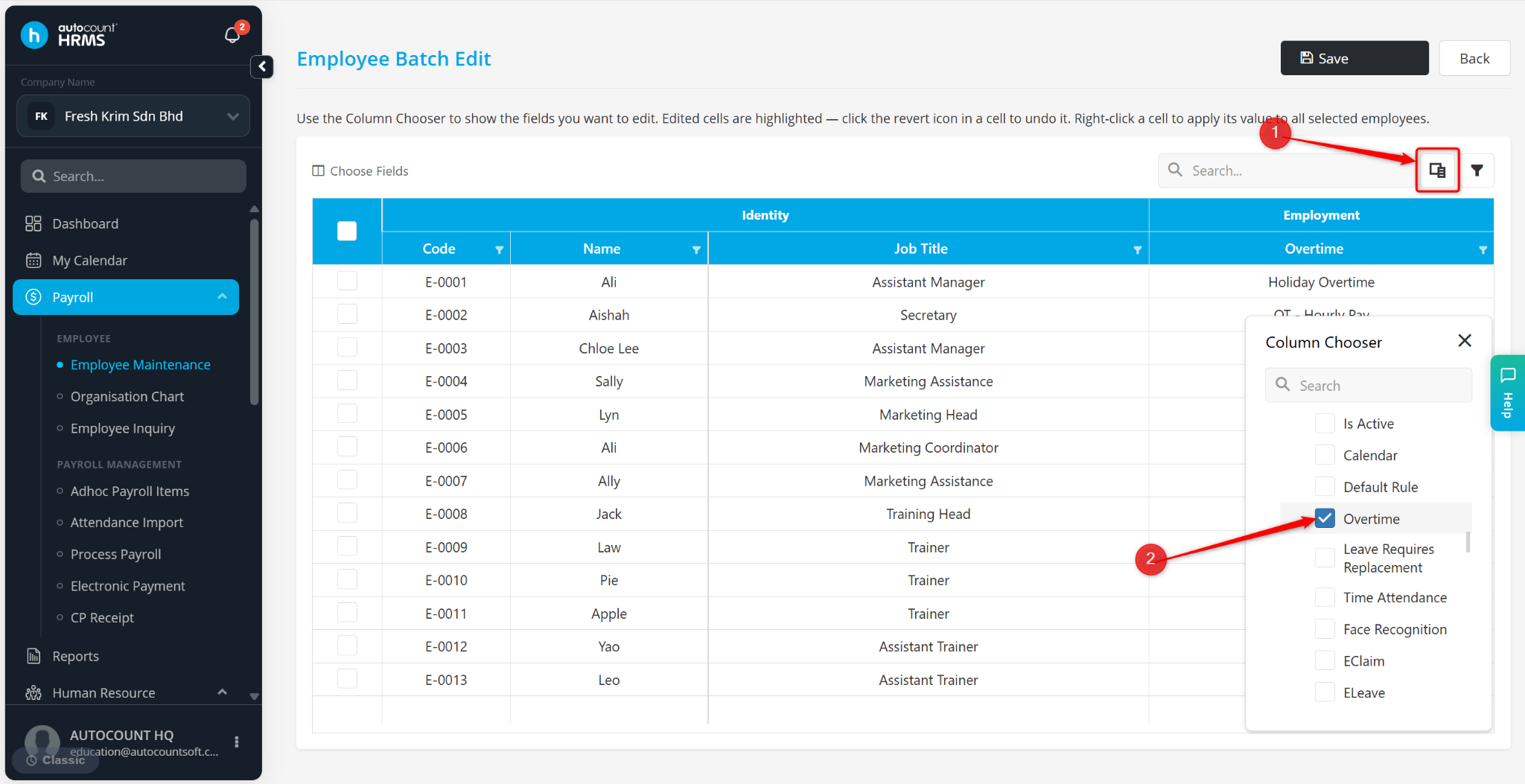
Tick the employee(s) to be included in the batch update.
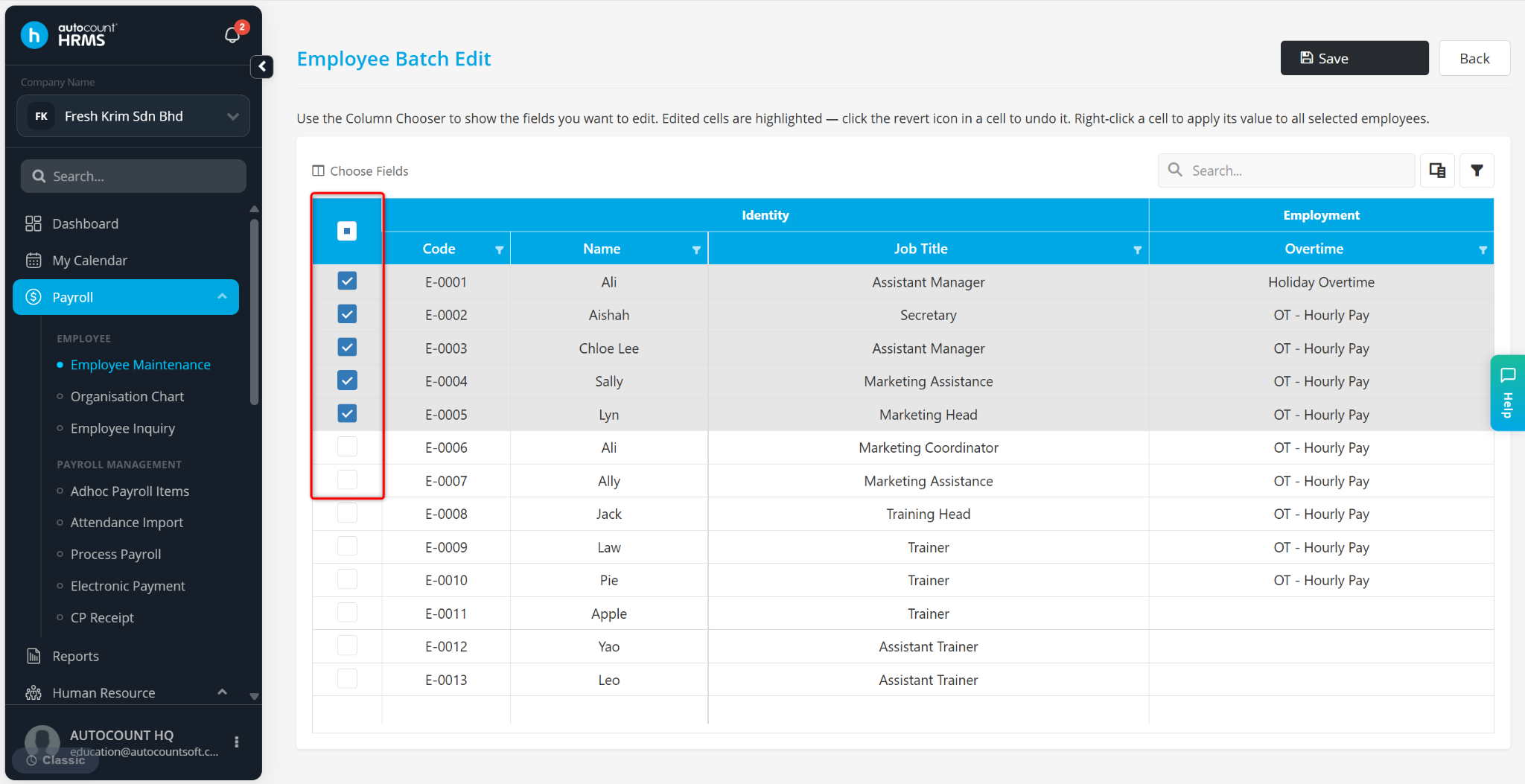
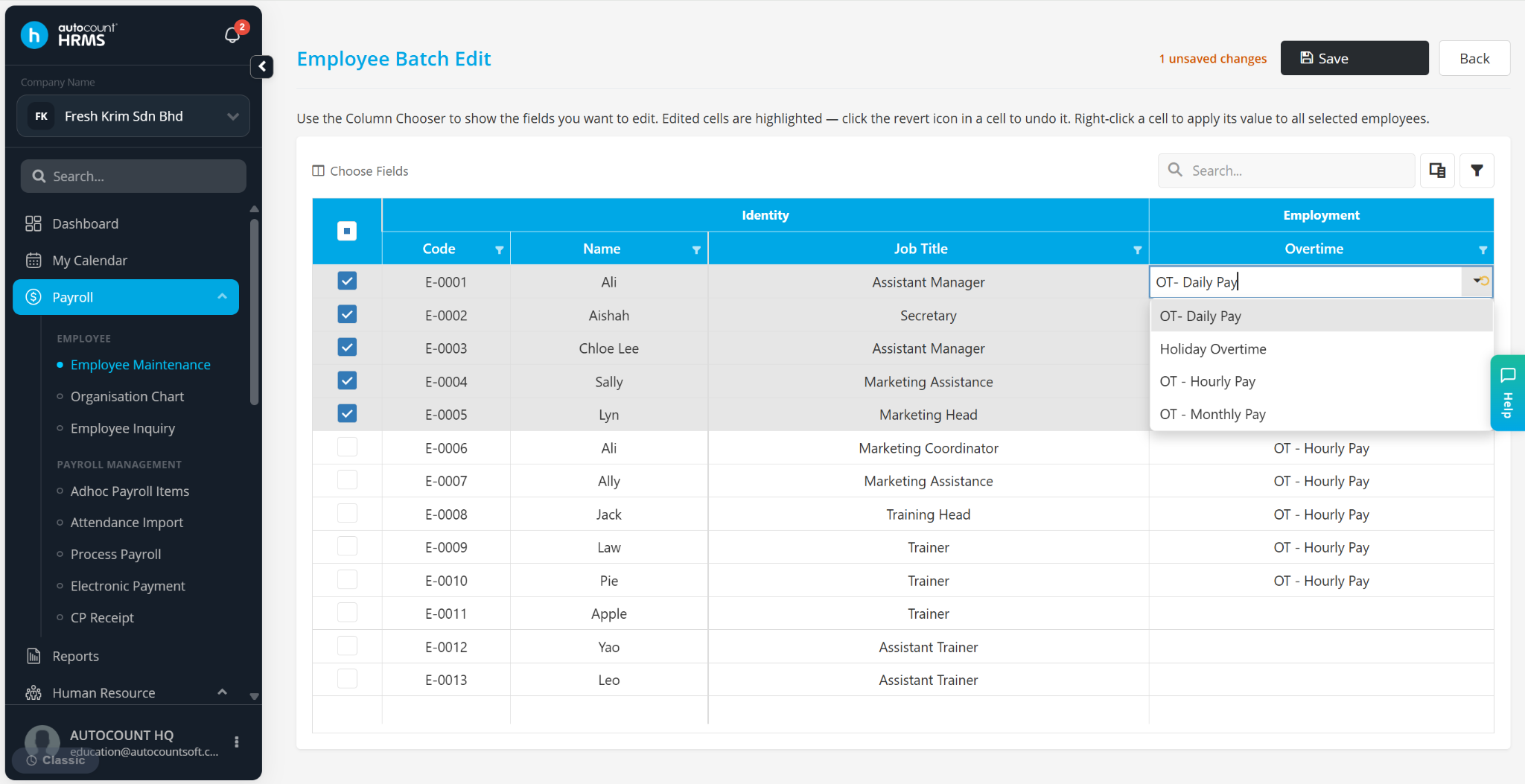
Select the settings relevant to one of the selected employees.
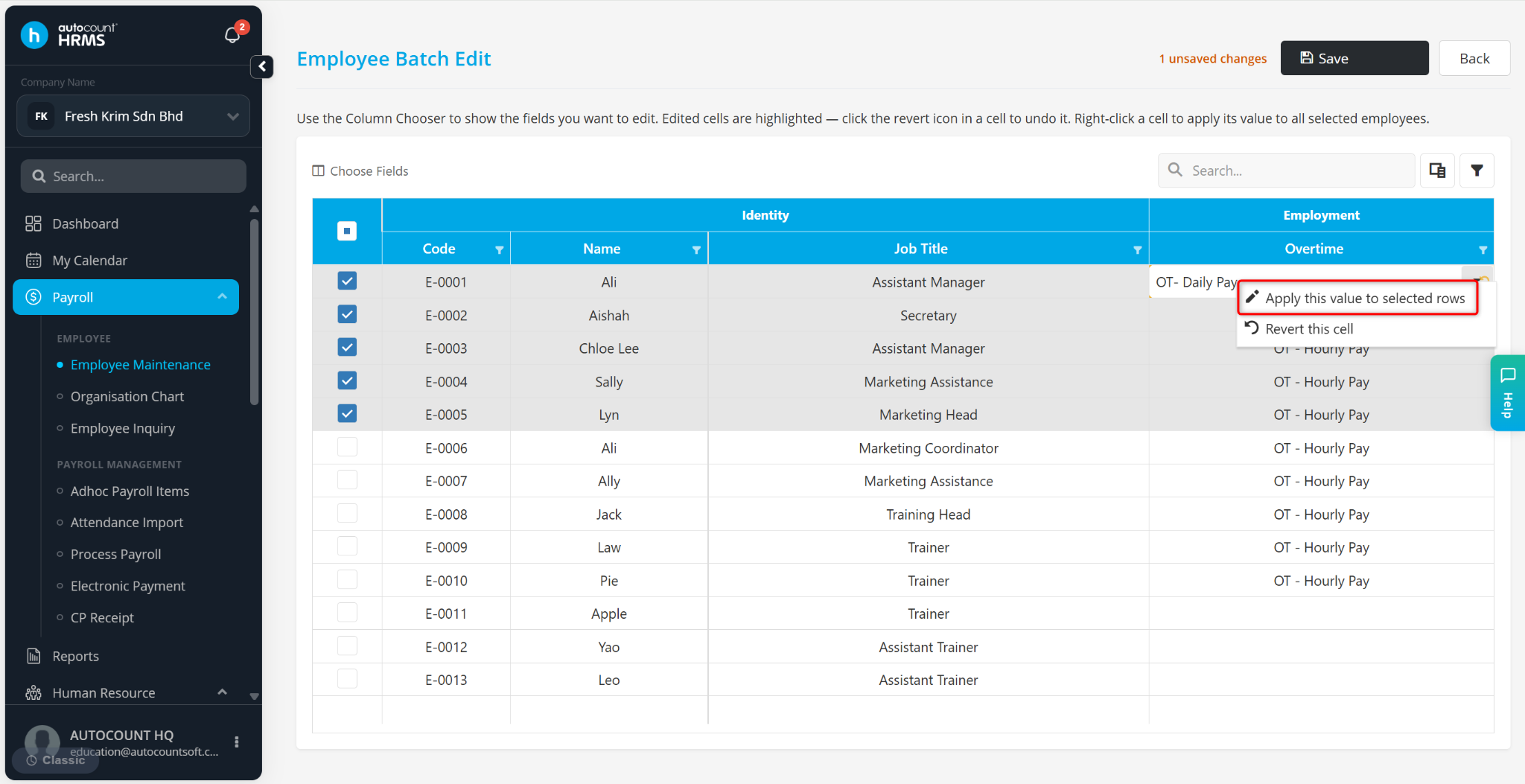
Right click and select Apply this value to selected rows.
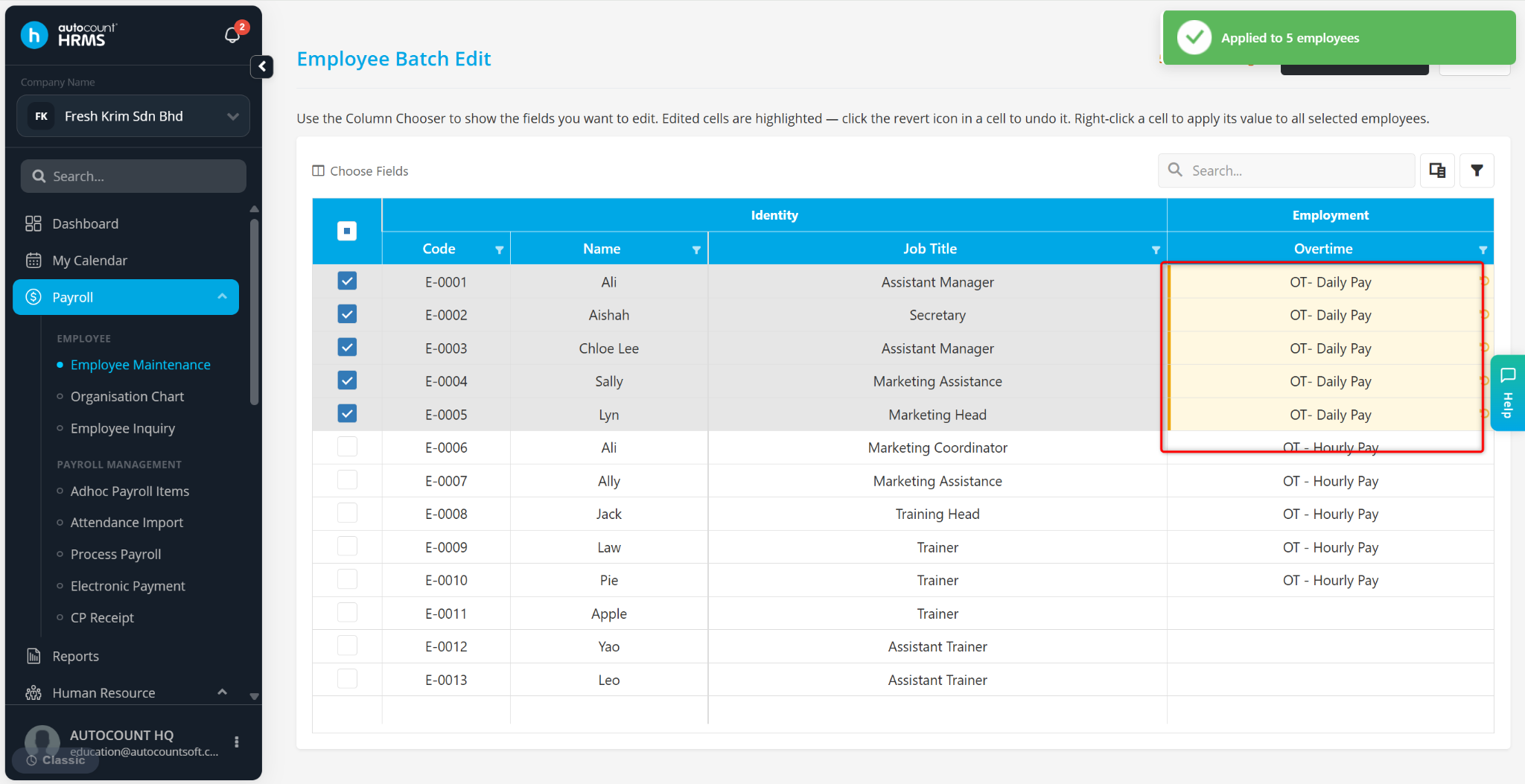
The details will be updated.
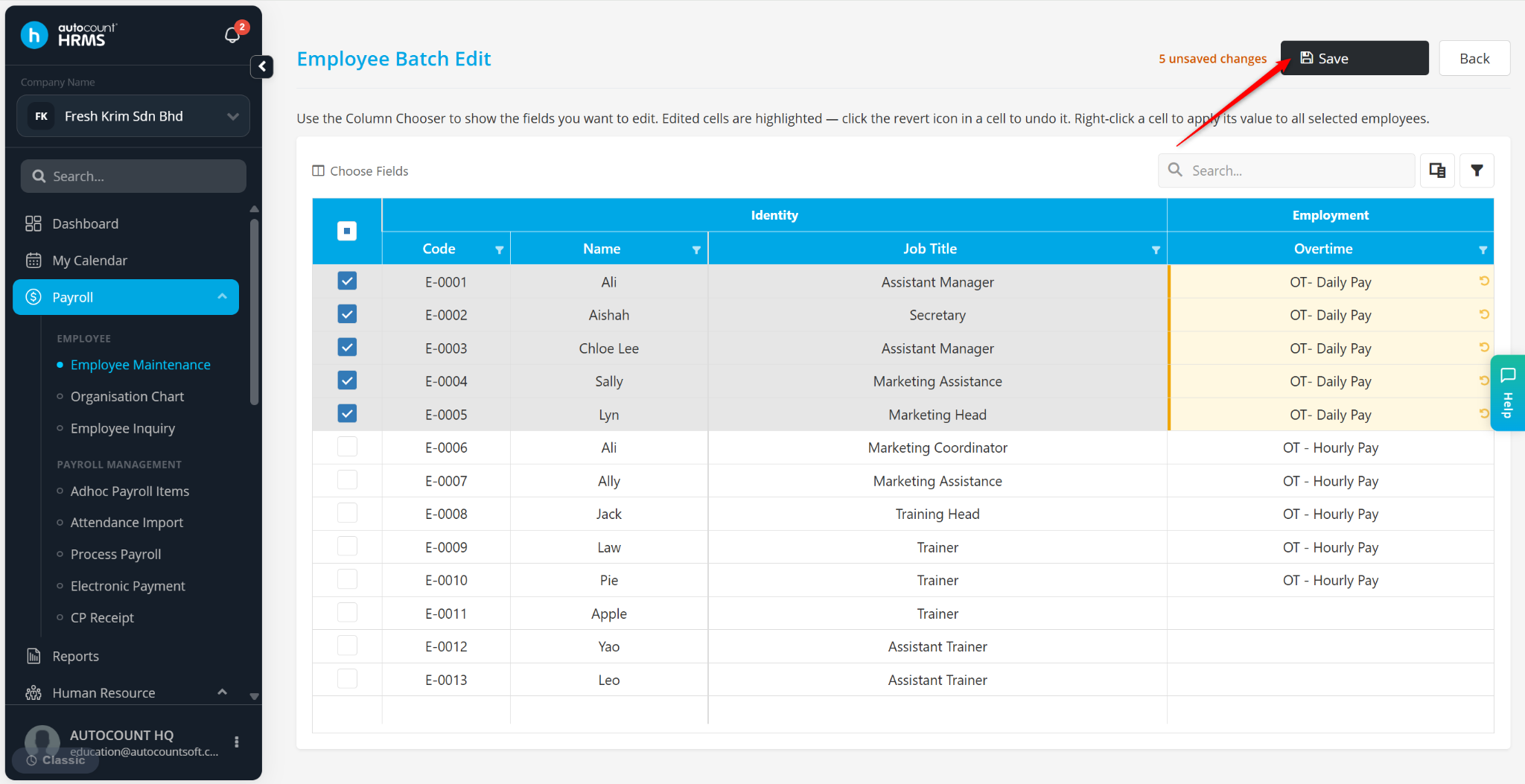
Click Save to apply the changes.
ℹ️ Note: Click the corresponding field in the detail column to modify the settings individually if required. Click Save to apply the changes for individual employees.
Written by: HanYang 250725
Reviewed by: Azirah 250731