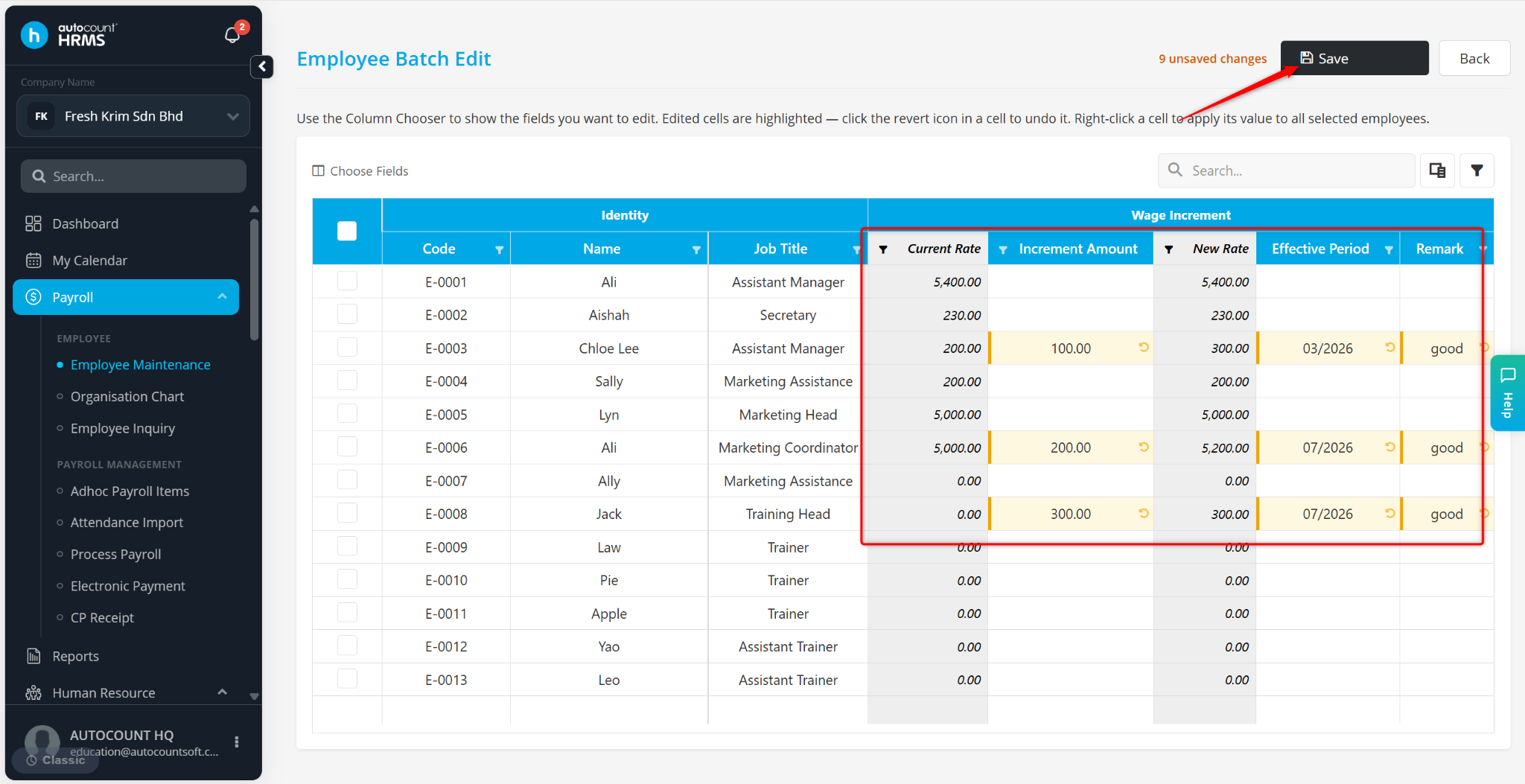
AutoCount HRMS provides a streamlined increment feature for managing employee salary adjustments. Users can define the effective period, increment amount, and remarks, while the system automatically updates the Current Rate column.
There are two ways to maintain salary increment:
Individually
Batch Edit
Method 1: Individually Update
Steps to Maintain Increment Individually:
Go to Payroll > Employee Maintenance.
Locate the employee and click the pencil icon.
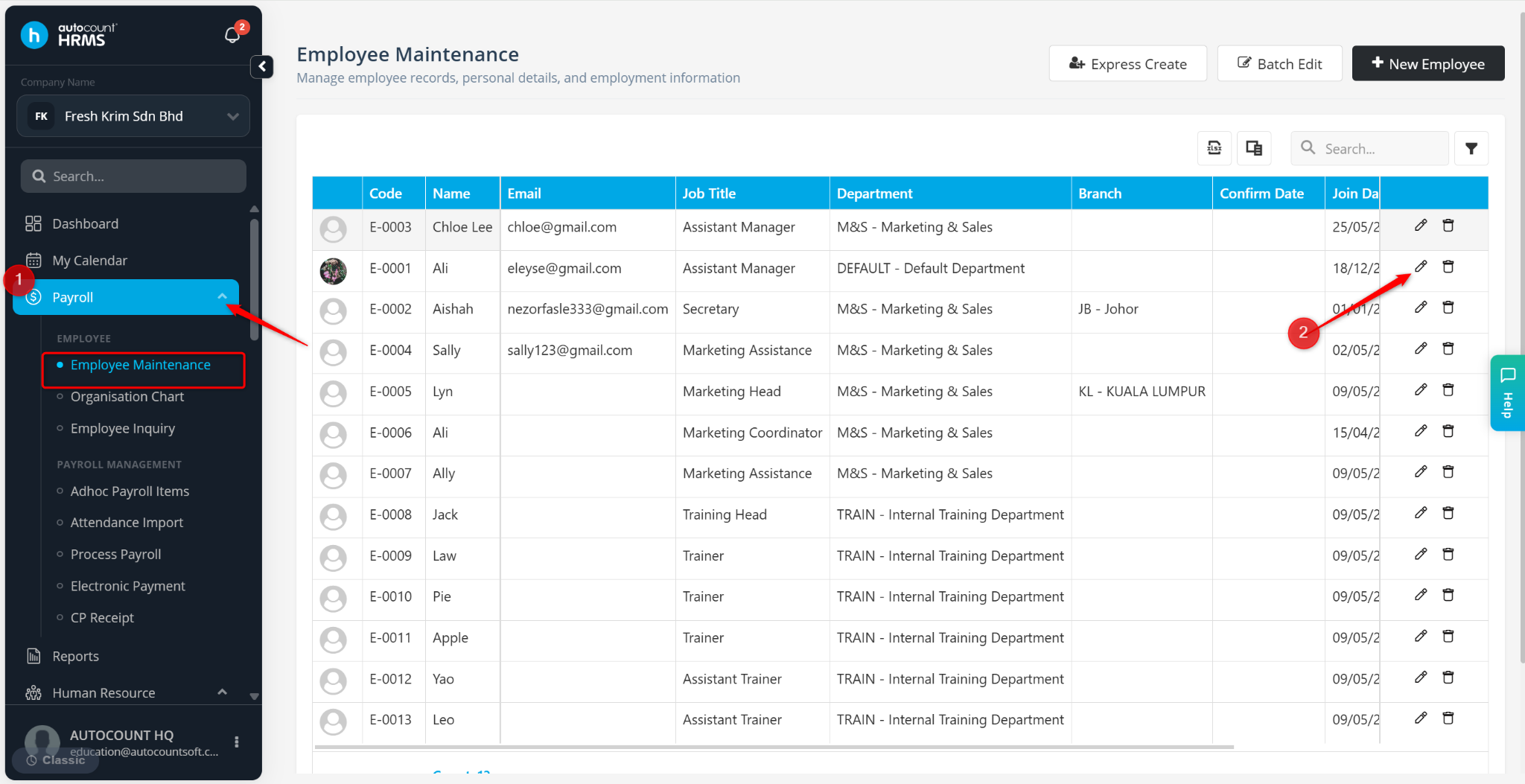
Go to Employment Details.
Under Wages Information, available fields include:
Basic Rate
Current Rate – Automatically calculated as Basic Rate + Increment Amount. This field is system-generated and cannot be edited.
Add Increment – Click + Add Increment and save after entering details.
Effective Period – Select the payroll period for the increment. Past payroll-processed periods cannot be selected.
Increment – Value of increment. Use negative values for salary reduction.
Remark
Archived Record – Stored under Employment History.
Method 2: Batch Edit
Steps to Maintain Salary Increment via Batch Edit:
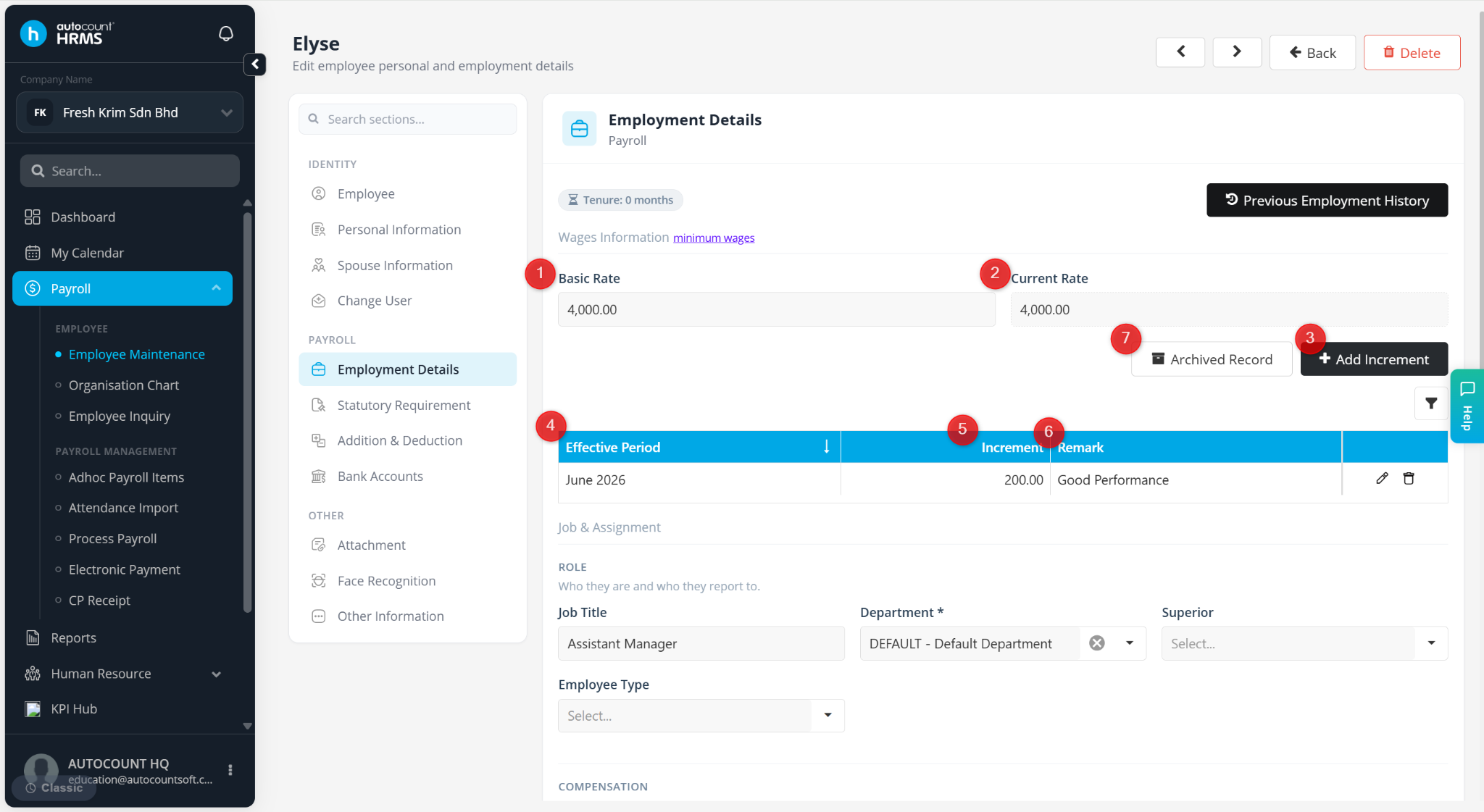
Go to Payroll > Employee Maintenance.
Click Batch Edit.
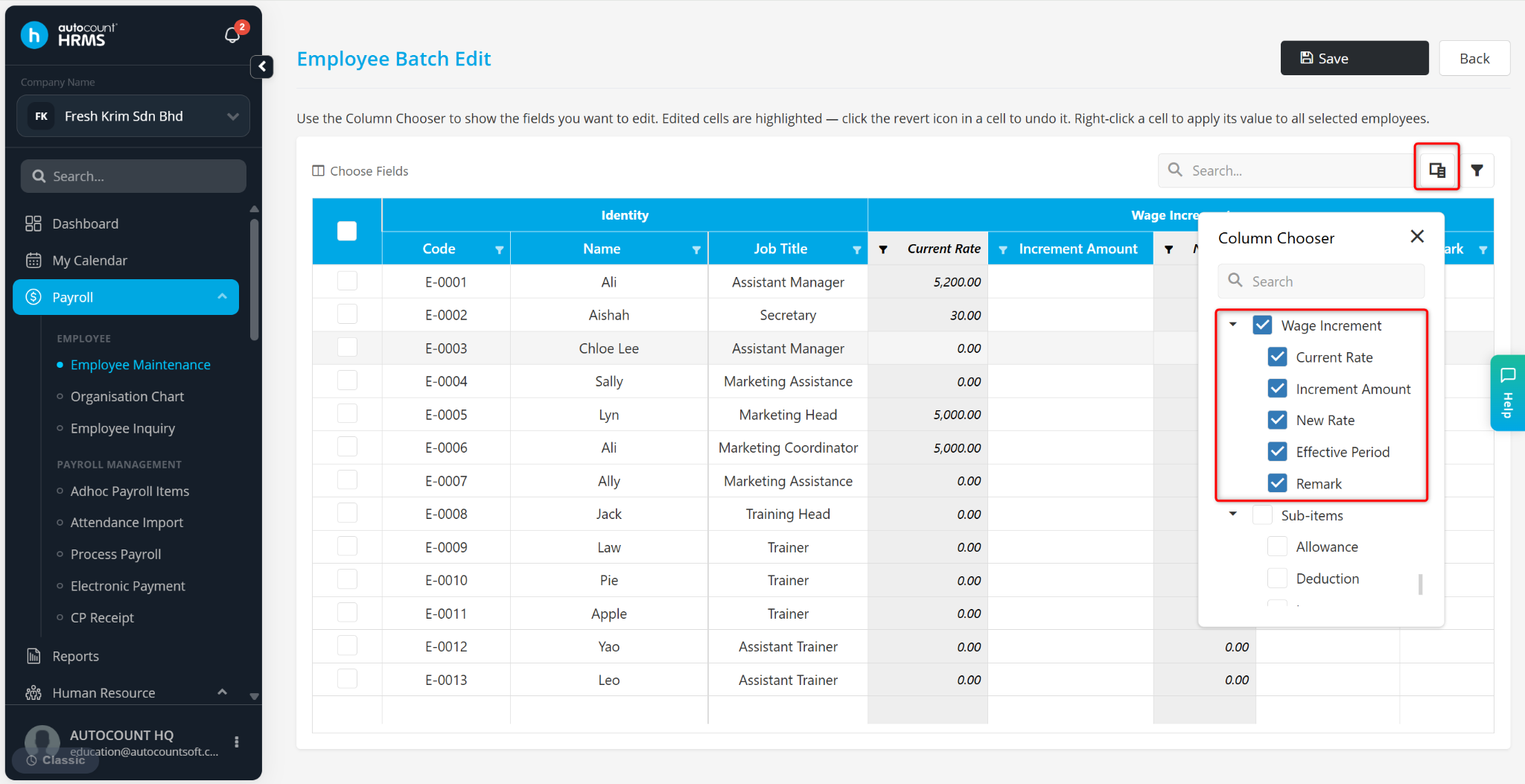
Select Wage Increment.
Scenario 1: 20 employees entitled to a RM 200 increment
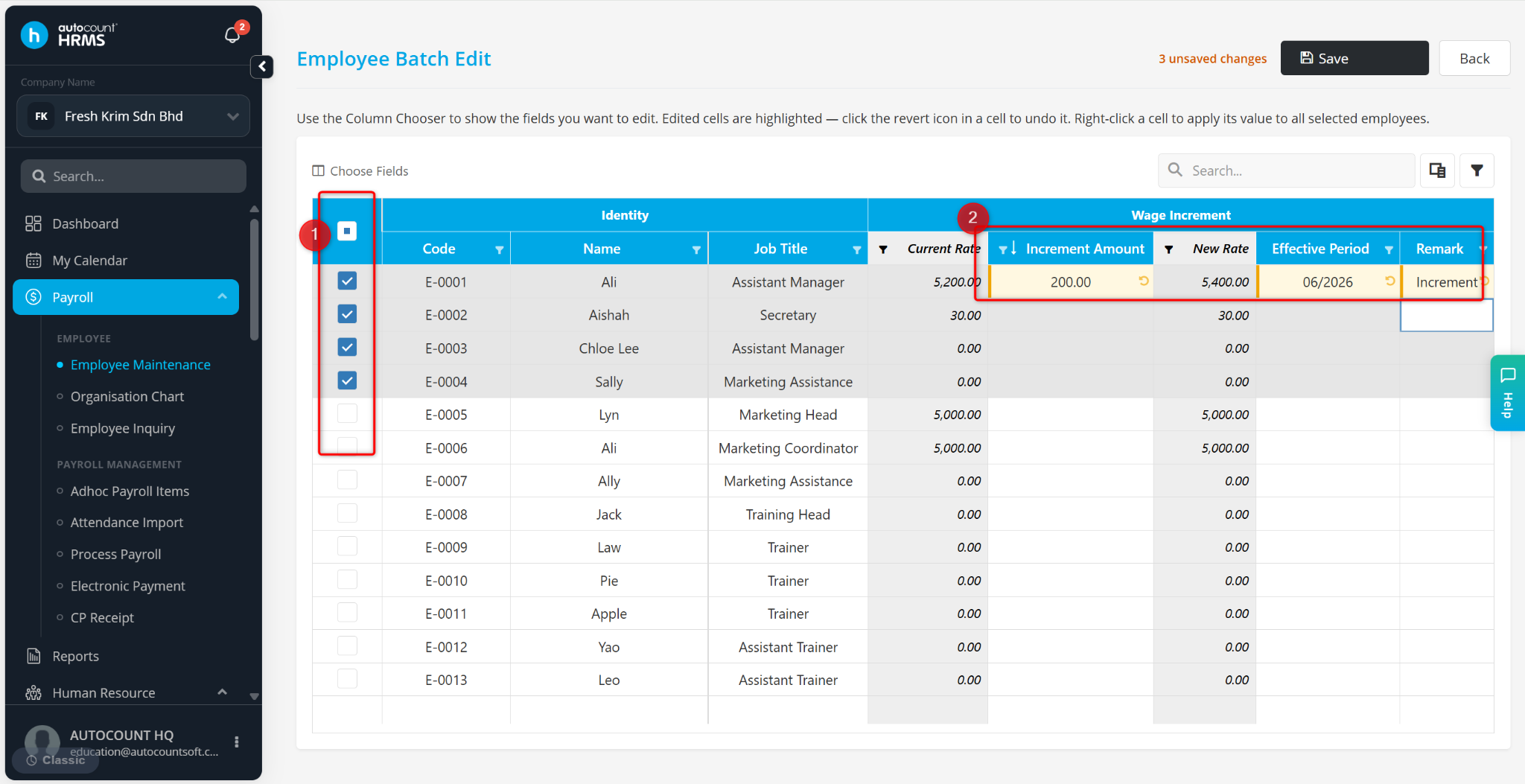
Tick the affected employees.
Select the effective period.
Enter the amount.
Enter the remark as a reference.
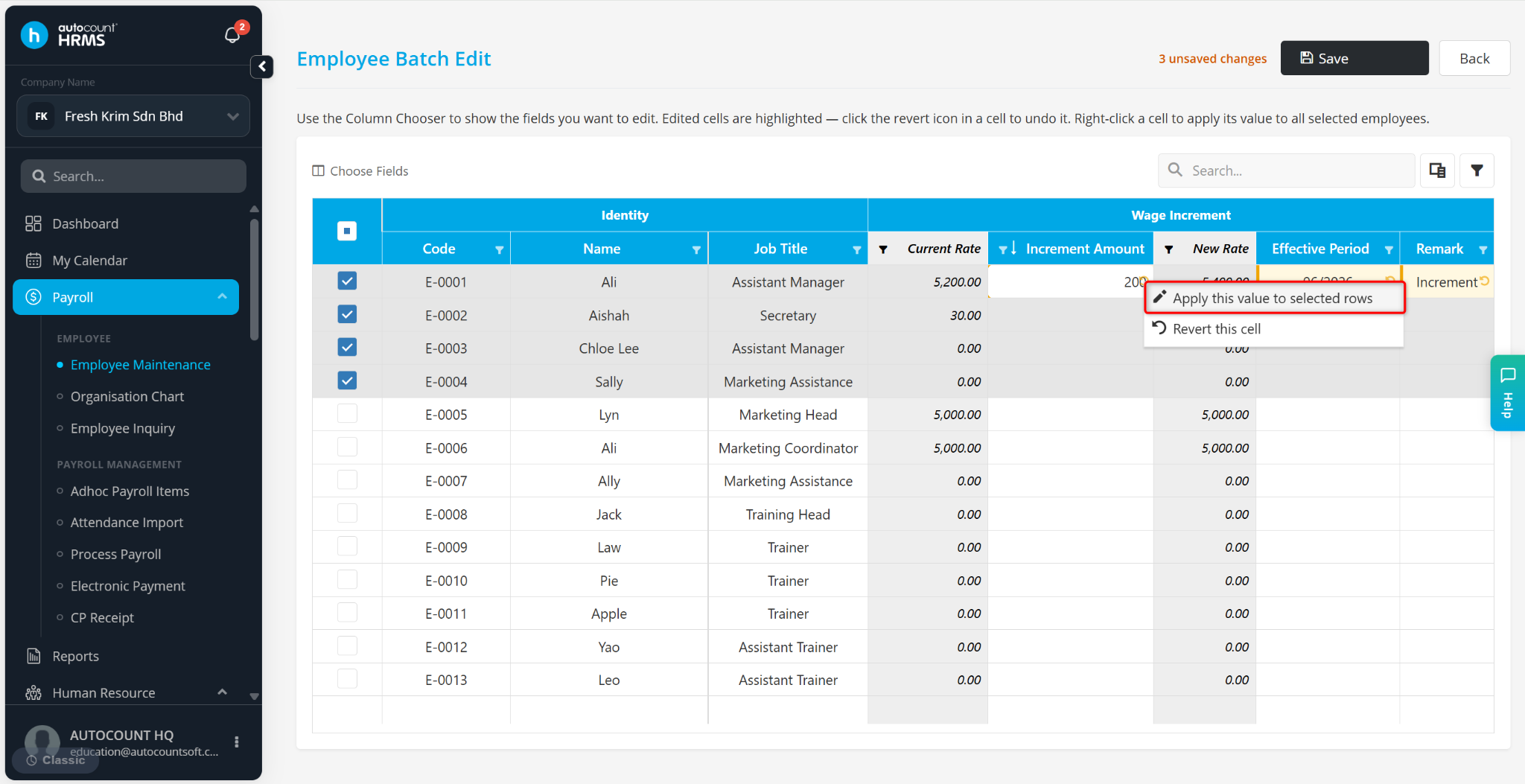
Right click at the column and select Apply this value to selected rows.
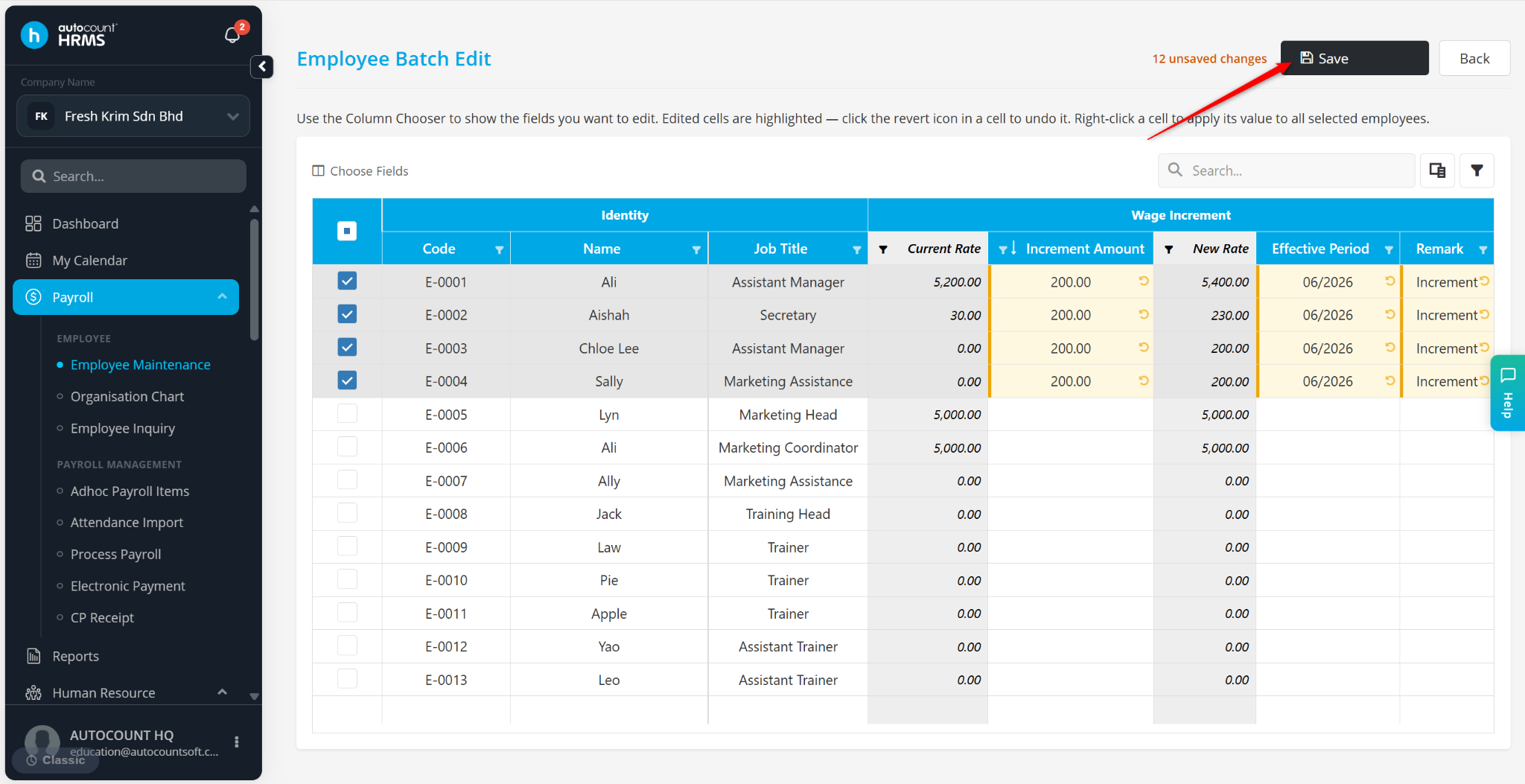
Click Save.
Scenario 2: 20 employees with different amount based on performance
Enter the increment amount for the affected employees.
Select the effective period.
Enter the remark as a reference.
The system will calculate and display the updated rates in the New Rate field.
Click Save.