
Maintaining accurate employment details is essential for payroll processing, employee management, attendance tracking, and reporting. These settings determine how employees are paid, assigned within the organisation, and managed throughout their employment lifecycle.
Steps to Maintain Employment Details:
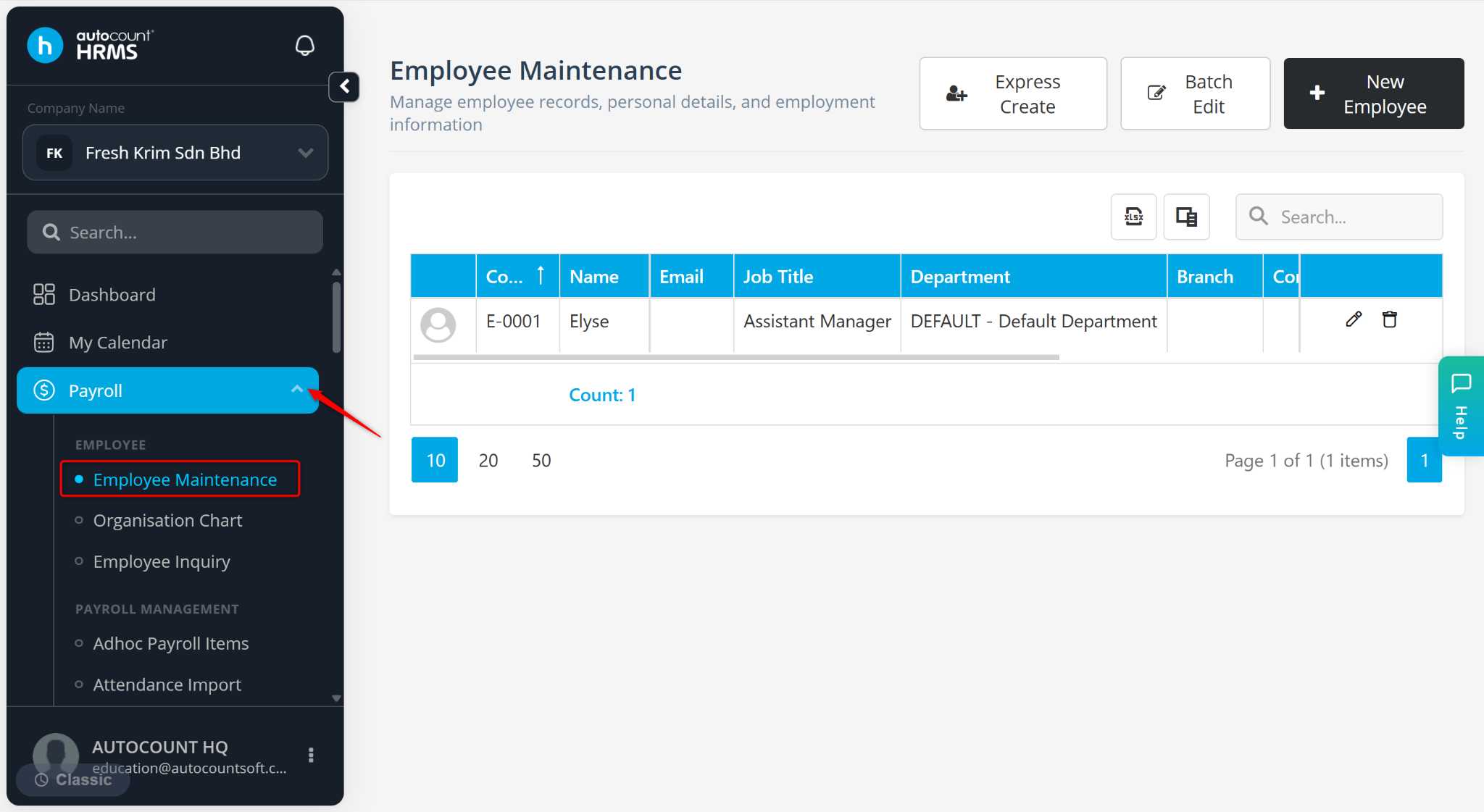
Go to Payroll > Employee Maintenance.
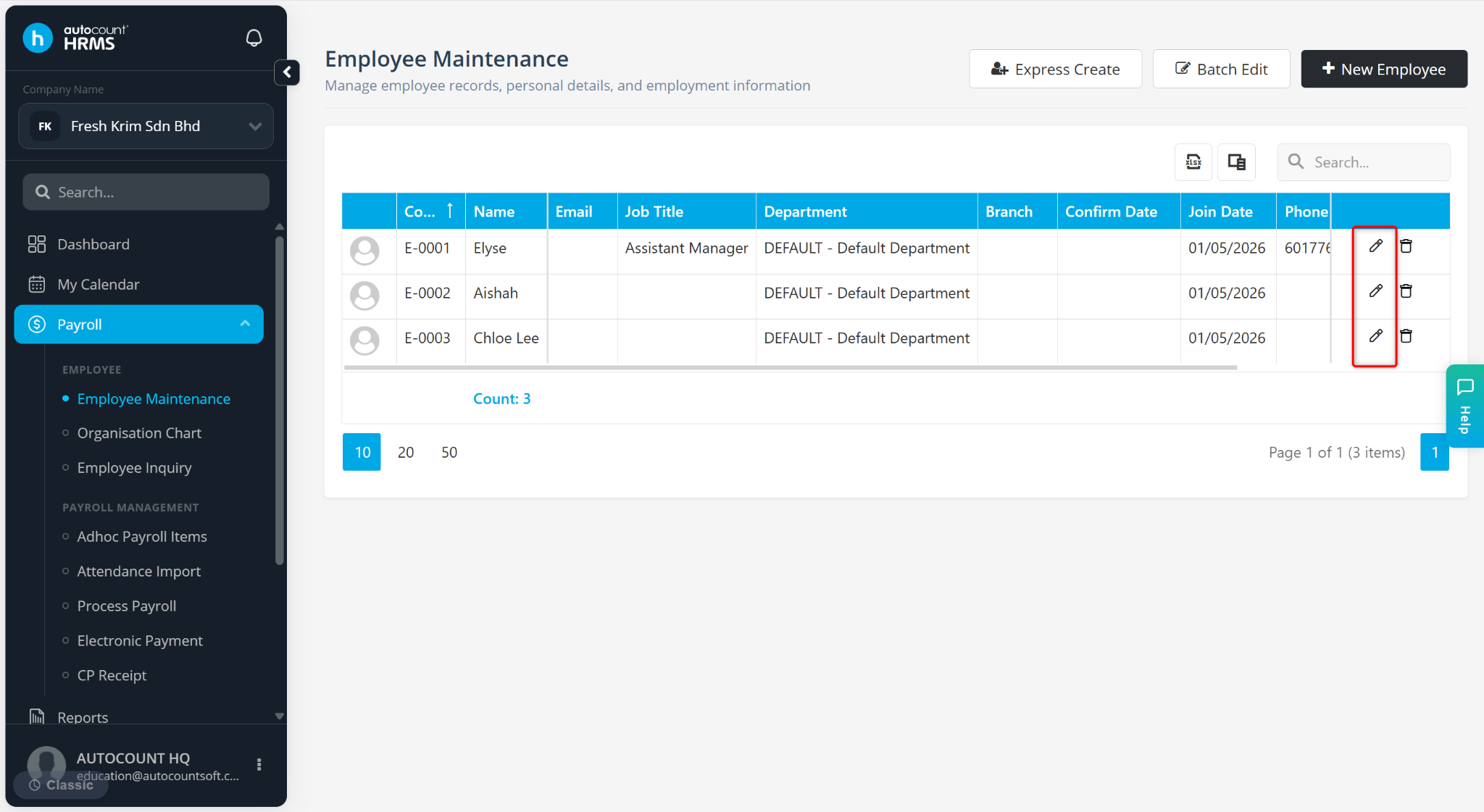
Click on the pencil icon next to the employee’s name.
Go to the Employment Details tab.
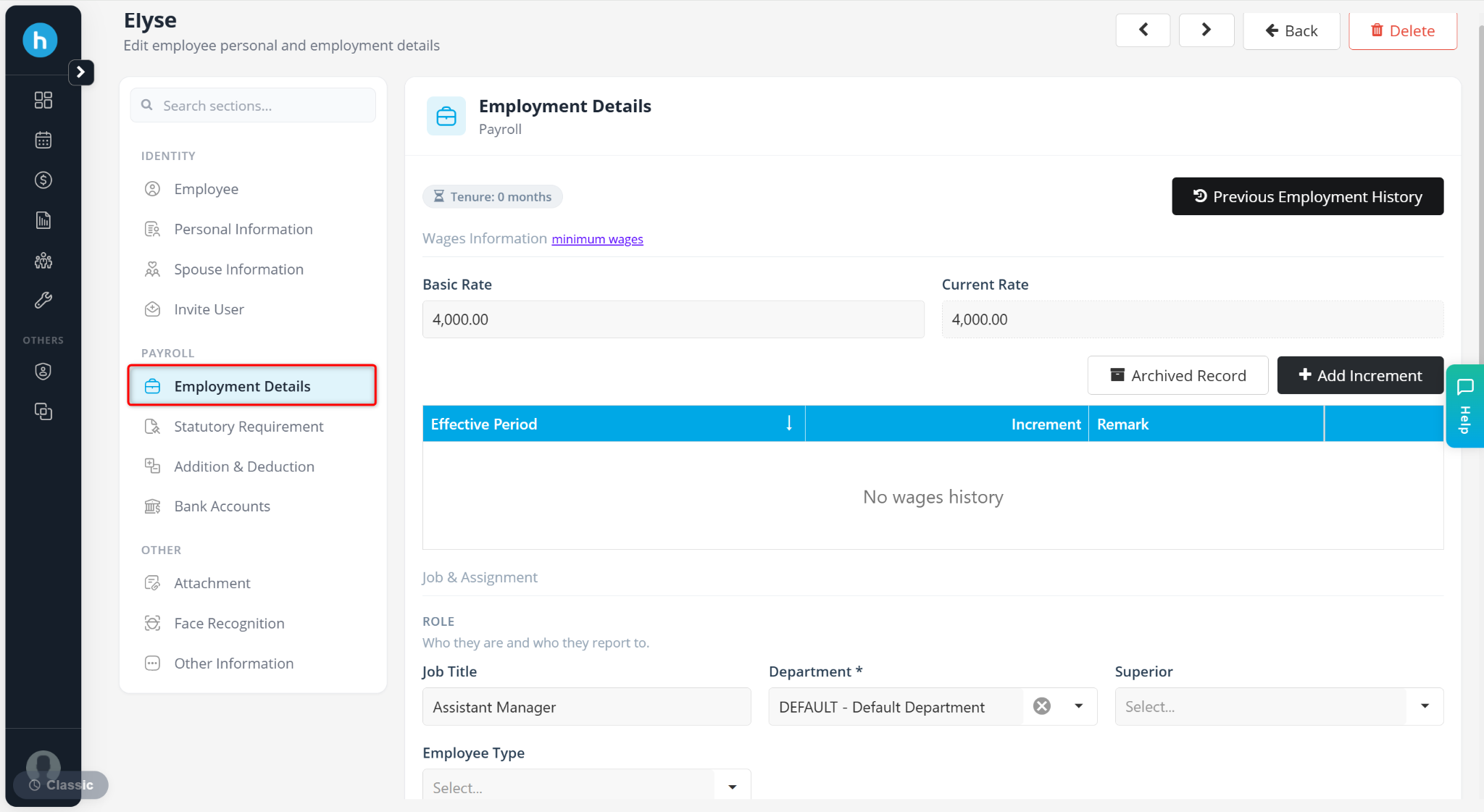
The Employment Details tab consists of the following sections:
Wages Information
Job & Assignment
Role
Compensation
Location & Rules
Employment Dates
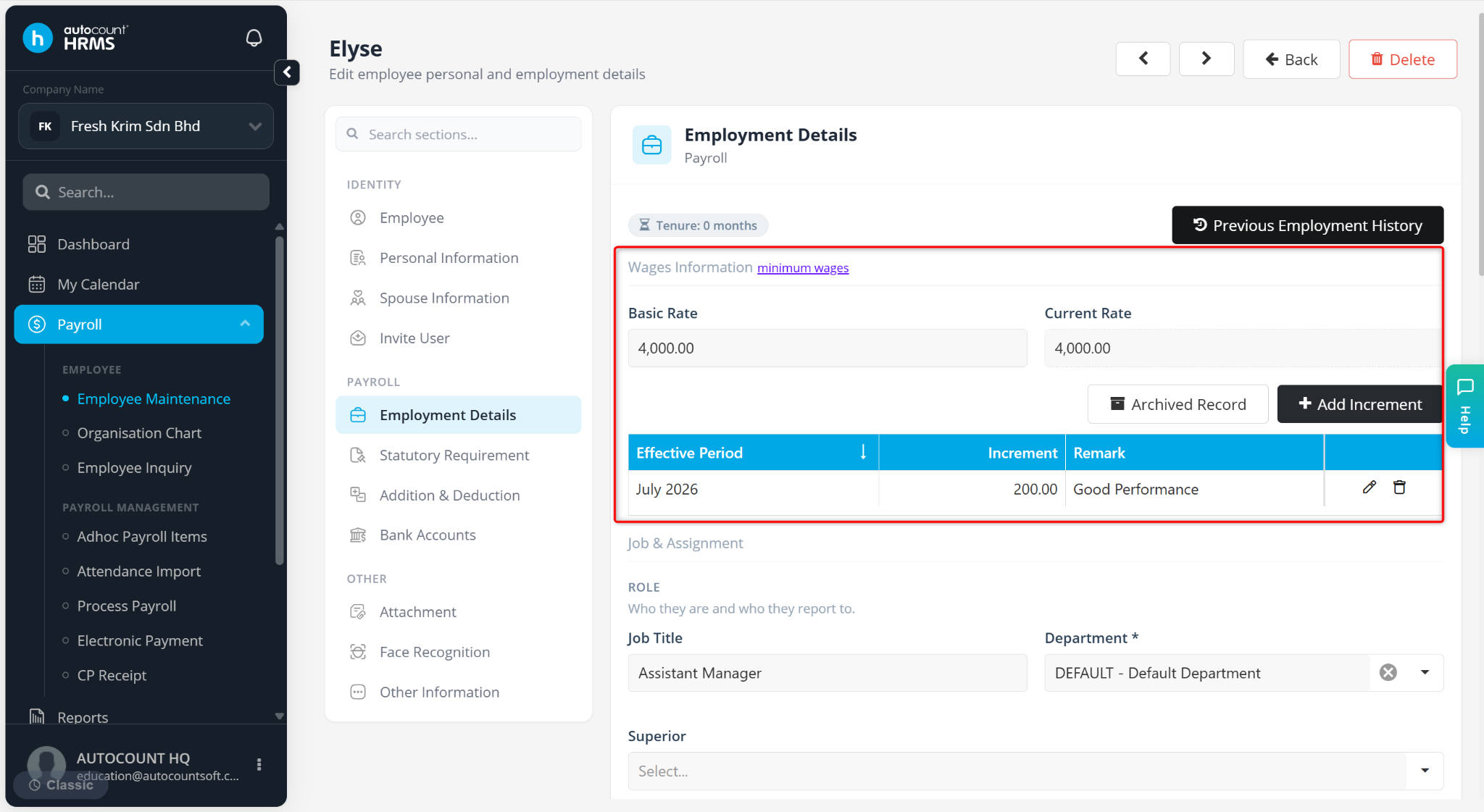
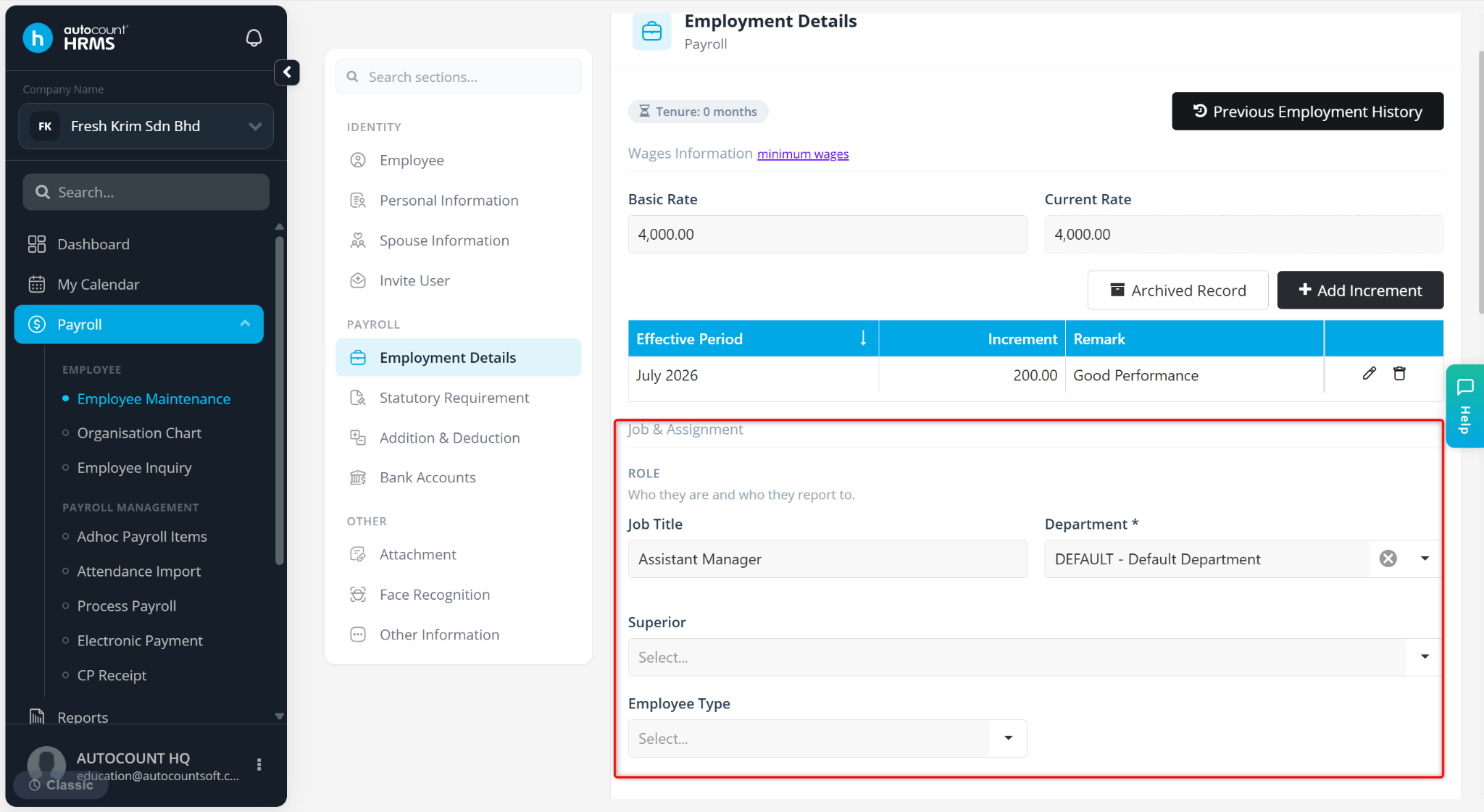
A) Wages Information
This section manages the employee's salary information and salary adjustments.
Basic Rate – Employee’s initial salary
Current Rate – Employee’s current salary
Add Increment – Maintain employee’s salary increment rate. Refer to Increment for detailed steps.
B) Role
This section defines the employee's role and reporting structure within the organisation.
Job Title – Enter the employee’s position or designation.
Department – Select the department the employee belongs to (maintained at Tools > Organisation > Department).
Superior – Select the employee’s reporting manager.
Employee Type – Select the employee’s classification (maintained at Tools > Classification > Employee Type).
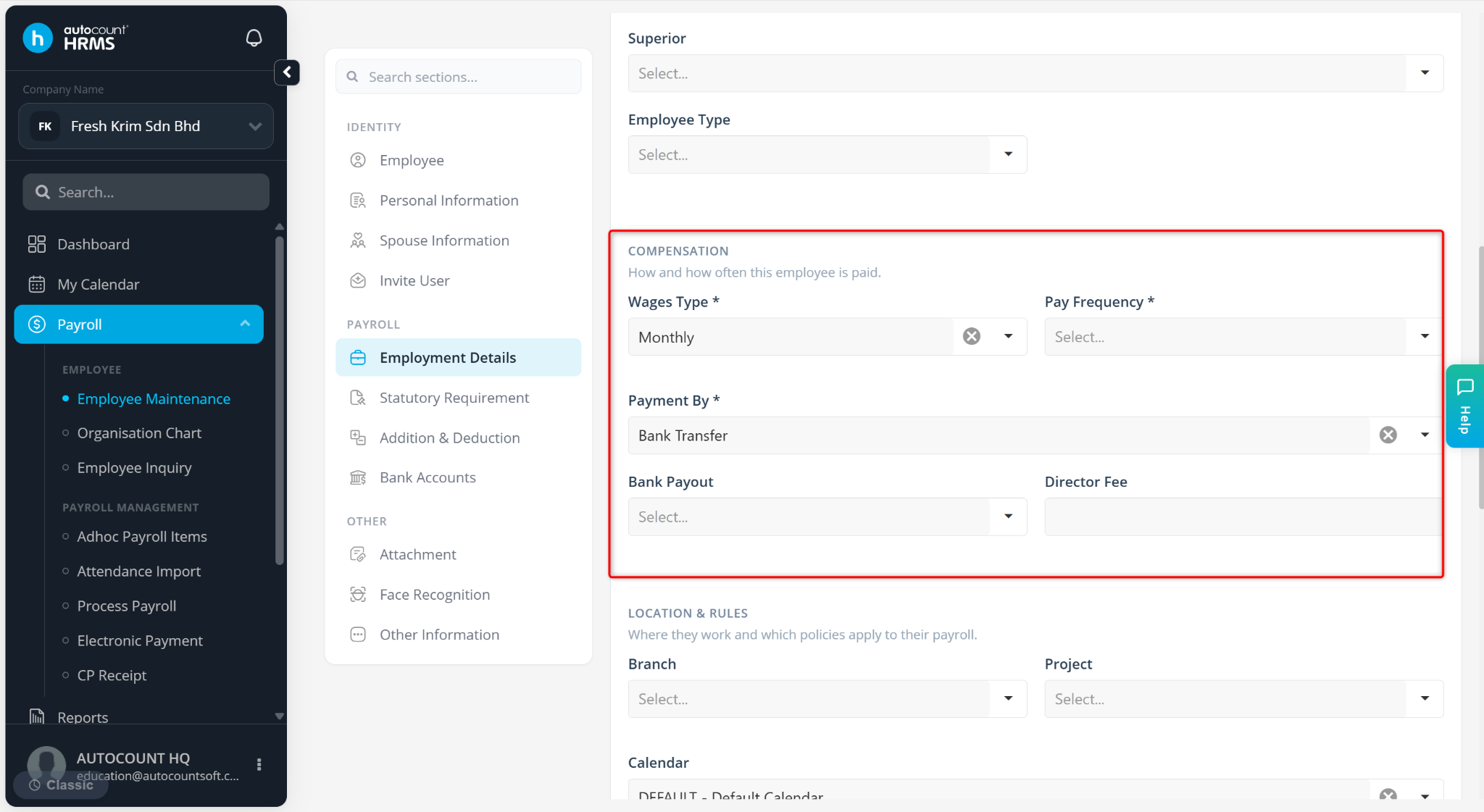
C) Compensation
This section controls how the employee is paid.
Wages Type – Select Monthly, Daily, Hourly, or Piece Rate based on the employee’s pay structure.
Pay Frequency – Select Monthly or Fortnightly.
Payment By – Select Bank Transfer, Cash, or Cheque.
Bank Payout – Select the bank payout method.
Director Fee – Enter the director fee amount.
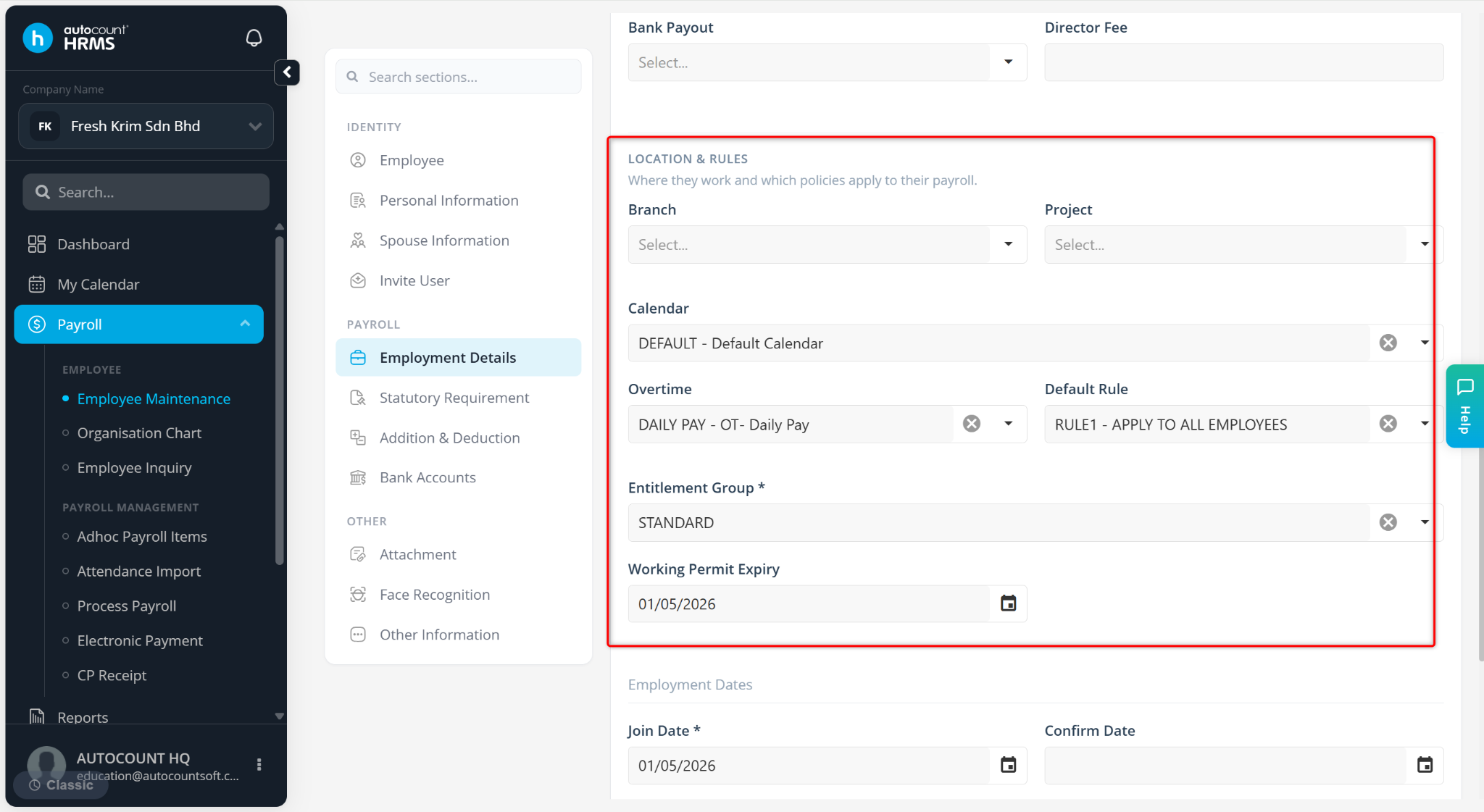
C) Location & Rules
This section specifies the employee's workplace assignment and applicable HR or payroll rules.
Branch – Select the assigned workplace or office location (maintained at Tools > Organisation > Branch)
Project – Select the assigned project (maintained at Tools > Organisation > Project)
Calendar – Select the assigned work calendar (maintained at Tools > Calendar)
Overtime – Select the assigned overtime rule (maintained at Tools > Payroll Items > Overtime)
Default Rule – Select the standard payroll rule set applied (maintained at Human Resource > Shift & Rule)
Entitlement Group – Select the applicable group (maintained at Tools > Entitlement Group, refer to Leave Entitlement and Claim Entitlement).
Working Permit Expiry – Enter the expiry date of the employee’s work permit if applicable.
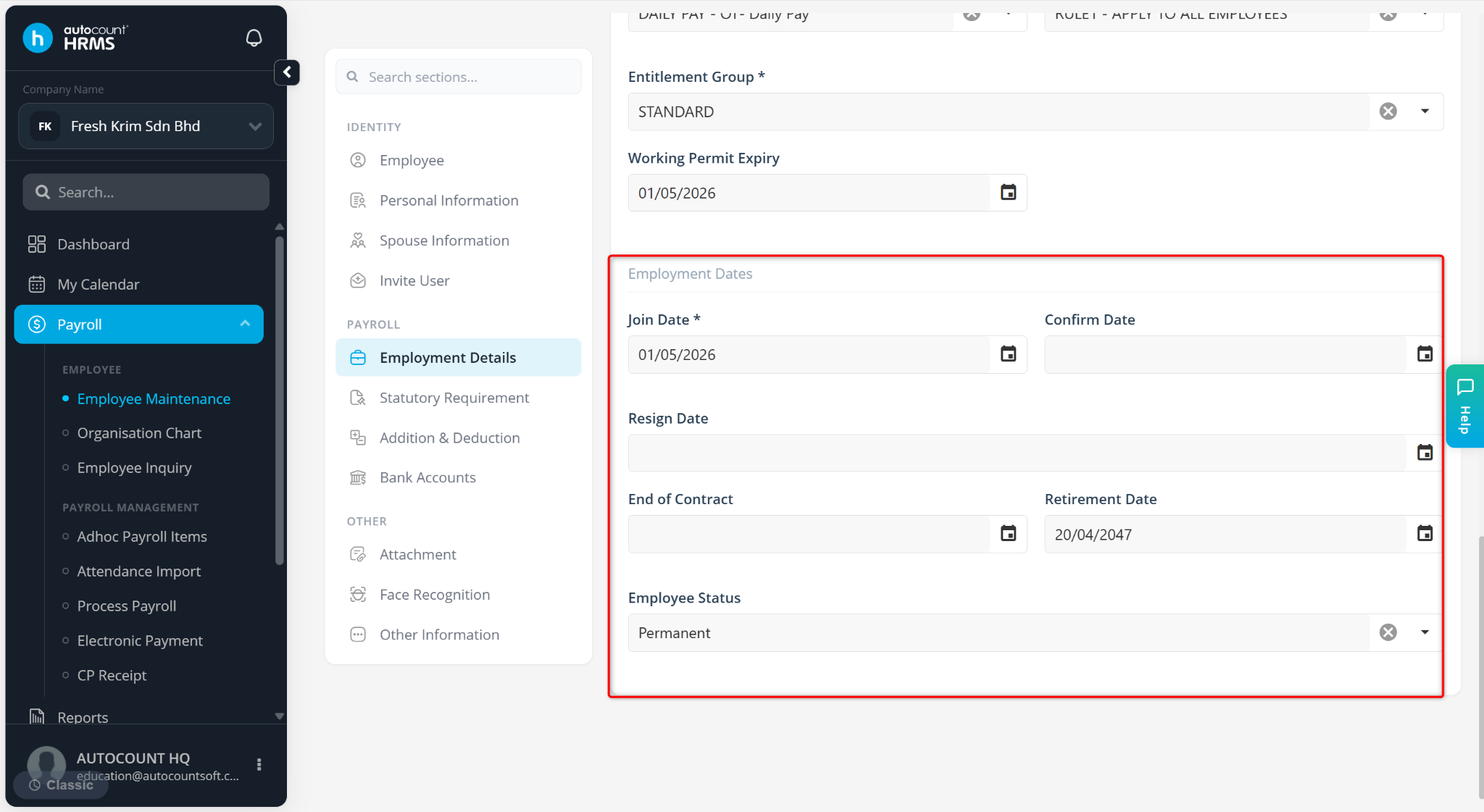
D) Employment Dates
This section records key employment milestones for tracking and reporting purposes.
Join Date – Enter the employee’s start date.
Confirm Date – Enter the date the employee is confirmed after probation.
Resign Date – Enter the date the employee resigns.
End of Contract – Enter the contract end date (for contract staff).
Retirement Date – Enter the planned retirement date.
Employee Status – Select Management, Permanent, Contract, Part Time, Interns or Others.
E) Previous Employment History
This section stores the employee's previous employment records for reference and payroll history purposes.
For detailed instructions, refer to Past Employment Entry.