
A Leave Entitlement Group allows employers to assign leave types and leave entitlements to employees based on company policies, employment terms, or eligibility criteria.
Steps to Create a New Leave Entitlement:
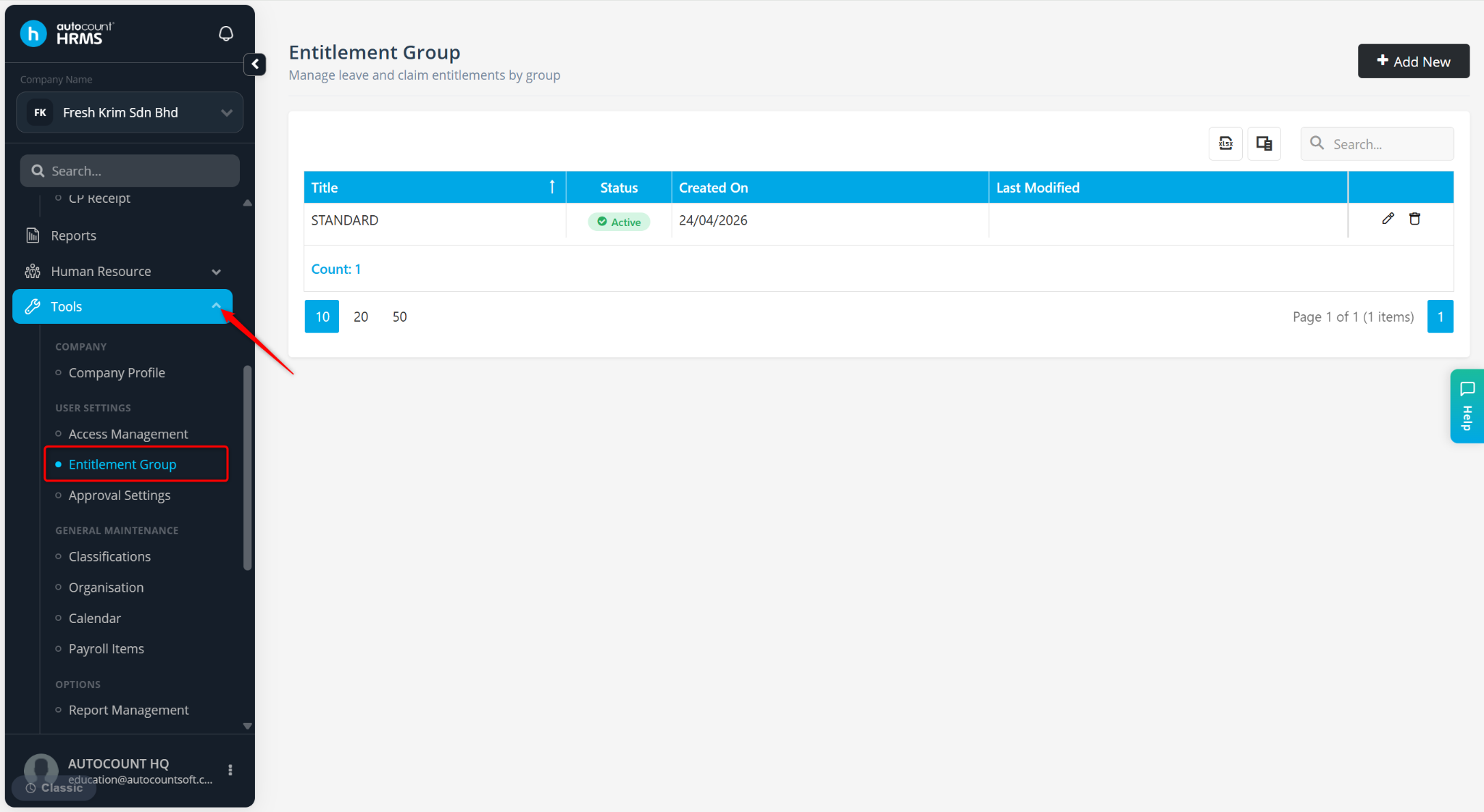
Go to Tools > Entitlement Group.
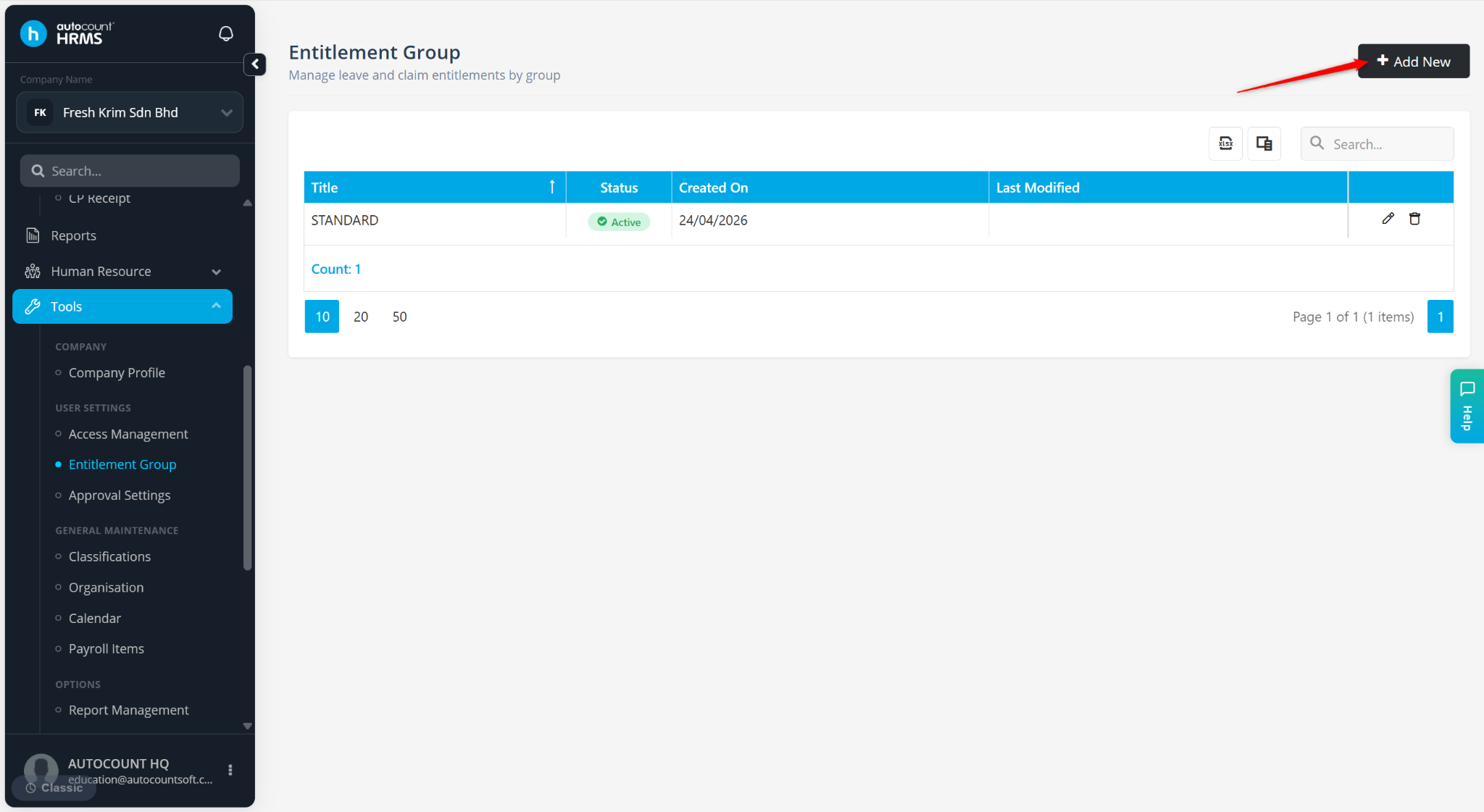
Click Add New.
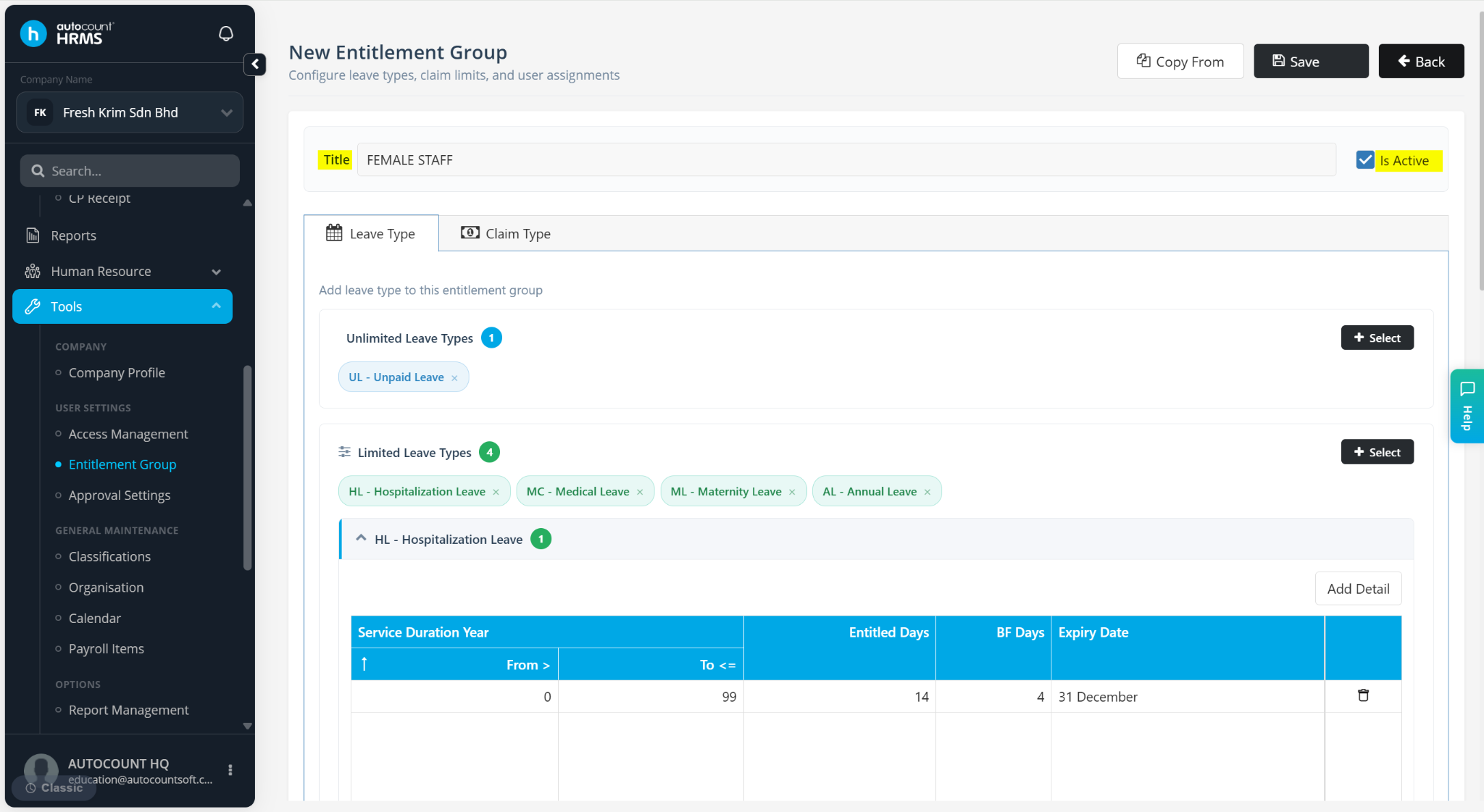
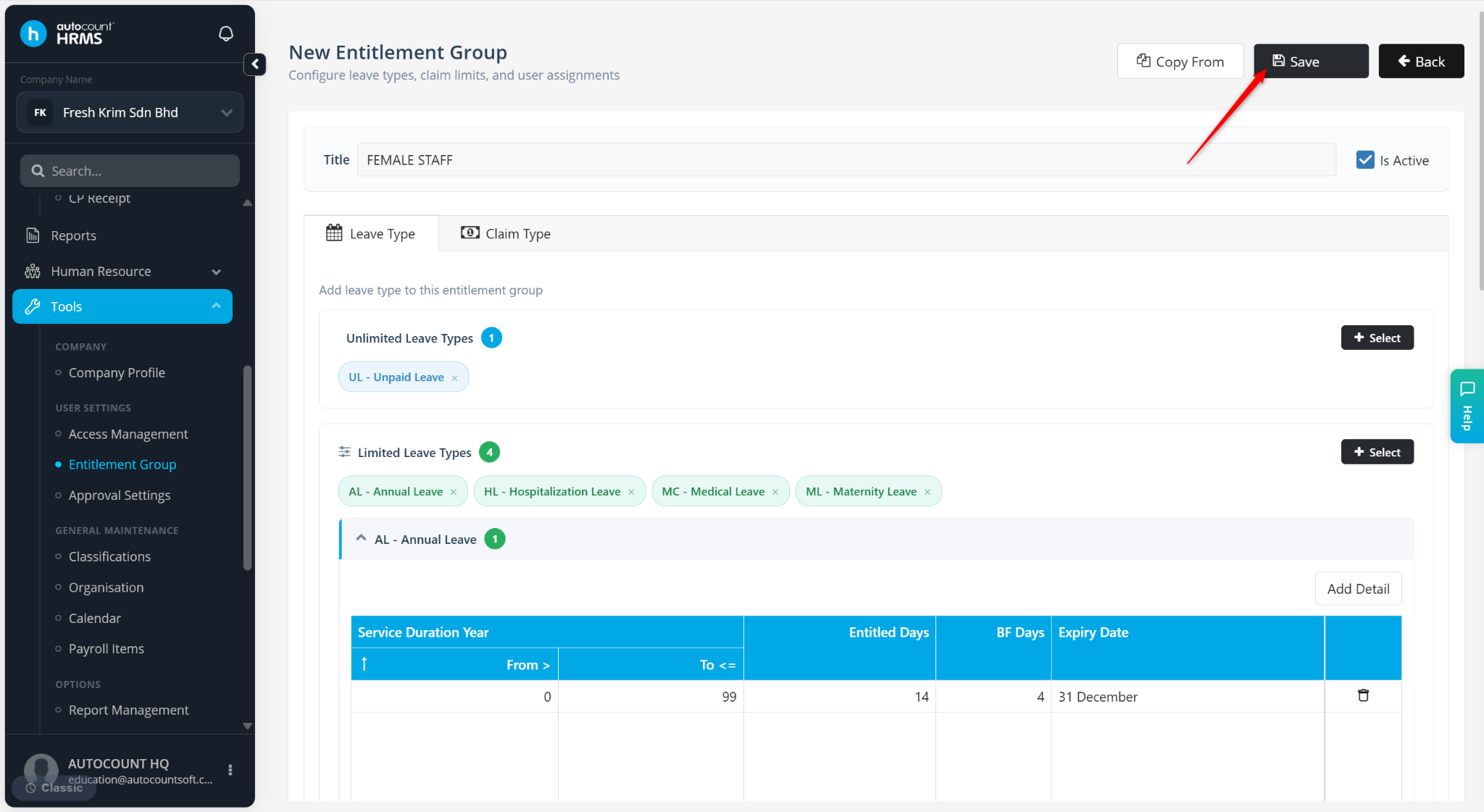
Enter the Title of the entitlement group and ensure the Is Active option is enabled.
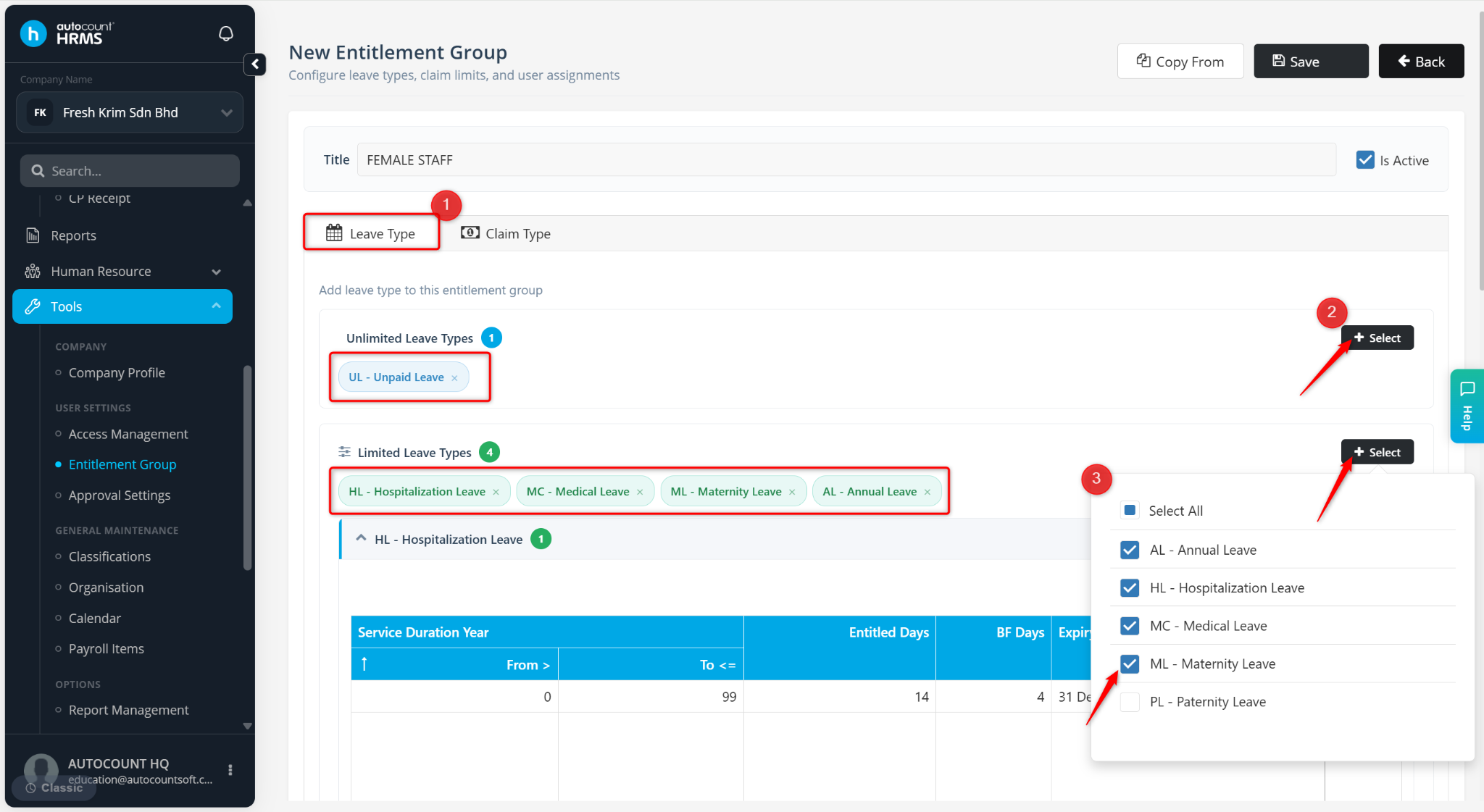
Go to the Leave Type tab.
Click + Select next to Unlimited Leave Types and Limited Leave Types.
Check the leave types that are relevant to the entitlement group. The selected leave types will be listed.
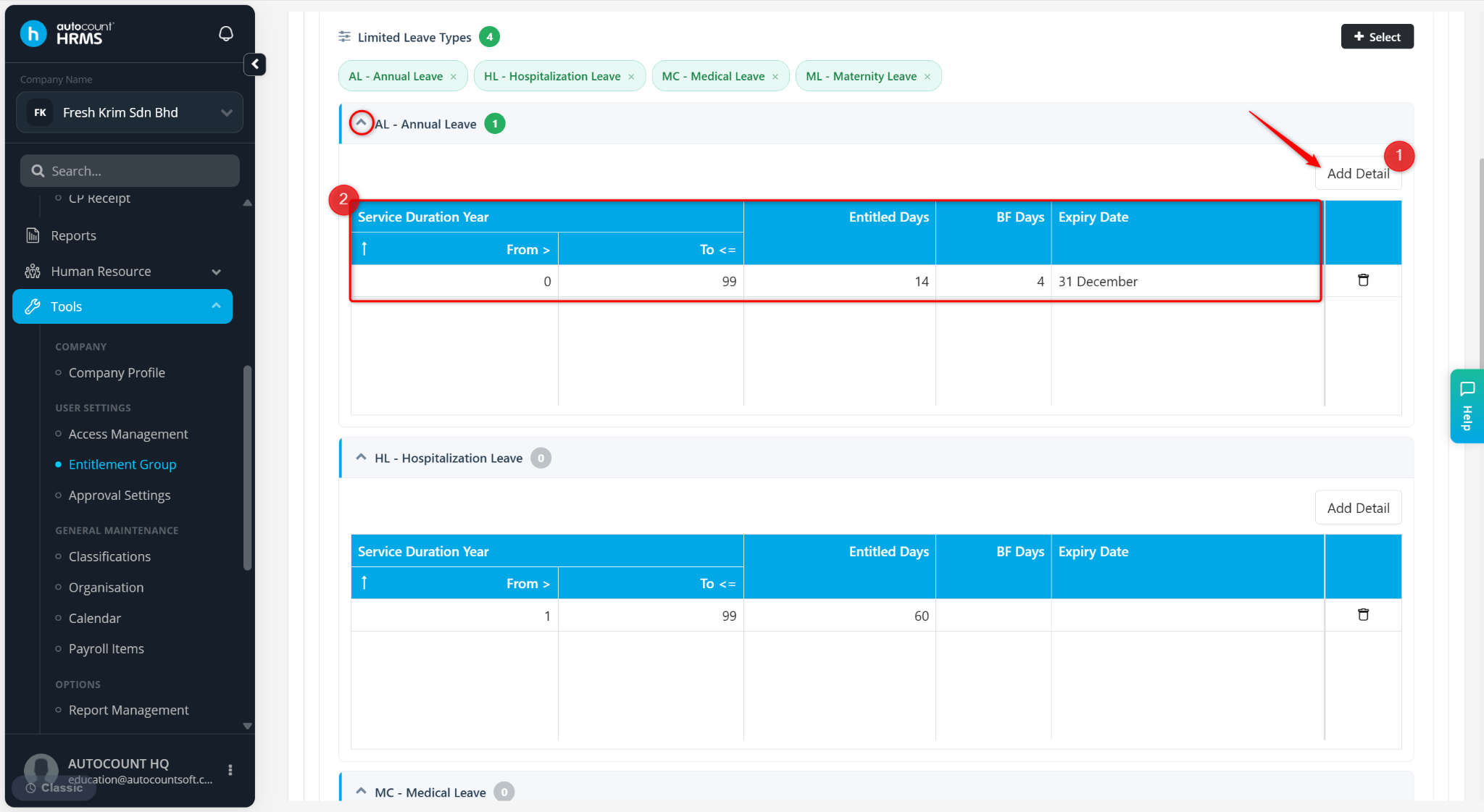
For each Limited Leave Types, click Add Detail.
Enter the following details:
Service Duration Year From > – Enter the minimum years of service required.
Service Duration Year To <= – Enter the maximum years of service applicable.
Entitled Days – Enter the number of leave days granted.
BF Days – Enter the number of unapplied days allowed to be brought forward to the following year.
Expiry Date – Select the expiry date for the brought forward leave(s).
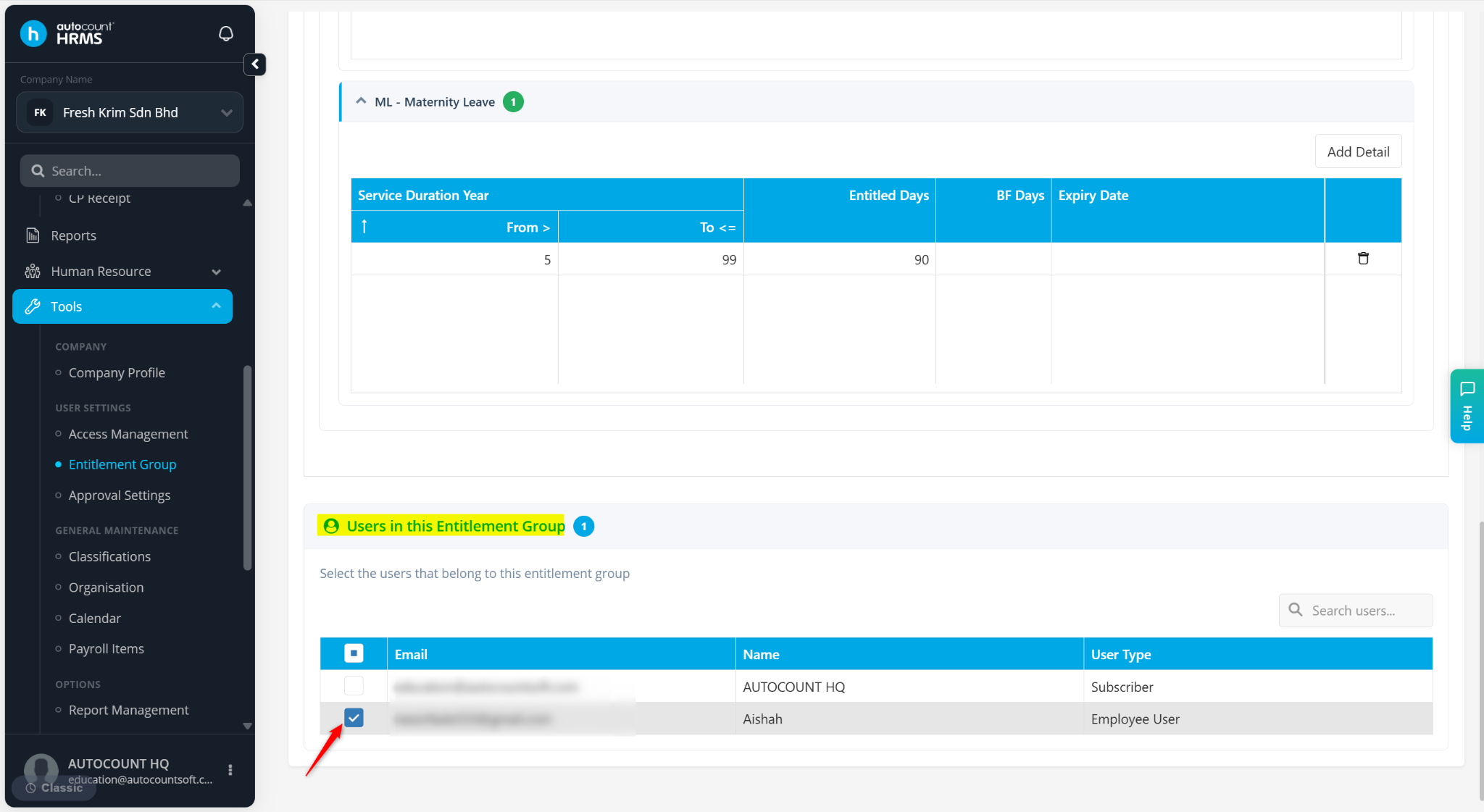
Scroll down to Users in this Entitlement Group field. Tick the users entitled to the group.
Click Save.
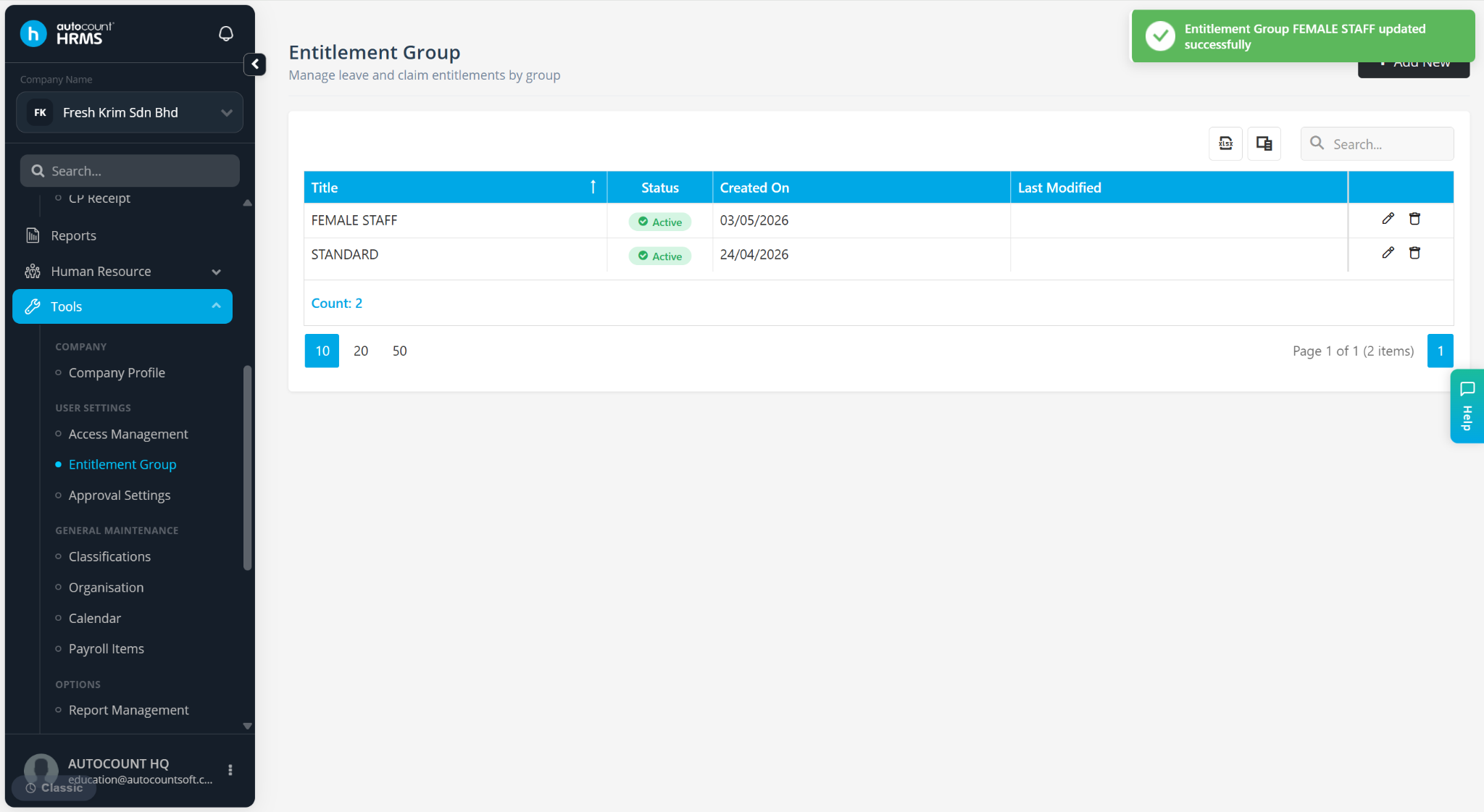
The entitlement group is created.
ℹ️ Note: Refer to Claim Entitlement for claim-related entitlements and Create Entitlement Group via Copy From if you wish to duplicate an existing entitlement group and modify it instead of creating one from scratch.