
The Leave Entry feature allows employers or HR personnel to manually adjust employees' leave balances by either adding leave entitlements or deducting leave on behalf of employees.
Add Leave (Append) – Increases an employee's leave balance by granting additional leave days outside the standard entitlement.
Deduct Leave – Reduces an employee’s leave balance by applying leave on behalf of the employee.
Steps to Append an Employee’s Leave:
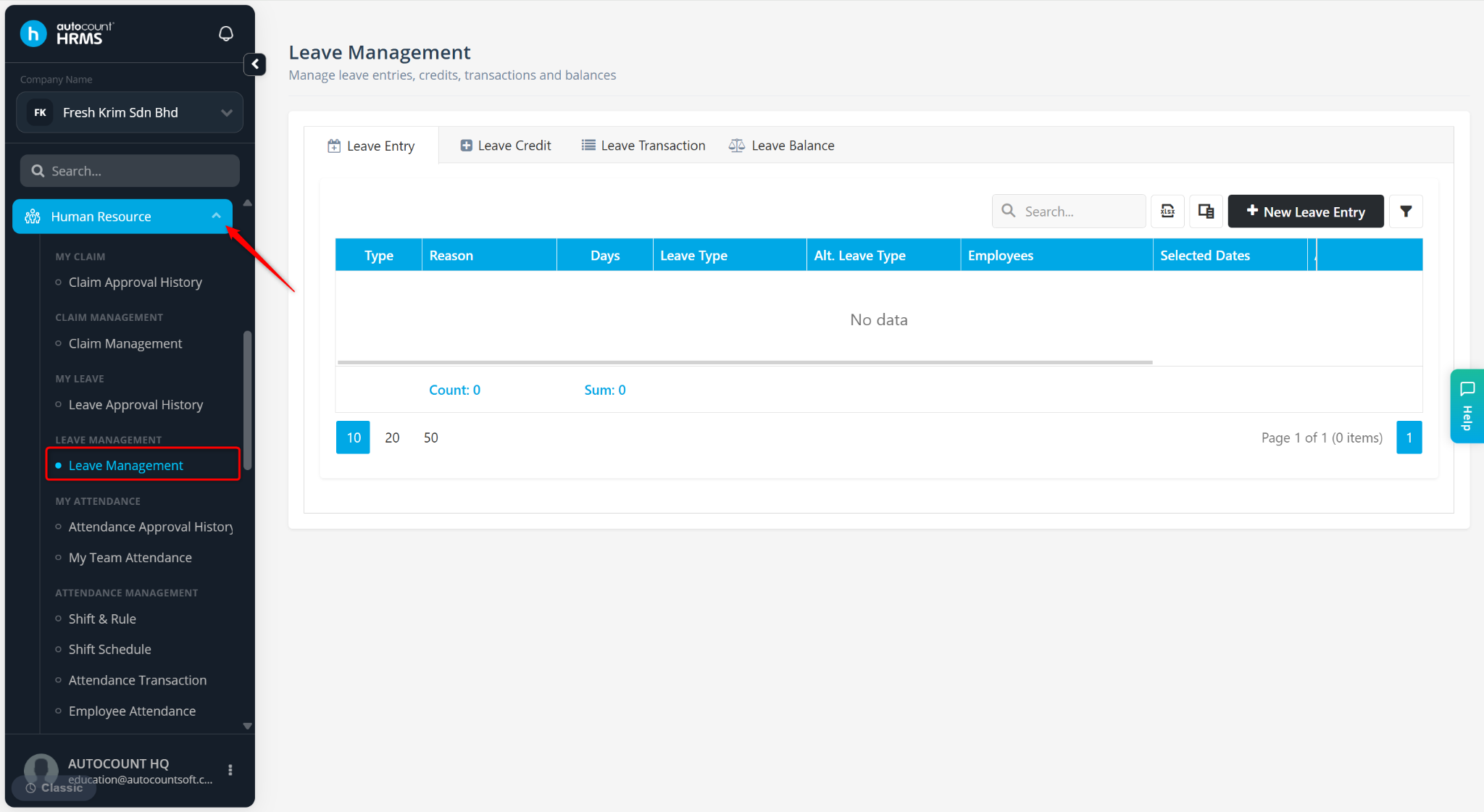
Go to Human Resource > Leave Management.
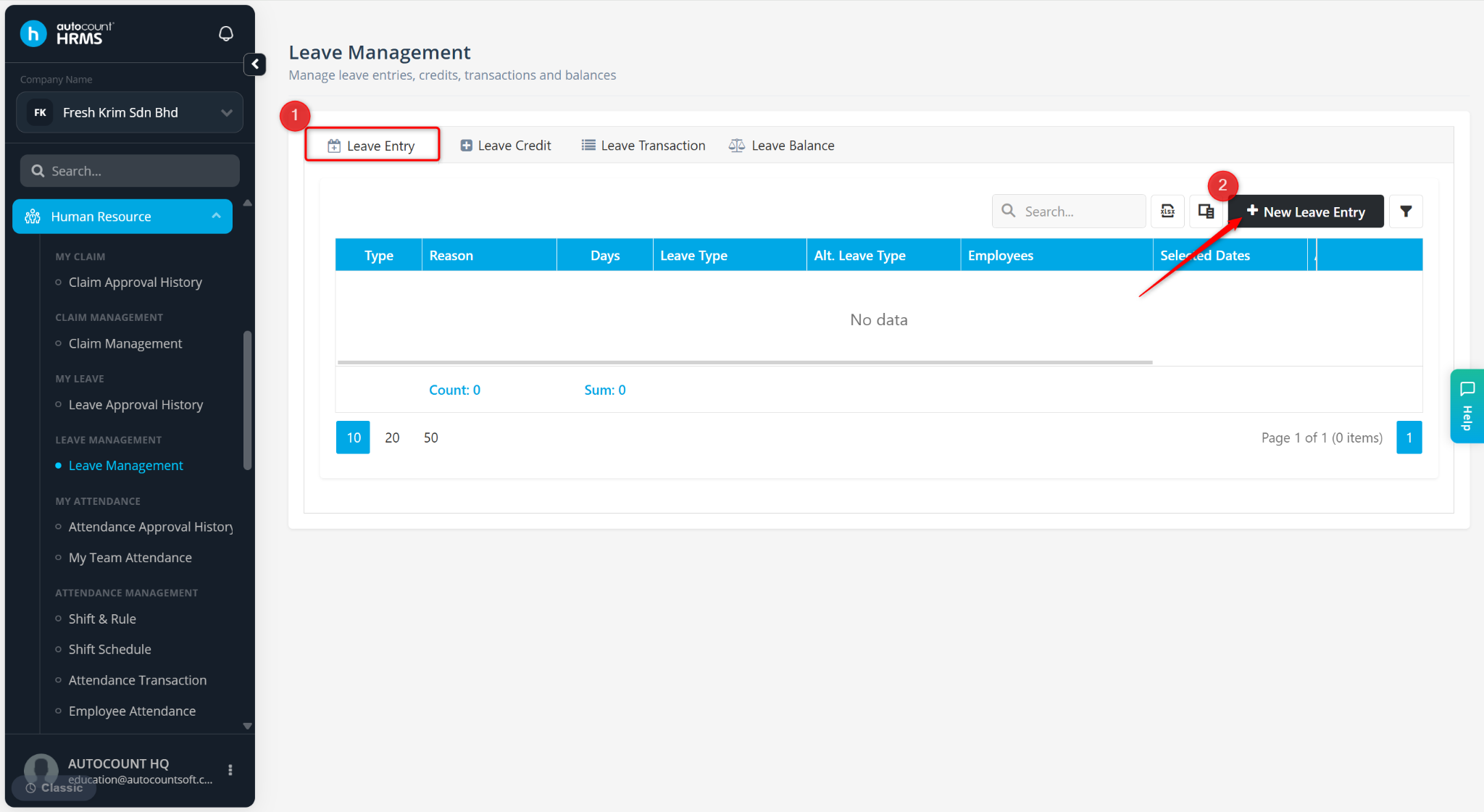
Go to Leave Entry.
Click + New Leave Entry.
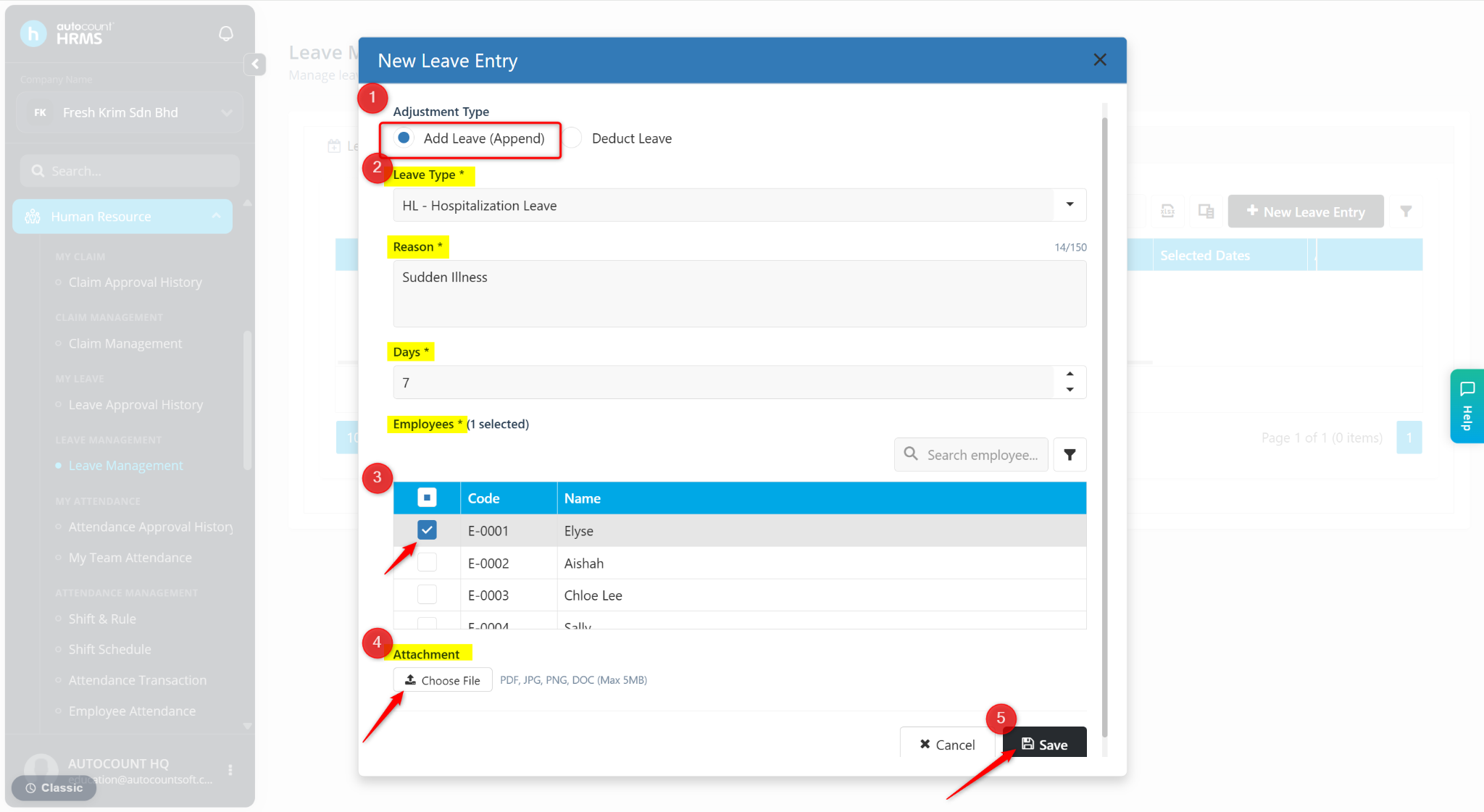
Select Add Leave (Append).
Enter the details:
Leave Type – Select the leave type.
Reason – Enter a short remark.
Days – Enter the number of leave days to add.
Employees – Select the employee(s).
Attachment – Upload supporting documents if required.
Click Save.
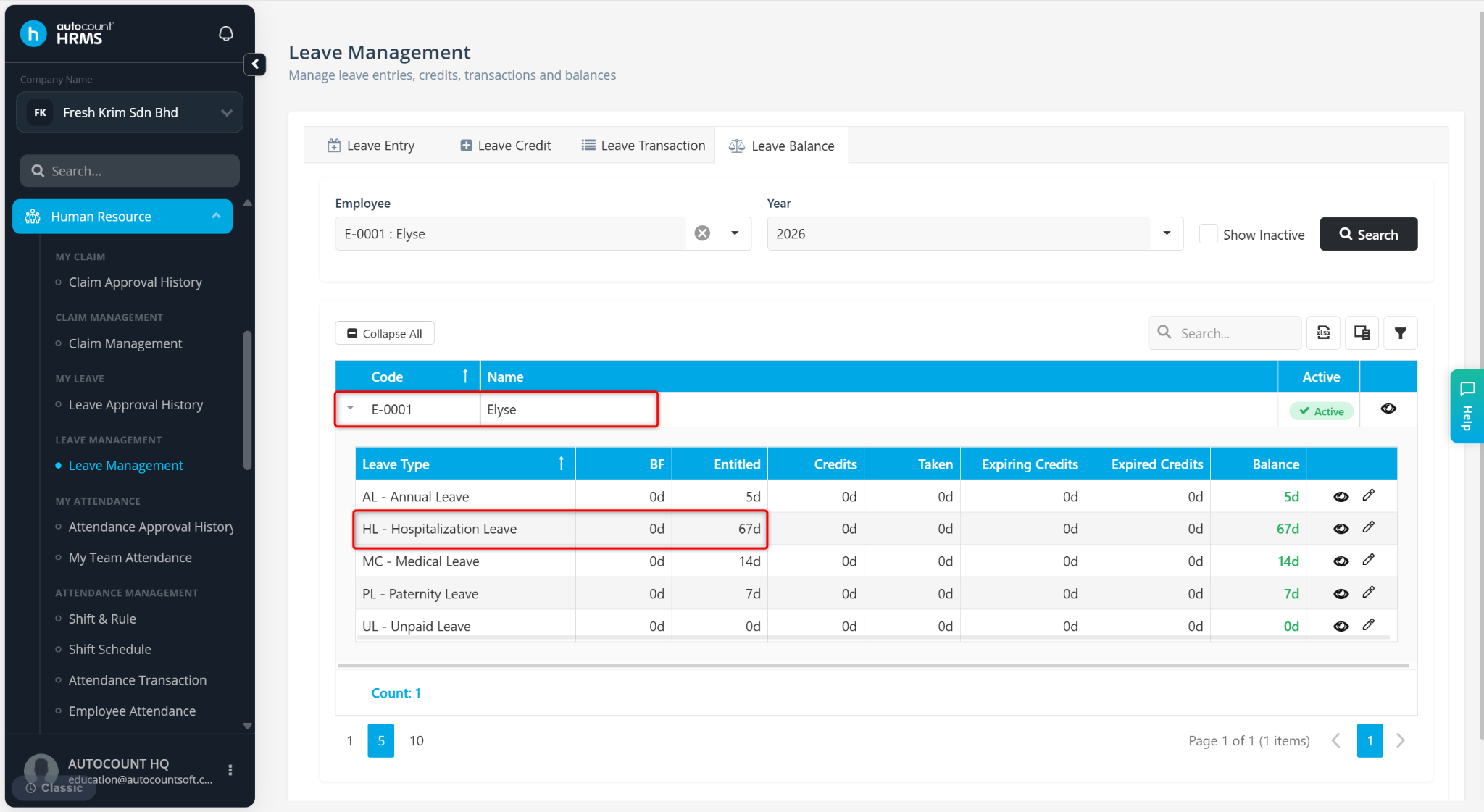
The employee’s leave balance will be updated accordingly.
Steps to Deduct an Employee’s Leave:
At the Leave Management page, select Deduct Leave.
Enter the details:
Leave Type – Select the leave type.
Alternative Leave Type – Select an alternative leave type to deduct if the main leave balance is insufficient.
Reason – Enter a short remark.
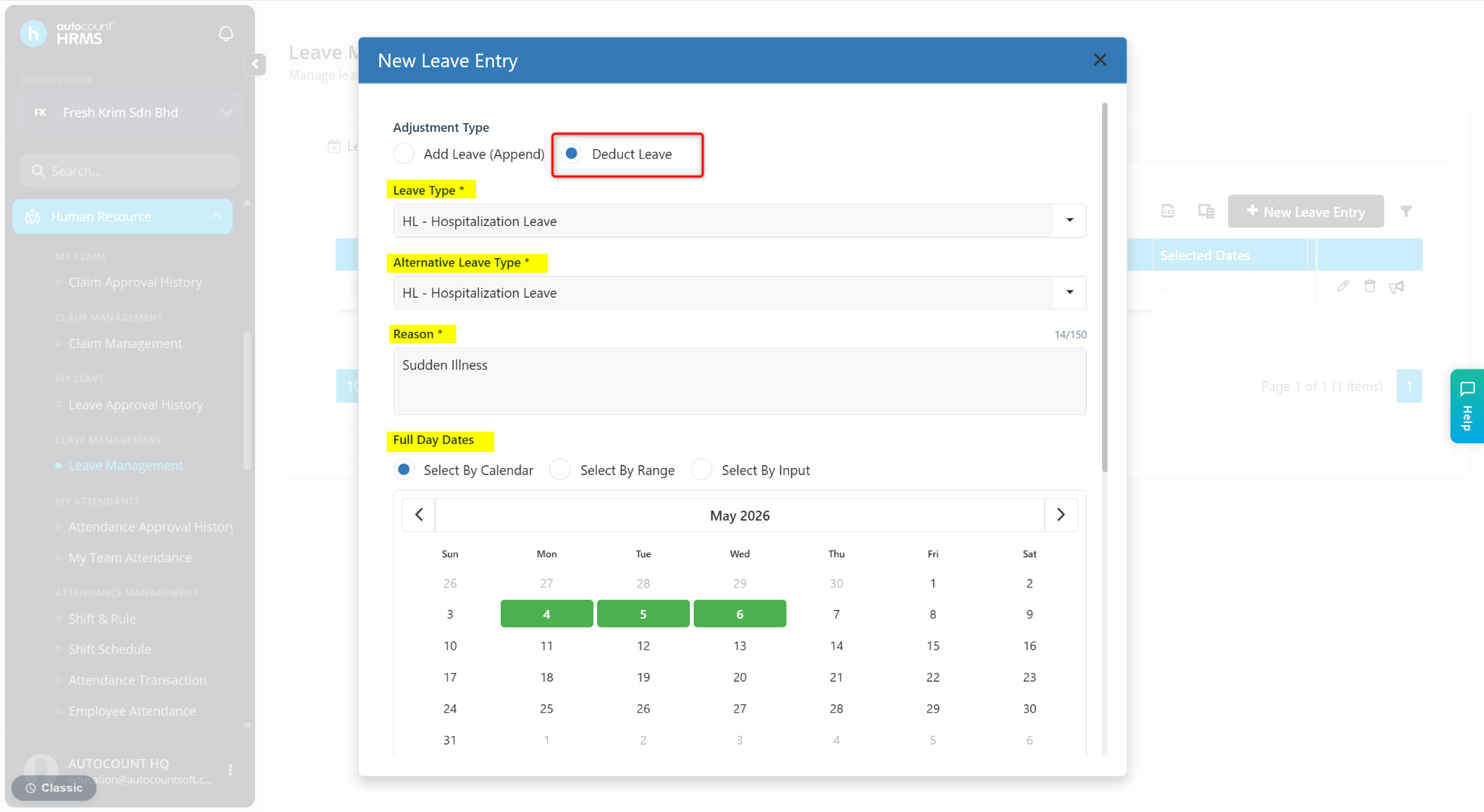
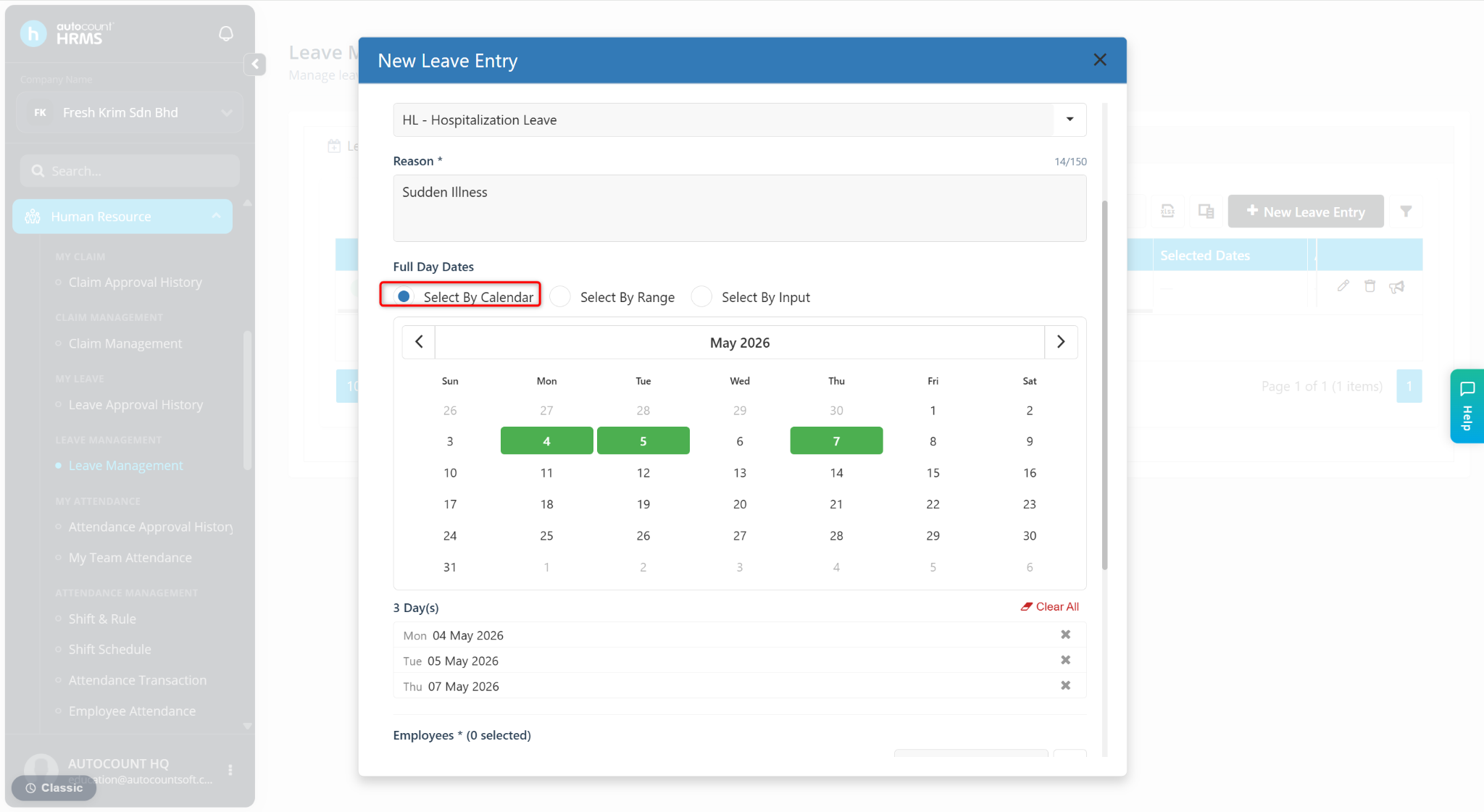
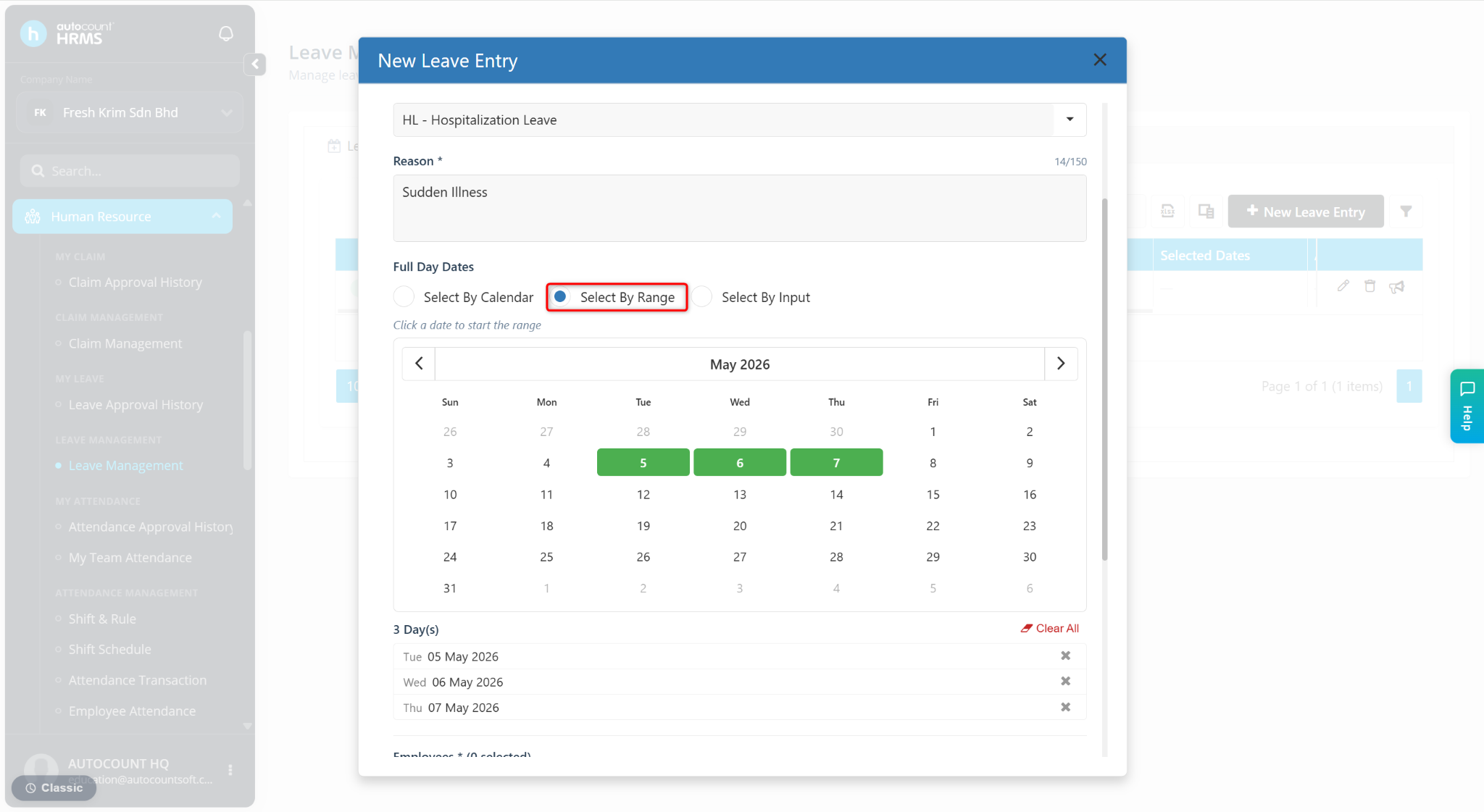
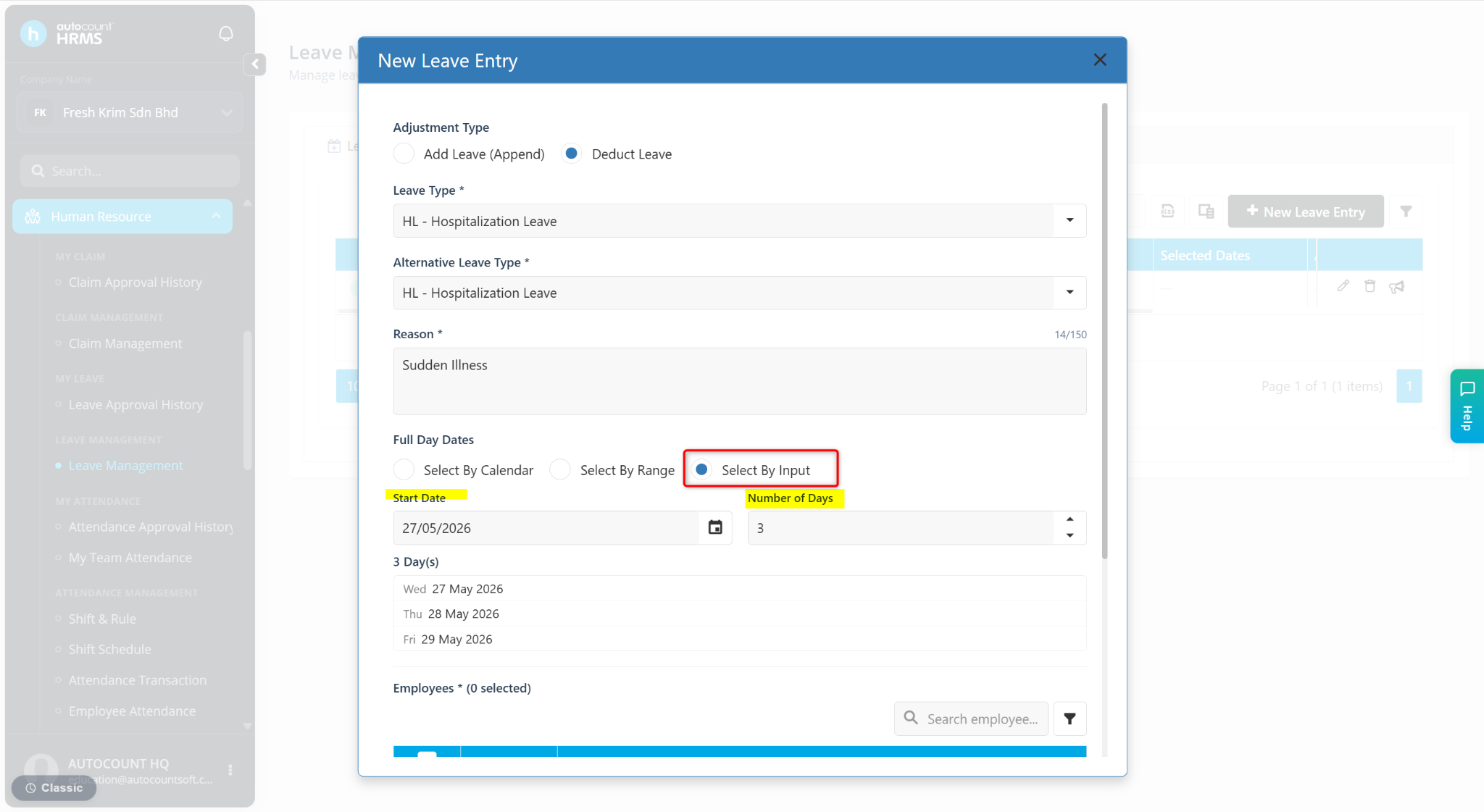
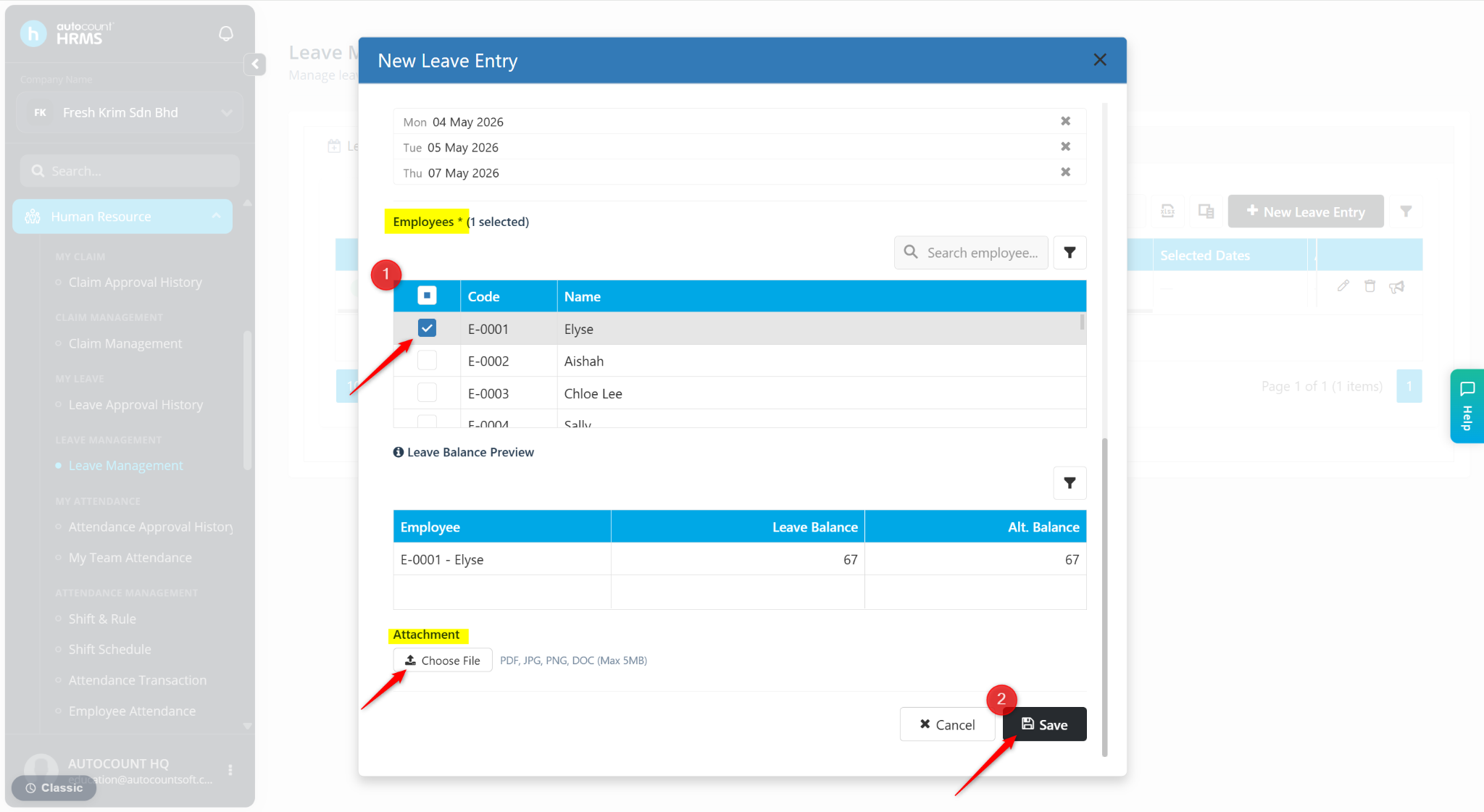
Full Day Dates – Select the dates for the leave deduction.
Select By Calendar – Click individual date(s).
Select By Range – Highlight a date range.
Select By Input – Enter the Start Date and Number of Days.
Employees – Select the employees to be included.
Attachment – Upload supporting documents if required.
Click Save.
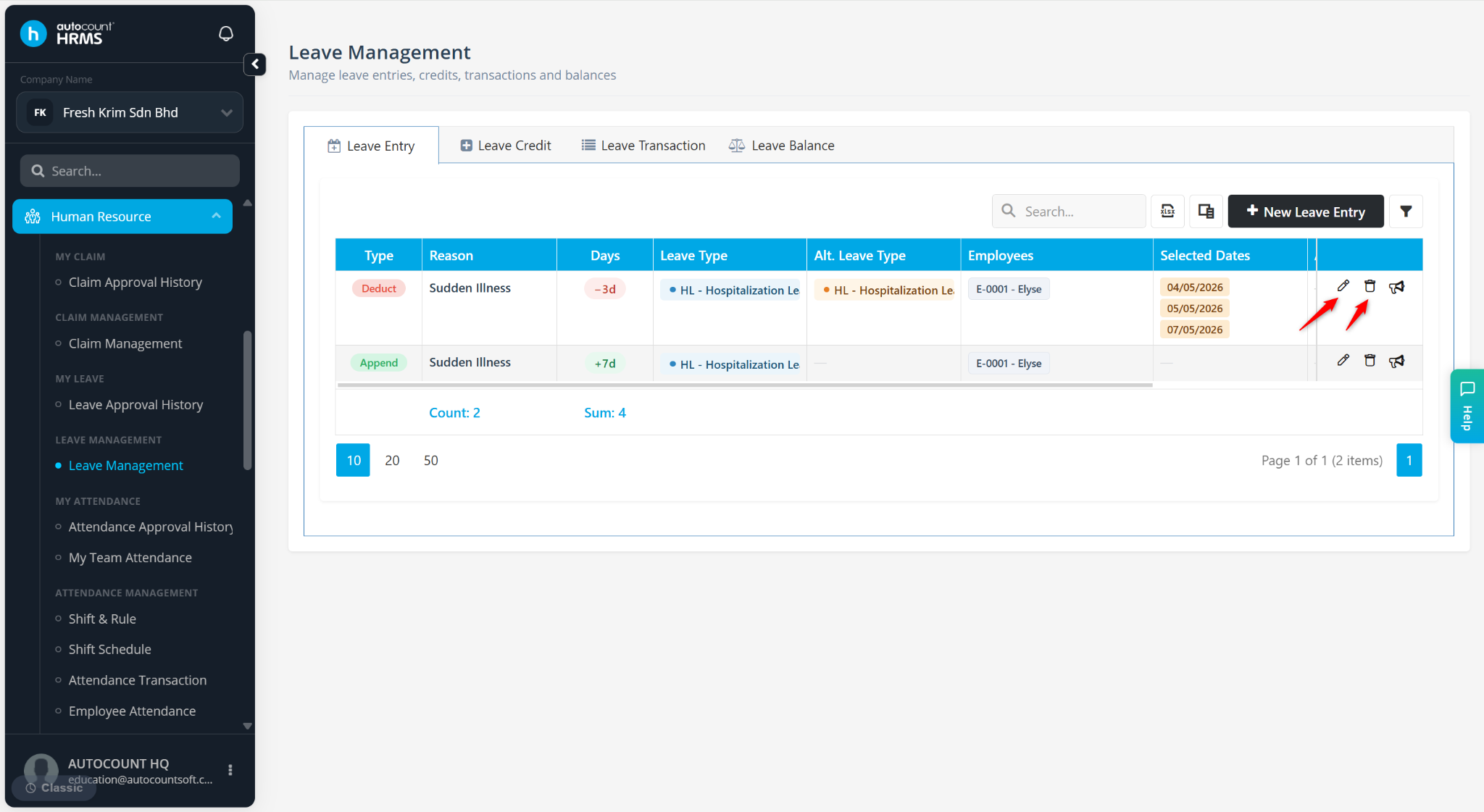
Steps to Edit and Delete the Leave Entry:
Go to the Leave Management page.
Click the pencil icon to edit.
Click the trash bin icon to delete.
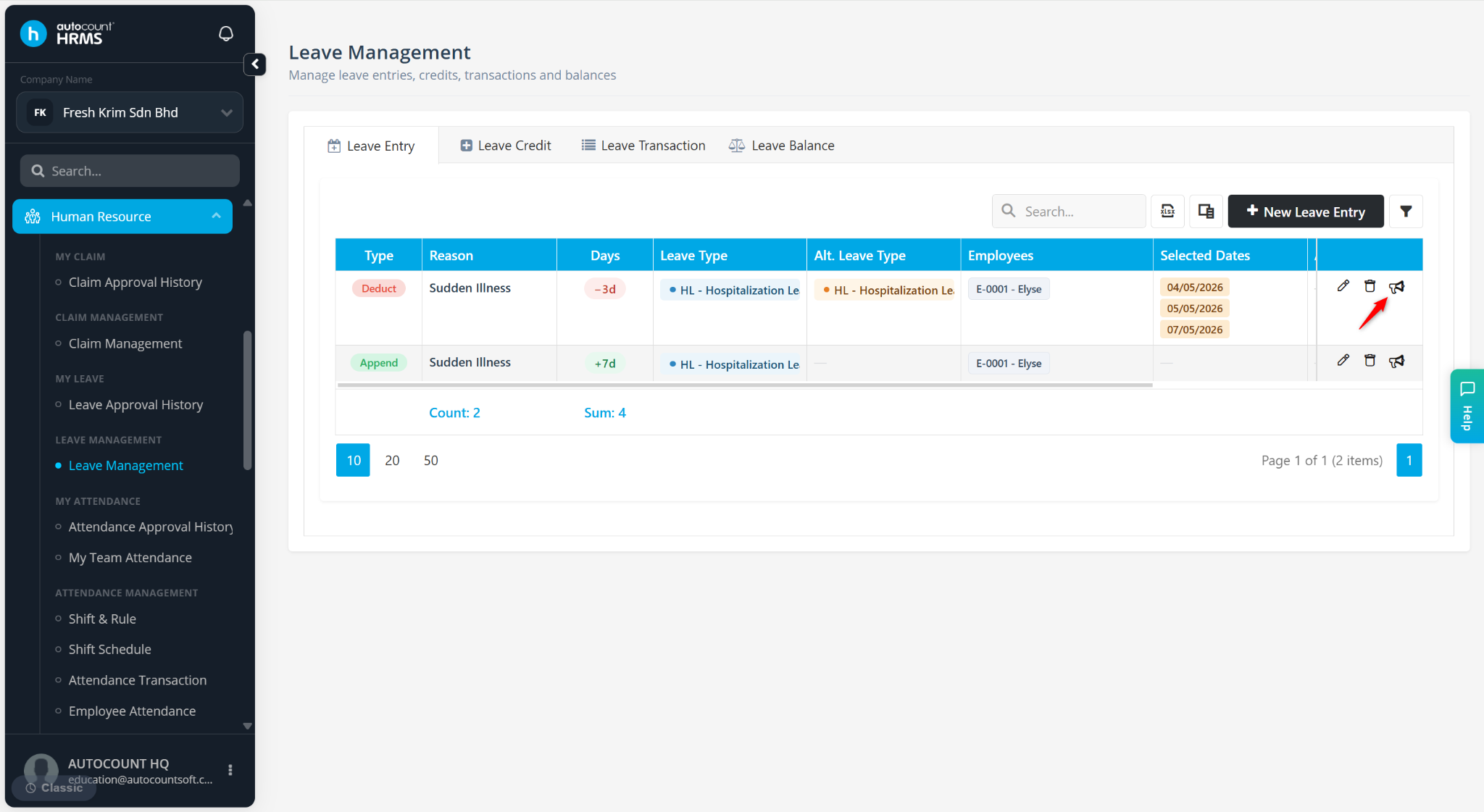
Steps to Send Announcement to the included Employee:
Go to the Leave Management page.
Click the megaphone icon.
Enter the announcement message.
Click Send.
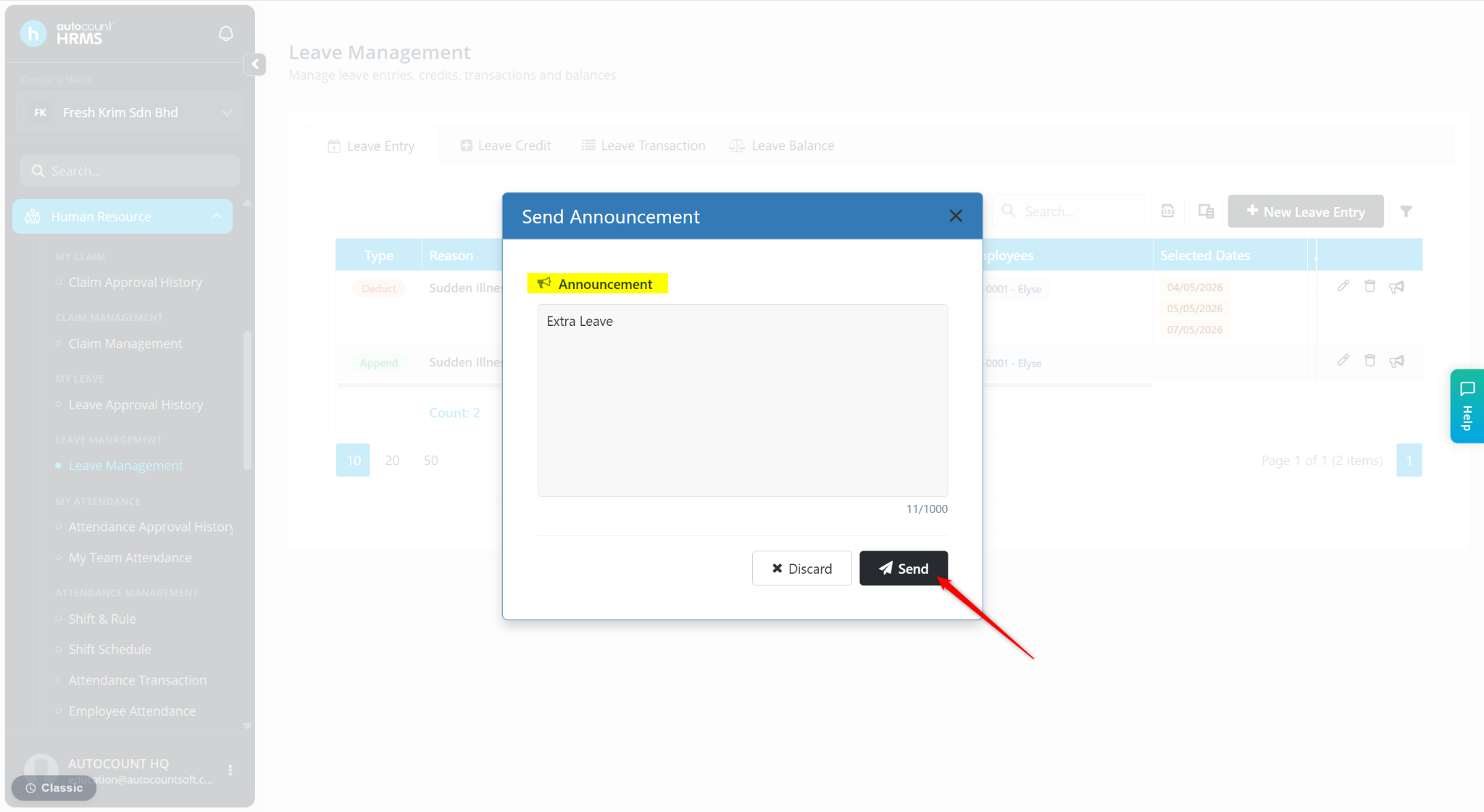
The announcement will be sent to the selected employee(s).