The Leave Type feature allows employers to define the types of leave available to employees based on company policies and entitlement rules.
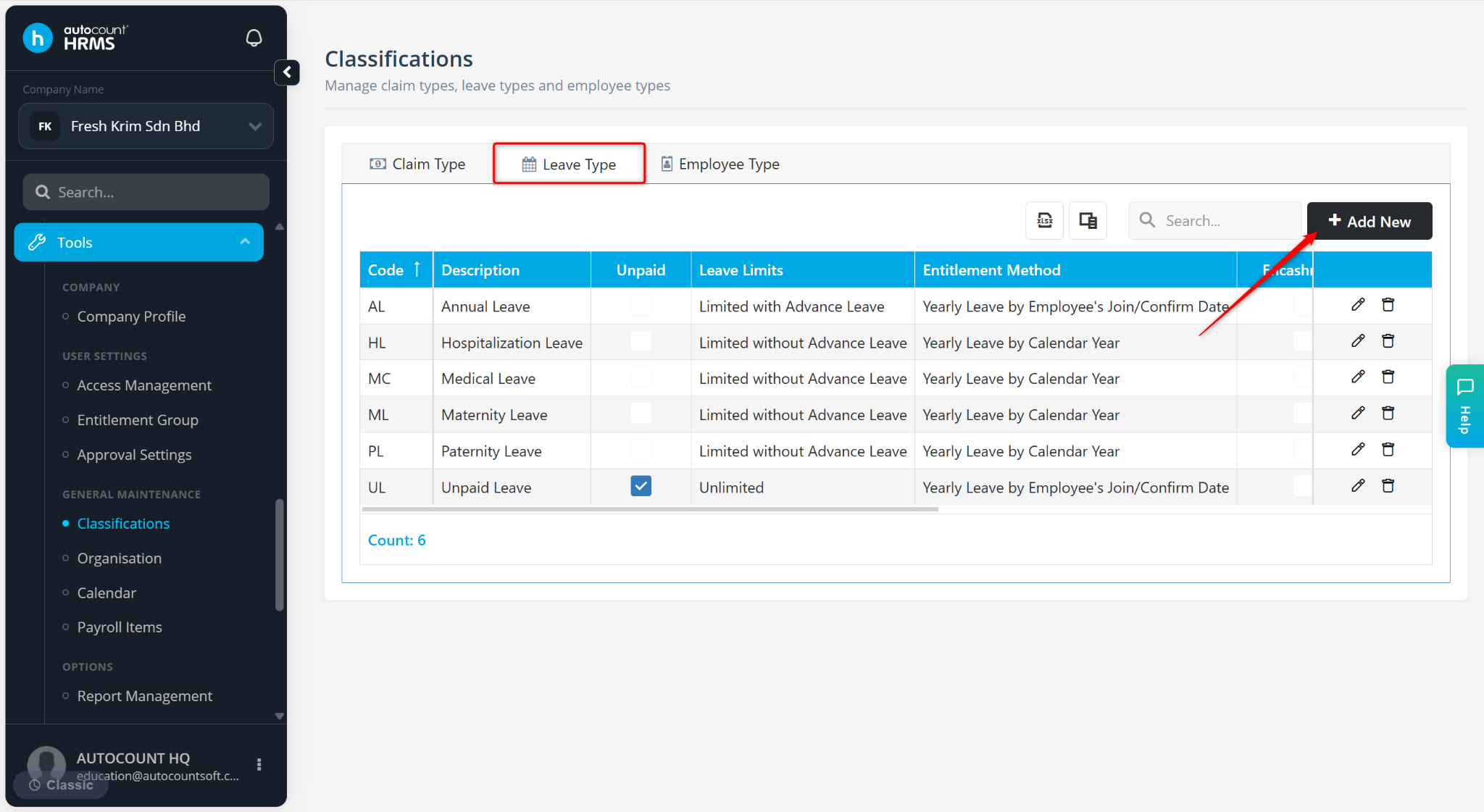
The system provides default leave types, including Annual Leave, Medical Leave, Hospitalisation Leave, Maternity Leave, Paternity Leave, and Unpaid Leave, which can be customised as needed.
Steps to Create a New Leave Type:
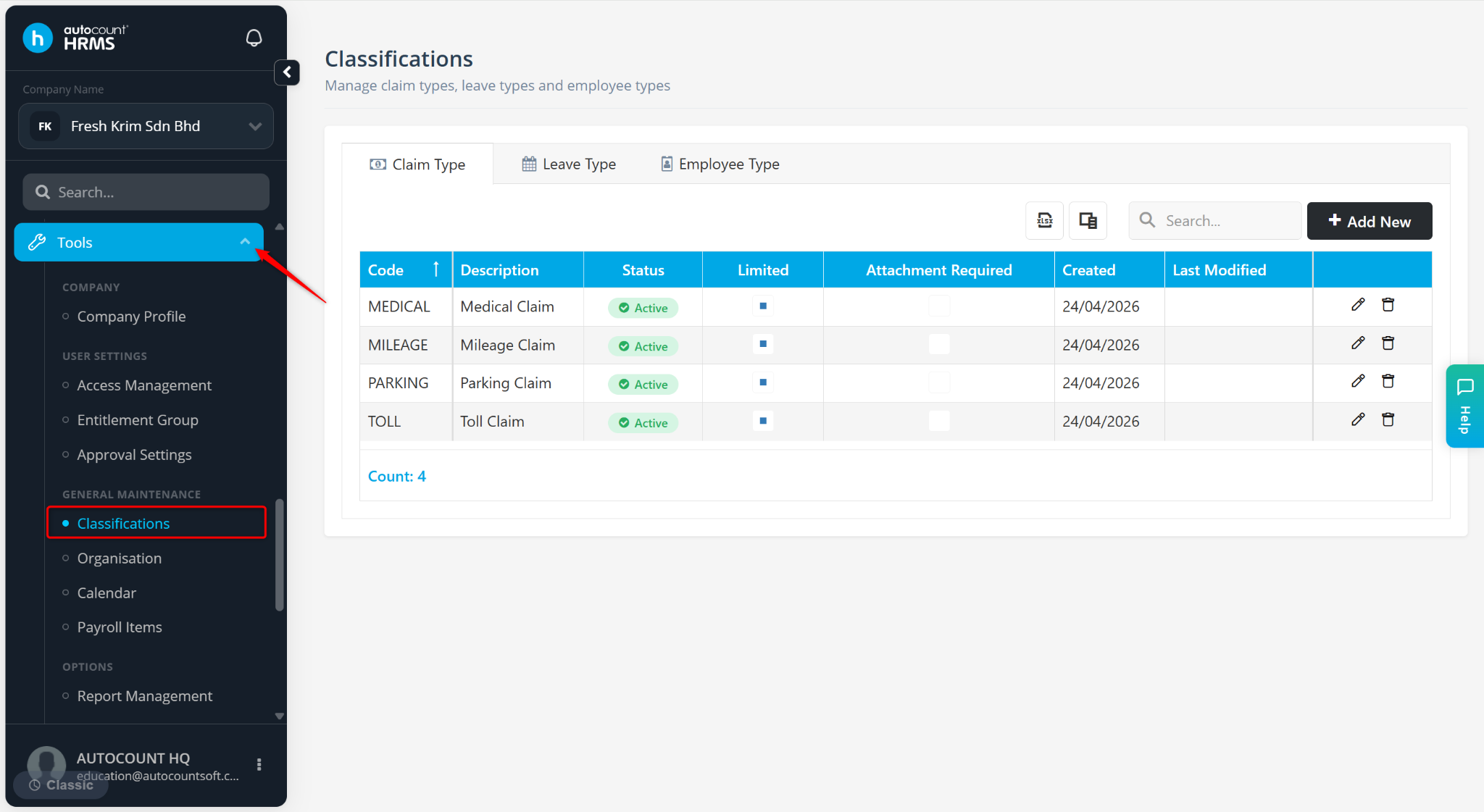
Go to Tools > Classification.
Go to the Leave Type tab.
Click Add New.
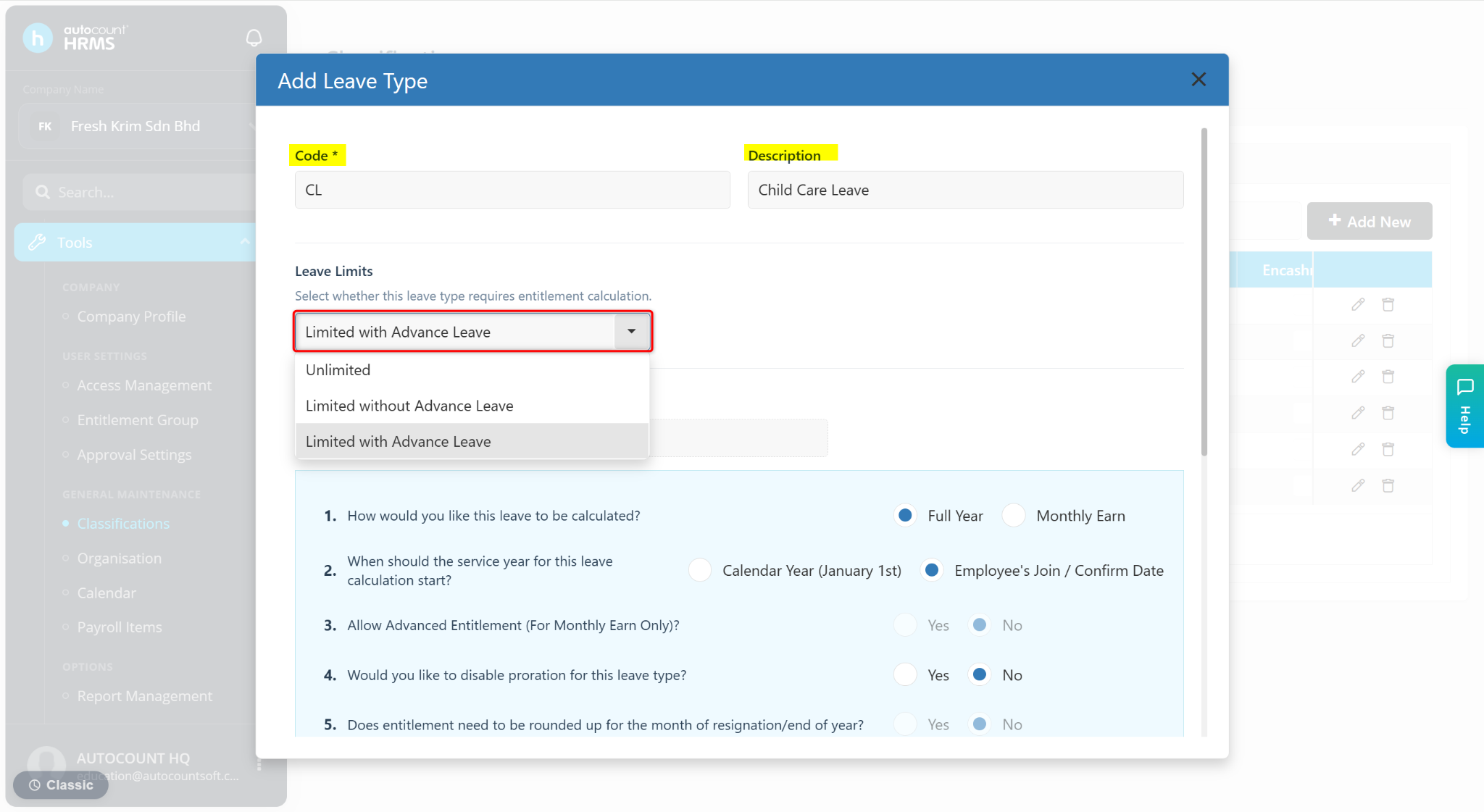
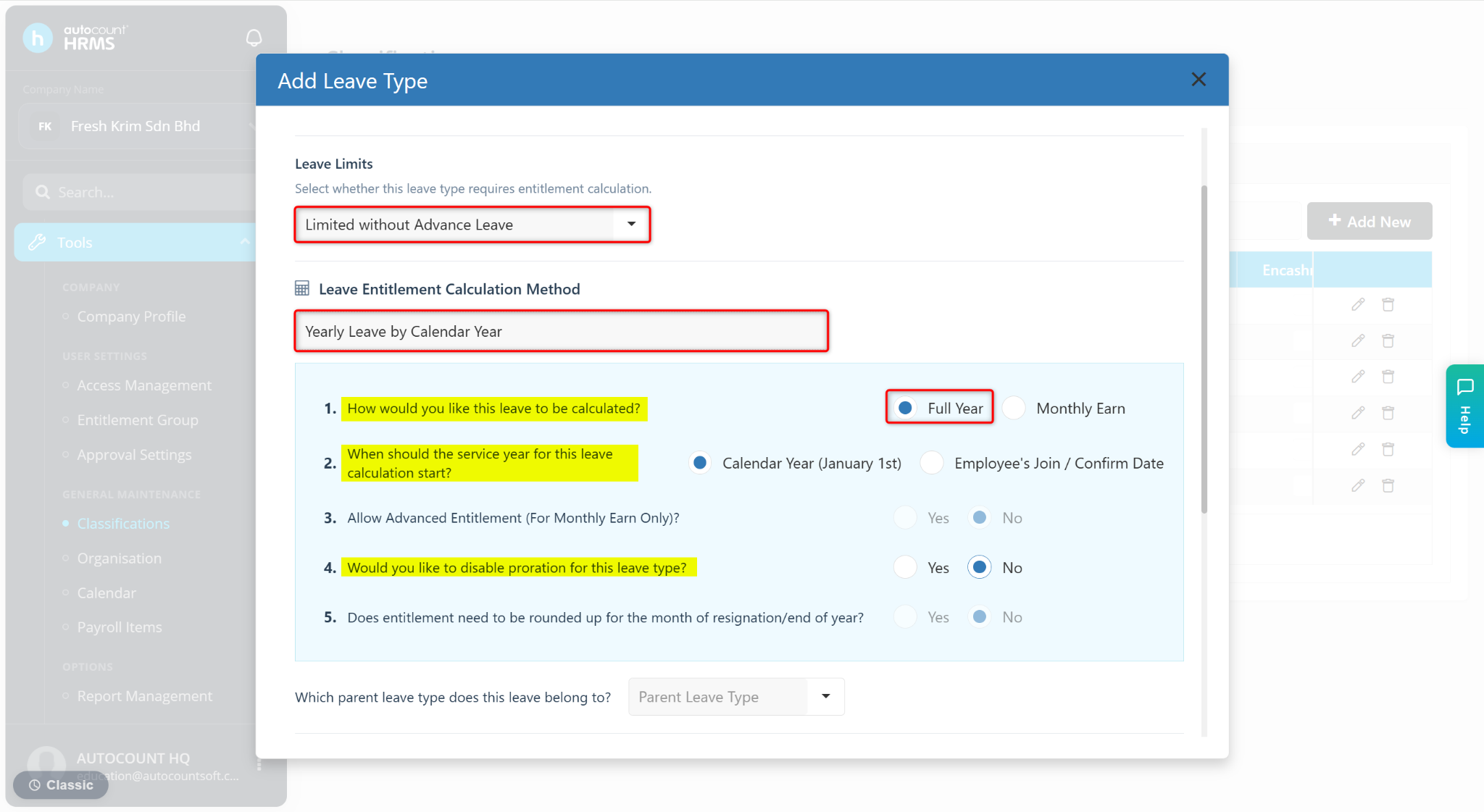
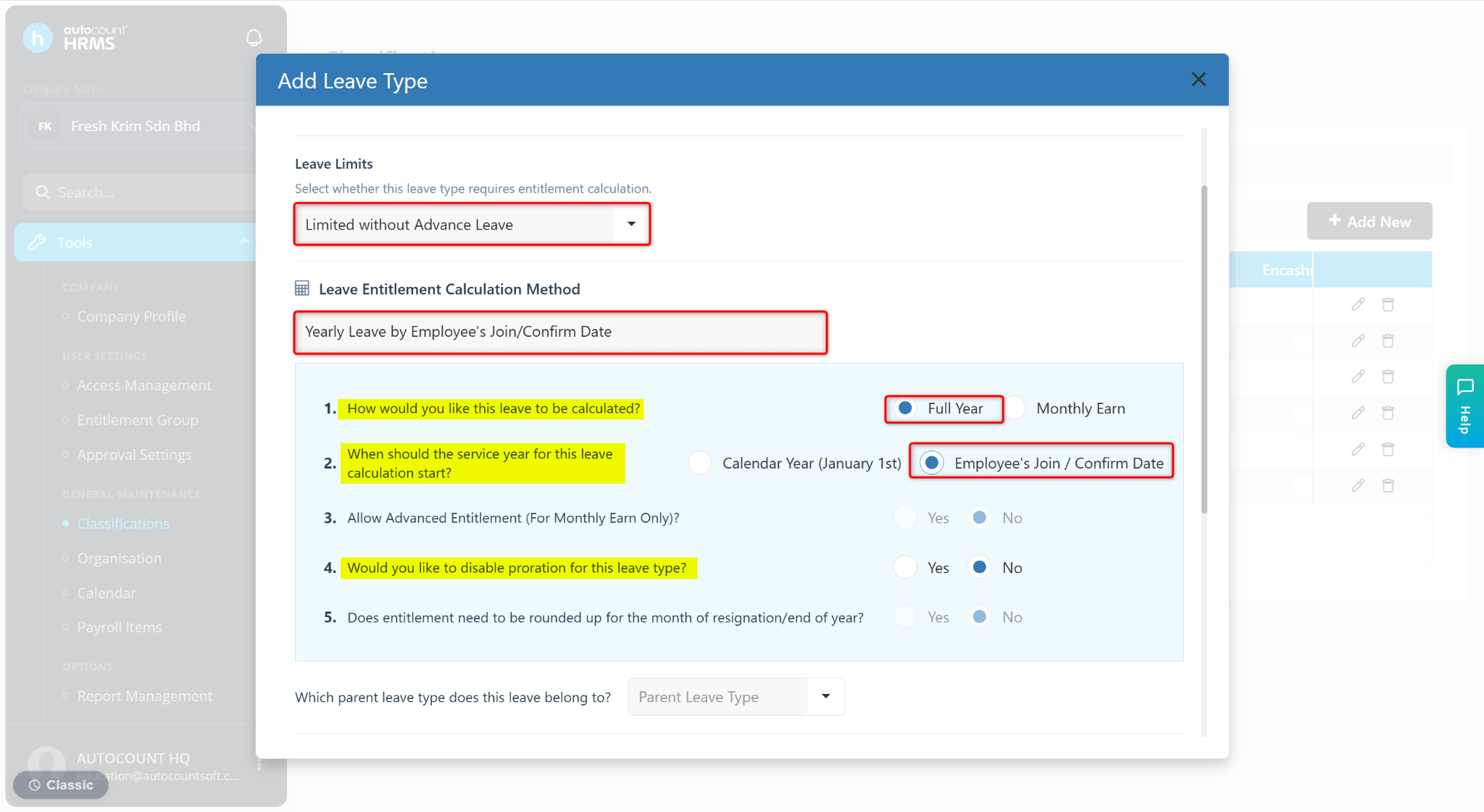
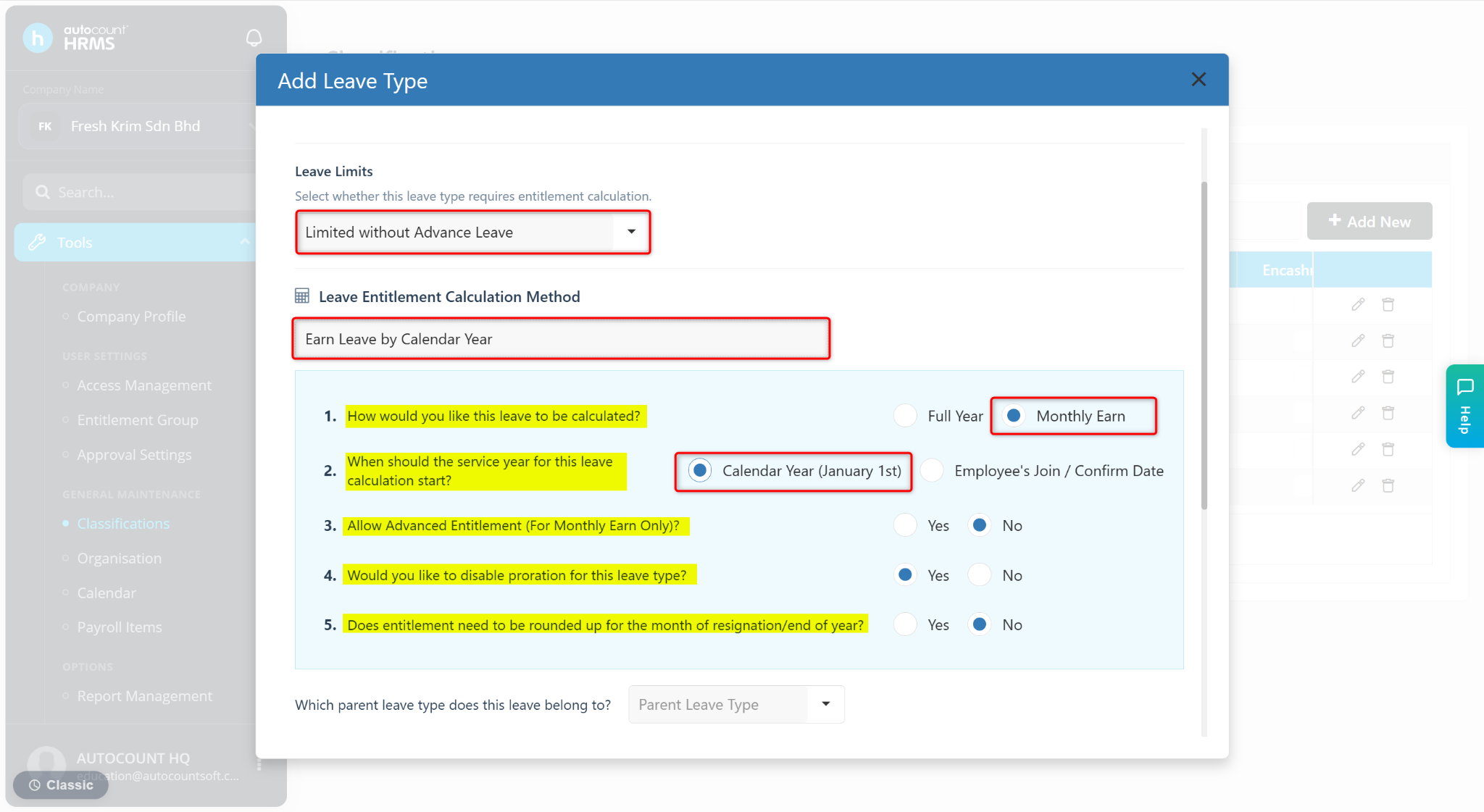
Enter the Code and Description. Then, select the Leave Limit:
Unlimited – Employees may apply for the leave without limitations.
Limited without Advance Leave – Limited leave entitled for each employee and cannot be applied in advanced
Limited with Advance Leave – Limited leave entitled for each employee and allows negative leave balance
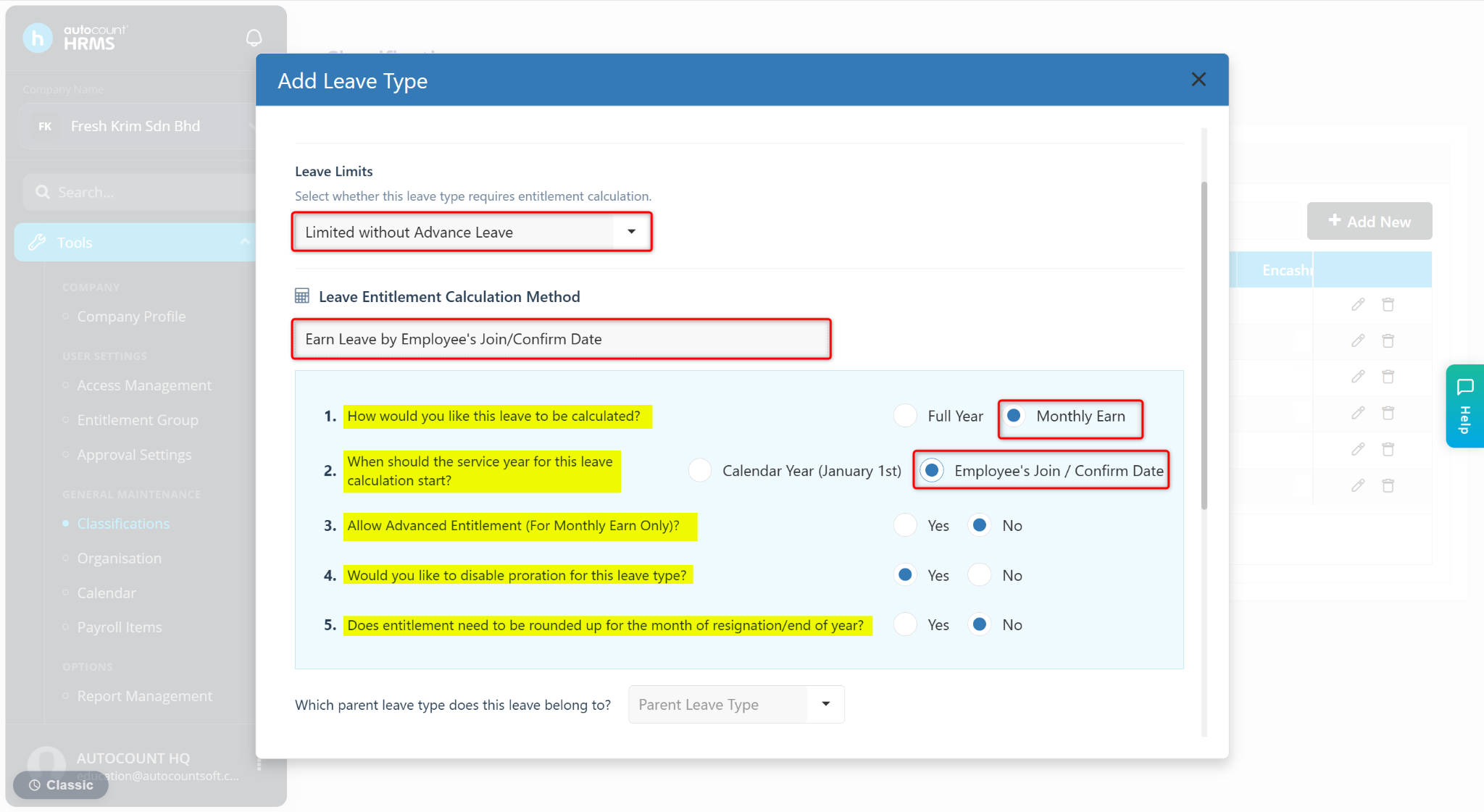
Configure Leave Entitle Calculation Settings (only applicable for Limited without Advance Leave and Limited with Advance Leave):
How would you like this leave to be calculated?
Full Year – The full leave entitlement for the calendar year is provided upfront.
Monthly Earned – Leave is prorated and entitled monthly.
When should the service year for this leave calculation start?
Calendar Year (January 1st) – The leave entitlement is calculated based on the full calendar year, regardless of the employee’s join date.
Employee’s Join / Confirm Date – The leave entitlement is prorated based on the employee’s join or confirm date within the calendar year.
Allow Advanced Entitlement (For Monthly Earn Only)?
Yes – Leave can be applied in advance after balance is zero.
No – Leave is not applicable after balance is zero.
Would you like to disable proration for this leave type?
Yes – Leave will not be prorated.
No – Leave will be prorated.
Does entitlement need to be rounded up for the month of resignation/end of year? (only applicable for Monthly Earn)
Yes – Leave will be rounded up based on months worked in the resignation year.
No – Leave will not be rounded up based on months worked in the resignation year.
Configure Leave Entitlement settings:
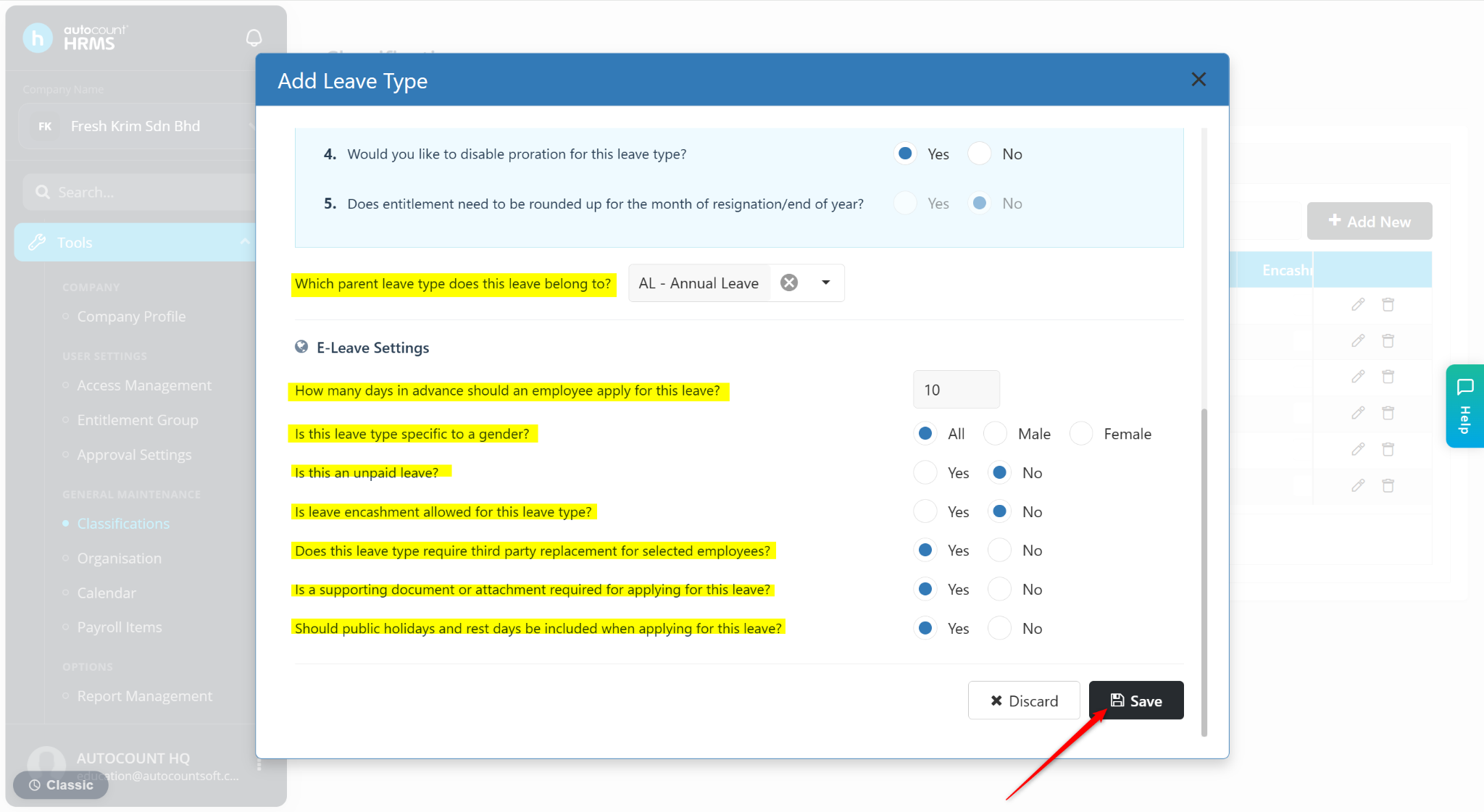
Which parent leave type does this leave belong to? – Select the parent leave type for this leave. When the leave type is applied, the parent leave type will be deducted as well.
How many days in advance should an employee apply for this leave? – Enter the number of days employees should apply for the leave in advance.
Is this leave type specific to a gender? – Select All, Male or Female.
Is this an unpaid leave? – Select Yes or No.
Is leave encashment allowed for this leave type? – Select Yes or No.
Does this leave type require third party replacement for selected employees? – Select Yes or No.
Is a supporting document or attachment required for applying for this leave? – Select Yes or No.
Should public holidays and rest days be included when applying for this leave? – Select Yes or No.
ℹ️ Note:
Refer to the table below for Leave Entitlement Calculation Method Question 1 and 2:
Steps to Edit a Leave Type:
Locate the leave type and click the pencil icon next to it.
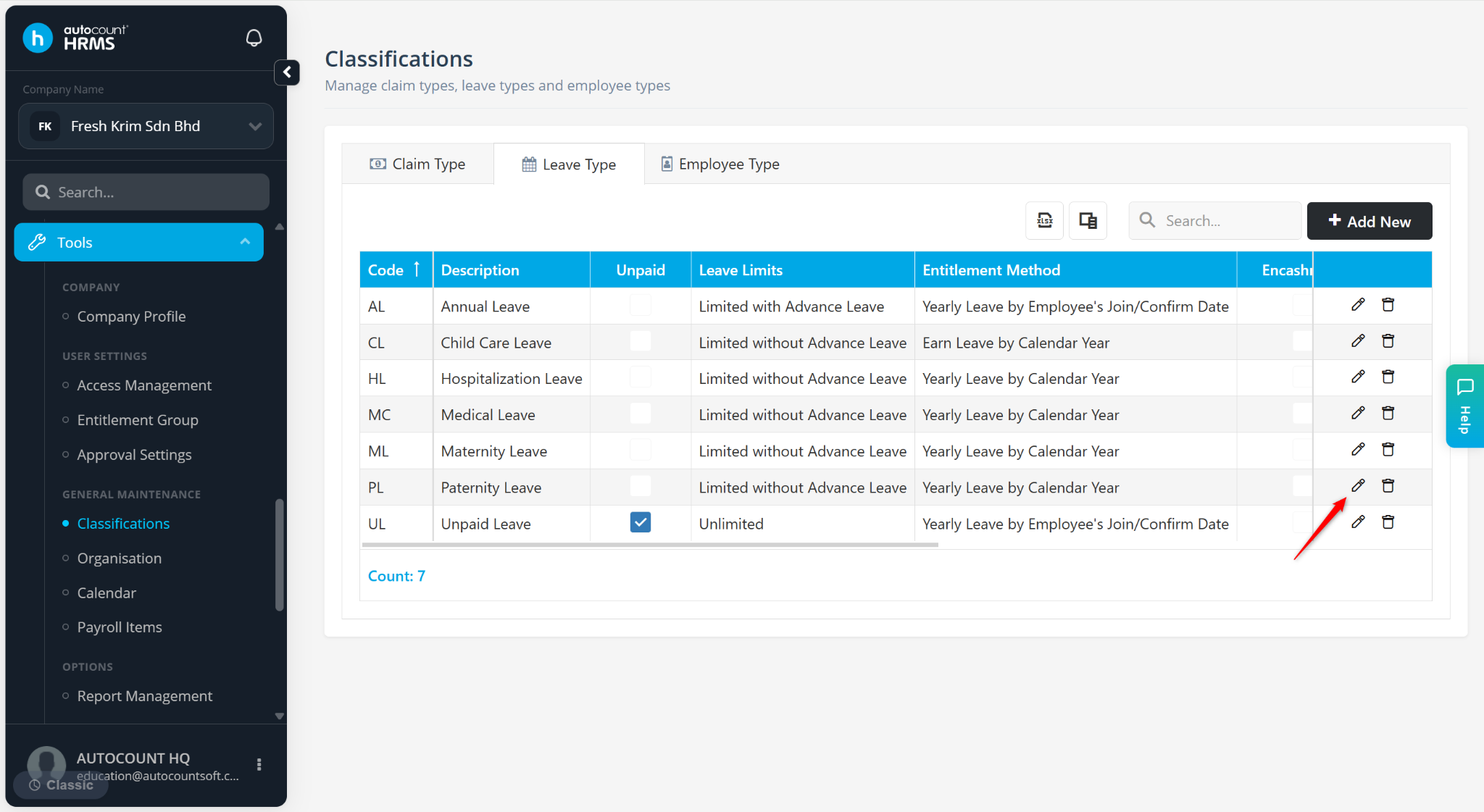
Make the necessary changes and click Save.
Steps to Delete a Leave Type:
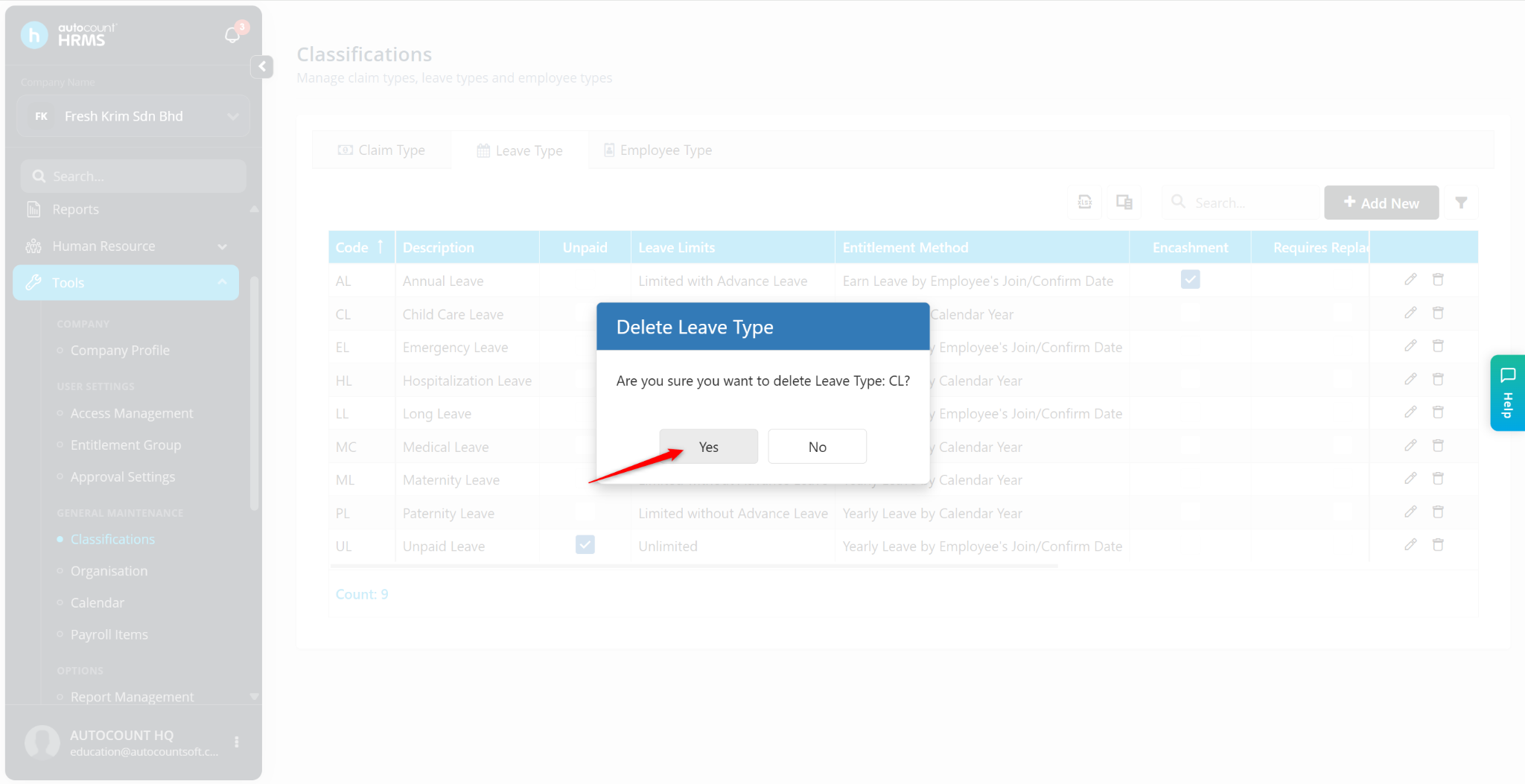
Locate the leave type and click the trash bin icon next to it.
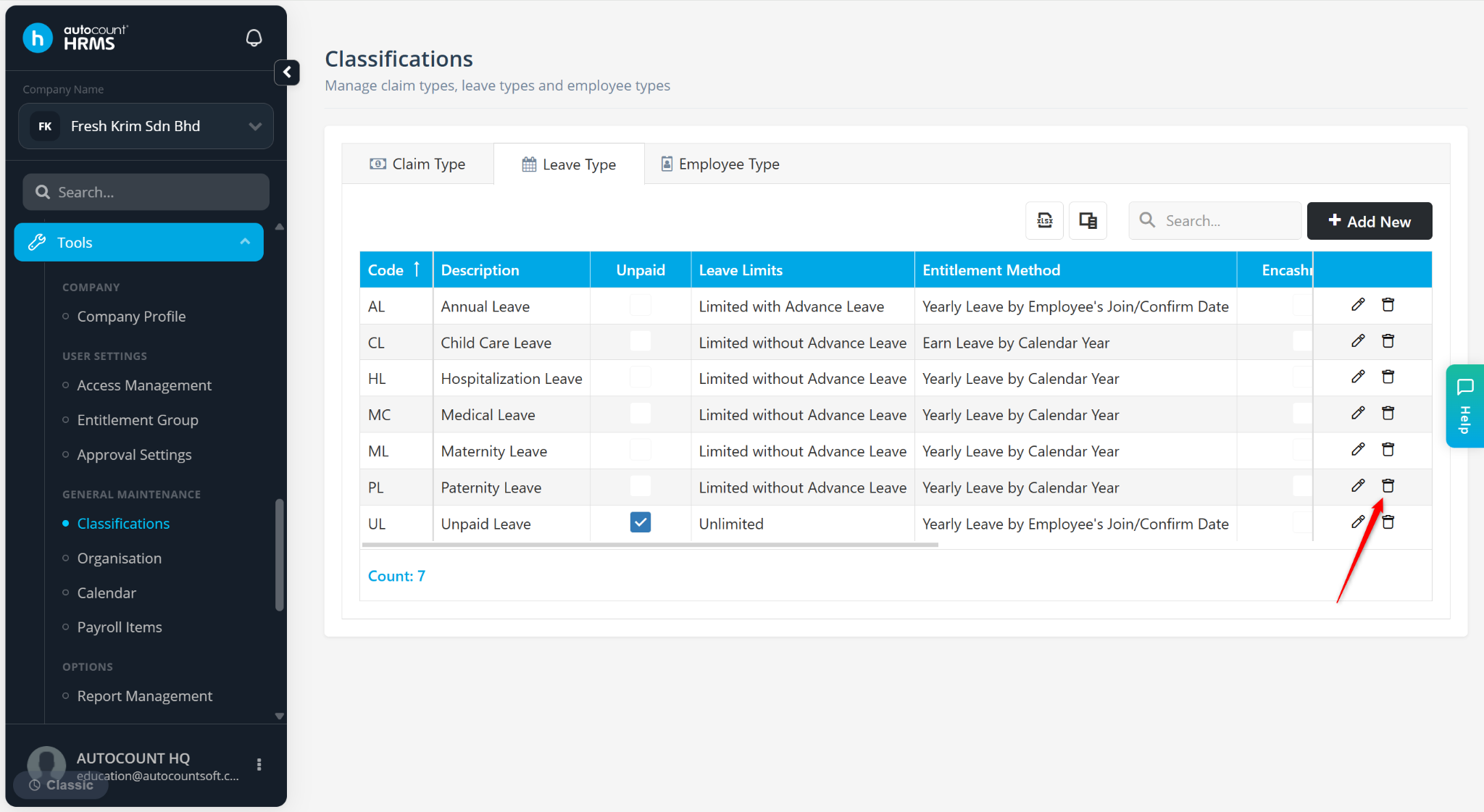
Click Yes to confirm.