
Starting from September 2024, employers are required to submit CP22 through the e-CP22 service via the Lembaga Hasil Dalam Negeri MyTax Portal. Manual submission of CP22 forms is no longer allowed.
AutoCount HRMS allows users to generate the required text file via:
Reports > Government Reports > LHDN > CP22/CP22A > Text File
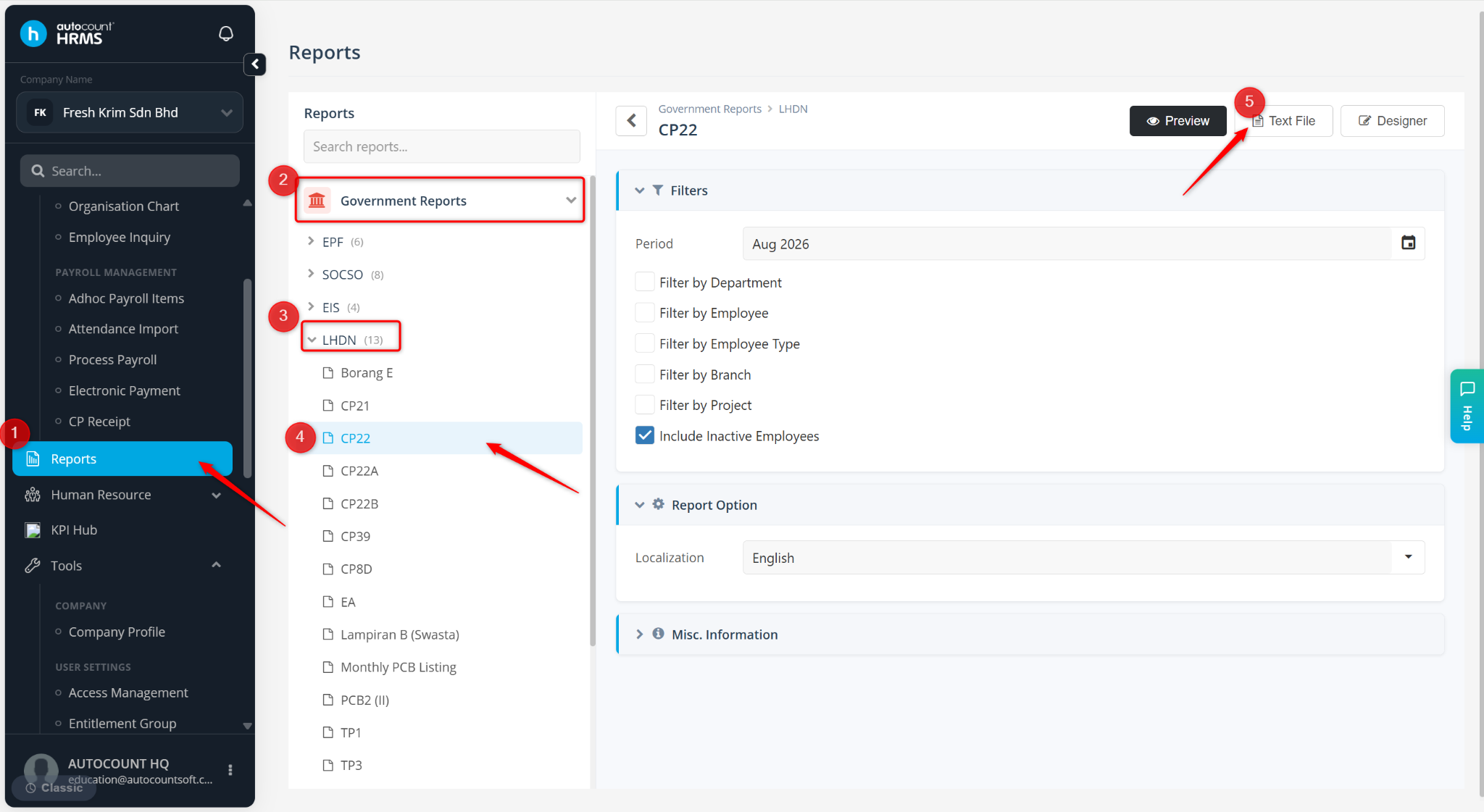
Important Information before uploading the text file:
Ensure following fields are maintained at Employee Maintenance for New Employees:
Mobile Number
Email Address
Address, State, City, Postal Code
Residence Country
Nationality
Basic Rate
Ensure the following fields are maintained at employee maintenance for foreign employees:
Passport Number
Passport Expiry Date
Ensure the following fields are maintained at employee maintenance for married employees:
Spouse Name
Spouse IC
Steps to Upload CP22 Text Files via the MyTax Portal:
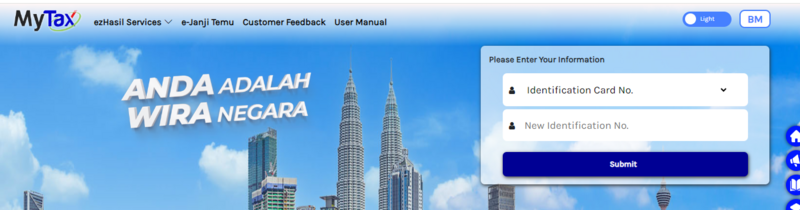
Login to My Tax Portal.
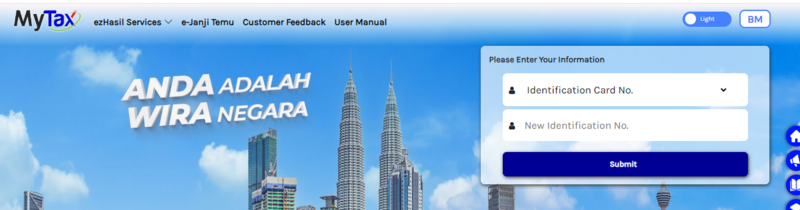
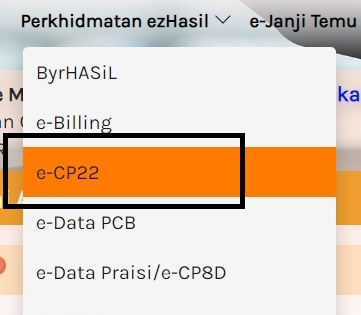
Click Perkhidmatan ezHasil /ezHasil Services > e-CP22.
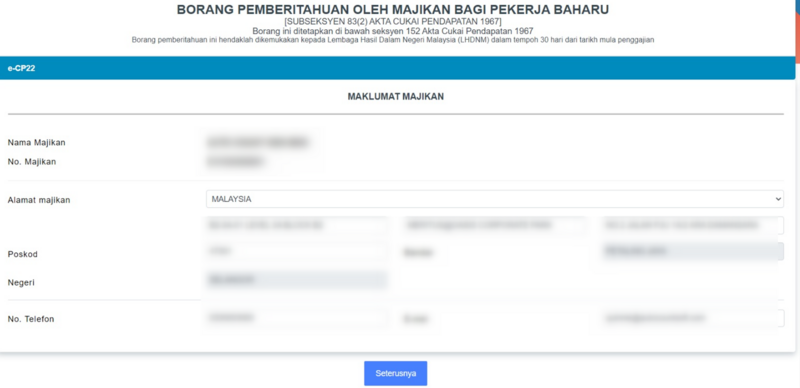
Ensure Maklumat Majikan is correct and click Seterusnya.
Navigate to Bahagian A: Cara Pengemukaan Data Pekerja. Click Sila Pilih Dokumen, select text file download from AutoCount HRMS and Muat Naik.
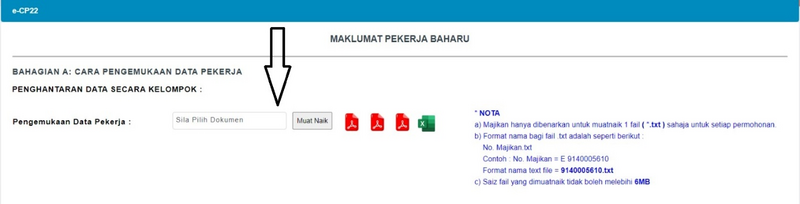
ℹ️ Note: Text file size cannot exceed 6MB.
Steps to Upload CP22A Text Files via the MyTax Portal:
Login to My Tax Portal.
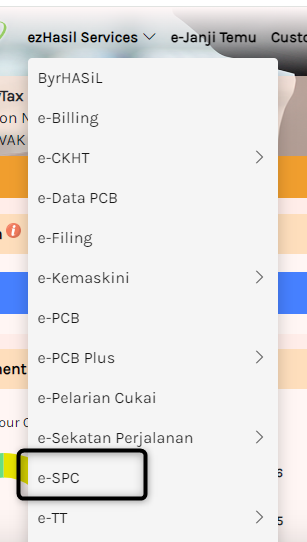
Click Perkhidmatan ezHasil /ezHasil Services > e-SPC.
Select Permohonan Secara Kelompok and click Seterusnya.
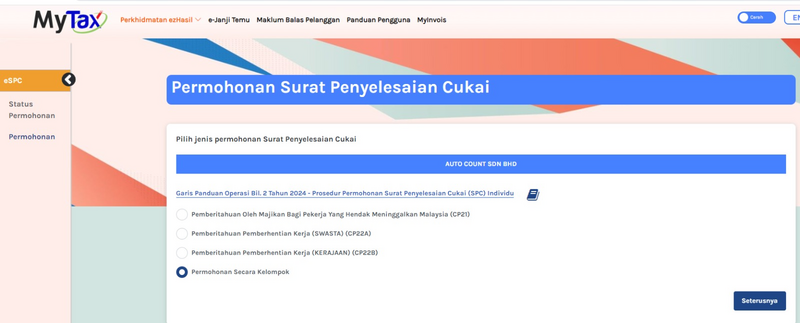
Select and click Notification by Employer of Employer’s Cessation (Private Sector) (CP22A).
Click Sila Pilih and select text file download from AutoCount HRMS, and click Seterusnya for upload.
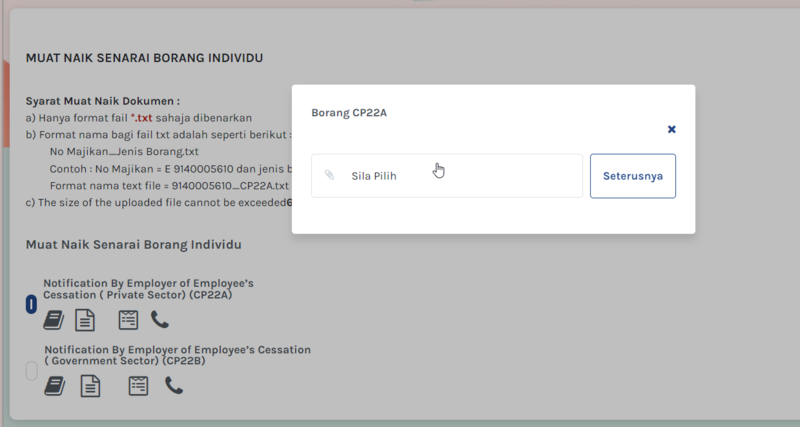
ℹ️ Note: Text file size cannot exceed 6MB.
Written by: Chen Ong (20241003)
Reviewed by: Azirah (20250804)