
Additional custom selection fields have been added to Allowance and Deduction payroll items, allowing users to specify how these items should be reported in the EA Form.
The Pay Tax option must be enabled for the allowance or deduction item before it can be mapped to an EA Form field.
One example is Part B(6) – Compensation for Loss of Employment.

Steps to Add a Custom EA Form Field:
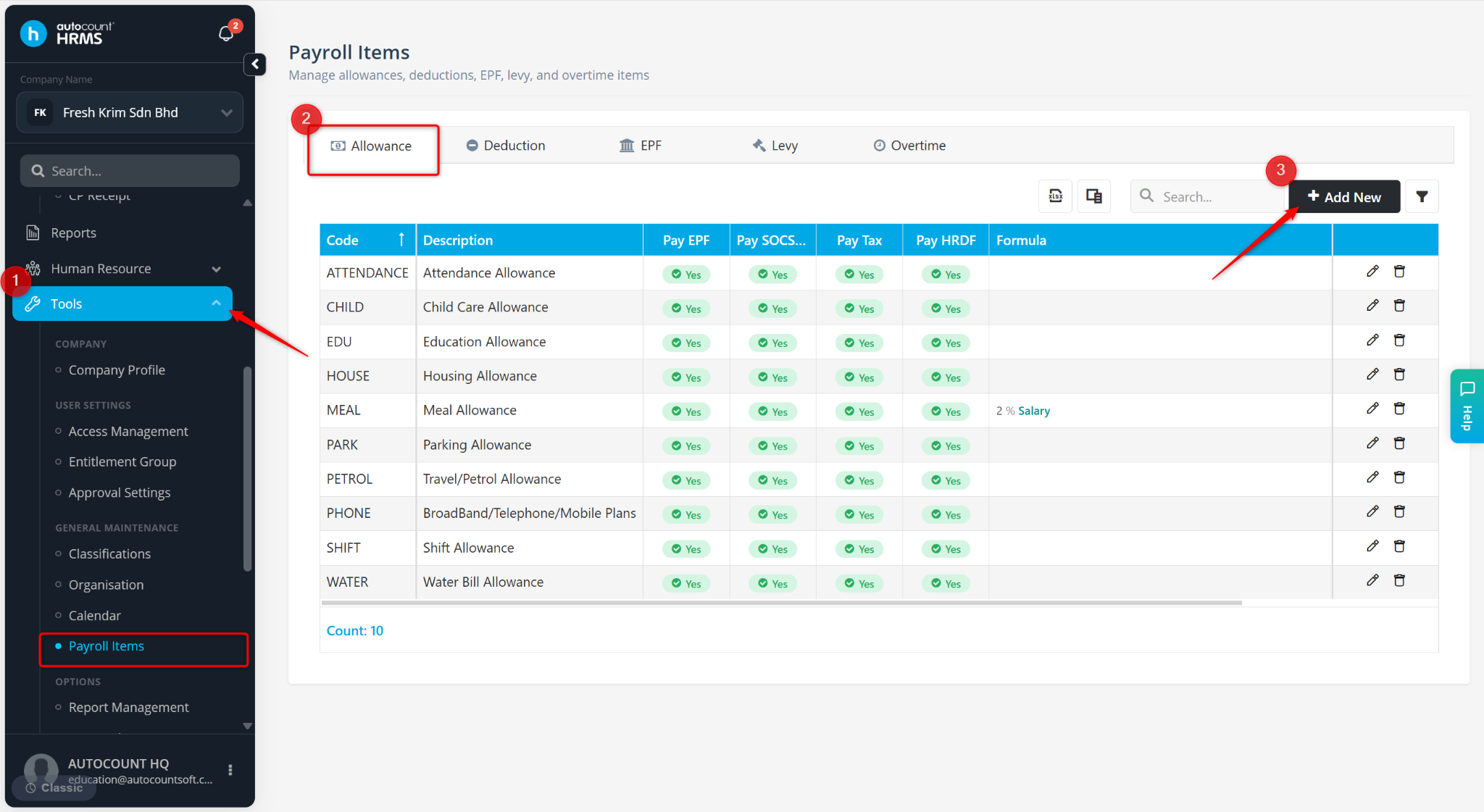
Go to Tools > Payroll Items.
Go to Allowance.
Click + Add New.
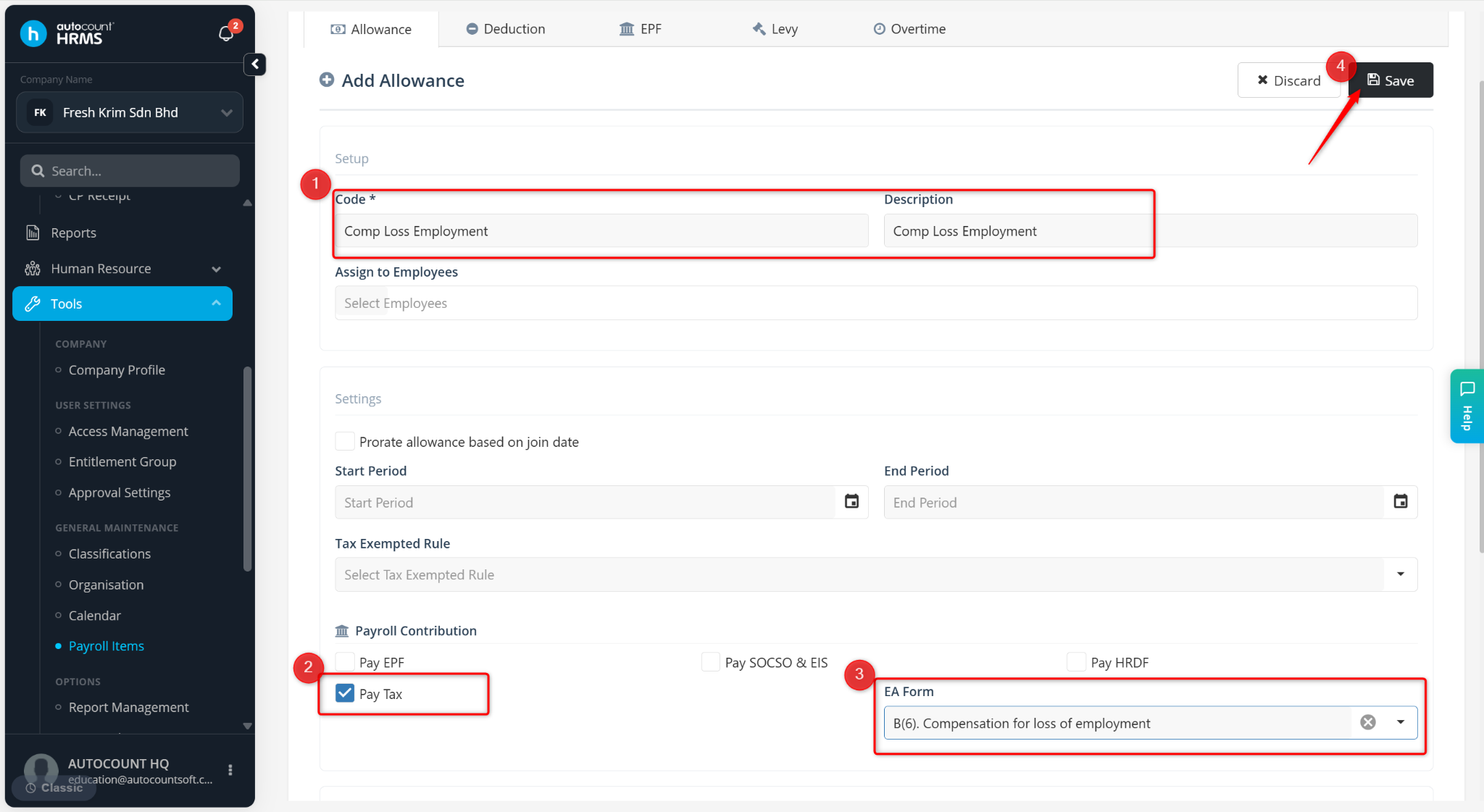
Enter the Code and Description.
Ensure Pay Tax is enabled.
Select B(6). Compensation for loss of employment at the EA Form field.
Click Save.
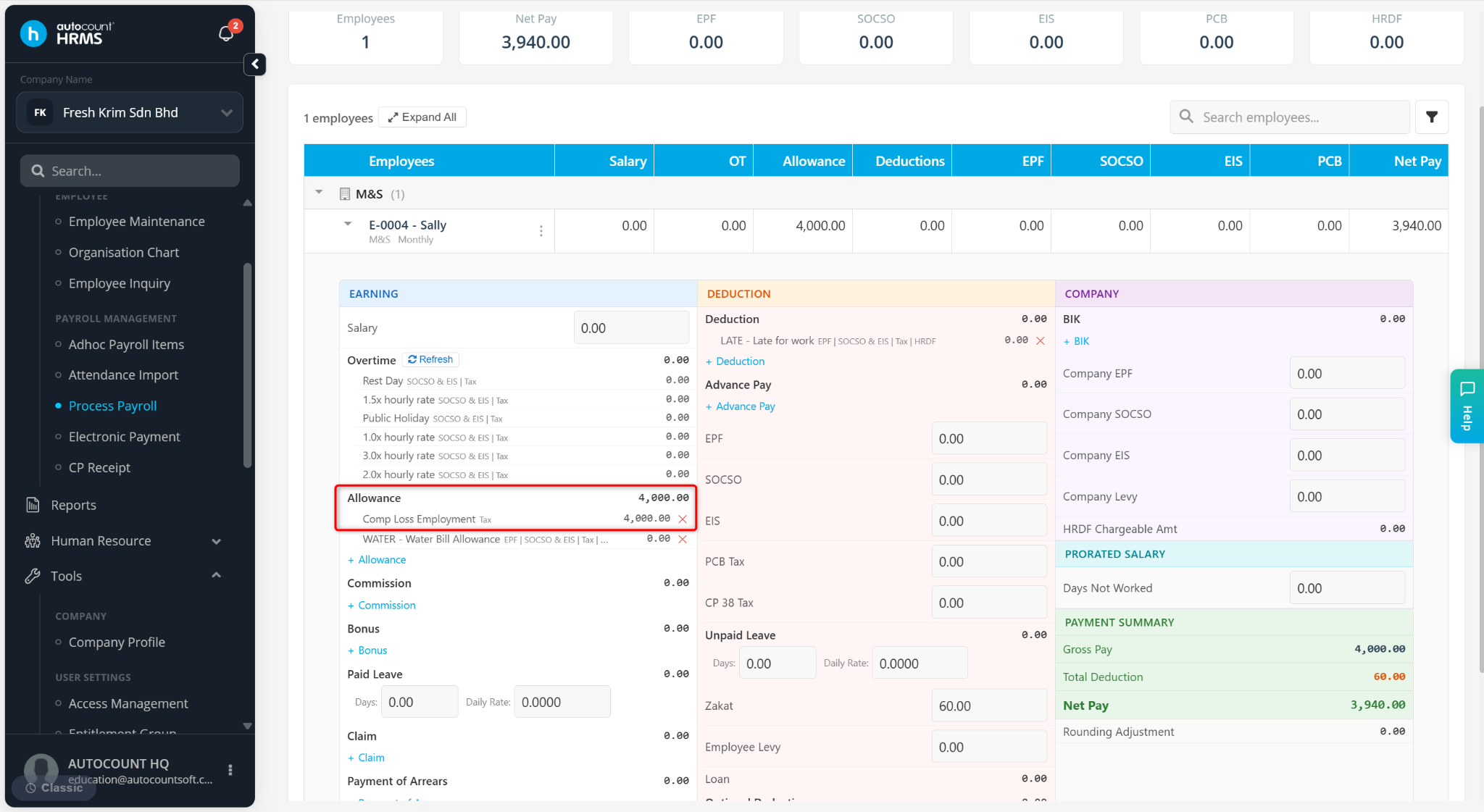
Process payroll using the newly created allowance item.
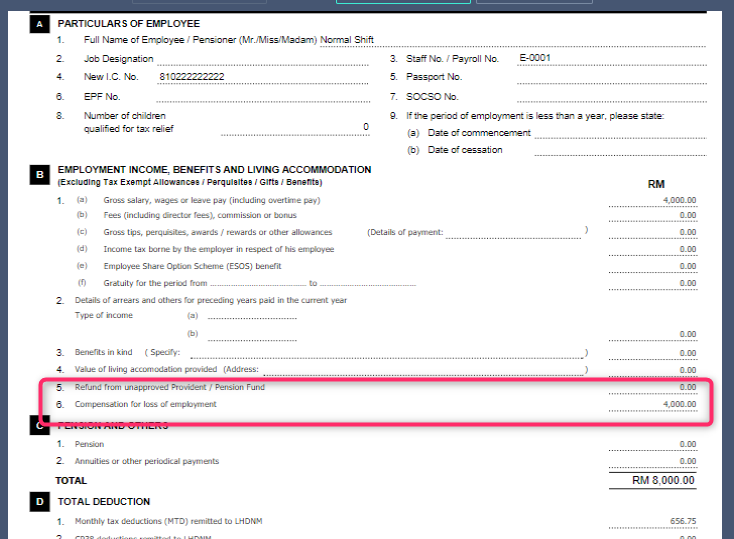
Perform Payroll Closing and preview the EA Form.
The allowance amount (e.g., RM4,000.00) will be displayed under Part B(6) – Compensation for Loss of Employment in the EA Form.
ℹ️ Note: The same setup method can also be used for Part B(1f) – Gratuity Amount.