
A User Defined Field (UDF) allows users to create custom fields to capture information that is not available in the system by default. UDFs can be used to store company-specific data and can be added to various modules, such as Employee Maintenance, Overtime, Allowance, and Deduction.
Steps to Create a UDF:
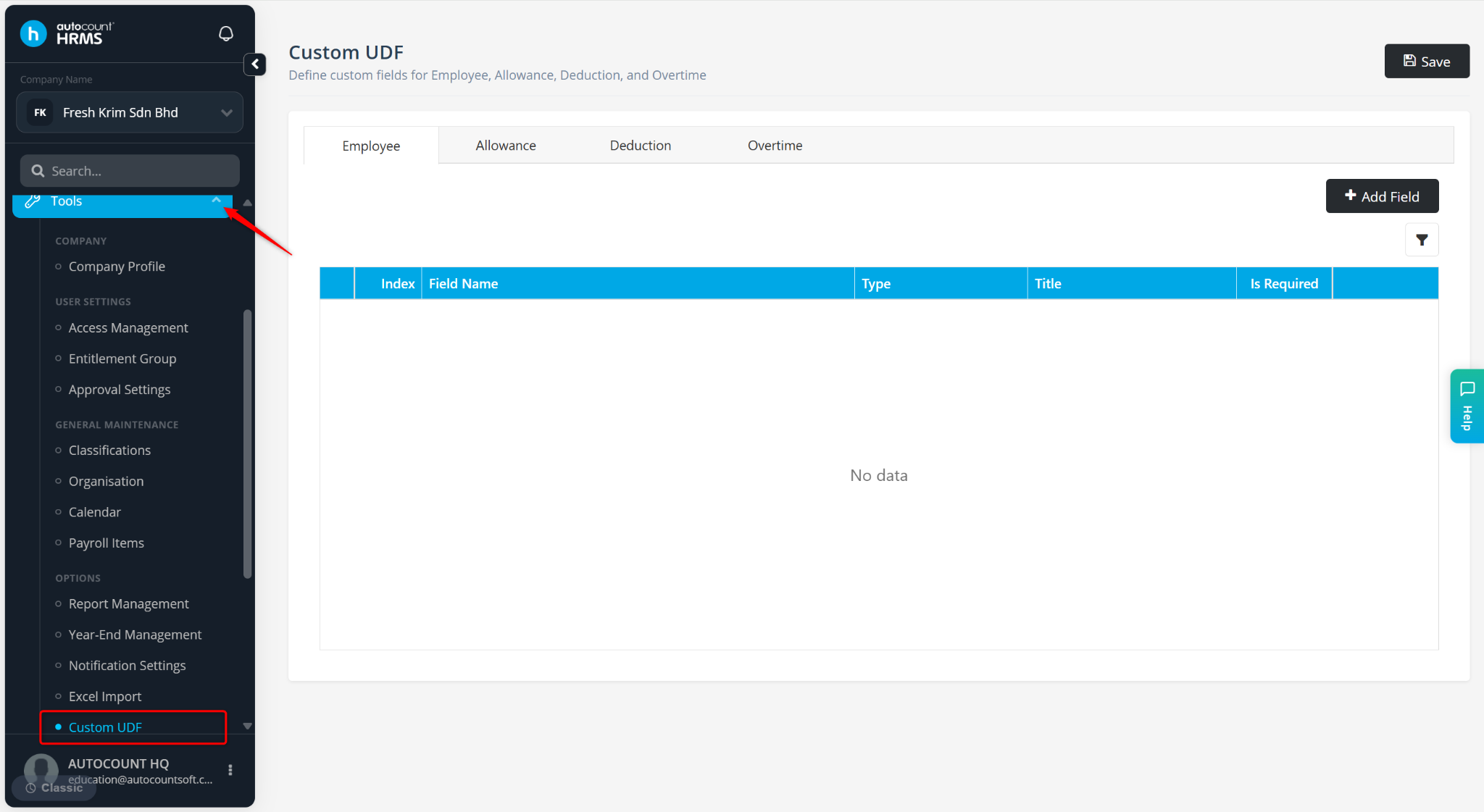
Go to Tools > Custom UDF.
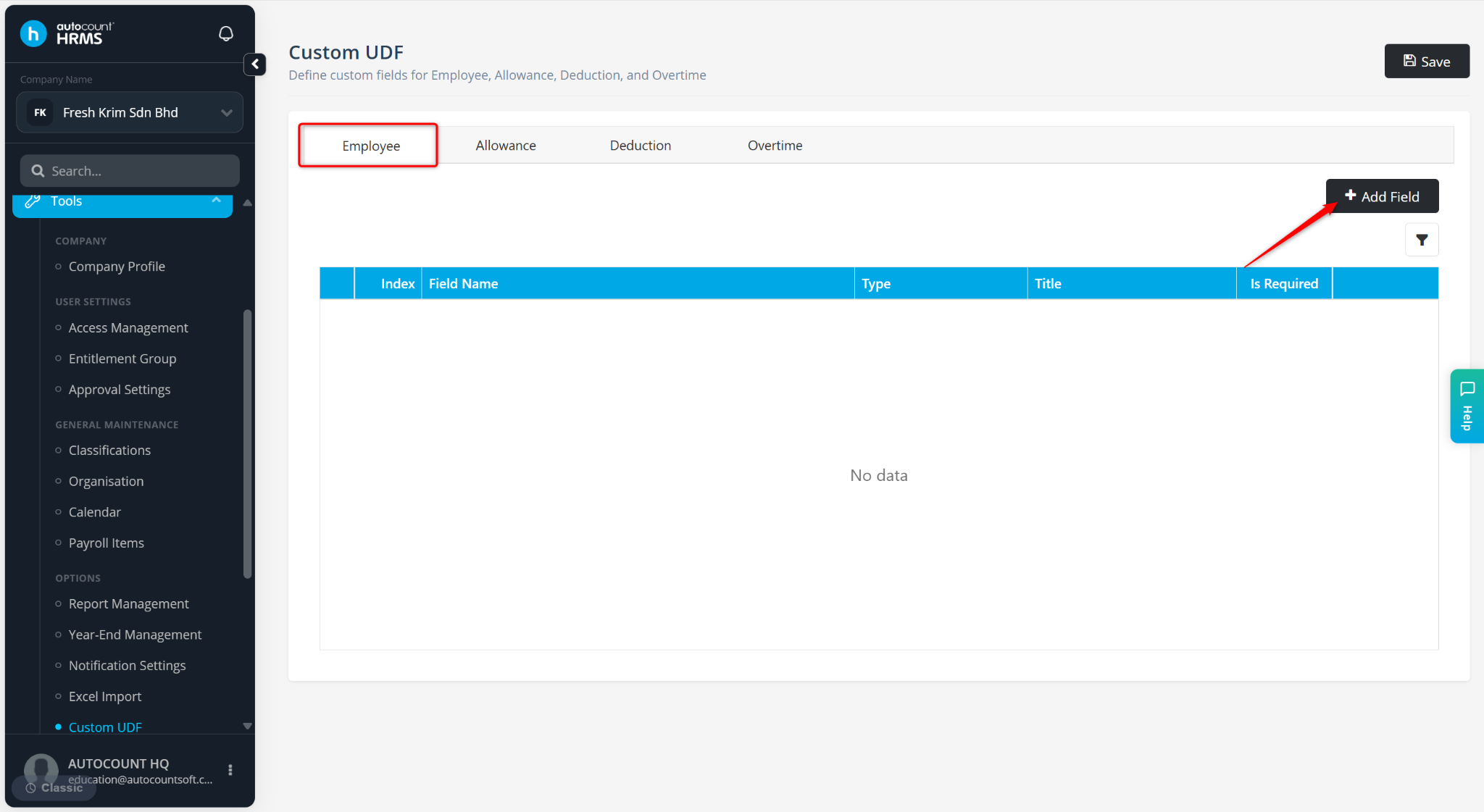
Select the tab where you want to create the UDF.
Click + Add Field.
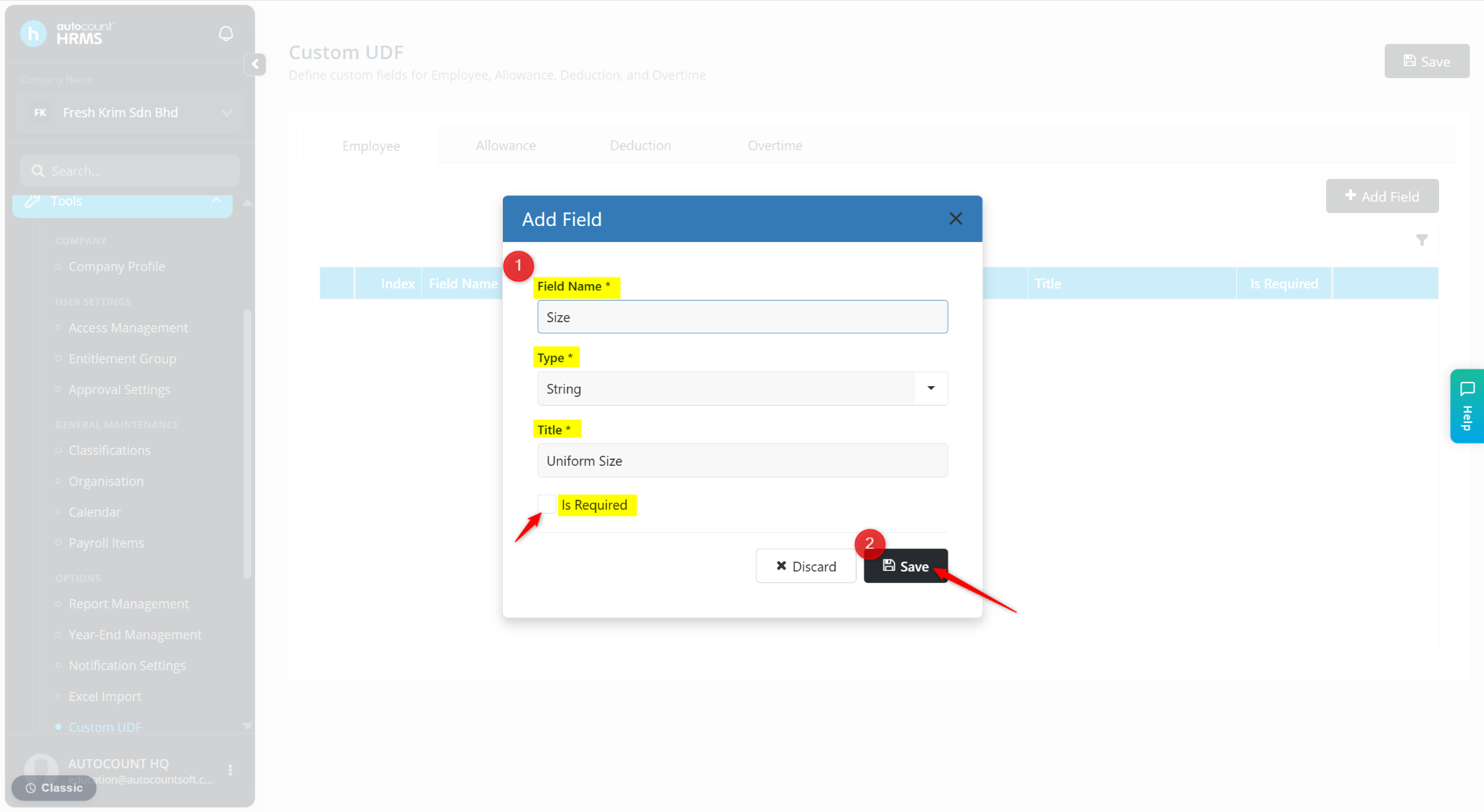
Enter the details:
Field Name – Enter the system name of the UDF.
Type – Select the data type:
String – Text with a limited number of characters.
Number – Numeric values.
Date – Date selection.
Boolean – True/False values.
Text – Long-form text or remarks.
Title – Enter the label or caption to be displayed in the system.
Is Required – Enable this option to make the field mandatory.
Click Save.
Click Save at the top right corner to apply the changes.
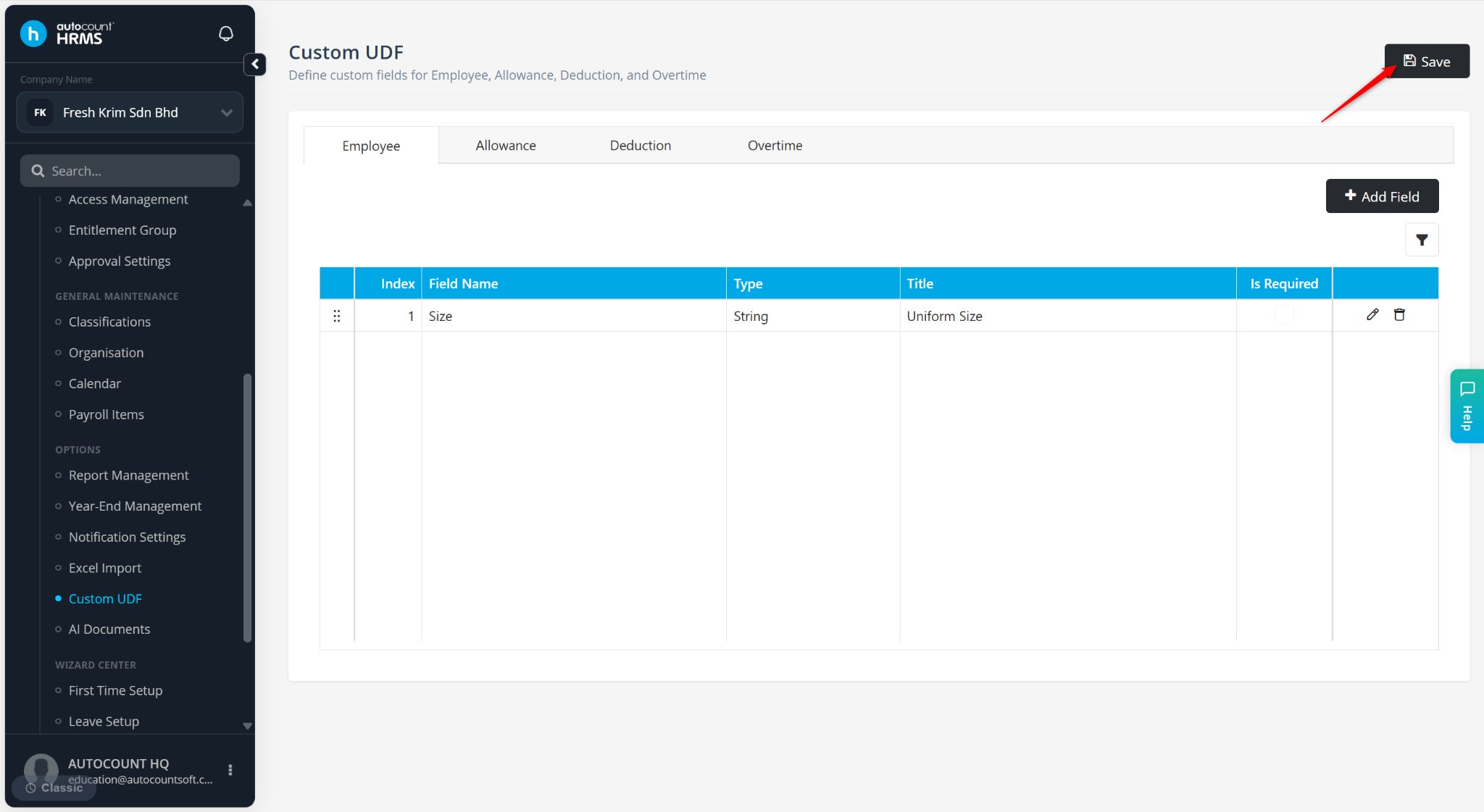
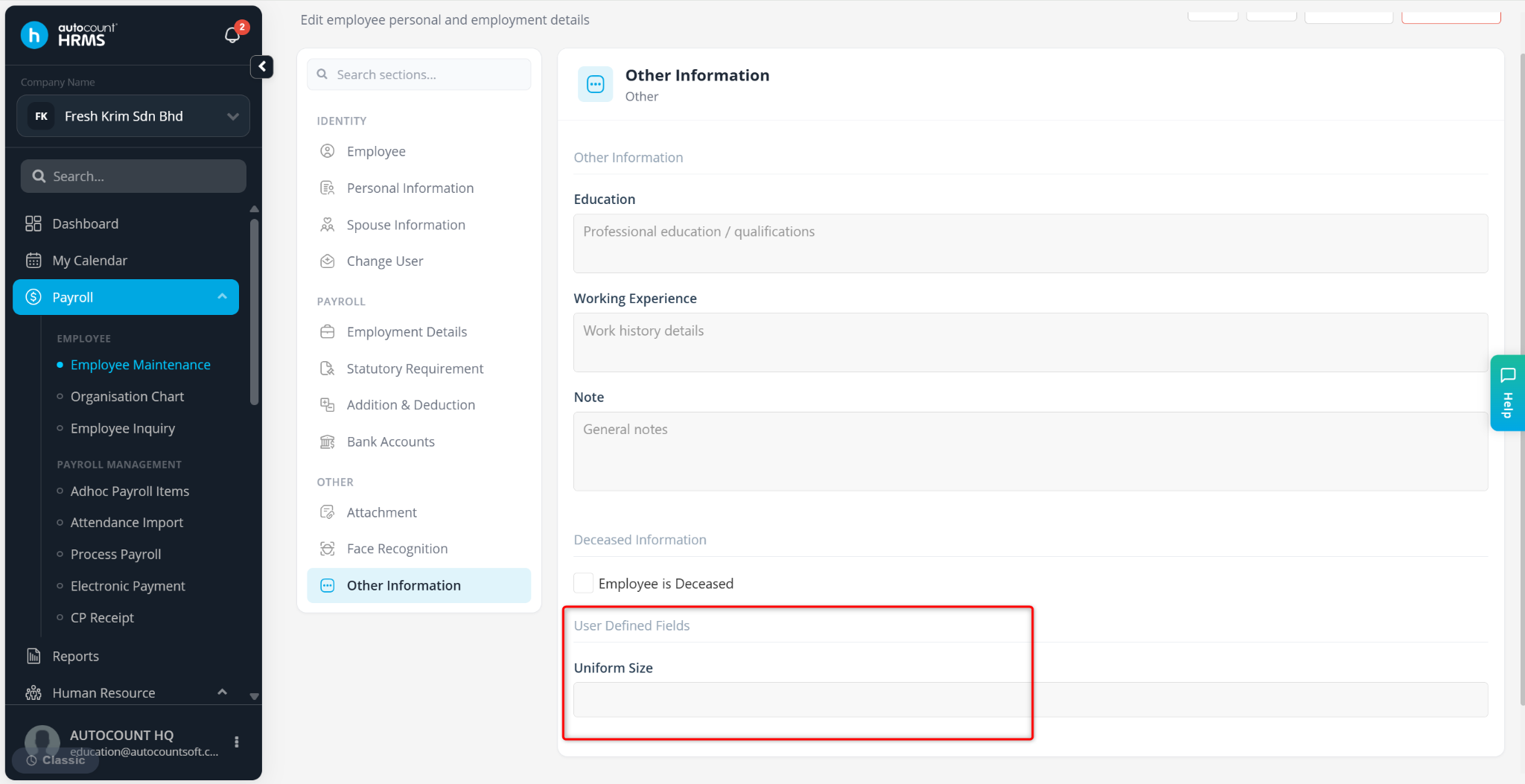
The newly created UDF will be available in the selected module for data entry and maintenance:
Employee – Available at Employee Maintenance > Other Information.
Allowance – Available when creating or editing an allowance at Payroll Items > Allowance > Add New.
Deduction – Available when creating or editing a deduction at Payroll Items > Deduction > Add New.
Overtime – Available when creating or editing an overtime item at Payroll Items > Overtime > Add New.
Written by: Han Yang (20250630)
Reviewed by: Azirah (20250731)