
The Employees Provident Fund (EPF) has announced that employers are required to register their non-Malaysian employees under the new mandatory 2% employee and 2% employer contribution rate, effective from October 2025. This update applies to companies created on or after 18 September 2025.
Check out our blog post – Latest Updates to Malaysia's Employment Law: What Employers and Employees Need to Know for details about personnel affected.
A) Create New EPF Rates
Steps to Create a New EPF Rate:
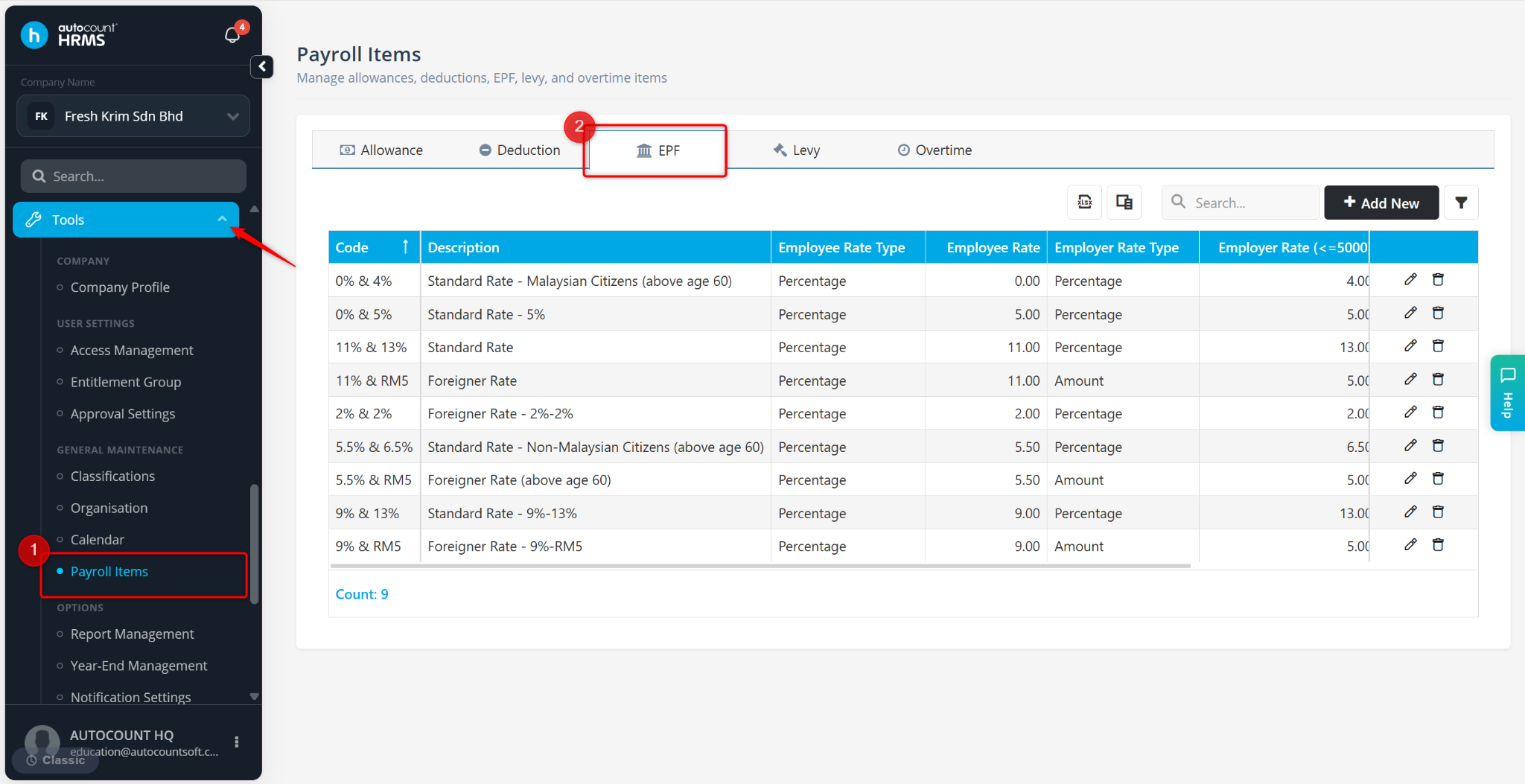
Go to Tools > Payroll Items.
Navigate to EPF.
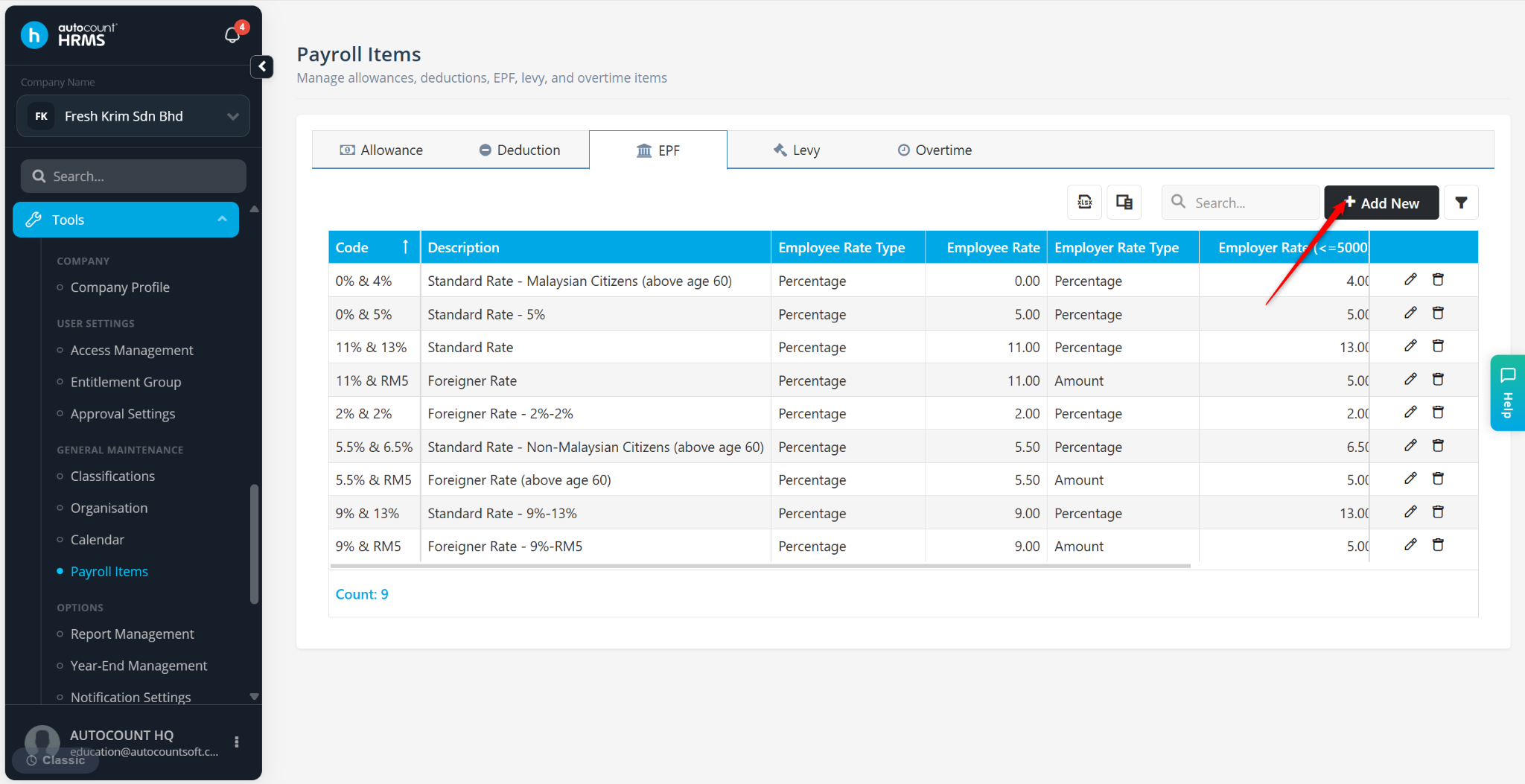
Click + Add New.
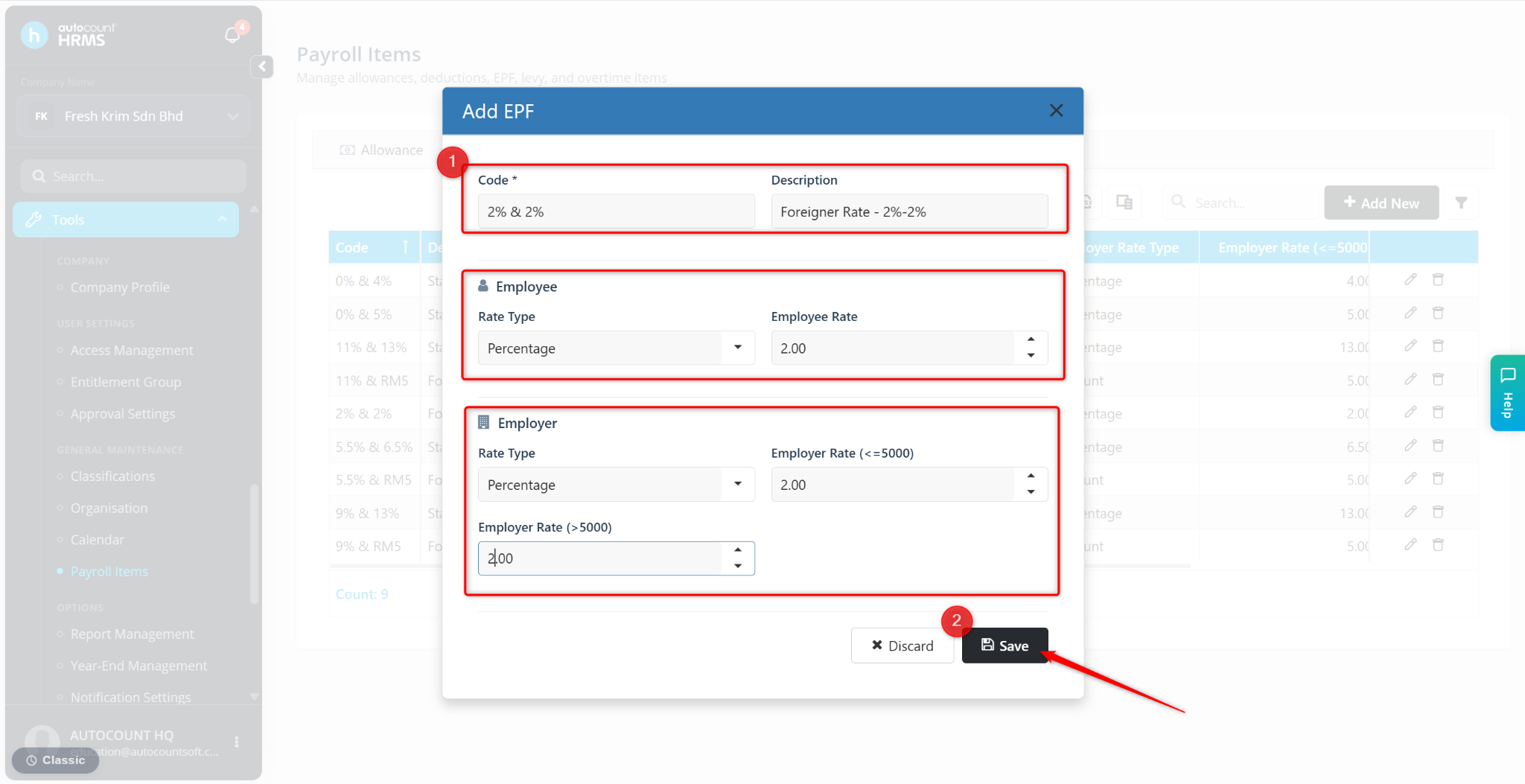
Enter the following details:
Code – 2% & 2%
Description – Foreigner Rate - 2%-2%
Rate Type – Percentage
Rate – 2
Click Save.
After creating the new EPF rate, assign it to the affected employee(s).
B) Update Employees’ EPF Rates
You may update EPF rates either individually or in bulk.
Method 1: Update Individually
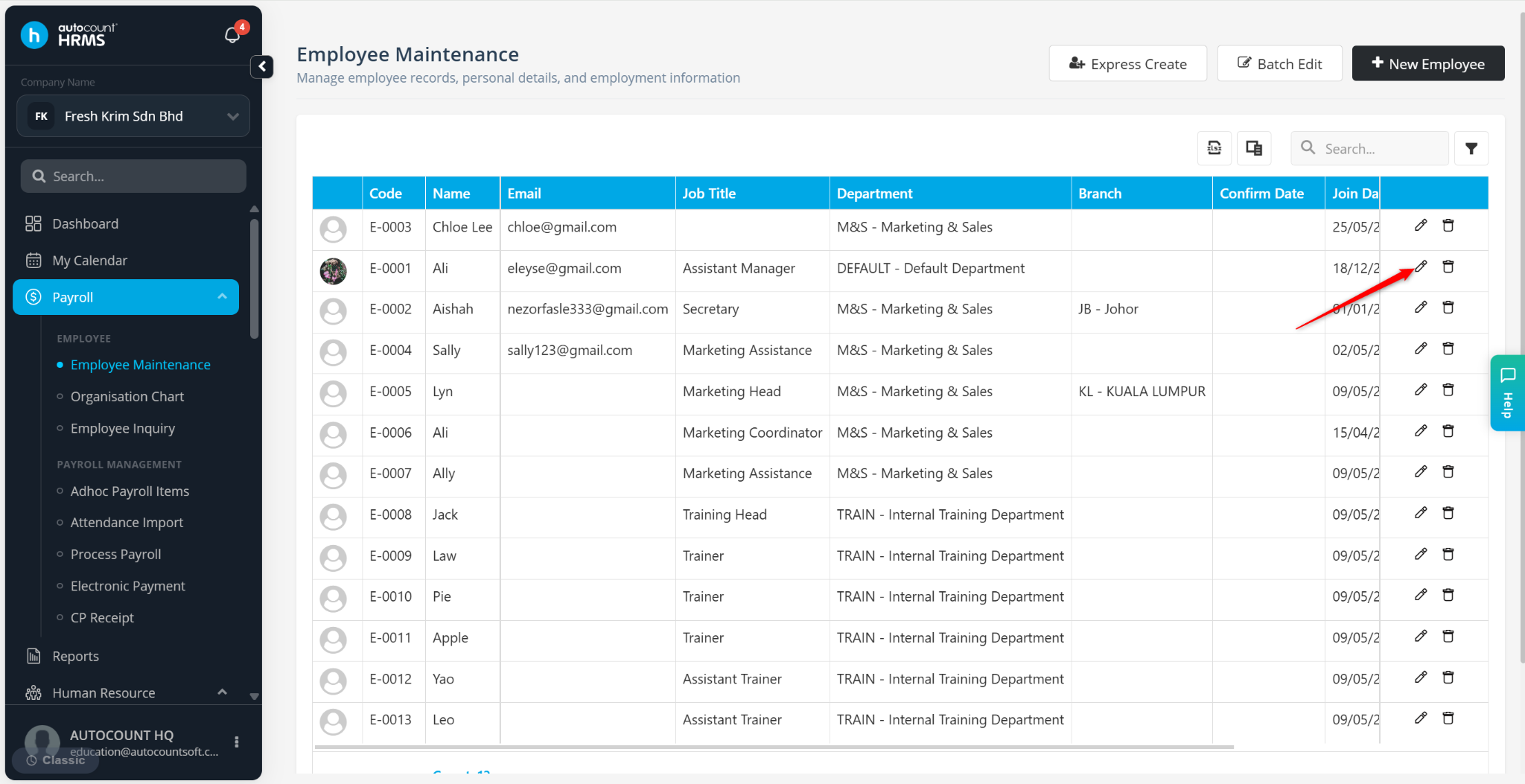
Go to Payroll > Employee Maintenance.
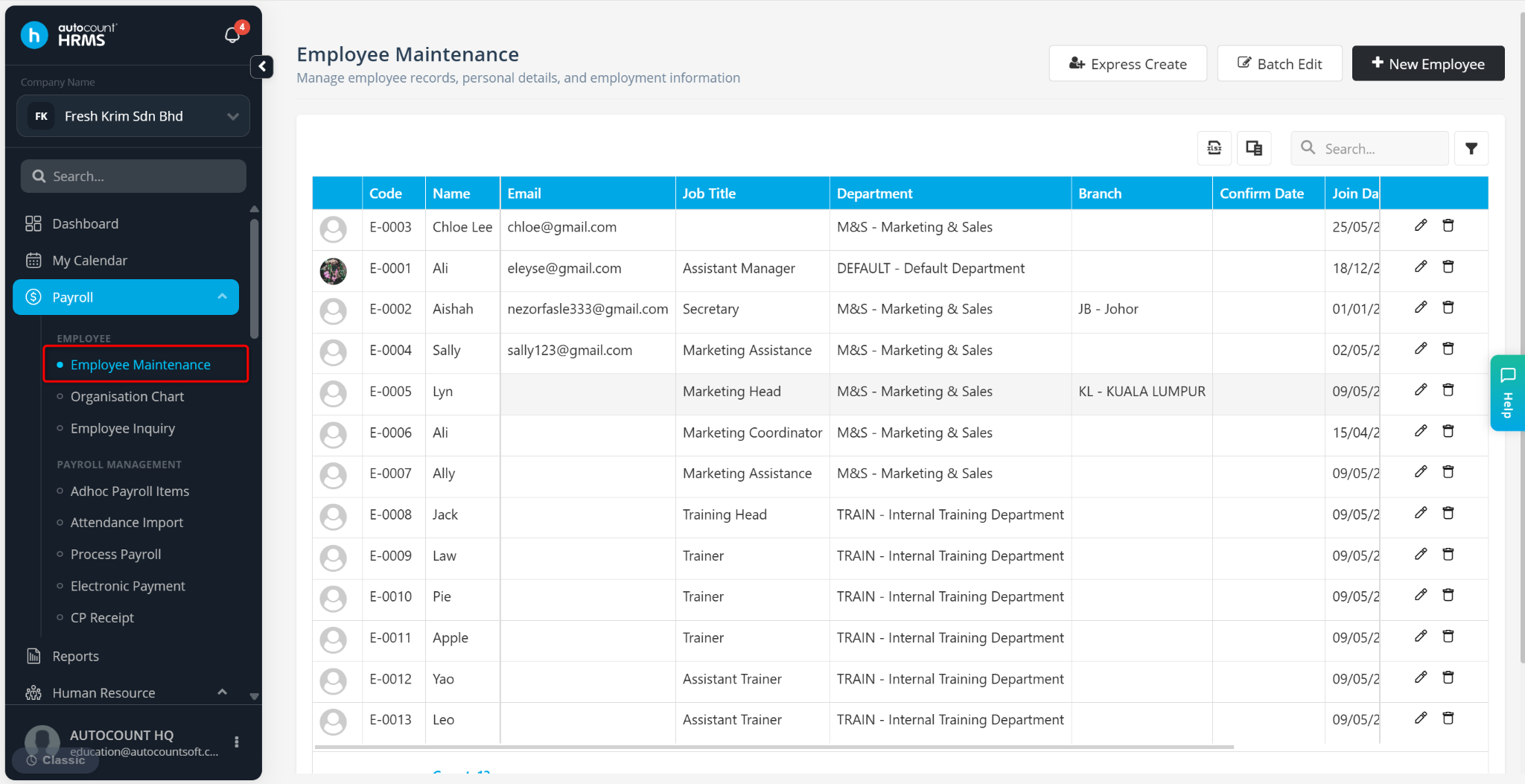
Locate the employee and click the pencil icon.
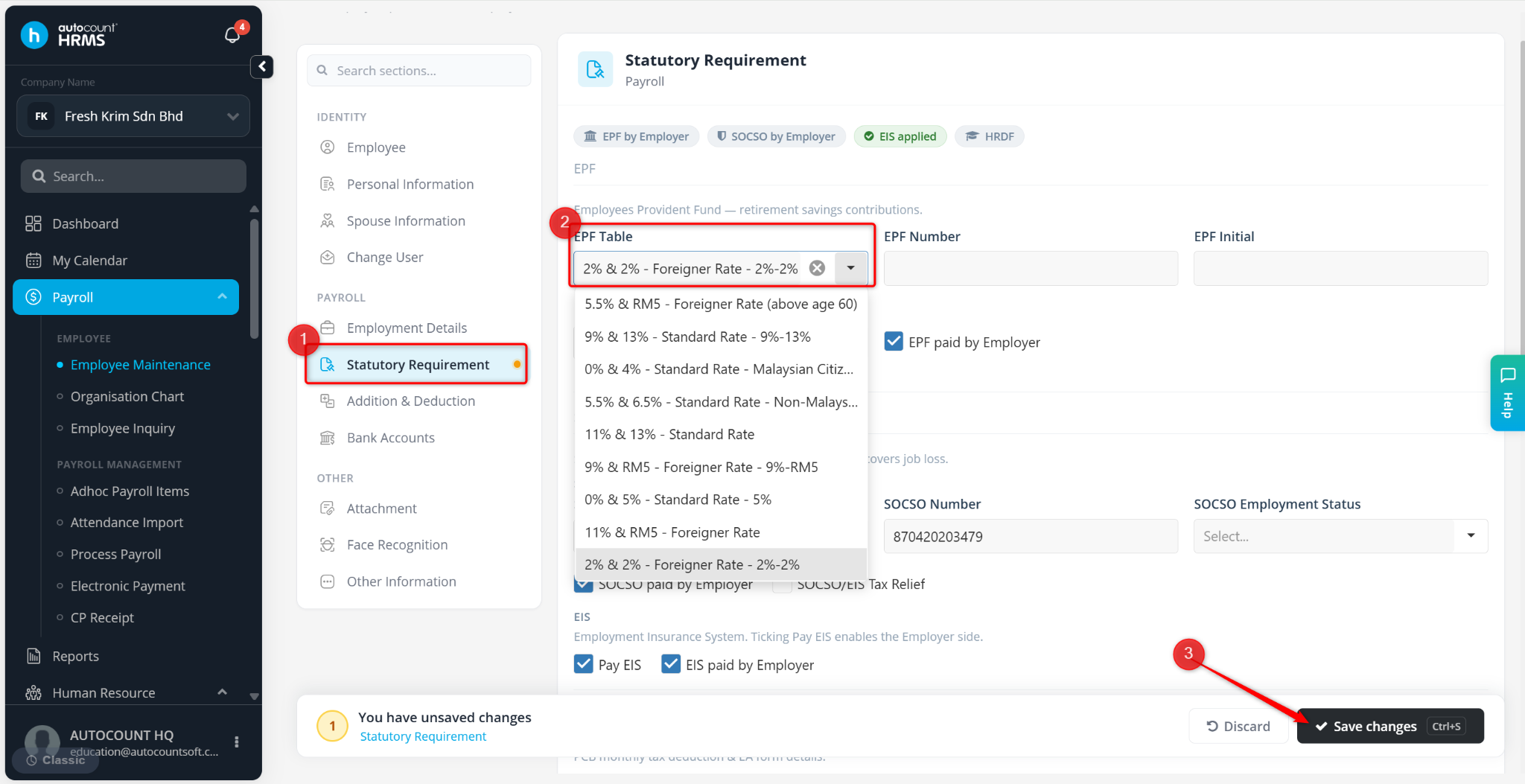
Navigate to Statutory Requirement.
At the EPF Table field, select: 2% & 2% – Foreigner Rate - 2%-2%.
Click Save Changes.
Method 2: Update via Bulk Edit
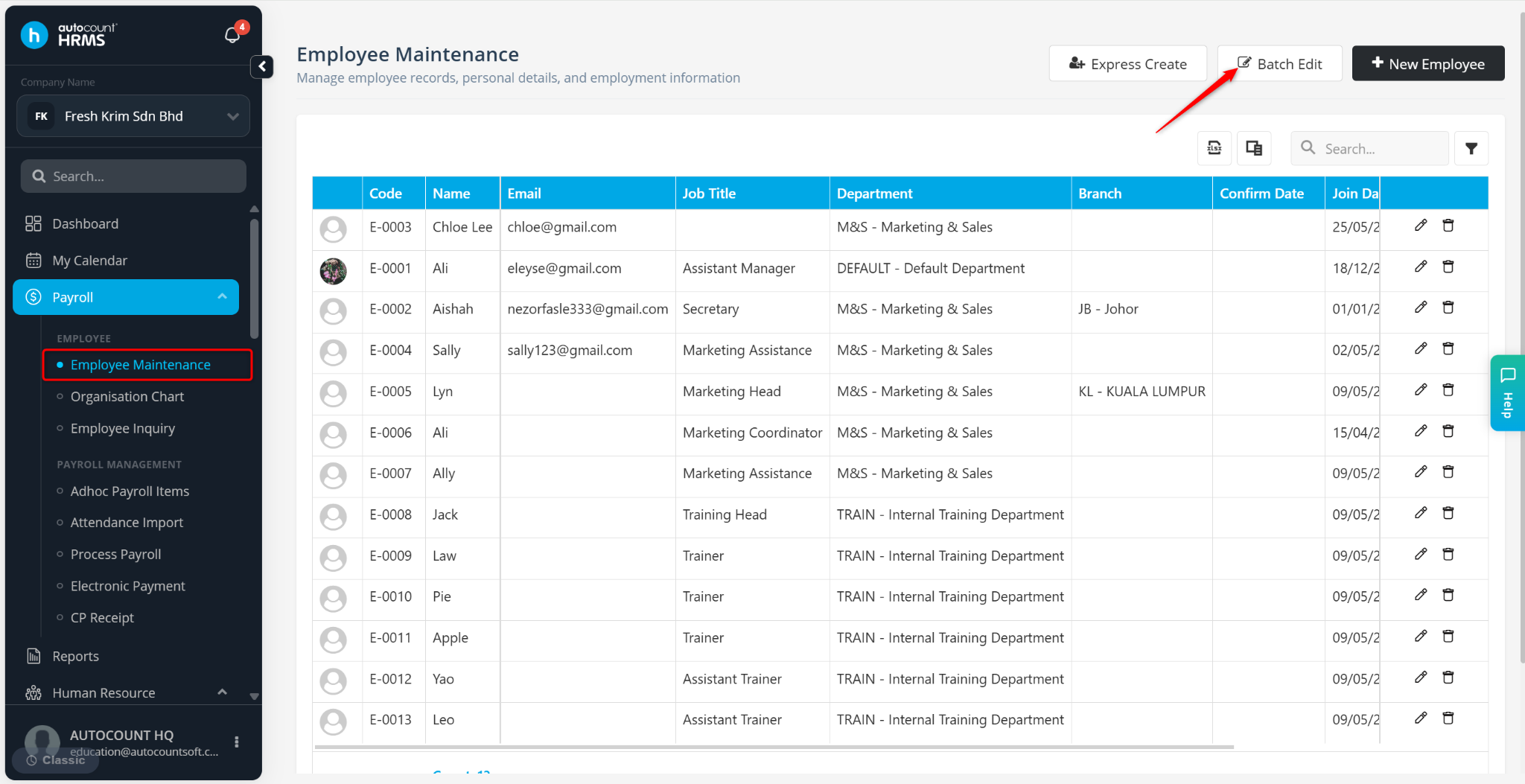
Go to Payroll > Employee Maintenance.
Click Bulk Edit.
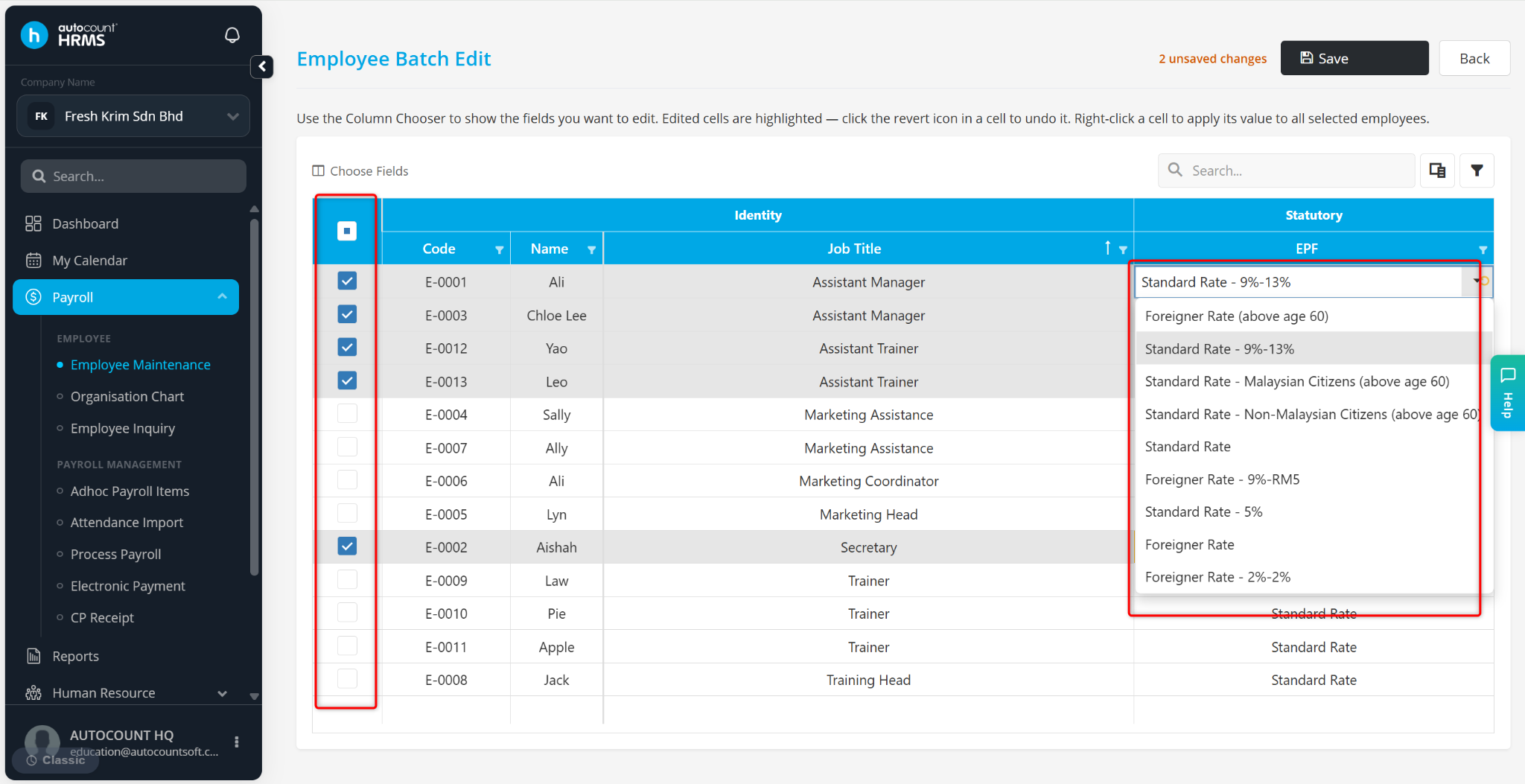
Click the column chooser icon and select EPF as the field to update.
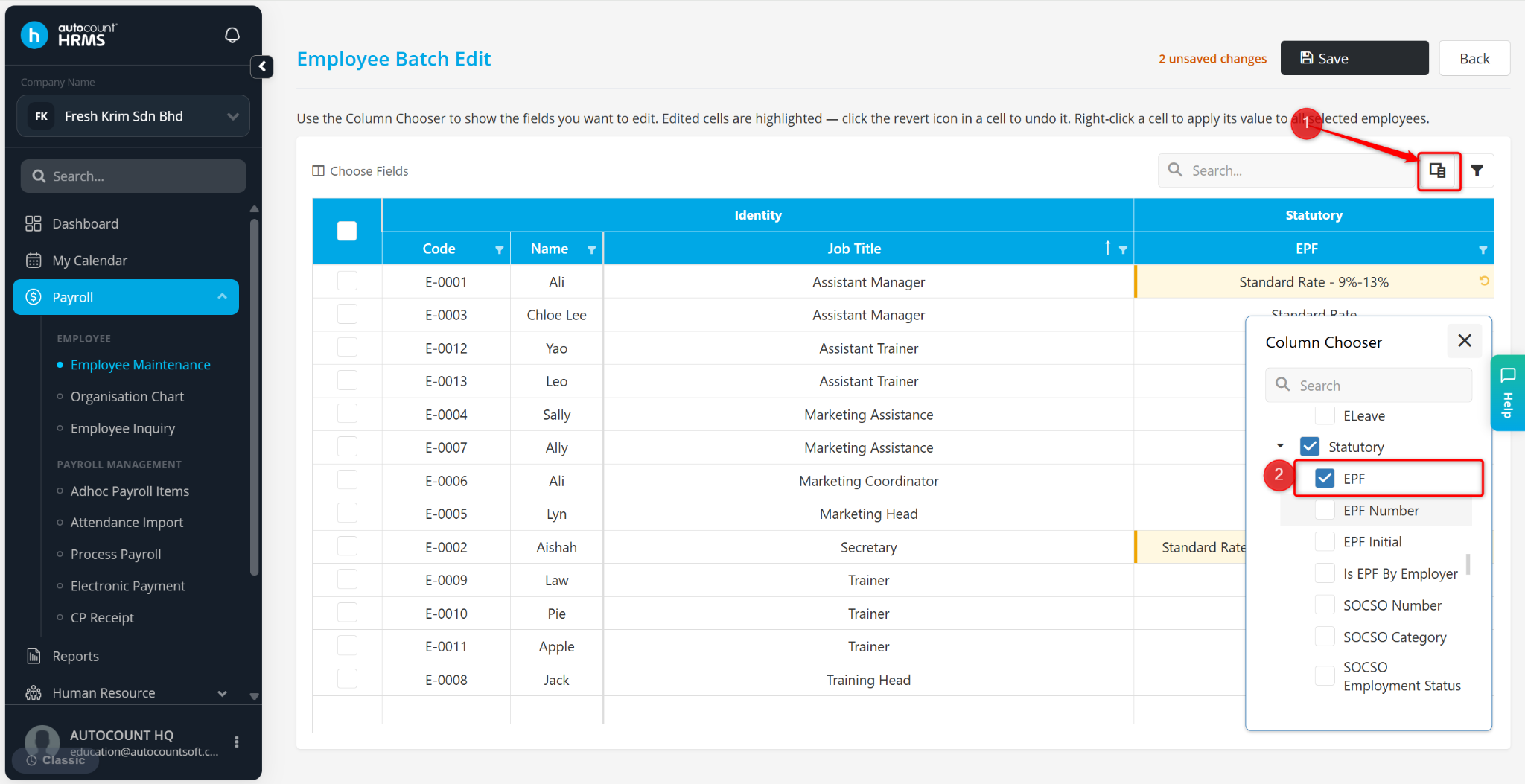
Select the employees to be updated.
Select 2% & 2% – Foreigner Rate - 2%-2%.
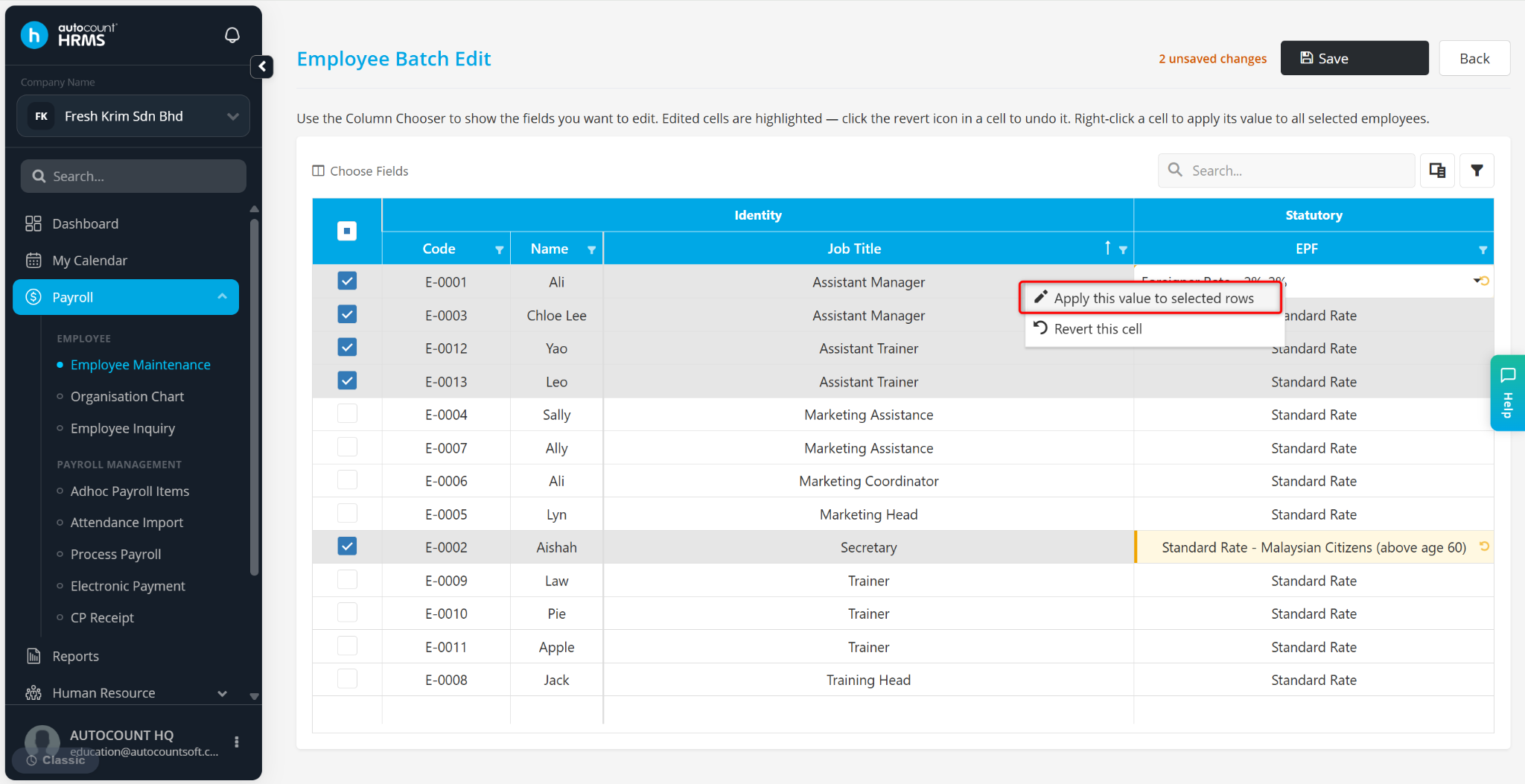
Right click and select Apply this value to selected rows.
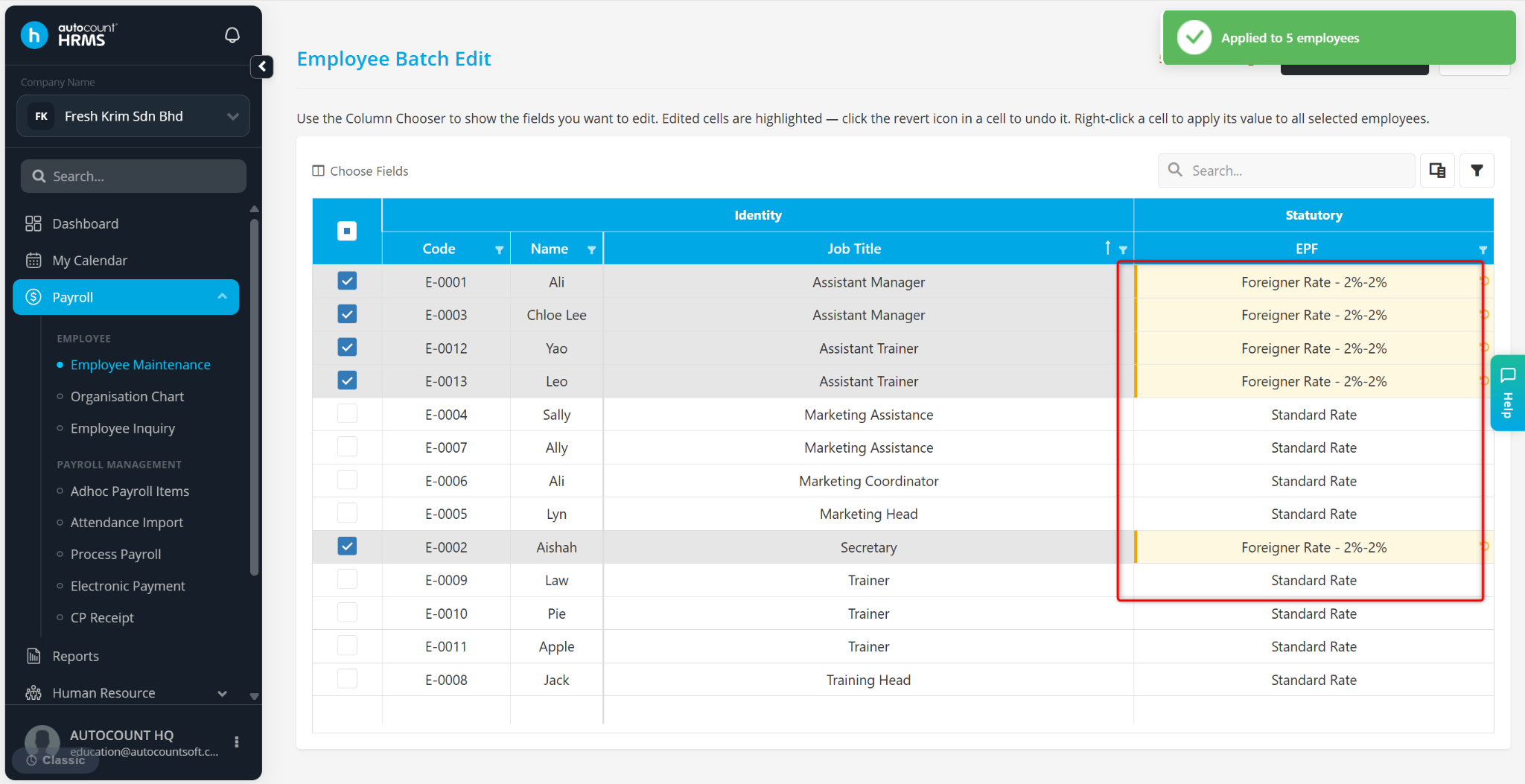
Review the changes.
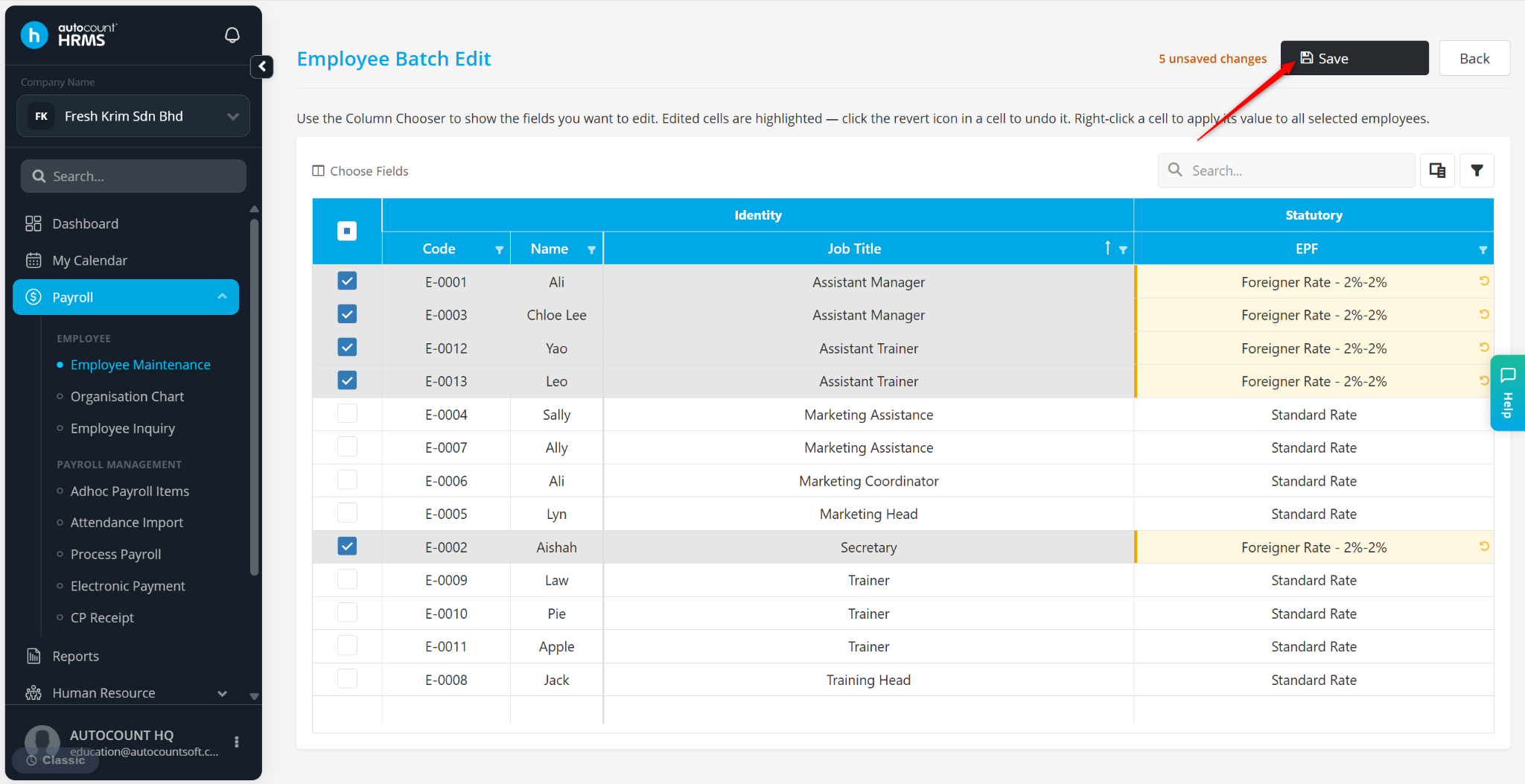
Click Save.
Once the new EPF rate has been assigned, the 2% employee and 2% employer EPF contribution will be automatically calculated and reflected in the next payroll process.
Written by: Chen Ong (20250912)
Reviewed by: Azirah (20250919)