
Users can add an additional company in the subscription page to support better HR management across multiple companies.
Steps to Add an Additional Company:
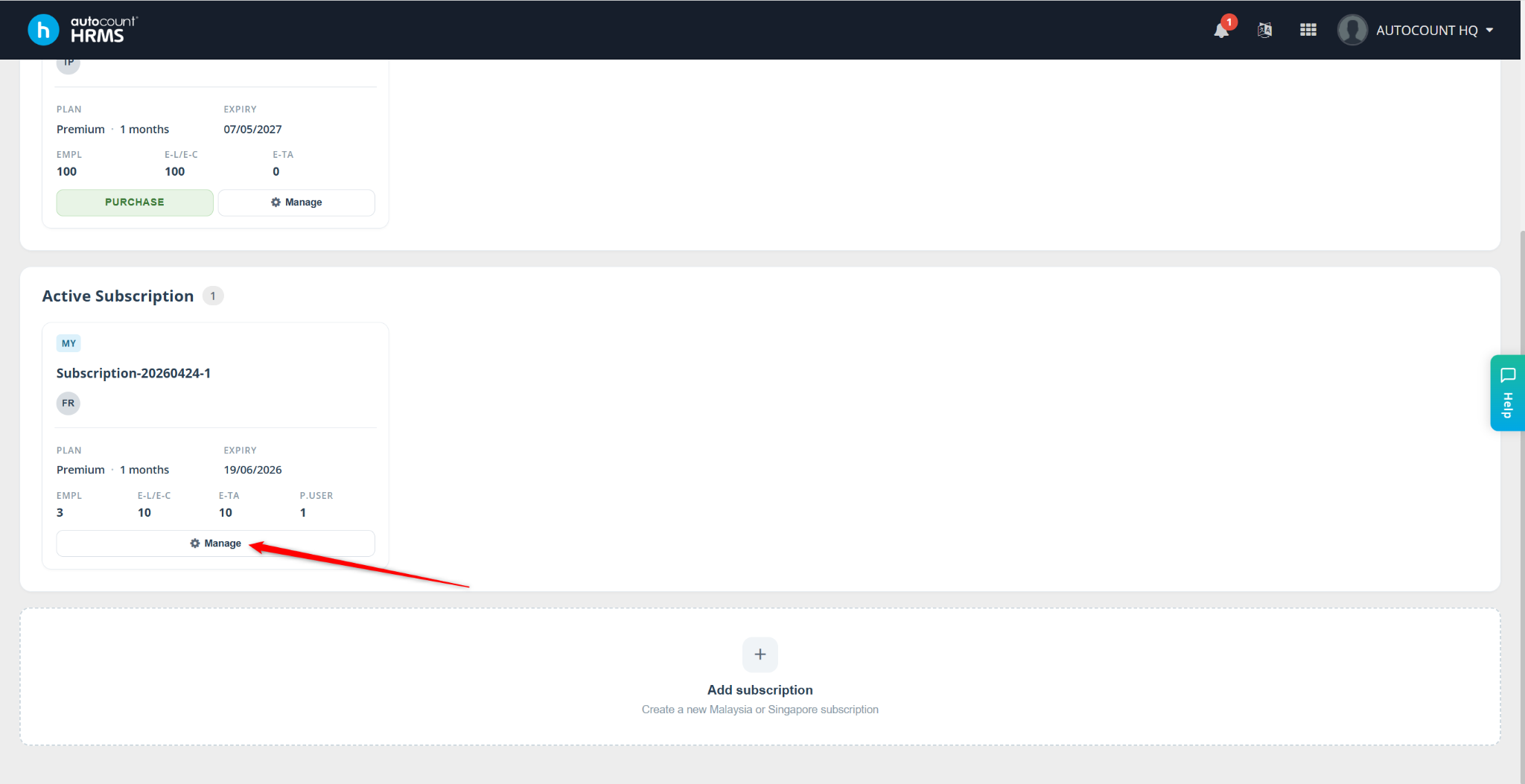
Go to the Subscription page.

Identify the subscription plan you want to add the new company to, then click Manage.
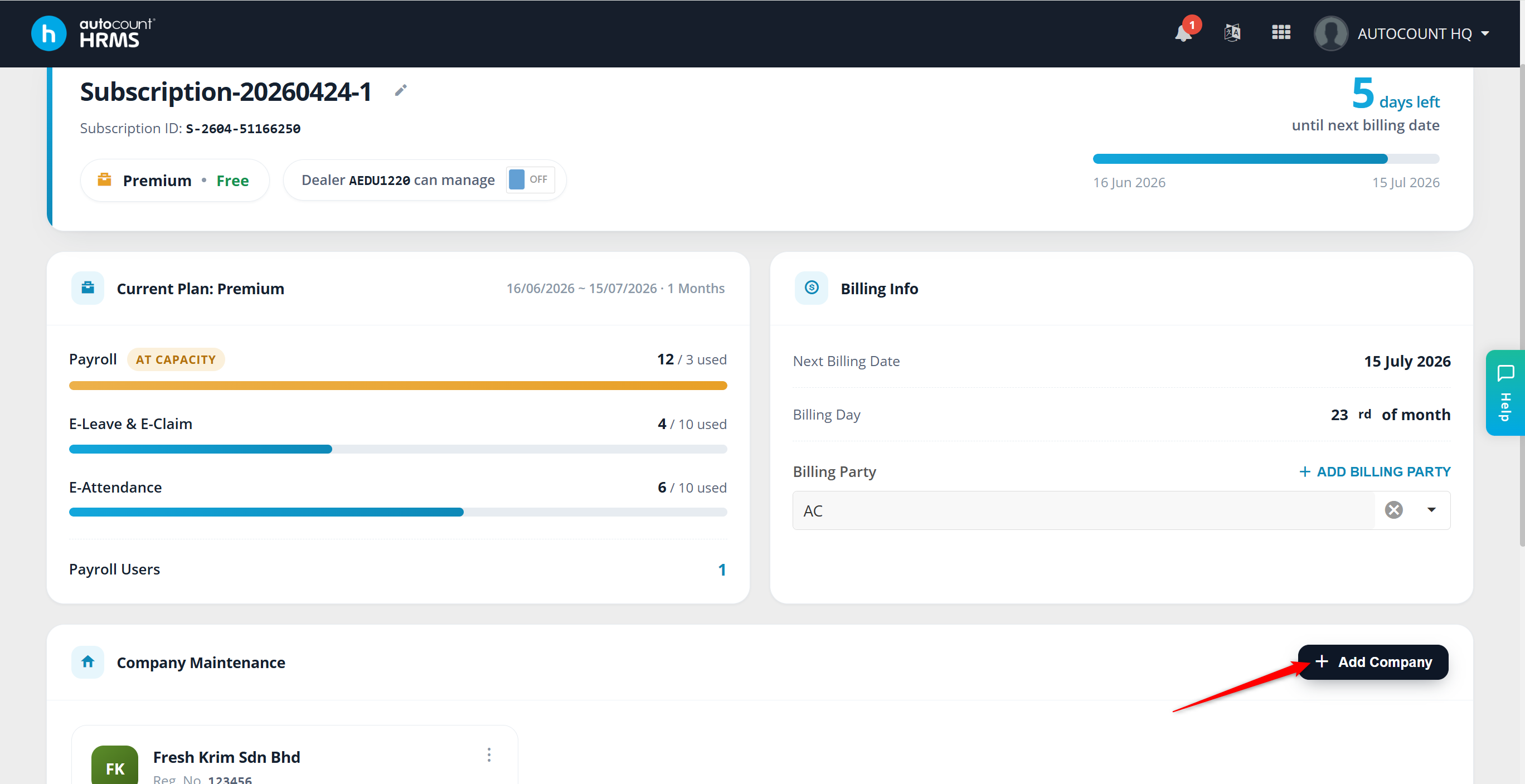
Click + New Company to start adding a new company.
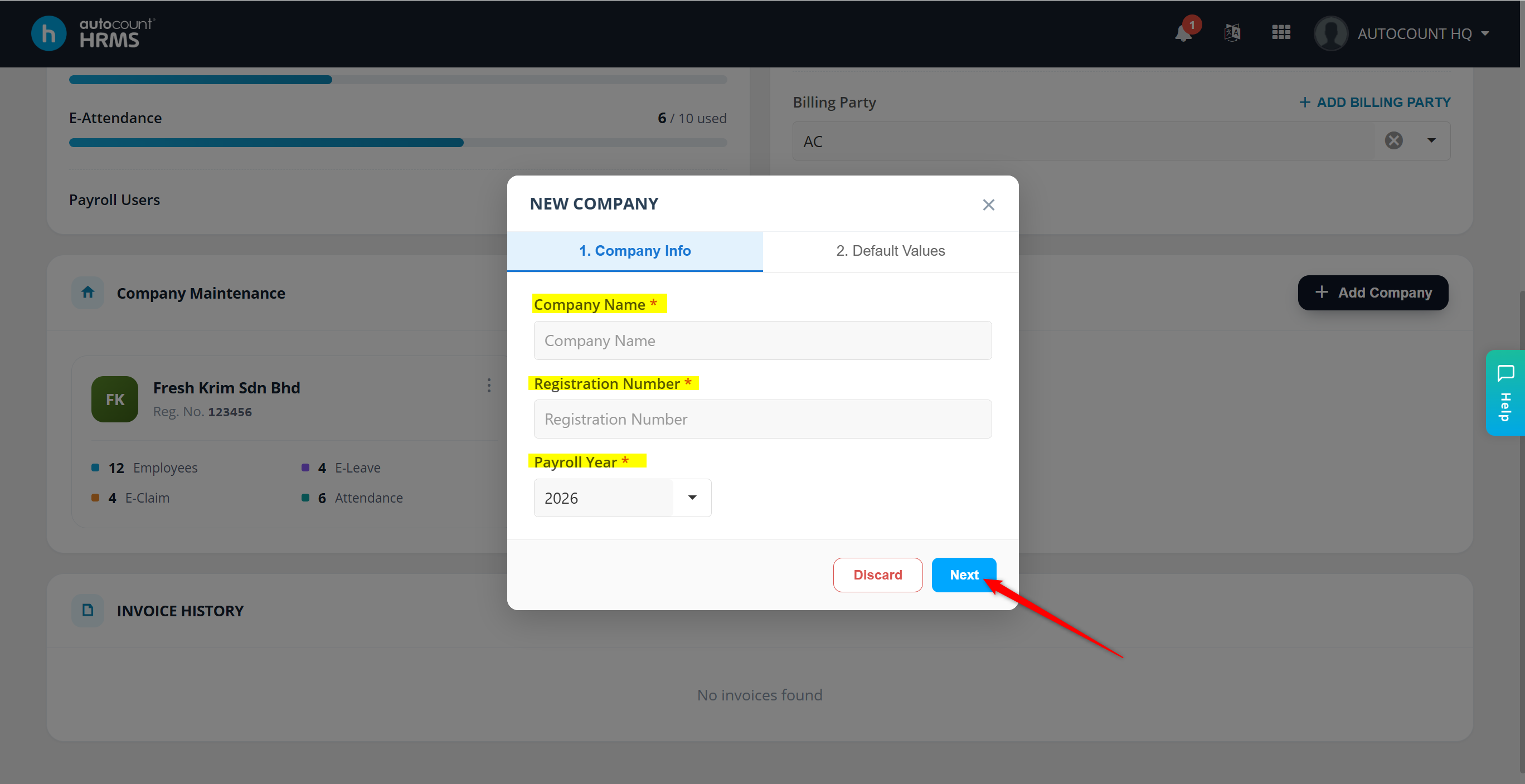
Fill in the required information:
Company Name
Registration Number
Payroll Year
Once completed, click Next to proceed.
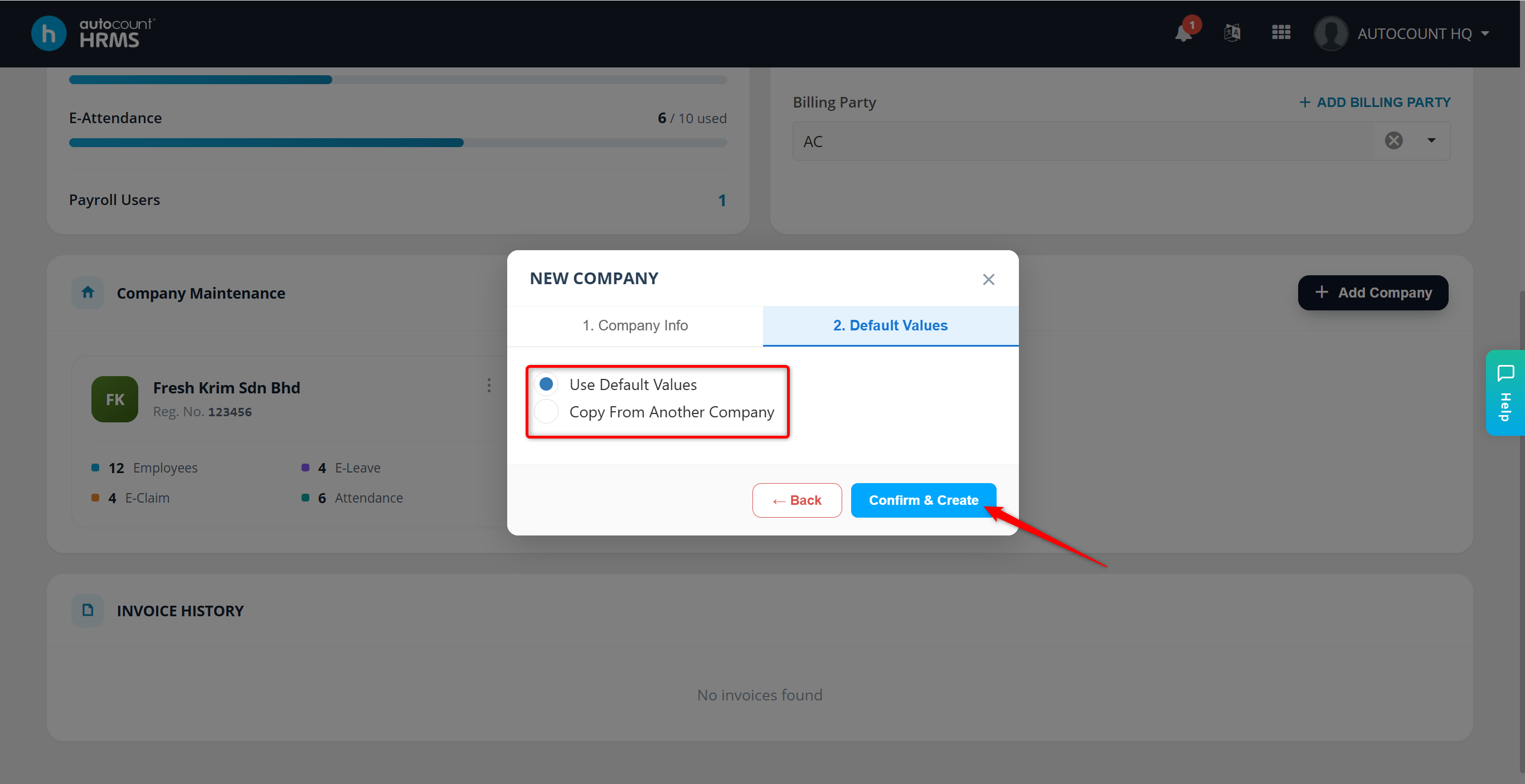
Choose one of the following setup options:
Use Default Values (system default setup)
Copy from Another Company
Then click Confirm & Create.
The new company will be created and will appear in your list of managed companies under the subscription.
Written by: WaiKit (20250827)
Reviewed by: Azirah (20250829)