
Users may change the billing day as long as the subscription has not expired. Billing day changes are not allowed for expired subscriptions. Please ensure the subscription is still active before proceeding.
Steps to Change Billing Day:
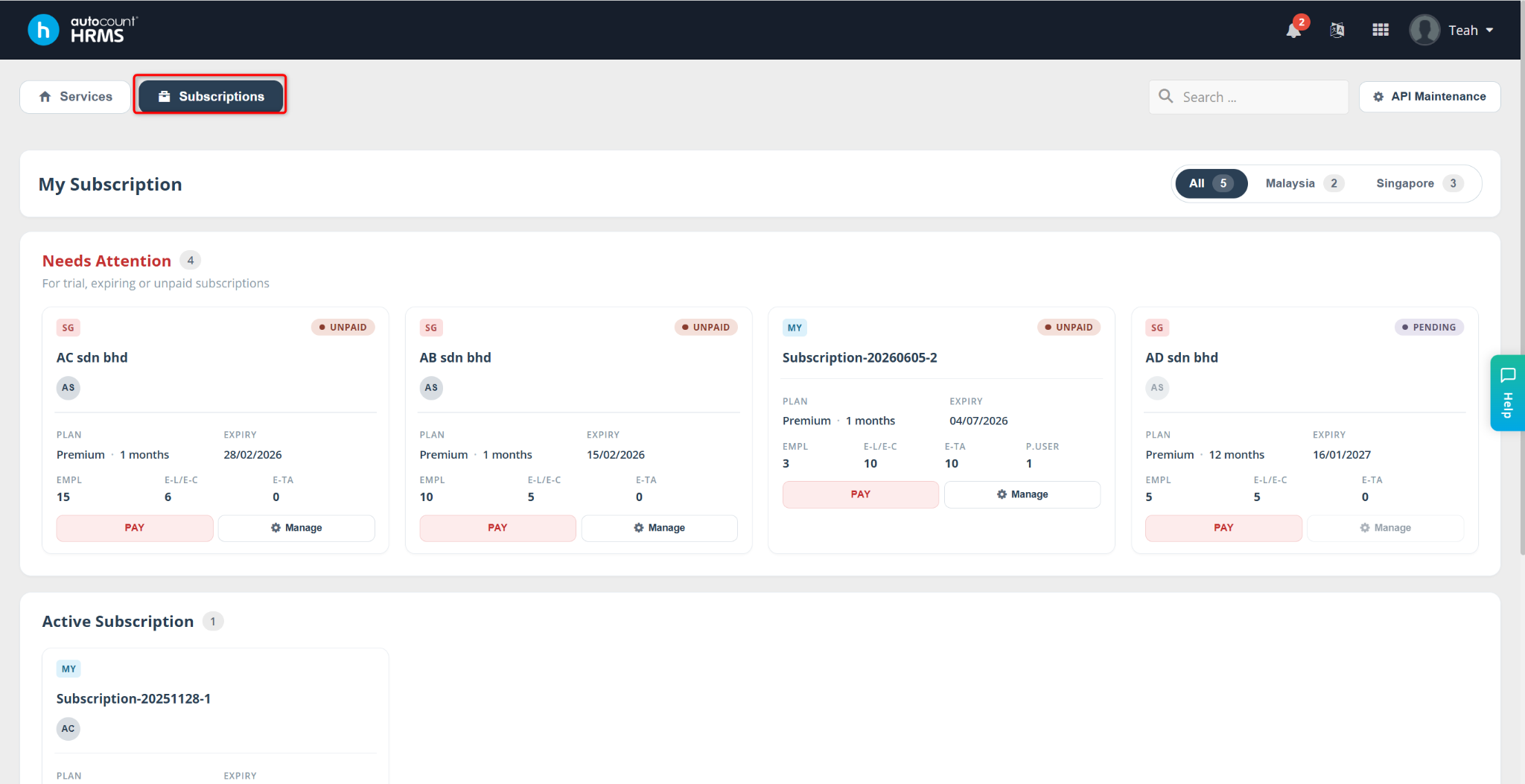
Go to the Subscription page.
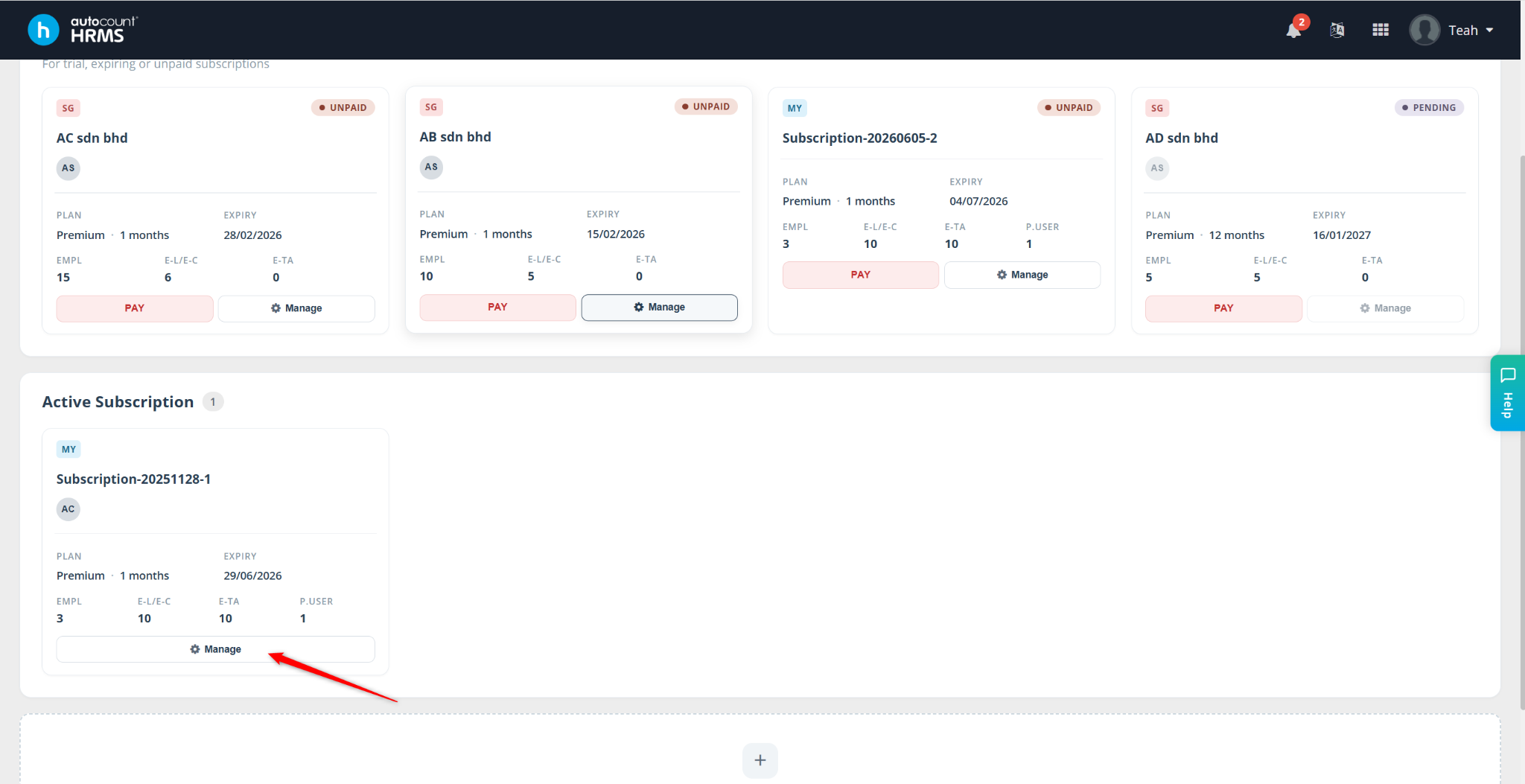
Locate the subscription you want to update, then click Manage.
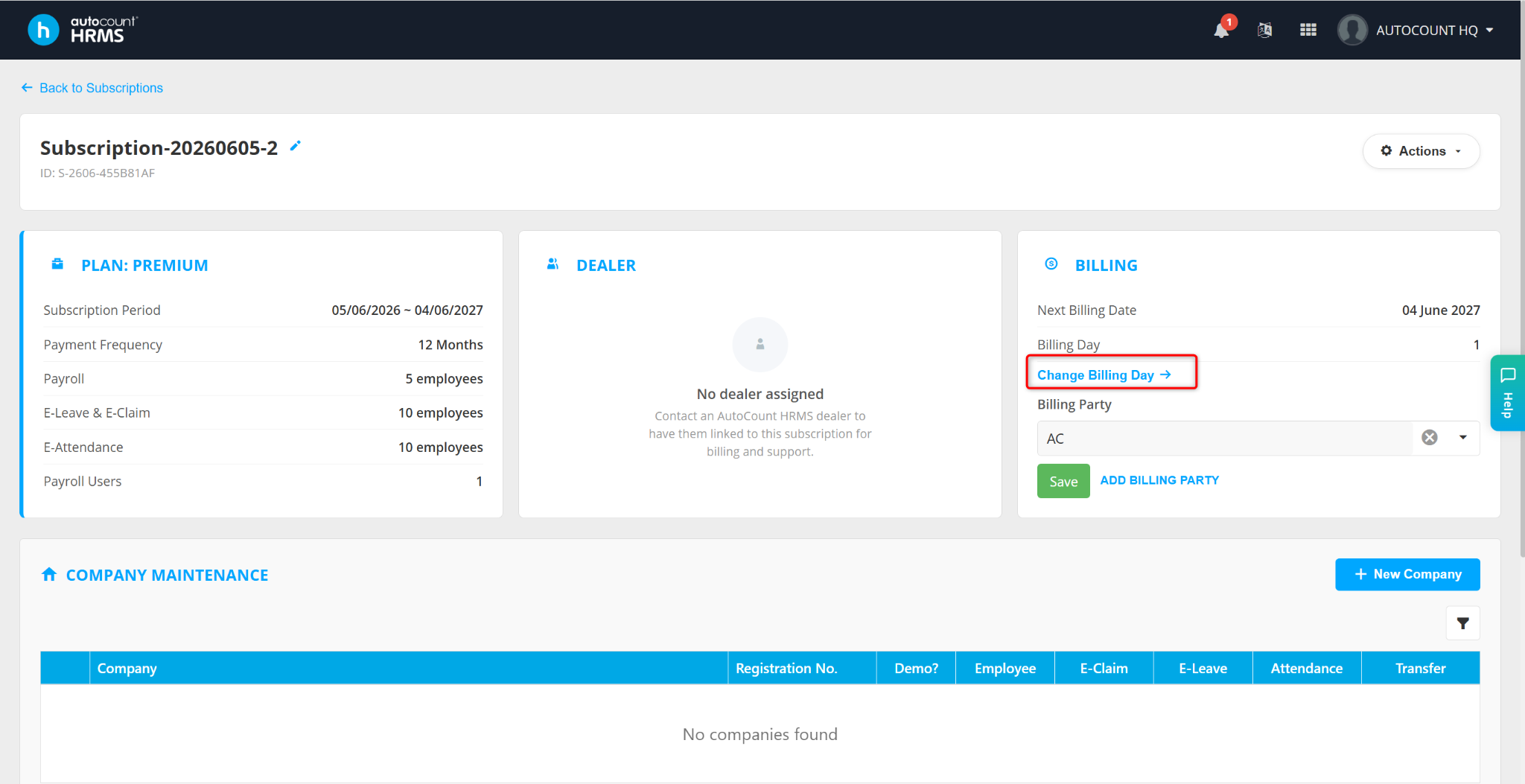
Click Change Billing Day.
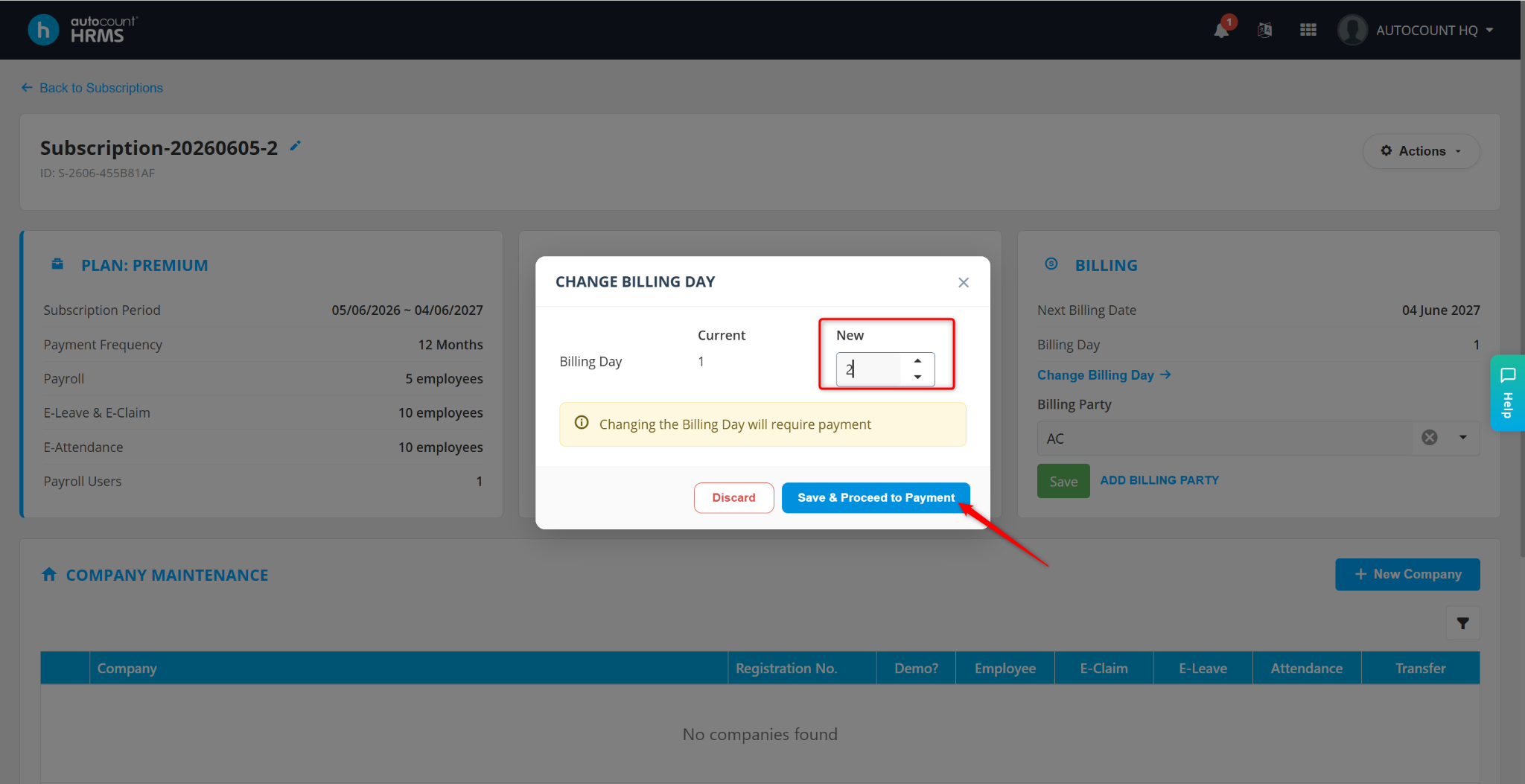
In the Change Billing Day window, select the new billing day.
The system will automatically calculate and display any additional fees based on the new billing day.
Click Save & Proceed to Payment once you have confirmed the changes.
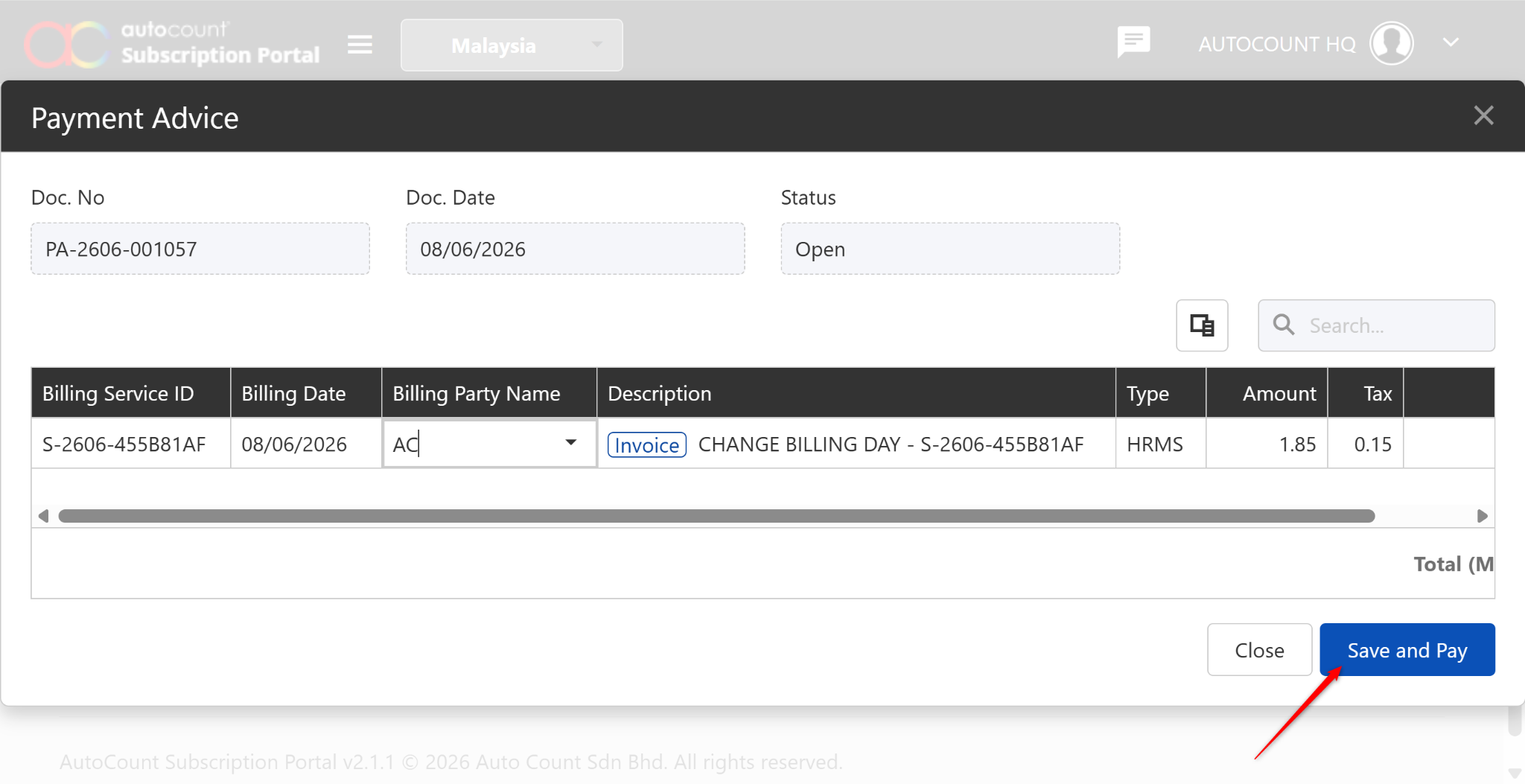
You will be redirected to the payment page. Once payment is completed, the billing day will be successfully updated.
Written by: Azirah (20251104)