This guide will assist you in adding a billing party into your subscription, regardless of whether the subscription is active or expired, via the Subscription Portal.
Steps to Add Billing Party via Subscription Portal:
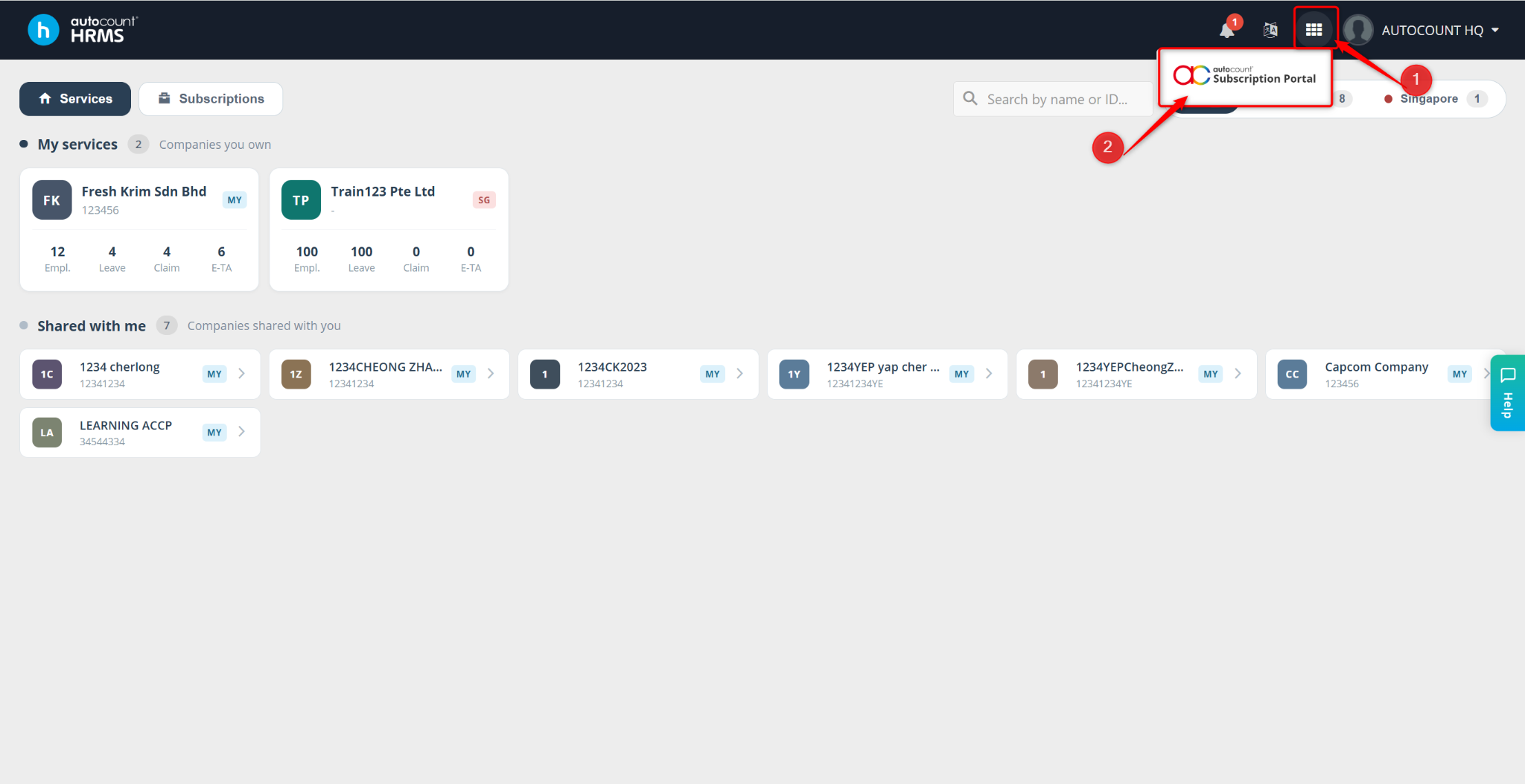
At the Subscription page, click the grid icon and click Subscription Portal.
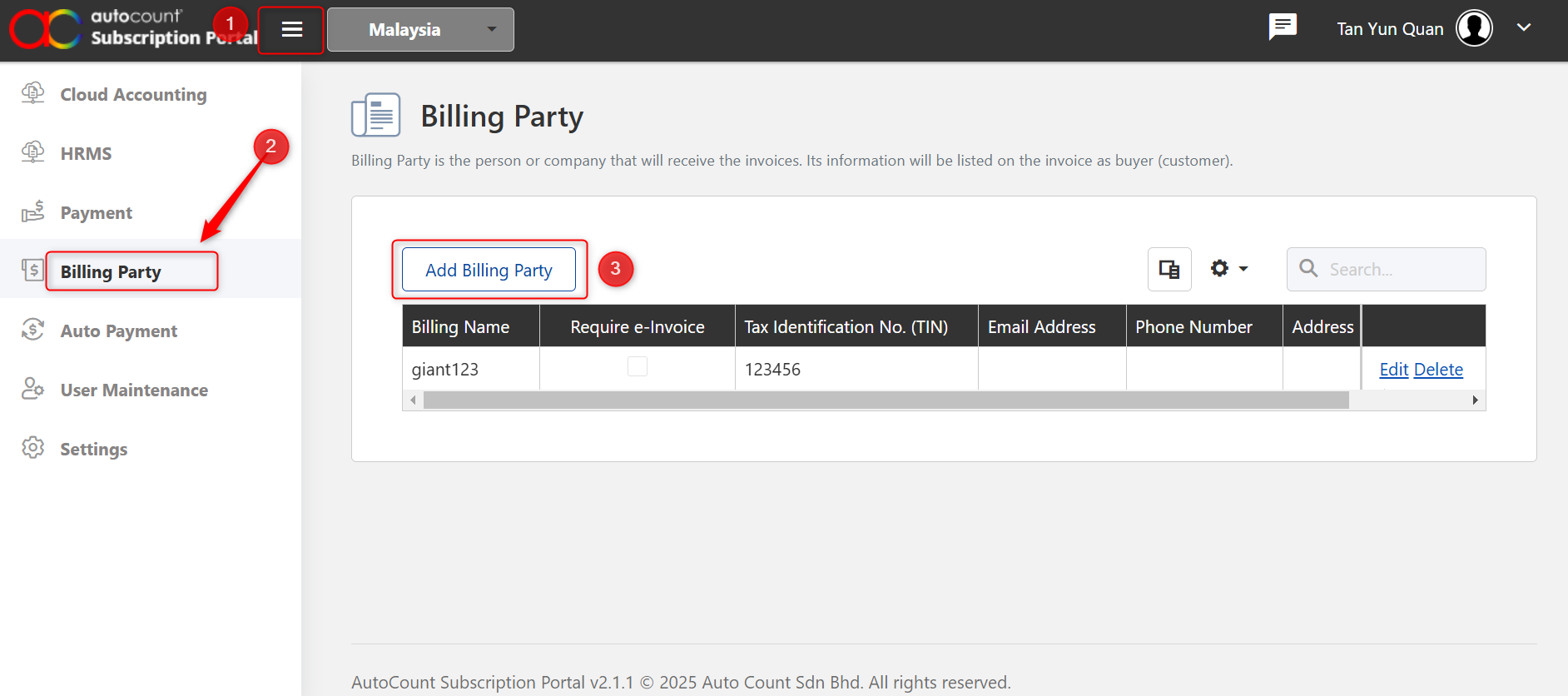
At the left panel, click Billing Party.
Click Add Billing Party.
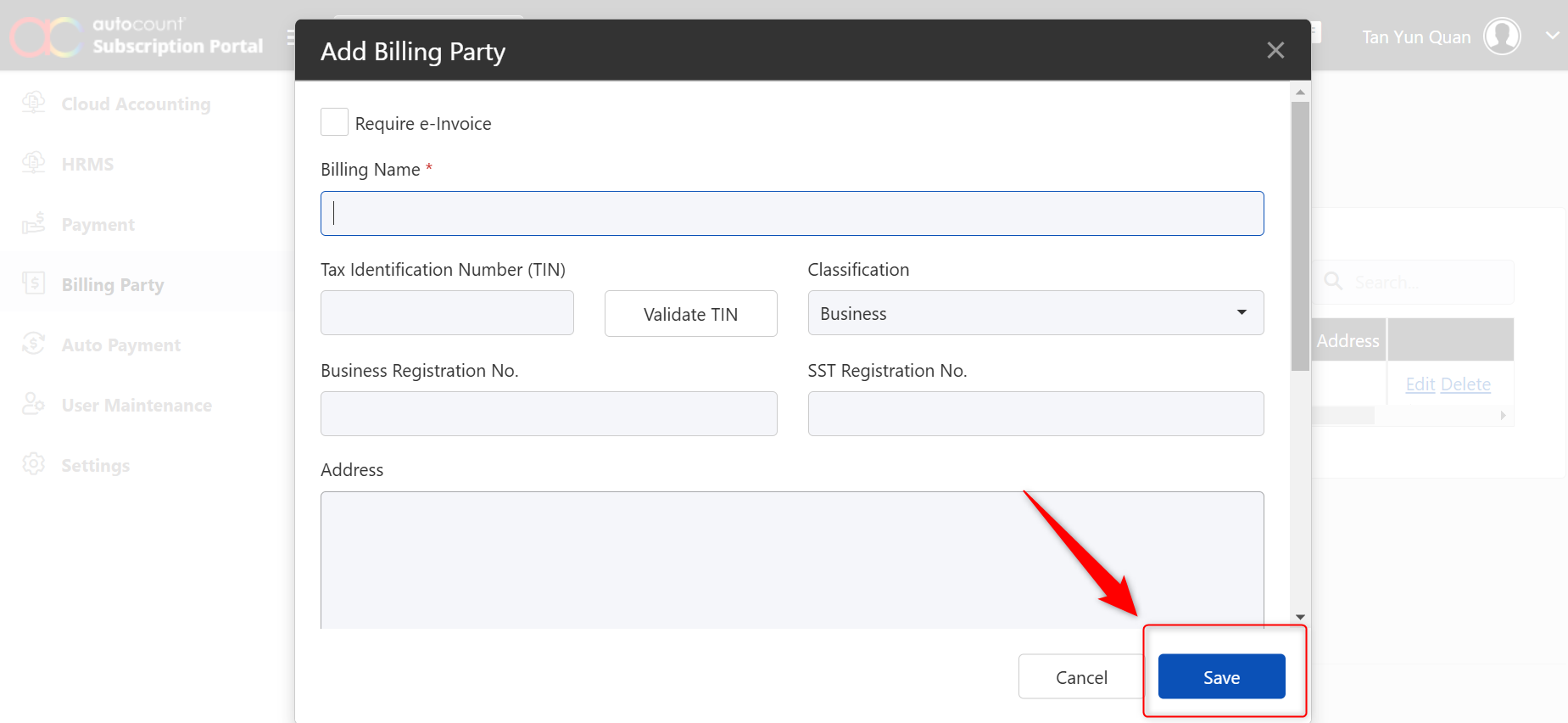
Fill in all required billing party information:
Billing Name
Tax Registration No
Address
Attention
Require E-Invoice?
Classification
Contact Email
Phone Number
Once completed, click Save to confirm the changes or Cancel to discard.