This guide will assist you in setting up Auto Payment in your subscription for future automatic payment purposes.
Steps to Set Up Auto Payment:
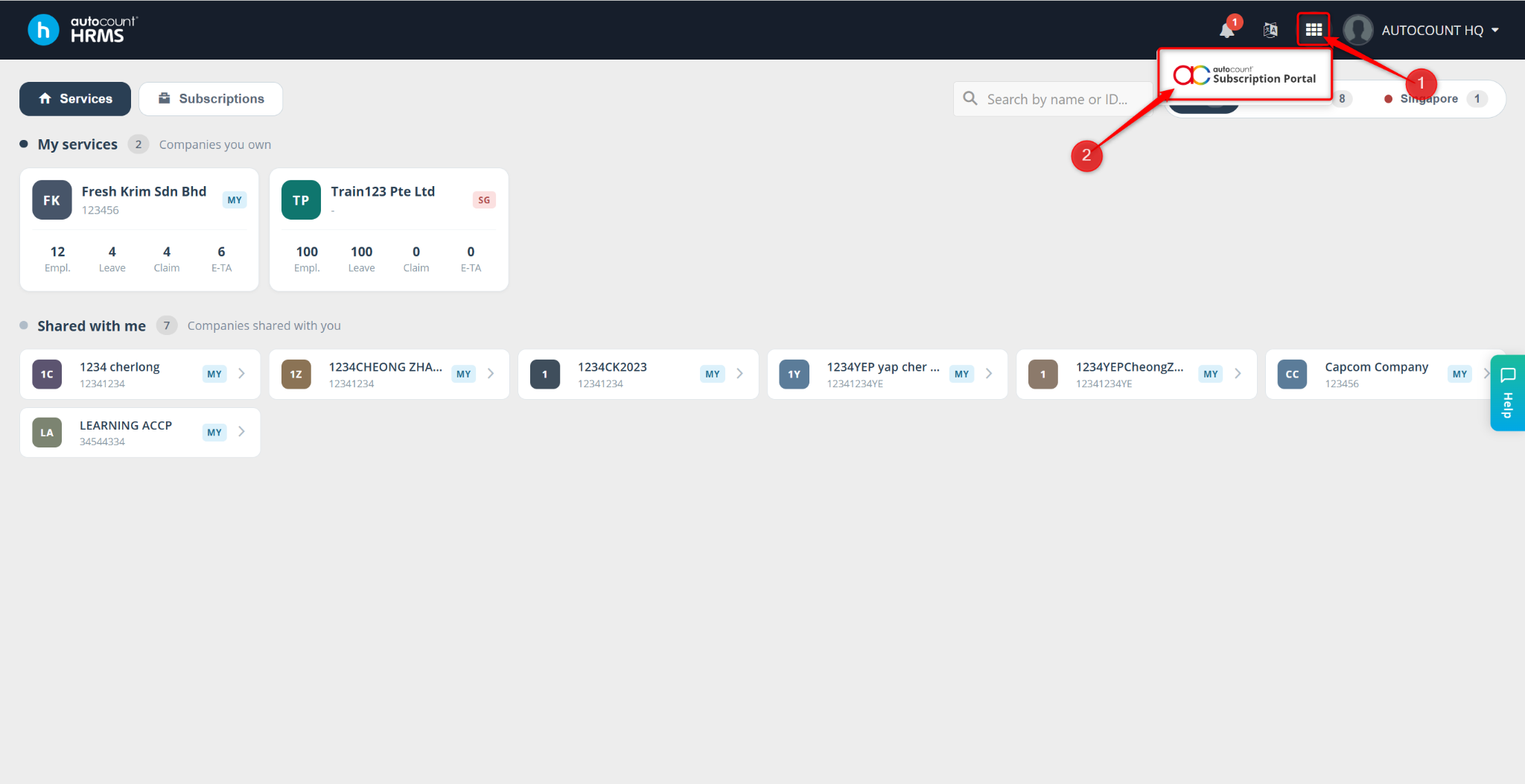
Access the Subscription Portal by clicking the grid icon next to the notification bell, then click onto it.
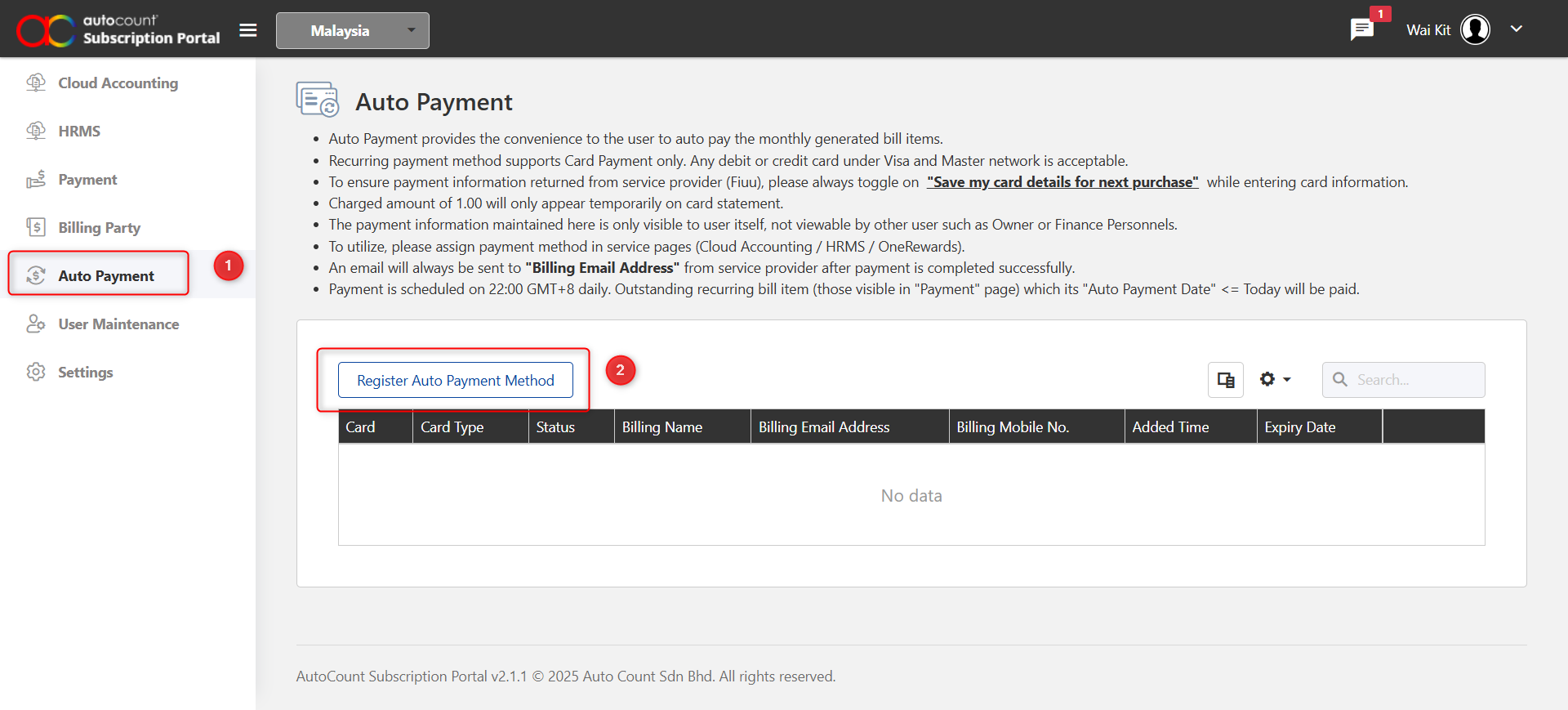
Go to the Auto Payment tab on the left panel.
Click Register Auto Payment Method.
Enter the required information to register the payment method.
Click Proceed.
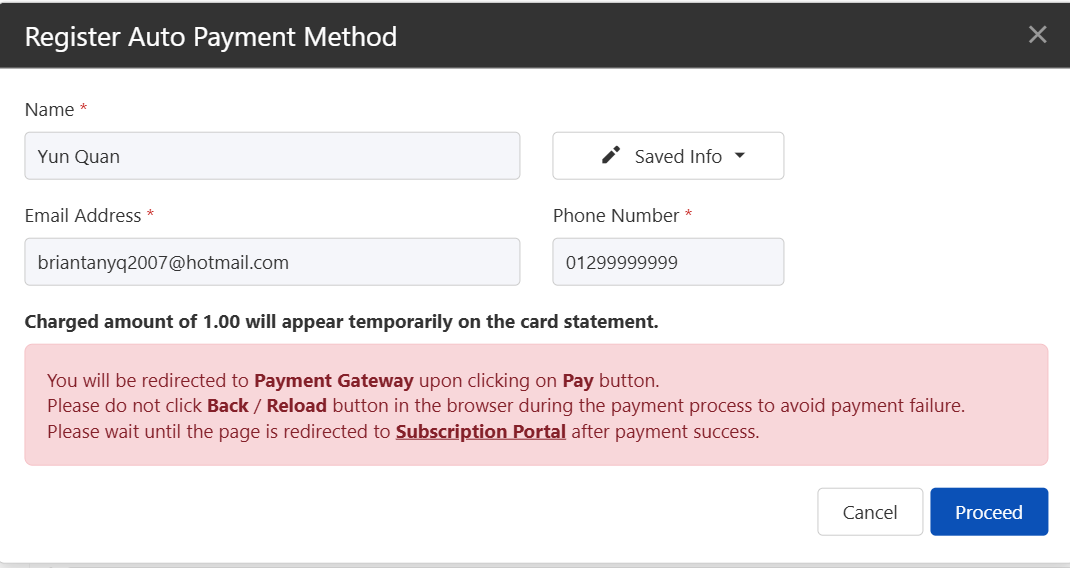
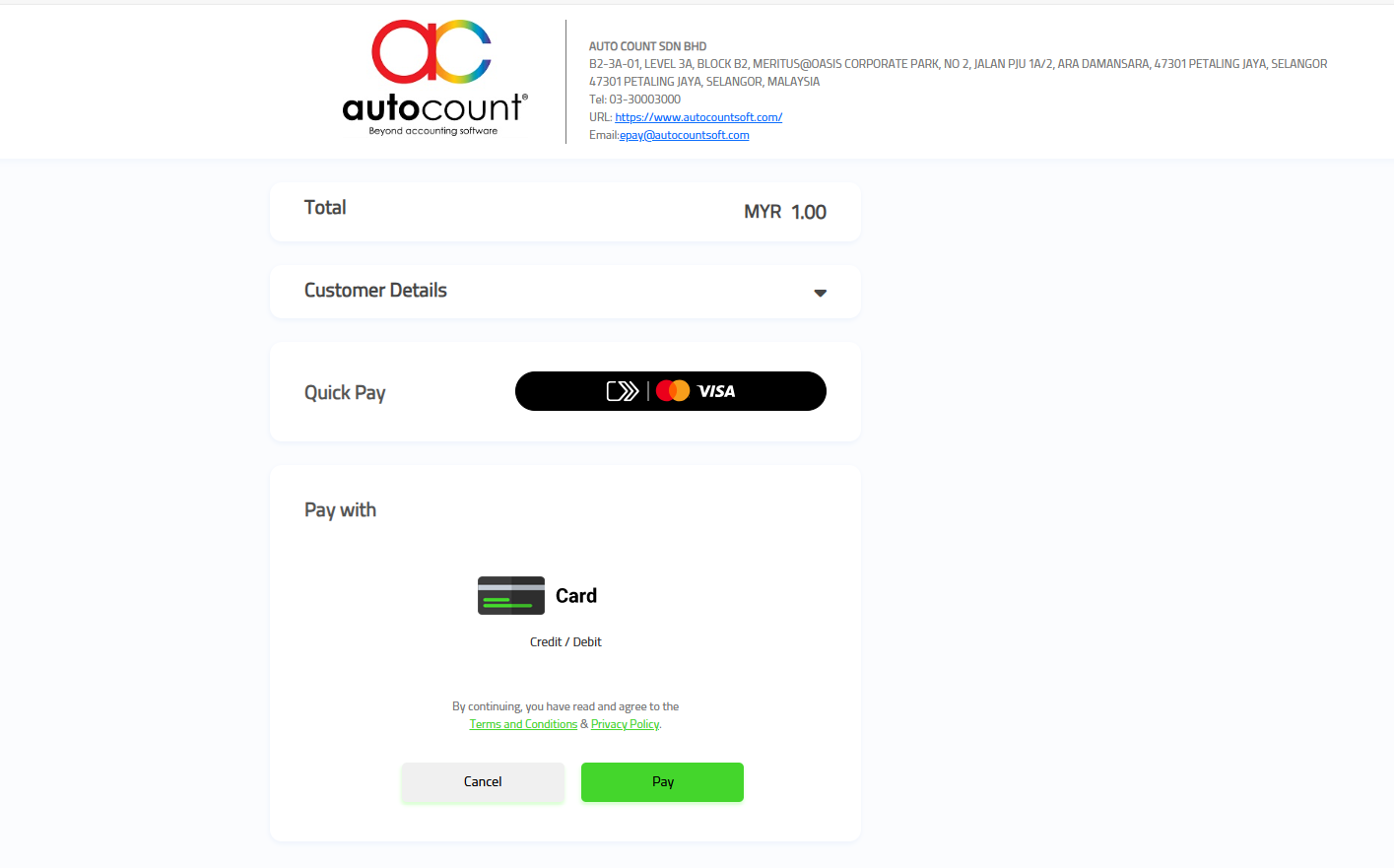
You will be redirected to a payment gateway and required to make a RM1.00 verification payment to activate and save the auto payment method.
Once the payment is completed, the auto payment method will be successfully saved.
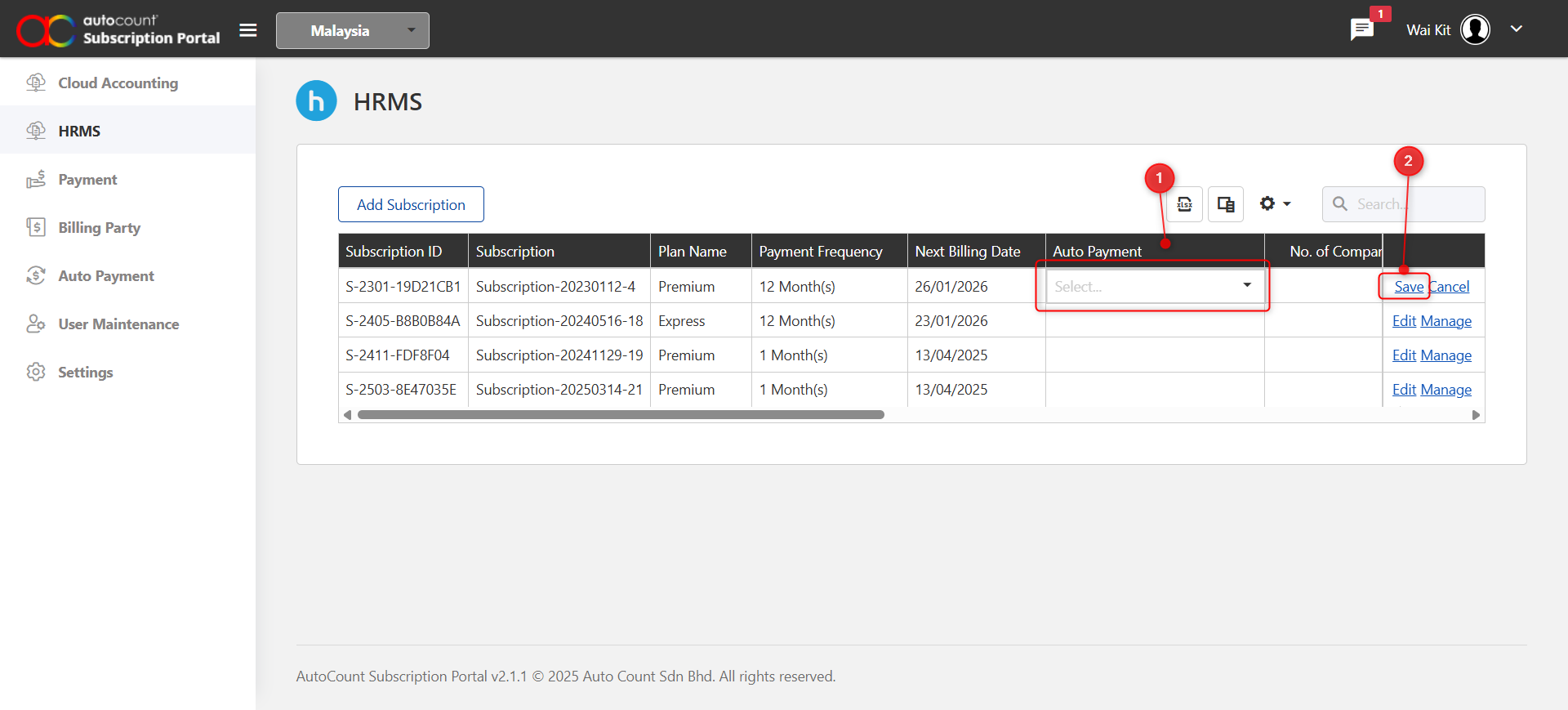
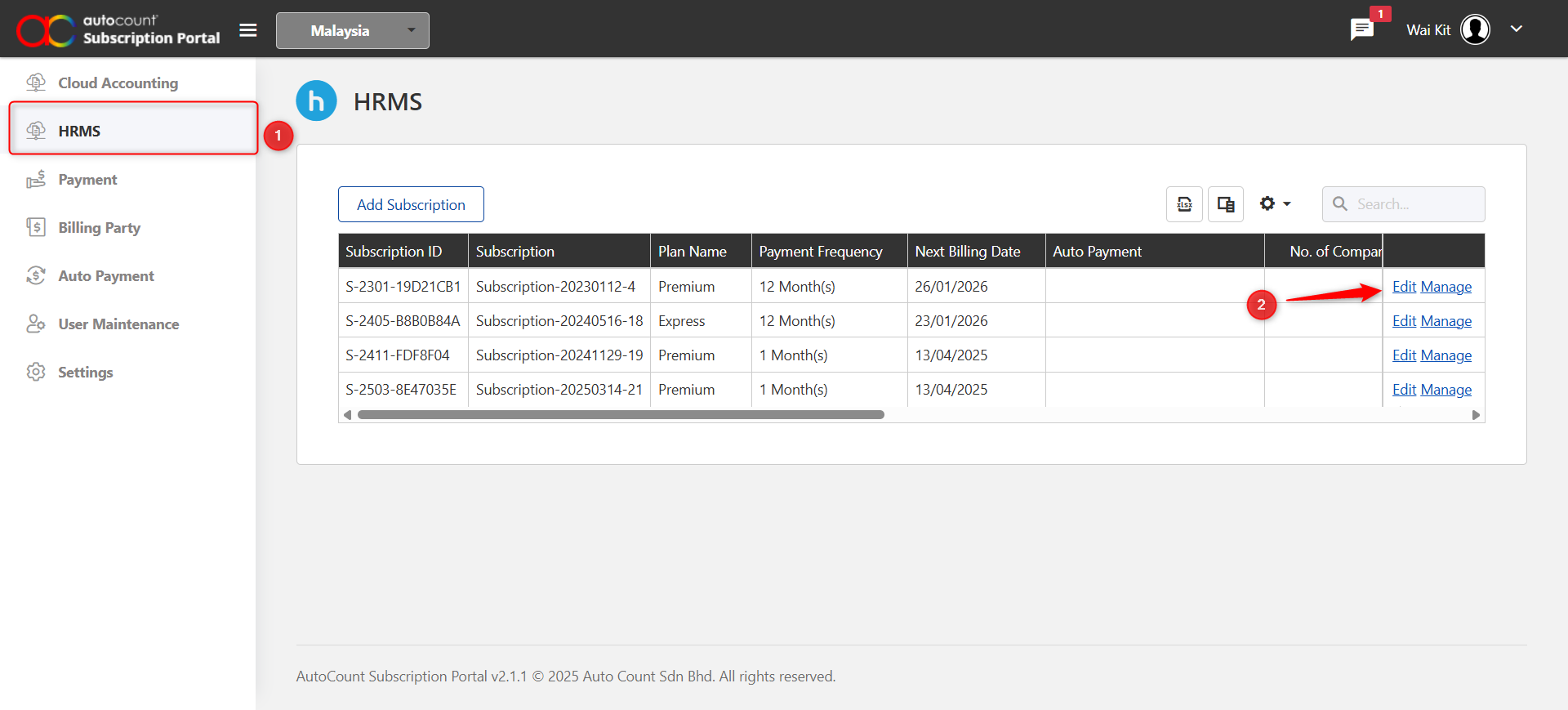
Go to the HRMS tab and locate the subscription where you want to enable auto payment, then click Edit.
Select the Auto Payment option.
Click Save to apply the changes.