
The Employee Profile Update allows employees to submit requests to update their personal information through the Web Portal or AC HRMS Mobile App. Payroll Users are responsible for reviewing and processing Employee Profile Update Requests. Only Payroll Users with the appropriate Authorised Employee Group access can review, approve, or reject requests. Employees are required to update the AutoCount HRMS Mobile App to the latest version to use the Employee Profile Update feature.
This feature is not supported in the Classic View.
Employees can update the following information:
- Personal Profile
- Spouse Information
- Bank Account Information
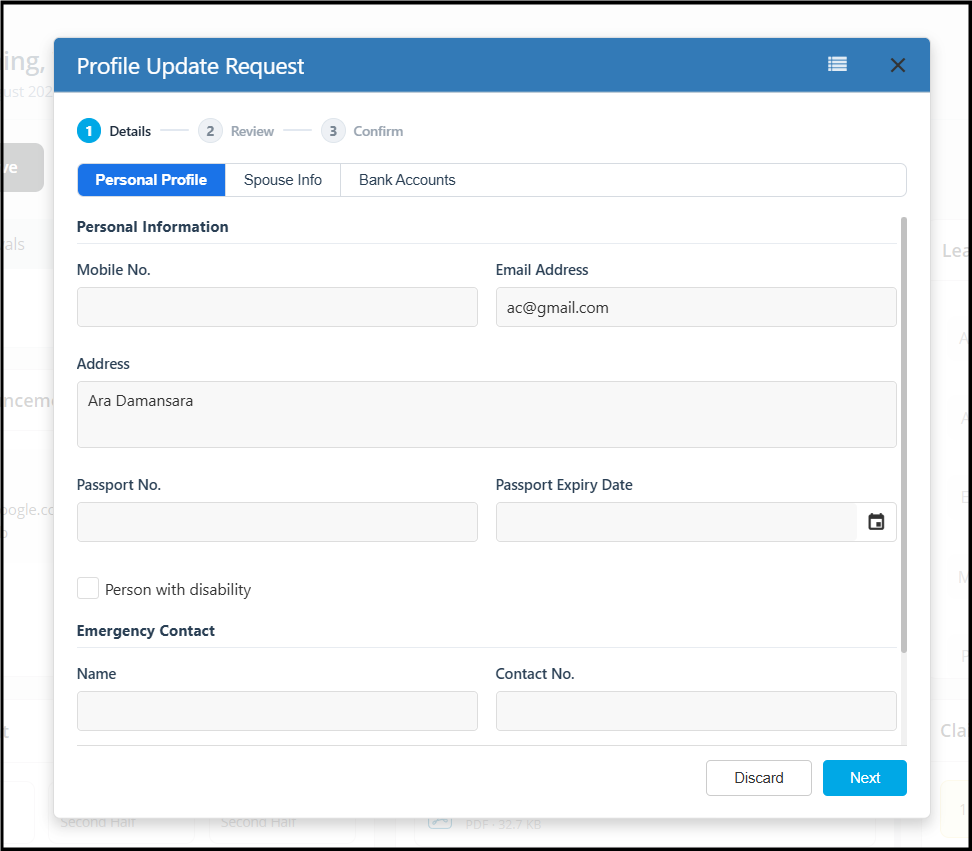
1. Personal Profile
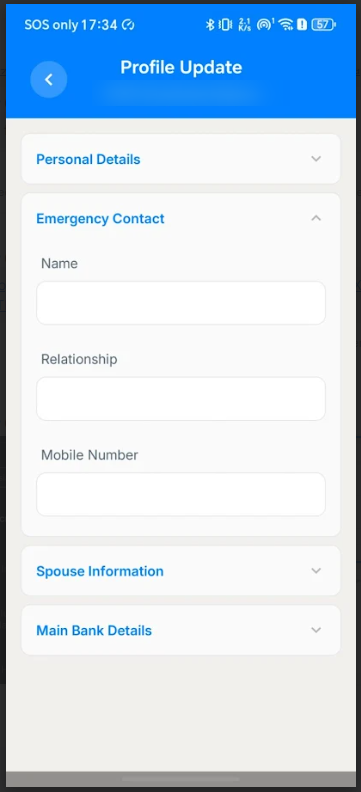
Employees can update their personal information and emergency contact details.
Available fields include:
| Personal Information | Emergency Contact |
|
|
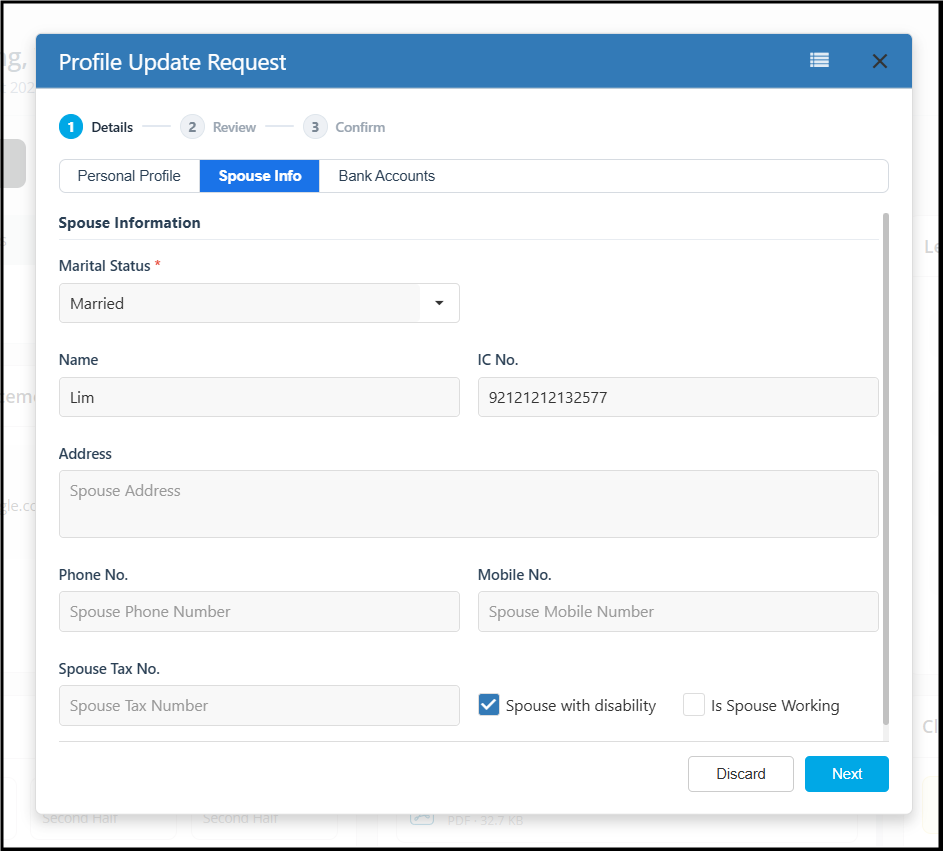
2. Spouse Information
Employees can maintain their spouse's information.
Available fields include:
| Spouse Information |
|
3. Bank Accounts
Employees can request to update their salary bank account details. Once approved, the updated bank account will automatically become the employee's Main Bank Account.
Available fields include:
| Main Bank Account |
|
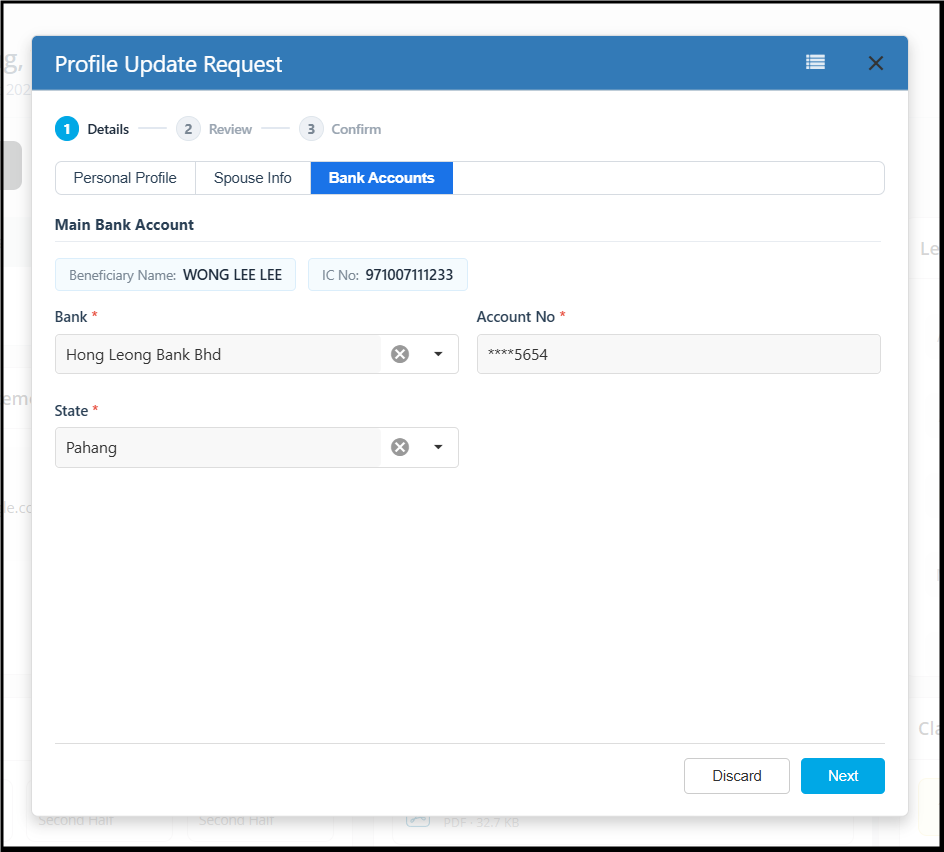
The following information is displayed for reference only and cannot be edited:
- Beneficiary Name
- IC Number
For security purposes, only the last few digits of the bank account number are displayed. The following conditions must be met when submitting a bank account update request:
- The employee must have at least one Main Bank Account.
- The employee cannot submit a bank account update request if no bank account exists in the system.
- When a new bank account is approved, it will automatically replace the previous Main Bank Account.
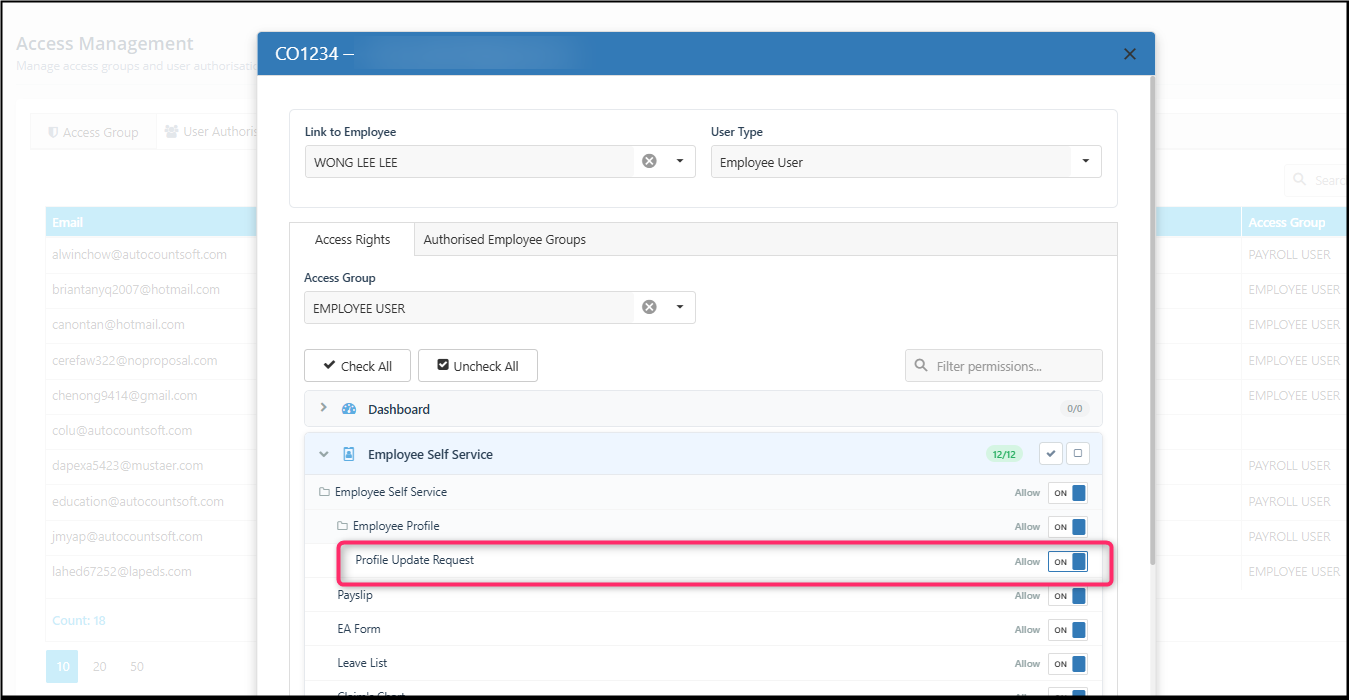
Access Rights for Profile Update Request
Users who need to submit Profile Update Requests must have the corresponding access right enabled.
To enable the access:
Go to Access Management > User Authorization > Select Employee > Employee Self Service > Profile Update Request > ON
For Employee
a. Submit Update Employee using AC HRMS (Mobile App)
 |  |
 |  |  |
Submit a Request
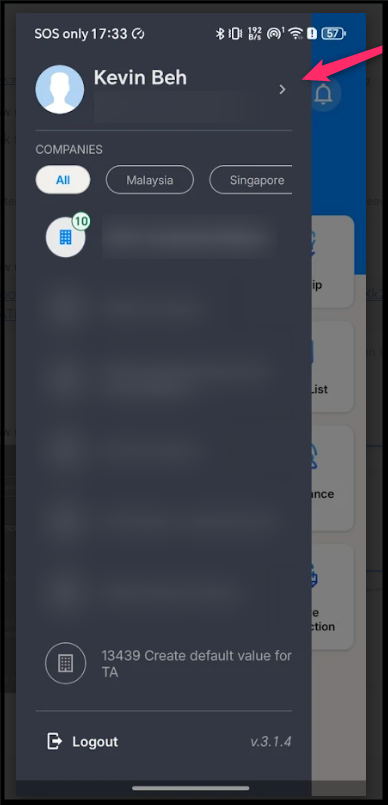
- Tap on the left navigation menu and tap on employee name.
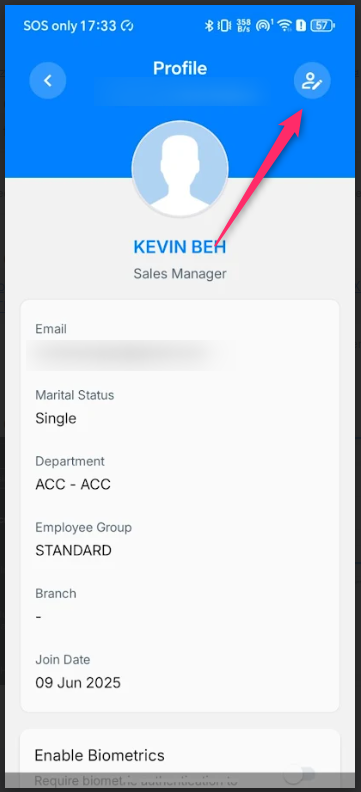
- Tap Update Profile icon on the top right.
- Update the required information in the relevant tab.
- Review the information.
- Tap Submit “(✓) “.
- The request will be sent to the designated approver for review.
- If you do not wish to save your changes, tap “X” to cancel the request.
b. Submit Employee Update using Web Portal
At Employee Self Service Dashboard > Profile
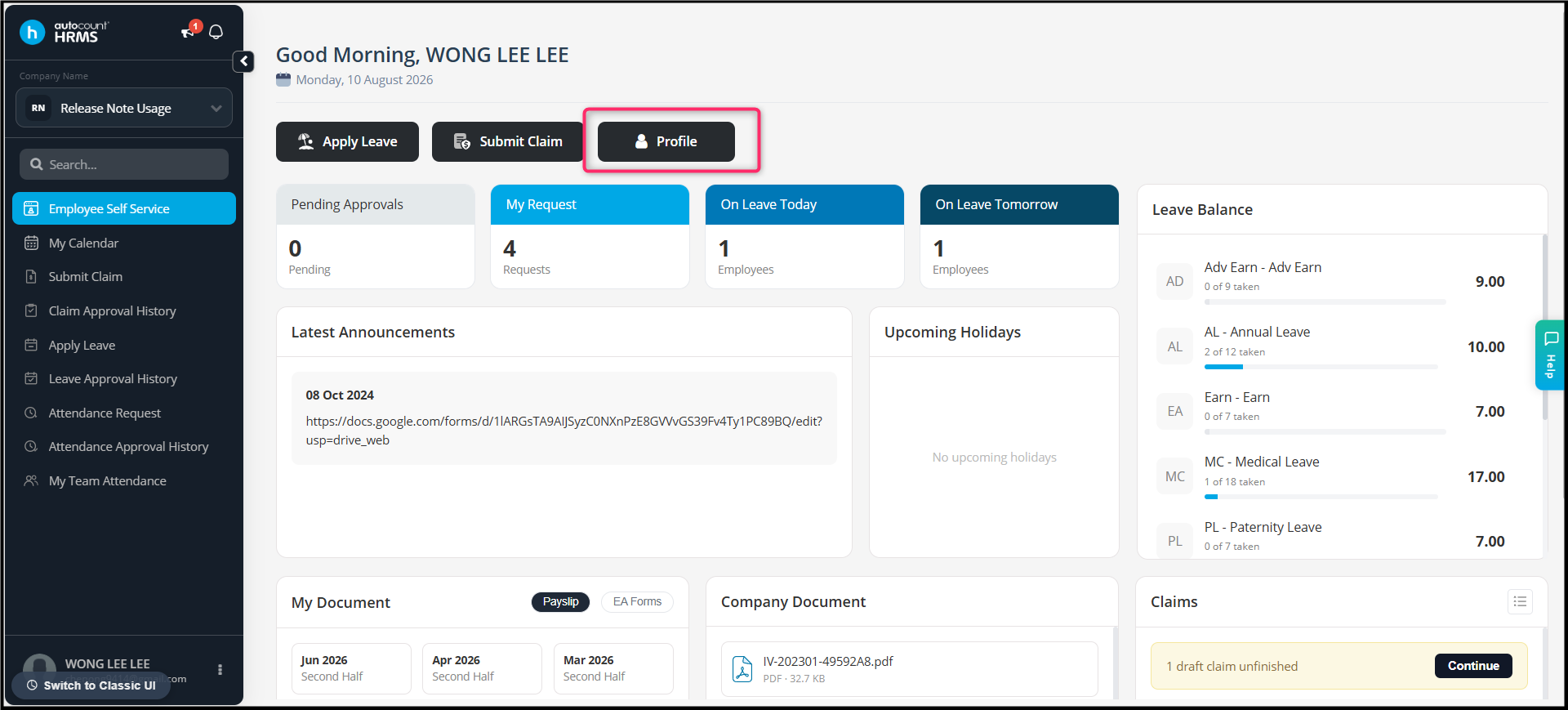
Submit a Request
- Open Profile.
- Update the required information in the relevant tab.
- Review the information.
- Click Submit.
- The request will be sent to the authorised approver for review.
- If you do not wish to save your changes, click Discard to cancel the request.
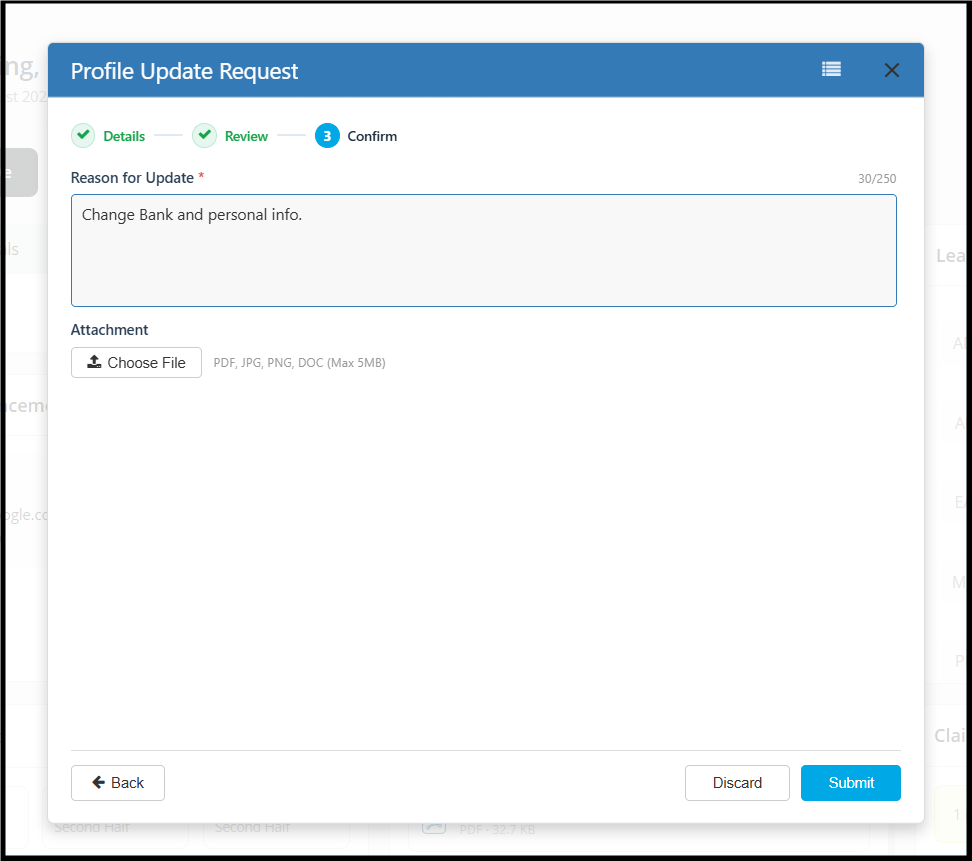
Review Changes & Submit the Request
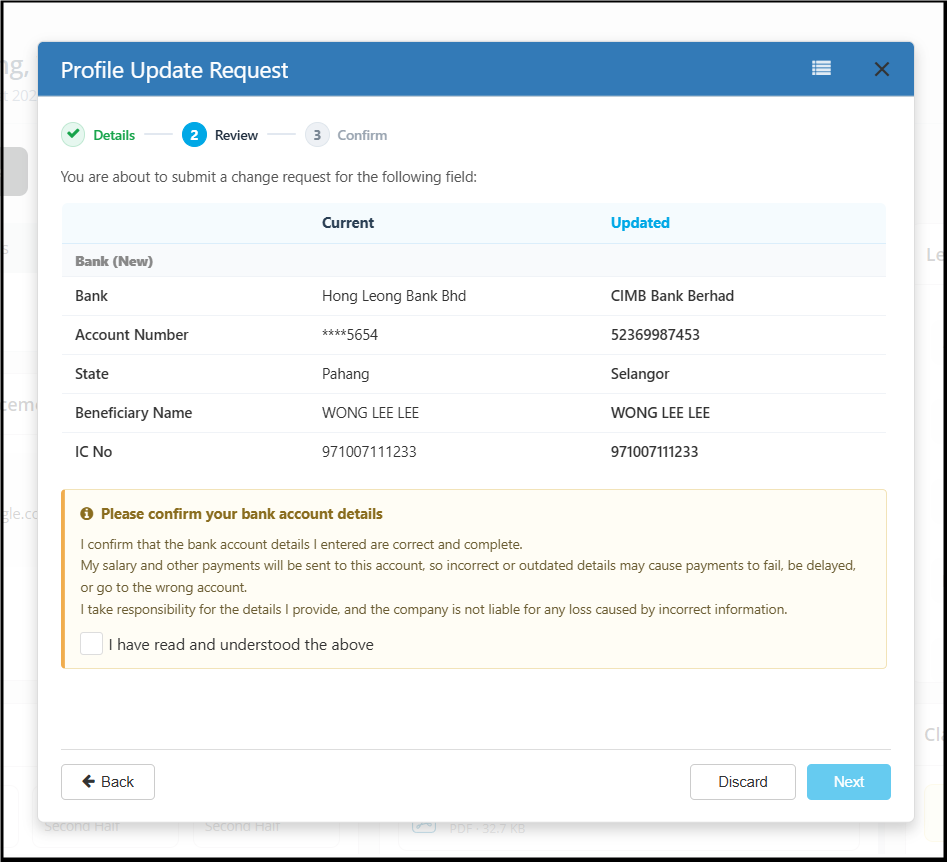 |  |
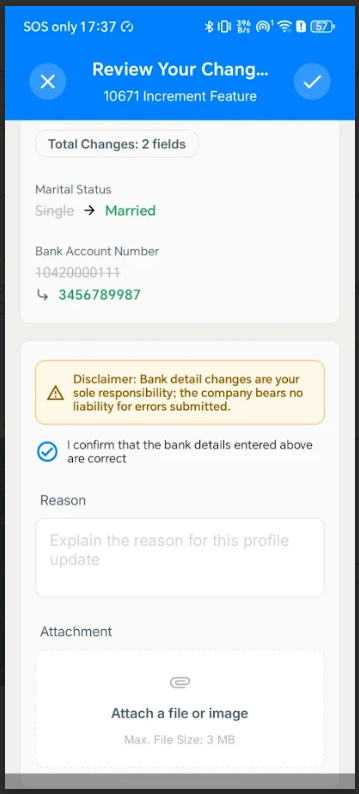
- Before submitting the request, the system displays a Review Changes page summarizing all modified information.
- The review screen compares the employee's Current information with the Updated information, allowing the employee to verify all changes before submission. Only fields that have been changed will display different values between the Current and Updated columns.
- Bank Account Disclaimer - If the request includes changes to the Bank Account, the employee must acknowledge the disclaimer before proceeding. The updated bank account will automatically become the employee's Main Bank Account.
- Before submitting the request, employees are required to provide a reason for the profile update.
- Attachment (Optional): Upload supporting documents if required.
- Click Submit to send the Profile Update Request for approval.
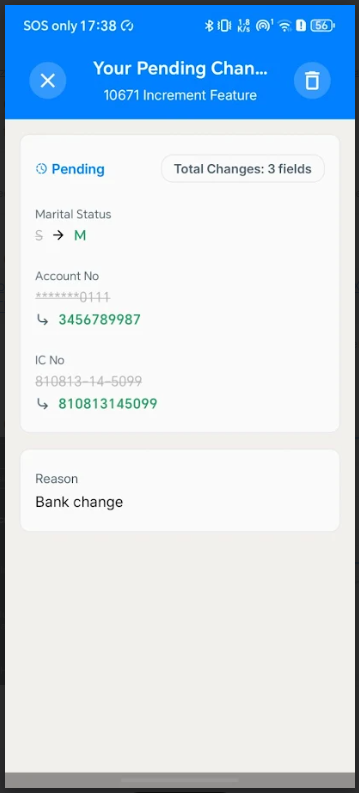
Pending Approval
After a Profile Update Request is submitted, it remains in Pending Approval status until it is reviewed by the authorized approver.
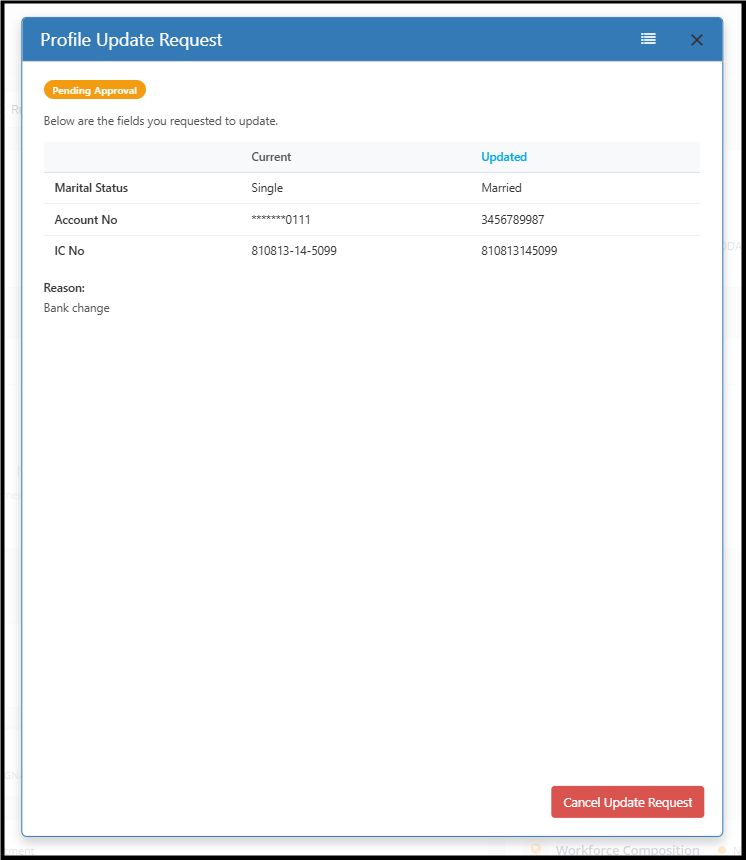 |
Note: Once the request has been approved or rejected, it can no longer be cancelled. A new request can be made to update the information.
For Subscriber/ Payroll User/ Approver
Approval Process
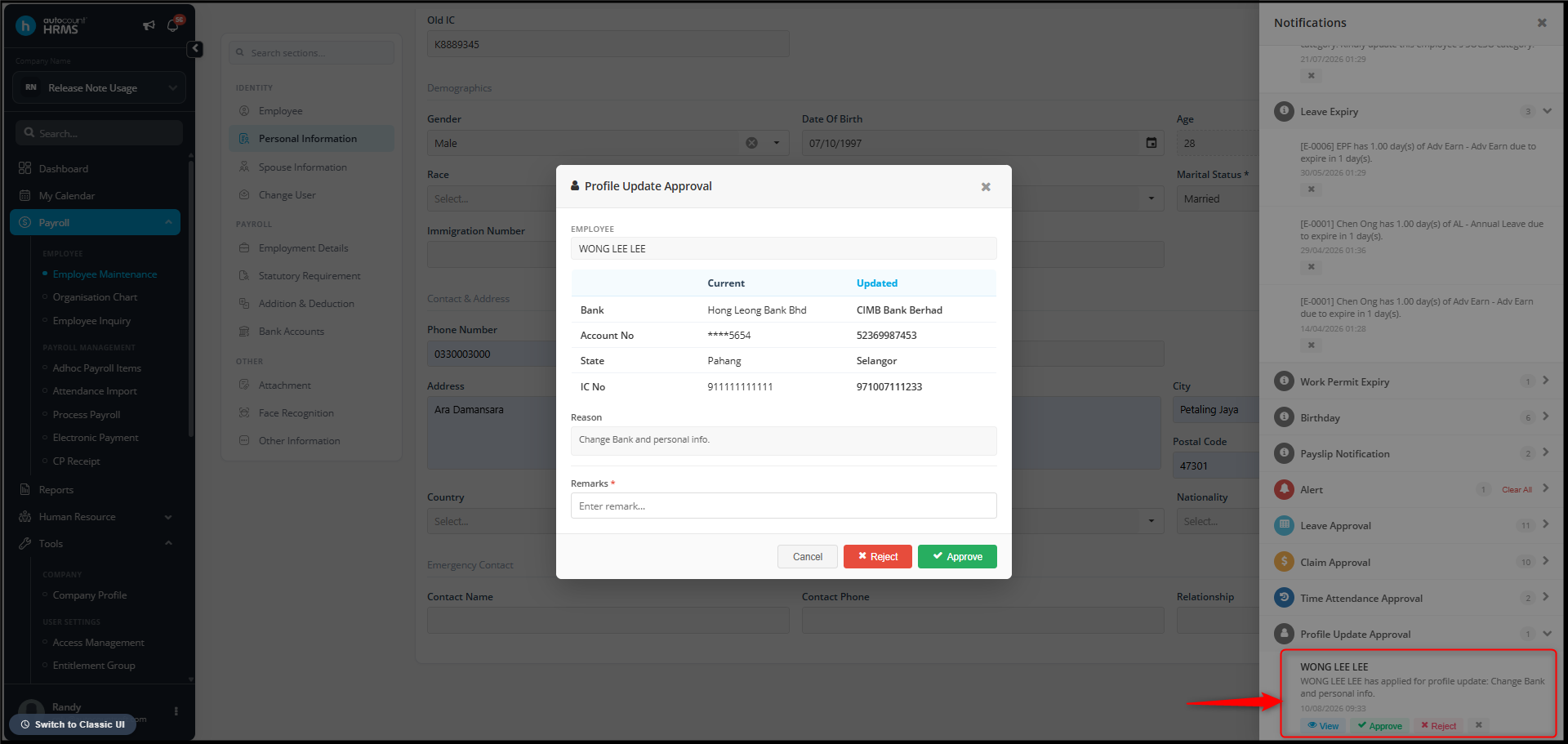
a. Approved via Web
b. Approved via Email
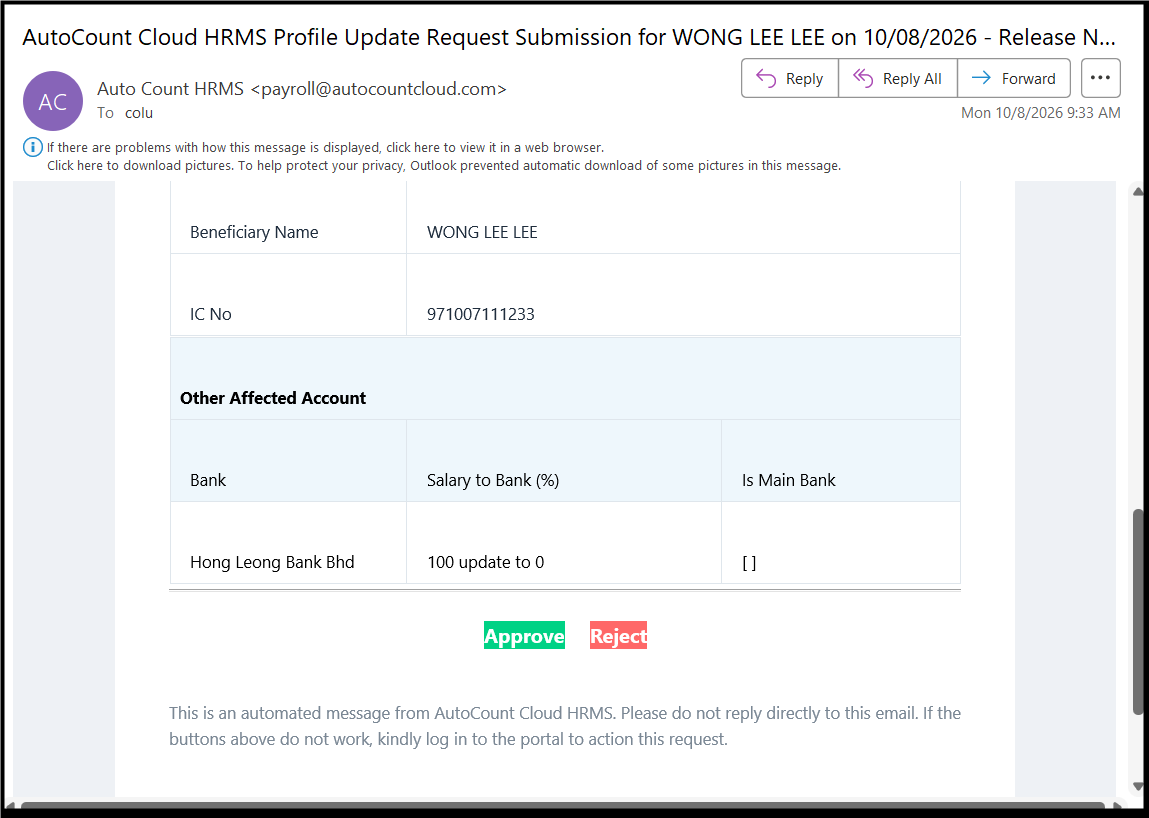
- Once the employee submits the request, it is sent to the Payroll User for approval.
- Only Payroll Users with Authorised Employee Group access, can view and approve the request.
- The approver can review and approve or reject the request via the Web Portal or directly from the approval email. Approval is not supported in the mobile app.
- Once approved, the employee's profile information is updated automatically.
- If the request includes change of bank account information, the approved account will automatically become the employee's Main Bank Account with a 100% allocation.
- If the request is rejected, no changes will be applied, and the employee may submit a new request if needed.
Result
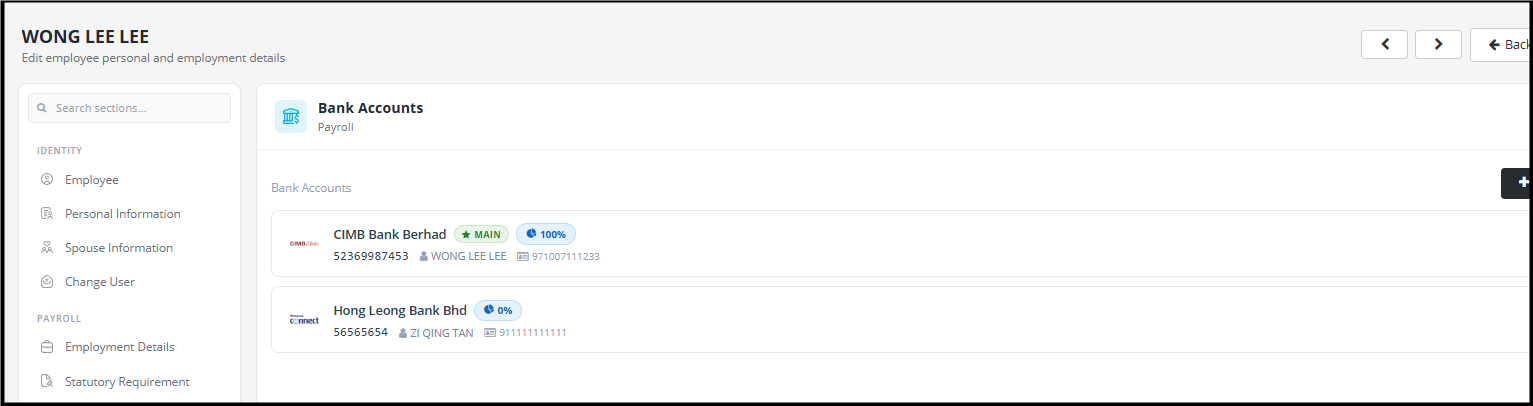
Employee profile updated successfully.
By ChenOng 260717