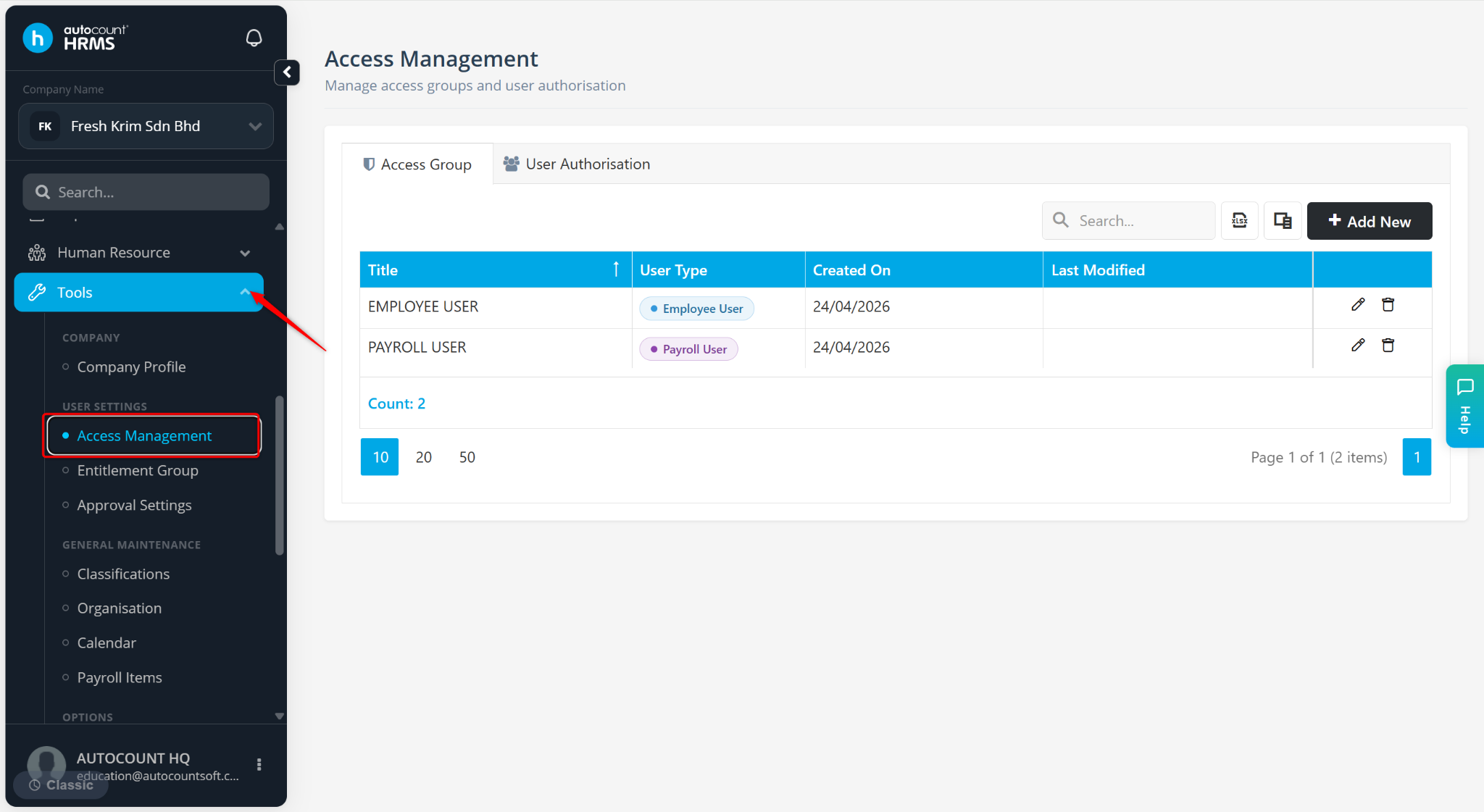
The Access Group feature allows employers to control user permissions by assigning access rights to specific groups of users. It determines which modules and features users can view or perform actions in, based on their role. The system has 2 default access groups:
Payroll Users – Full access to all HRMS modules and features.
Employee User – Access limited to Employee Self Service, My Calendar, and selected Human Resource functions.
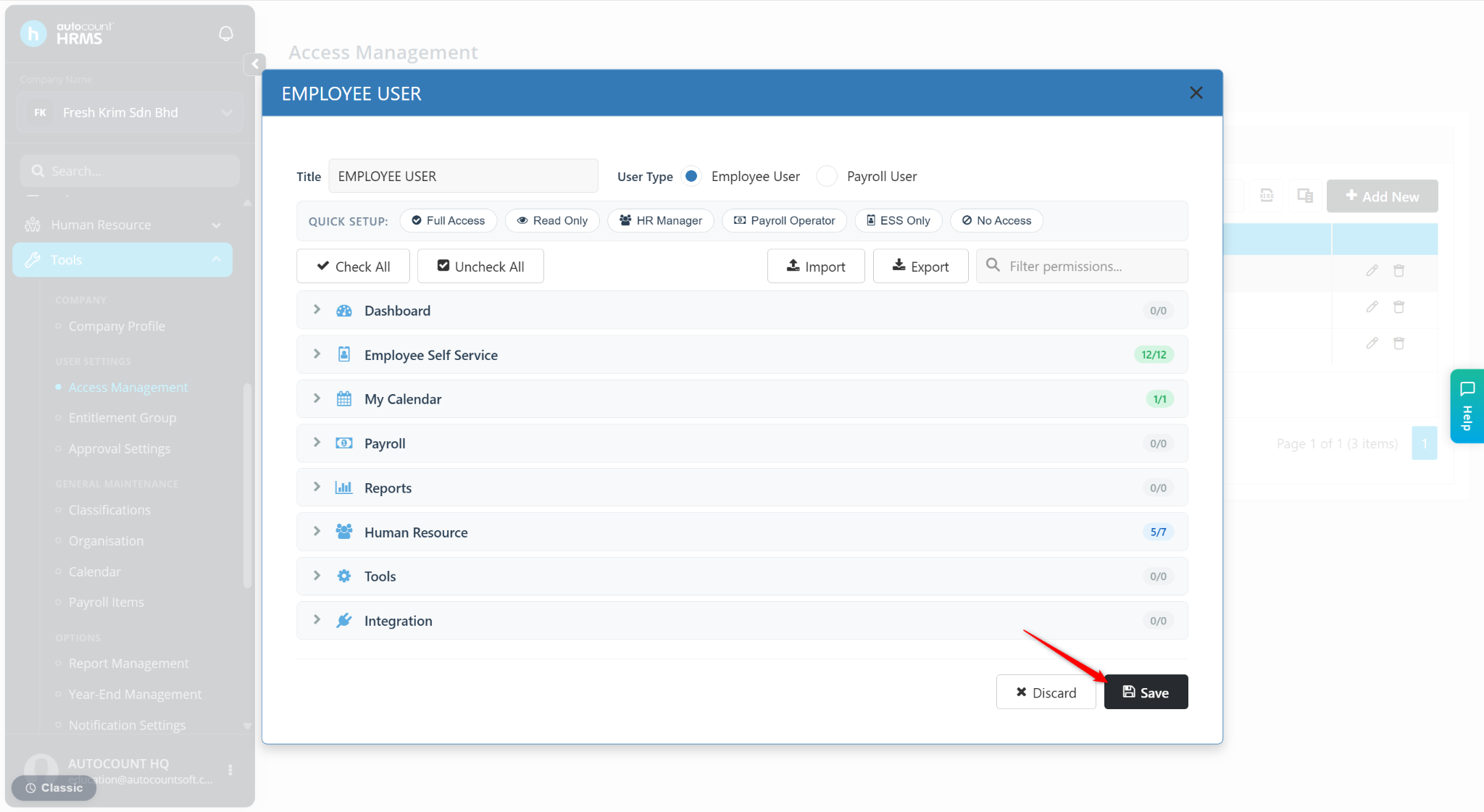
Steps to Create a New Access Group:
Go to Tools > Access Management.
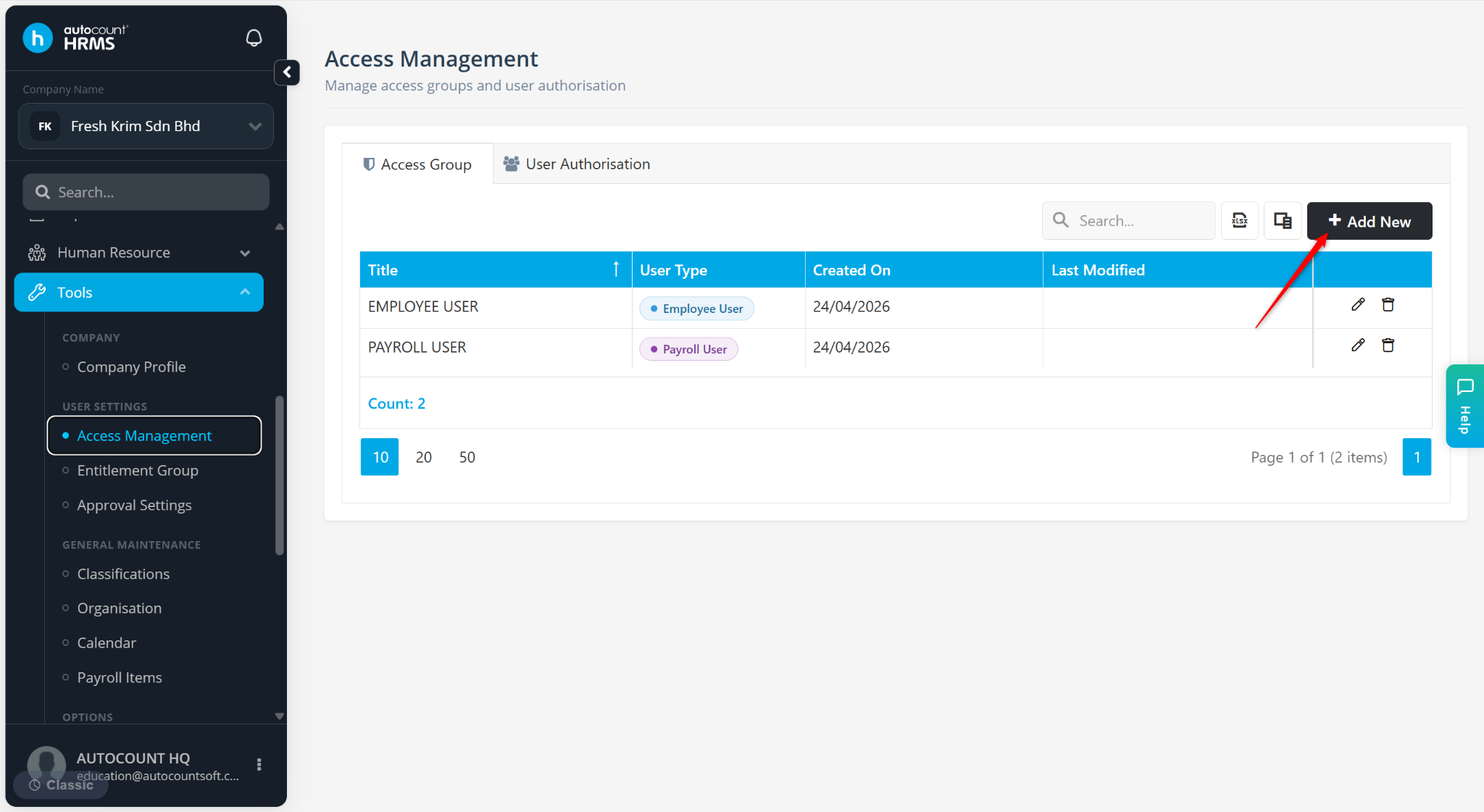
Click Add New.
Enter the Title and select User Type (Employee User or Payroll User).
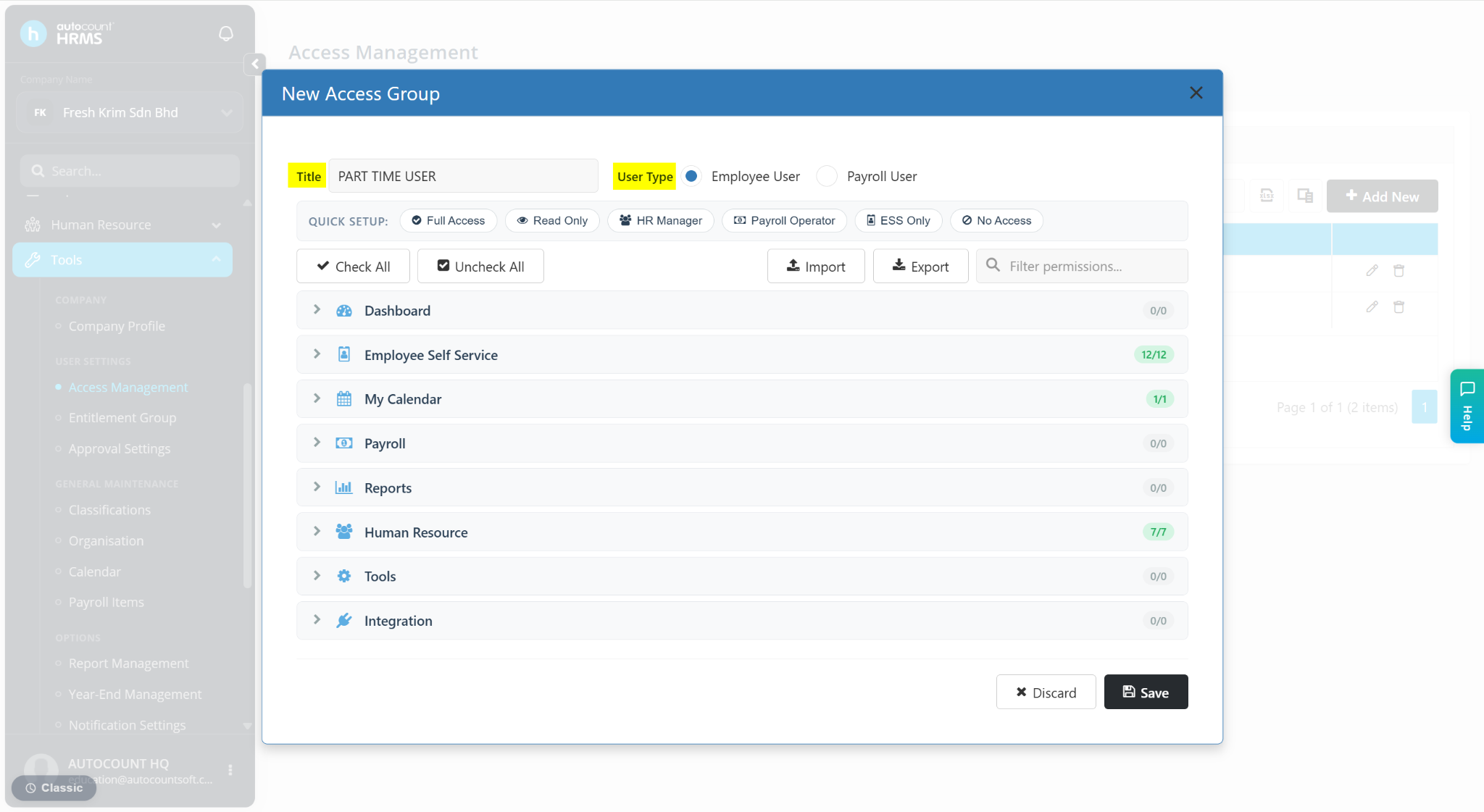
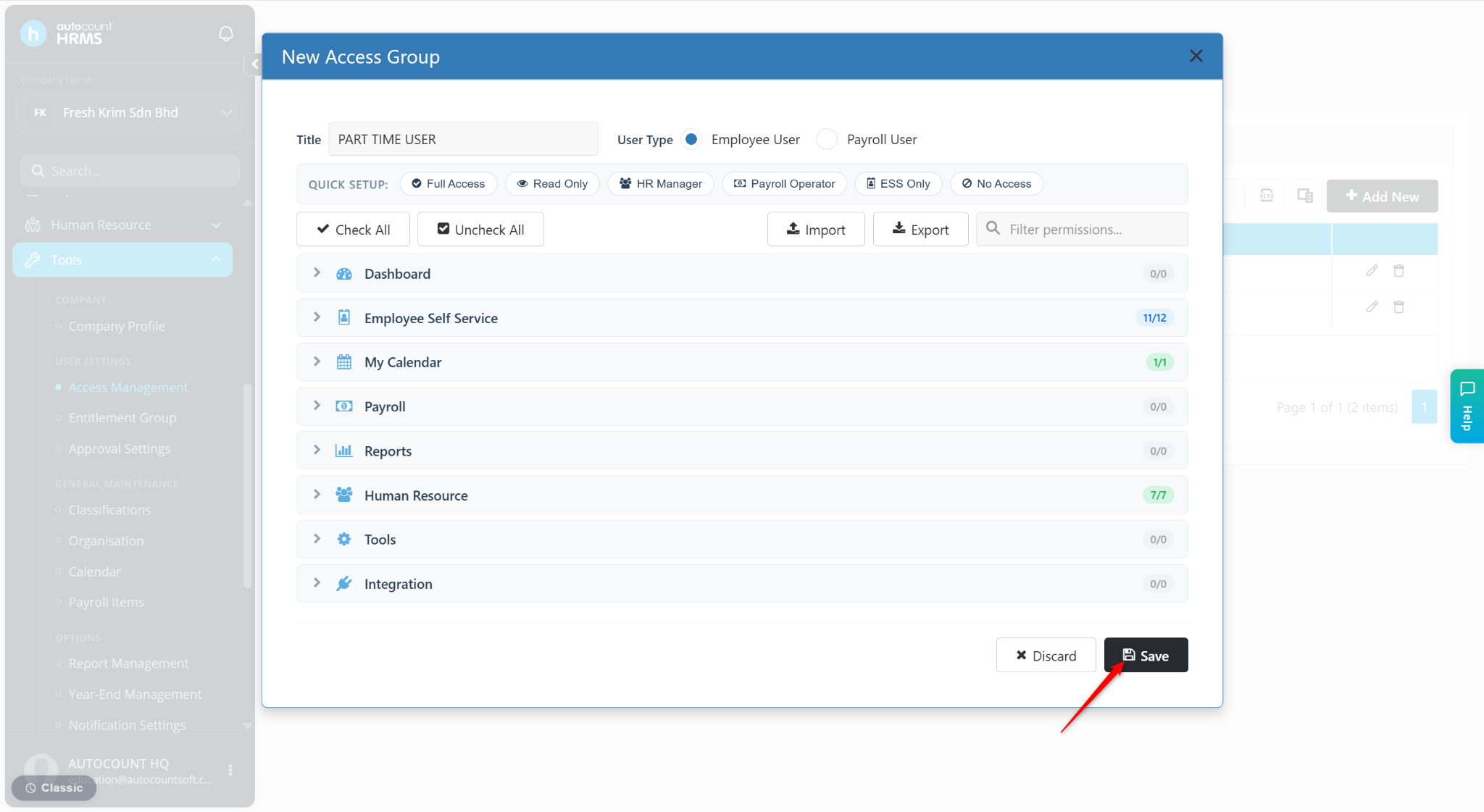
Assign access rights manually or via the quick setup shortcut. Click Save.
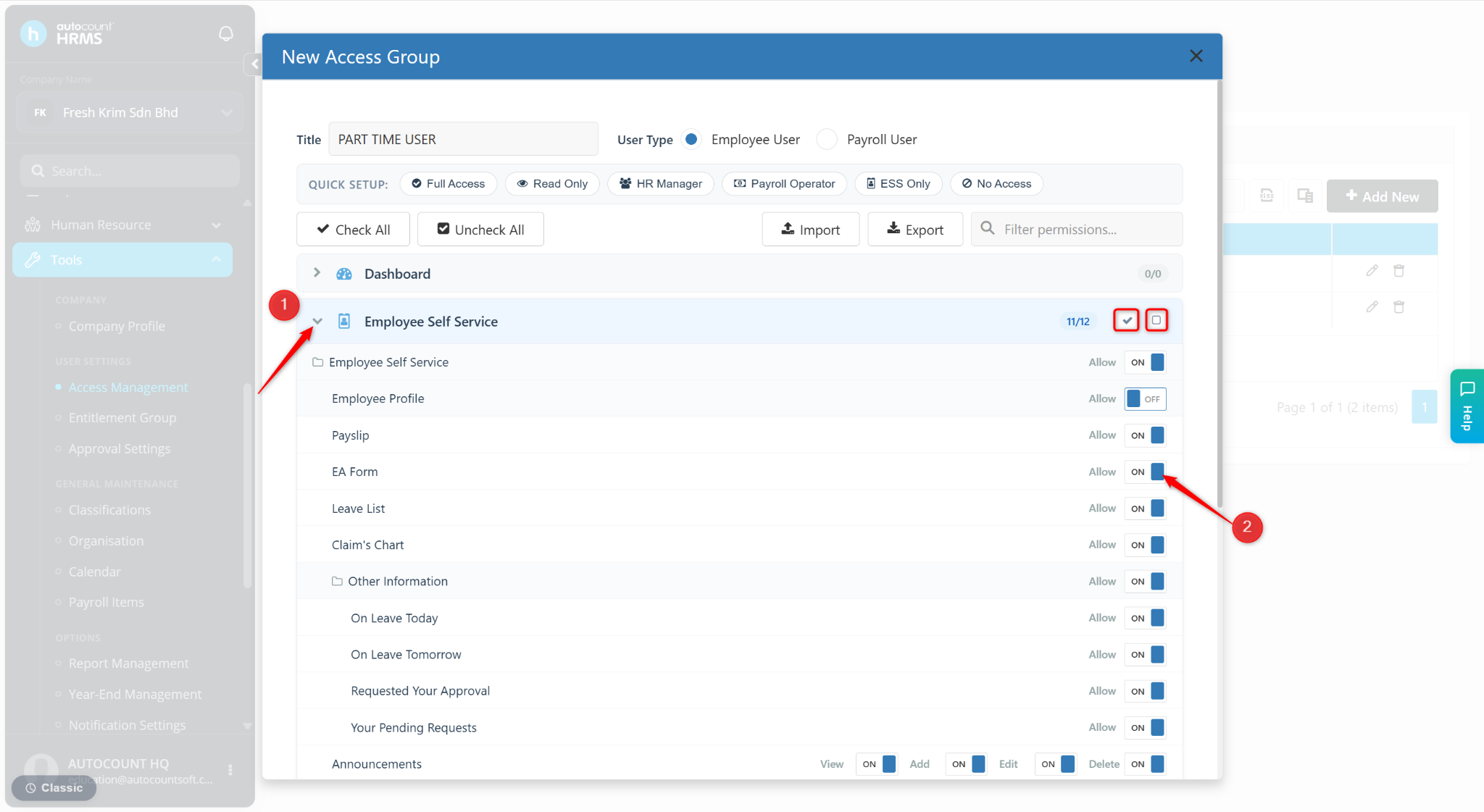
Assign Access Rights Manually:
Click the arrow icon to expand a module.
Toggle Allow to ON to grant access or OFF to restrict access.
Click the tick icon to enable all features within a module.
Click the square icon to disable all features within a module.
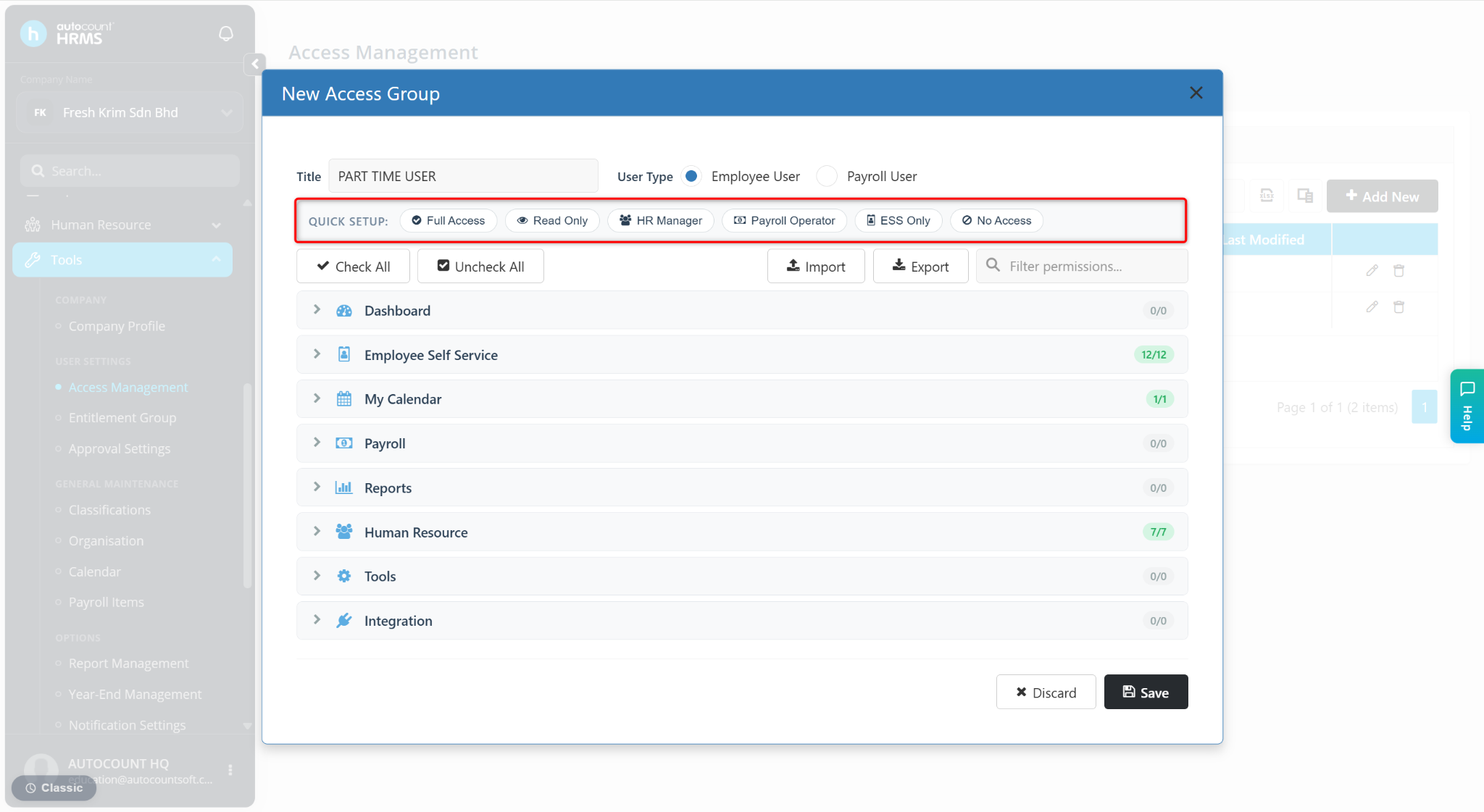
Assign Access Rights via QUICK SETUP:
Click a predefined configuration from QUICK SETUP field:
Full Access
Payroll User – All modules and features enabled.
Employee User – All features in Employee Self Service, My Calendar and Human Resource enabled.
Read Only – All features enabled, but editing and submissions are restricted.
HR Manager
Payroll User – Dashboard, Reports and Human Resource enabled.
Employee User – Human Resource enabled.
Payroll Operator
Payroll User – Dashboard, Payroll and Reports enabled.
Employee User – No access
ESS Only
Payroll User – Employee Self Service and My Calendar enabled.
Employee User – Employee Self Service and My Calendar enabled.
No Access – No modules enabled.
Review and edit manually if required.
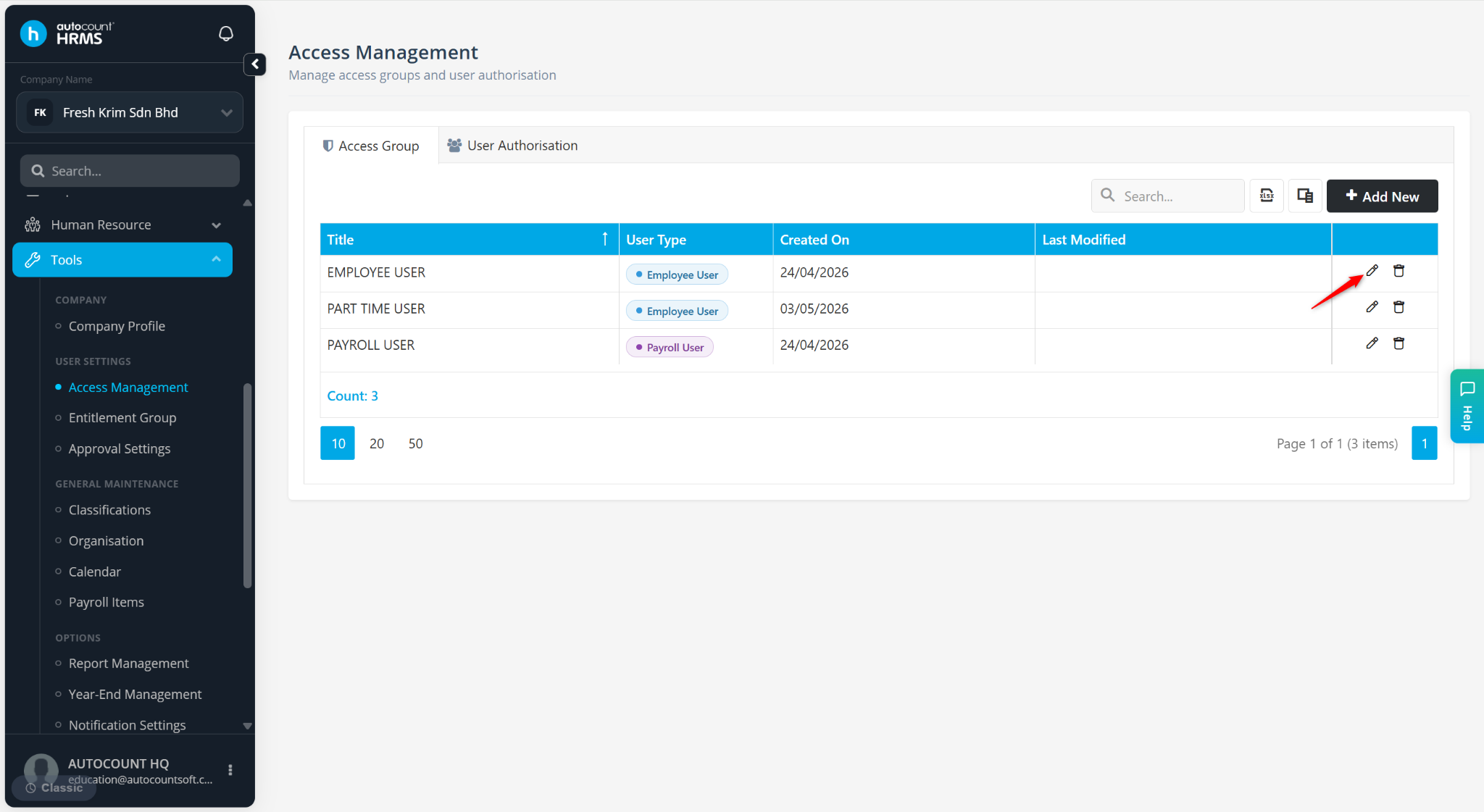
Steps to Edit an Access Group:
At the Access Group page, click on the pencil icon.
Make necessary changes and click Save.
Steps to Delete an Access Group:
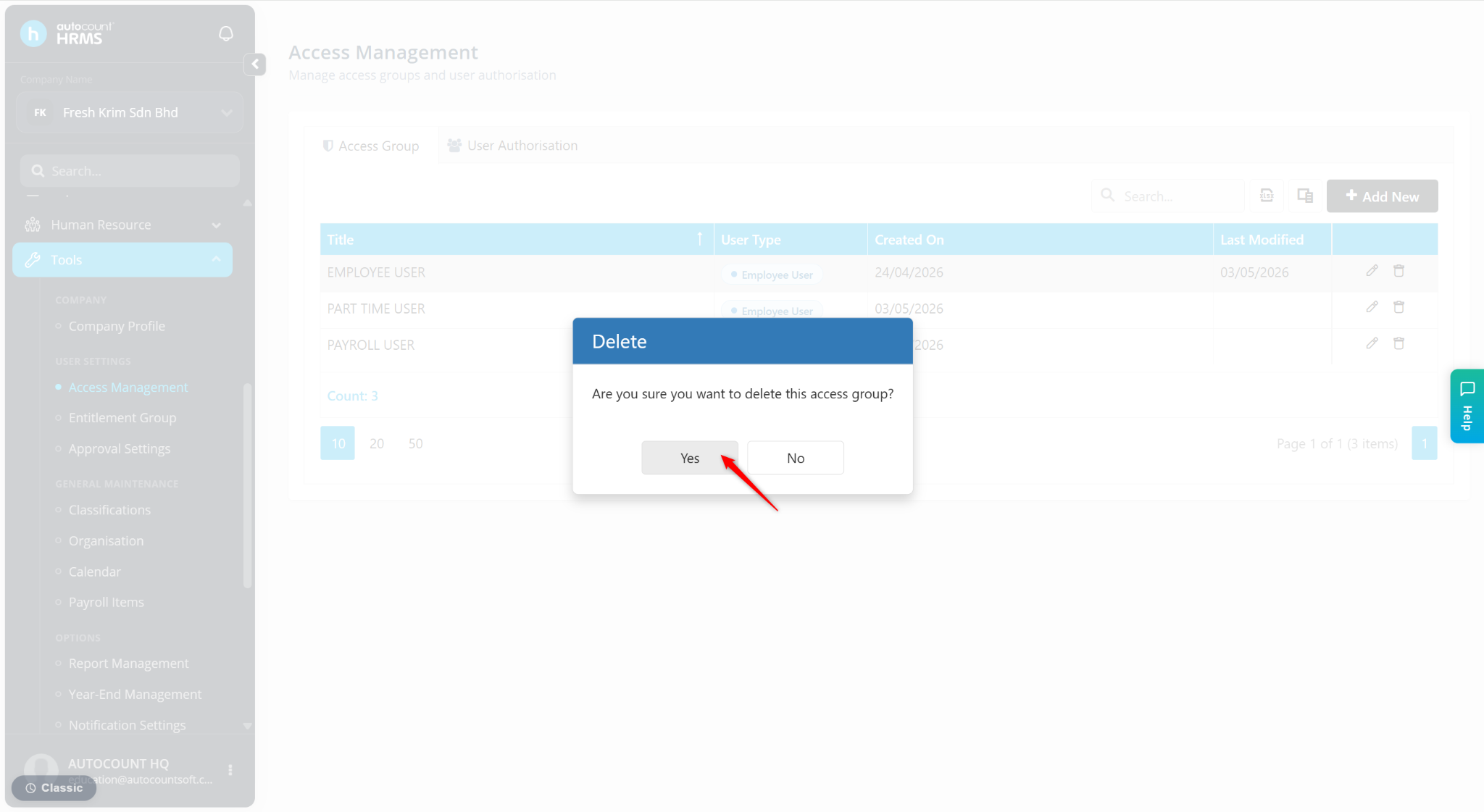
At the Access Group page, click the trash bin icon.
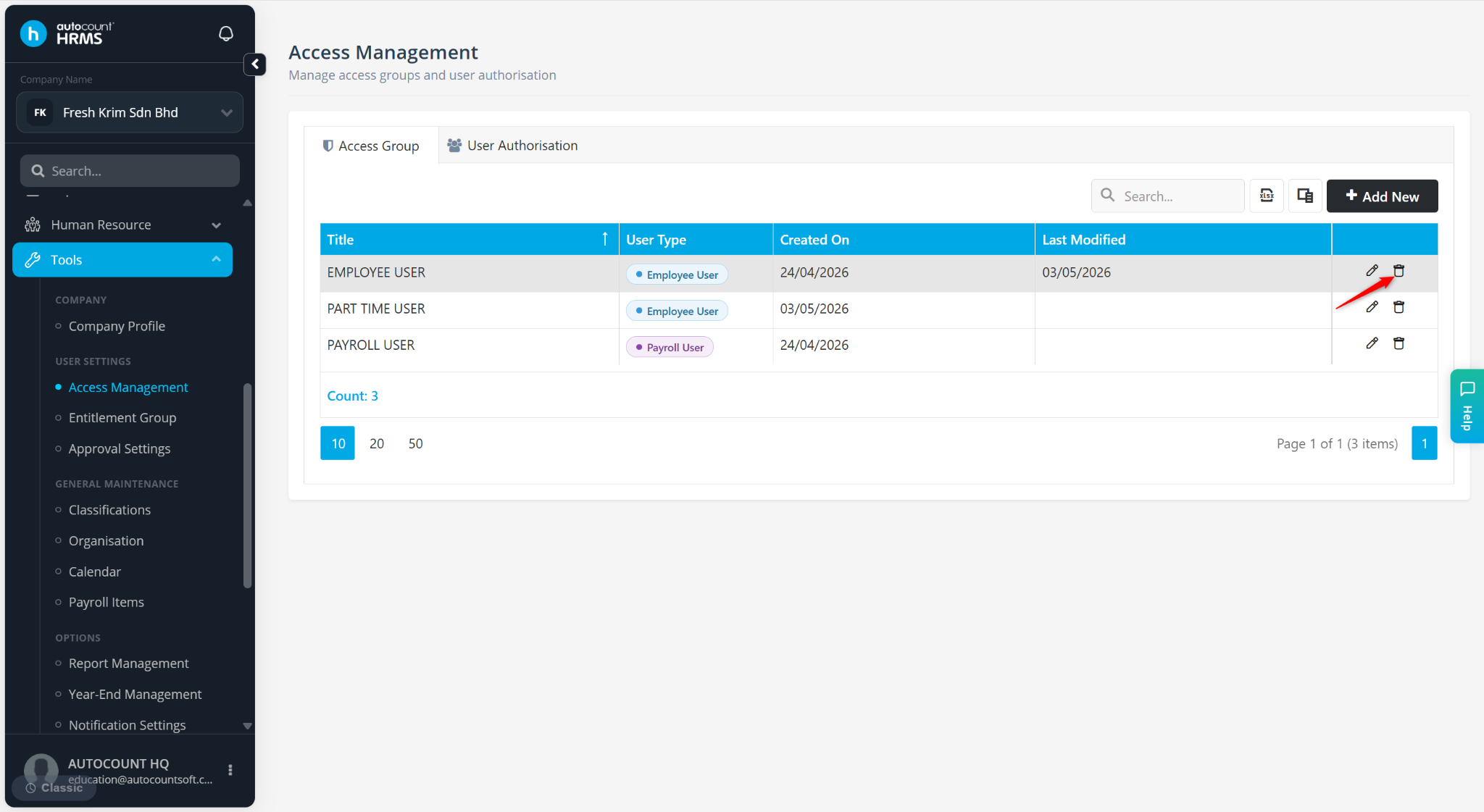
Click Yes to confirm deletion.