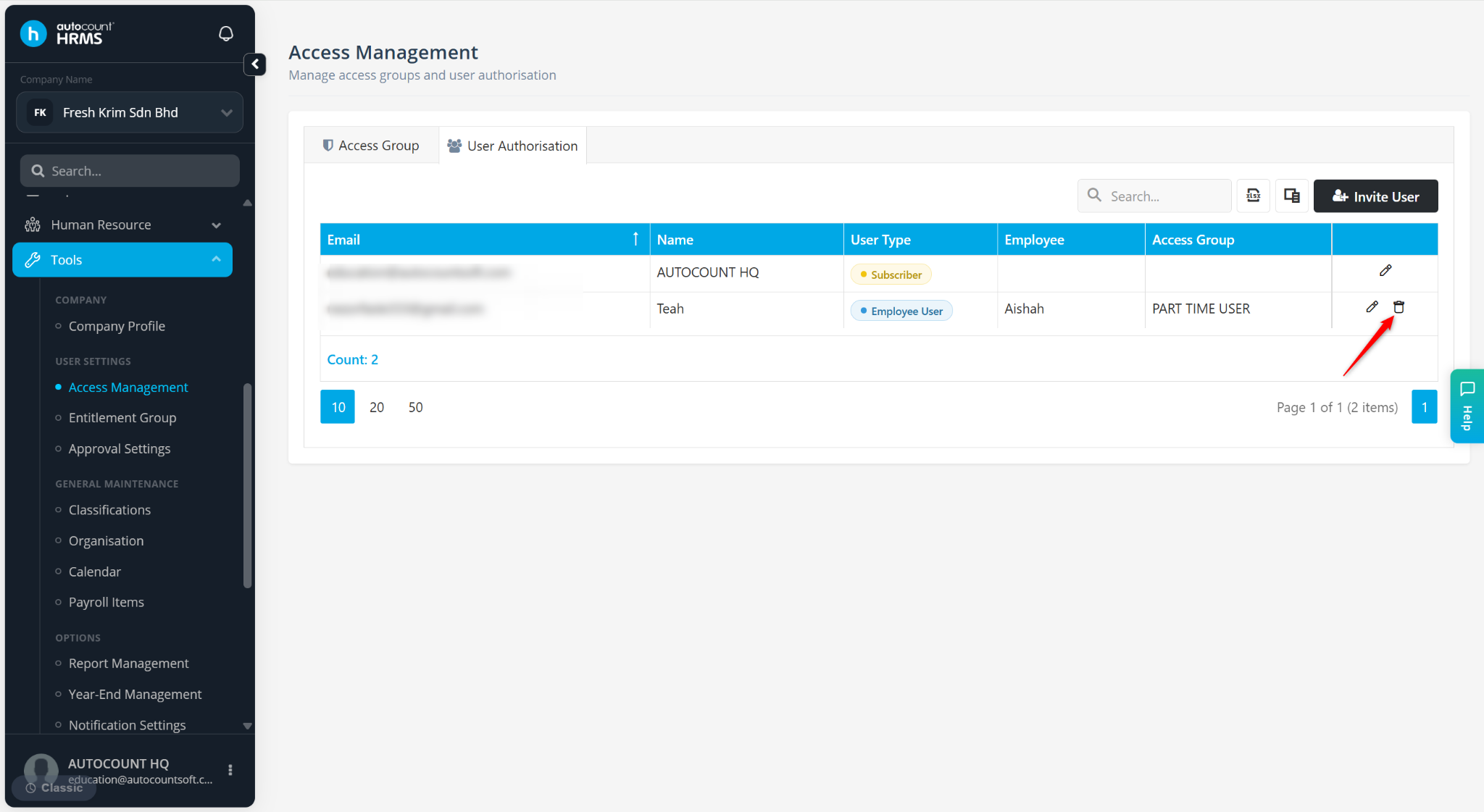
User Authorisation allows users to invite employees to access the HRMS system and assign appropriate permissions or access rights and entitlement groups.
Steps to Invite Users via User Authorisation:
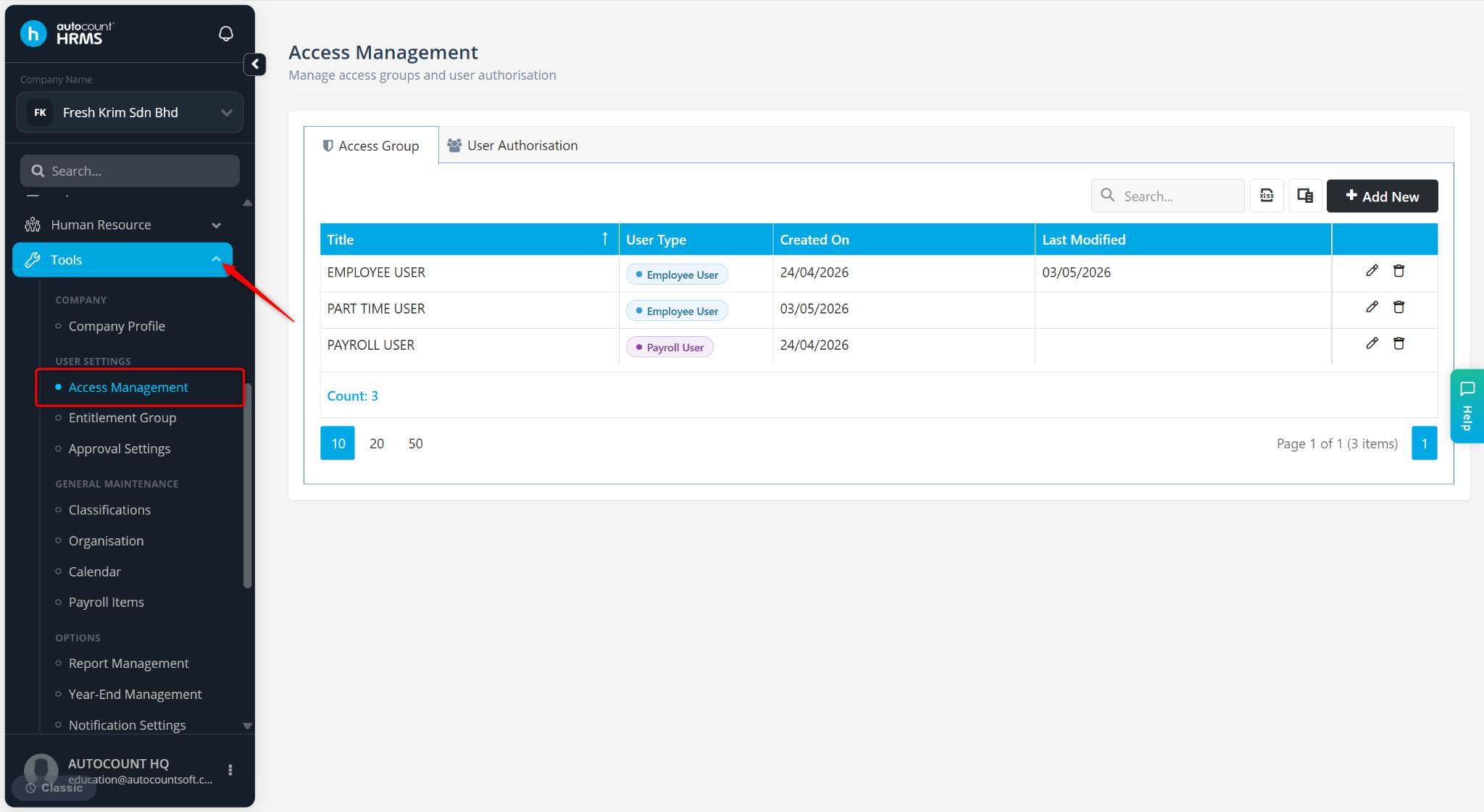
Go to Tools > Access Management.
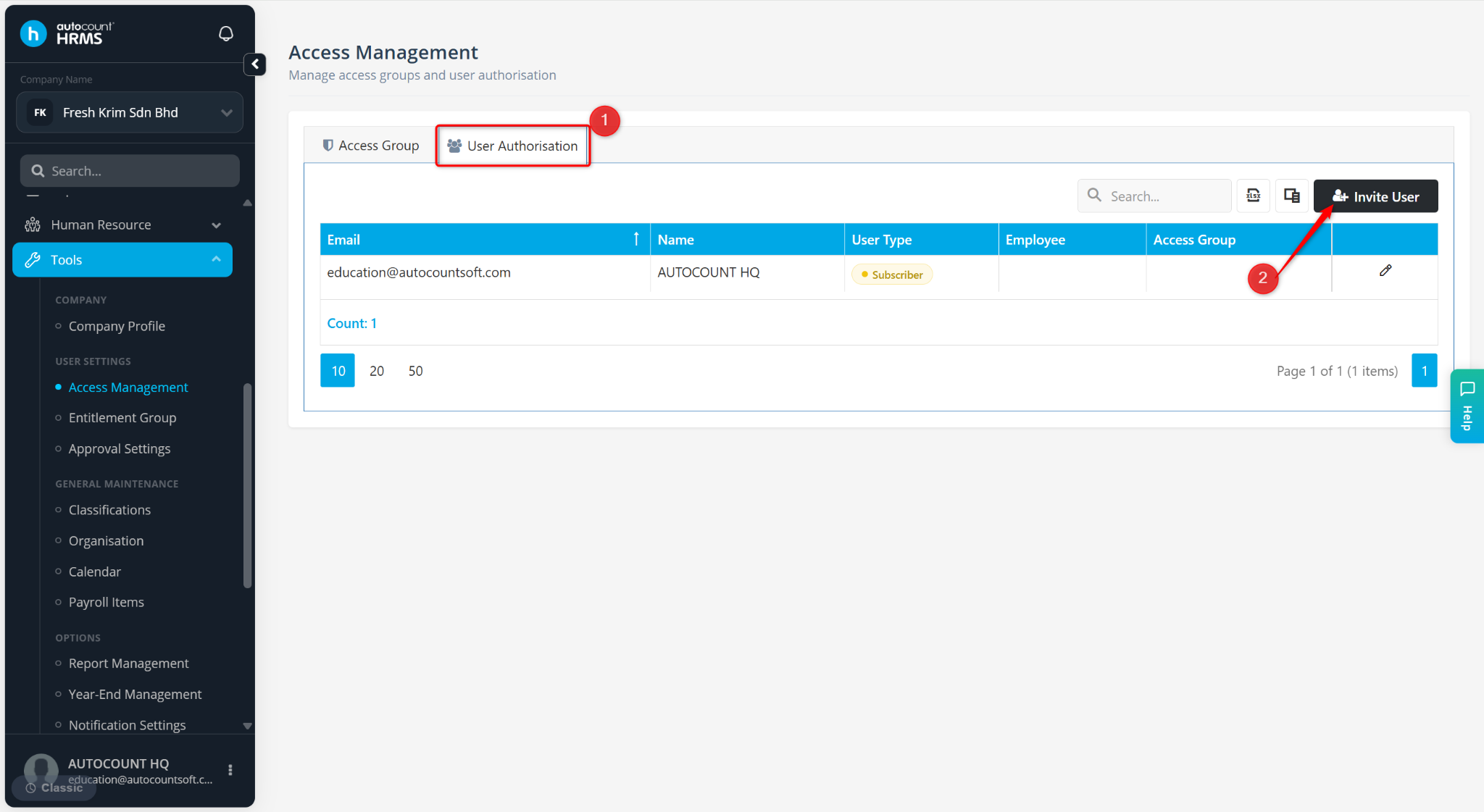
Go to the User Authorisation tab.
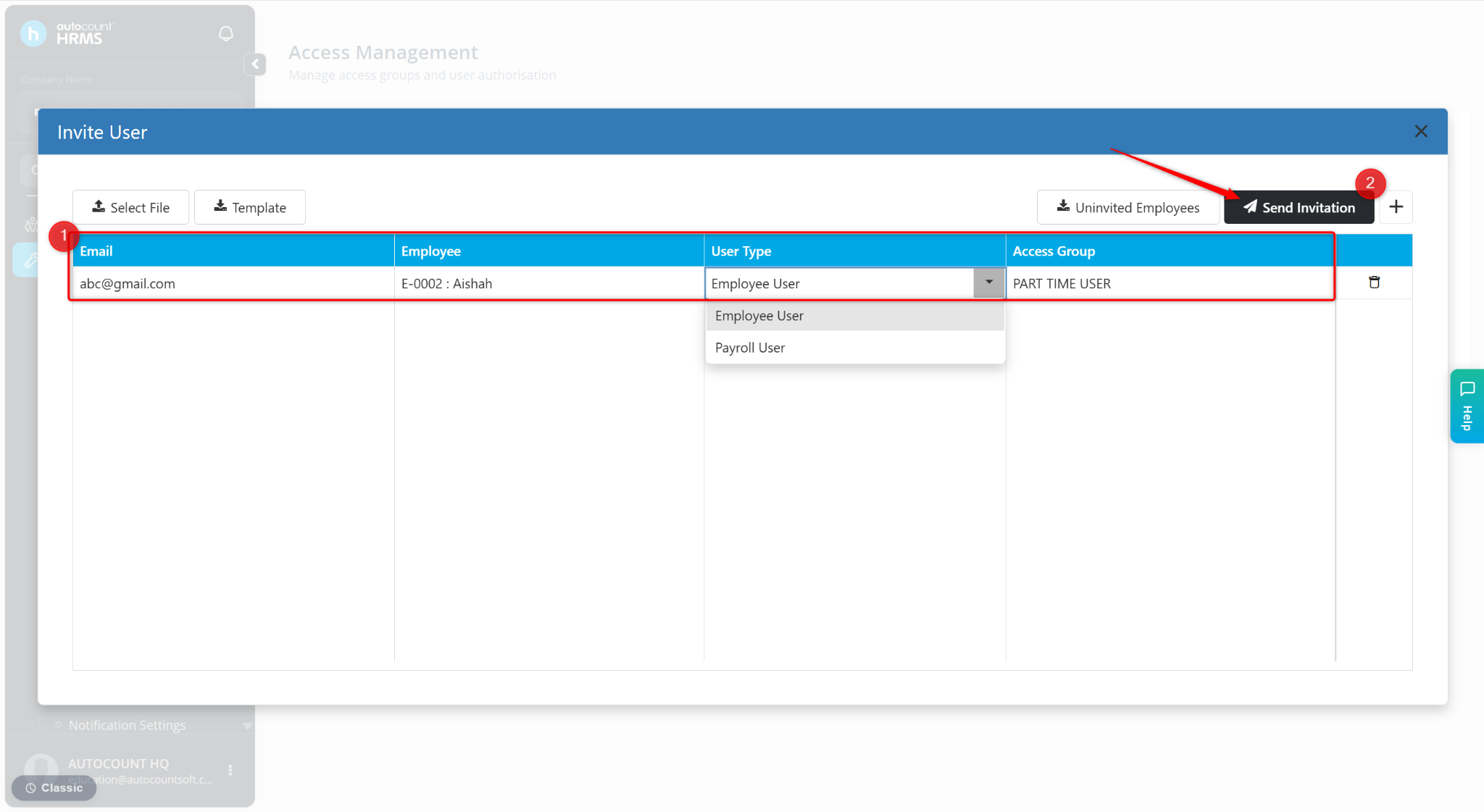
Click Invite User.
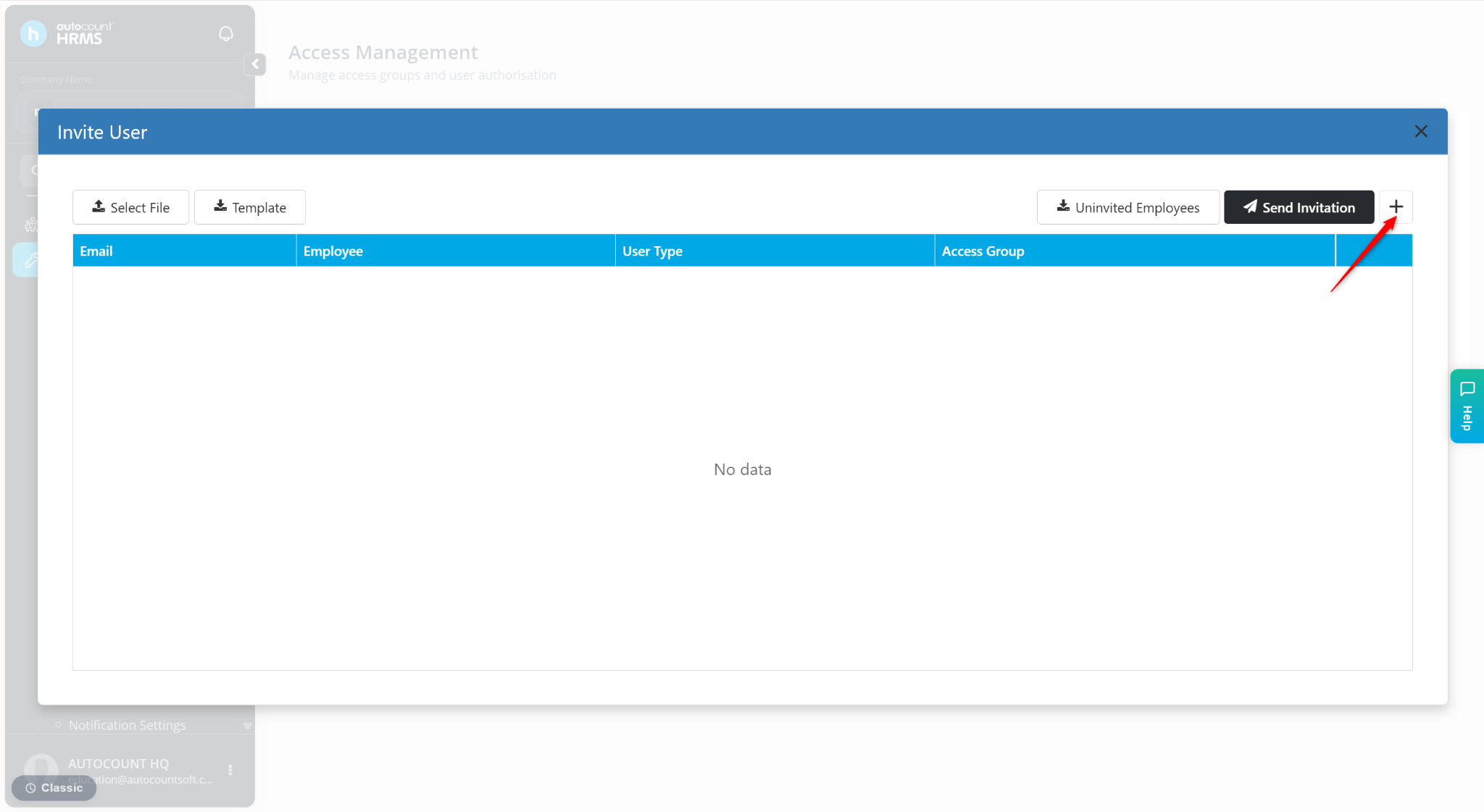
To import in bulk, click Template > fill in details > click Select File. Alternatively, click + at the top right corner to add users one-by-one.
Note: Click Uninvited Employees to obtain the list of employees who have not been invited to the system.
Enter the following details:
Email – Enter the email of the employee.
Employee – Select the employee invited.
User Type – Select Employee User or Payroll User.
Access Group – Assign the relevant Access Group. Refer to Access Group to add additional Access Groups.
Repeat the steps to add more employees if needed.
Click Send Invitation.
The employee(s) will receive an email invitation. They must accept the invitation before accessing the system.
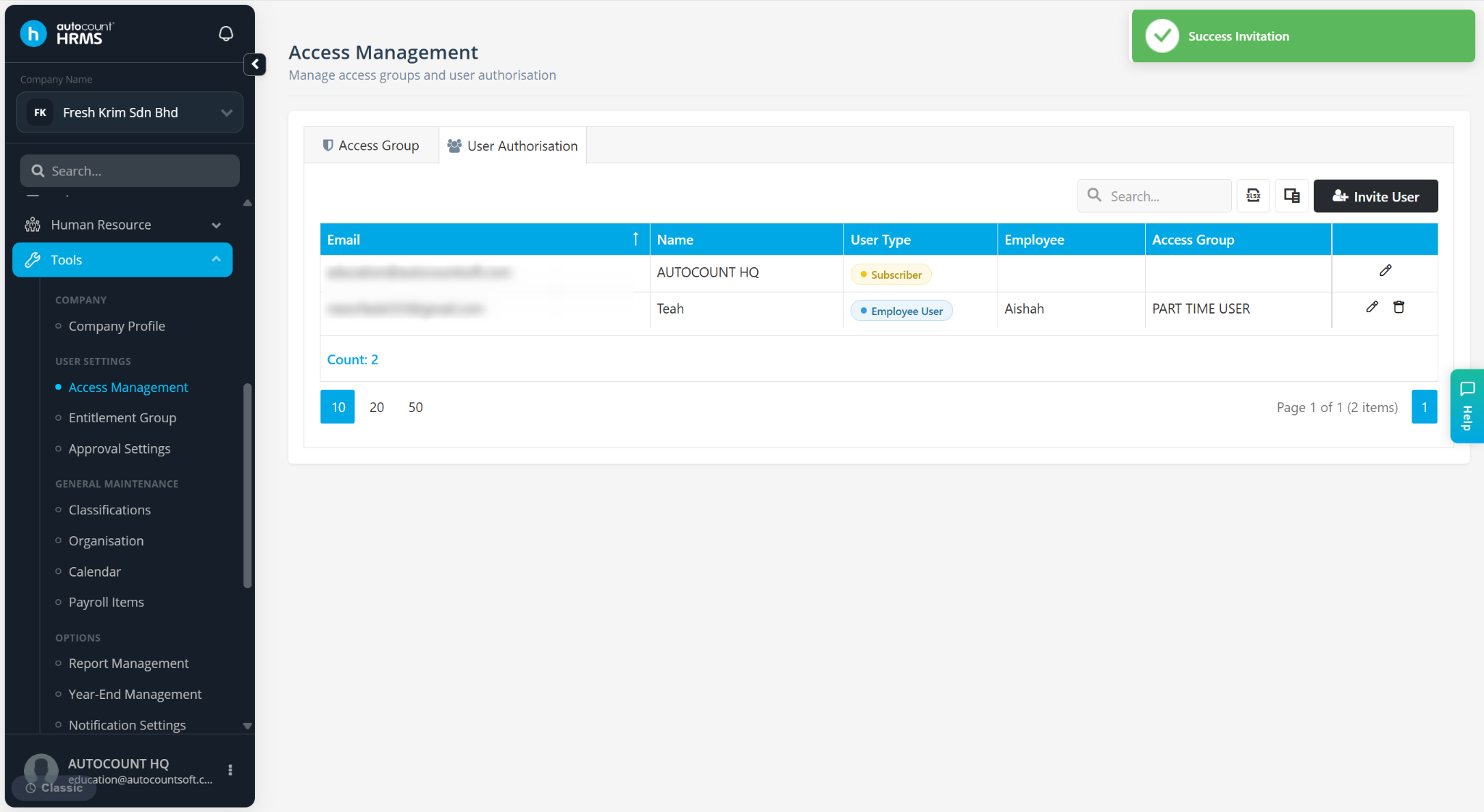
Steps to Edit Individual’s Access Right / Entitlement Group:
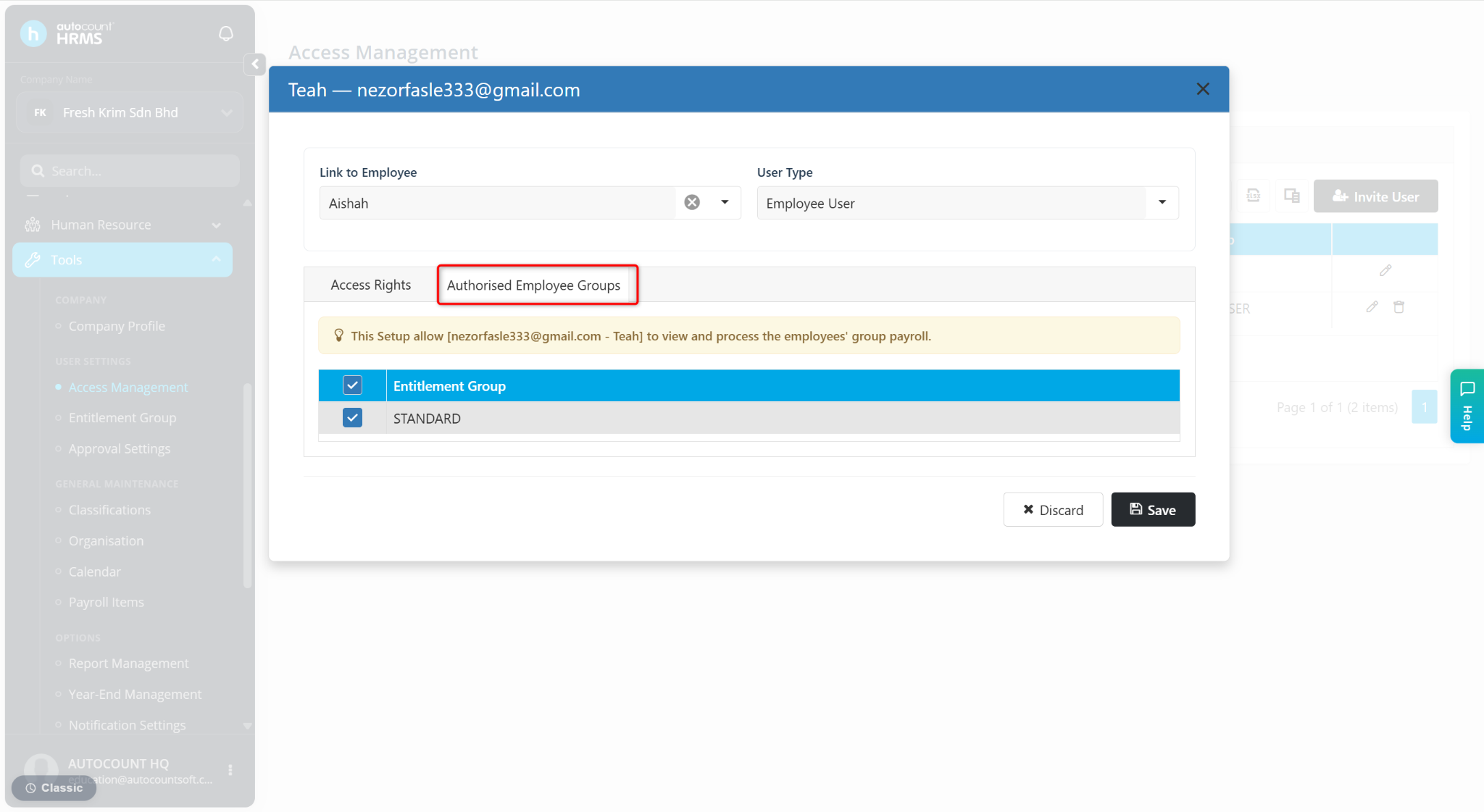
Users may modify the employee’s Access Right and Entitlement Group here.
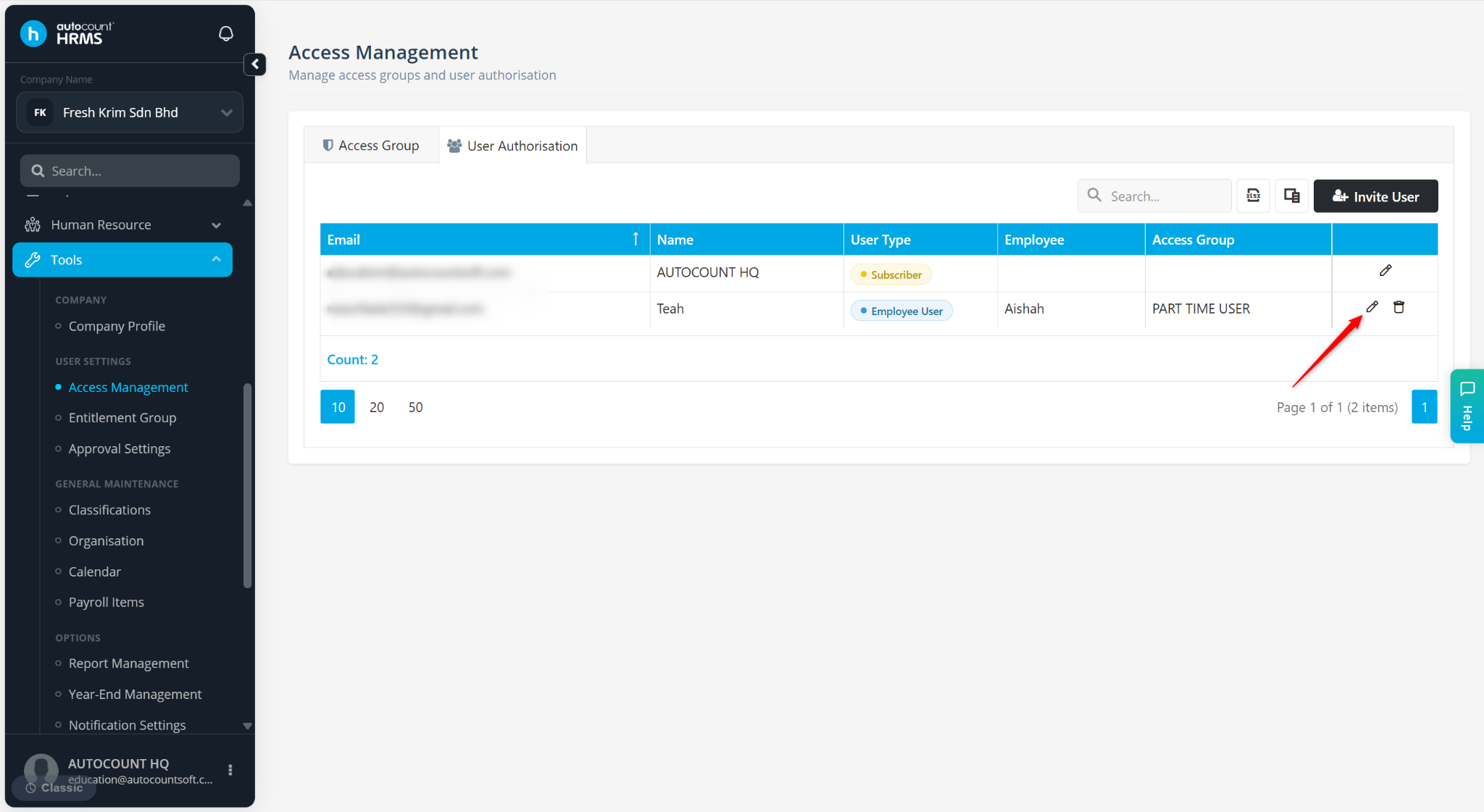
Ensure that you are at the Access Management > User Authorisation page.
Locate the employee and click the pencil icon next to the employee’s name.
Update the details under Access Rights and/or Authorised Employee Groups.
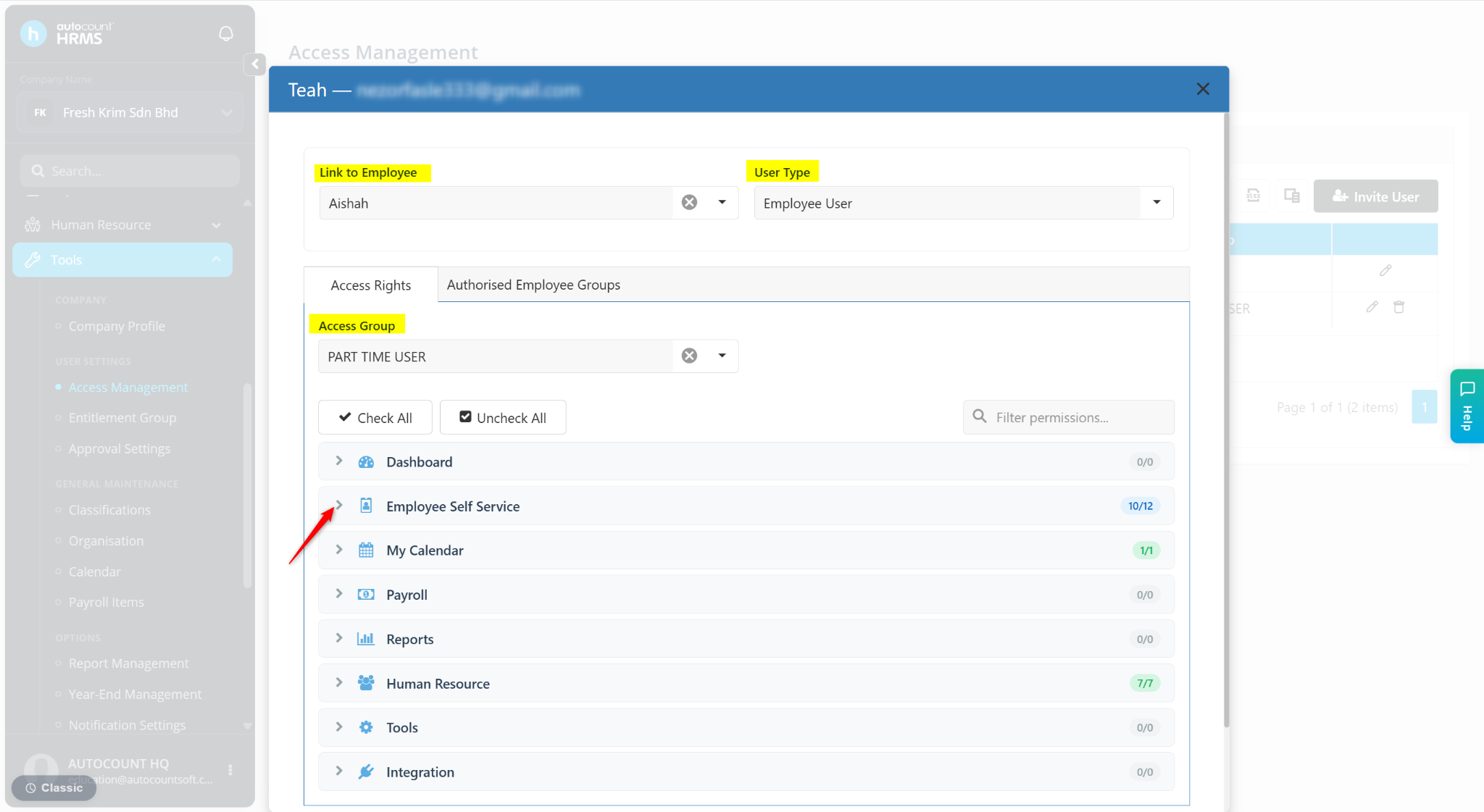
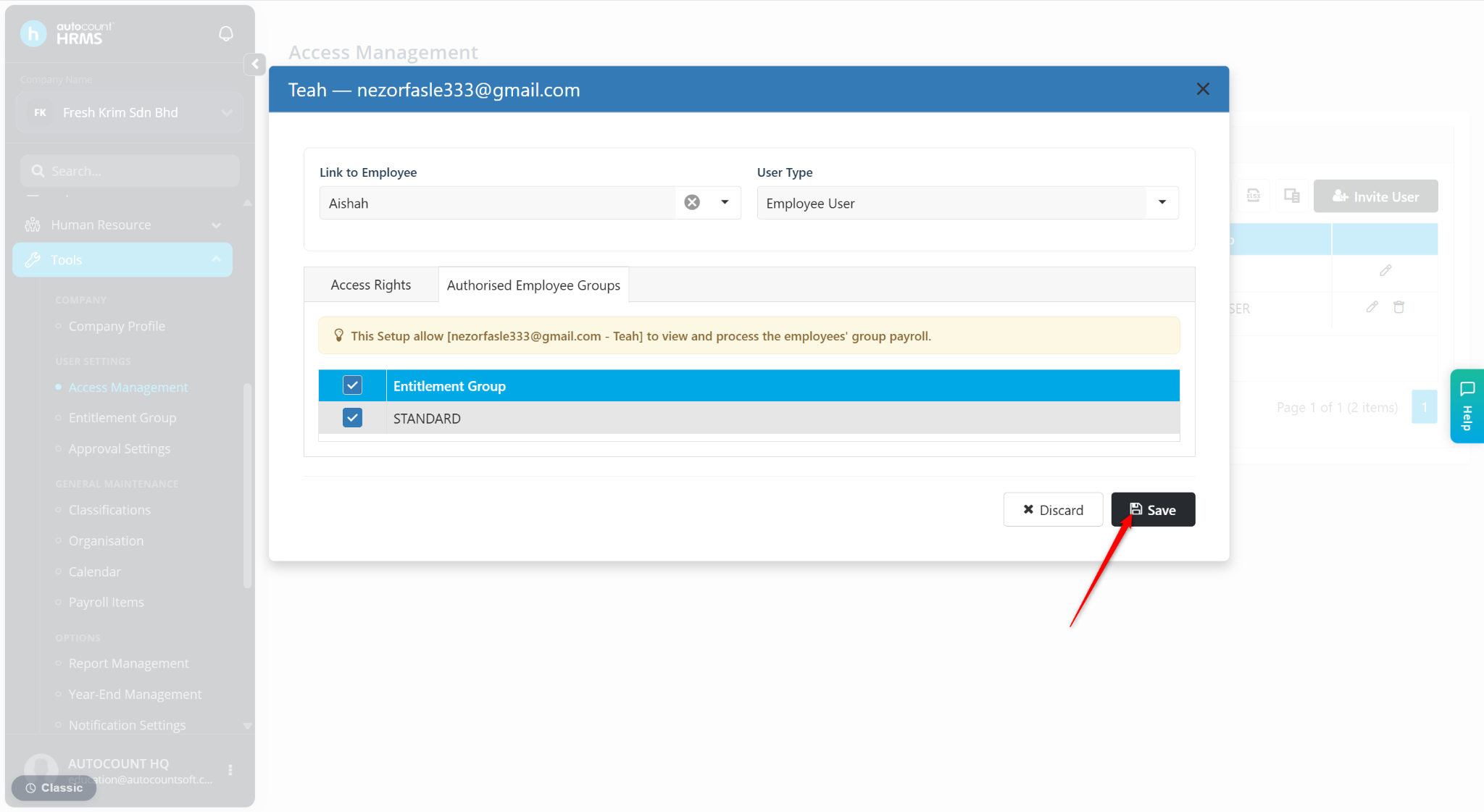
Click Save.
Steps to Delete a User:
Ensure you are at the Access Management > User Authorisation page.
Locate the employee and click the trash bin icon next to the employee’s name.
Click Yes to confirm deletion.