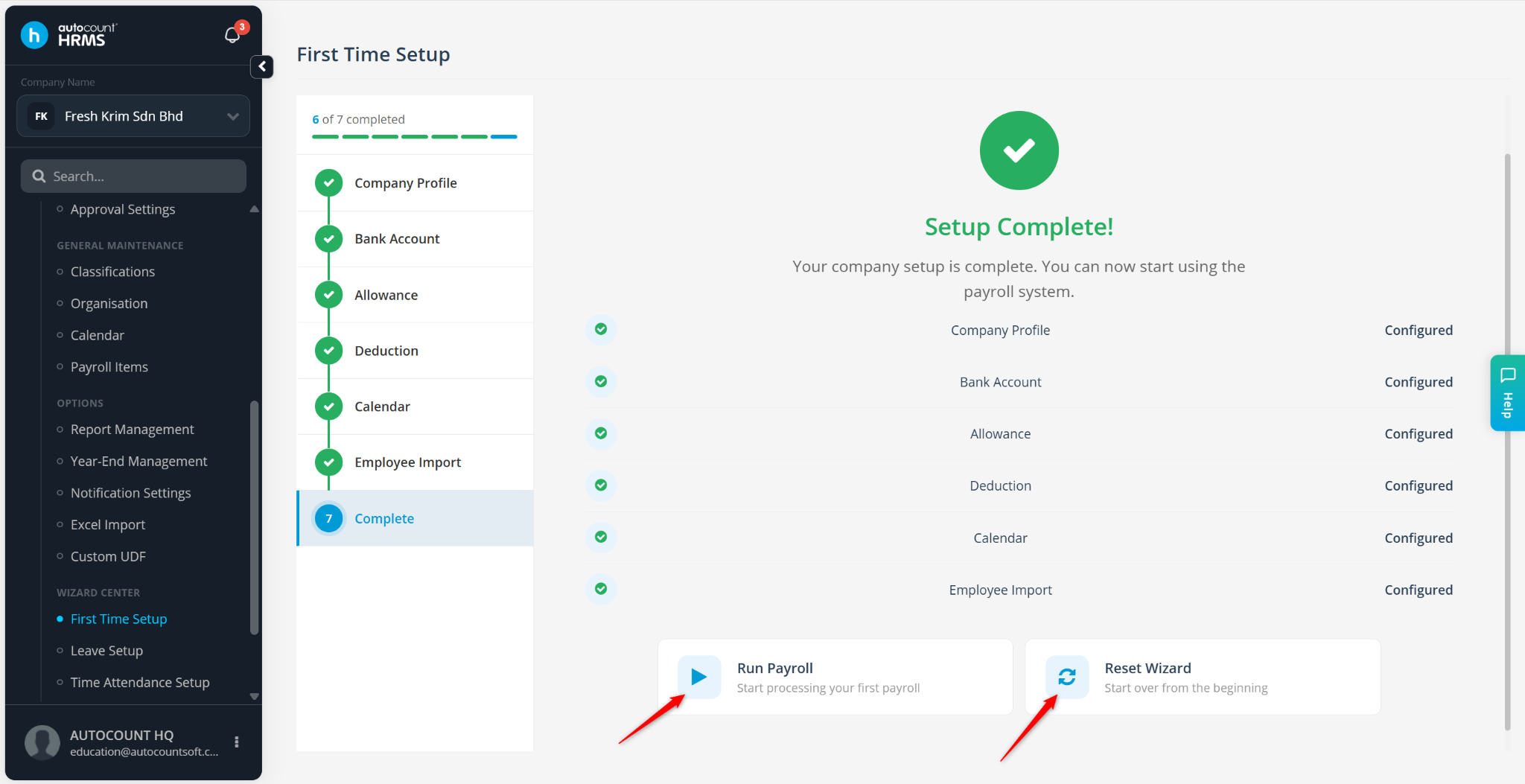
The First Time Setup Wizard helps users configure essential company settings quickly when using AutoCount HRMS for the first time. It guides you through the setup of company information, payroll settings, calendars, and employee records, allowing you to start payroll processing with minimal effort.
Steps to Set Up HRMS for the First Time:
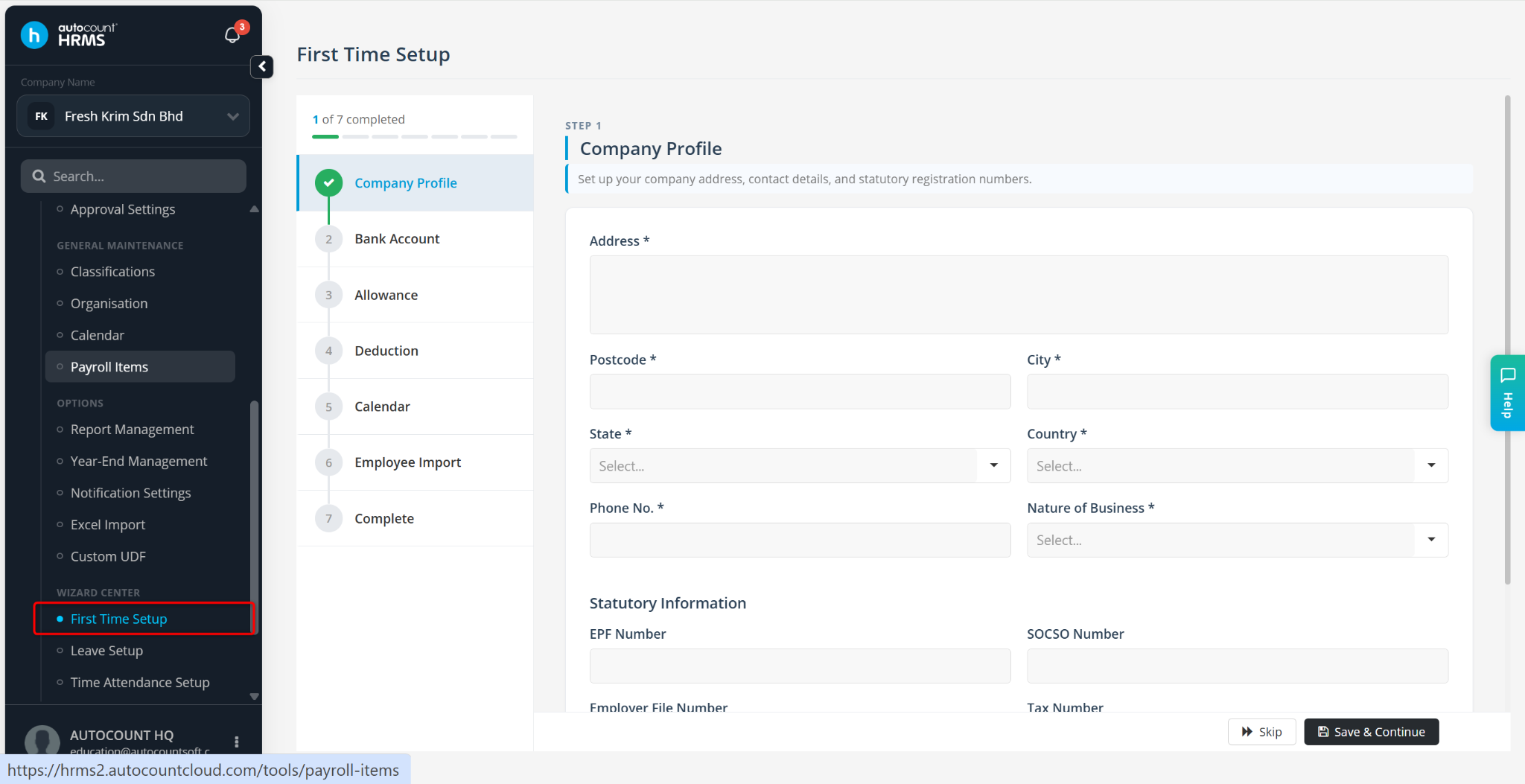
Go to Tools > First Time Setup.
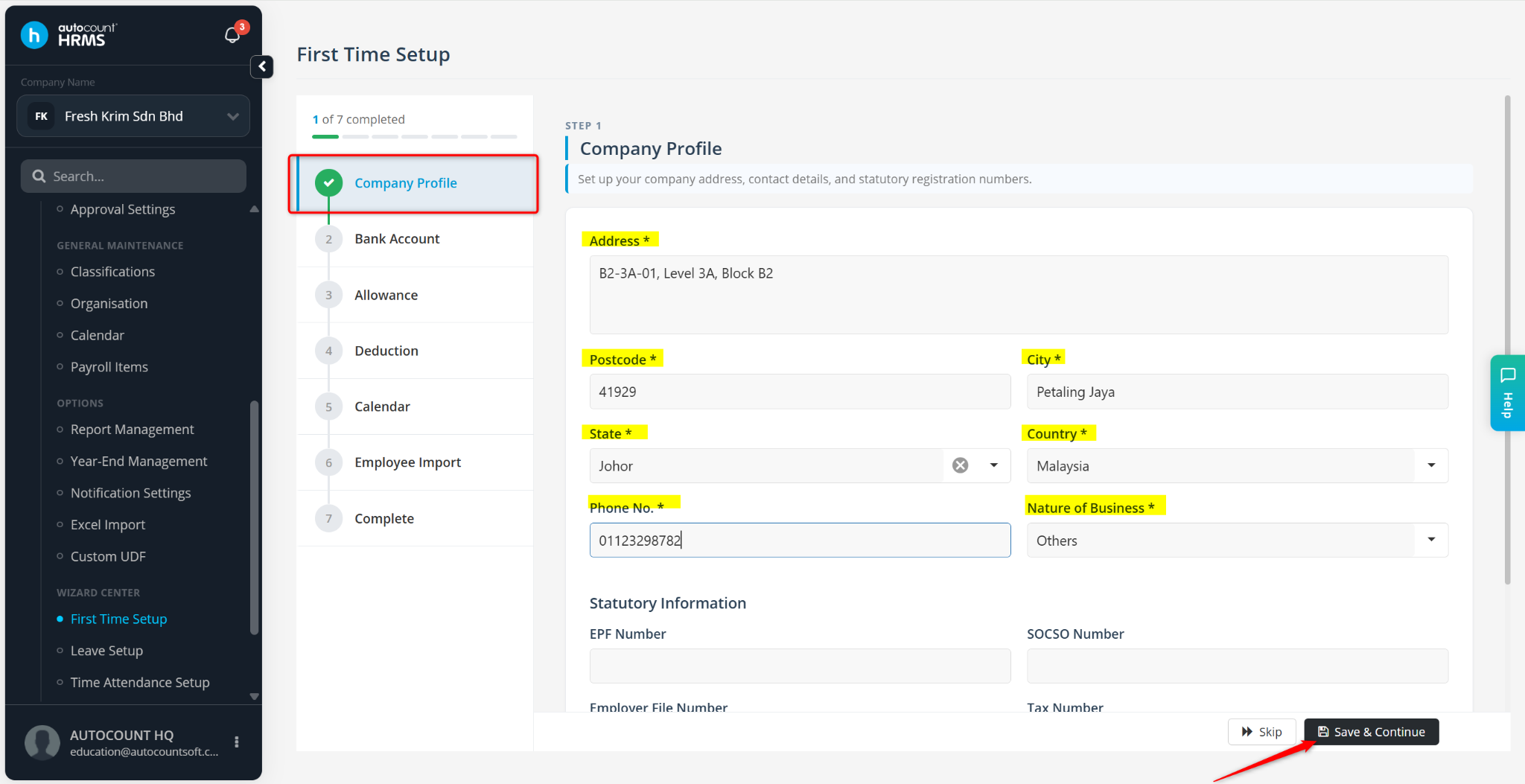
Enter the company information:
Address
Postcode
City
State
Country
Phone No.
Nature of Business
Statutory Information:
EPF Number
SOCSO Number
Employer File Number
Tax Number
HRDF Contribution (%)
Click Save & Continue.
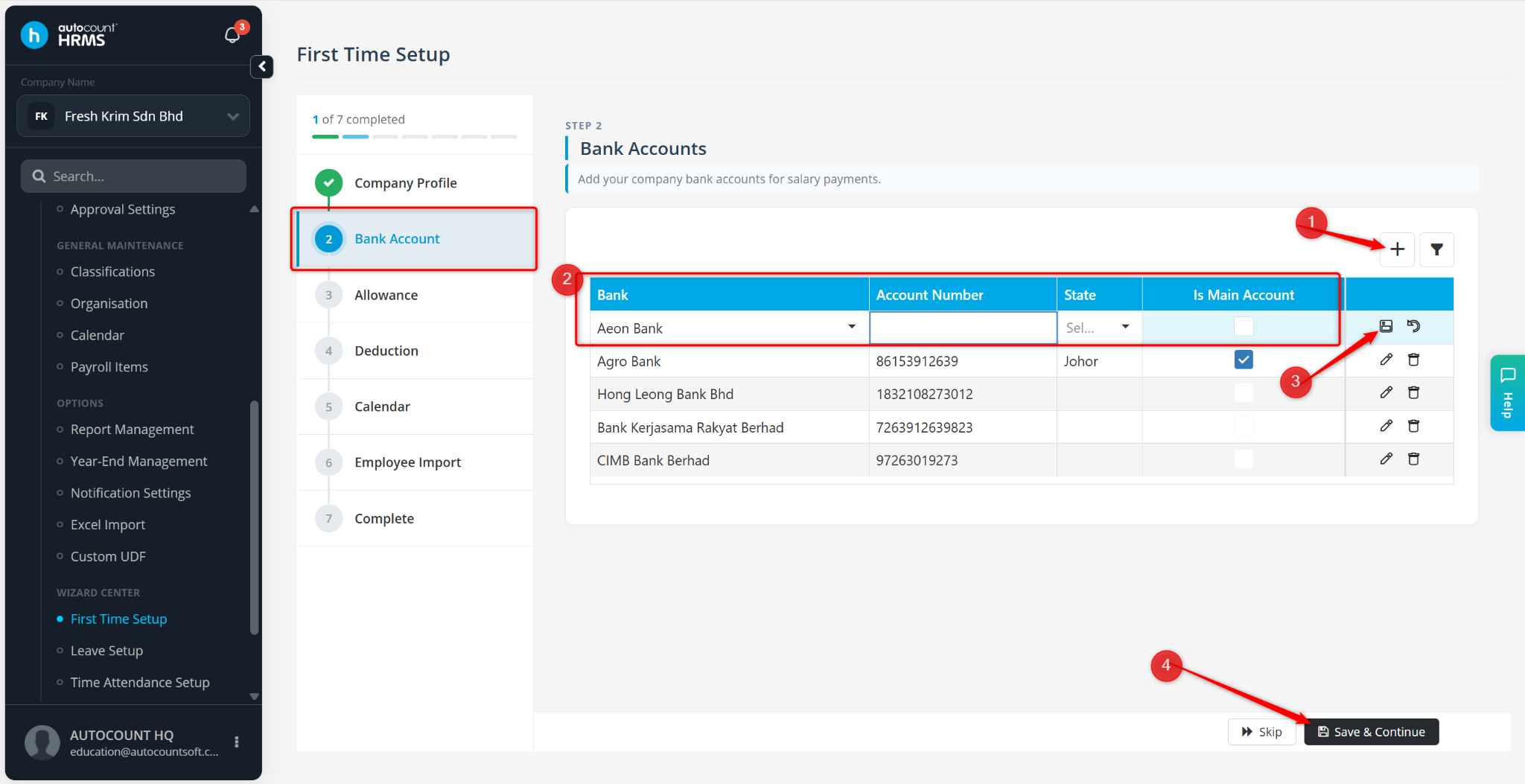
Maintain the company’s Bank Account:
Click the + icon.
Select the Bank Name.
Enter the Bank Account Number and select the State.
Tick Is Main Account to set it as the default company bank account.
Click the diskette icon to save.
Click Save & Continue.
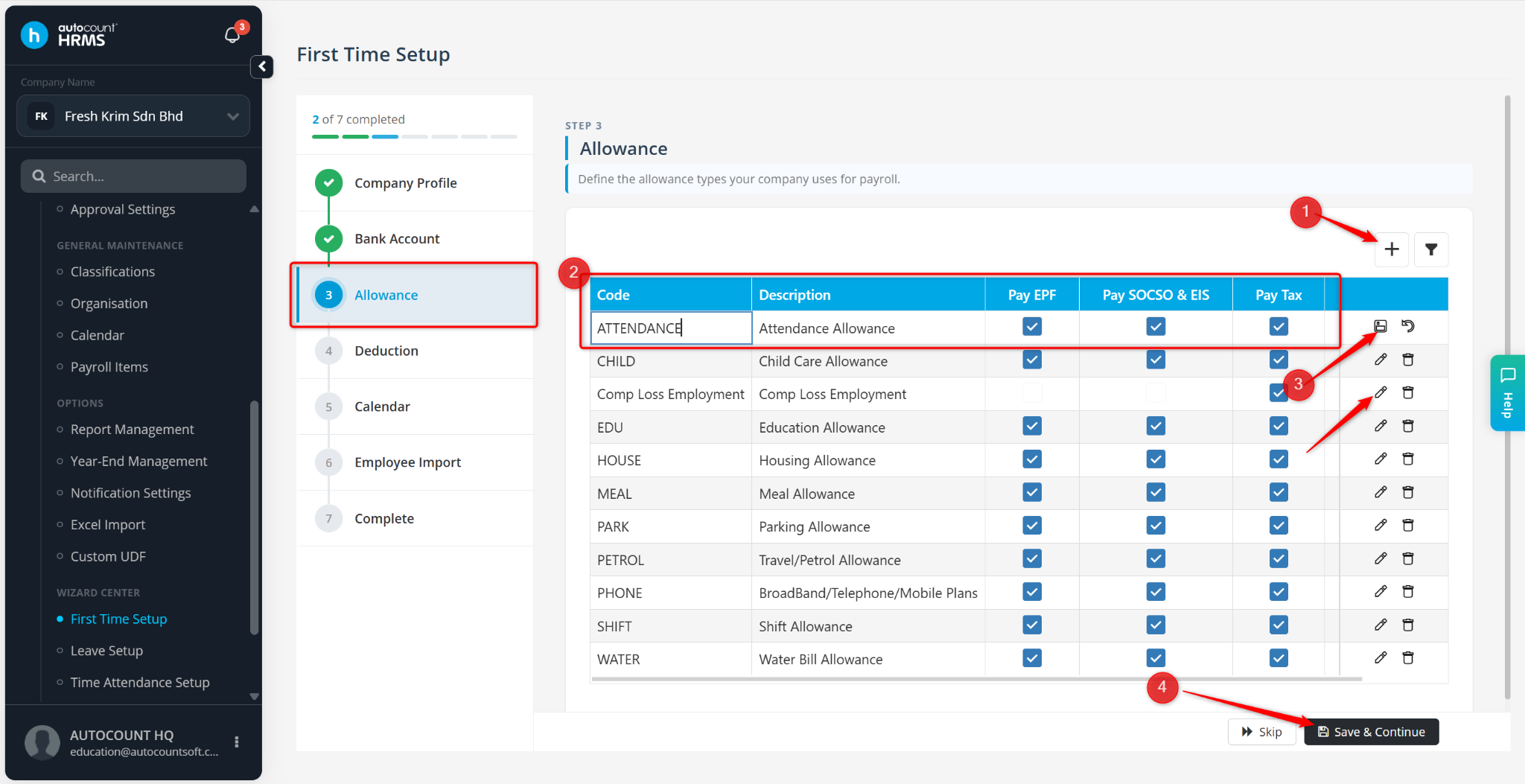
Maintain Allowance details:
Click the + icon to create a new allowance item, or click the pencil icon to edit a default allowance.
Enter the Code and Description.
Tick the relevant statutory settings if applicable.
Click the diskette icon to save.
Click Save & Continue.
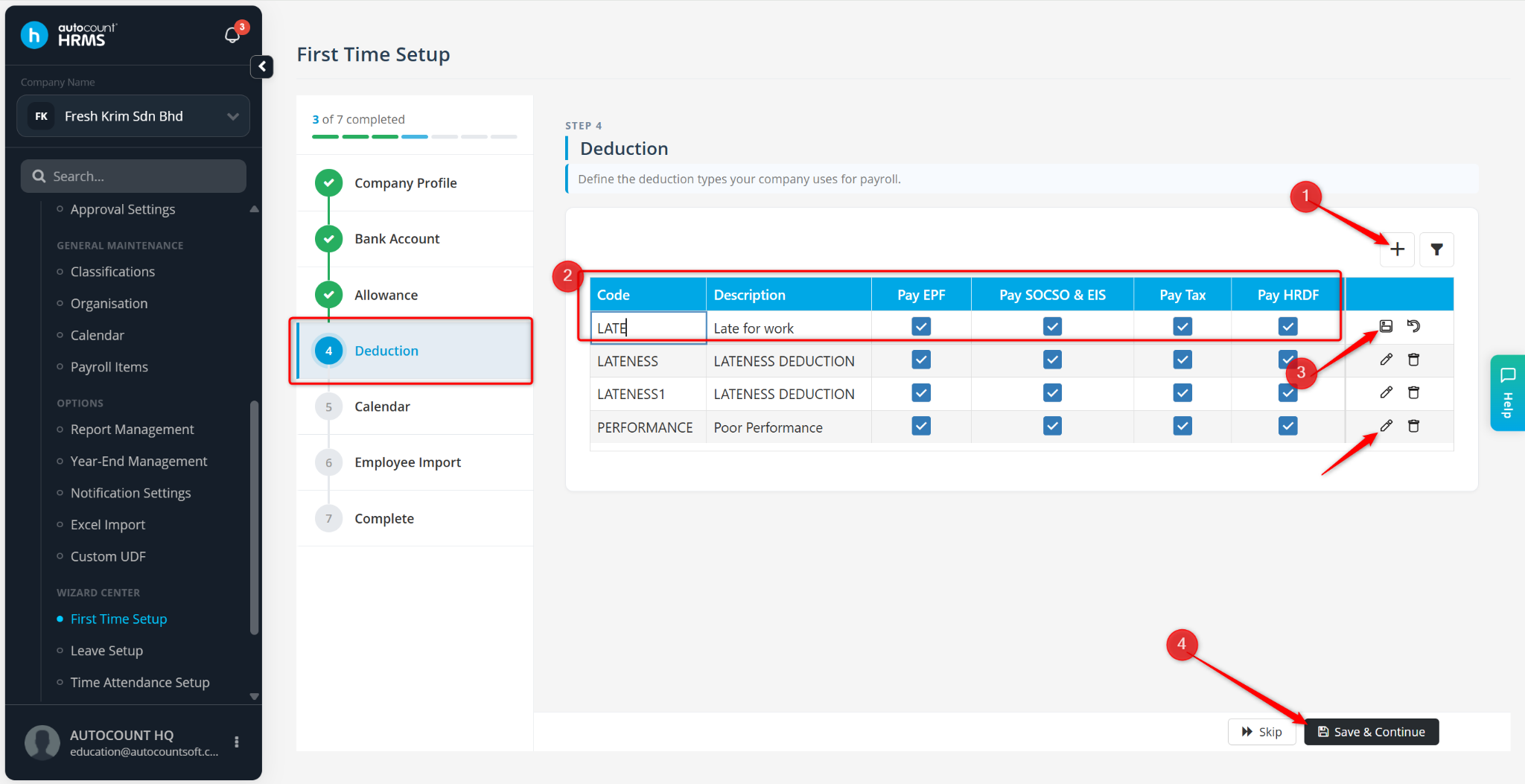
Maintain the Deduction details:
Click the + icon to create a new deduction item, or click the pencil icon to edit a default deduction.
Enter the Code and Description.
Tick the relevant statutory settings if applicable.
Click the diskette icon to save.
Click Save & Continue.
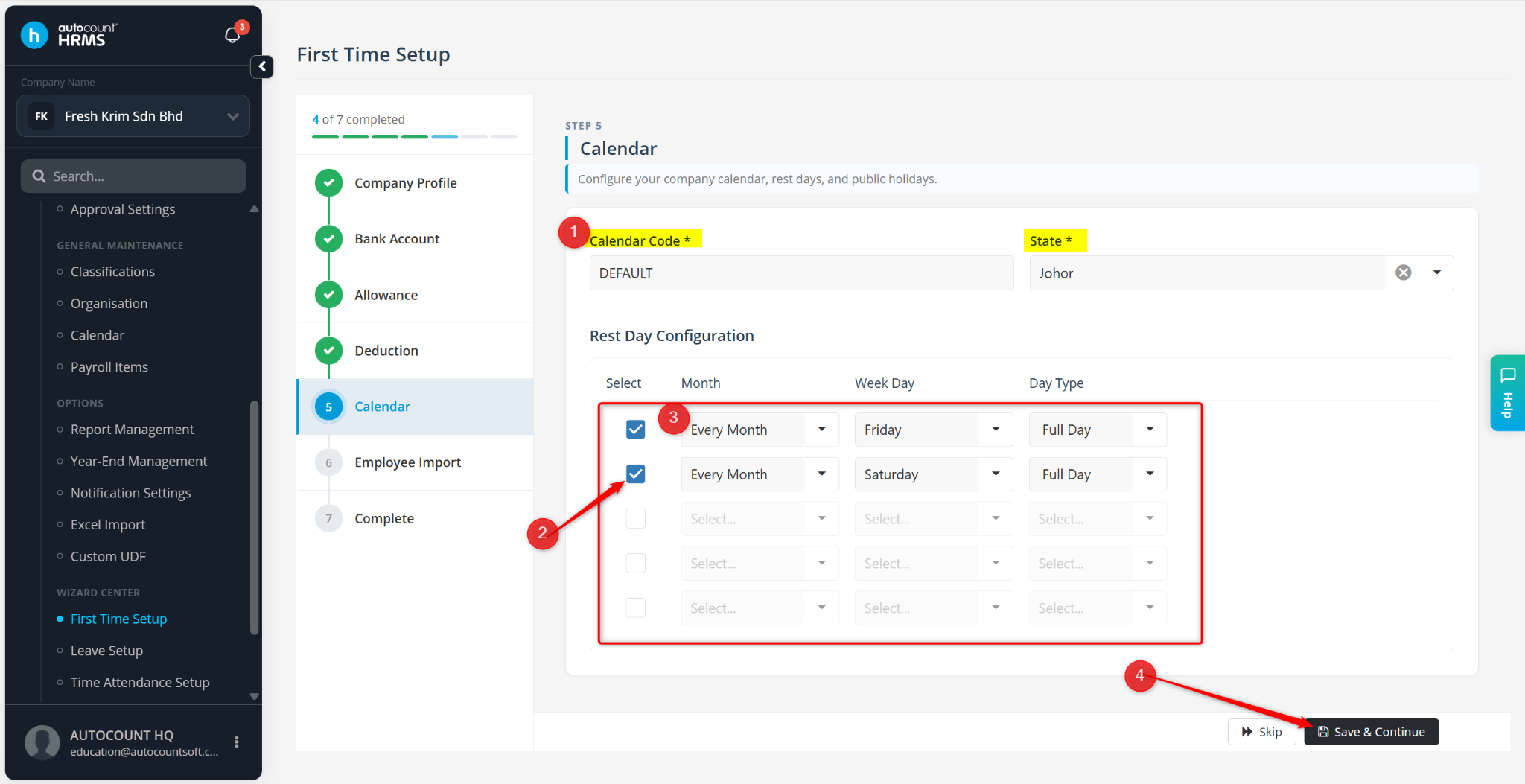
Maintain the calendar information:
Enter the Calendar Code.
Select the State.
Configure the Rest Day(s).
Click Save & Continue.
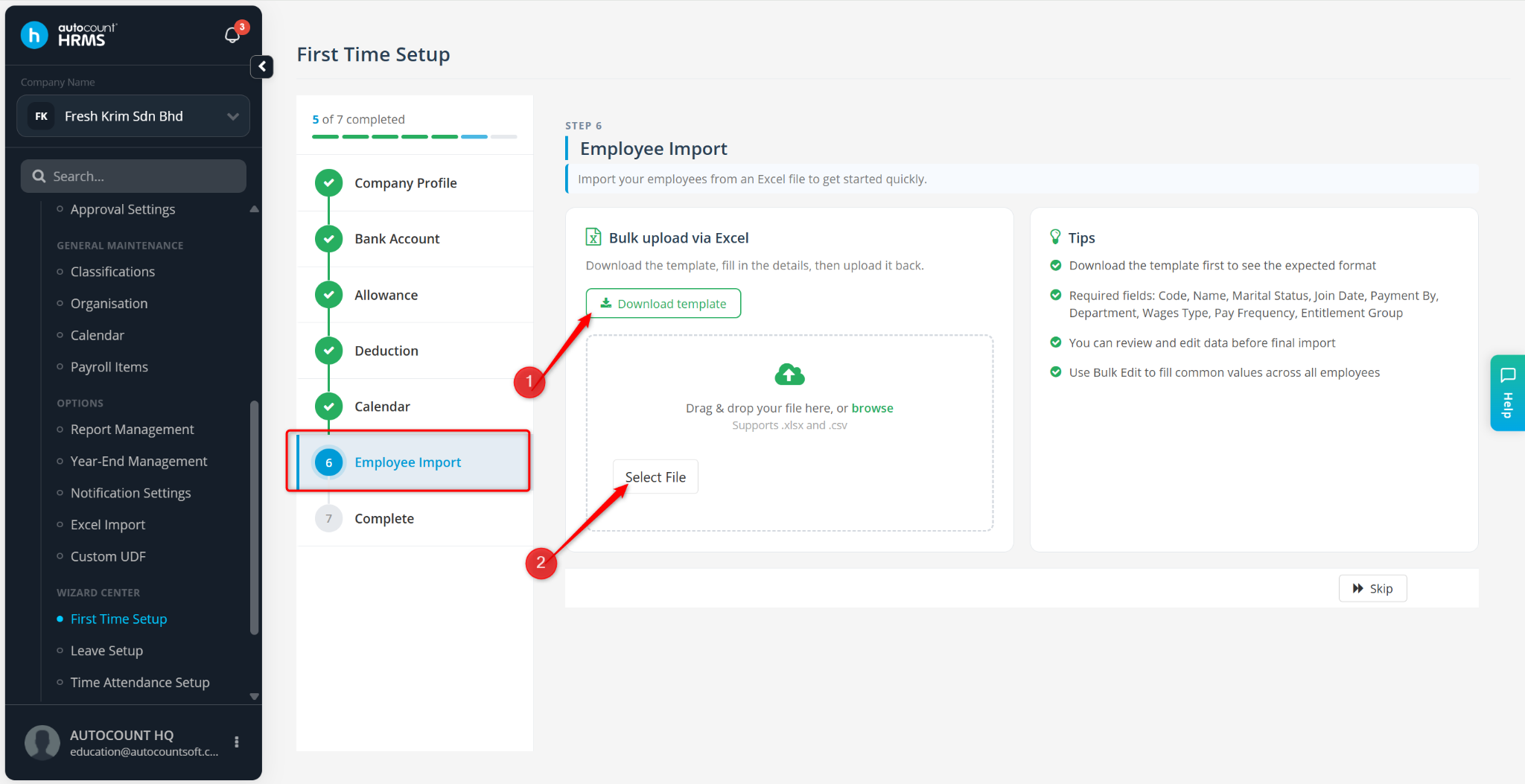
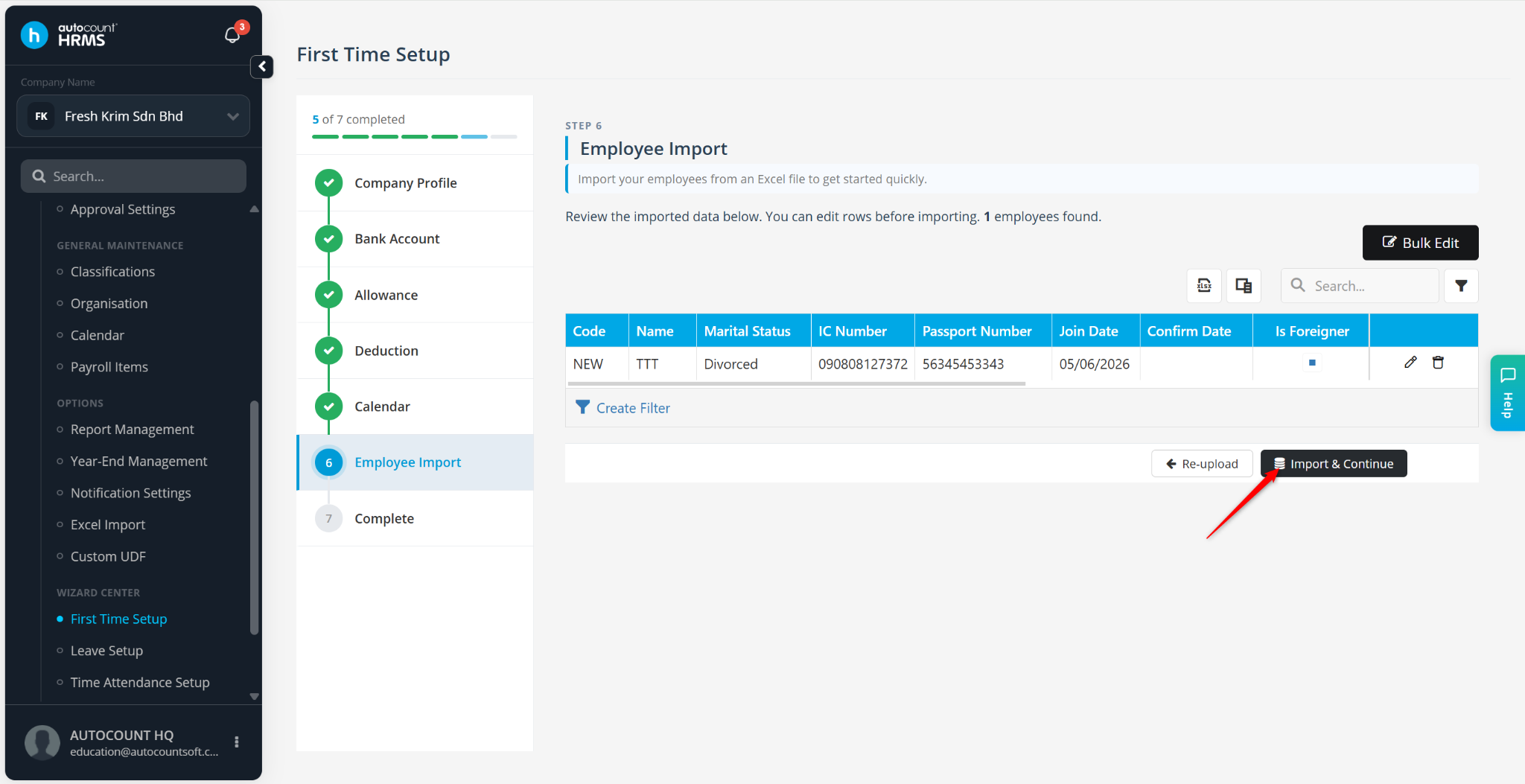
Import Employee(s):
Click Download Template to download the employee import template.
Open the Excel file and enter the employee details.
Click Select File and upload the completed file.
Review the imported employee records.
Click the pencil icon to edit individual employees if necessary.
Click Bulk Edit to update multiple employees at once.
Click Import & Continue.
You are now ready to use AutoCount HRMS.
You may choose one of the following actions:
Run Payroll – Start your first payroll process. Refer to Process Payroll for detailed steps.
Reset Wizard – Restart the setup wizard and re-enter the information if necessary.