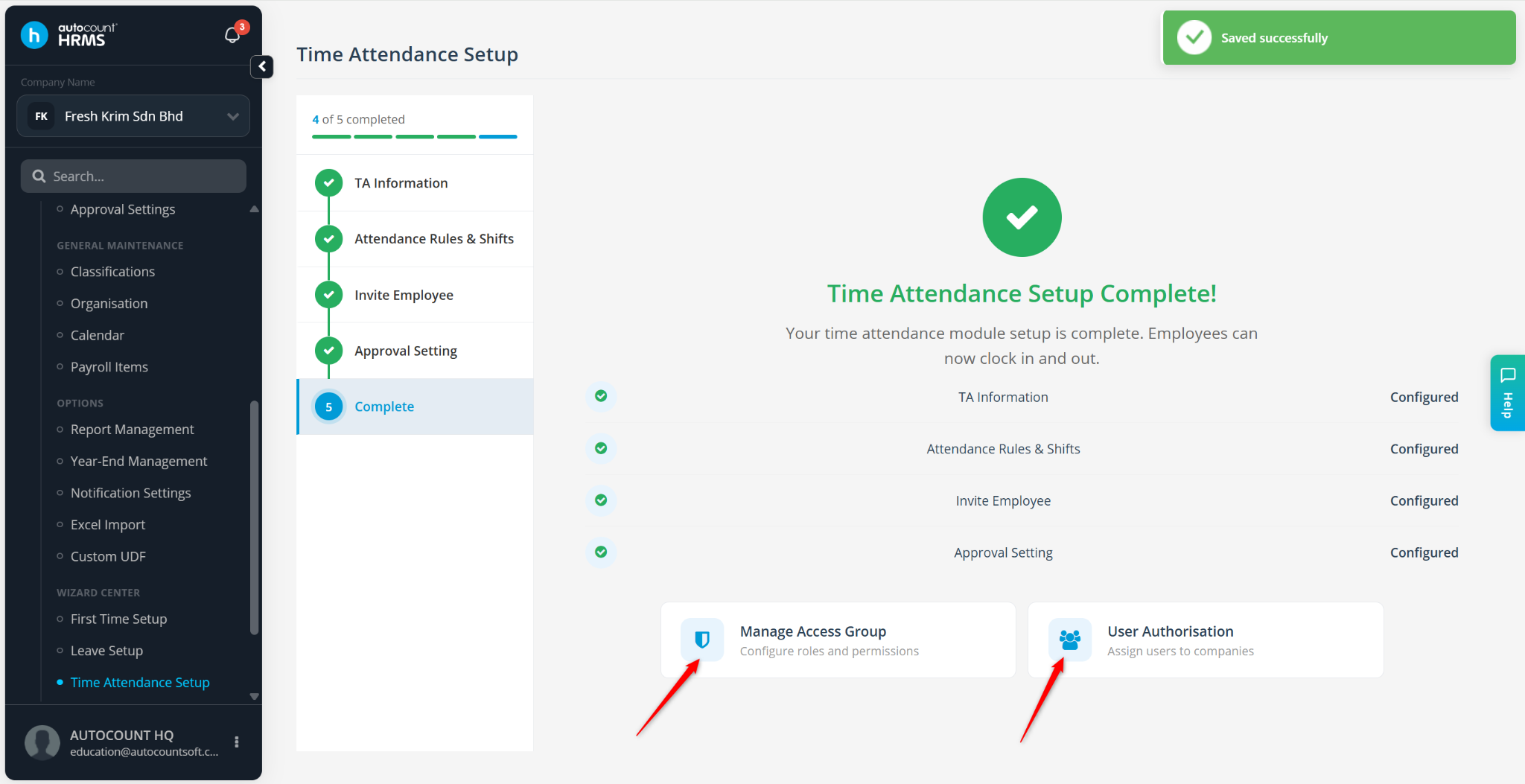
The Time Attendance Setup Wizard helps users configure attendance settings quickly and accurately. It guides you through the setup of attendance tracking, shifts, attendance rules, approval workflows, and employee access to ensure the Time Attendance module is ready for use.
Steps to Set Up Time Attendance Settings for the First Time:
Go to Tools > Time Attendance Setup.
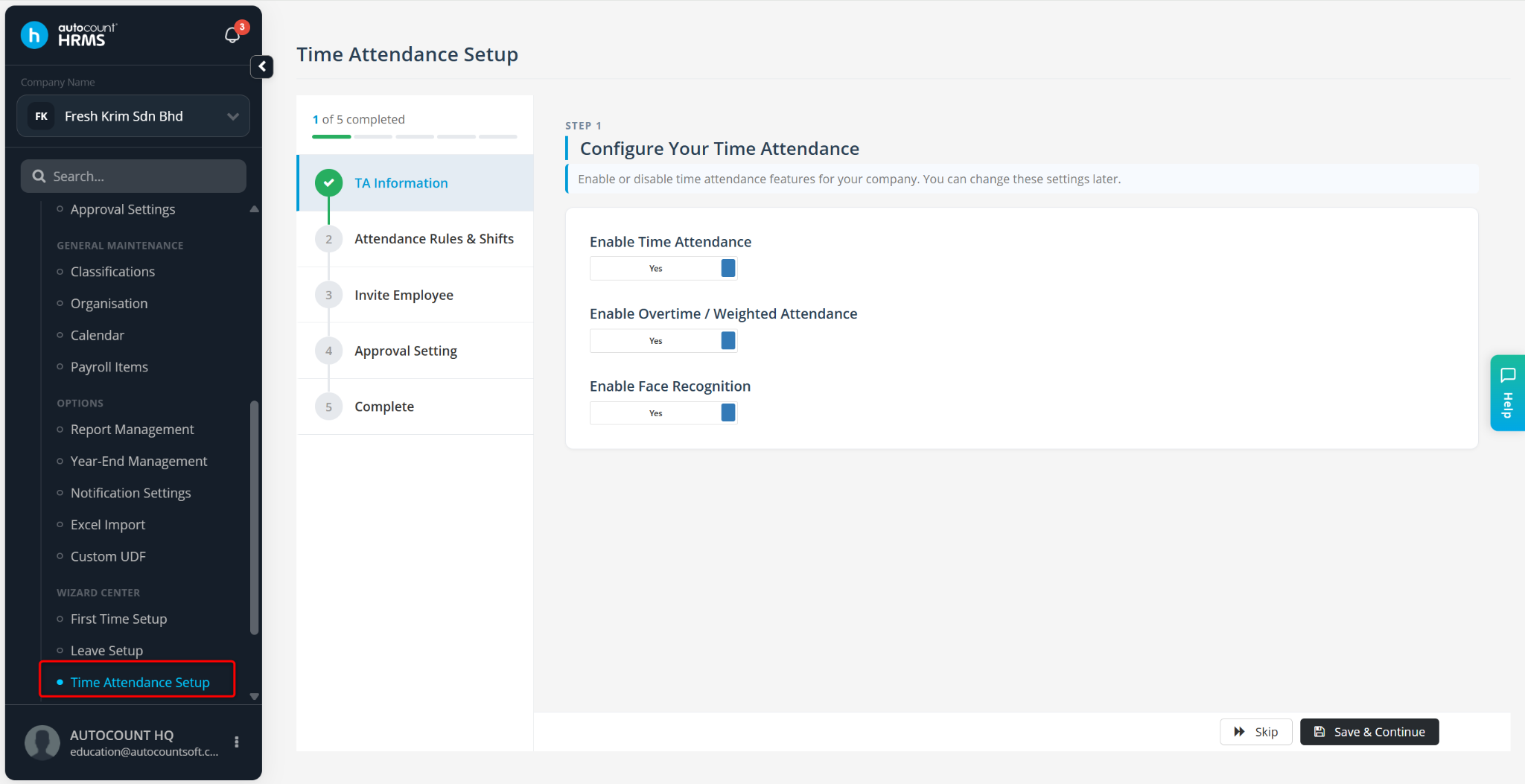
Maintain Time Attendance Information:
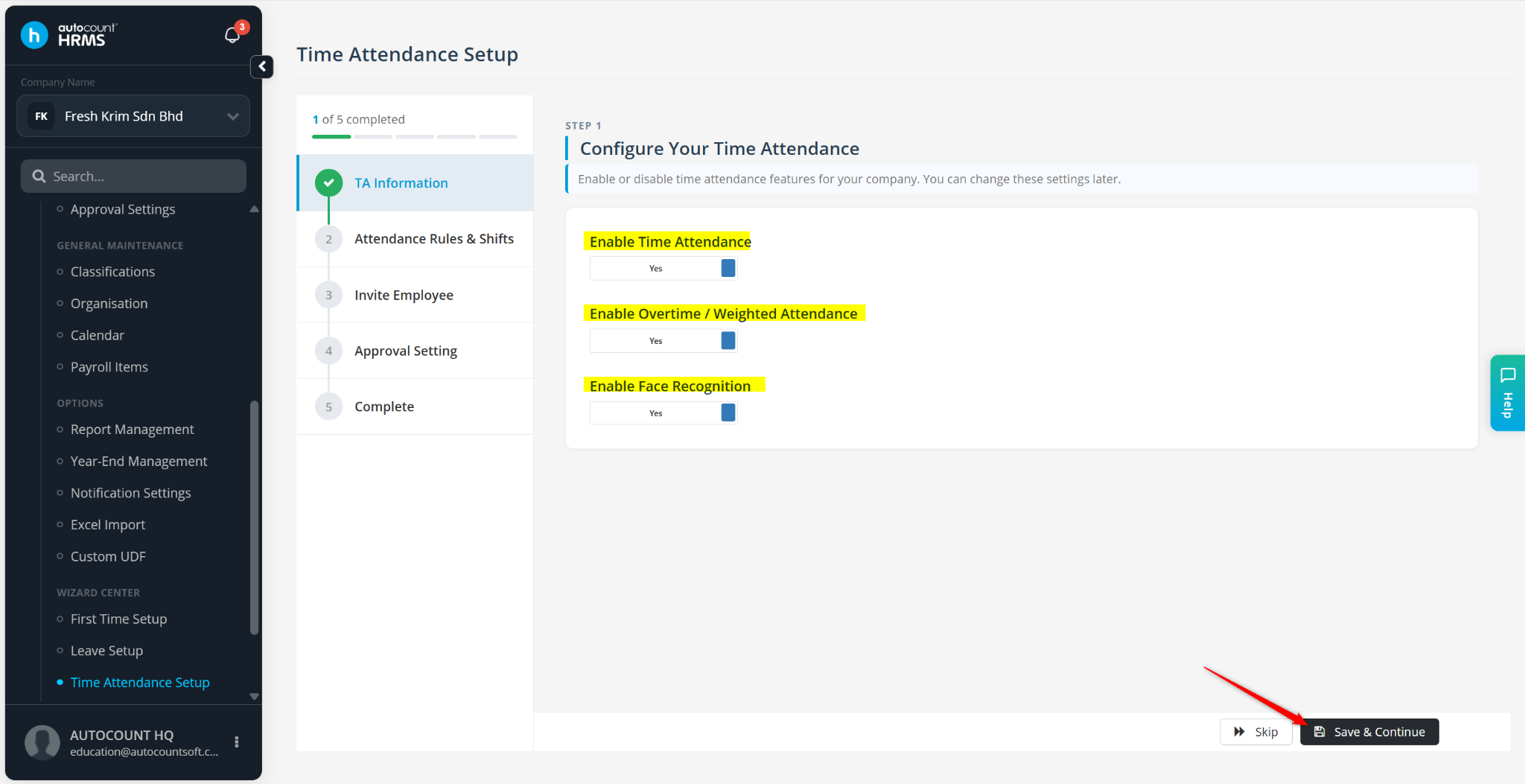
Toggle the following options to Yes:
Enable Time Attendance
Enable Overtime / Weighted Attendance
Enable Face Recognition
Click Save & Continue.
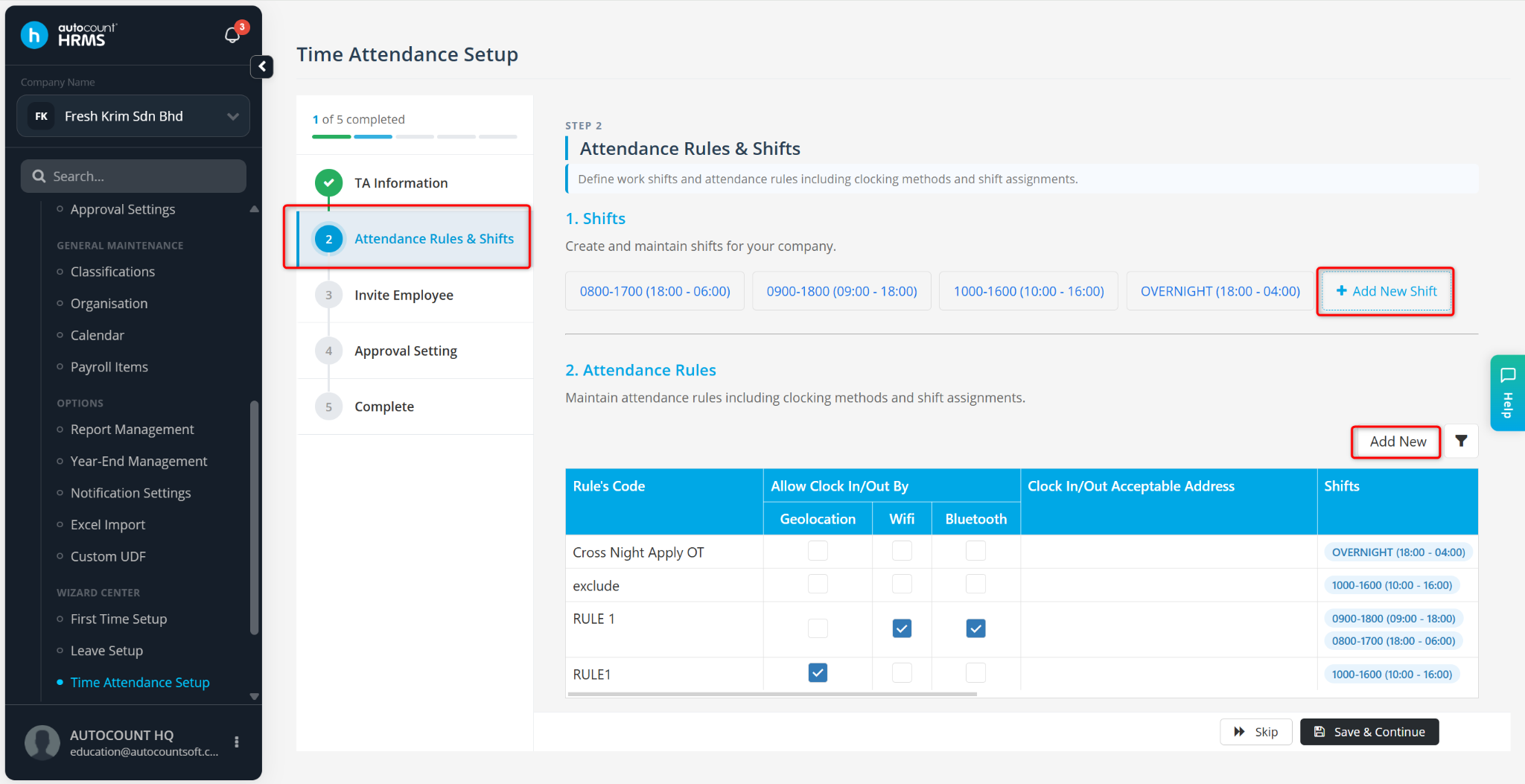
Configure Attendance Rules & Shifts:
Create Shifts – Click + New Shift and enter the shift details and save.
Create Attendance Rules – Click Add New and configure the details.
Click Save & Continue.
Invite Employees:
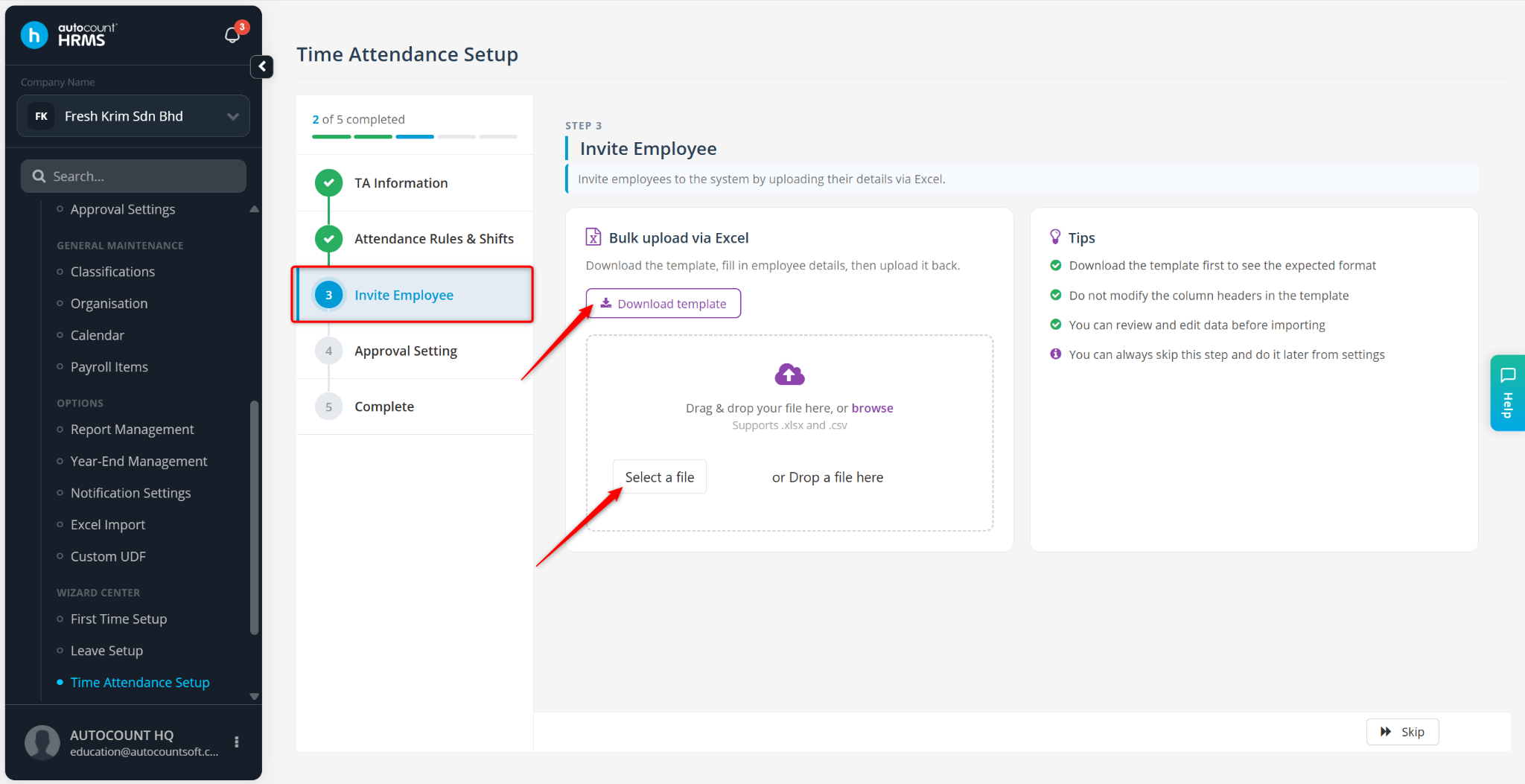
Click Download Employee List.
Enter employees' email addresses into the Excel file and save the file.
Click Select File and upload the completed file.
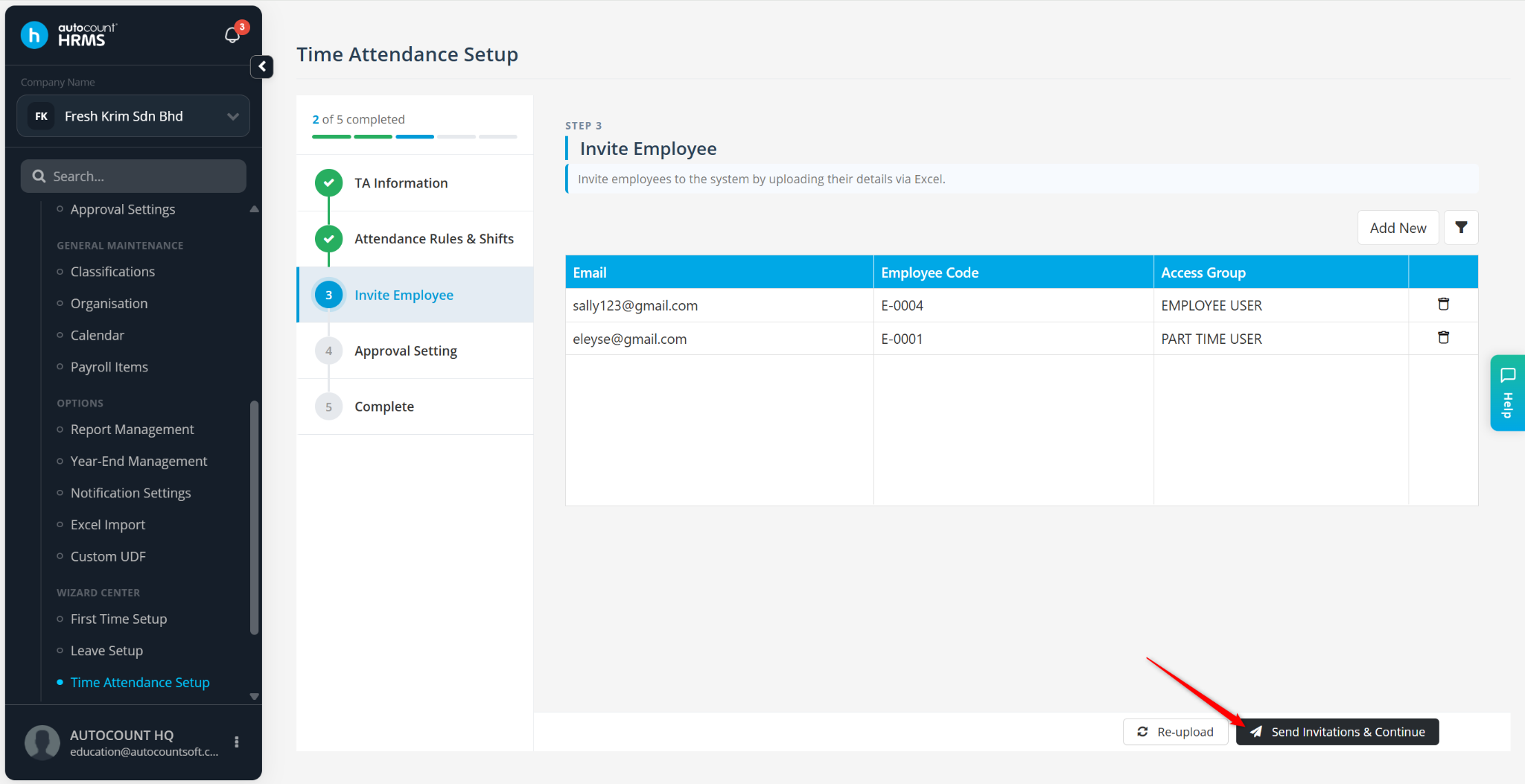
Verify the employees' email addresses.
Click Send Invitation.
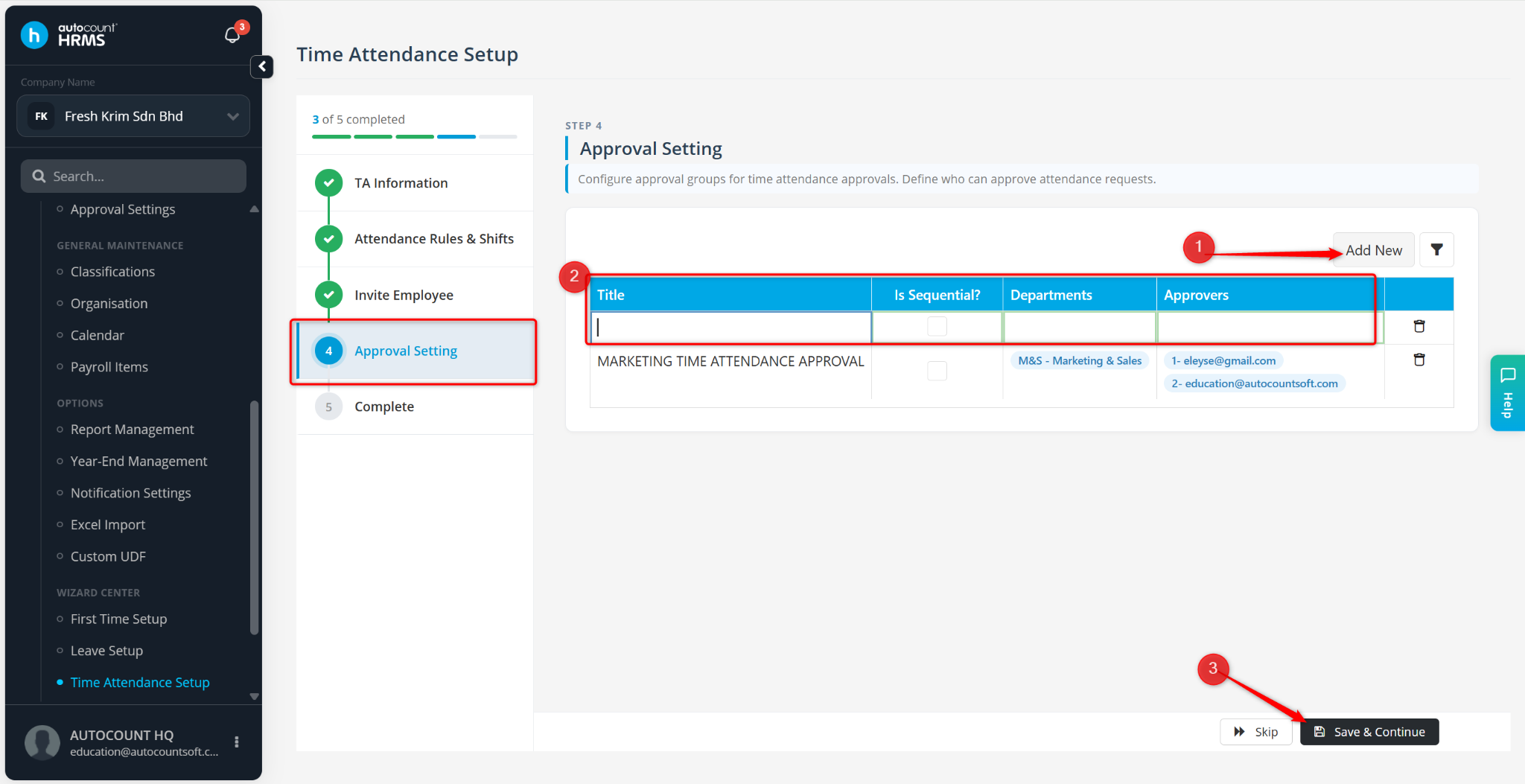
Configure Approval Settings:
Click Add New.
Enter the approval group details.
Click Save & Continue.
The Time Attendance setup process is now complete.
You may further configure user access and permissions through: