The Bulk Invite feature allows administrators to invite multiple employees to AutoCount HRMS at the same time. This streamlines the onboarding process and reduces manual effort, especially when setting up new companies or onboarding a large number of employees.
Note: Employees must have a valid email address and an employee record in the system before they can be invited.
Steps to Bulk Invite Employees:
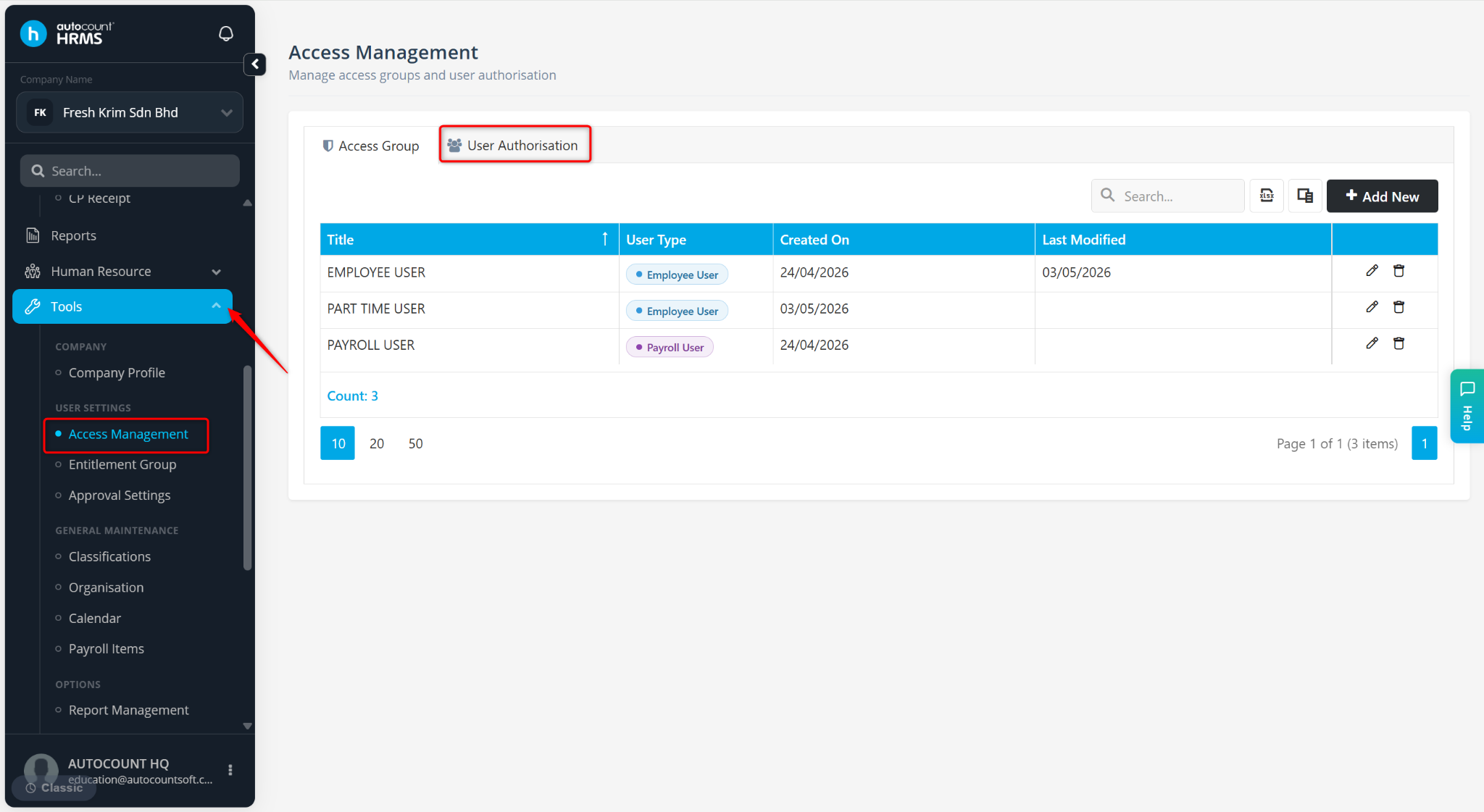
Go to Tools > Access Management.
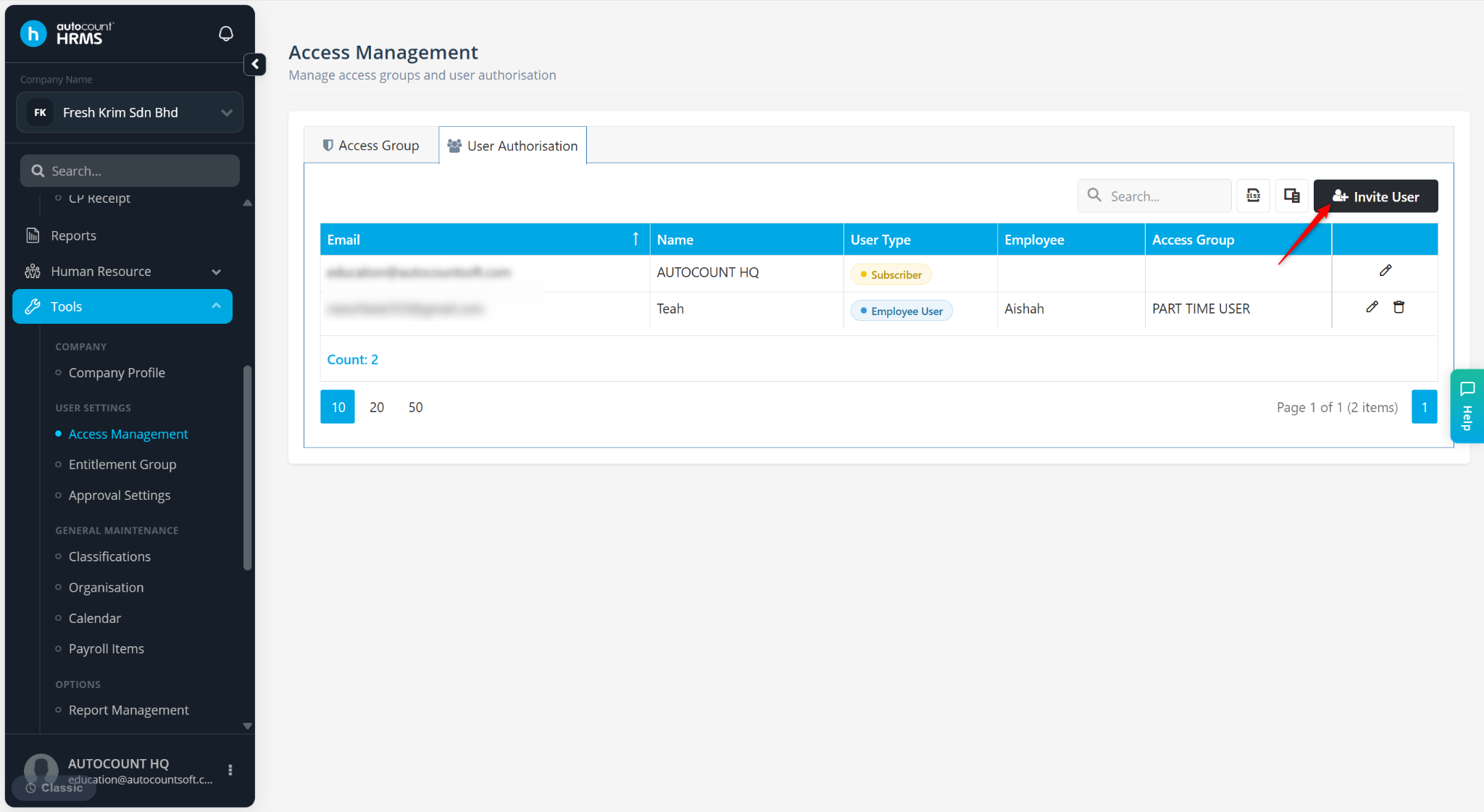
Click Invite User.
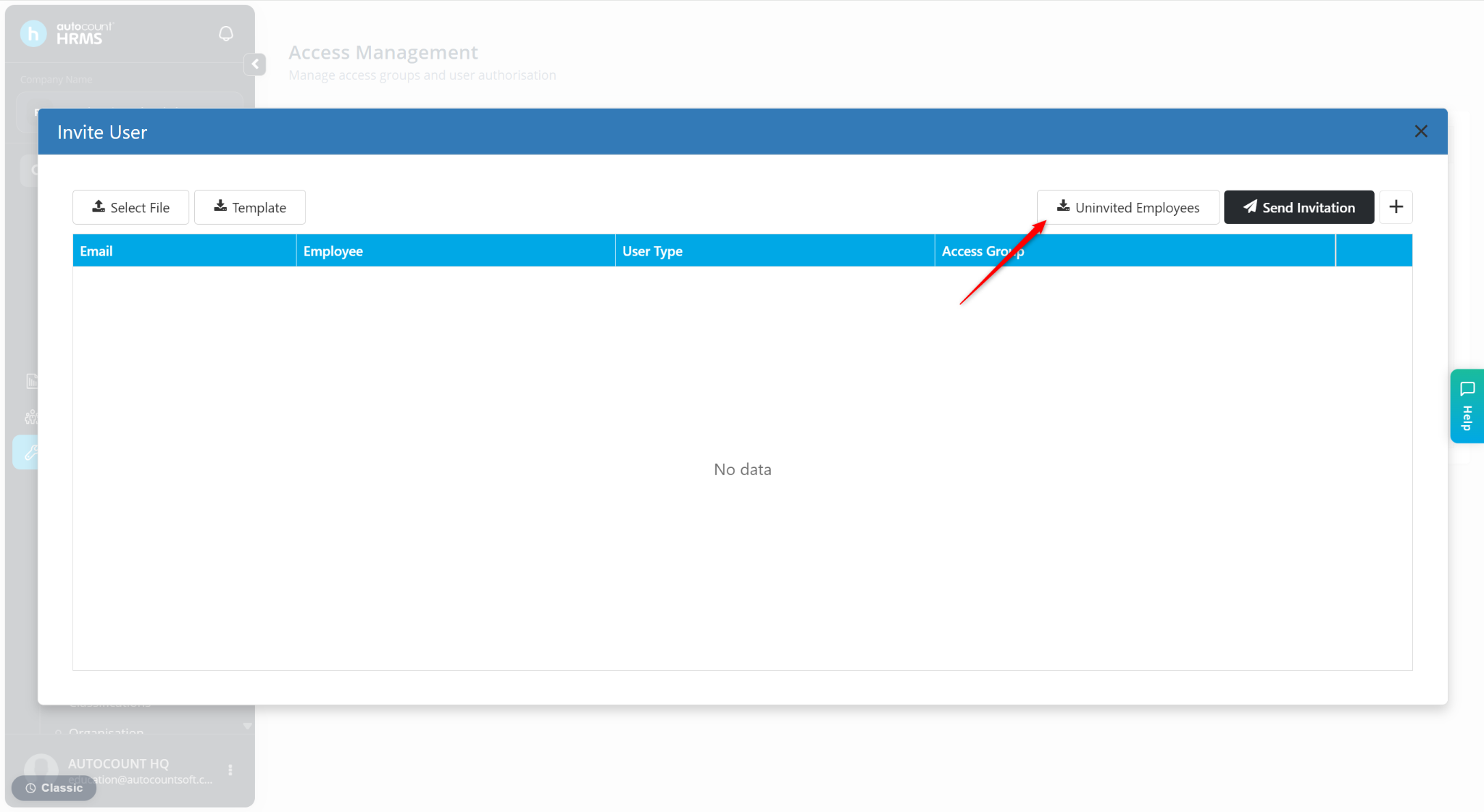
Click Uninvited Employees to download the Excel template. The template contains a list of employees who have not yet been invited to the system.
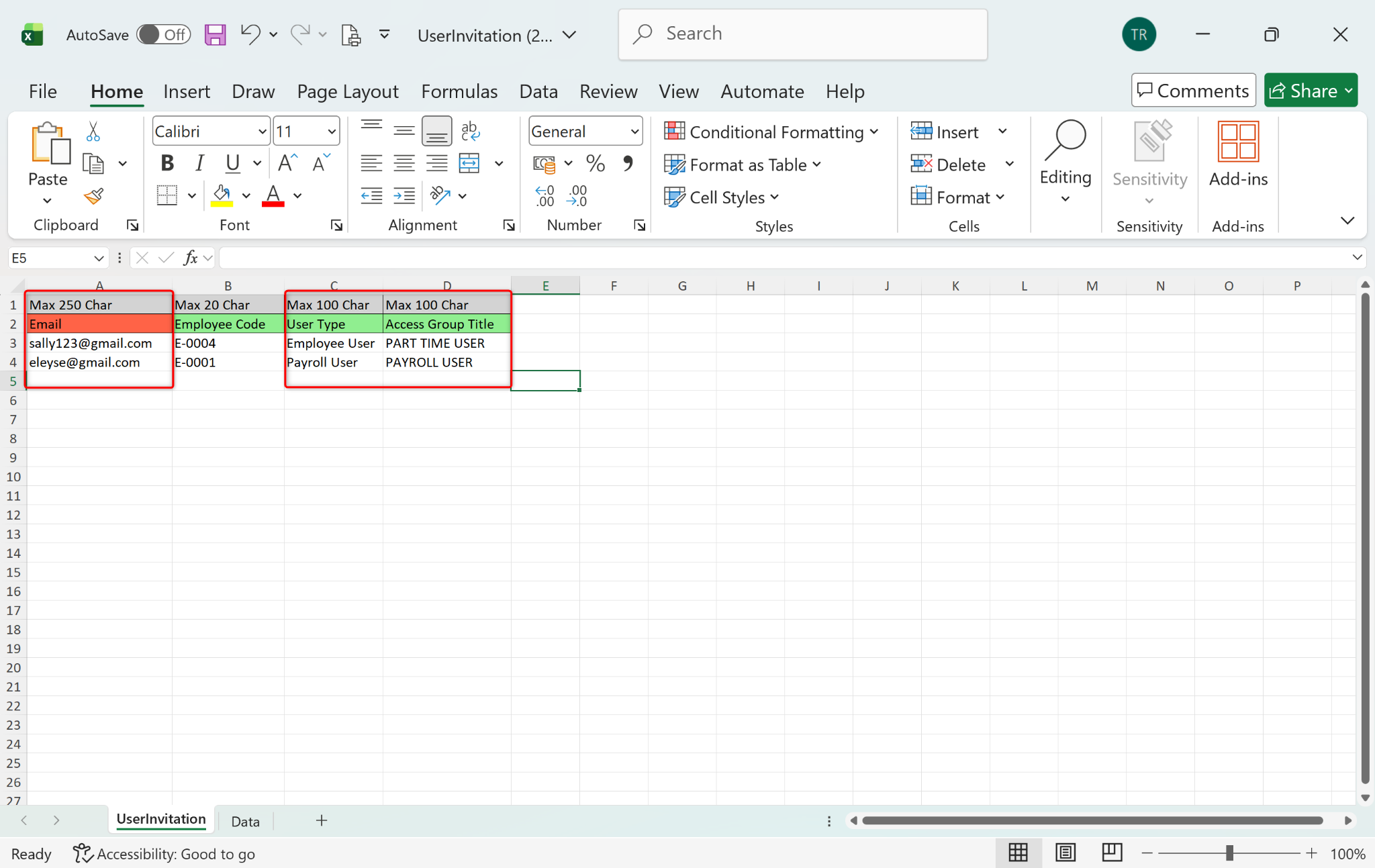
Update the Excel details:
Enter each employee’s Email.
Assign User Type.
Assign Access Group Title.
Save the excel file after completing the details.
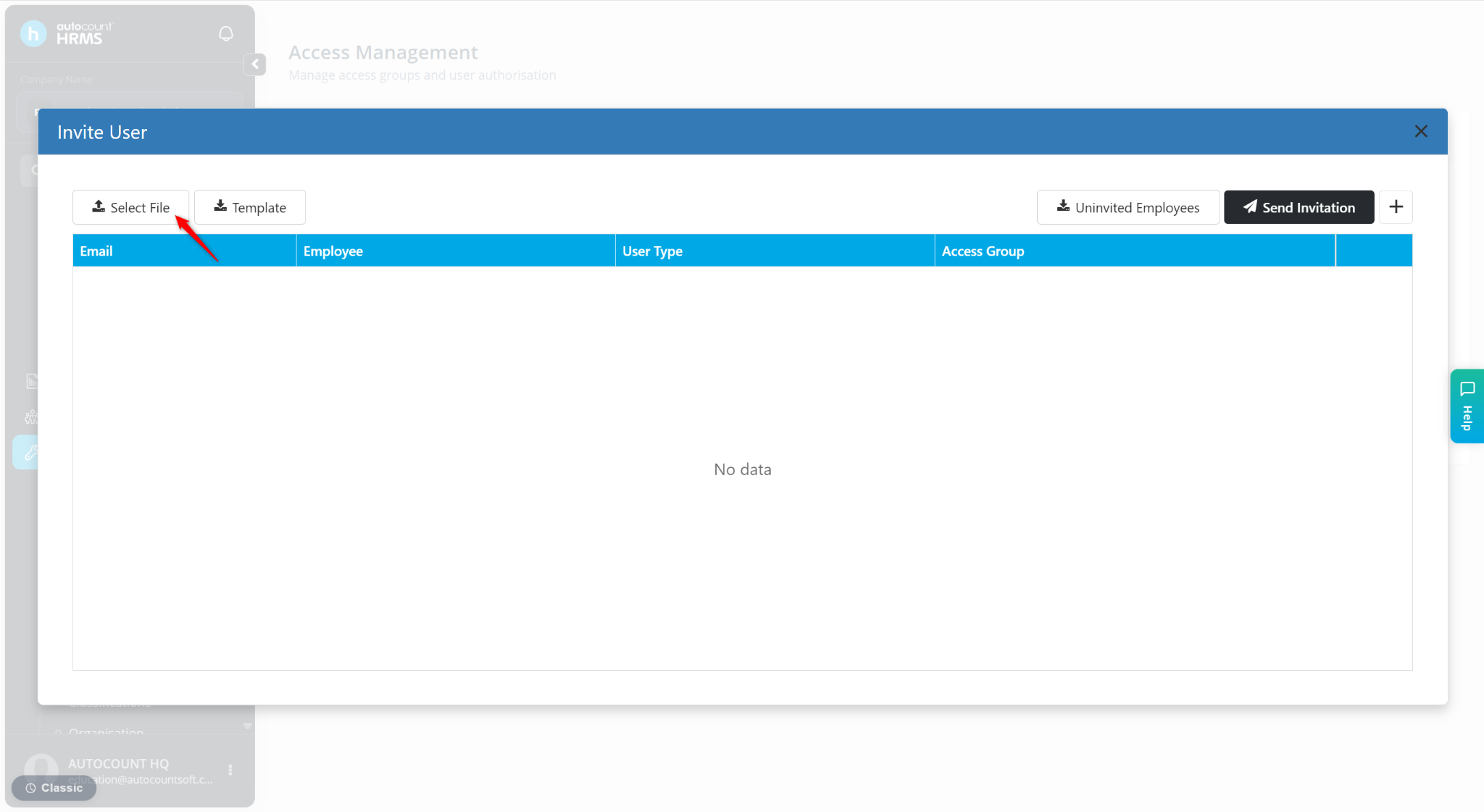
Return to the Invite User page and click Select File.
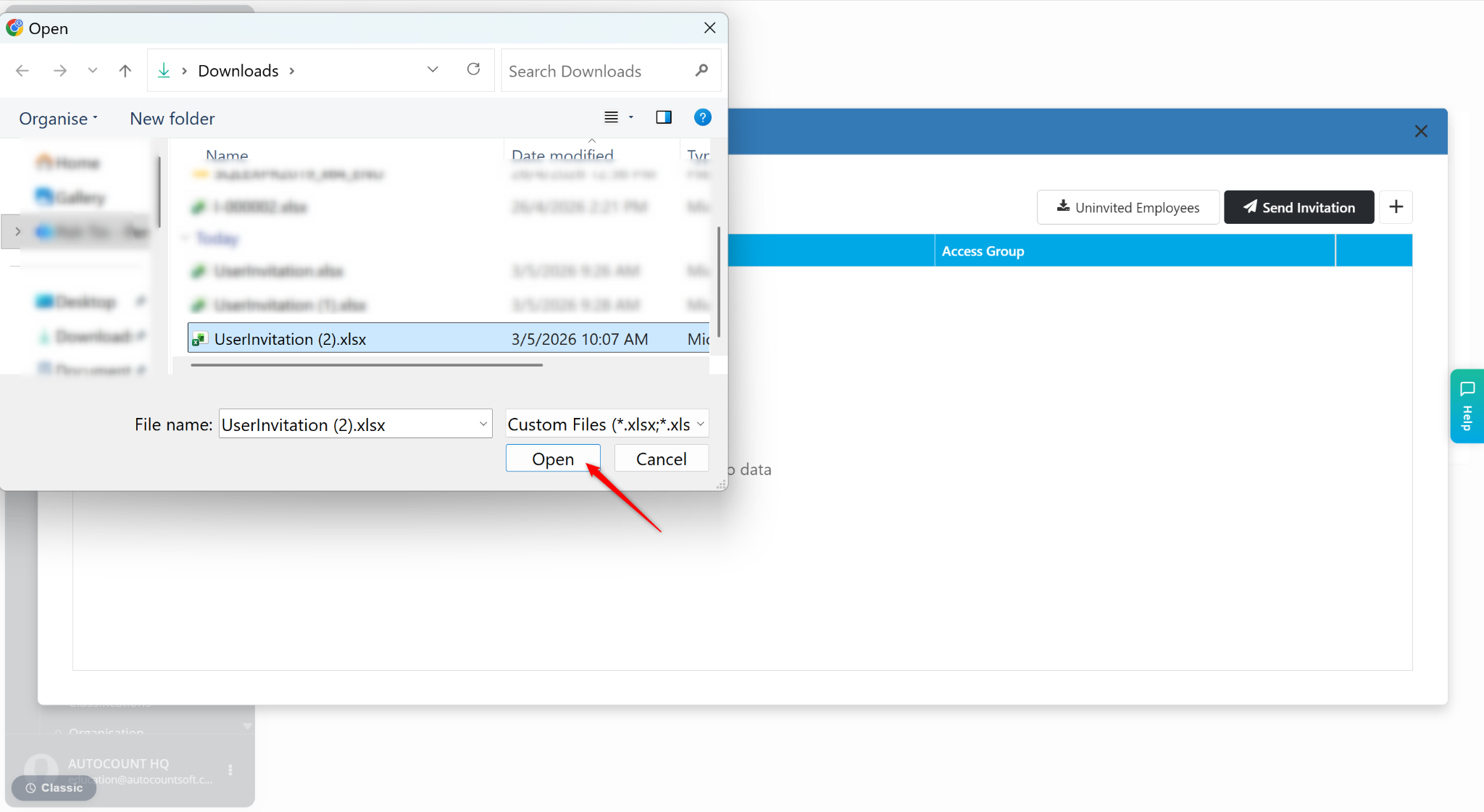
Select the updated excel file and click Open.
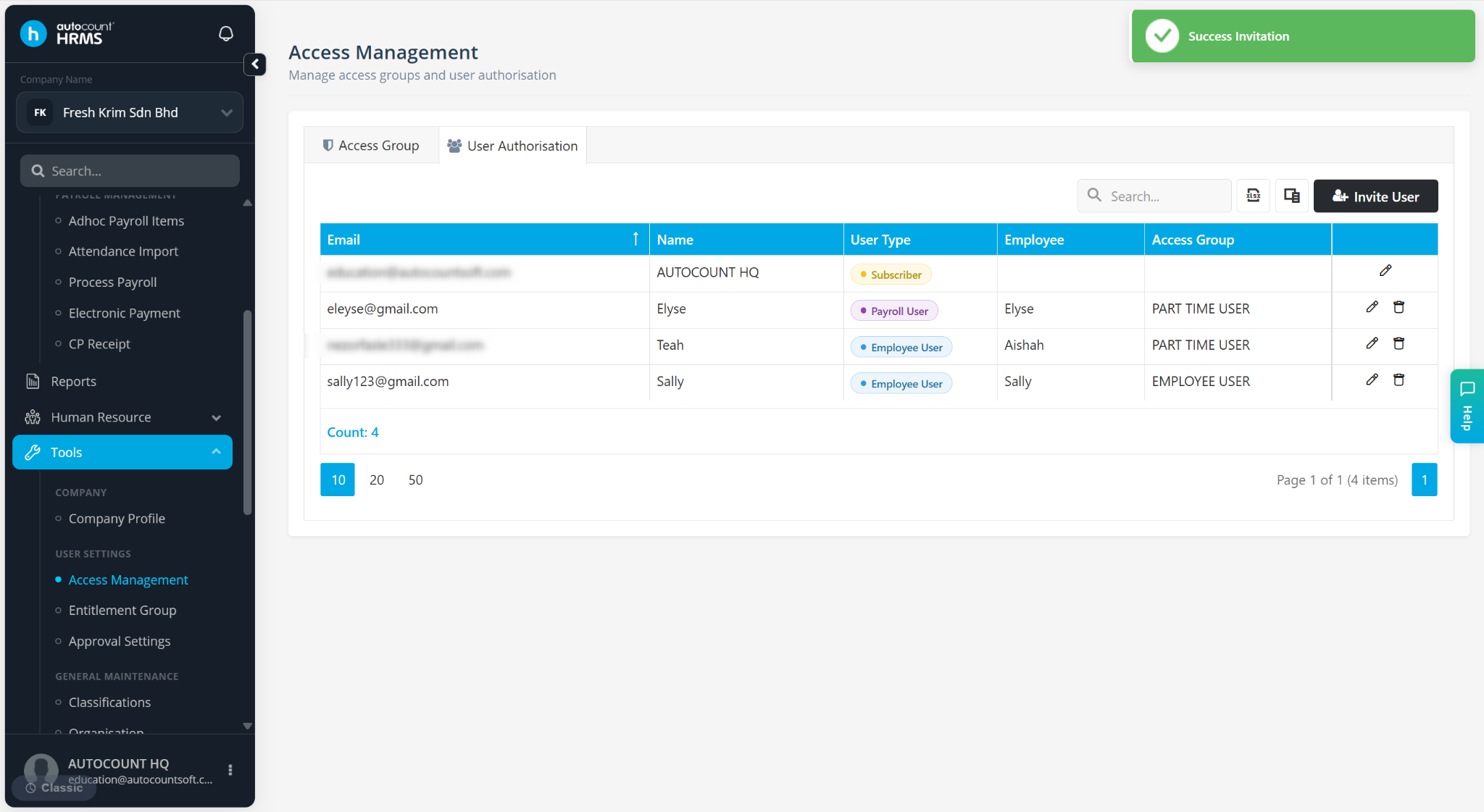
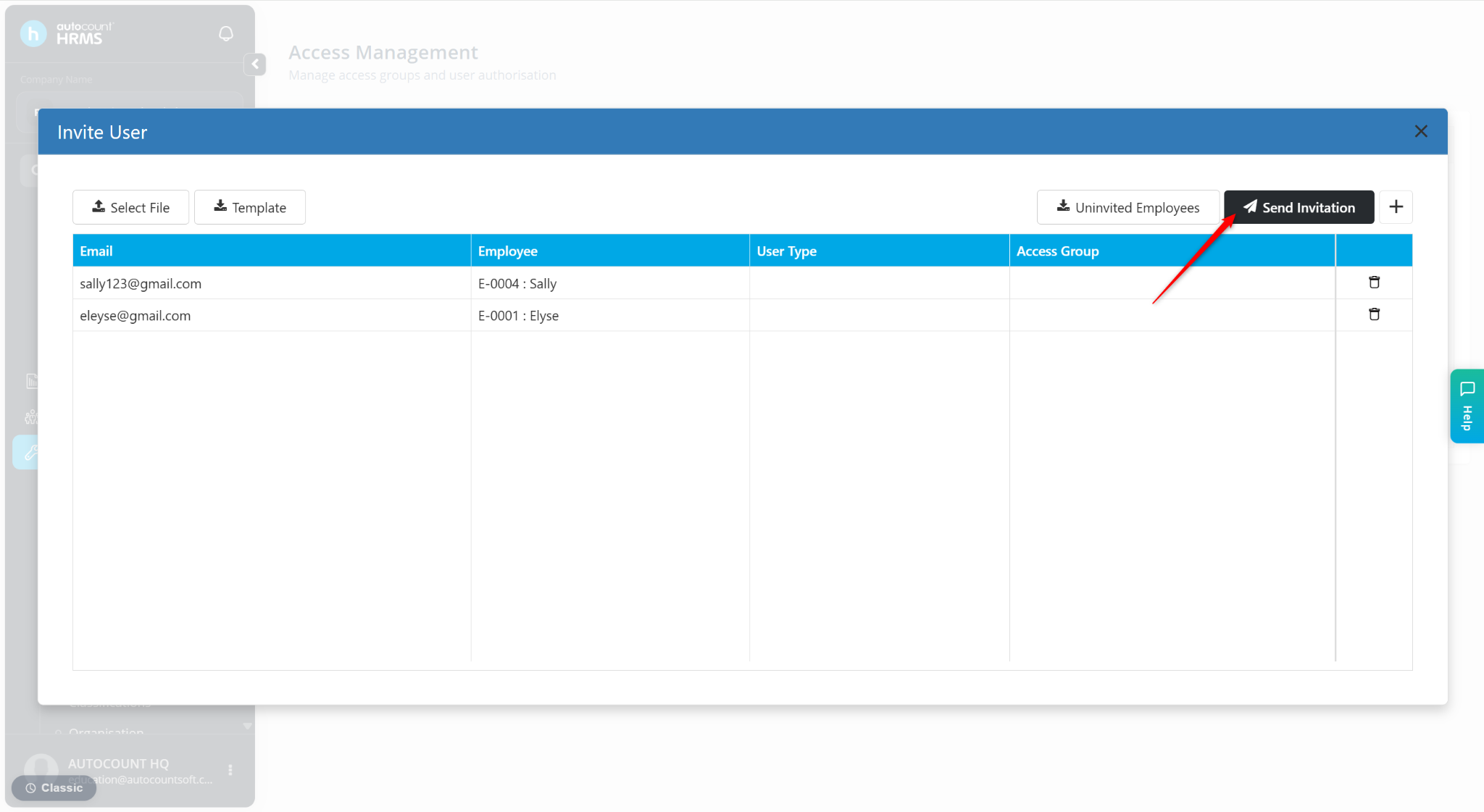
Review the uploaded details, then click Send Invitation.
Employees will receive an email invitation. They must accept the invitation before accessing the system.