
This guide explains how to change your subscription plan during the renewal process.
Important: Subscription plan changes are only allowed within the renewal window:
Monthly subscriptions: Up to 1 week before expiry.
Yearly subscriptions: Up to 1 month before expiry.
Any changes to the subscription plan will only take effect after payment has been completed successfully.
Steps to Change your Subscription Plan During Renewal:
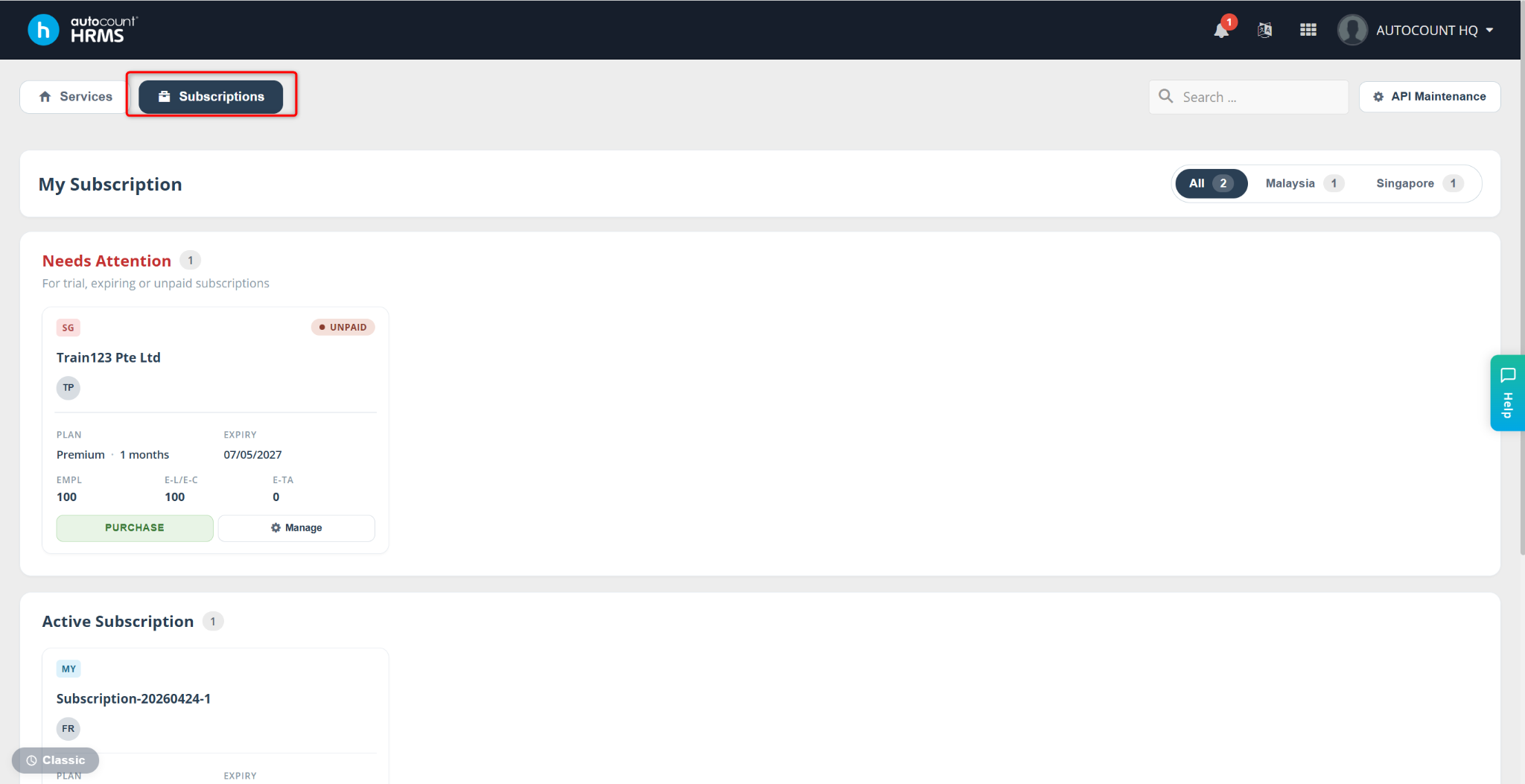
Go to the Subscriptions page.
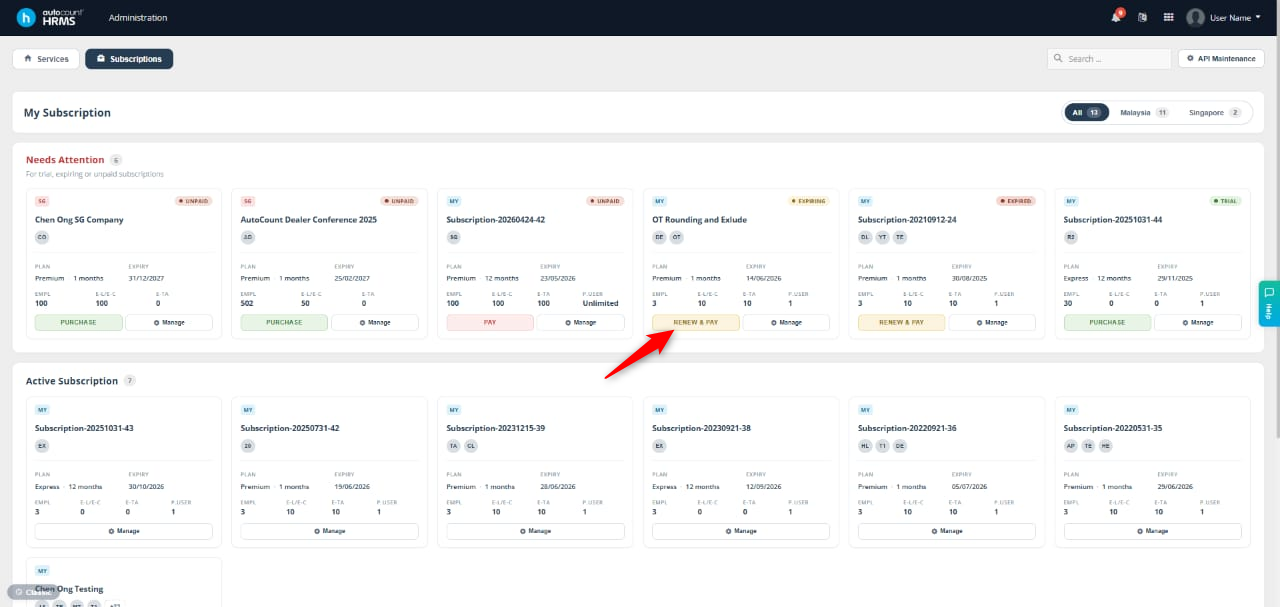
Locate the subscription you wish to renew and click Renew and Pay.
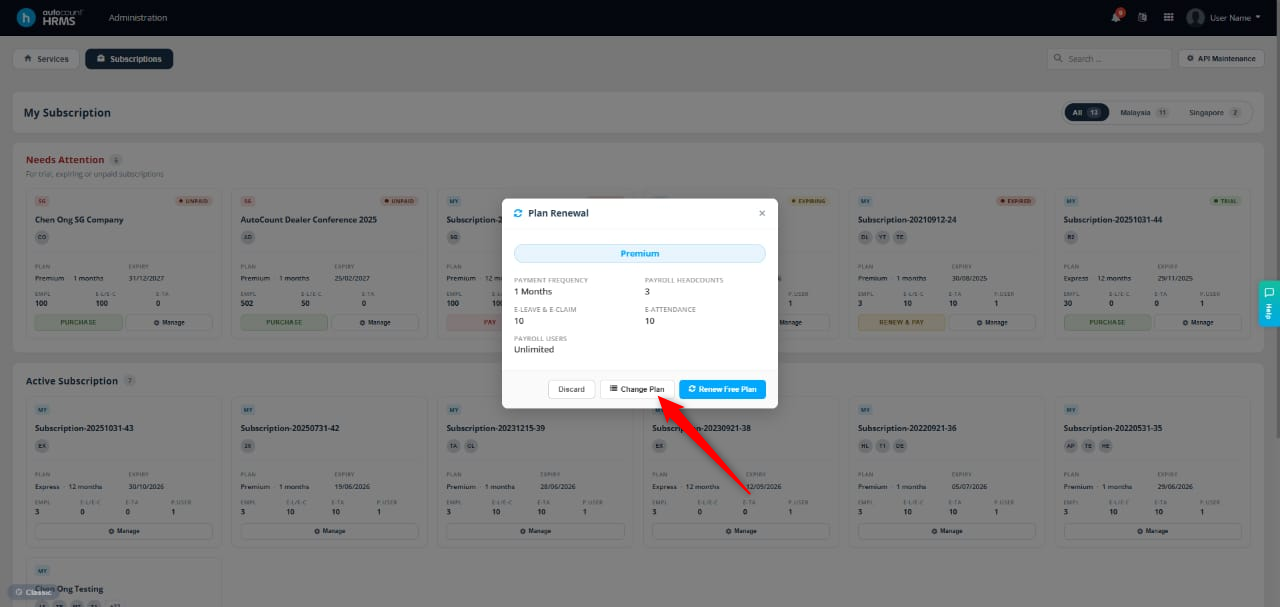
In the Plan Renewal prompt, select Plan Selection.
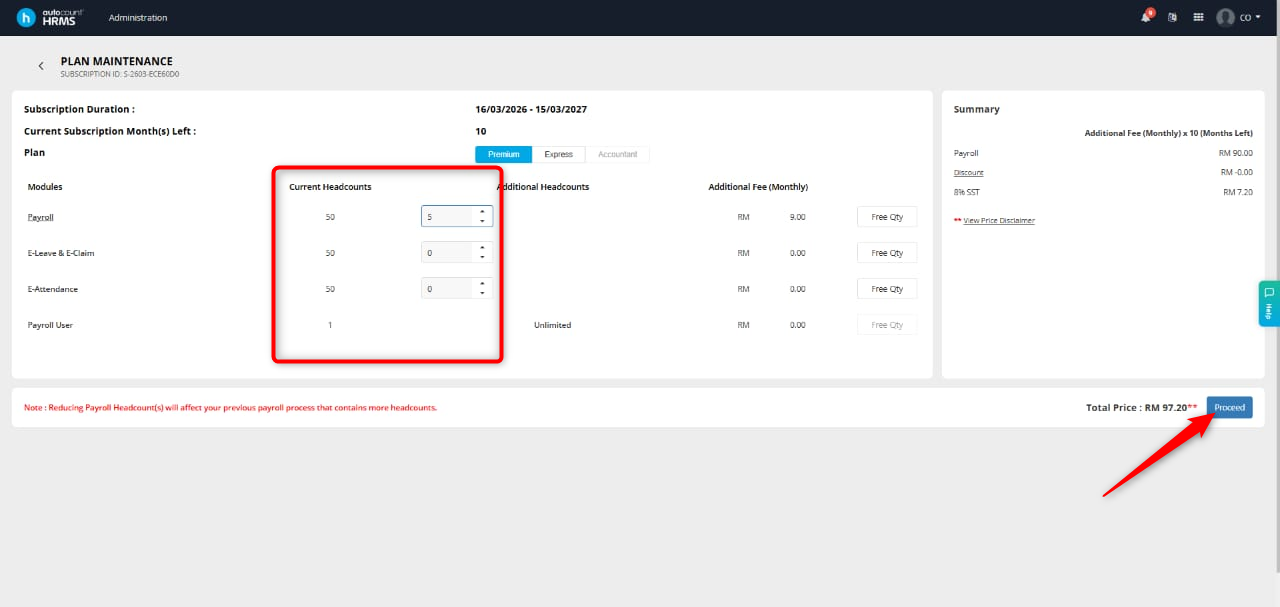
The plan options page will appear. Update the Headcount values for each module.
ℹ️ Note:
To increase headcount, enter a positive number
To decrease headcount, enter a negative number
After updating headcounts, click Proceed.
You will be redirected to the Payment Confirmation page to review subscription details. Click Payment Confirmation to continue.
A confirmation pop-up will appear showing the total amount breakdown.
Review all details carefully, then click Confirm & Proceed to Payment.
You will be redirected to the payment page.
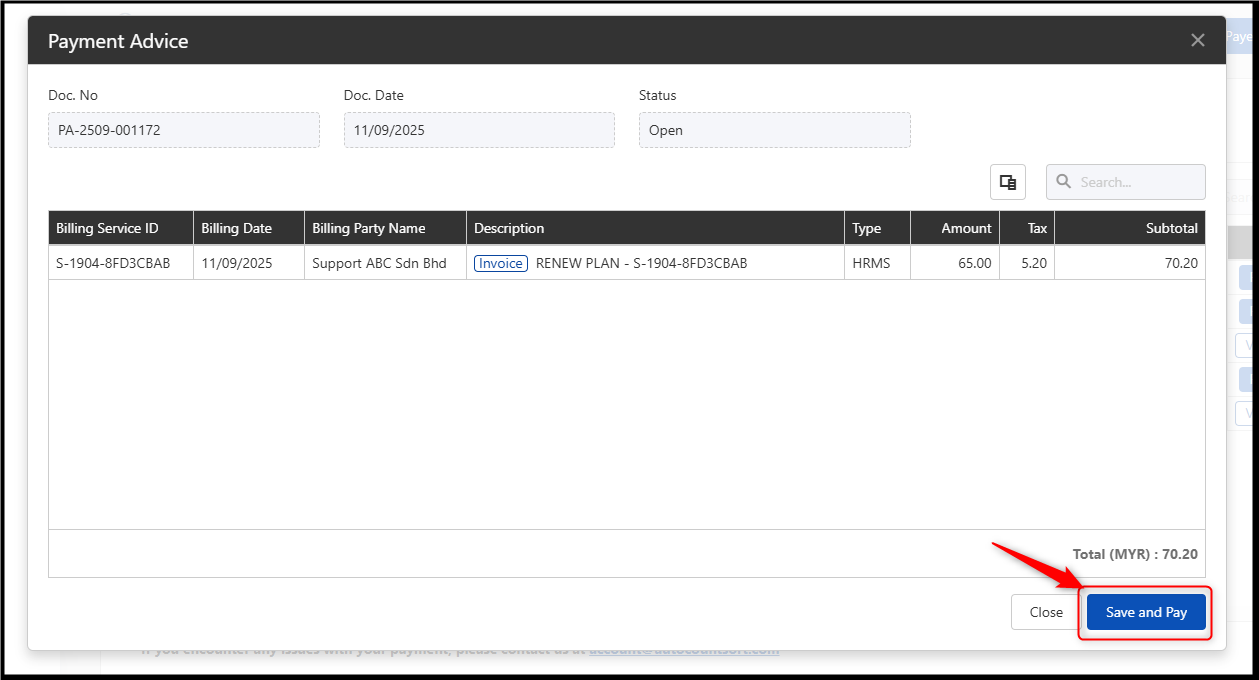
Payment Advice will be displayed. Click Save and Pay to proceed.
Written by: Azirah (20250910)