
1. About this guide
Approval Settings controls who approve the requests your employees submit in AutoCount HRMS. Employees apply for leave, submit claims, and time attendance requests. This guide walks you through the setup in the order you should do it:
Where to find it: Tools > User Settings > Approval Settings. |
2. A quick tour of the approval setting page
The page has two parts.
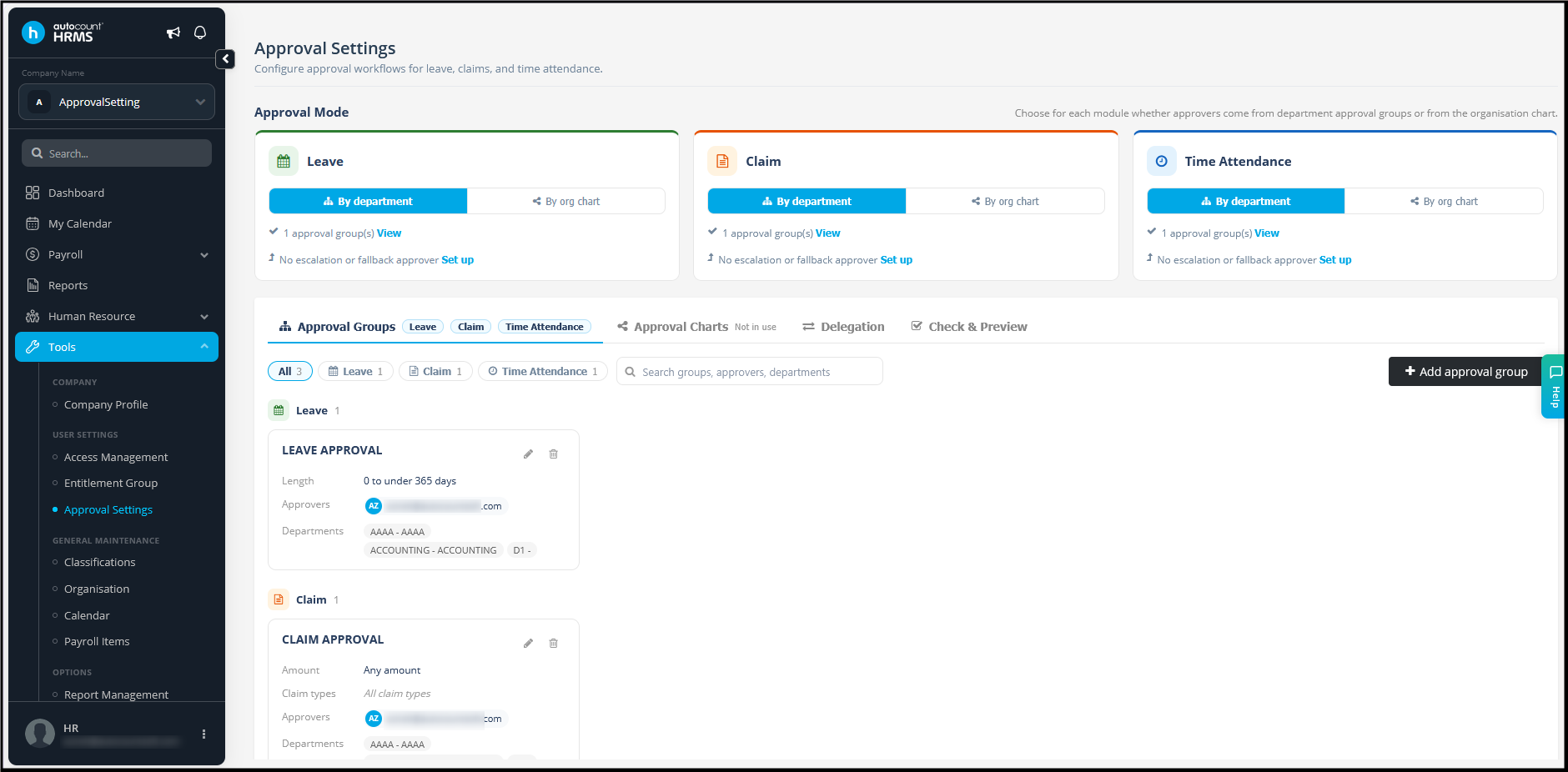
One card per module: Leave, Claim, and Time Attendance. On each card you choose where approvers come from, see how many approval groups the module has, and open the escalation and fallback settings. Tabs (bottom) |
| Tab | What it is for |
| Approval Groups | Approvers assigned by department. Used when a module is set to By department. |
| Approval Charts | Approvers taken from each employee's reporting line. Used when a module is set to By org chart. Shows "Not in use" when no module uses a chart. |
| Delegation | Temporarily hand an approver's approvals to someone else, for example while they are on leave. |
| Check & Preview | Test who a request would reach and check for employees who have no approver. |
3. Before you start
Approval Settings uses data from other parts of the system. Check these first, or requests may not reach anyone.
| Check | Why it matters |
| Departments are set up (Tools > Organisation) | Approval groups are linked to departments. An employee in a department that no group covers has no approver. |
| Every employee is assigned to a department | The system finds the employee's approval group through their department. |
| Approvers have an email invited | Only people who can log in to HRMS can approve. An approver without a email cannot receive requests. |
| Reporting lines are set (org chart mode only) | The approval chart uses each employee's superior. Missing superiors mean missing approvers. |
4. Choose an approval mode
| For each module card, click By department or By org chart. This is the most important decision on the page, because it decides which of the next two sections applies to that module. |
| By department | By org chart | |
| How it works | You create approval groups. Each group names its approvers and the departments it covers. | Approvers are the employee's superiors in the reporting line, up to the number of levels you set. |
| Best for | Smaller or flatter companies; fixed approvers such as one HR or finance person per department. | Companies with clear reporting lines, where each employee's own manager should approve. |
| You maintain | The approver list in each group, and which departments it covers. | Each employee's superior in the reporting tree. |
| Set it up in | Approval Groups tab | Approval Charts tab |
Note: The mode is chosen separately for each module. For example, Leave can follow the org chart while Claim uses department groups with finance as the approver. Under each card you will also see: |
|
5. Set up approval groups
A: By department
Use this section for every module set to By department.
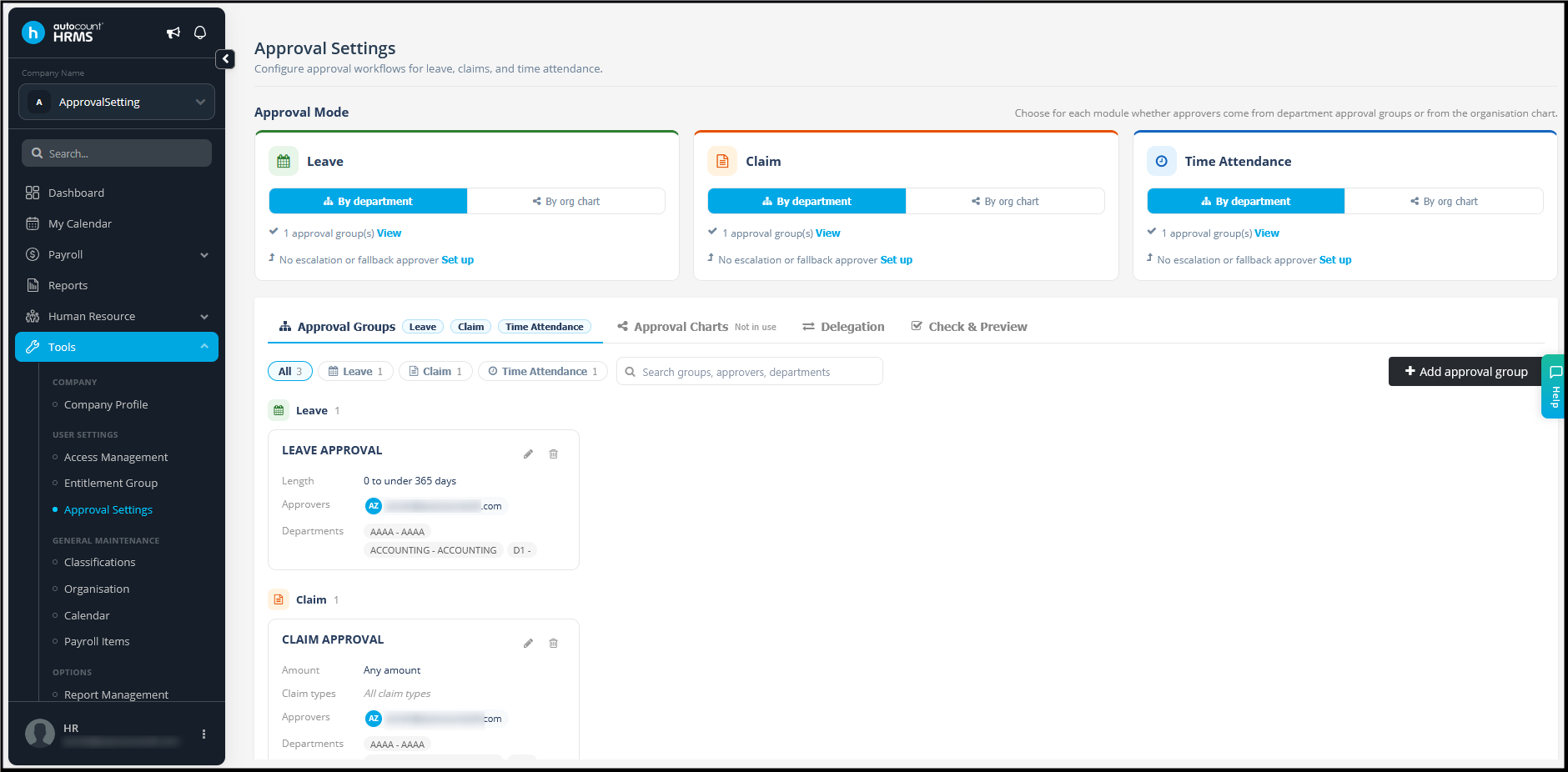
Use the filter buttons (All, Leave, Claim, Time Attendance) or the search box to find groups. Each group card shows:
|
Click the pencil icon to edit a group, or the bin icon to delete it.
Add an approval group: Click Add approval group. A panel opens on the right with four steps.
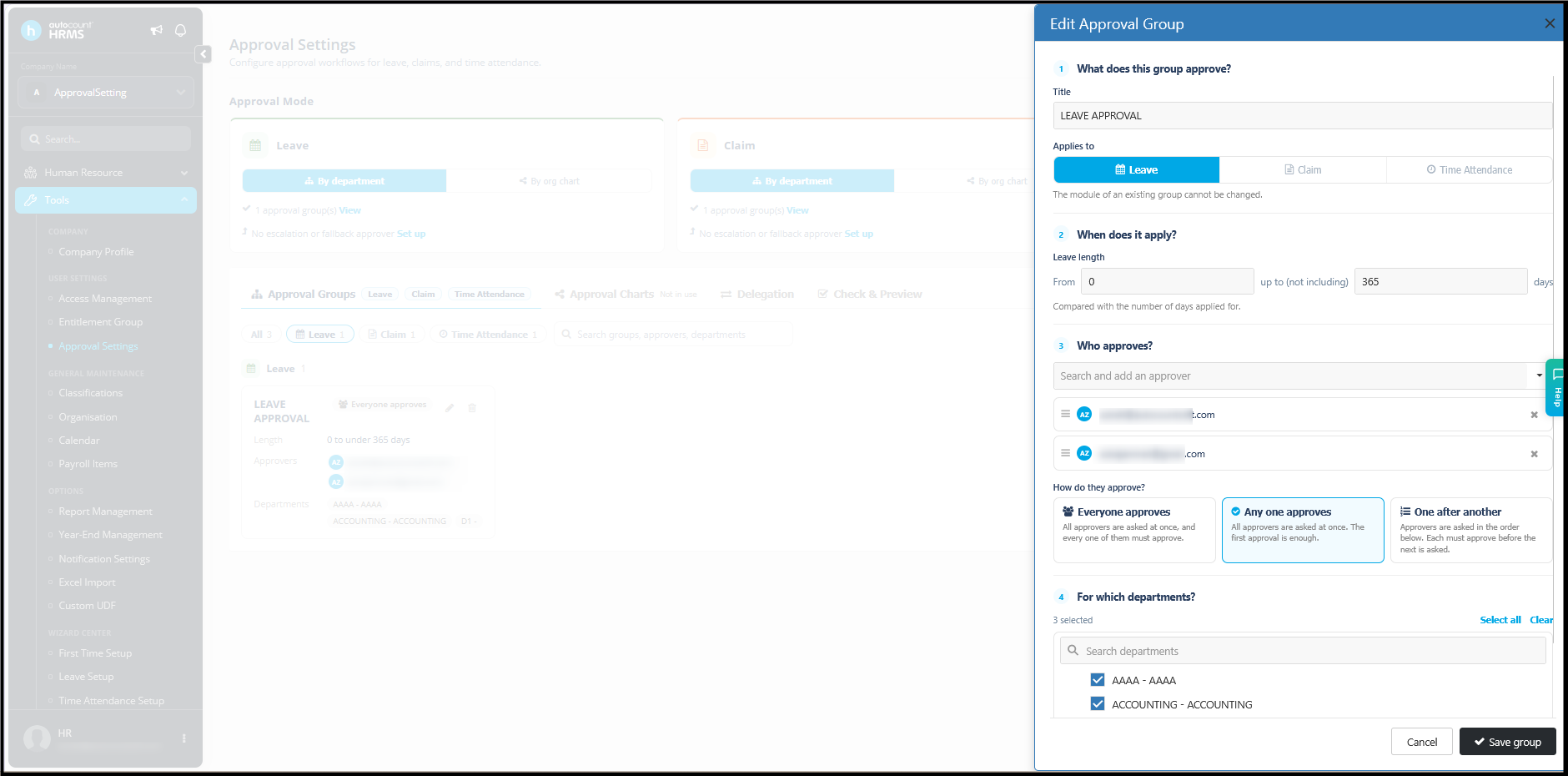
|
Conditions by module
Leave: by length of leave Set a range in days: From a number up to (not including) another number. The range is compared with the number of days applied for. Example: two groups for the same department. |
| Group | Leave length | Approver |
| Short leave | From 0 up to 3 days | 1. Team lead |
| Long leave | From 3 up to 365 days | 1. Team Lead 2. Head of department |
Claim: by claim type and amount
Claim Type
You can choose which types of claims a group of approvers is responsible for approving.
|
Claim Amount Set the minimum and maximum claim amount that this approver group is responsible for approving. The system will check the total claim amount, for the combined amount of the selected claim types if specific claim types are selected to determine whether the claim falls within the configured range. Example: |
|
| For example, if a claim contains RM300 for Medical and RM200 for Dental, and the group handles both types, the amount checked will be RM500. If the group handles all claims types, the amount checked will be the total claim amount. |
Worked example: one claim submission, two approvers
A department has these two claim groups:
| Group | Claim types | Approver |
| Medical and dental | Medical Claim, Dental Claim | HR executive |
| Welfare | Welfare Claim | HOD |
An employee in that department submits one claim with three items:
| Claim line | Amount | Approved by |
| Medical Claim | 120.00 | HR executive (Medical and dental group) |
| Dental Claim | 300.00 | HR executive (Medical and dental group) |
| Welfare Claim | 50.00 | HOD |
Each approver sees and decides only their own approve claim type. A claim with Medical 120.00, Dental 300.00 and Welfare 50.00 has a total of 470.00 for the selected claim types, so Medical and Dental go to the HR executive, meanwhile Welfare go to the HOD. |
Setting it up
|
Rules to follow
|
Time Attendance: Every request
| This module has no condition. The group applies to every request from the selected departments, so you only need to choose approvers and departments. Common mistakes |
|
B: By org chart
Use this section for every module set to By org chart. A chart follows each employee's reporting line, so the approvers are their superiors, up to the number of levels you set. |
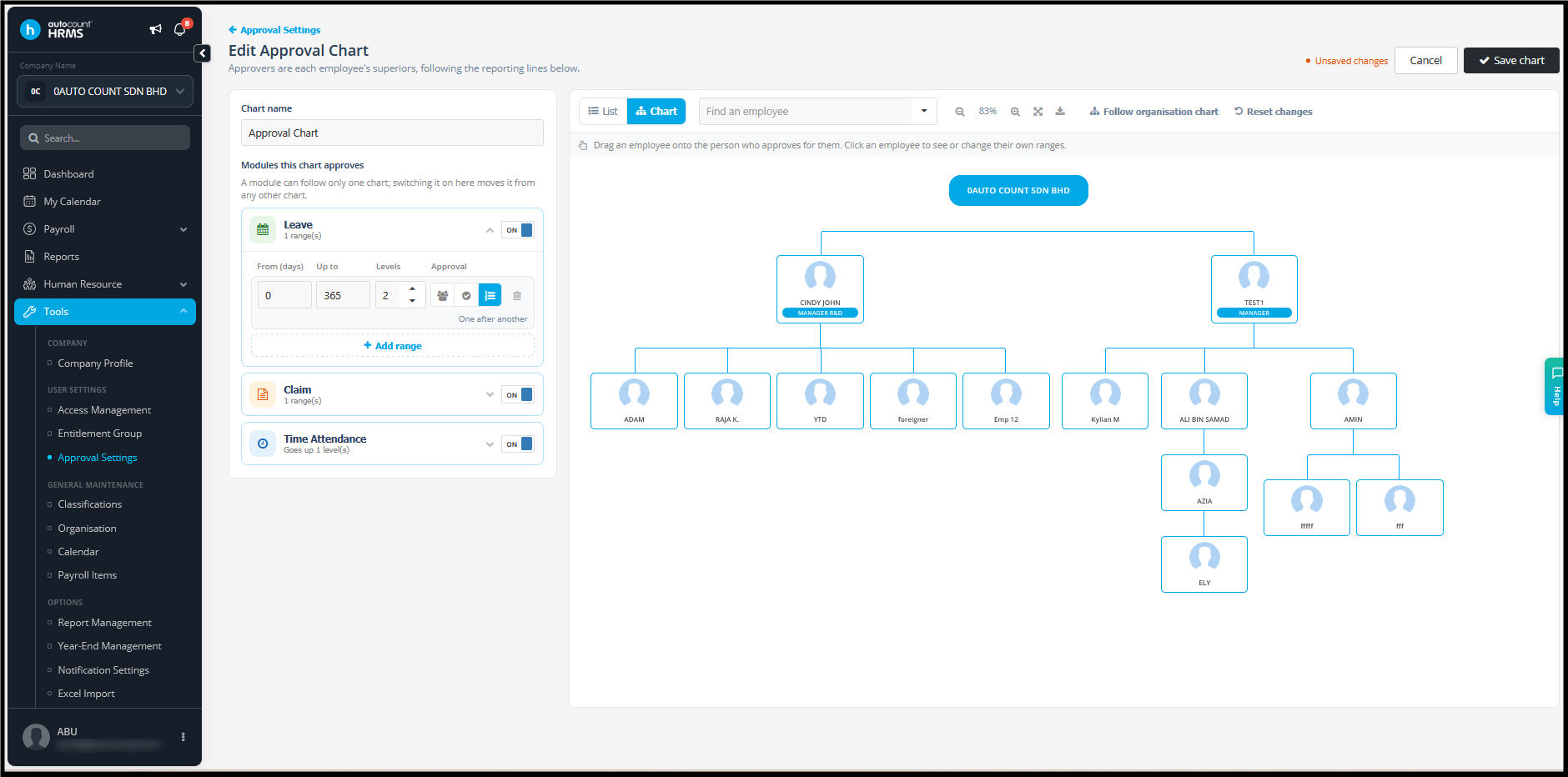 |
| Each chart card shows which modules use it and when it was last changed. Click Add approval chart to create one, or the pencil icon to edit an existing char |
|
| Building the reporting tree The right hand panel shows your organisation. Switch between List and Chart views at the top. |
|
| Click Save chart when you are done. The chart only takes effect for modules whose card is set to By org chart. |
6. How multiple approvers decide
| When a group has more than one approver, choose how they approve under How do they approve? |
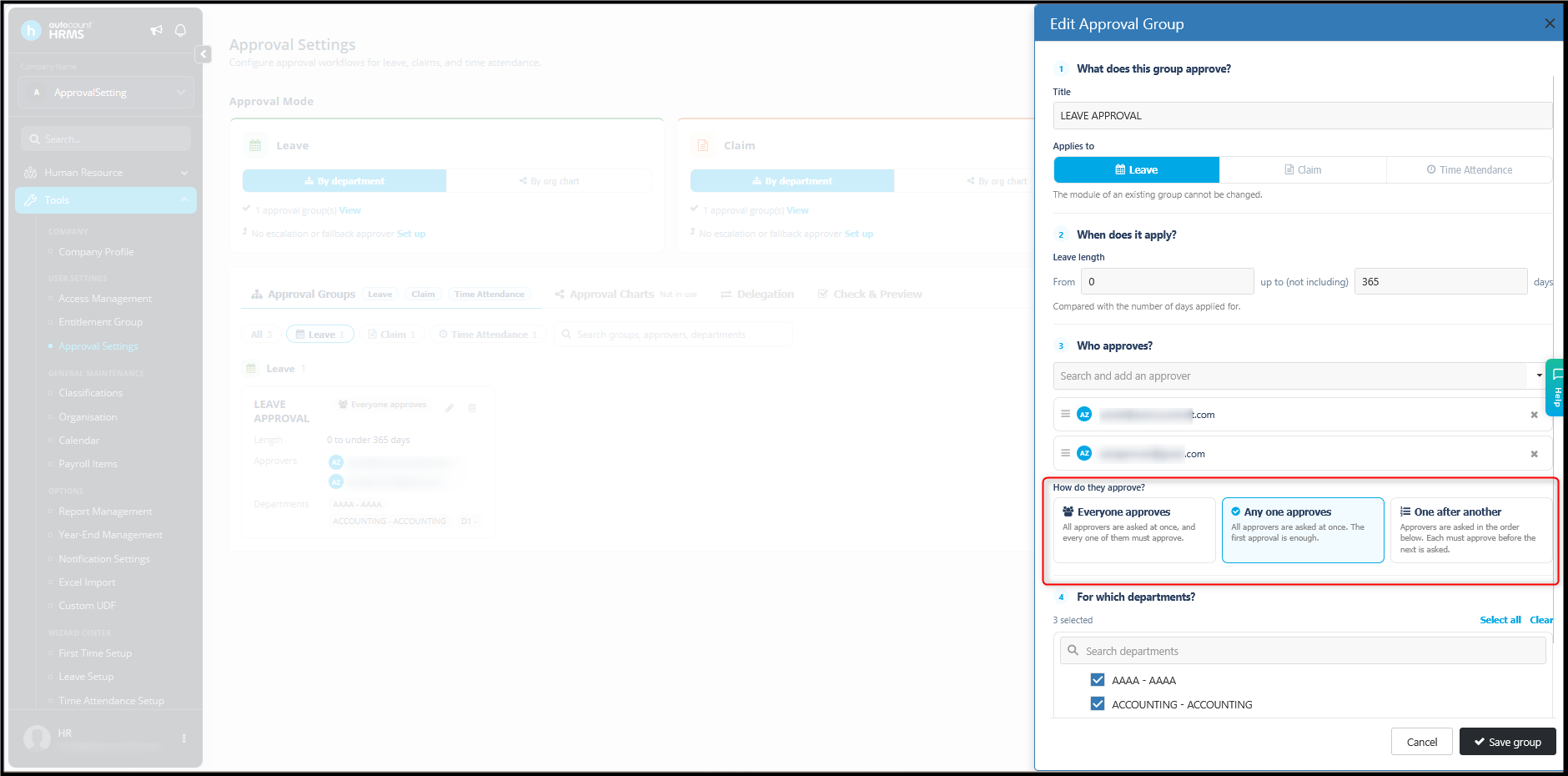 |
| Option | How it works | Use it when |
| Everyone approves (Previously known as Flat Approval) | All approvers are asked at once, and every one of them must approve. | Several people must all agree, for example both the HOD and HR must approve leave. |
| Any one approves (Newly Added) | All approvers are asked at once. The first approval is enough. | Any of several people can decide, for example two team leads either one approve will do. |
| One after another (Previously known as Sequential Approval) | Approvers are asked in the order listed. Each must approve before the next is asked. | There is a sequential approver, for example manager first, then to HR and last to finance. |
7. Add escalation and a fallback approver
| These are safety nets for requests that would otherwise get stuck. On a module card, click Set up next to "No escalation or fallback approver". They are available for Leave, Claim and Time Attendance. |
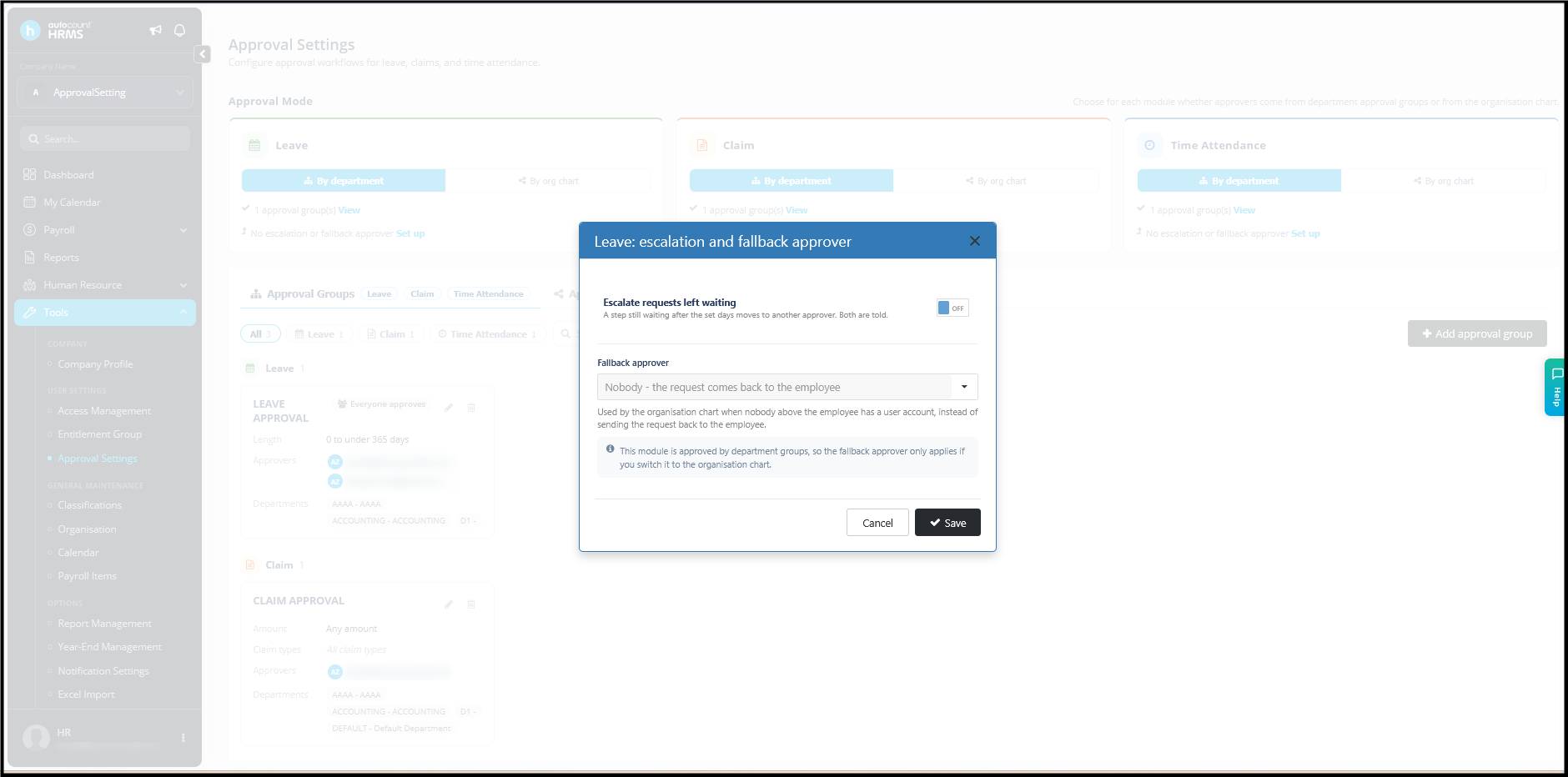 |
Escalate requests left waiting
| Turn this on so a request does not sit with one approver for too long. If a request is still waiting after the number of days you set, it moves to another approver, and both approvers are told. The person you escalate to must not be one of the approvers in the group; choose a third party outside the group. |
Fallback approver Choose who receives a request when the organisation chart finds nobody above the employee with a user account. The default is “Nobody – the request comes back to the employee.” The fallback approver is only used in org chart mode. If the module uses department groups, the setting is kept but has no effect until you switch the module to By org chart. |
8. Delegation: Delegate approvals during absences
When an approver will be away, hand their approvals to someone else for that period. Open the Delegation tab and click Add delegation. |
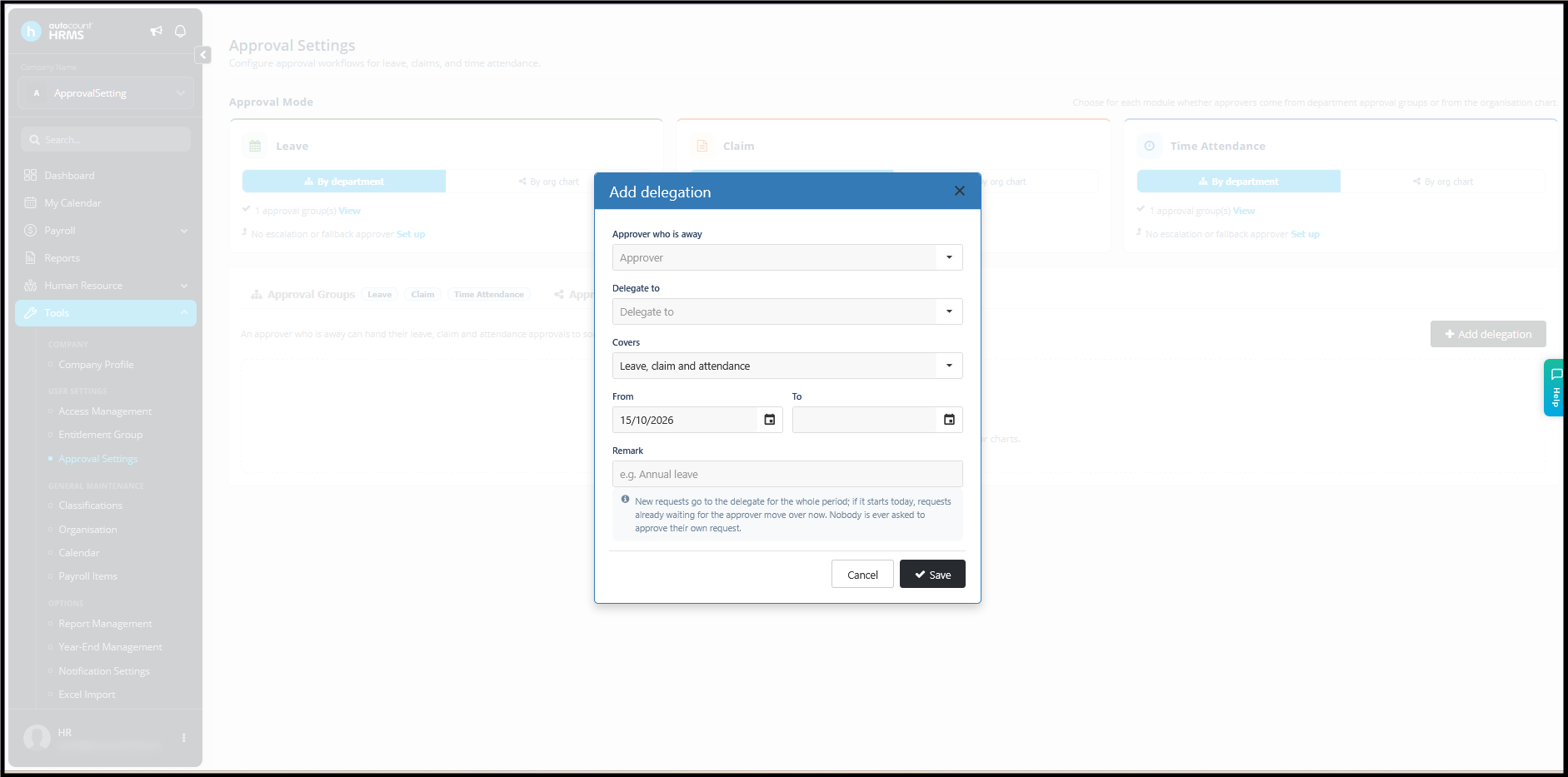 |
| Field | What to enter |
| Approver who is away | The person whose approvals are being handed over. |
| Delegate to | The person who will approve on their behalf. |
| Covers | Leave, claim and attendance; Leave only; Claim only; or Time Attendance only. |
| From / To | The period the delegation applies. From defaults to today. |
| Remark | Optional reason, for example "Annual leave". |
What happens once you save: |
|
Example Ahmad is on leave from 15/10 to 31/10, so his approvals are delegated to Mei Ling for that period. |
| When | Who approves |
| Before 15/10 | Ahmad (original approver). |
| 15/10 to 31/10 | Mei Ling (delegate). New requests go to her, and requests already waiting for Ahmad on 15/10 move to her. |
| From 1/11 | Ahmad again. Any request Mei Ling has not approved or rejected by 31/10 goes back to Ahmad. |
9. Check your setup with Check & Preview
| Always check before you tell employees the new approval flow is live. Open the Check & Preview tab. |
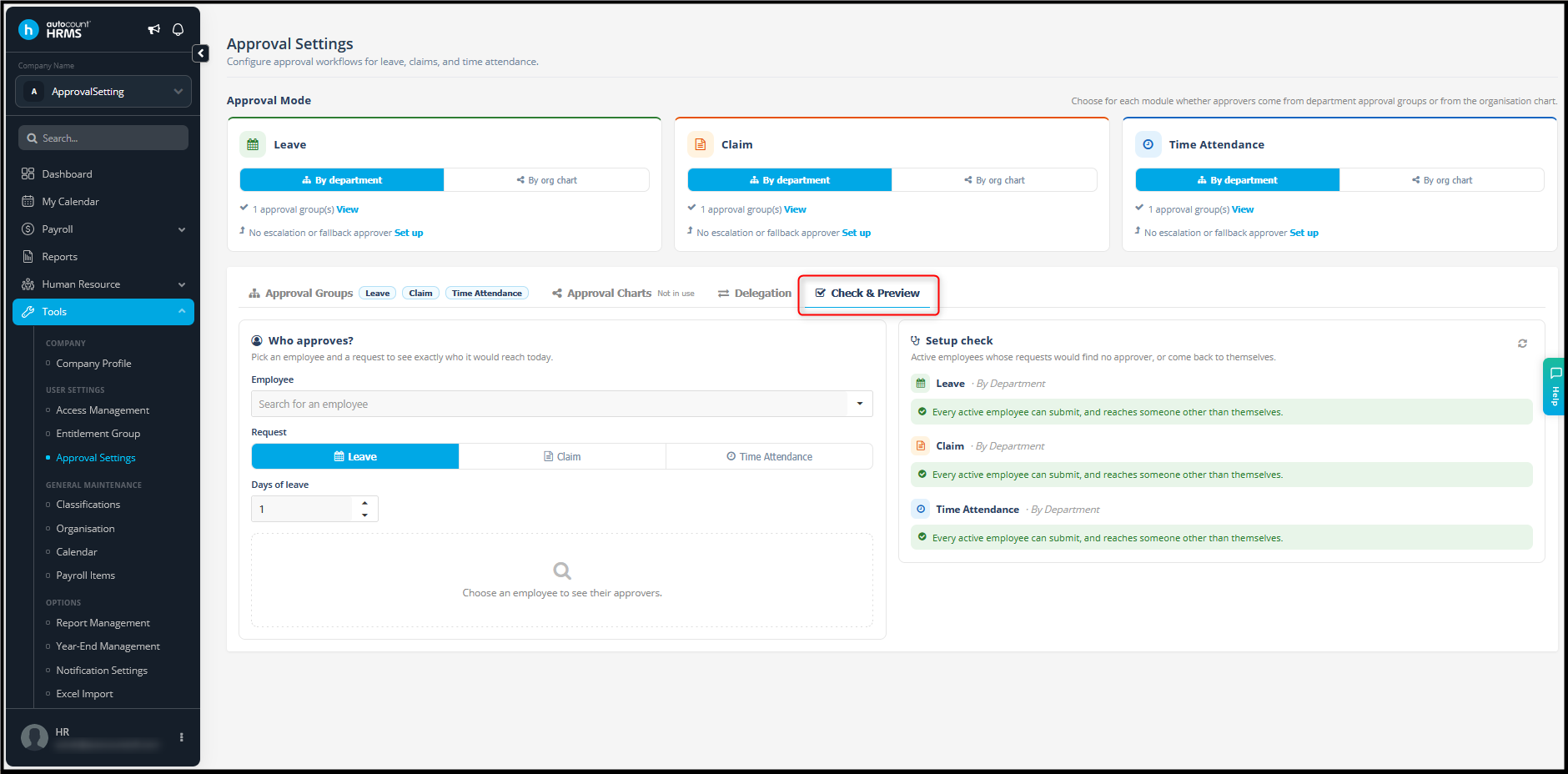 |
Setup check The right-hand panel automatically checks every active employee, for each module, for two problems: |
|
A green message, "Every active employee can submit, and reaches someone other than themselves", means the module is set up correctly. If employees are listed, fix their department, group or reporting line, then click the refresh icon to check again. Who approves? Use the left-hand panel to see exactly who a specific request would reach today. |
|
10. Quick-start scenarios
Pick the scenario closest to your company and follow its steps. Scenario A: Small company, one approver A 20-person company where the director approves everything. |
|
Scenario B: Leave by length, claims to finance Team leads approve short leave, HODs approve long leave, and finance approves all claims. |
|
Scenario C: Reporting line approval Each employee's direct manager approves, with bigger requests going one level higher. |
|
11. Troubleshooting
| Problem | What to check |
| My request auto approved. | You may be the only approver for your own department, or the top of the reporting line with no fallback approver. Add another approver for your department or set a fallback approver. |
| A request reached nobody. | The employee's department is not covered by any group for that module, or the request falls into a gap between ranges. |
| The wrong person received the request. | Use Who approves? with the same employee and request details, then check the matching group's range, claim types and departments. |
| I changed the fallback approver, but nothing happened. | The fallback only works in org chart mode. Check the module card's mode. |
| Approval Charts shows "Not in use". | No module card is set to By org chart. The chart is saved but inactive. |
| The approver is away and requests are piling up. | Add a delegation starting today. Waiting requests move to the delegate immediately. |