
This error occurs when the system cannot find a valid approver for the leave application due to missing or misconfigured approval settings. The possible causes includes:
No approver has been assigned in Approval Settings.
The employee belongs to a new or unassigned department/subdepartment that is not included in the approval group.
The approval range is restricted (e.g., set for 1.0 day and above, but employee applied for half-day leave).
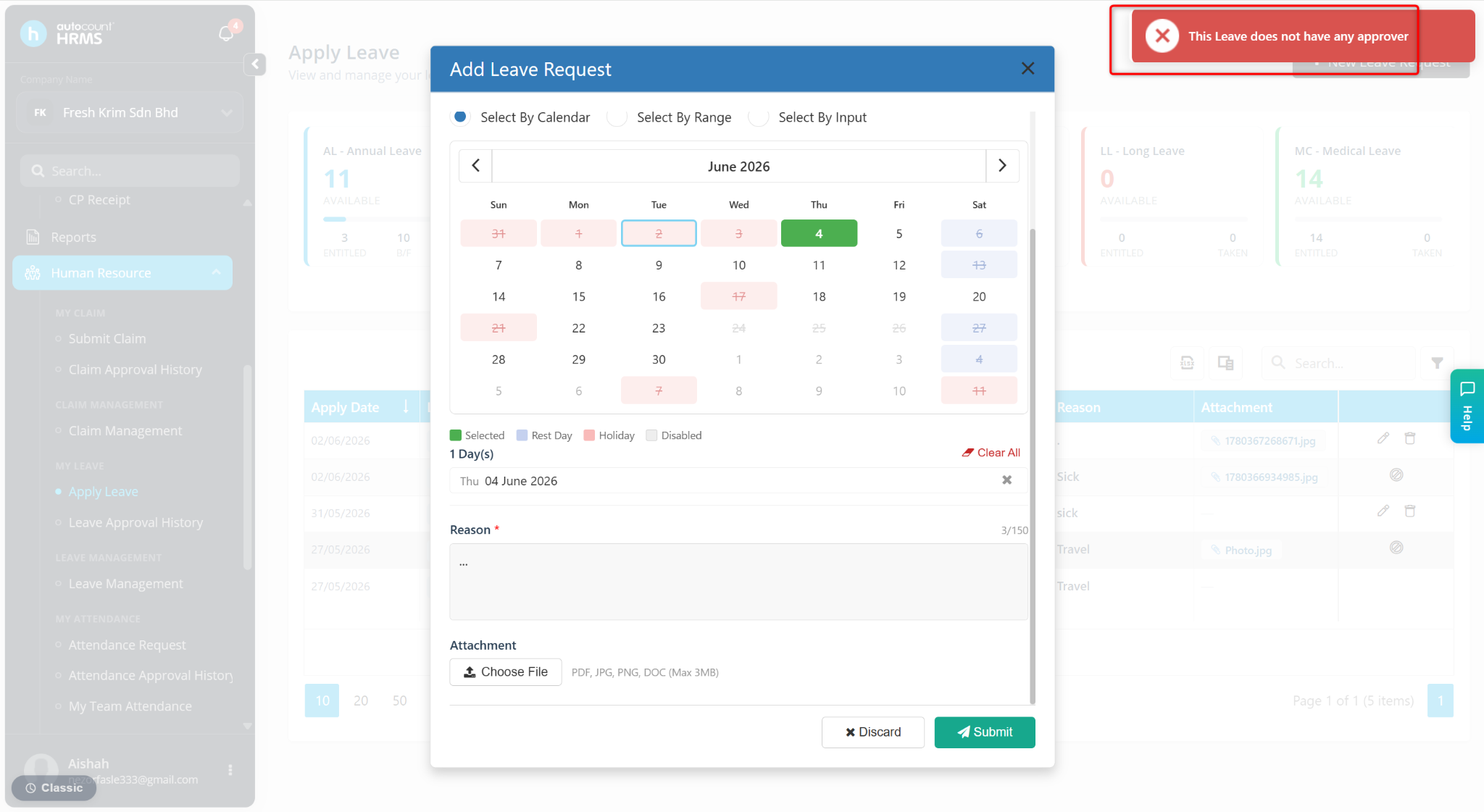
Steps to Resolve the Issue:
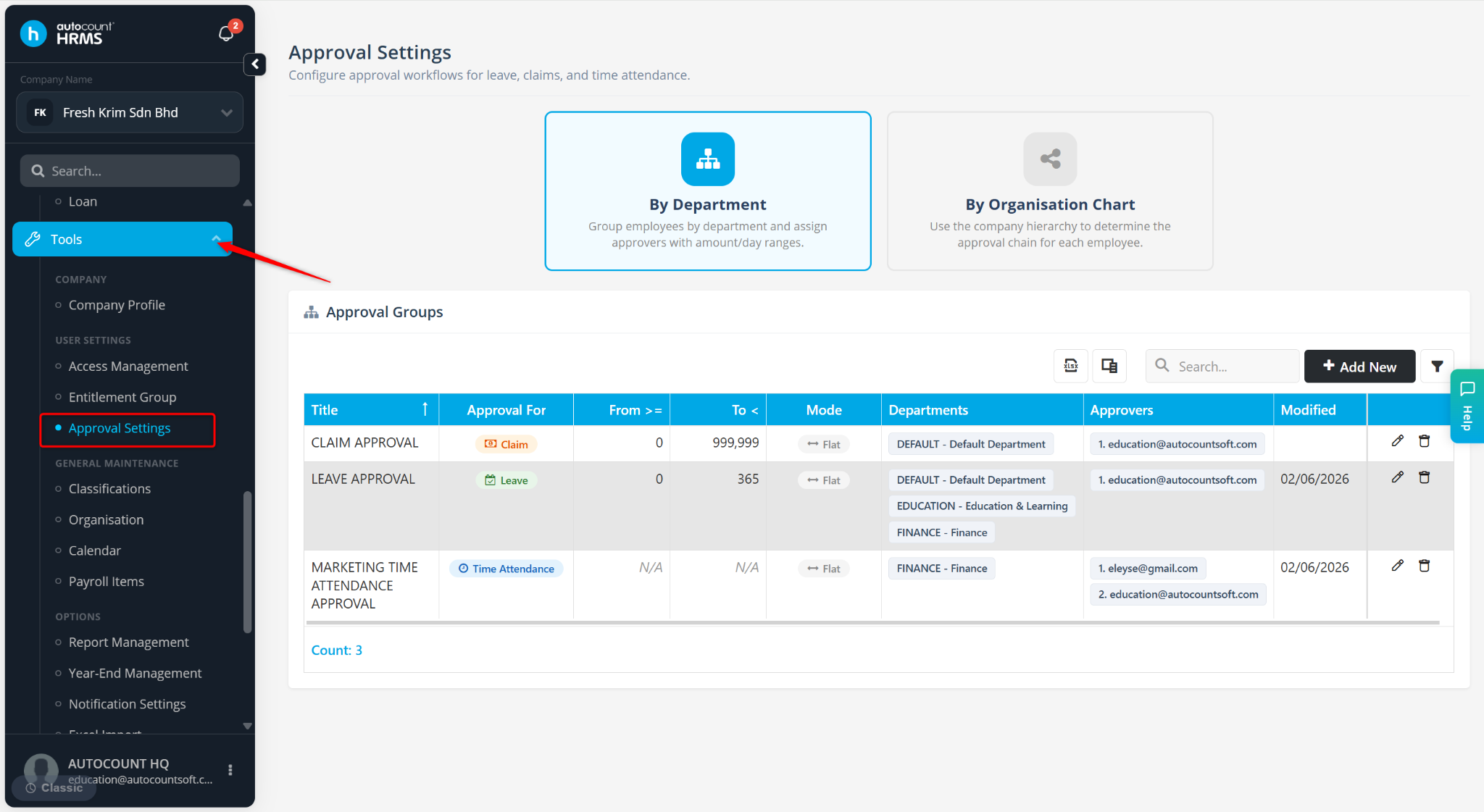
Go to Tools > Approval Settings.
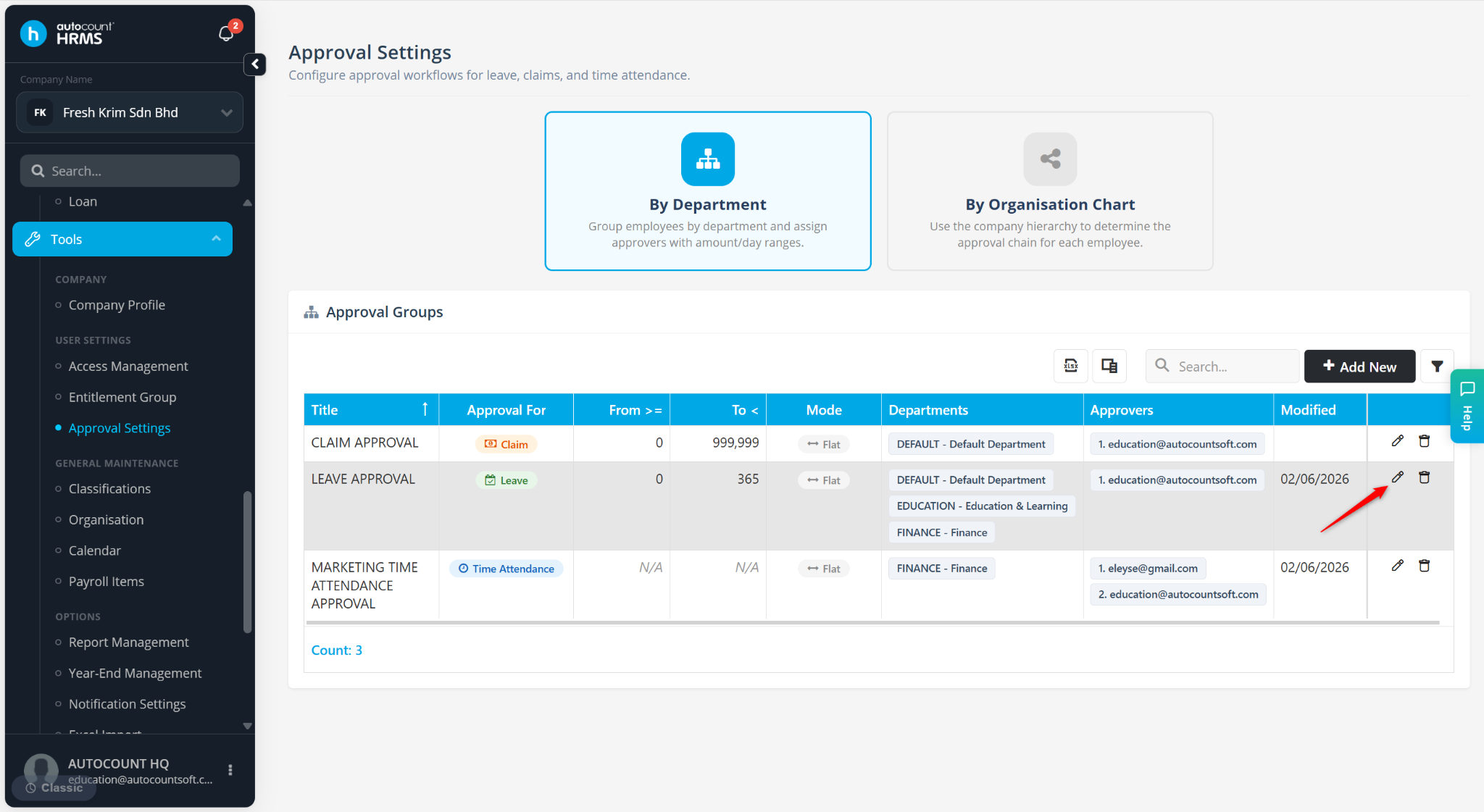
Locate the Approval Group and click the pencil icon.
Method 1: Add an Approver
Select a user at the Approvers field.
Click Save.
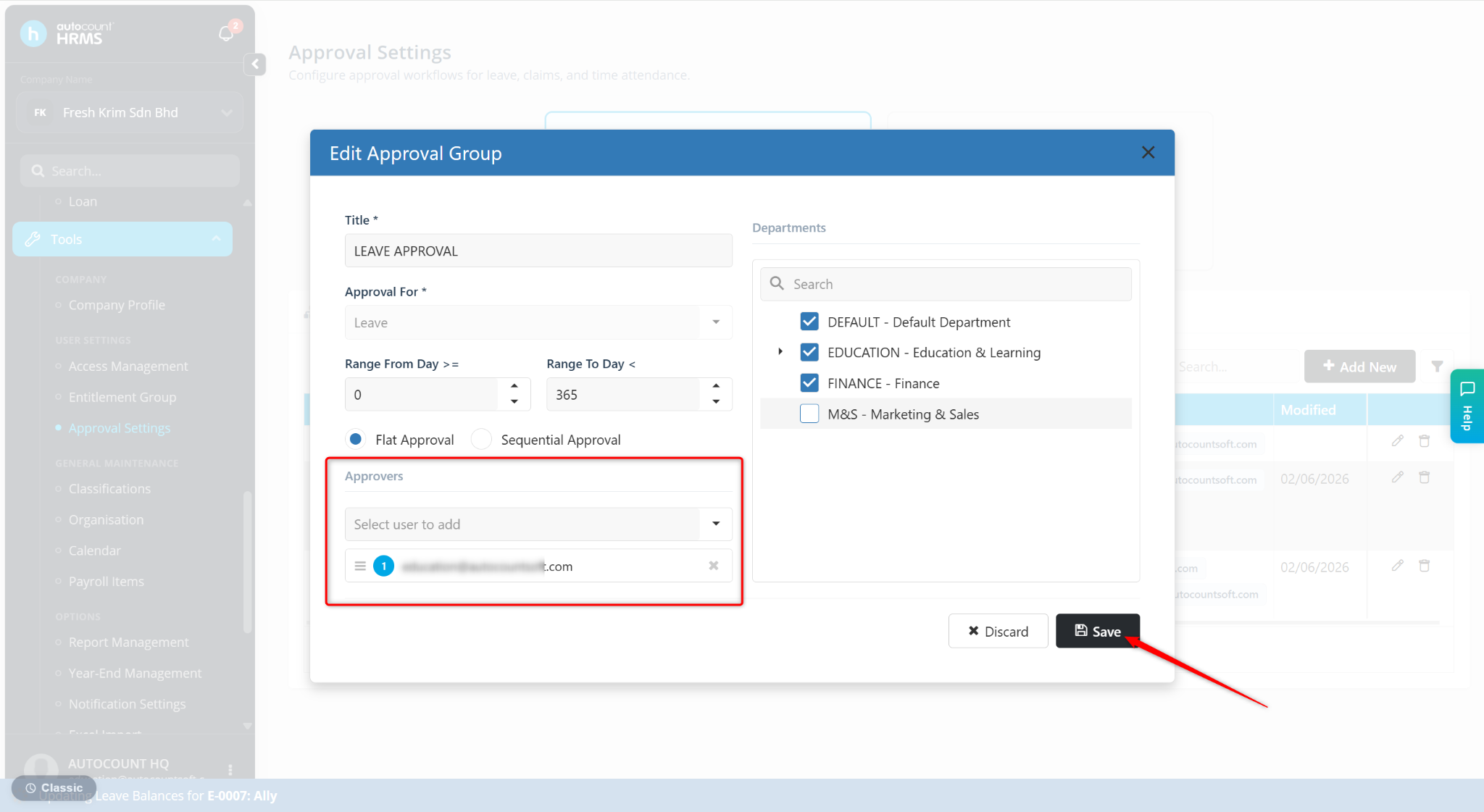
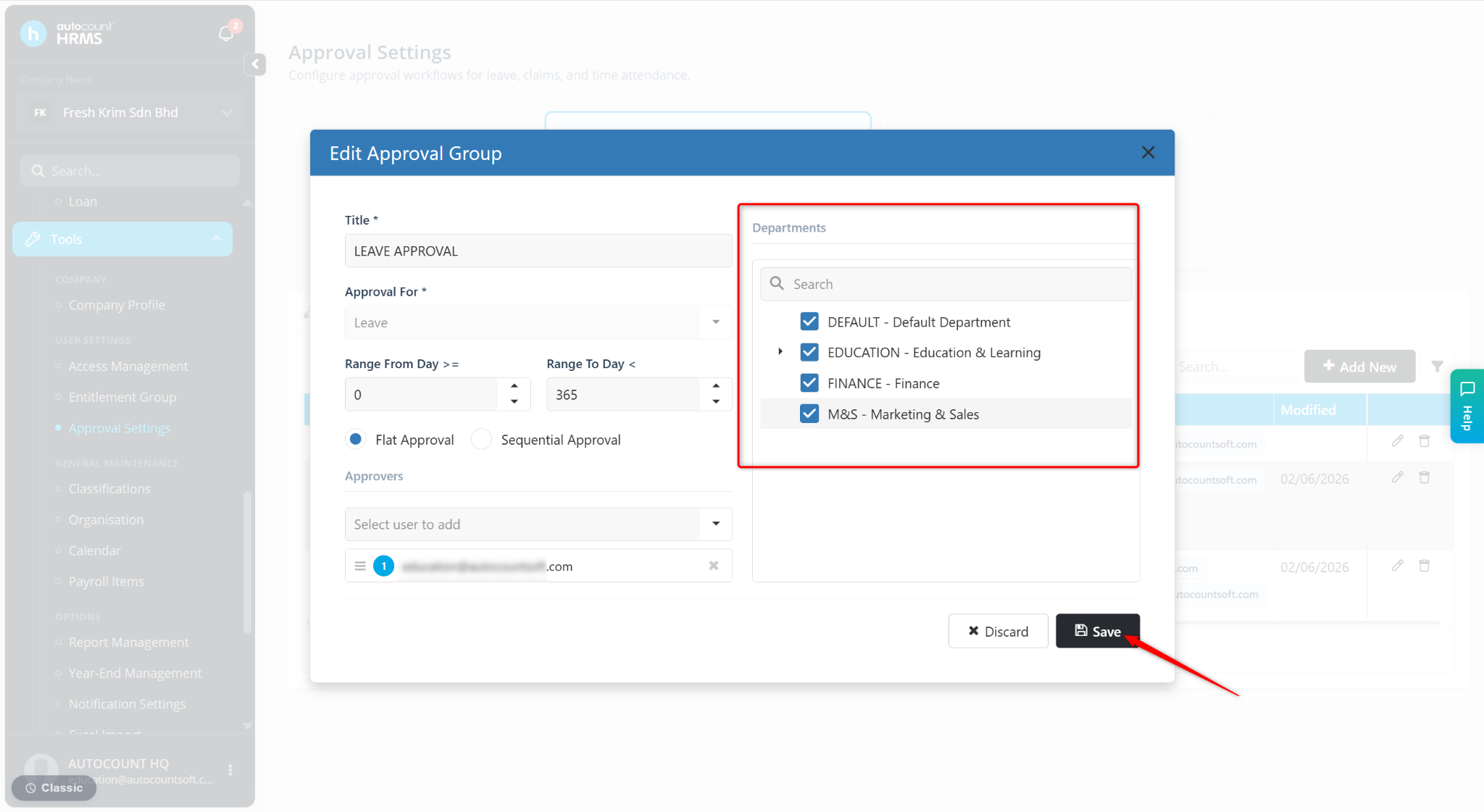
Method 2: Add or Include New Departments
Select or update the Departments included.
Click Save.
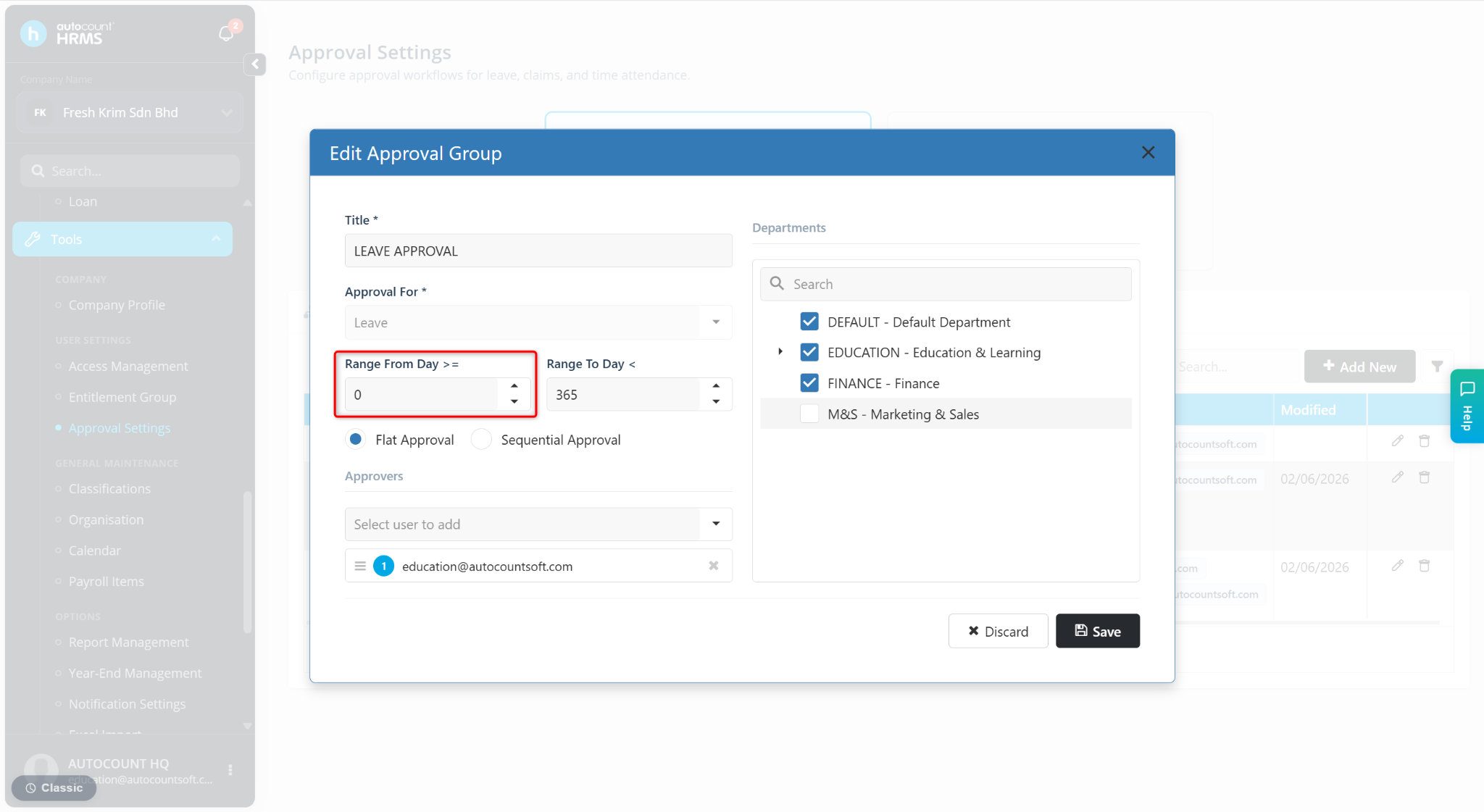
Method 3: Adjust Range From Day
Set the Range From Day >= field as 0.
Click Save.
Written by: Han Yang (20251022)
Reviewed by: Azirah (20251112)