After payroll has been processed and committed, users can distribute payslips to employees through the mobile app (notification) or email. This ensures employees receive their salary details securely and promptly.
Note: Payroll must be fully processed and committed before payslips can be released. Refer to Process Payroll for detailed payroll processing steps.
Steps to Send Payslips via App:
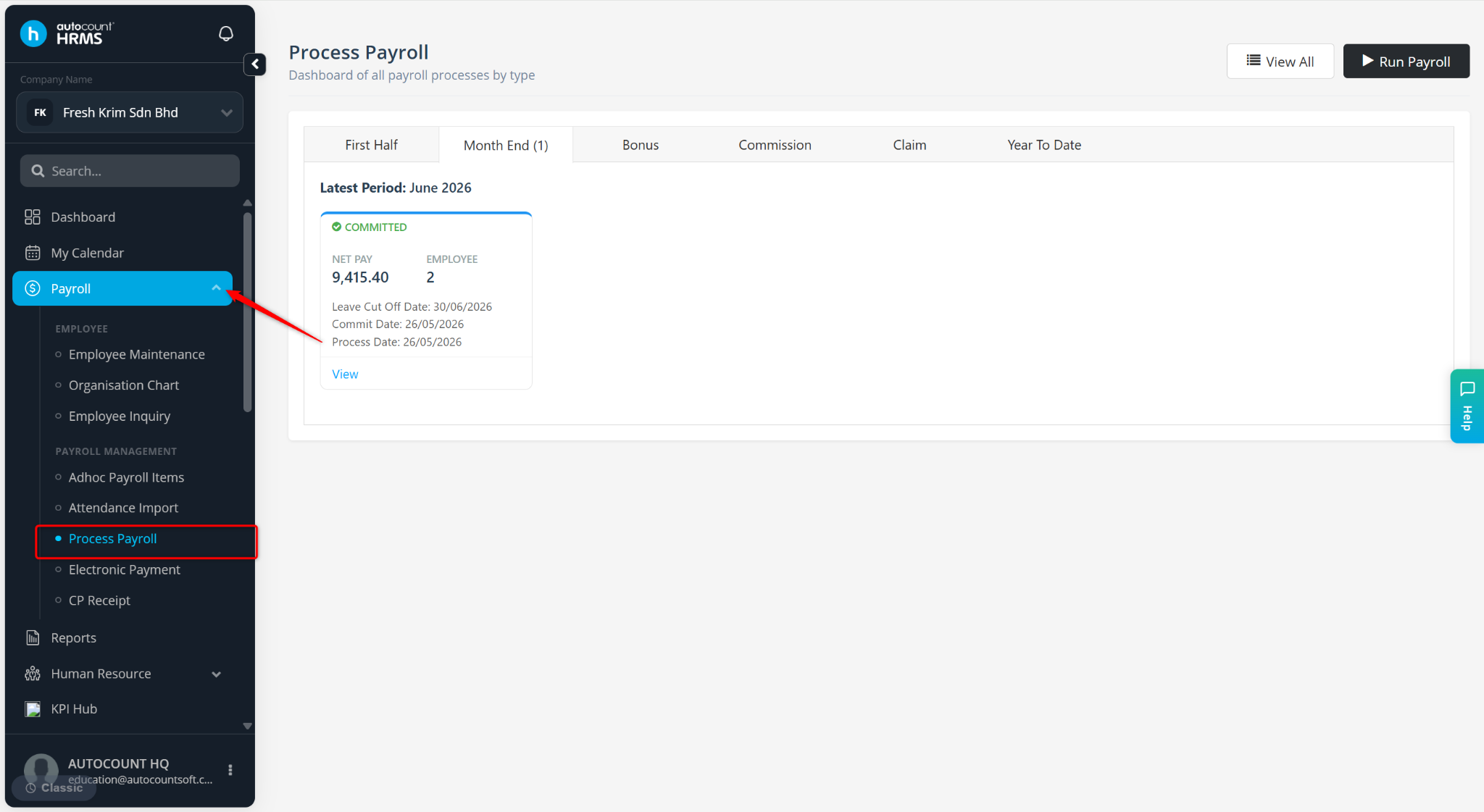
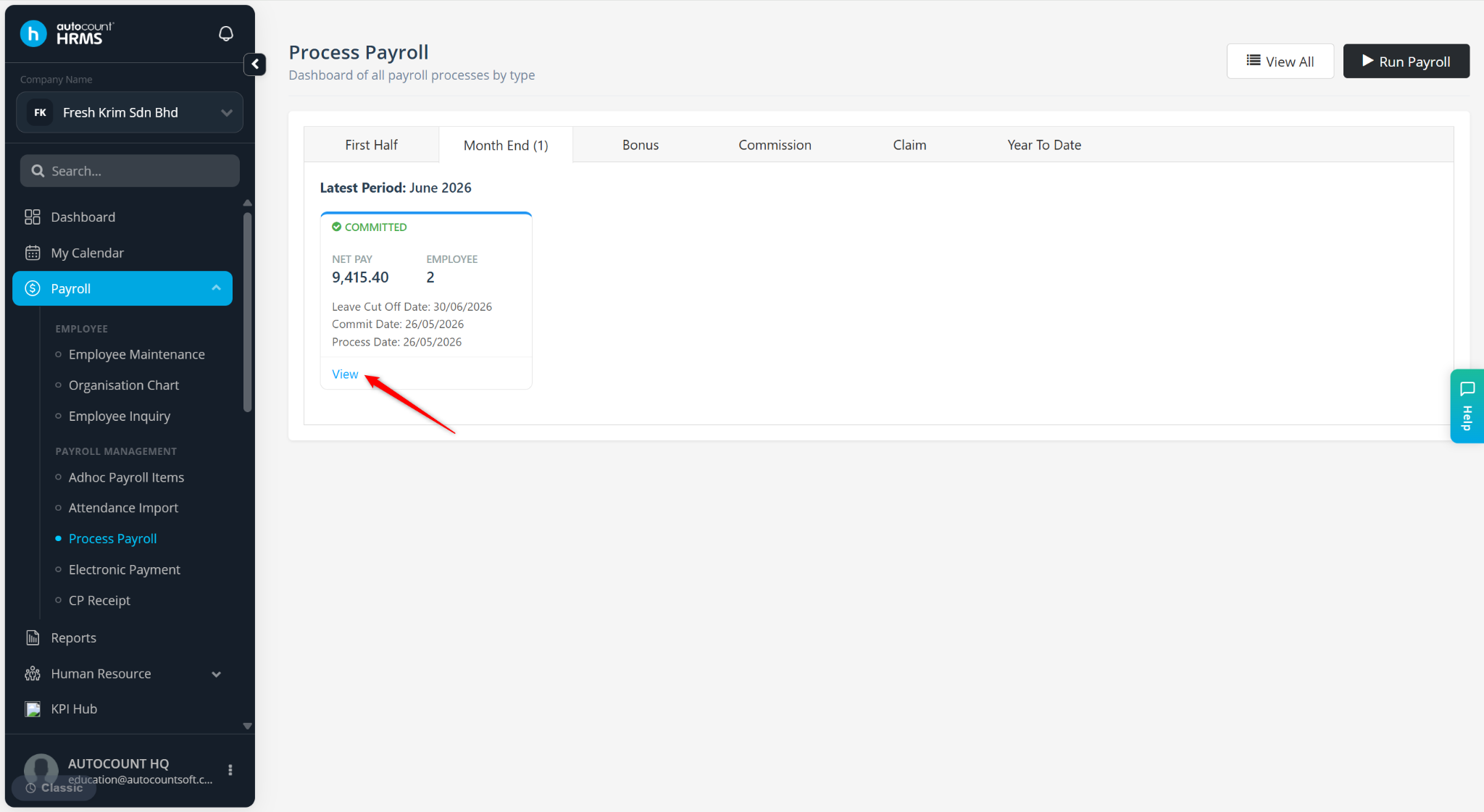
Go to Payroll > Process Payroll.
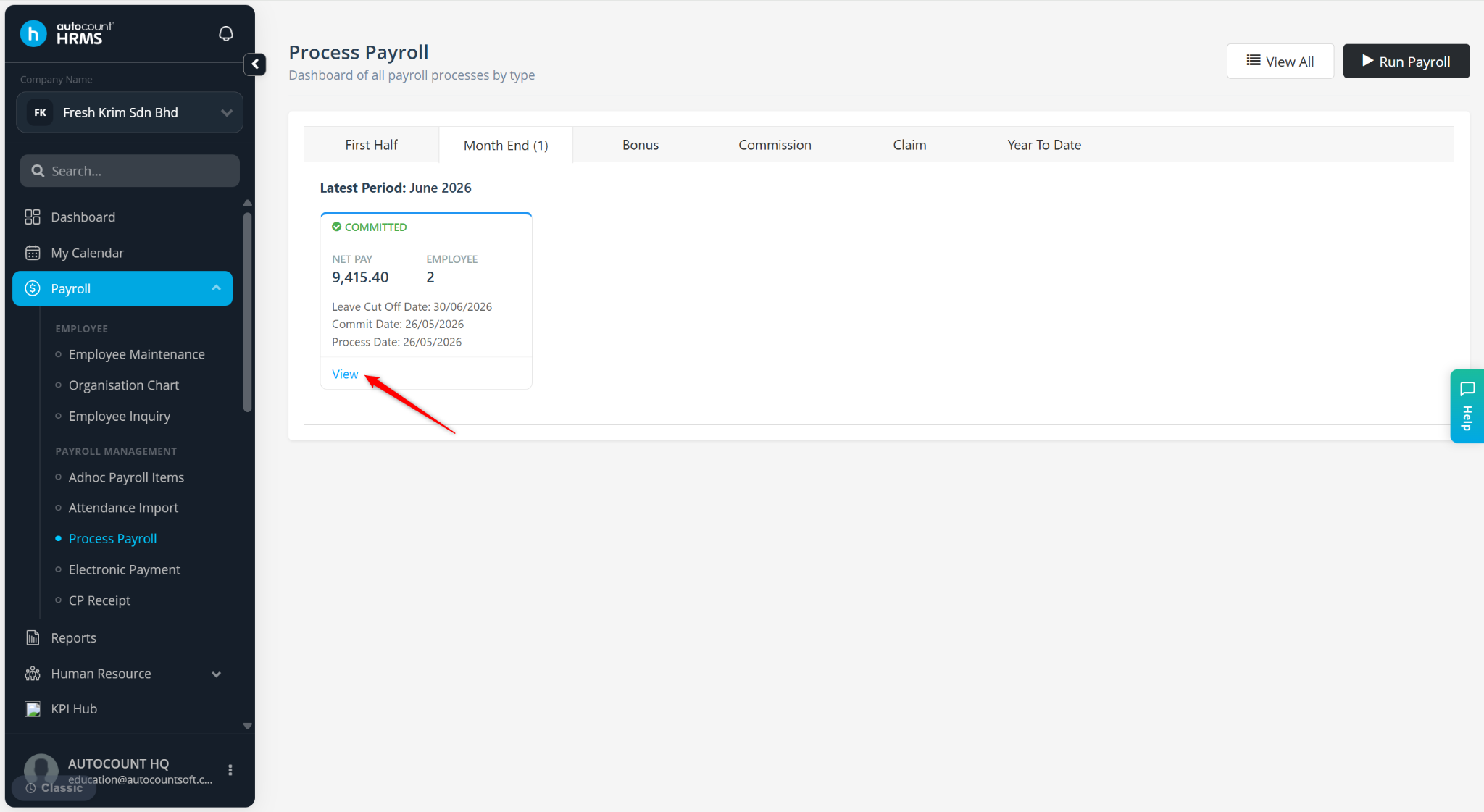
Click View.
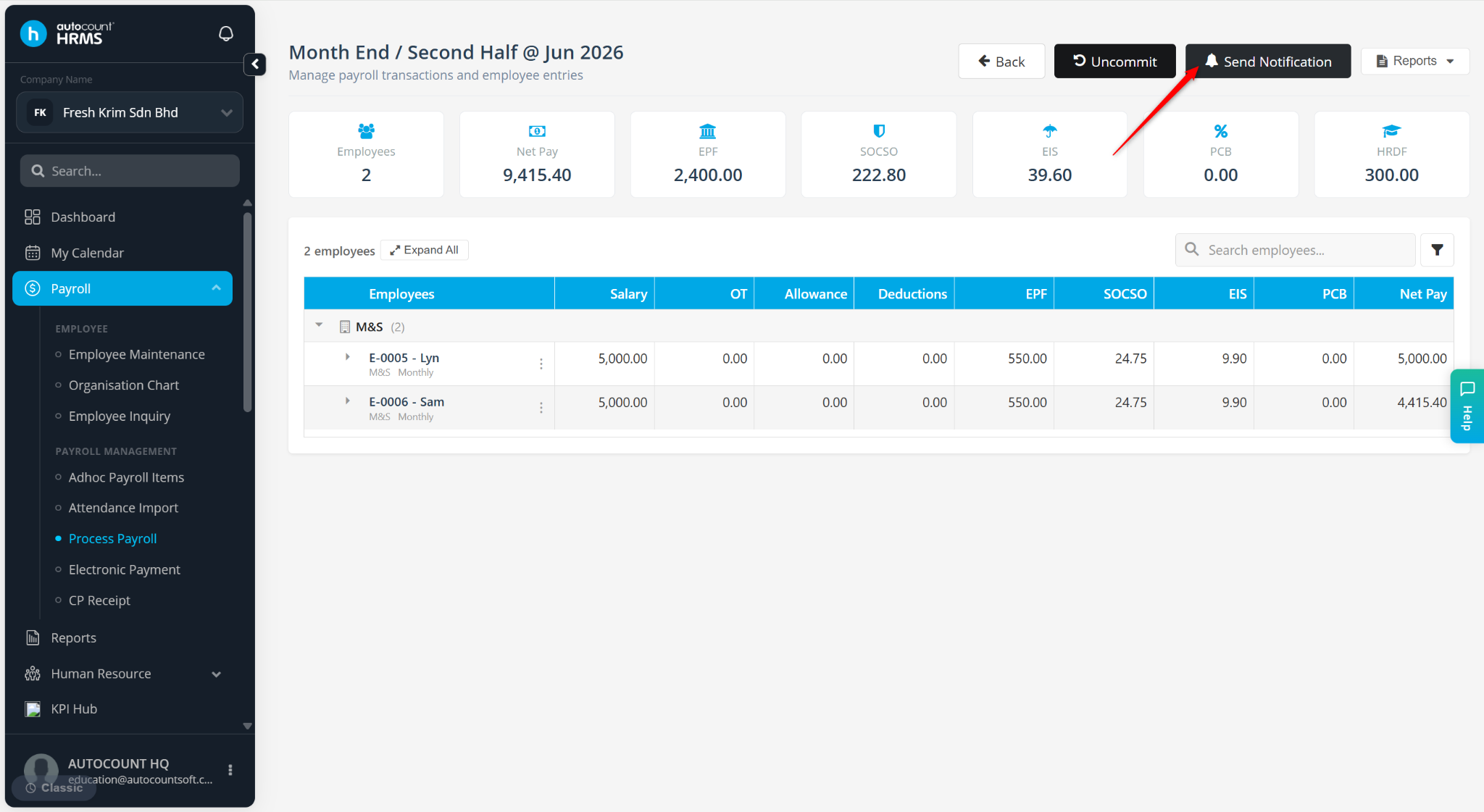
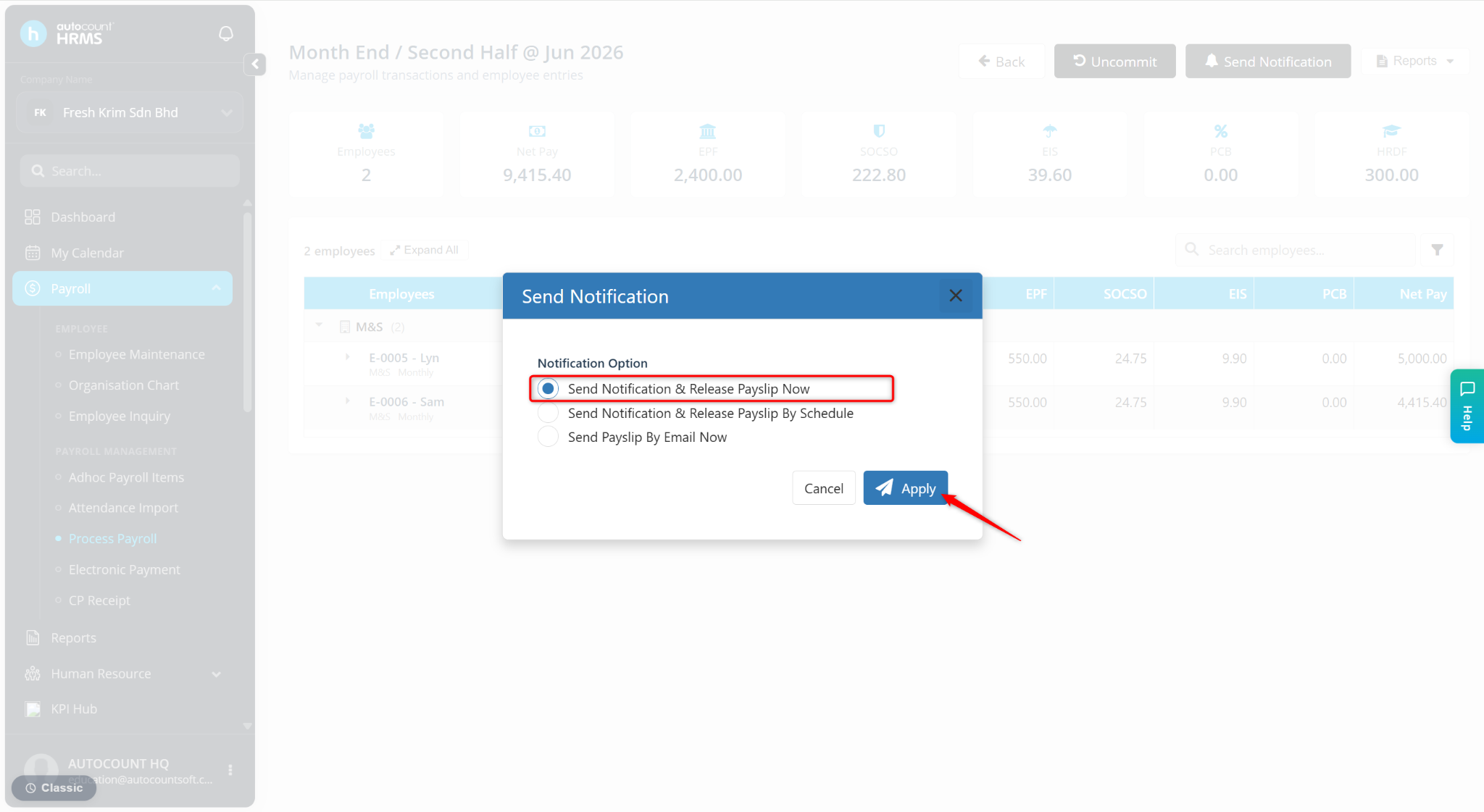
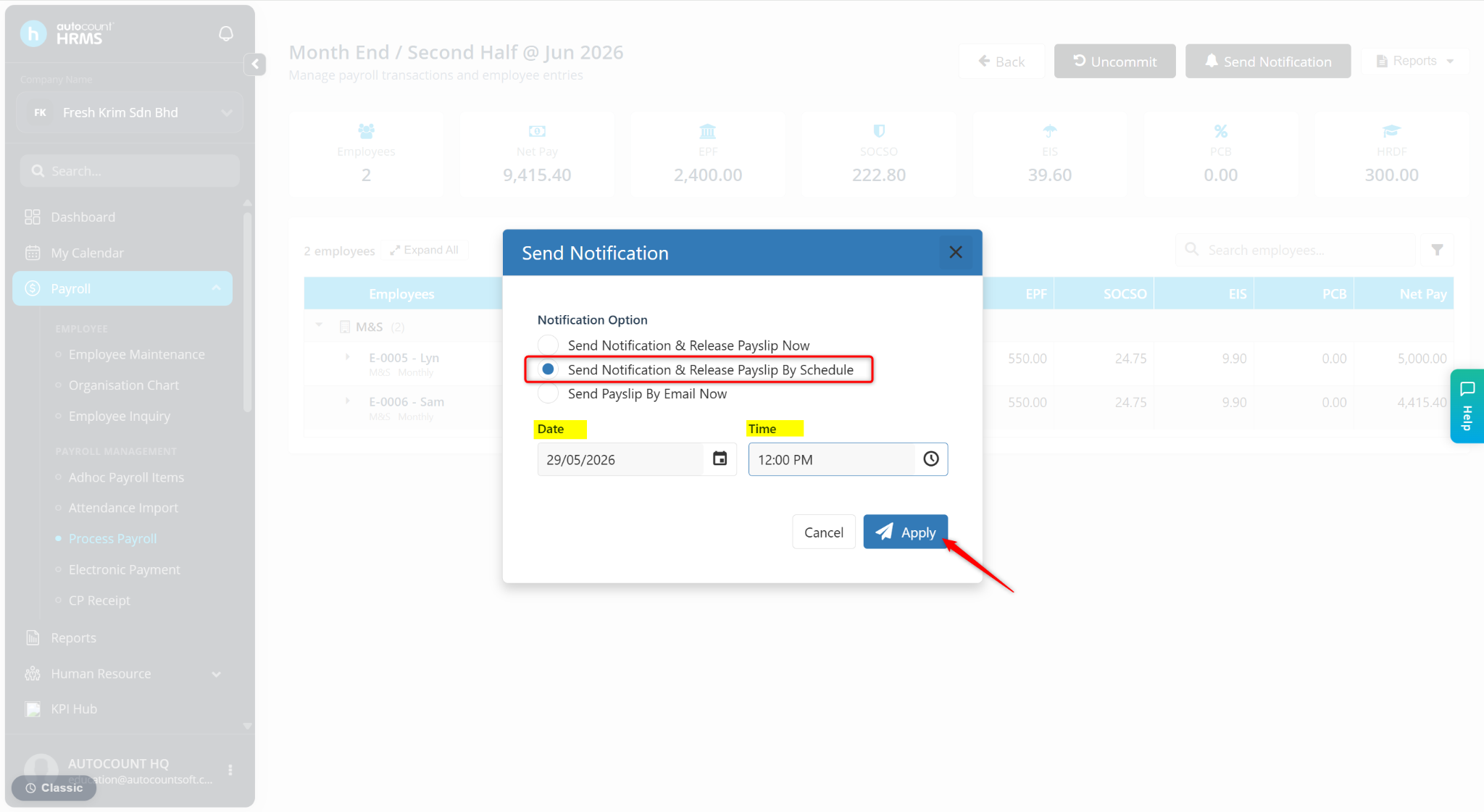
Click Send Notification at the top right corner.
Select one of the following options and click Apply:
Send Notification & Release Payslip Now
Send Notification & Release Payslip By Schedule
Steps to Send Payslips via Email:
Method 1 – Via Process Payroll
Go to Payroll > Process Payroll.
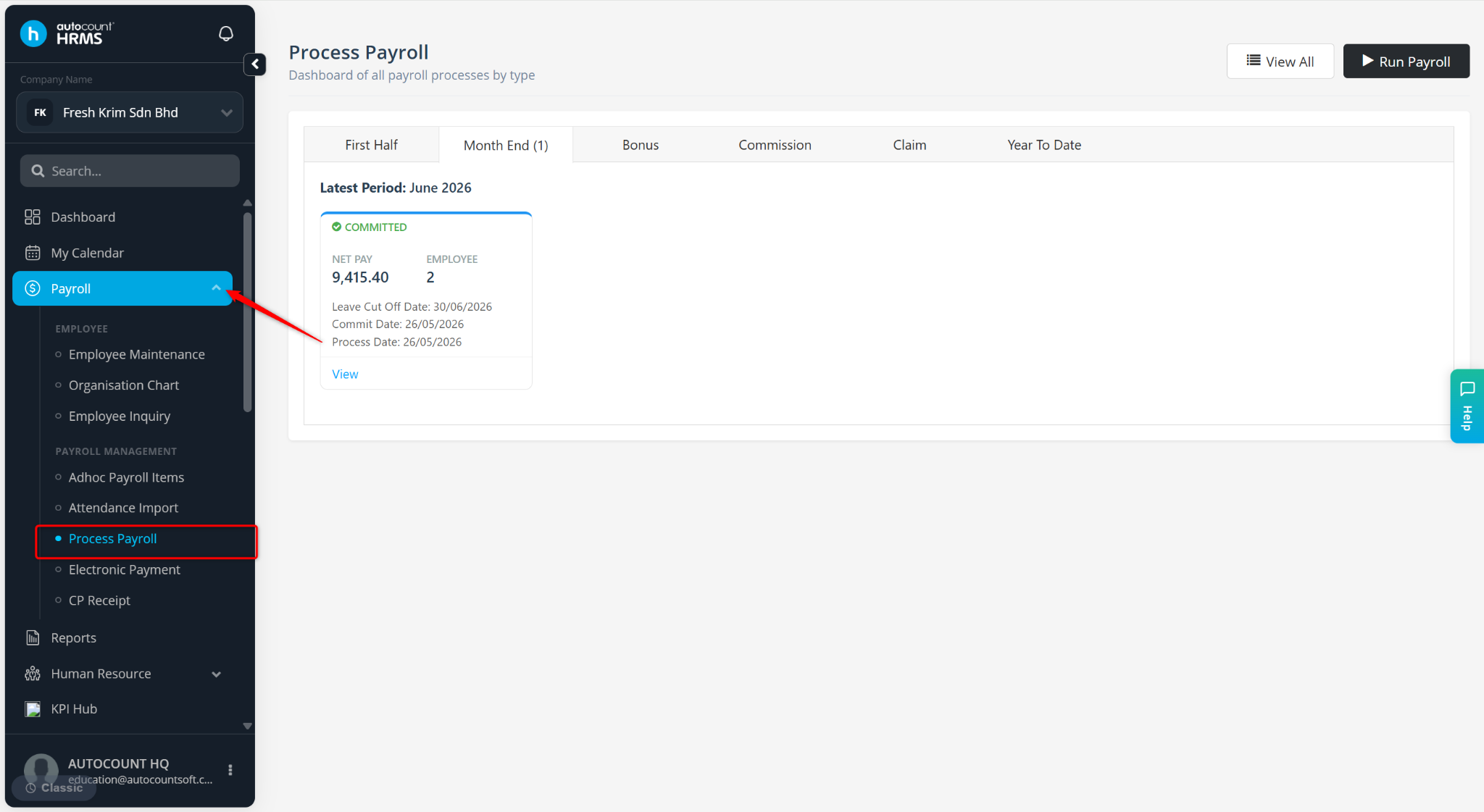
Click View.
Click Send Notification at the top right corner.
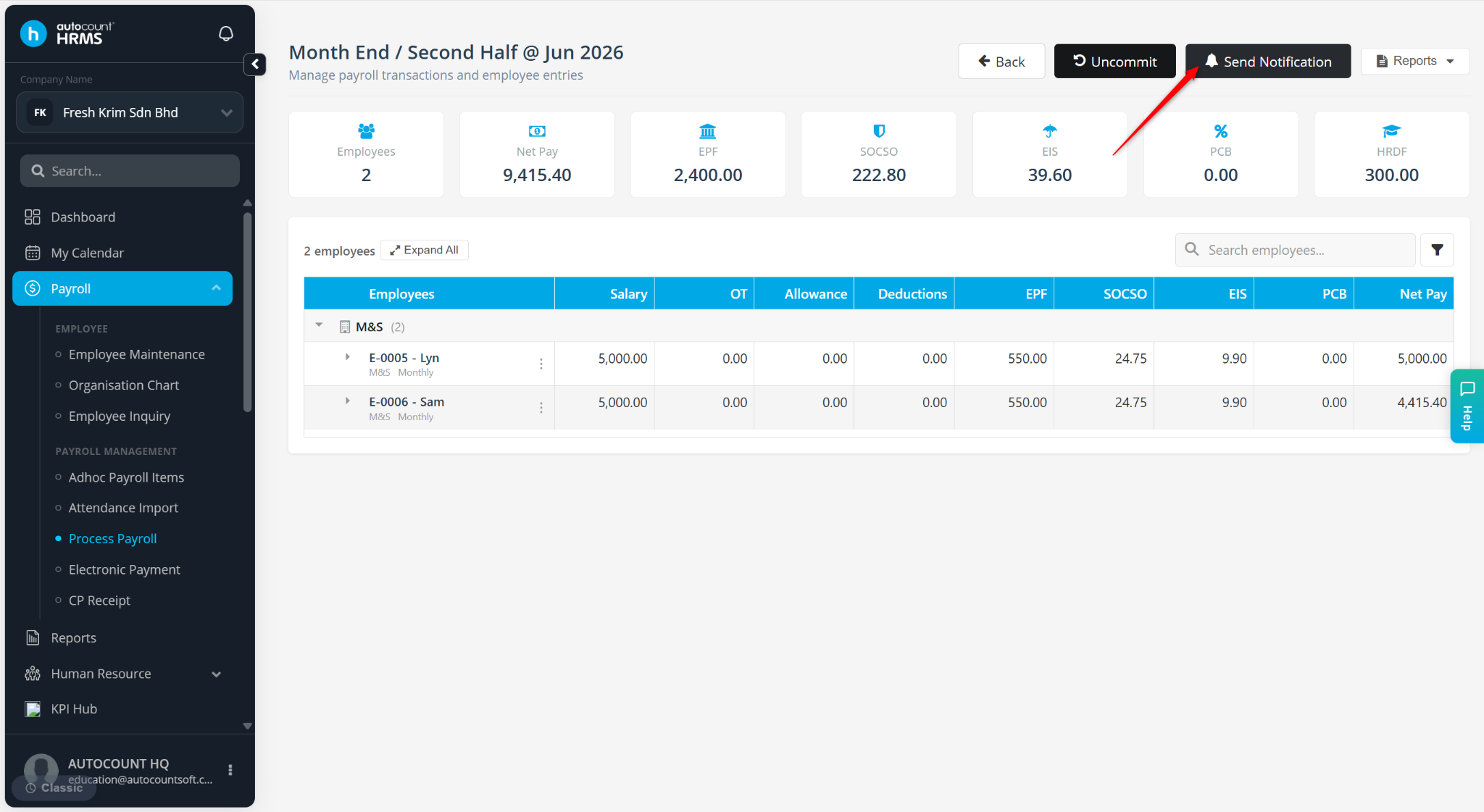
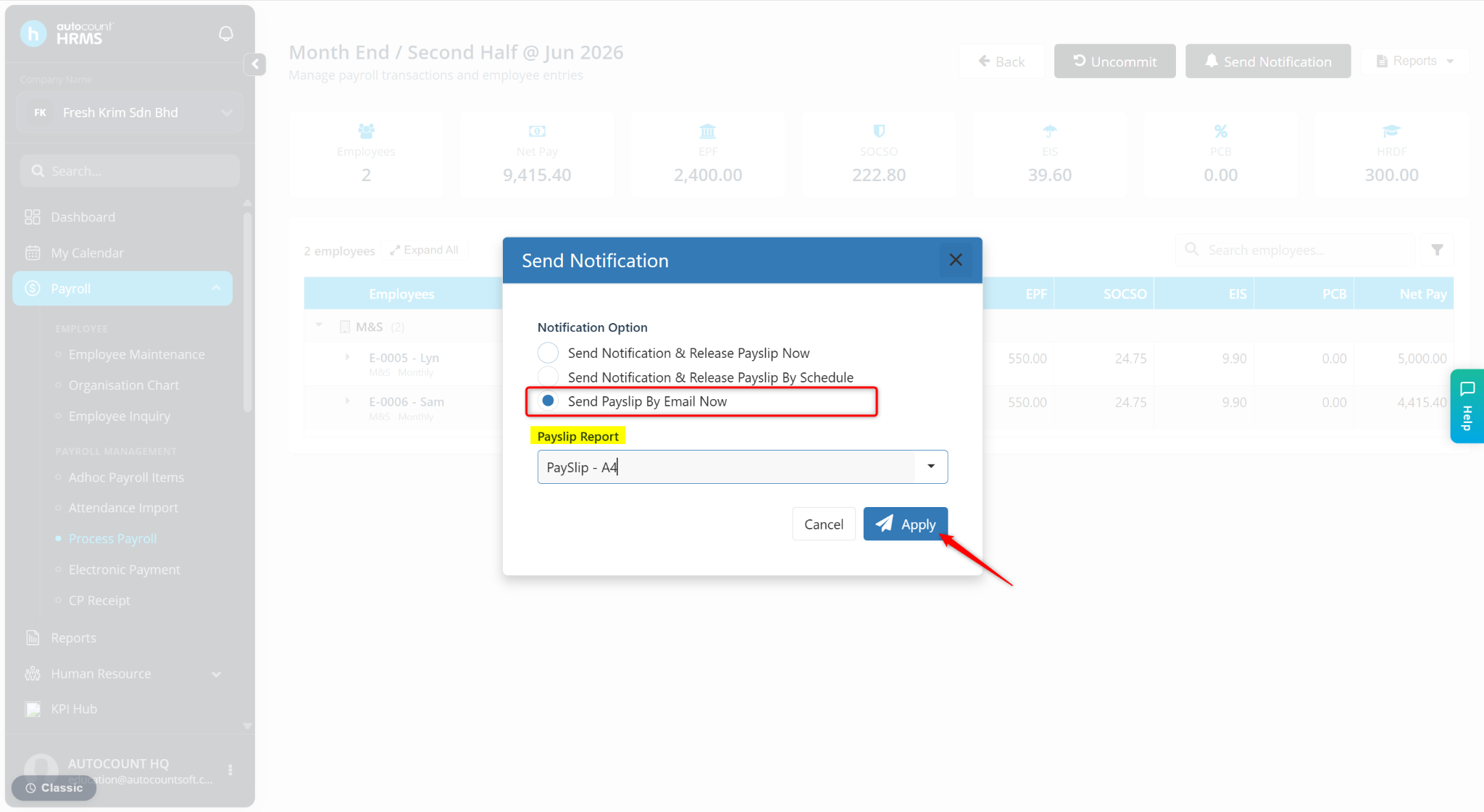
Select Send Payslip By Email Now, select a Payslip Report and click Apply.
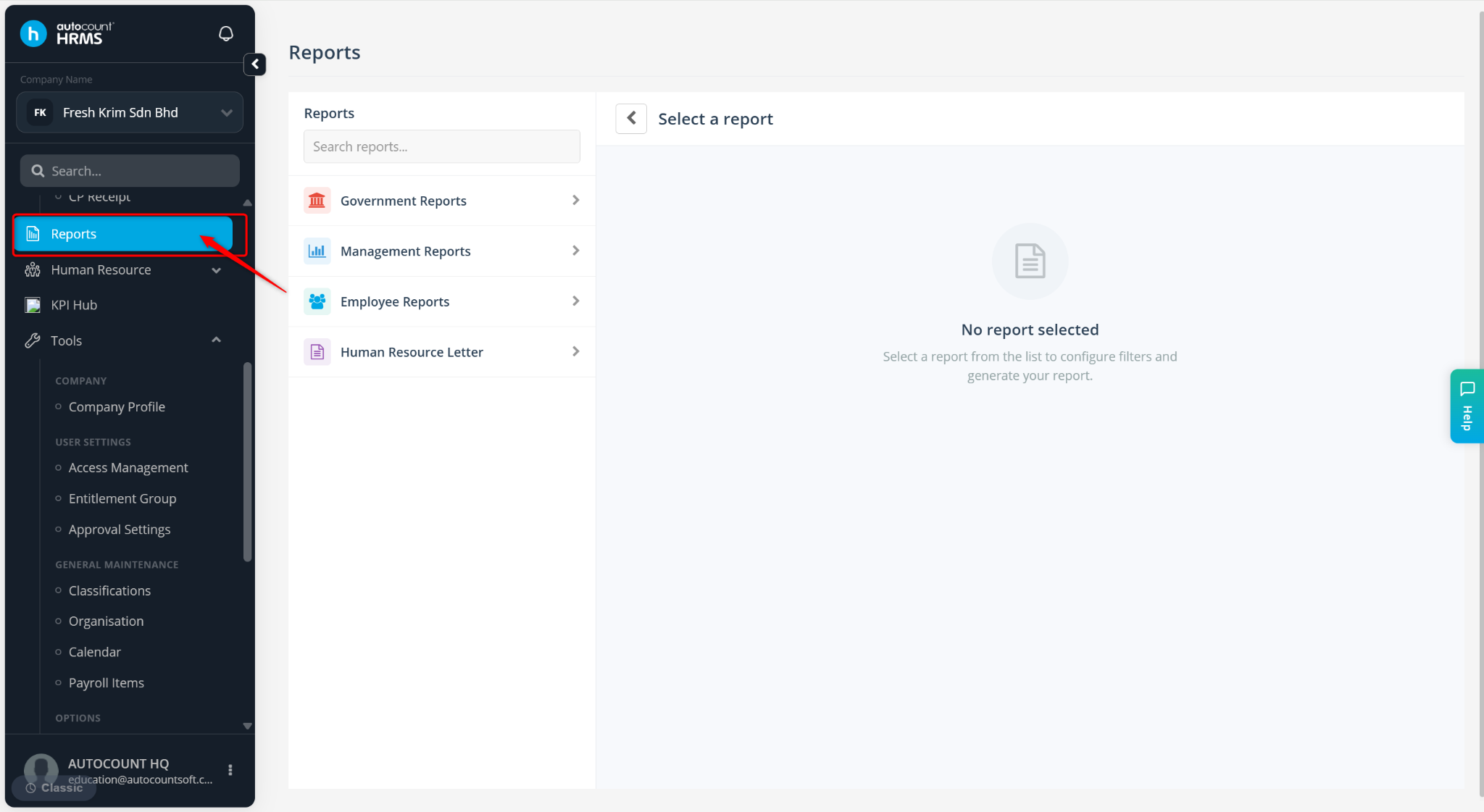
Method 2 – Via Reports
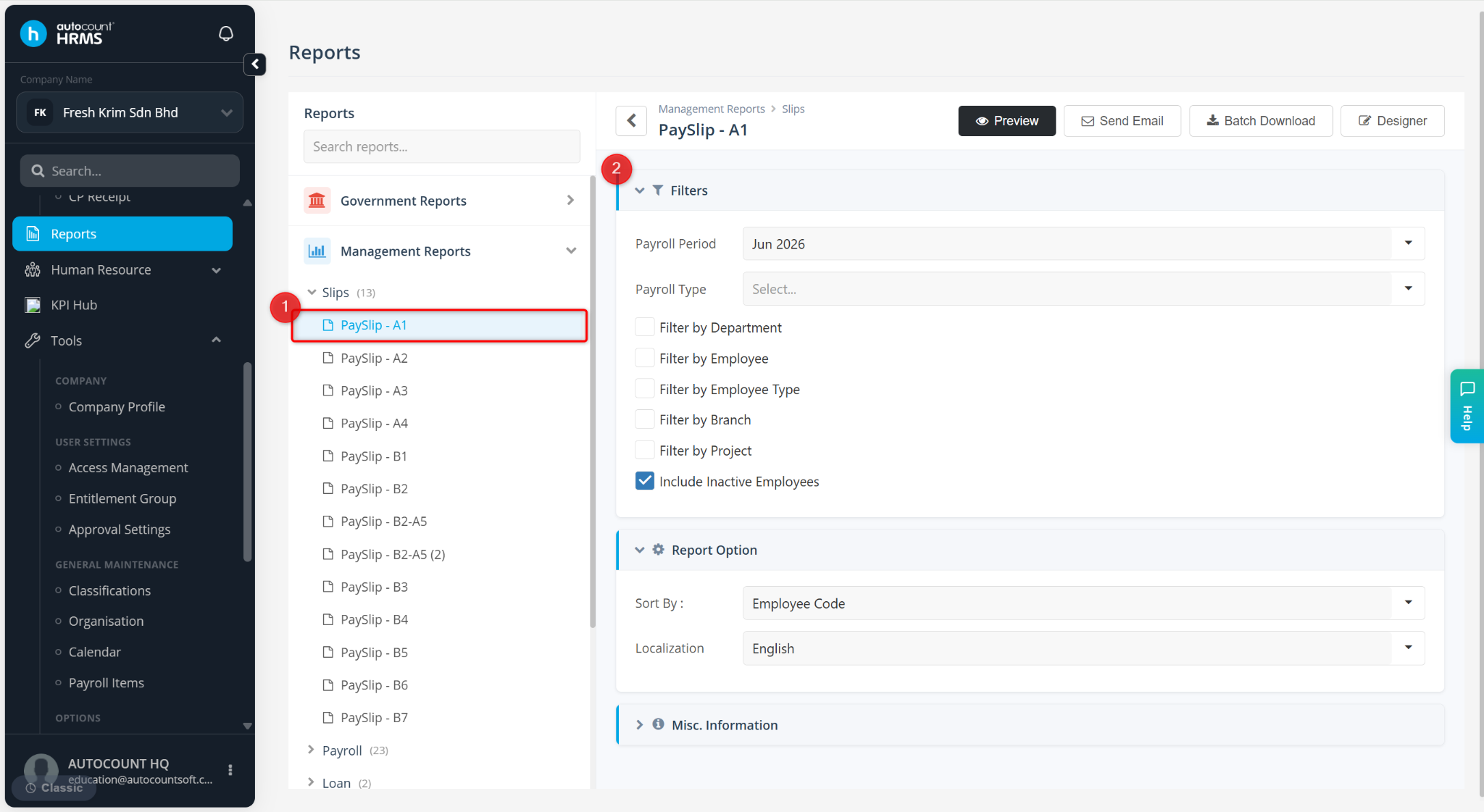
Go to Reports.
Expand Management Reports > Slips.
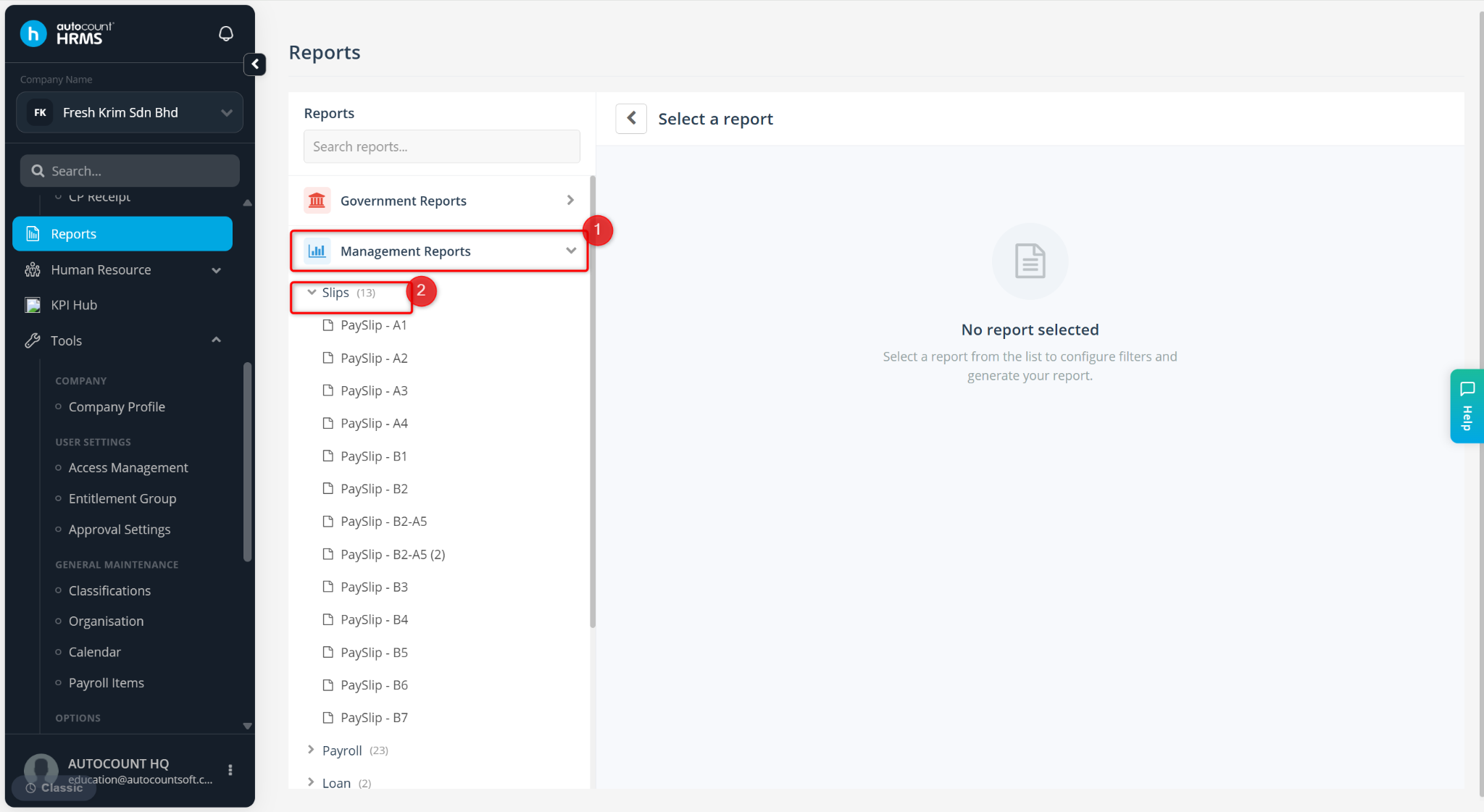
Select a Payslip format.
Define Filters, Report Options and Misc. Information if required.
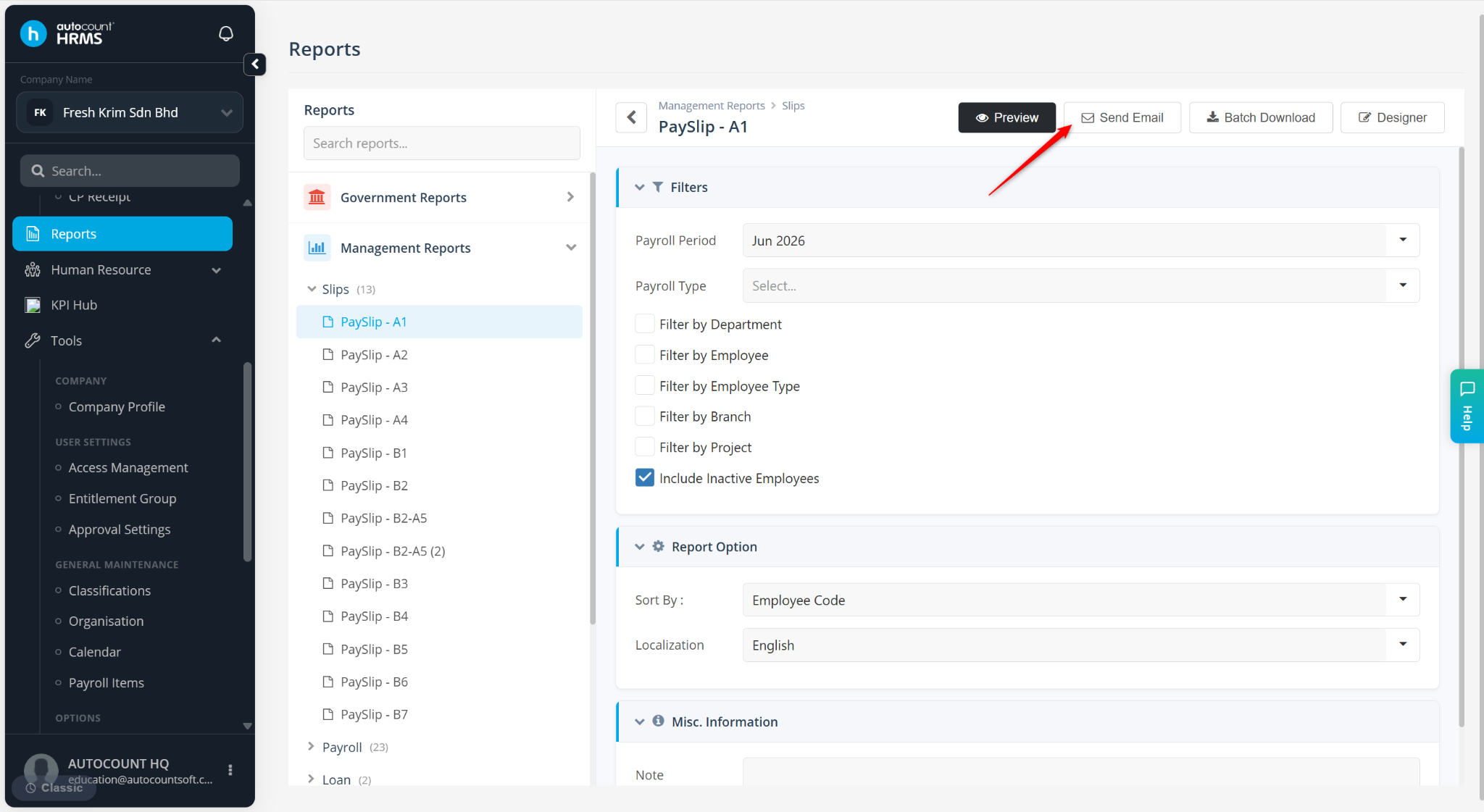
Click Send Email.
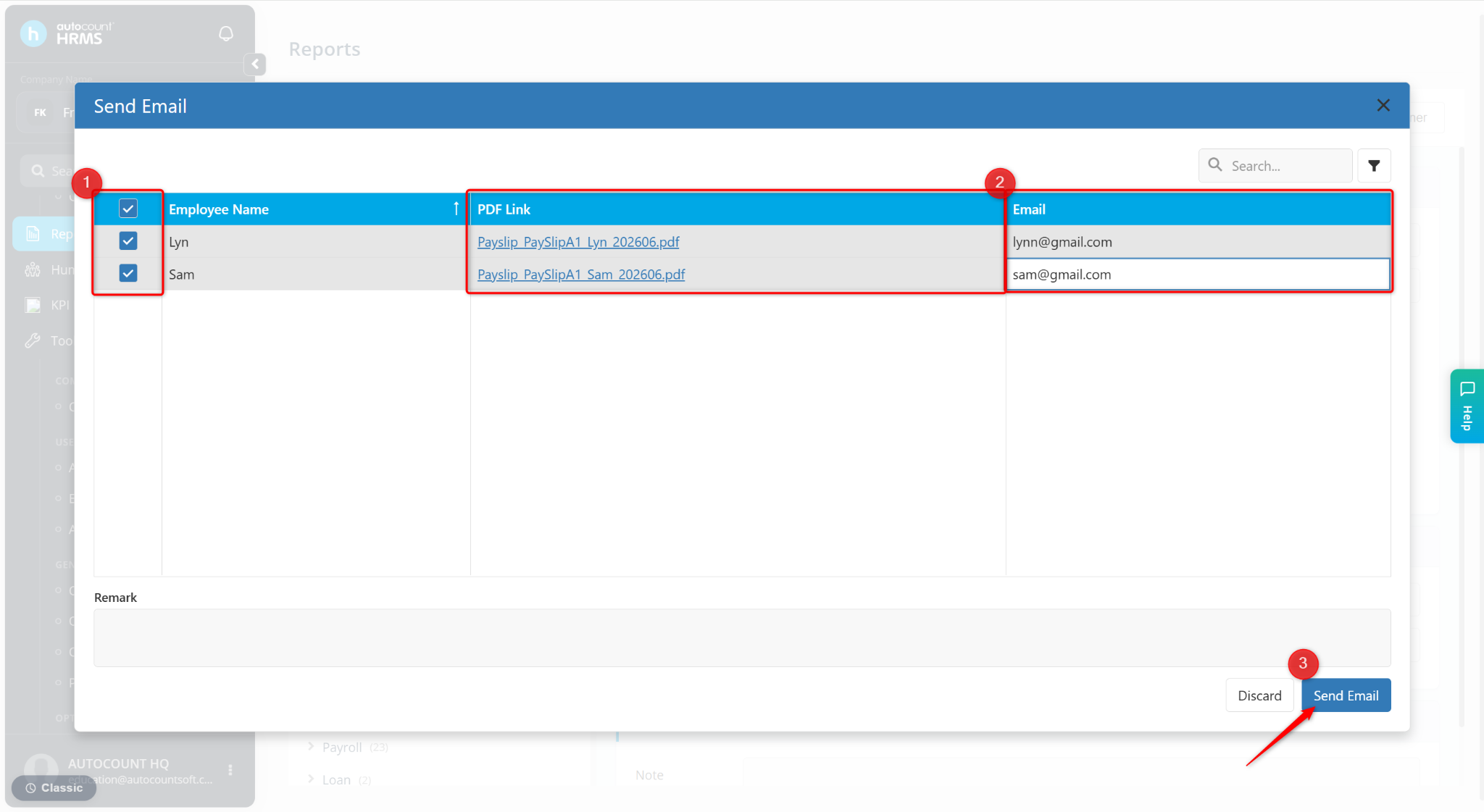
A preview page will be prompted for preview. Preview the payslip and download via the PDF link if needed.
Select the employees to receive the email.
Review or update employee email addresses.
Click Send Email.